Looking after your website
Backups and updates
What to back up and how often, and how to install updates to Gradespace Core, your kit's plugin and its theme safely.
On this page
Your website holds things you can't easily make again: bookings, records, messages, your pages and photos. A regular backup means a broken update, a hacked password or a mistake is an inconvenience, not a disaster. Updates keep your website working with new versions of WordPress, fix problems and add features. With an active licence key, updates to your kit are included for life.
Backups
Gradespace kits keep everything in your own WordPress website, on your own hosting. There is no Gradespace copy of your data, so backups are up to you (or your host).
What to back up
A full backup has two parts. You need both:
- The database: your pages, posts, settings and all your kit's records (bookings, customers, messages and so on).
- The files: WordPress itself, the plugins and theme, and wp-content/uploads, which holds your photos and any private files your kit keeps (for example uploaded documents).
How often
| Your website | Back up |
|---|---|
| Takes bookings, orders or records every day | Every day, automatically |
| Changes now and then | Every week |
| Any website | Just before you install updates or make big changes |
Keep several backups (for example the last 30 days), and keep at least one copy somewhere other than your hosting.
How to make a backup
- Your host: most hosts back up your website every day. Look for Backups in your hosting control panel. Check how long backups are kept, and how to restore one.
- A backup plugin: if your host doesn't, install a backup plugin from the WordPress plugin directory. Choose one that can save to a separate place, such as cloud storage.
Updates
Three parts of your kit get updates, all from thegradespace.com:
- Gradespace Core: free, always gets updates.
- Your kit's plugin and your kit's theme: get updates while your licence key is active.
WordPress itself, WooCommerce (if you use it) and any other plugins get their own updates in the same place.
Where updates appear
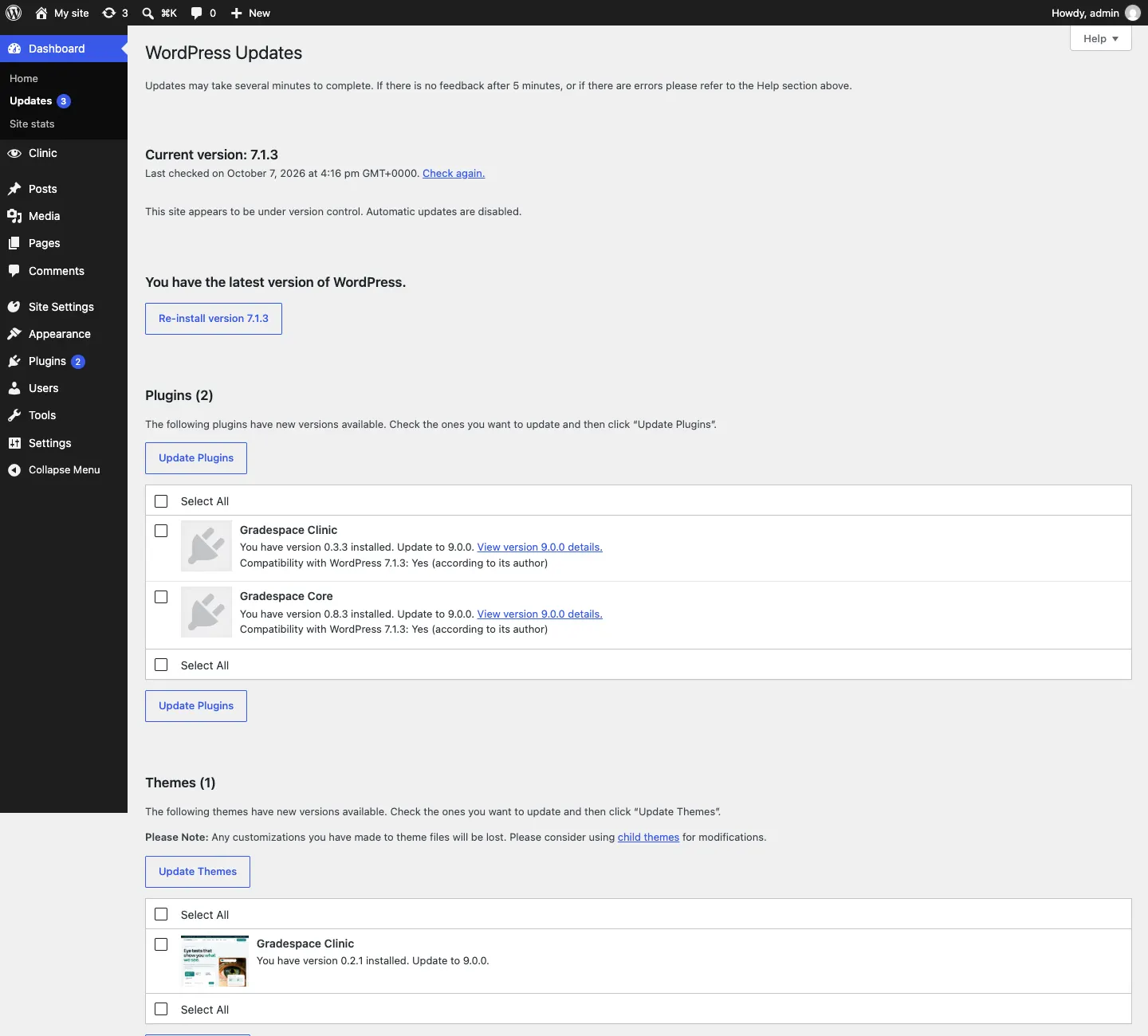
When an update is ready, WordPress shows a number next to Dashboard → Updates and Plugins. Go to Dashboard → Updates to see everything that can be updated.
You'll also see a yellow line under each plugin on the Plugins screen: "There is a new version of … available. View version … details or update now."
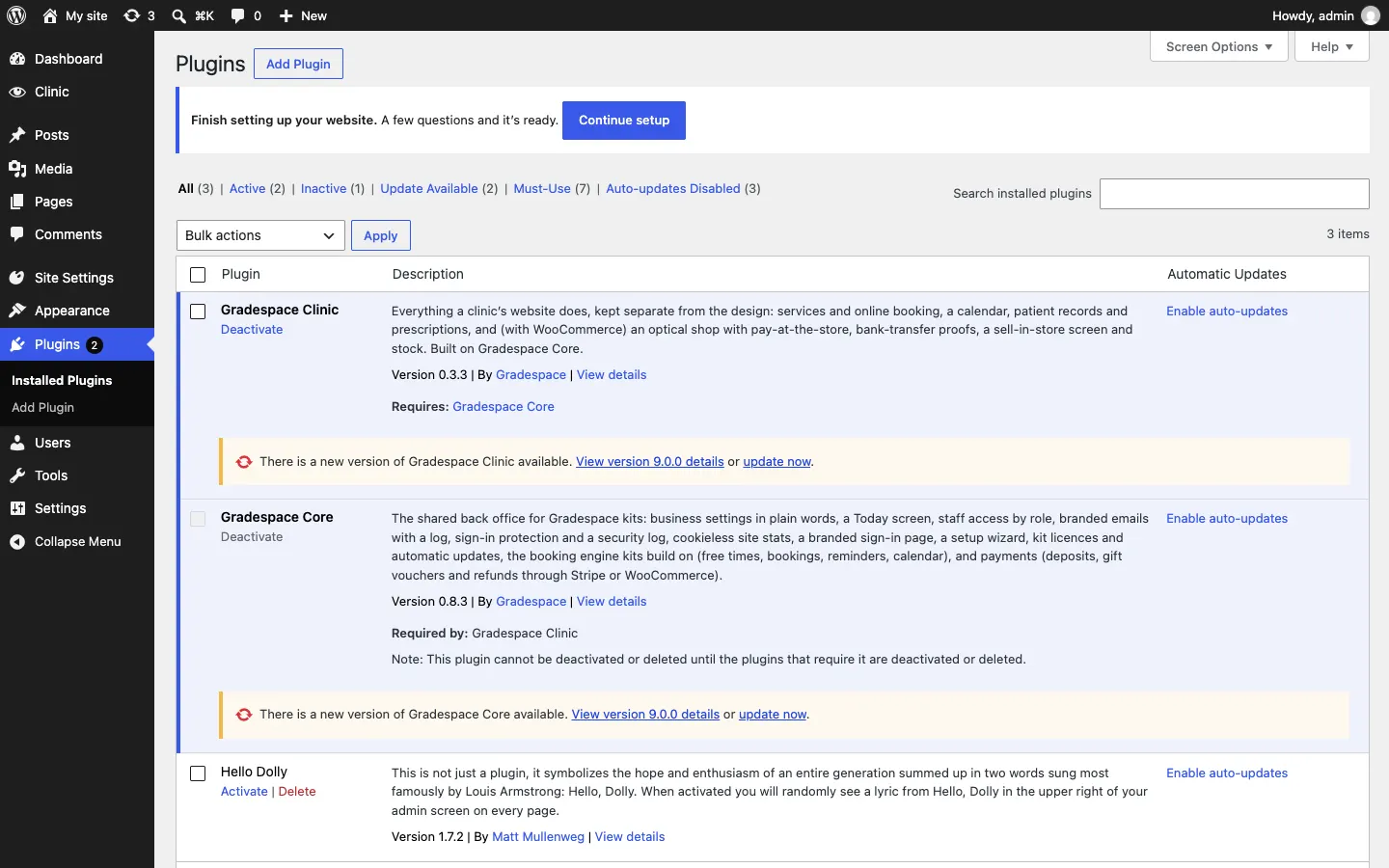
Click View version … details to read what's new before you update.
How to update safely
- Make a backup (or check that last night's backup worked).
- Go to Dashboard → Updates.
- Update Gradespace Core first: tick it under Plugins and click Update Plugins.
- Then update your kit's plugin the same way.
- Then update your kit's theme: tick it under Themes and click Update Themes.
- Visit your website and check a few pages, and your kit's Today screen.
Updating takes a minute or two. Don't close the page until WordPress says it's finished.
Your design and changes survive updates
Updating the theme doesn't undo your choices:
- your design, colour palette and "Keep the menu at the top" choice (in Site Settings → Design & colours) are kept by Gradespace Core, not by the theme;
- changes you make in Appearance → Editor (your menu, footer and templates) and your pages are kept in your website's database.
WordPress's Updates screen warns that "Any customizations you have made to theme files will be lost." That only matters if someone edited the theme's files directly, which you shouldn't need to do.
Automatic updates
You can let WordPress install updates for you. On the Plugins screen, click Enable auto-updates next to a plugin. Many owners prefer to update by hand right after a backup, so they can check the website straight away.
If an update says it needs your licence key
Without an active key, Gradespace Core still updates, but your kit's plugin and theme can't. Their rows say "Automatic update is unavailable for this plugin. Add your licence key to update: Settings → Licence." and the Updates screen names them, for example "Updates are ready for Gradespace your kit, Gradespace your kit theme. Add your licence key to update: Settings → Licence."
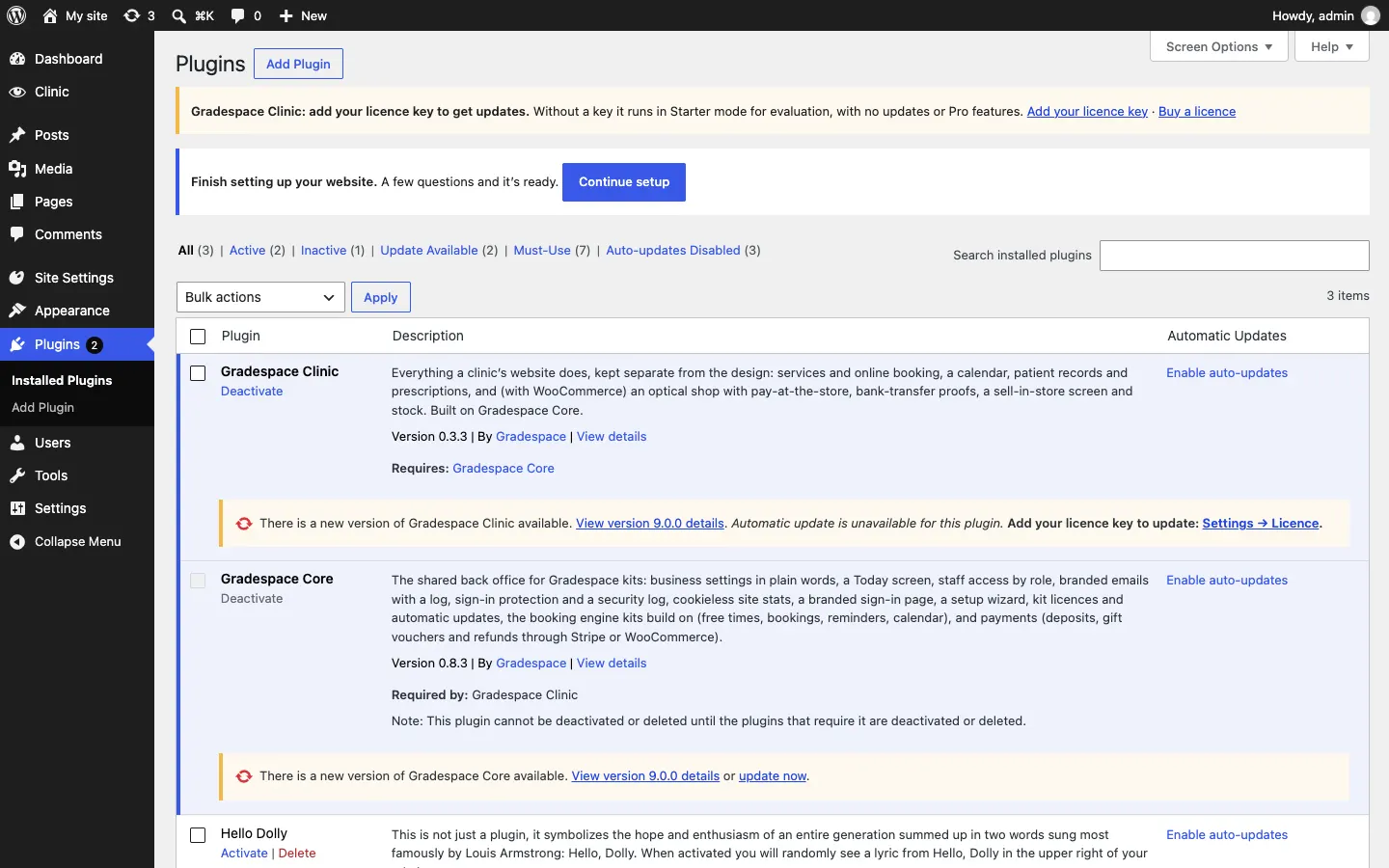
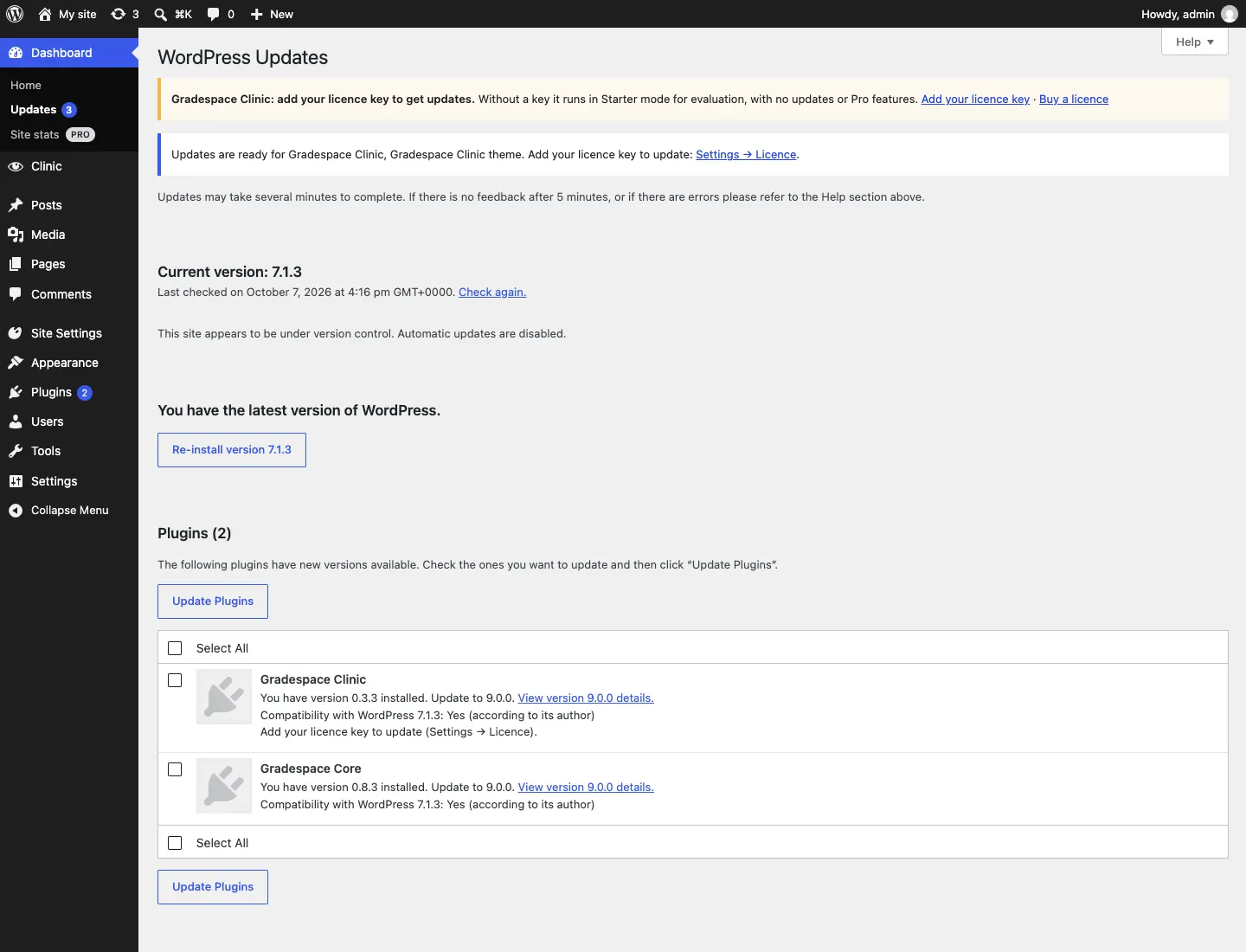
Add your key (see Installing your kit), then click Check again on Dashboard → Updates.
If an update fails
- "The update couldn't be downloaded. Check for updates again to get a fresh link, then try again." Download links only last an hour. Click Check again on Dashboard → Updates, then update again.
- "Gradespace updates couldn't be checked … We'll try again within the hour." Our update server couldn't be reached. Your website keeps working as it is. Try again later.
- The website shows an error after updating. Restore last night's backup, then email us (see Troubleshooting and support) with what you updated and what you saw.
Related chapters
- Troubleshooting and support
- Buying and your licence: what your licence covers.