Getting started

Install your WordPress kit

Three files, installed in order, then a short setup wizard. No technical knowledge needed.

Before you start

  • A WordPress website (WordPress 6.8 or later, PHP 8.0 or later) on any ordinary host.
  • An administrator account on it, so you can add plugins and themes.
  • Your licence key, from your receipt email.
  • The three .zip files from your licences page (choose Downloads). Leave them zipped: WordPress wants them that way.

Install in this order

Do these in your WordPress admin (your website’s address followed by /wp-admin). Older versions of WordPress say “Add New” instead of “Add New Plugin” and “Add New Theme”.

  1. Step 1: Install Gradespace Core

    gradespace-core-….zip

    Core is free and every kit runs on it, so it always goes first.

    PluginsAdd New PluginUpload PluginInstall NowActivate Plugin

    The setup wizard may open straight away. Leave it for now: you’ll come back to it in step 4.

  2. Step 2: Install your kit’s plugin

    gradespace-clinic-….zip, gradespace-church-….zip or gradespace-music-….zip

    The plugin holds your kit’s features: bookings, sermons, lessons and so on. WordPress won’t activate it without Core.

    PluginsAdd New PluginUpload PluginInstall NowActivate Plugin

  3. Step 3: Install your kit’s theme

    gradespace-…-theme-….zip

    The theme is the design. You can change the design and colours later without losing anything.

    AppearanceThemesAdd New ThemeUpload ThemeInstall NowActivate

  4. Step 4: Run the setup wizard

    It asks a few questions about your business and adds starter pages and a menu. If it doesn’t open by itself, click Continue setup on the Dashboard. You can run it again later from your kit’s Settings (Run setup again).

    DashboardContinue setup

  5. Step 5: Add your licence key

    Paste the key from your receipt email and click Activate. That switches on updates, and Pro or Agency features if your licence includes them. The same screen is also under your kit’s menu: Settings → Licence.

    SettingsGradespace licencePaste your keyActivate

    Before you add a key the kit runs in Starter mode, so you can try it, but it gets no updates.

That’s it: your website is ready to fill in. New versions then arrive in Dashboard → Updates.

Your kit, and a guide for your staff

The exact files for each kit, what its setup wizard asks, and a short guide your team can keep to hand. The guides are free to read and print.

Gradespace Clinic

Clinics and opticians

Your three files, in order

  1. 1Gradespace Core plugingradespace-core-0.5.1.zip
  2. 2Gradespace Clinic plugingradespace-clinic-0.2.4.zip
  3. 3Gradespace Clinic themegradespace-clinic-theme-0.1.6.zip

The setup wizard asks about

  • Your business
  • How people reach you
  • Opening hours
  • Services
  • Payments
  • Starter content

Afterwards everything is under Clinic in the WordPress menu, and your licence under Clinic → Settings → Licence.

The shop, pay-at-the-store and bank-transfer proofs need the free WooCommerce plugin. Bookings and patient records work without it.

Staff guide

Signing in, the Today screen, appointments and the calendar, patients and prescriptions, the shop and the till, settings and staff access.
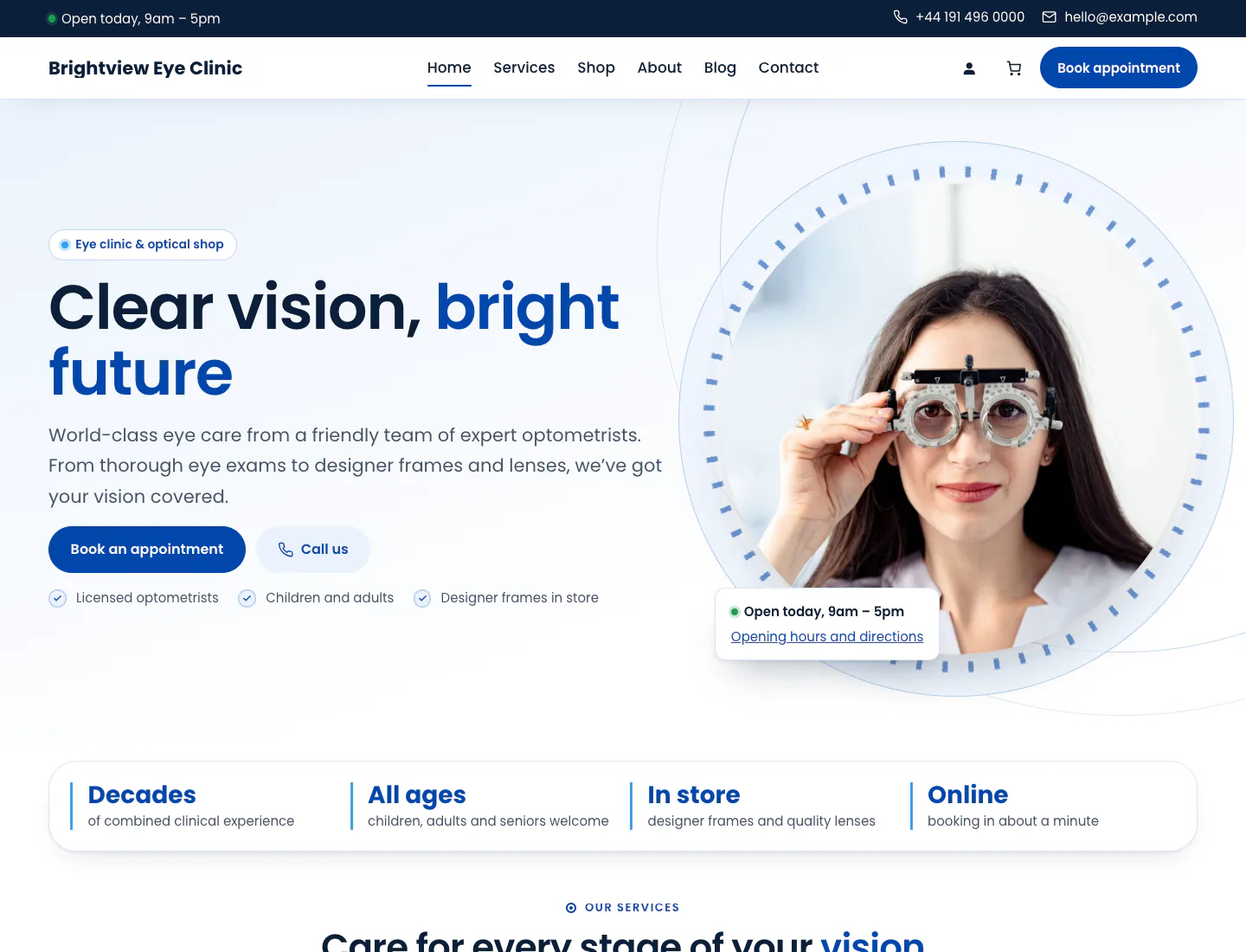
Clinic home page in the Default design on desktop: hero with “Clear vision, bright future”, booking and call buttons, opening-hours card and key facts
After the setup wizard, with its sample content (Default design). Yours shows your own words and pictures.

Gradespace Church

Churches with one or many congregations

Your three files, in order

  1. 1Gradespace Core plugingradespace-core-0.5.1.zip
  2. 2Gradespace Church plugingradespace-church-0.6.2.zip
  3. 3Gradespace Church themegradespace-church-theme-0.3.1.zip

The setup wizard asks about

  • Your business
  • How people reach you
  • Your church
  • Where you meet
  • Service times
  • Your YouTube channel
  • Starter content

Afterwards everything is under Church in the WordPress menu, and your licence under Church → Settings → Licence.

Sermons come from your YouTube channel every hour once you paste its address or @handle. No API key is needed.

Staff guide

Signing in, the Today screen, visit and prayer requests, sermons from YouTube, events, stories and churches, settings and staff access.

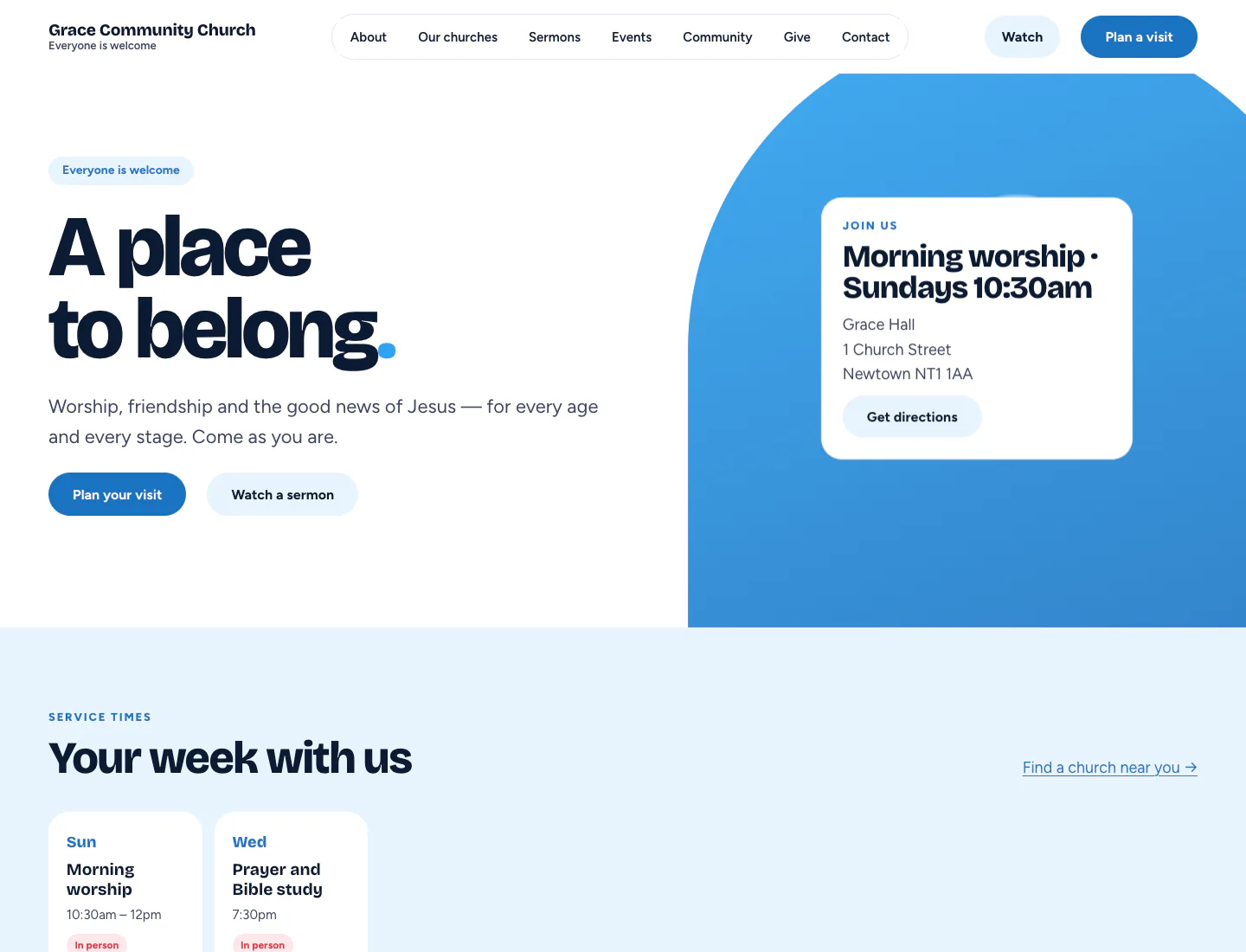
Church home page in the Gathering design on desktop: hero “A place to belong” with service-time card, Plan your visit and Watch a sermon buttons, and this week’s service times
After the setup wizard, with its sample content (Gathering design). Yours shows your own words and pictures.

Gradespace Music

Music schools and tutors

Your three files, in order

  1. 1Gradespace Core plugingradespace-core-0.5.1.zip
  2. 2Gradespace Music plugingradespace-music-0.3.1.zip
  3. 3Gradespace Music themegradespace-music-theme-0.1.3.zip

The setup wizard asks about

  • Your business
  • How people reach you
  • Your school
  • Instruments
  • Tutors
  • Lessons and prices
  • Opening days
  • Online booking
  • Starter content

Afterwards everything is under Music school in the WordPress menu, and your licence under Music school → Settings → Licence.

Online bookings are requests the office confirms, unless you switch on instant confirmation in Music school → Settings → Lessons.

Staff guide

Signing in, the Today screen, lesson bookings and the calendar, tutors and their hours, lesson types, students, settings and staff access.

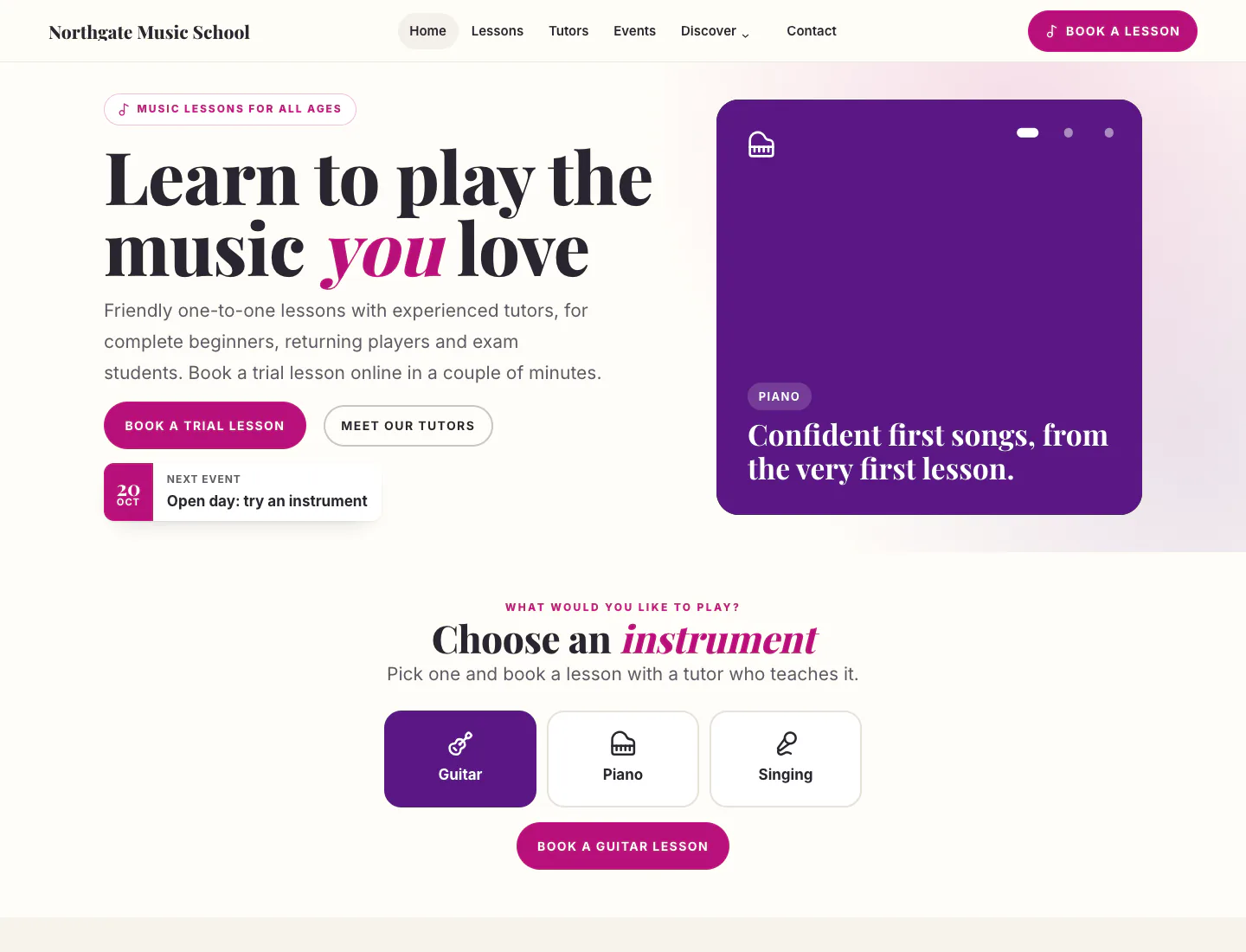
Music school home page in the Classic design on desktop: hero “Learn to play the music you love” with trial-lesson button, next event and instrument slides, then the instrument picker
After the setup wizard, with its sample content (Classic design). Yours shows your own words and pictures.

Moving to another website

A licence covers one live website at a time (Agency covers 5). To move it:

  1. On the old website, go to Settings → Gradespace licence and click Deactivate on this website. If the old site has already gone, choose Remove site next to it on your licences page instead.
  2. On the new website, install as above and activate the same key in Settings → Gradespace licence.

Nothing you saved is deleted when you deactivate a key.

Local and staging sites

Copies for building and testing don’t count towards your licence, so you can try things on a copy, then go live. These addresses are free:

  • localhost
  • ….local
  • ….test
  • ….localhost
  • staging.…
  • dev.…

They get the full features of your licence and show as “Local or staging, free” on your licences page.

Updates

Once your key is active, new versions of Gradespace Core, your kit’s plugin and its theme appear in Dashboard → Updates. Click Update, as you would for any plugin. Updates are included for life, with no renewals. View details on the Plugins screen shows what changed.

Getting help

Stuck, or something looks wrong? Tell us what you were doing, what you expected, and send a screenshot. Lost your key? Look it up on your licences page with the email address you bought with.