Running your website
AI marking suggestions
Switching on AI marking suggestions for Tutor assignments, what is sent and what isn't, the under-18 setting, and how tutors use and check a suggestion.
On this page
October 2026.
With this switched on, a tutor marking an assignment in the staff portal can press Suggest a mark and feedback. TargetGrade's AI suggests a mark and a few sentences of feedback. The tutor always checks and changes the suggestion; nothing goes to the student until the tutor returns the work themselves.
It's off until an administrator switches it on.
Switching it on
- Go to Online tests → Connection.
- Under AI marking suggestions, tick Use AI marking suggestions for assignments.
- Tick Include work by students under 18 only if you've told those students and their parents. Without it, the button never appears for an under-18 student's work: the screen says suggestions are switched off for them.
- Add the suggested paragraph to your privacy policy: Settings → Privacy → Policy guide has it under Gradespace Assess.
Your TargetGrade key needs the ai:mark permission. The connection check lists it as optional.
While suggestions are on, the office sees a notice saying so on their screens and in the staff portal.
What is sent
When a tutor presses the button, these go to TargetGrade, whose AI provider makes the suggestion:
- the assignment's title and instructions;
- the mark it's out of;
- the group's level, and the assignment's own subject;
- the text the student typed, and the text of a
.txt,.docxor.pdfthey handed in.
The student's name and contact details are never sent. TargetGrade doesn't store the work or the suggestion.
A scanned PDF or a picture has no text to read, and other kinds of file aren't read. The screen says when a file was left out.
Using a suggestion
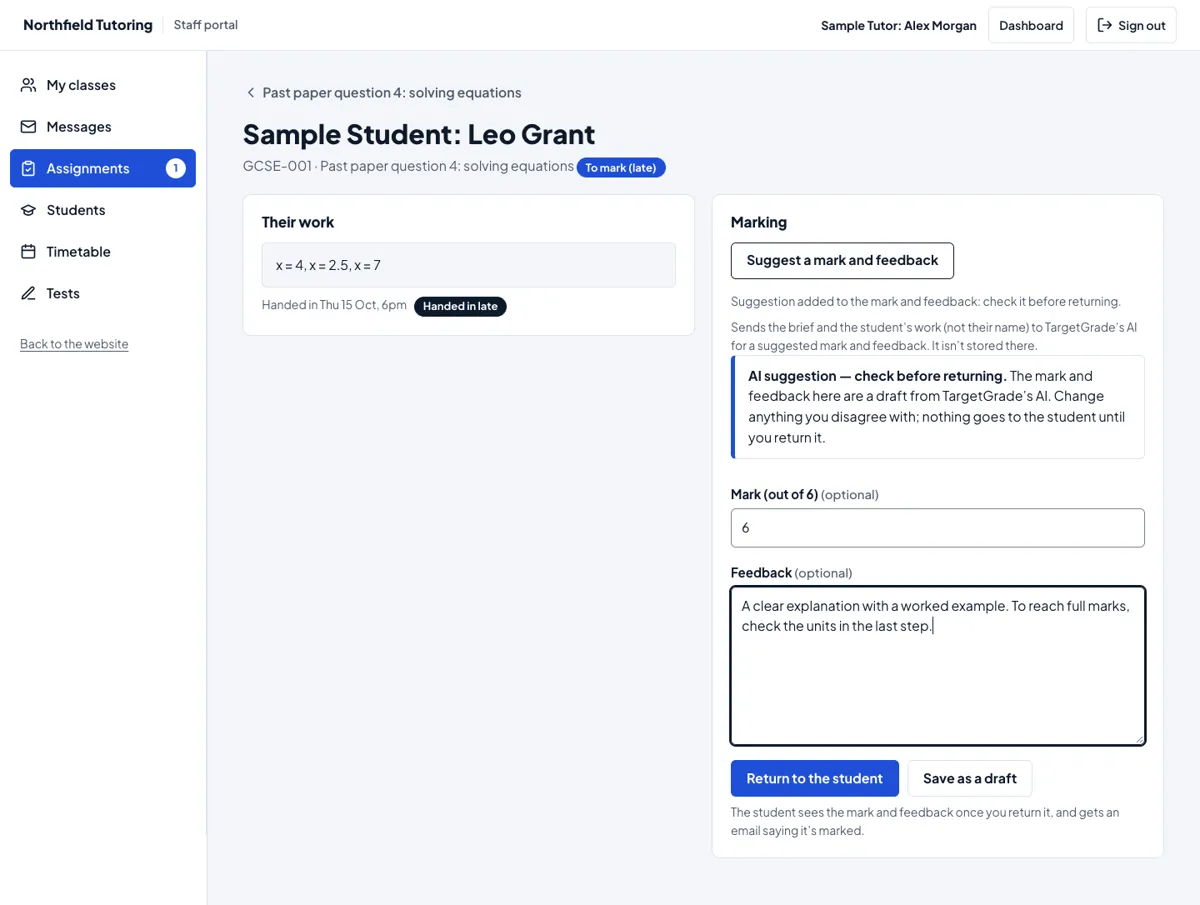
- Open the work from Assignments in the staff portal. Only the tutors of the assignment's subject can ask for a suggestion.
- Press Suggest a mark and feedback. It can take up to half a minute.
- The suggested mark and feedback fill the usual Mark and Feedback boxes as a draft, labelled AI suggestion — check before returning.
- Read the work yourself, then change the mark and the feedback until they're yours.
- Press Save as a draft or Return to the student as usual.
Nothing is saved or returned until you press one of Tutor's own buttons. Suggestions share your centre's monthly AI allowance with AI questions; once it's used up, the screen says so.