Running your website
Connecting TargetGrade
Pasting the school ID and API key, the connection check, setting up results messages, a sample practice test, and disconnecting.
On this page
Only administrators can do this. Go to your business menu (for example Tutoring) → Online tests → Connection.
Your school and key
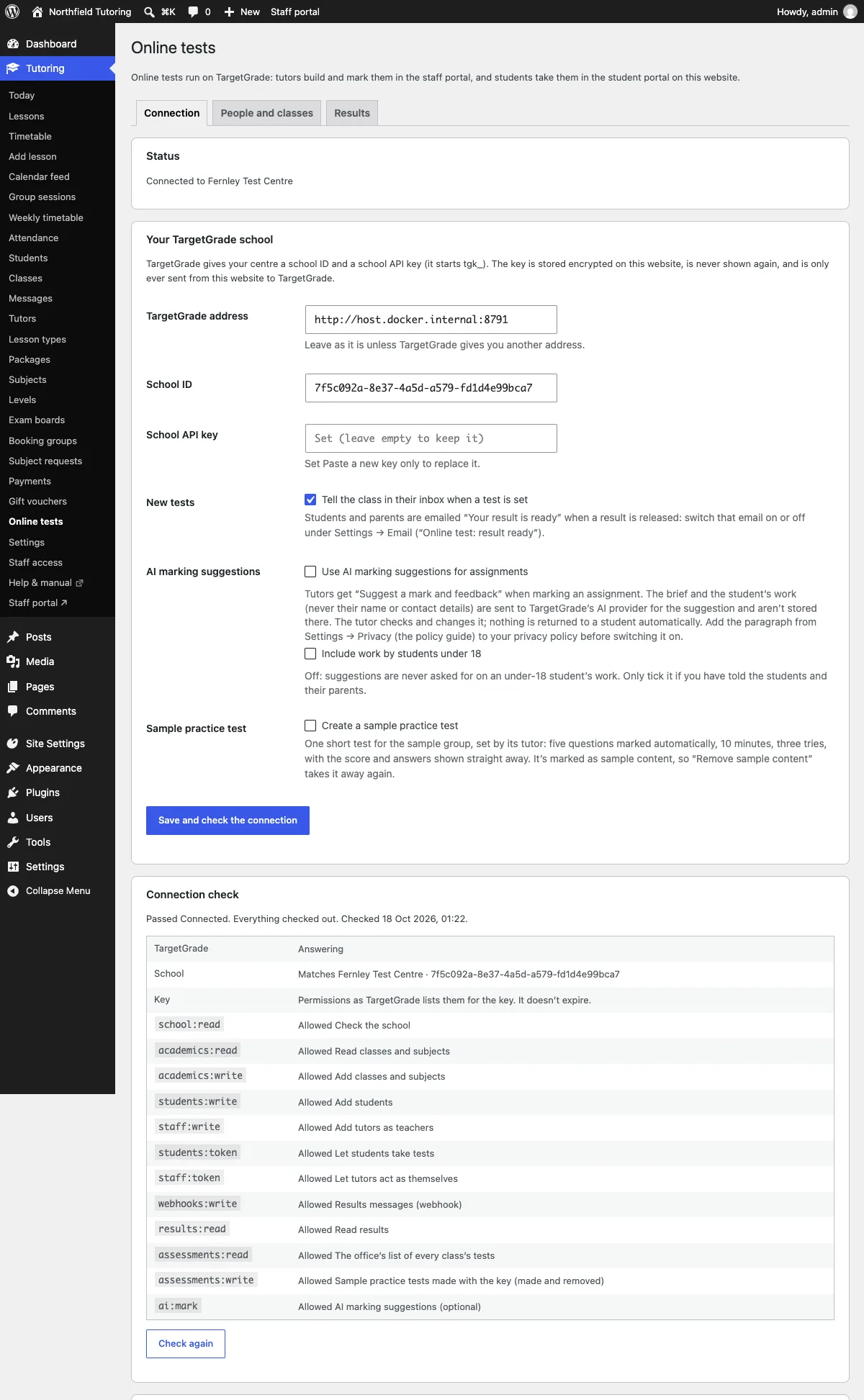
- TargetGrade address. Leave it as it is (
https://api.targetgrade.com) unless TargetGrade gives you another address. - School ID. Paste the ID TargetGrade gave you.
- School API key. Paste the whole key. It starts
tgk_. - Click Save and check the connection.
The key is stored encrypted on your website and is never shown again: afterwards the field says Set. To replace it, paste a new key and save. Leave the field empty to keep the one you have.
If you ever change your website's security keys (the "salts" in wp-config.php), the stored key can't be read any more. The status then says Key needs re-entering: paste it again.
The connection check
The check shows:
- whether TargetGrade answers;
- whether the key belongs to the school ID you gave;
- each permission the website needs, as Allowed, Missing or Missing (optional), as TargetGrade lists them for your key, and when the key expires.
If a permission is missing, the message names it: ask TargetGrade for a key that has it. Optional ones only switch a feature off: ai:mark (AI marking suggestions), assessments:read (the office's list of every test), assessments:write (a sample practice test made with the key), results:read, webhooks:write and staff:token. Check again runs the check whenever you like.
Results messages
Click Set up results messages. TargetGrade then tells your website when a test is set and when an attempt is submitted or marked. Each message is signed, and the website checks the signature before it believes anything. Click Send a test message to try it.
If your website's address changes, the screen says so: click Set up again.
Without results messages, results still show when a student opens them. They just aren't emailed.
New tests in the class inbox
With Tutor's class messages (Tutor 0.3.0, Pro), tick Tell the class in their inbox when a test is set. The class then gets "New test: …" in their portal inbox.
A sample practice test
If you imported Gradespace Tutor's sample content, the screen offers Create a sample practice test. The box is ticked for you the first time you connect; afterwards, tick it and click Save and check the connection.
It makes one short test for the sample group's first subject, set by that subject's tutor:
- five questions, all marked automatically: two multiple choice, one true or false, one short answer and one fill in the blanks;
- 10 minutes and three tries;
- the score shown straight away, and the right answers once all three tries are used (TargetGrade's rule: no answers while a student can still try again).
It's published at once, so you can try it as a sample student, or with Preview as a student. Once made, the screen says Made.
The test is sample content. Site Settings → Sample content → Remove sample content takes it out of TargetGrade as well: it's deleted, or archived once a student has taken it. If the sample tutor has no sign-in, the test is made with your school key instead, and removed with it in the same way.
Disconnecting
Disconnect from TargetGrade deletes the key and the results messages' secret from your website. Students stop seeing Tests. Nothing is deleted in TargetGrade. The links to your people stay, so reconnecting the same school carries on where you left off.