Running your website
Building tests
Making a test in the staff portal: settings, questions of five kinds, questions from the AI or pasted from a worksheet, checking them before they're added, and publishing or scheduling.
On this page
October 2026.
Tutors build tests in the staff portal → Tests. Each tutor works with their own TargetGrade teacher account (see Students, tutors and classes), so they can only make tests for the subjects they teach in their groups. A Maths tutor in GCSE-003 doesn't see, change, mark or analyse its English tests, even though they teach the same group. If a tutor tries a subject they don't teach, TargetGrade says no and the page tells them to ask the office.
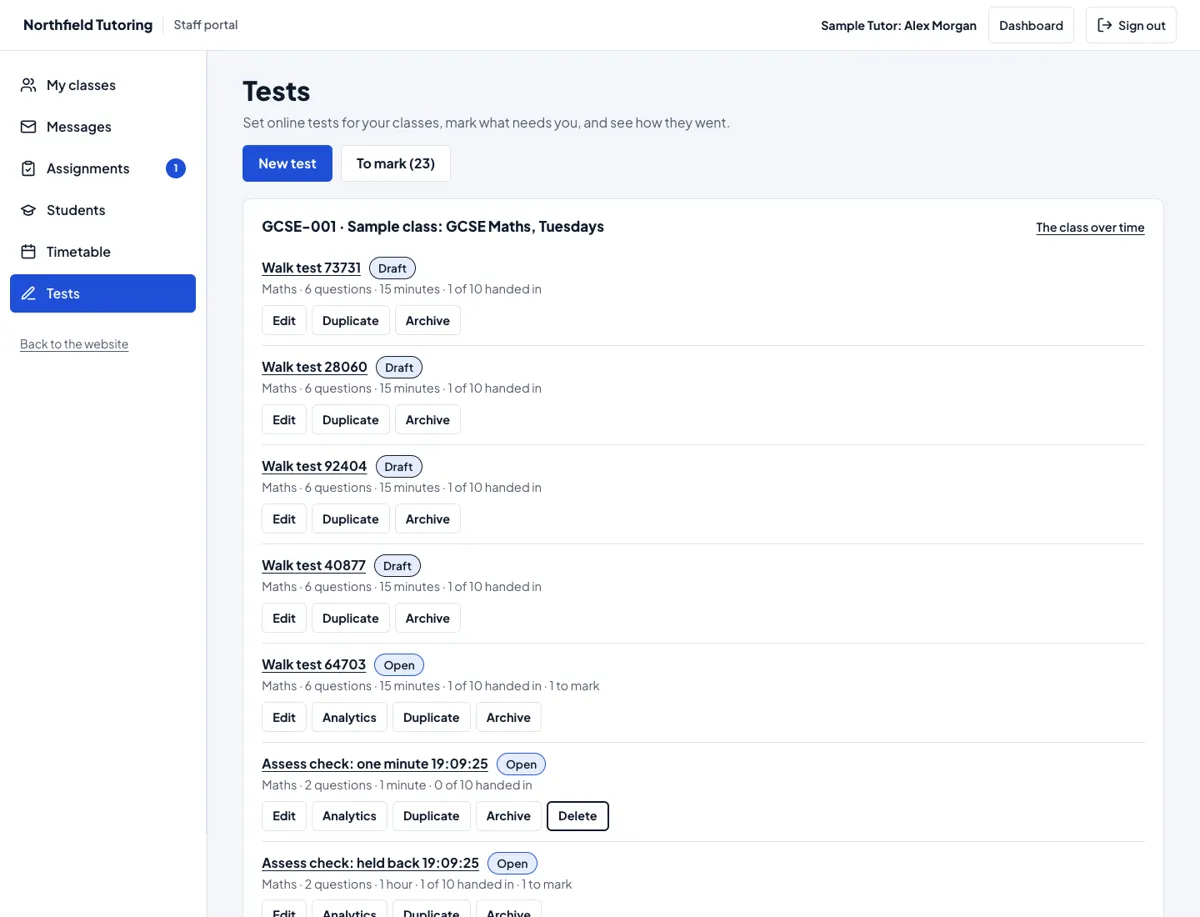
The list
The tutor's tests are grouped by group, and each test shows its subject. Each one shows its subject, how many questions it has, the time limit, how many students have handed it in, and a status in words: Draft, Scheduled, Open, Closed or Archived. The buttons are:
- Edit: the test's page;
- Analytics: how it went (once published);
- Duplicate: a draft copy with the same questions;
- Archive: hides it from the class (and Bring back undoes it);
- Delete: only while nobody has taken it. It asks first.
The office sees Every class's tests (to look at): they can see them all, but only the tutor who made a test can change or mark it.
Making a test
- Press New test.
- Choose the group and subject. Only the subjects you teach in your groups are offered. The group's students who take that subject see the test.
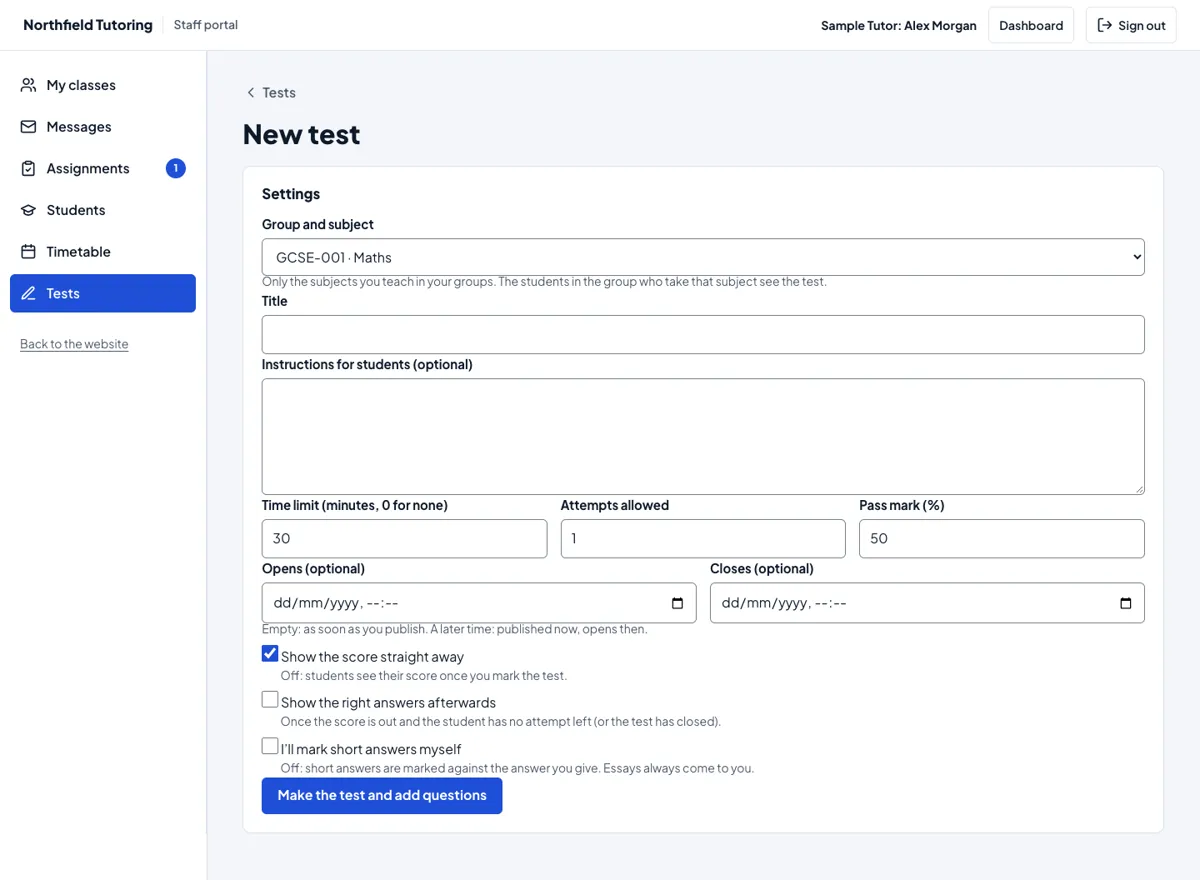 3. Fill in the settings:
- Title, and Instructions for students if you want them;
- Time limit in minutes (0 for none), Attempts allowed, and the Pass mark as a percentage;
- Opens and Closes, both optional;
- Show the score straight away: off means students see their score once you've marked the test;
- Show the right answers afterwards: answers show once the score is out and the student has no attempt left, or the test has closed;
- I'll mark short answers myself: off means short answers are marked against the answer you give. Essays always come to you.
- Press Make the test and add questions. It's saved as a draft.
Questions
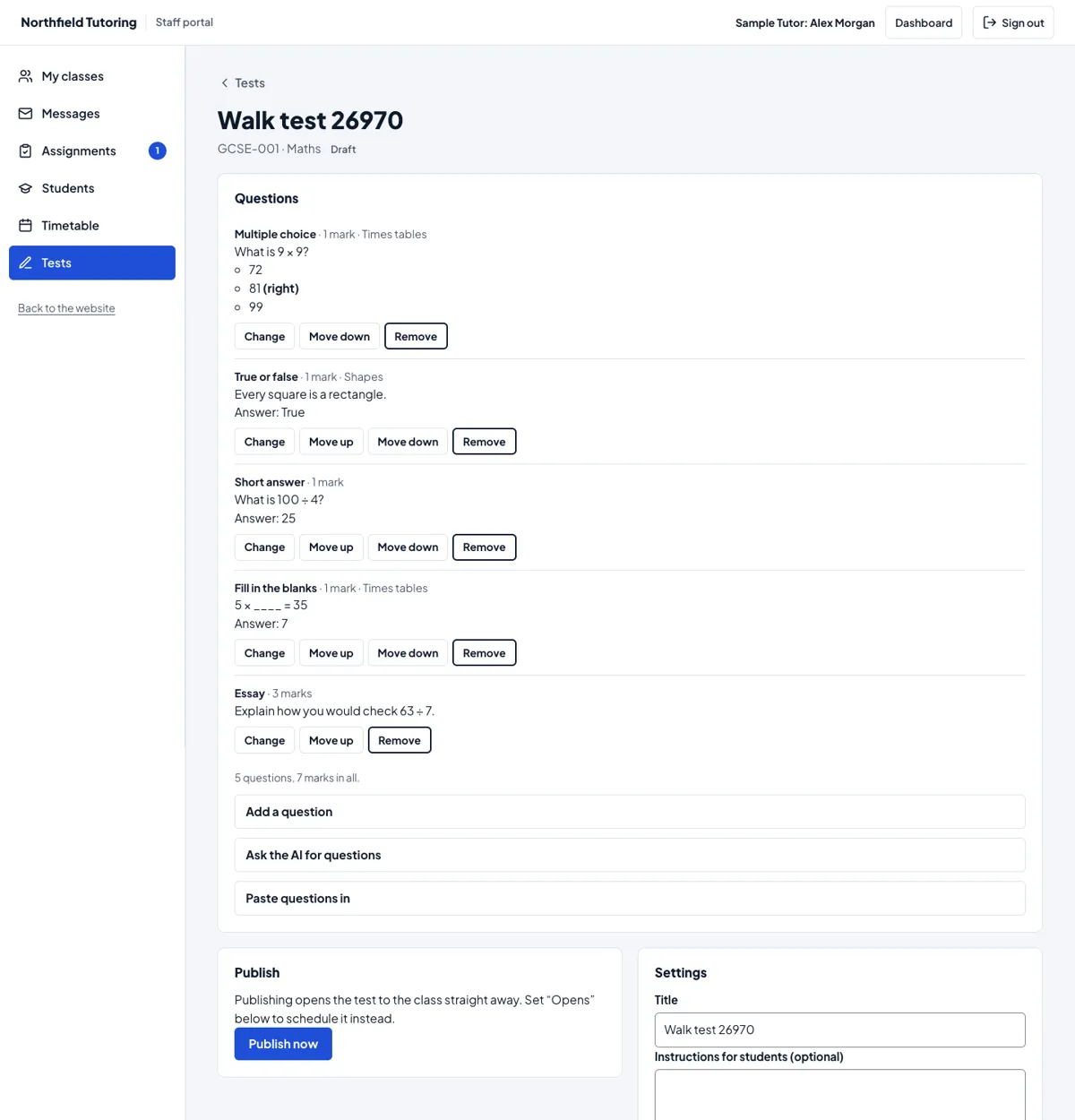
Add a question takes five kinds:
| Kind | What to fill in |
|---|---|
| Multiple choice | The choices, one per line, and the number of the right one |
| True or false | True or False as the right answer |
| Short answer | The right answer (or tick Marked by the tutor) |
| Fill in the blanks | Write ____ for each blank; give the answers separated by commas |
| Essay | Optionally a model answer or what you're looking for. You always mark essays |
Each question has its marks and an optional topic. Topics feed the analytics. Change, Move up, Move down and Remove sit under each question. The total marks update as you go.
Questions from the AI, or pasted in
- Ask the AI for questions: give a topic, how many, a difficulty and the kinds you want.
- Paste questions in: paste them from a worksheet or document, with answers if you have them.
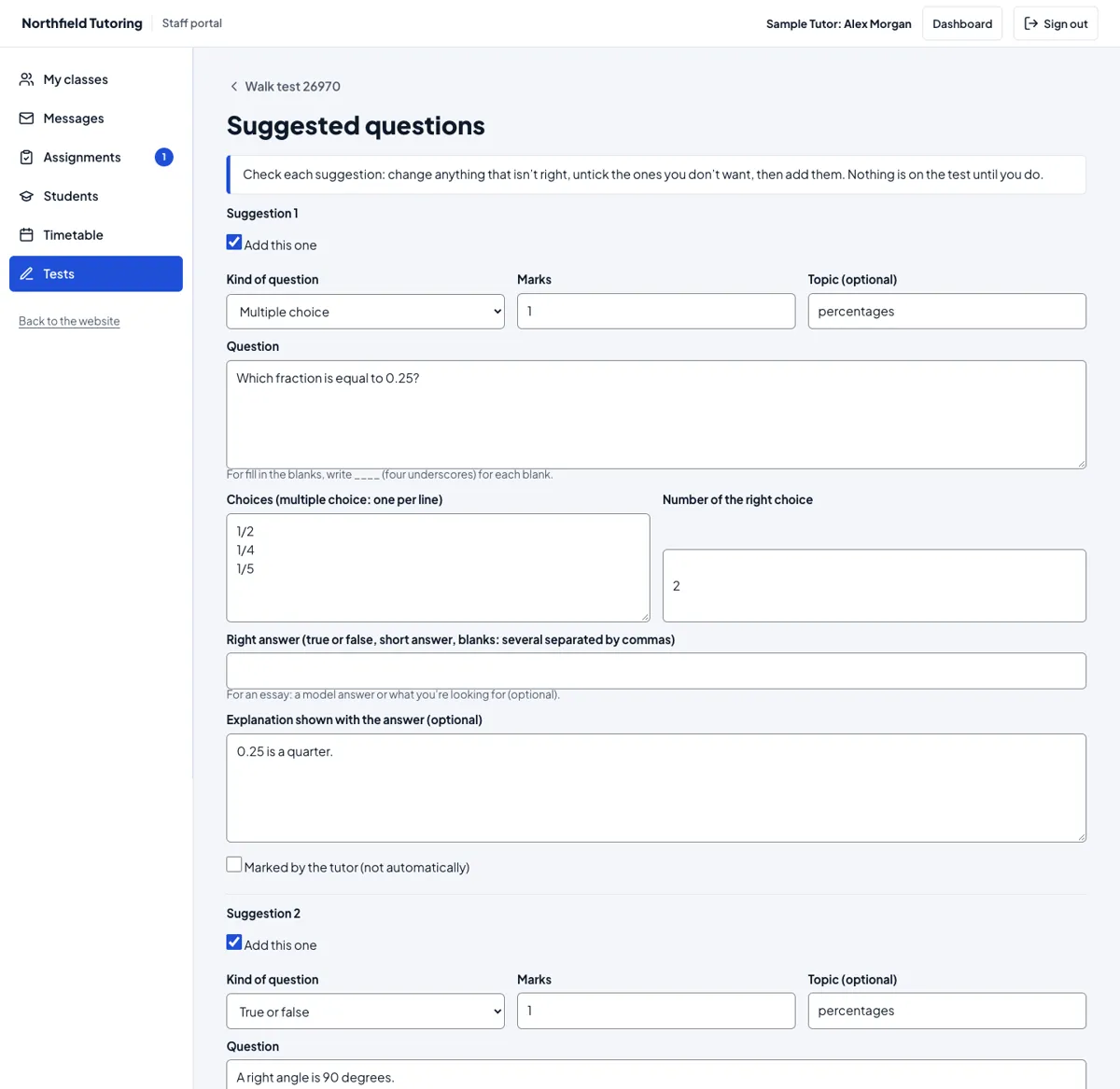
Either way you get Suggested questions to check first. Change anything that isn't right, untick the ones you don't want, then press Add the ticked questions, or Throw them all away. Nothing is added to the test until you do.
TargetGrade's AI is paid for by TargetGrade, with a monthly allowance for each centre. Once this month's allowance is used up, the page says so.
Publishing
- Publish now opens the test to the class straight away.
- If Opens is set to a later time, the button says Schedule it: the test is published now and opens then.
- Back to a draft takes it away again. Students who have already finished it keep their results.
A test needs at least one question before it can be published. Every form on these pages works without JavaScript too.