Running your website
Tests for students
What students see under Tests, taking a timed test, saving and carrying on later, submitting, the preview, and using it without JavaScript.
On this page
Students open Tests in the student portal (or the Tests section of the student area).
The list
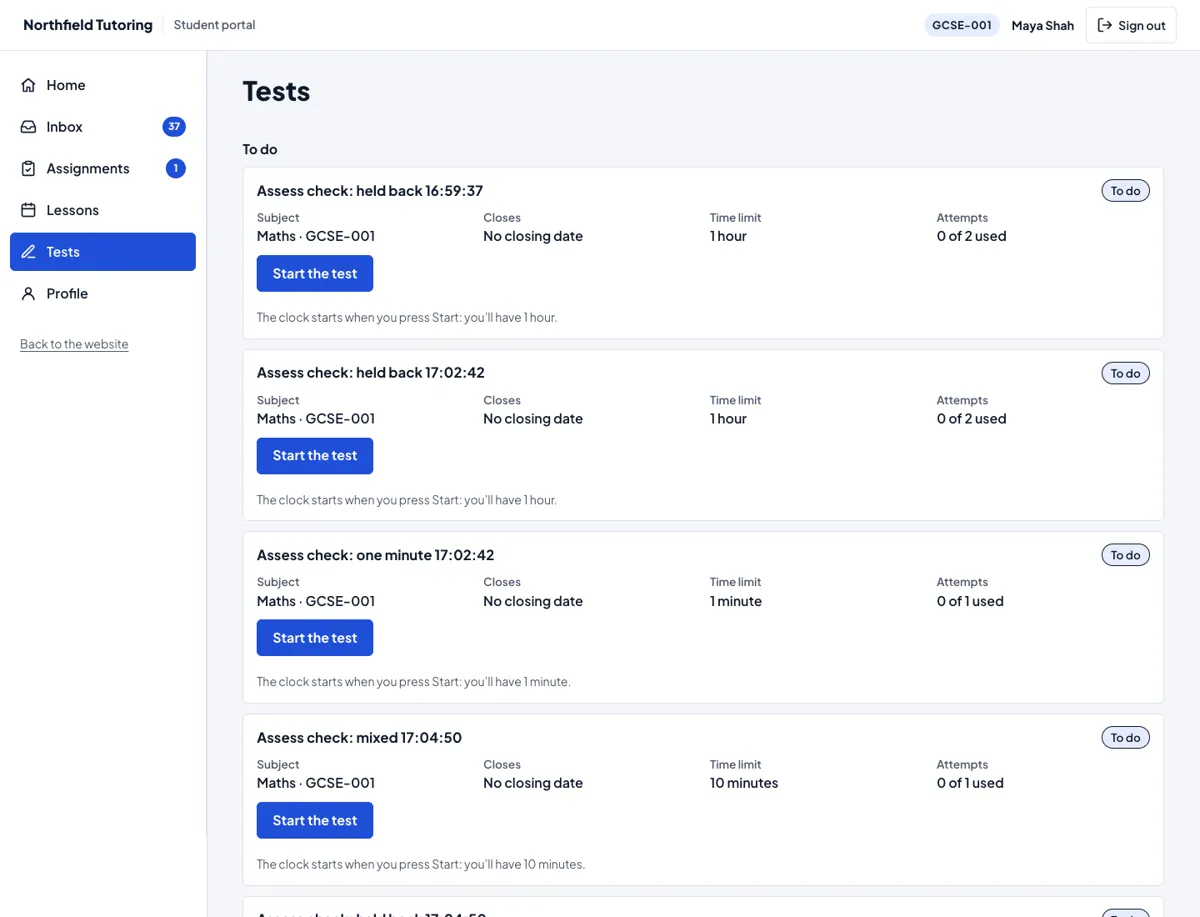
Students see only the tests for the subjects they take. When they take more than one, buttons at the top show one subject at a time (or Every subject).
To do lists each test they can take, soonest closing first, with:
- the subject and group;
- when it closes;
- the time limit;
- attempts used, for example "0 of 2 used";
- a status: To do, Opens …, In progress, Submitted, Marked or Closed.
Done lists the tests they've finished, with Results and Review your answers.
Taking a test
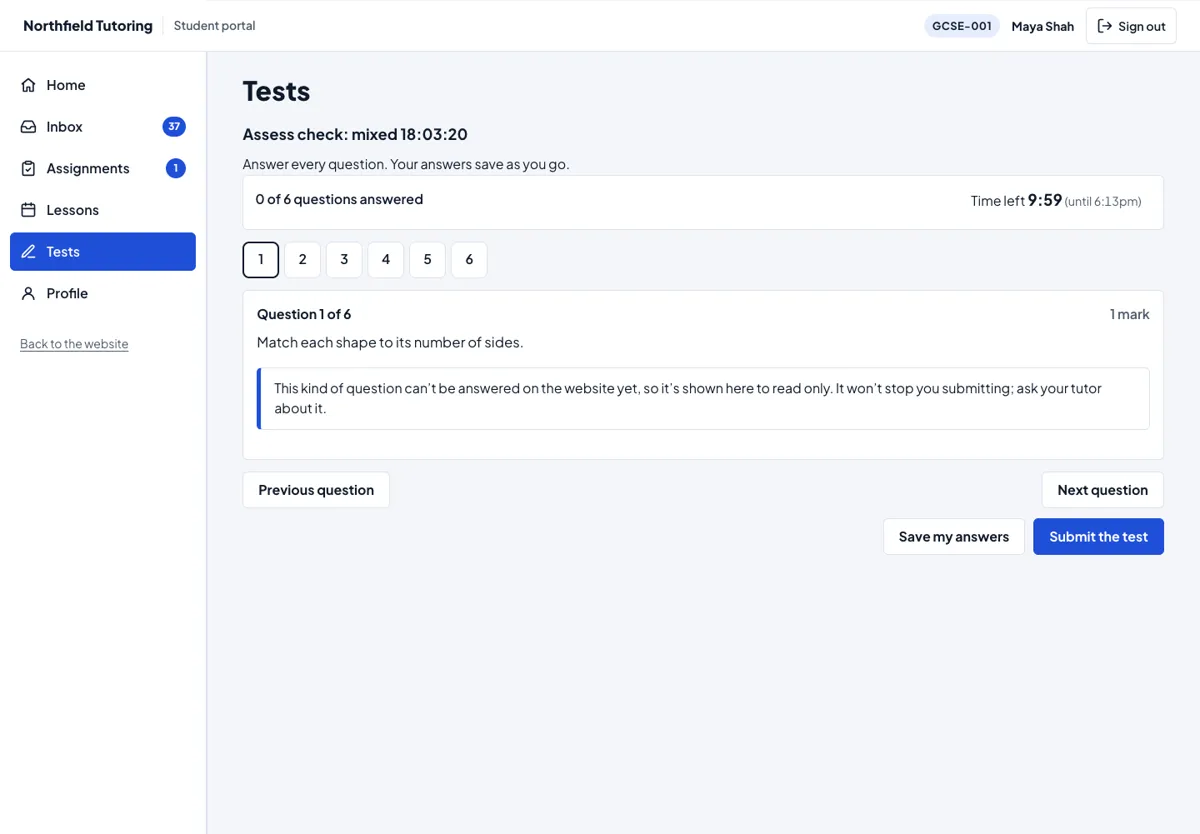
- The student presses Start the test. For a timed test the clock starts now, and the button says how long they'll have.
- The test shows one question at a time. The numbered buttons jump to any question (answered ones are marked), and Previous question and Next question step through. Everything works with the keyboard.
- Each answer is saved a moment after it changes, and the page says Saved. If the connection drops, it tries again and says so.
- The bar at the top shows how many questions are answered and the time left. Screen readers announce 10, 5 and 1 minutes and 30 seconds left. Under two minutes the clock is outlined.
- Submit the test asks first: "Submit your answers? You've answered 4 of 6 questions. Unanswered questions score zero."
A student can leave and come back: Carry on with the test opens the same attempt with their answers. The clock doesn't stop meanwhile.
When the time runs out, the test is submitted with the answers saved so far, and the page says Time's up.
Preview as a student
When a tutor or the office uses Gradespace Tutor's Preview as a student, Tests show what that student sees, with Preview: answers aren't saved at the top. See the questions (preview) opens a test's questions to read only. Nothing can be started, saved or submitted, so the preview never uses up one of the student's tries. Results and reviews the student already has can be read.
Without JavaScript
The test still works. Every question is on one page. Save my answers saves them, and Submit the test opens a page that asks before submitting.