Running your website
Bidding, buying and paying
How bidding works for your buyers, Buy It Now, watching, offers, saved searches, My bids, invoices, and buyers who don't pay.
On this page
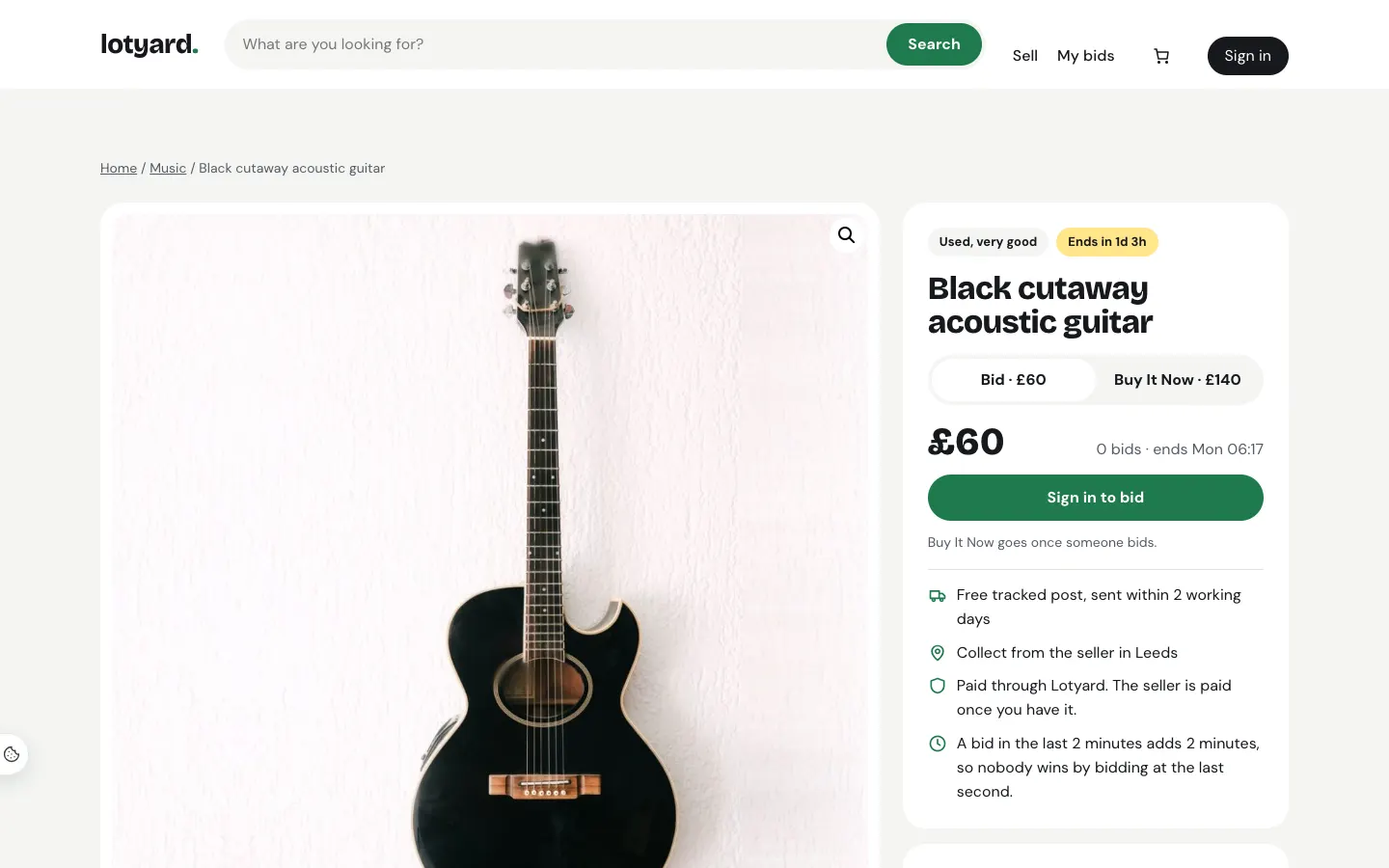
- Bidders need an account (made on My account). They enter the most they're willing to pay; the website bids for them one step at a time, only as far as it takes to keep them ahead. If two people enter the same top bid, the one who bid first leads.
- Bid steps rise with the price, from 50p under £10 up to £50 over £1,000.
- Extra time: a bid in the last few minutes (2 unless you change it) adds that much to the clock, so nobody wins by bidding at the last second.
- A big bid asks to be confirmed first, so a slip of the finger doesn't cost anyone.
- Bids are final. If someone bids by mistake, staff can take them off the lot under Marketplace → Bidders → Take a bidder off a lot; the price is worked out again from the other bids.
- Reserves: the lot page says whether the reserve has been met, never what it is.
- Buy It Now on an auction is there until the first bid. Buy It Now listings (no auction) go straight into the basket.
- What they pay is shown before they bid: on your own lots, the bid plus the buyer's premium.
My bids
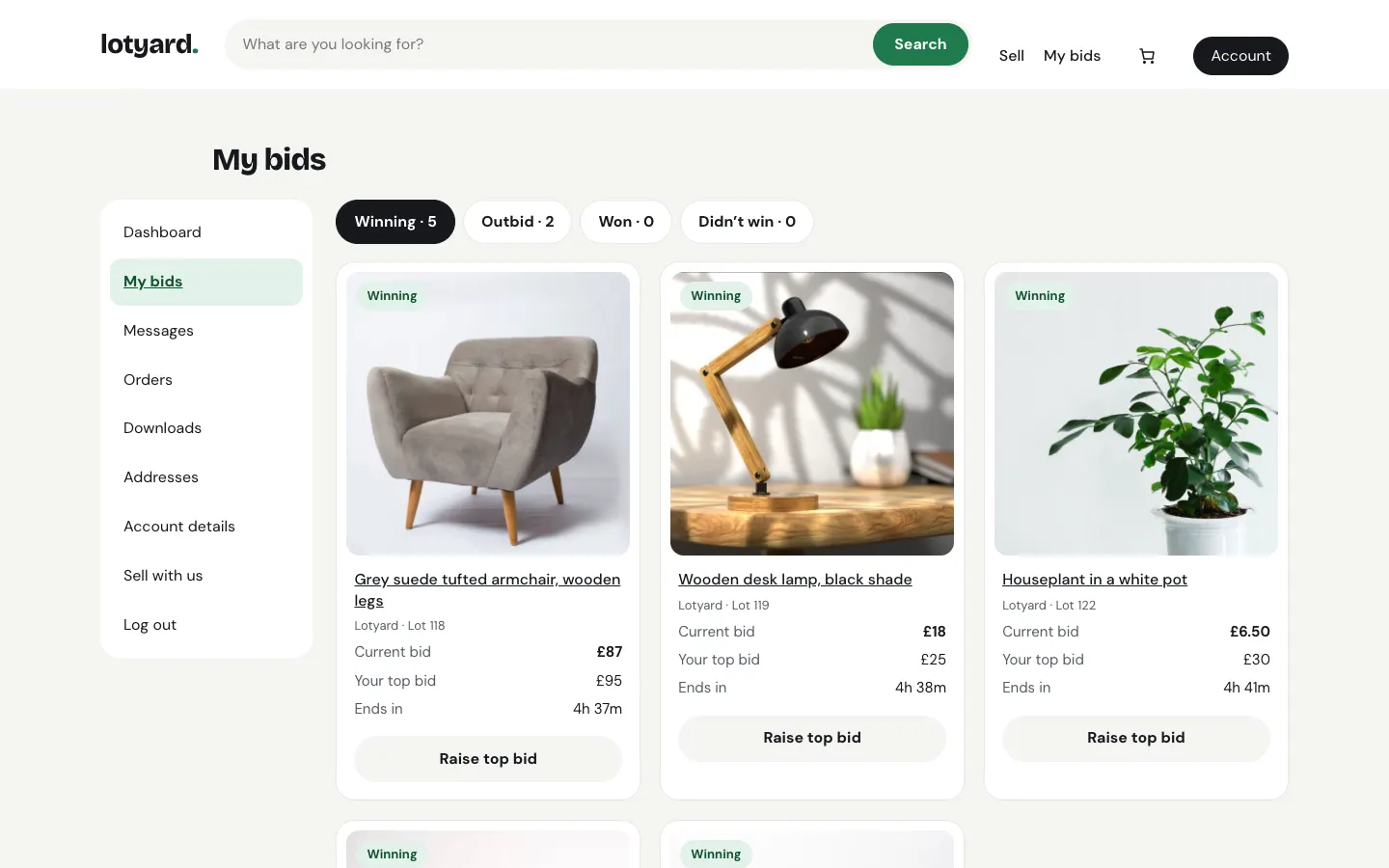
Buyers see everything they've bid on in My account → My bids: winning, outbid, won (with Pay now) and lost. They get an email when they're outbid and when they win.
Watching
Every lot and Buy It Now page has a Watch button (a heart). Watched items are listed in My account → Watching, with the price and the time left, and Stop watching on each. An hour before a watched auction ends, the buyer gets one email, unless they've already bid on it (bidders get outbid emails instead). From two watchers up, the page shows how many people are watching.
Make an offer (Pro)
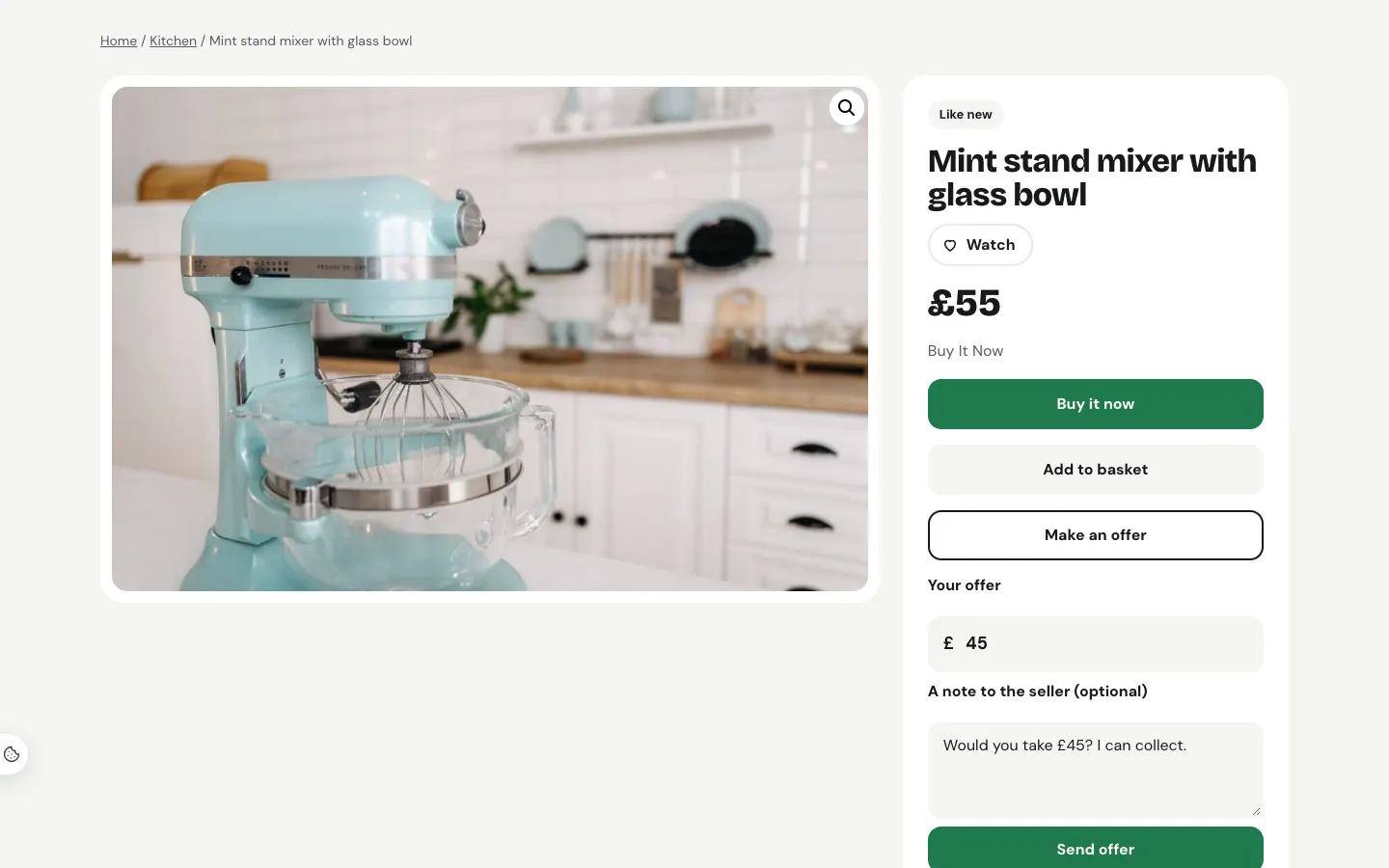
On a Buy It Now listing that accepts offers, buyers can press Make an offer under the price and offer less, with a note if they like.
- Switch it on per listing. For your own items, tick Accept offers in the product's Auction or Buy It Now box; outside sellers tick it on their listing in the seller hub. Decline offers below is optional: an offer under it is declined straight away, and the buyer isn't told the amount.
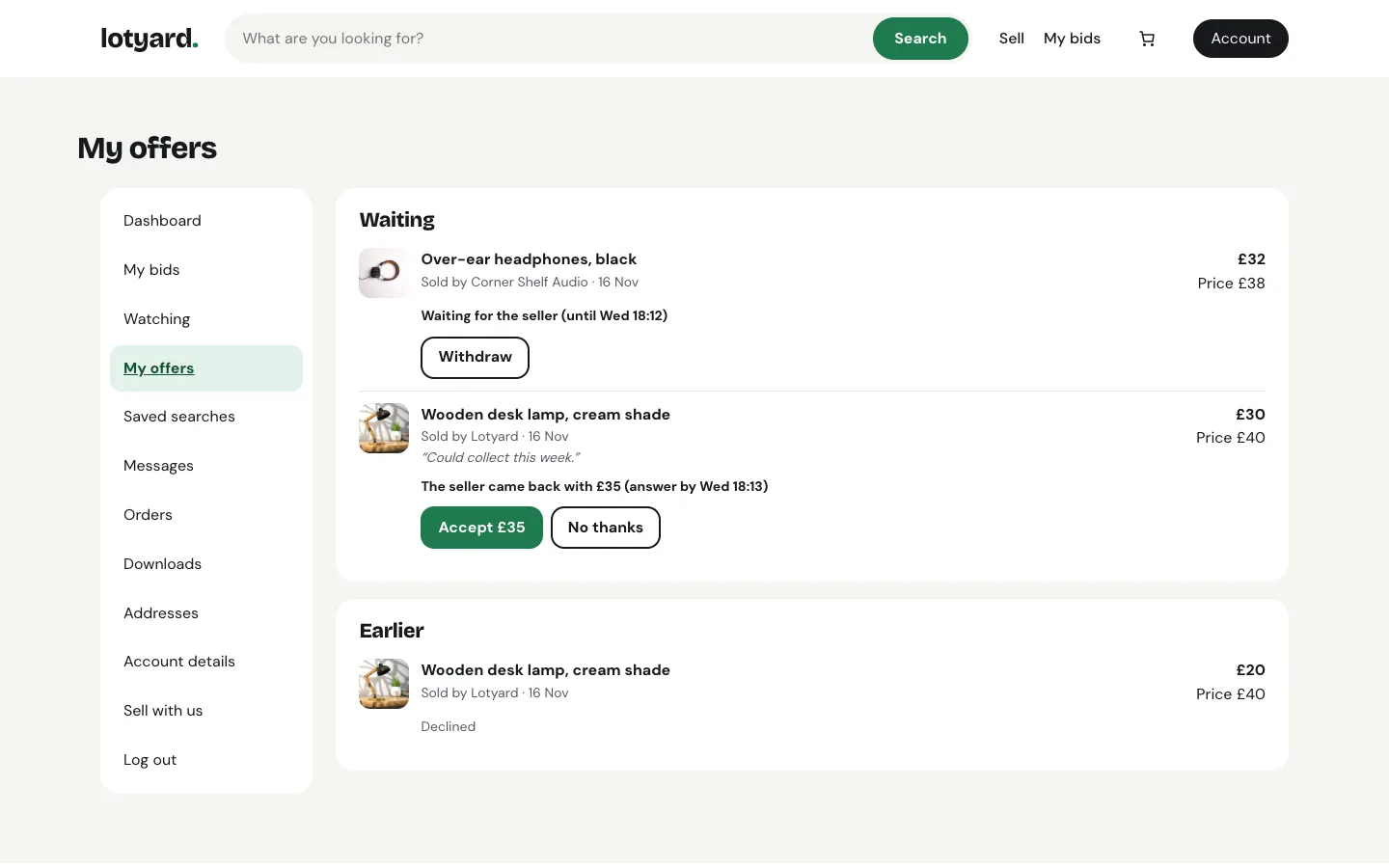
- 48 hours to answer. Accept, decline, or come back once with your own price (between their offer and yours). A counter-offer gives the buyer 48 hours to accept or decline. Anything not answered in time expires, and the buyer is emailed.
- 48 hours to pay. An accepted offer emails the buyer a Pay now button, which puts the item in their basket at the agreed price and takes them to checkout. A one-off item is held for them meanwhile, and other offers on it are declined. If they don't pay in time, it goes back on sale at its price.
- Limits. Each buyer can make three offers per item, one waiting at a time (withdrawing one doesn't count). Waiting offers close if the item sells out.
Buyers follow their offers in My account → My offers: waiting, counter-offers to answer, accepted ones to pay, and earlier ones.
You answer offers on your own items in Marketplace → Offers; see Staff screens. Outside sellers answer theirs in the seller hub.
Saved searches (Pro)
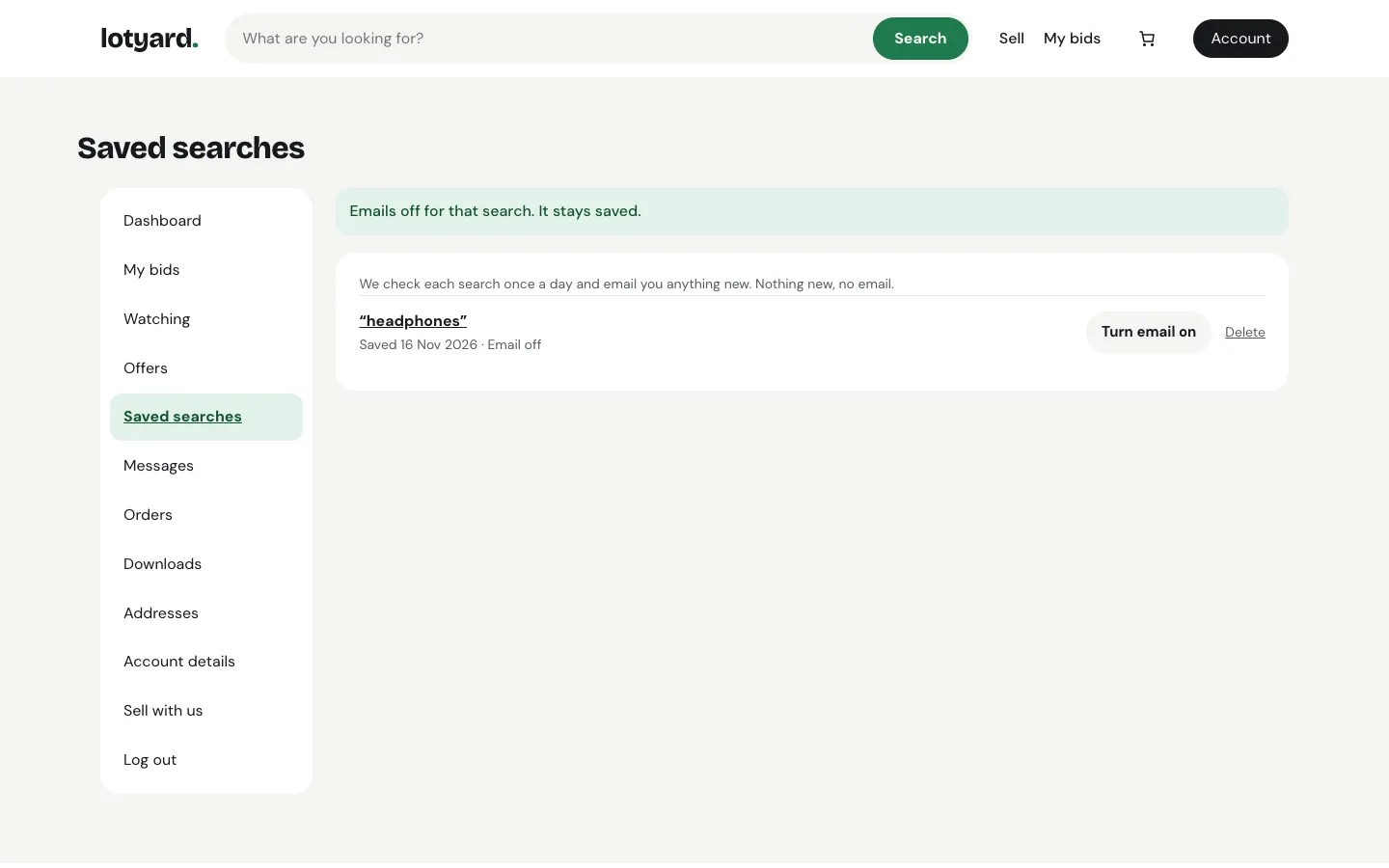
On the shop, a category or search results, buyers can press Save this search: the words, the category and All, Auctions or Buy It Now. Once a day, from 08:00, each saved search sends one email with anything new that matches (up to eight items and a link to the rest). Nothing new, no email. My account → Saved searches lists them, with Turn email off and Delete on each; up to 25 each.
Invoices and the payment deadline
A winner's invoice is a WooCommerce order waiting for payment. They're reminded the day before it's due. If it isn't paid in time it's cancelled, the lot goes back to you, and the buyer can no longer bid (Buy It Now still works). Lift the ban under Marketplace → Bidders when there was a good reason. To stop banning and only cancel the invoice, turn off Cancel overdue invoices and stop that buyer bidding in Marketplace → Settings → Marketplace.
Printing invoices and receipts
Every order has an invoice to print or save as PDF, and a receipt once it's paid:
- Invoice: your business's name, address and contact details, your company number and VAT number when you've set them, who it's for, each item with its lot number, the buyer's premium with the VAT in it, postage and the total. Until it's paid it shows when it's due and a Pay now button. Once it's paid it shows the date and how it was paid.
- Receipt: the same, with what was paid. It only appears once the order is paid.
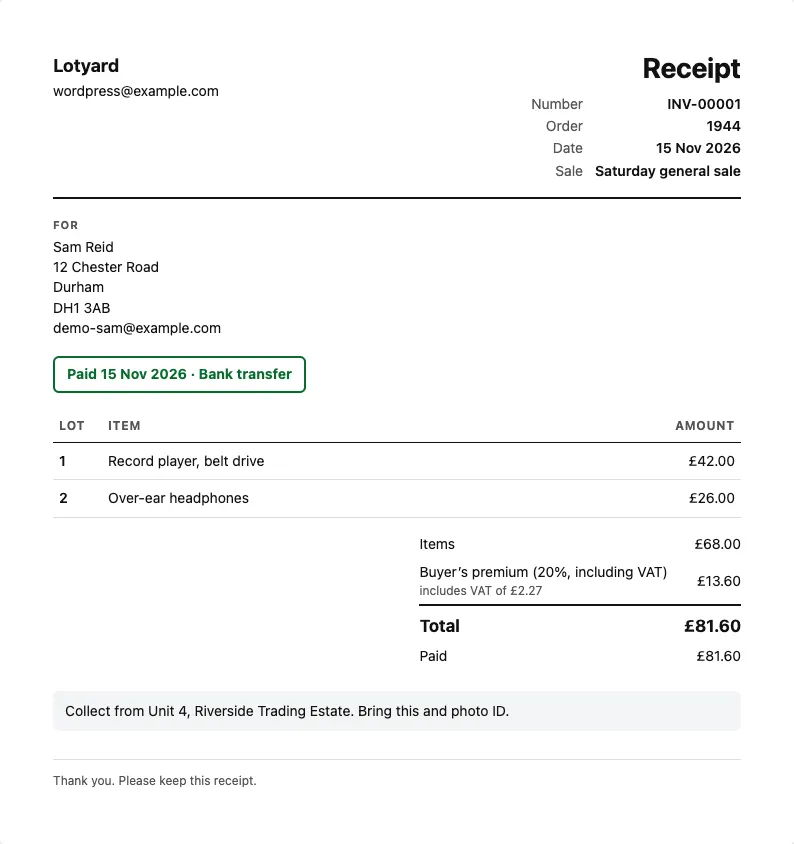
Buyers find both under My account → Orders, on the order's own page, as a link in the "You won" email and in WooCommerce's order emails once they've paid. Those links open without signing in, the same way WooCommerce's own order links do. Staff find them in the Marketplace box on the order screen (WooCommerce → Orders → the order).
Each invoice gets the next invoice number (INV-00001, INV-00002 and so on) when it's issued: when a winner's invoice is written, when an order is paid or put on hold for a bank transfer, or when its invoice is first opened. The numbers have no gaps, and a cancelled invoice keeps its number. The order number is shown under it.
Your company number comes from Settings → Business. The invoice number prefix, the number to start from (to carry on from your old invoices) and your VAT number are in Marketplace → Settings → Marketplace → Invoices. Leave the VAT number empty if you aren't VAT registered.