Running your website
Campaigns and appeals
Adding a campaign with a target, keeping its total up to date, milestones, where the money goes, questions, recent gifts, the appeal banner and campaign updates.
On this page
A campaign is anything you're raising money for: a winter appeal, a new van, a second advice day. Each one gets its own page with the story, a progress bar, days left, milestones that tick themselves off, where the money goes, questions and answers, recent gifts and a timeline of updates. A donate panel sits beside it all.
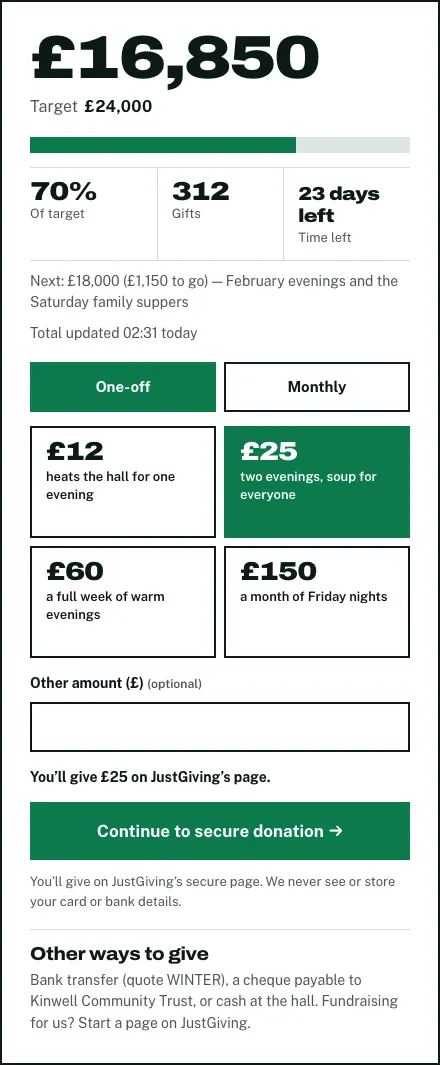
The website never makes up a figure. You type in the total from your donation provider's dashboard, and the page says when you last did it. With no total typed in, the page says the total is to come (never £0), and percentages are rounded down so a campaign never looks funded before it is.
Features marked (Pro) need a Pro or Agency licence.
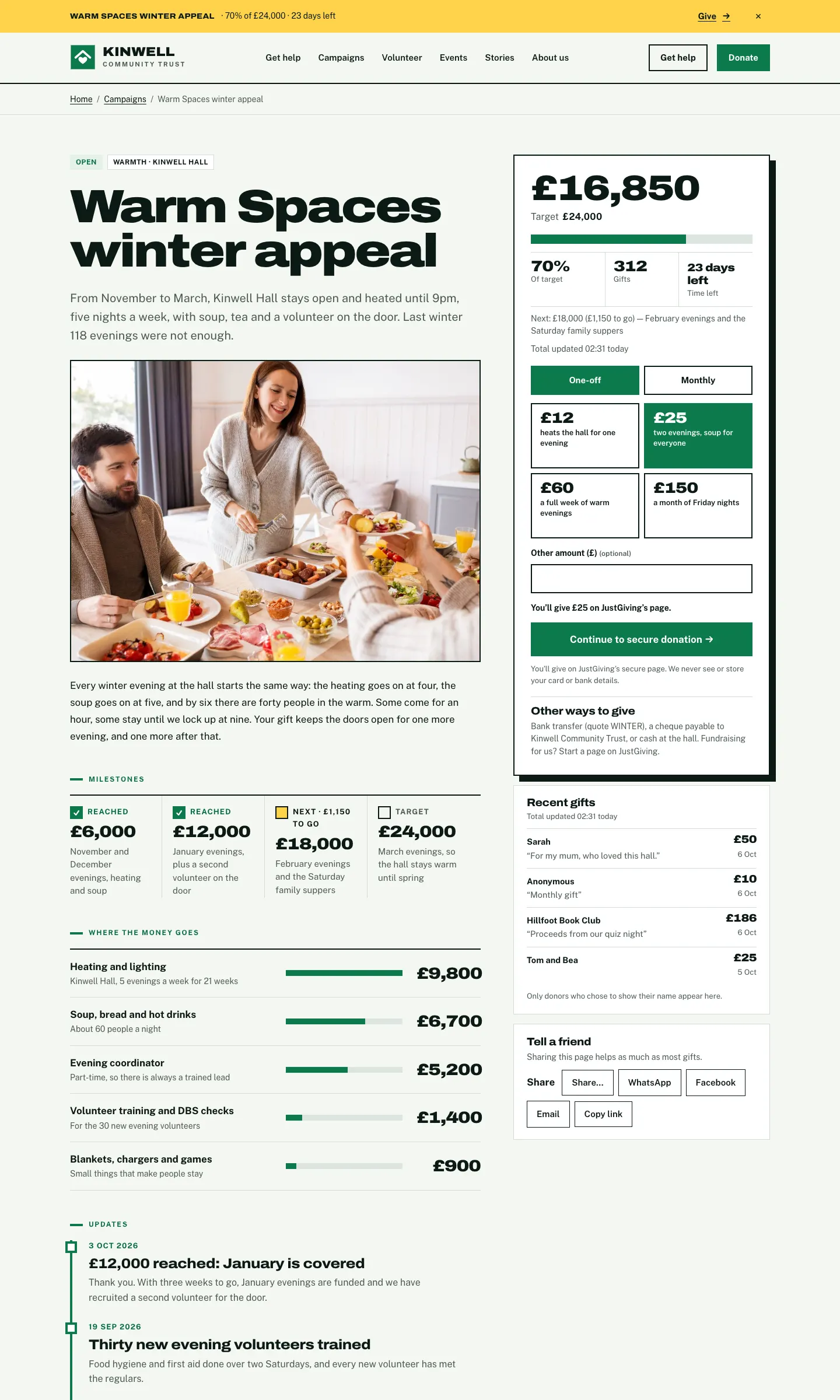
On a phone, everything stacks into one column: the title, photo and story, then milestones, where the money goes and updates. The progress and donate card comes further down the page; the Give link in the appeal strip jumps straight to it.

How to see your campaigns
- Go to Charity → Campaigns.
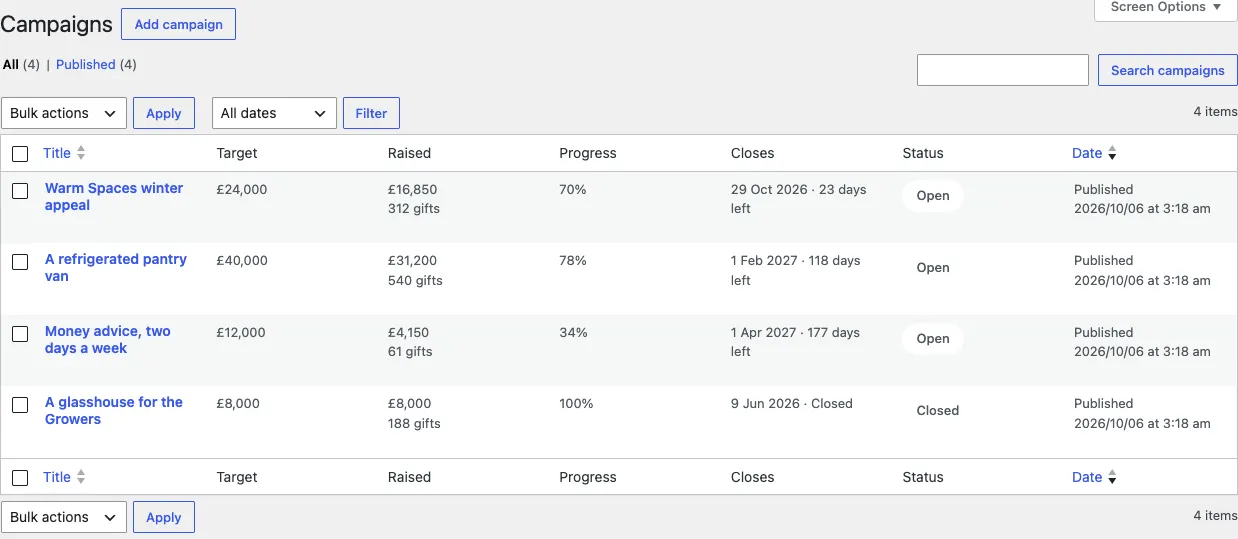
- The list shows each campaign's Target, Raised (with the number of gifts), Progress, when it Closes (and days left) and whether it's Open or Closed.
How to add a campaign
- Go to Charity → Campaigns and click Add campaign.
- Type the title, for example "Warm Spaces winter appeal".
- Write the story underneath: what the money is for, who it helps and why now.
- Add a photo as the Featured image in the right-hand panel, and a one or two sentence Excerpt. The excerpt is the short summary on the campaign cards.
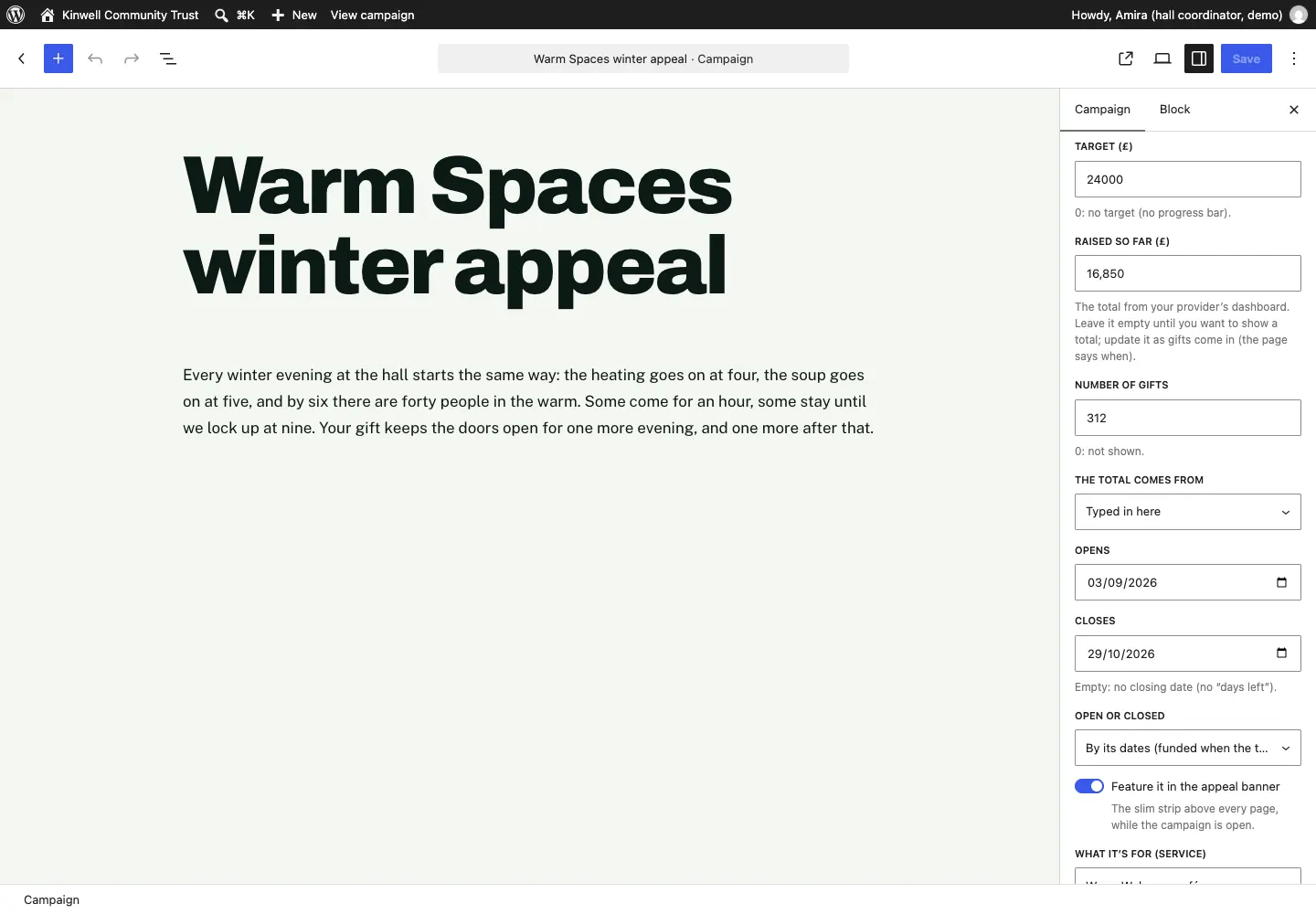
- Fill in the three panels on the right: Target and total, Donations, and Milestones, costs and questions. They're described below.
- Click Publish.
Target and total
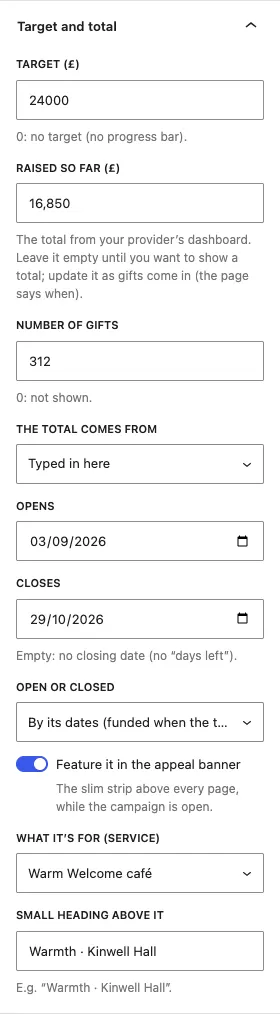
- Target (£): the amount you're aiming for. 0 means no target and no progress bar.
- Raised so far (£): the total from your provider's dashboard. Leave it empty until you want to show a total.
- Number of gifts: optional. 0 means it isn't shown.
- The total comes from: Typed in here.
- Opens and Closes: the campaign's dates. With no closing date there's no "days left".
- Open or closed: By its dates (funded when the target is reached) is usual. Choose Open (taking gifts) to keep it open after its date, or Closed to close it early.
- Feature it in the appeal banner: shows this campaign in the slim strip above every page while it's open. Use it for one campaign at a time.
- What it's for (service): links the campaign to one of your services.
- Small heading above it: a short line such as "Warmth · Kinwell Hall".
Donations
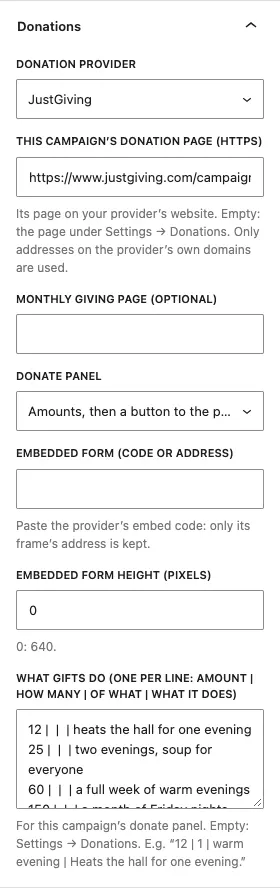
Leave these empty to use your main settings under Charity → Settings → Donations. Fill them in if this campaign has its own page on your provider. See Donations, Gift Aid and supporters for each box.
Milestones, costs and questions
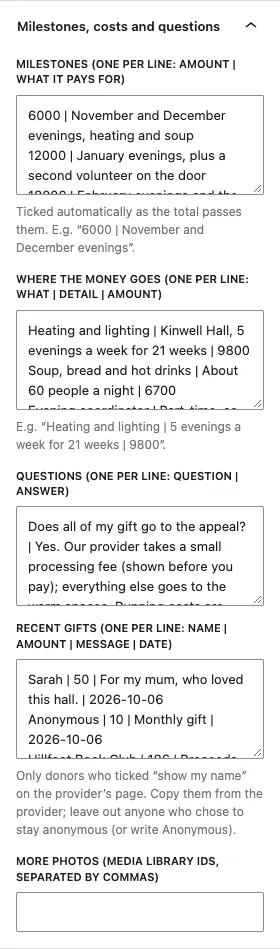
Each box takes one item per line, with the parts separated by a straight line |:
- Milestones:
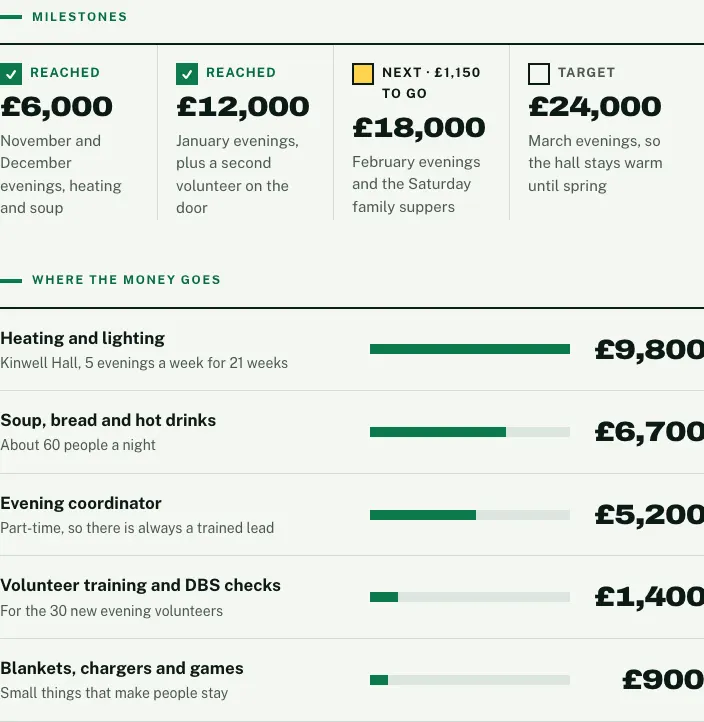
amount | what it pays for, for example6000 | November and December evenings. They tick themselves off as the total passes them, and the page shows how much is left to the next one. - Where the money goes:
what | detail | amount, for exampleHeating and lighting | 5 evenings a week for 21 weeks | 9800. - Questions:
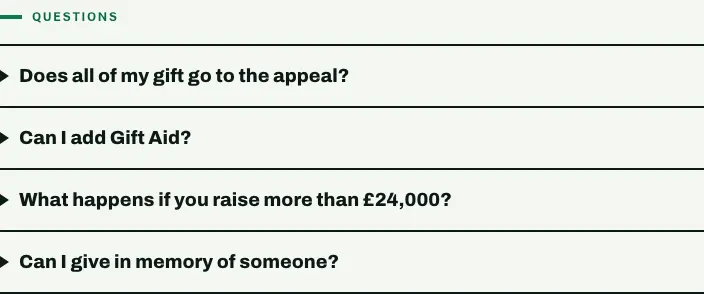
question | answer. - Recent gifts:
name | amount | message | date. See below. - More photos: extra photos from your media library.
This is how milestones and costs look on the campaign page:
And the questions:
How to update the total
Do this whenever you check your provider's dashboard: once a day during a busy appeal, or once a week.
- Open your provider's dashboard and note the total raised (and the number of gifts, if you show it).
- Go to Charity → Campaigns and click the campaign.
- In Target and total, change Raised so far (£) and, if you like, Number of gifts.
- Click Save (or Update).
The page shows "Total updated" with the time, so people know how fresh the figure is. Milestones tick themselves off and the percentage, the appeal strip and the campaign cards all update.
How to show recent gifts
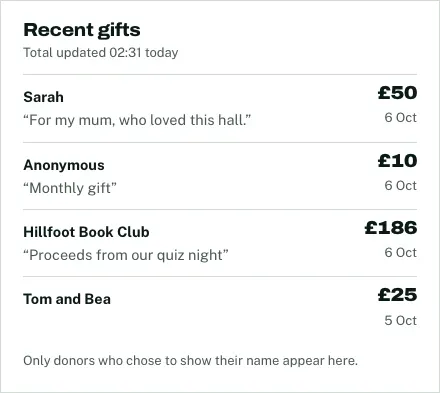
Only show donors who ticked "show my name" (or similar) on your provider's page.
- In your provider's dashboard, look at the latest gifts.
- Open the campaign and find Recent gifts in the Milestones, costs and questions panel.
- Add one line per gift:
name | amount | message | date, for exampleSarah | 50 | For my mum, who loved this hall. | 2026-10-06. - Leave out anyone who chose to stay anonymous, or write
Anonymousas the name. - Click Save.
How to feature a campaign in the appeal banner
- Open the campaign.
- In Target and total, switch on Feature it in the appeal banner.
- Click Save.
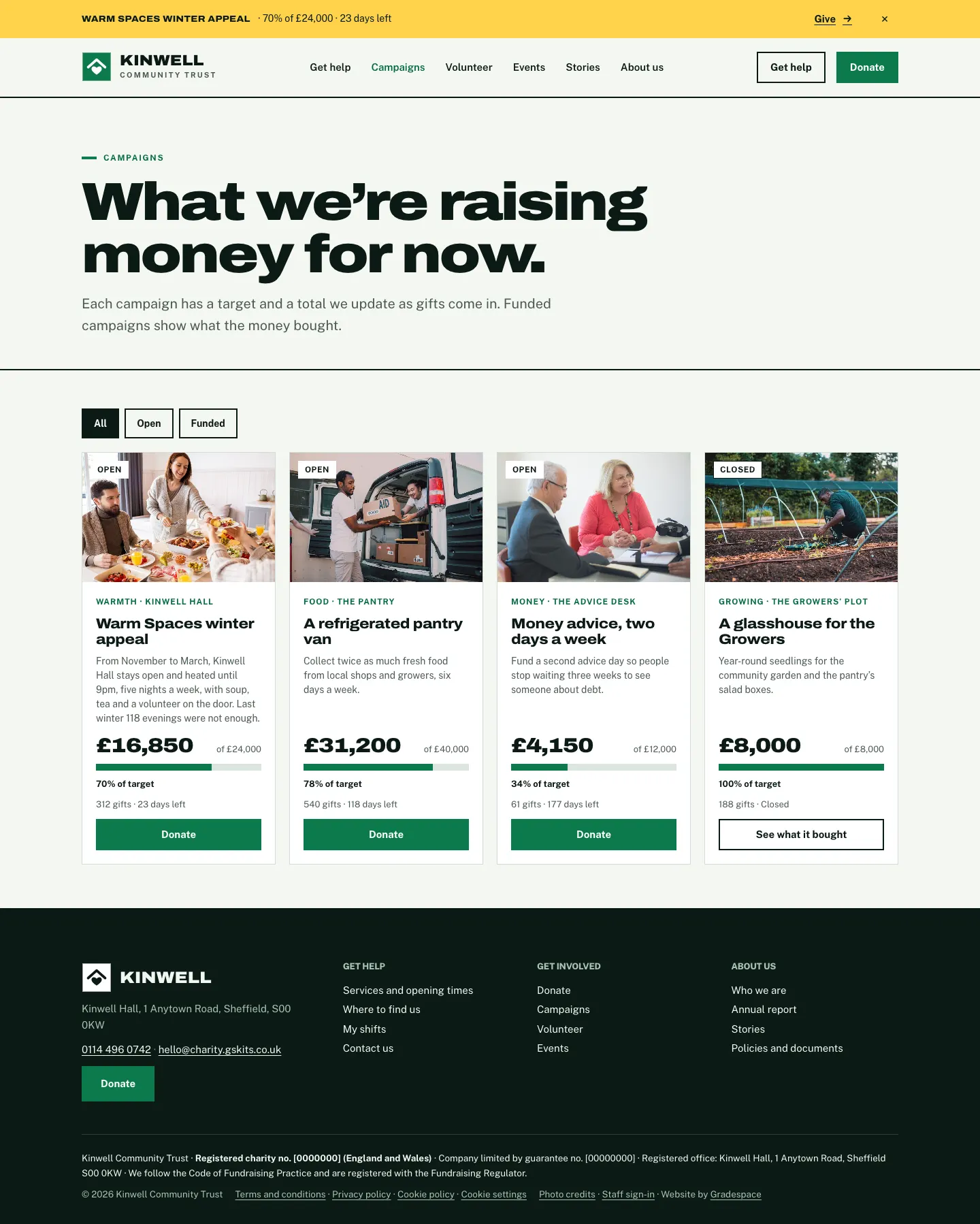
The strip appears above every page while the campaign is open, with its live percentage, days left and a Give link. Switch it off on the old campaign when you feature a new one.

How to close a campaign
A campaign closes by itself after its closing date. To close it early:
- Open the campaign.
- Set Open or closed to Closed.
- Click Save.
Closed campaigns stay on the website with a Closed label and a See what it bought link, so supporters can see what their money did. Add a final update to say how it went.
How to post a campaign update
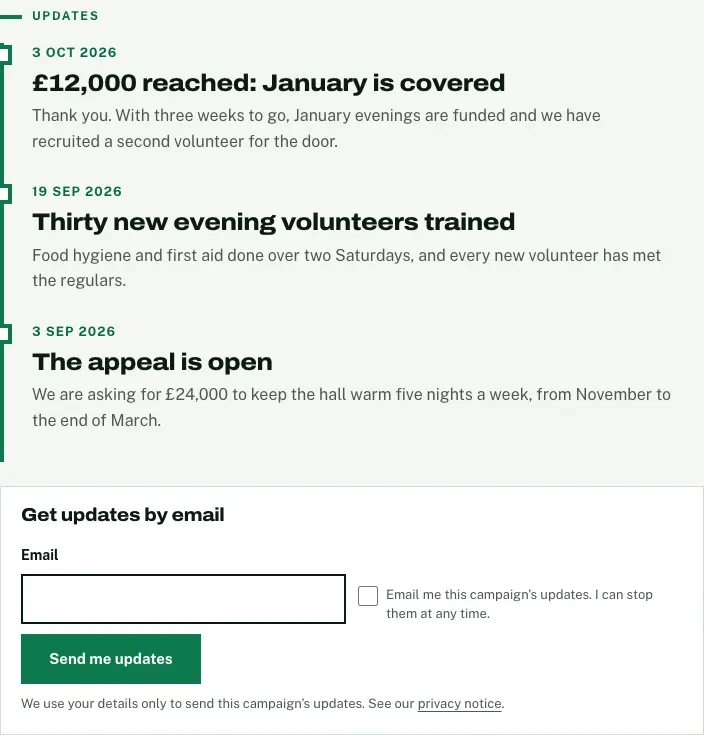
Updates appear as a dated timeline on the campaign's page.
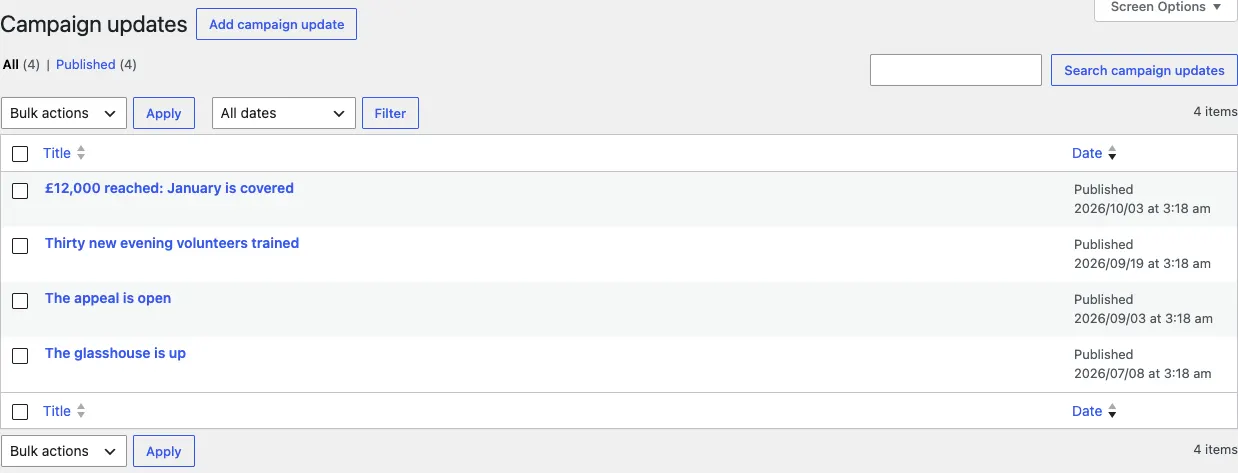
- Go to Charity → Campaign updates and click Add campaign update.
- Give it a title, such as "£12,000 reached: January is covered", and write the update.
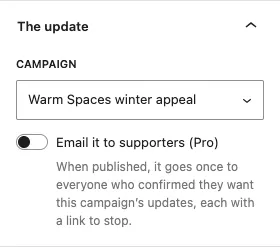
- In The update panel on the right, choose its Campaign.
- (Pro) To email it, switch on Email it to supporters (Pro). When you publish, it goes once to everyone who confirmed they want this campaign's updates, each with a link to stop.
- Click Publish.
Updates by email and the Supporters list (Pro)
With Pro, each campaign page has a Get updates by email box under the updates. A visitor types their email, ticks "Email me this campaign's updates" and clicks Send me updates. They get an email with a link to confirm it was them. Nothing is sent until they do.
To see who asked:
- Go to Charity → Supporters.
- The list shows each Email, its Campaign, its Status (Confirmed or Not confirmed yet) and when they Asked.
- To remove someone, tick them and click Delete the ticked.
Each email has a link to stop, which deletes their address. Your newsletter list is separate and stays with your mailing provider.
