Running your website
Shifts, the rota and My shifts (Pro)
Adding volunteer shifts with a number of places, waiting lists and reminders, the weekly rota, giving and cancelling places, and each volunteer's own My shifts page.
On this page
Shifts turn your volunteer roles into real dates and times with a number of places. Volunteers tick shifts on the sign-up form or take them from their own My shifts page. When a shift is full, they can join its waiting list. Everyone with a place gets a reminder the day before, with a link to cancel. You see it all on the weekly Rota.
Places are taken one at a time, so two people can never take the last place on a shift: one gets it and the other is offered the waiting list.
Everything in this chapter is (Pro). Features marked (Pro) need a Pro or Agency licence.
How to add a shift
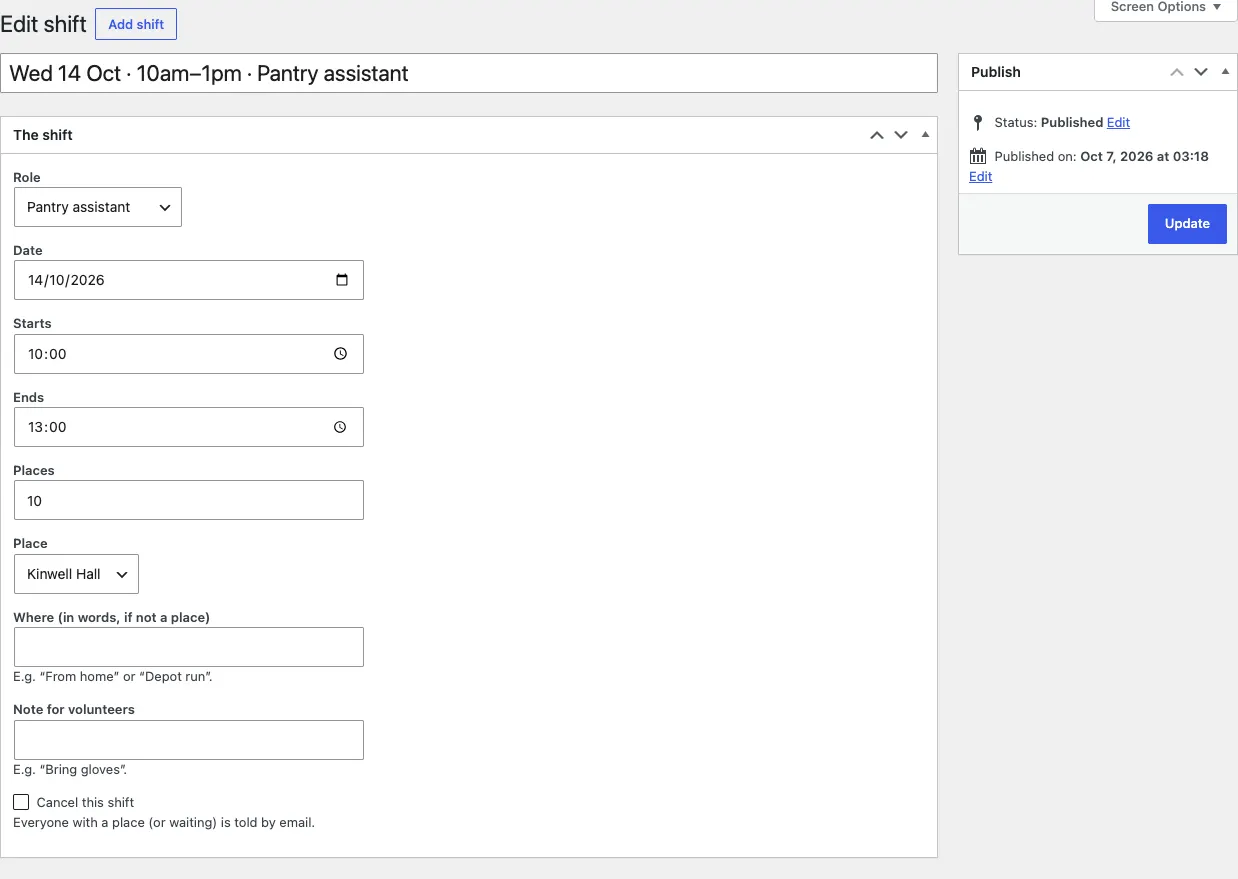
- Go to Charity → Shifts and click Add shift.
- In The shift, choose the Role.
- Set the Date, when it Starts and Ends.
- Type the number of Places.
- Choose the Place, or type Where (in words, if not a place), for example "From home" or "Depot run".
- Add a Note for volunteers if they need one, for example "Bring gloves".
- Click Publish.
You don't need to type a title: the website names the shift from its date, time and role, for example "Wed 7 Oct · 10am–1pm · Pantry assistant".
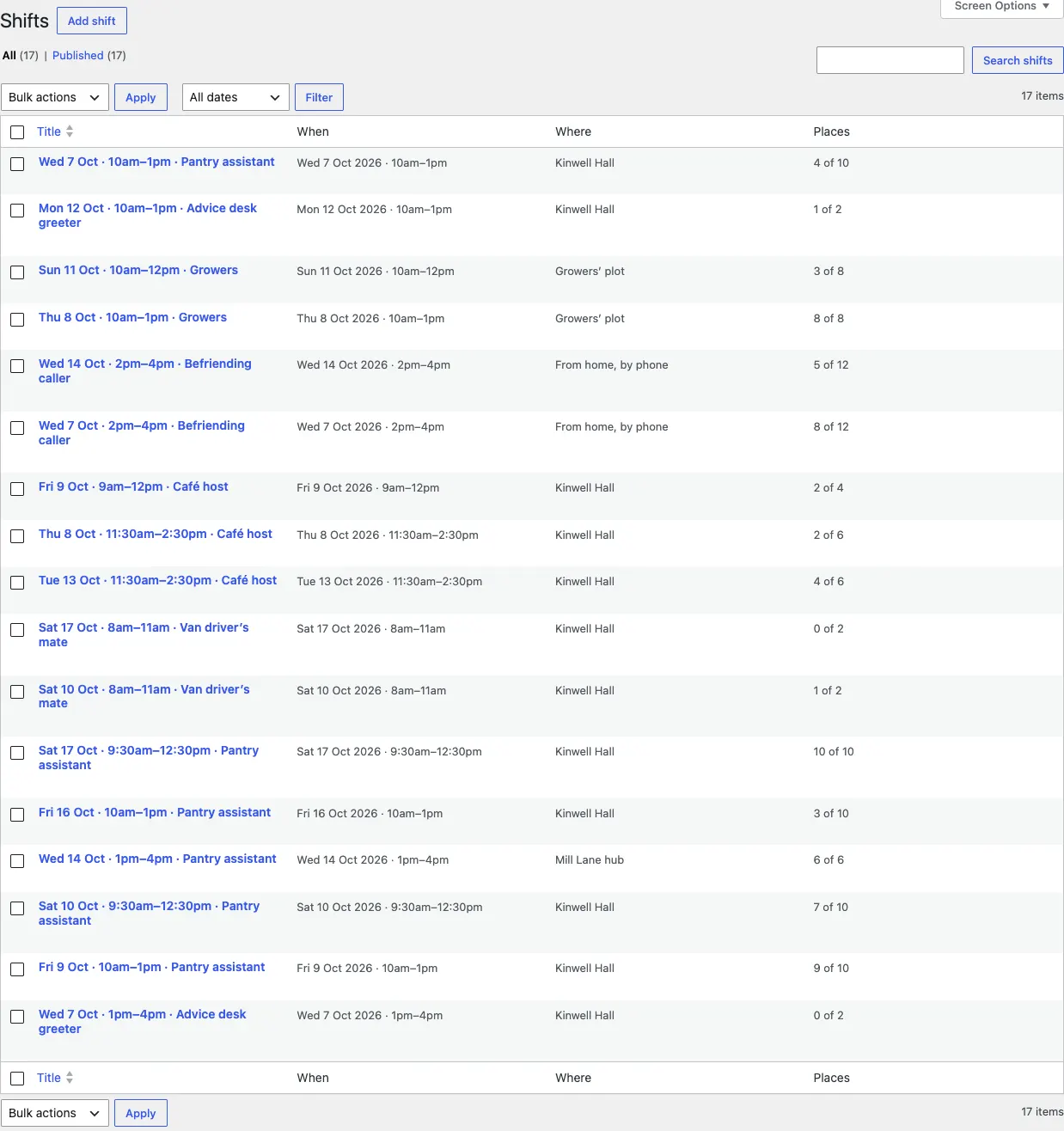
The Shifts list shows each shift with When, Where and how many Places are taken:
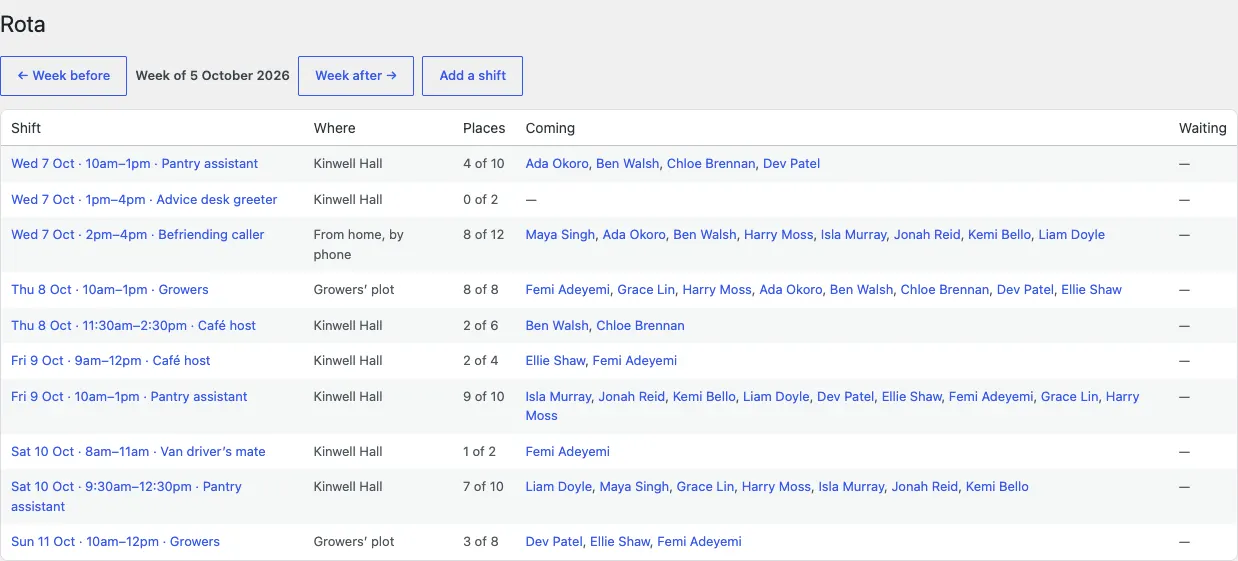
How to see the week: the Rota
- Go to Charity → Rota.
- It shows the Week of the current week, with each Shift, Where, the Places taken, who is Coming and who is Waiting.
- Use Week before and Week after to move between weeks, and Add a shift to add one.
- Click a shift to open it.
Charity → Today also lists Shifts today and tomorrow with how many places are taken.
How to give a volunteer a place
- Go to Charity → Volunteers and click the volunteer.
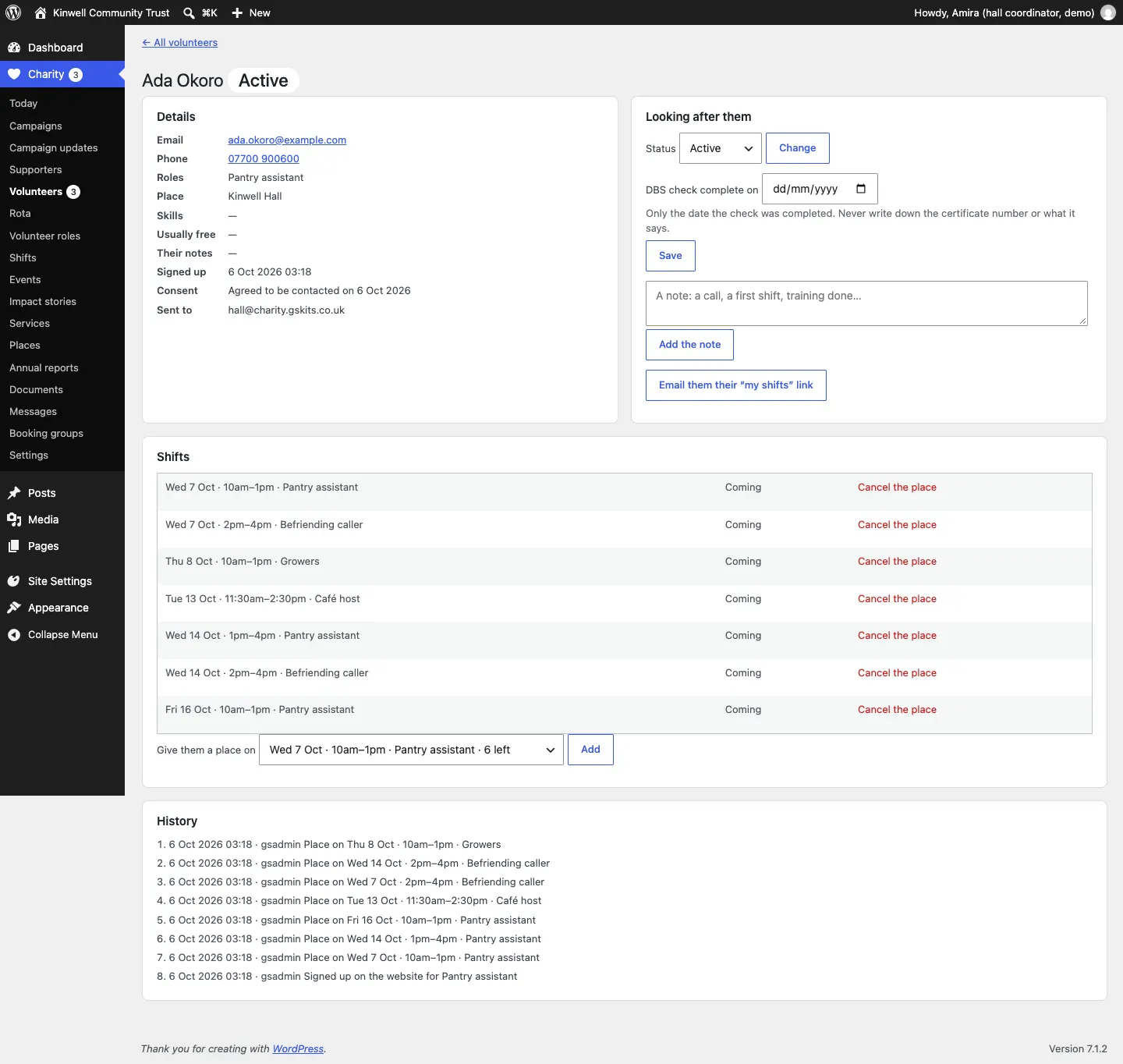
- Under Shifts, choose a shift in Give them a place on. Each shift shows how many places are left.
- Click Add.
They get a "Shift place confirmed" email with a calendar file.
How to cancel a place or mark who came
On the volunteer's record, under Shifts:
- Click Cancel the place next to a shift. They're emailed, and if anyone is waiting, the first person gets the place and an email.
- After a shift, click Came or Didn't come.
How to cancel a whole shift
- Open the shift from Charity → Shifts or the Rota.
- Tick Cancel this shift.
- Click Update.
Everyone with a place, or waiting, is told by email. The shift shows as Cancelled on the rota.
Waiting lists
When a shift is full it shows Full · waiting list. A volunteer can join the waiting list from the sign-up form (by ticking that shift on its own) or from Join the waiting list on their My shifts page. If someone cancels, the first person waiting gets the place and an email.
You can switch waiting lists off under Charity → Settings → Shifts → Waiting list on full shifts.
Several shifts at once
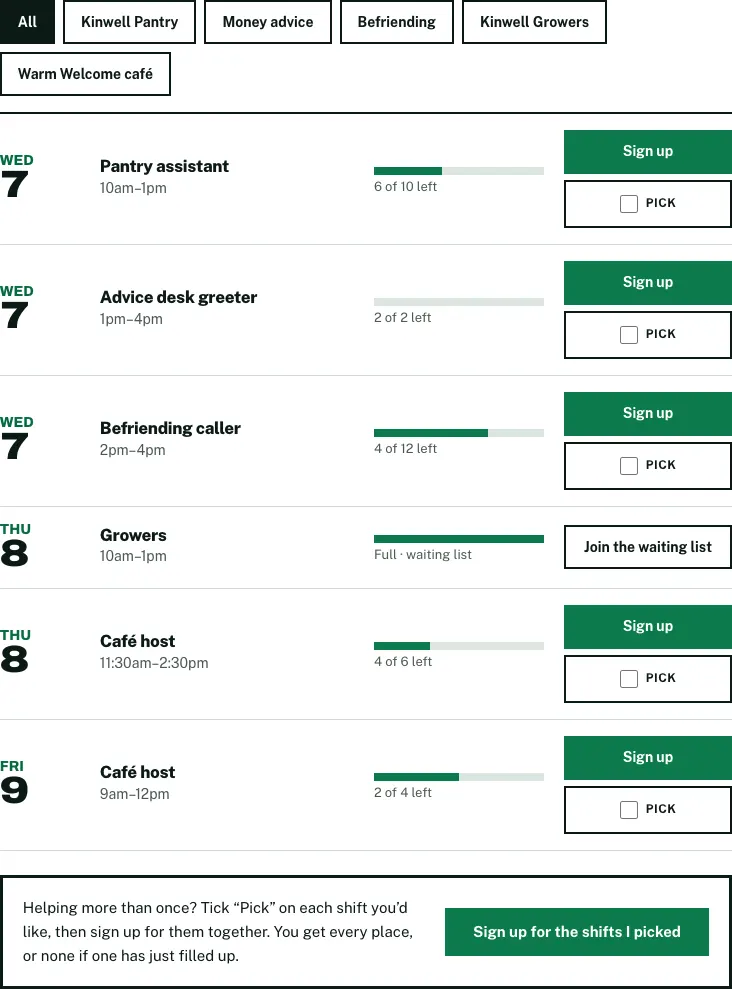
On the sign-up form or their My shifts page, a volunteer can tick several shifts and take them together, or tick The same shifts every week until … and choose the last week. It's all or nothing: if one of the shifts has just filled up, no place is taken, the full shift is named and its waiting list is offered. They get one email with a calendar file for every shift.
These bookings made together are listed under Charity → Booking groups.
The shifts on the website
The Volunteer page and the home page show the coming shifts with places left. Volunteers can filter them by service.
My shifts: the volunteer's own page
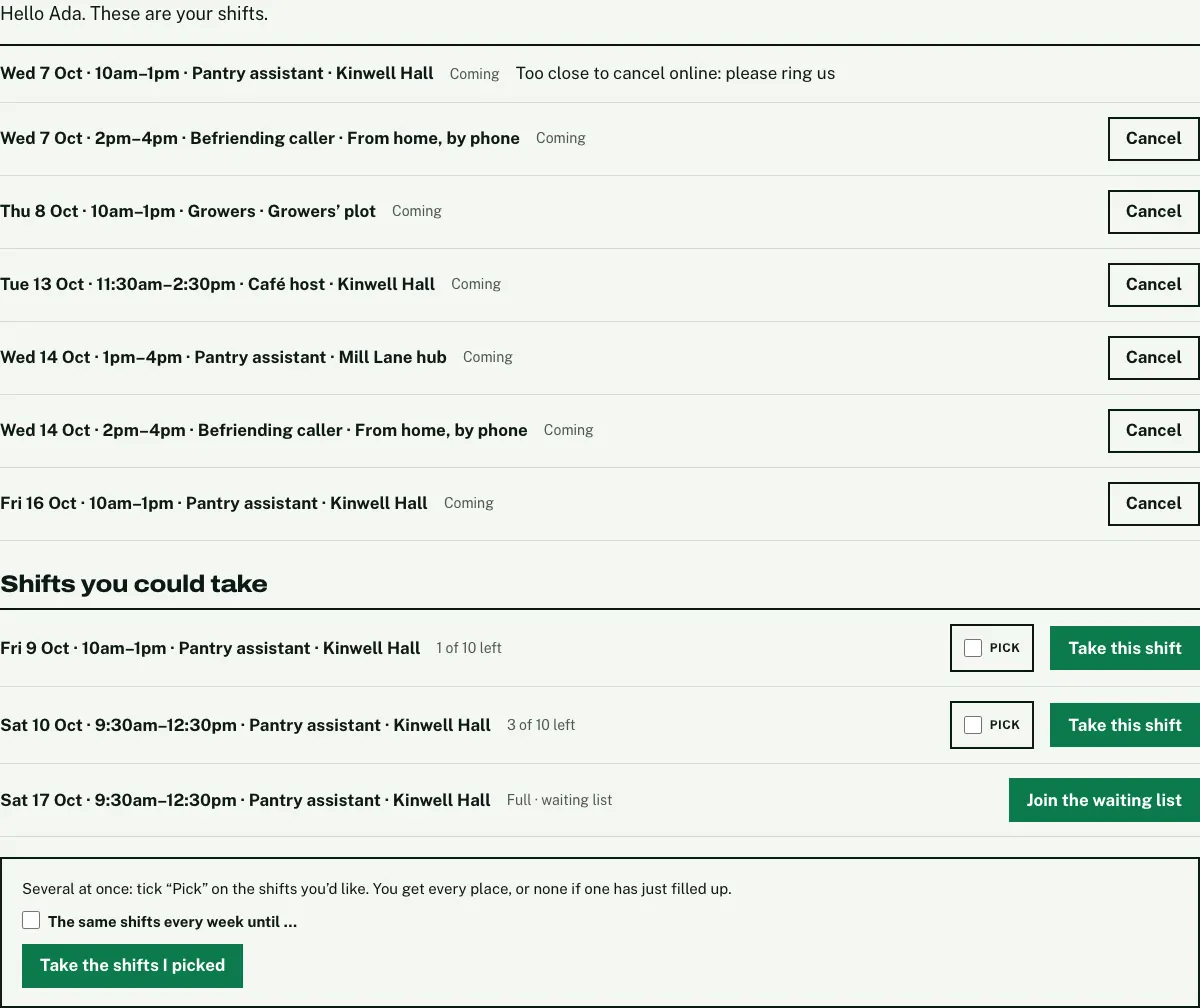
Each volunteer has their own My shifts page. The link is in every email they get from you, and it's private to them: they only ever see their own shifts there. There's no password to remember.
On it they can:
- see their shifts to come, each marked Coming,
- Cancel a shift, up to the number of hours you set (after that it says "Too close to cancel online: please ring us"),
- see Shifts you could take for their roles, and click Take this shift or Join the waiting list,
- tick Pick on several shifts and click Take the shifts I picked, with The same shifts every week until … if they like.
On a phone:

If a volunteer loses their link
- They go to the My shifts page (it's in the website footer).
- They type the email address they signed up with and click Email me my link.

You can also send it from their record: Email them their "my shifts" link.
Reminders and emails
- Everyone with a place gets a reminder the day before, with the place and a link to cancel. Each reminder is sent once.
- You (or the place's coordinator, with routing) get an email when a volunteer takes or gives up a place online.
- You can switch each email on or off, and change its wording, under Charity → Settings → Email. See Settings reference.
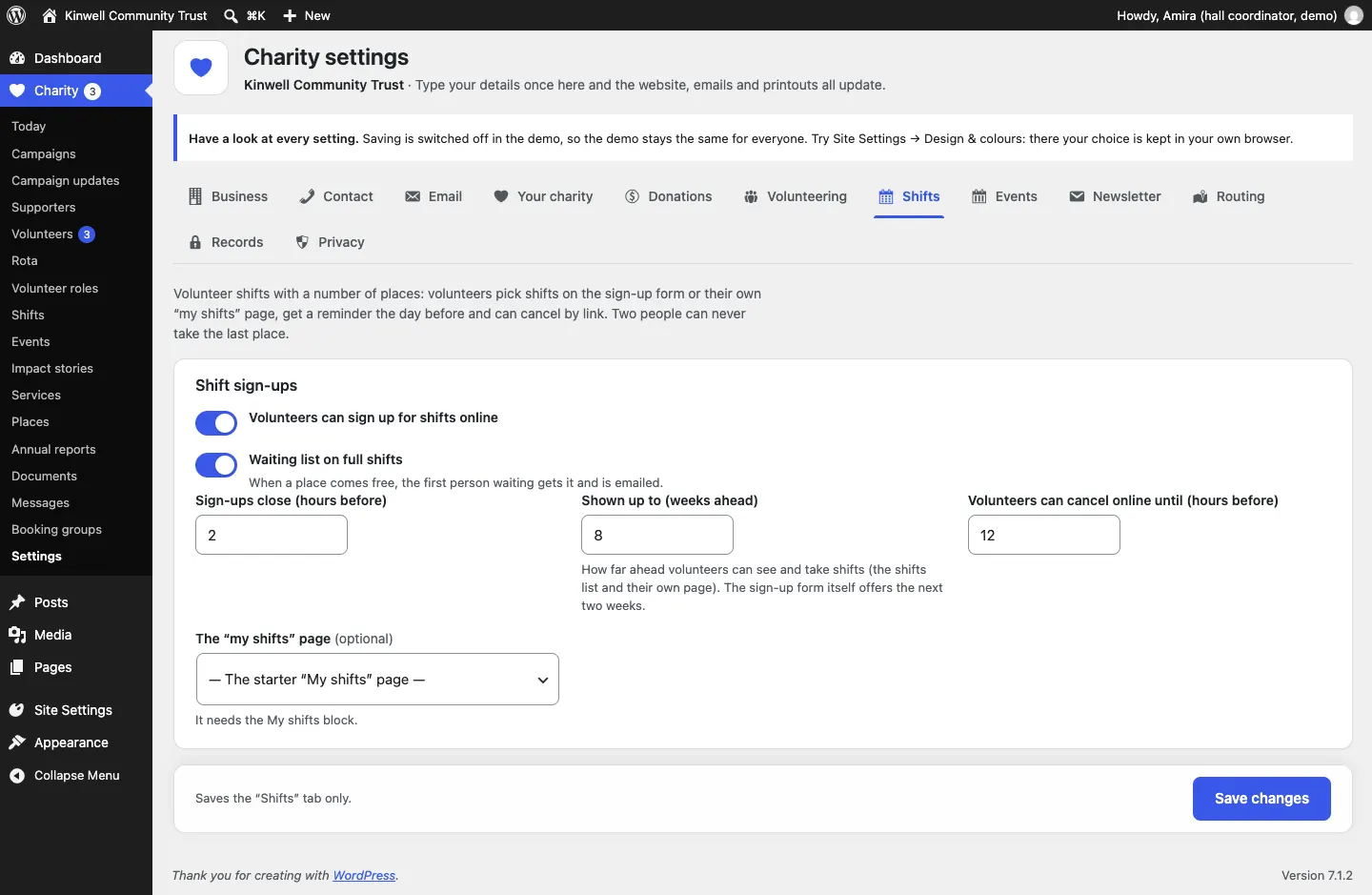
Shift settings
Go to Charity → Settings → Shifts:
- Volunteers can sign up for shifts online
- Waiting list on full shifts
- Sign-ups close (hours before): 2 in the demo.
- Shown up to (weeks ahead): how far ahead volunteers can see and take shifts on the shifts list and their own page; 8 in the demo. The sign-up form itself offers the next two weeks.
- Volunteers can cancel online until (hours before): 12 in the demo. After that, they're asked to ring you.
- The "my shifts" page: the page with the My shifts block (the starter "My shifts" page).