Running your website
Events
Adding events (one-off or repeating), prices and booking links, taking sign-ups on the website with a number of places, the list of who's coming, and calendar feeds in and out.
On this page
Events are your fundraisers, volunteering days, open days, public meetings and community events. Each one gets its own page and appears on the Events page and the home page. For one-off events you can take sign-ups on the website, with a number of places that's never exceeded. People can also subscribe to your events calendar on their phone.
Features marked (Pro) need a Pro or Agency licence.
What visitors see
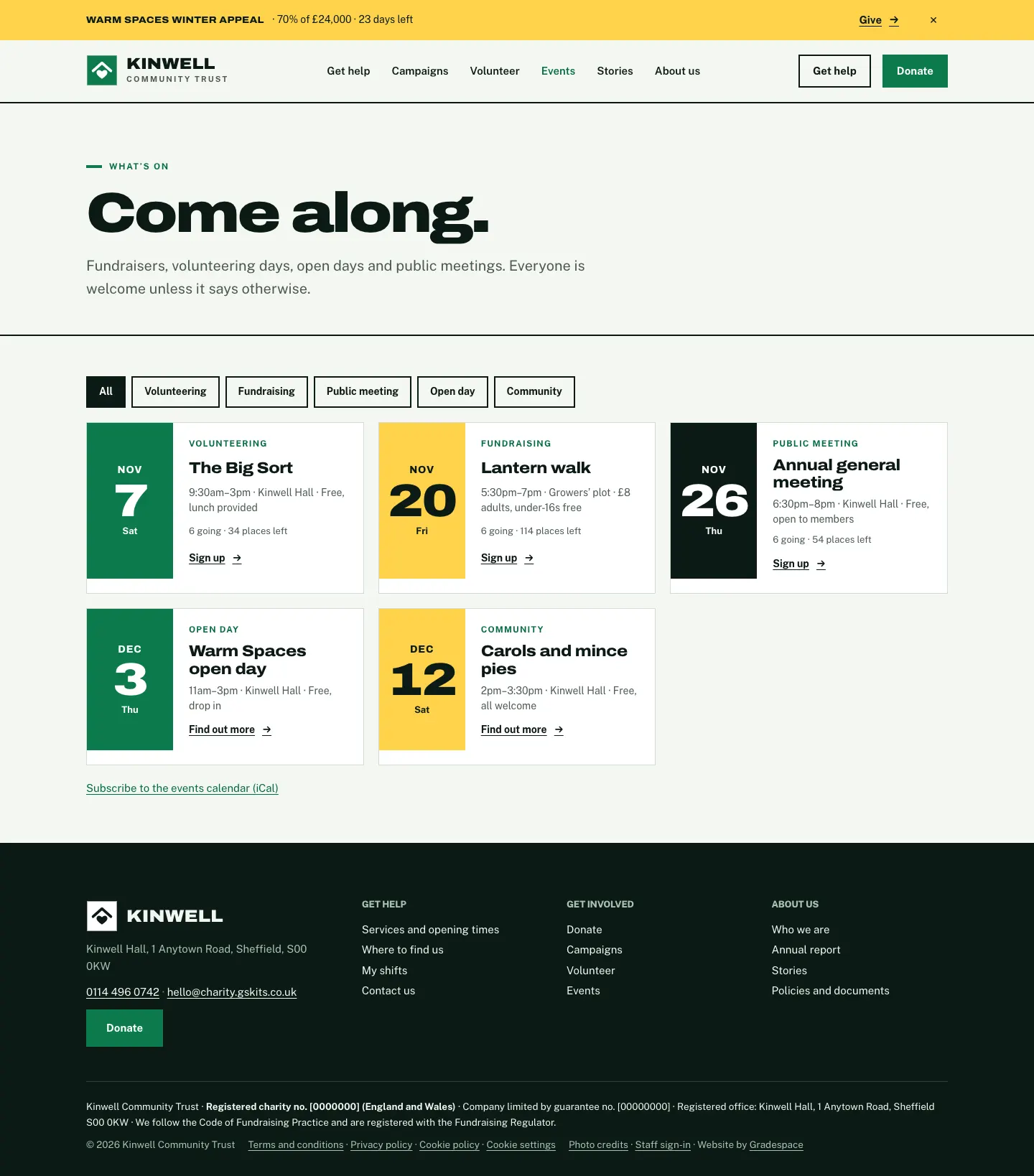
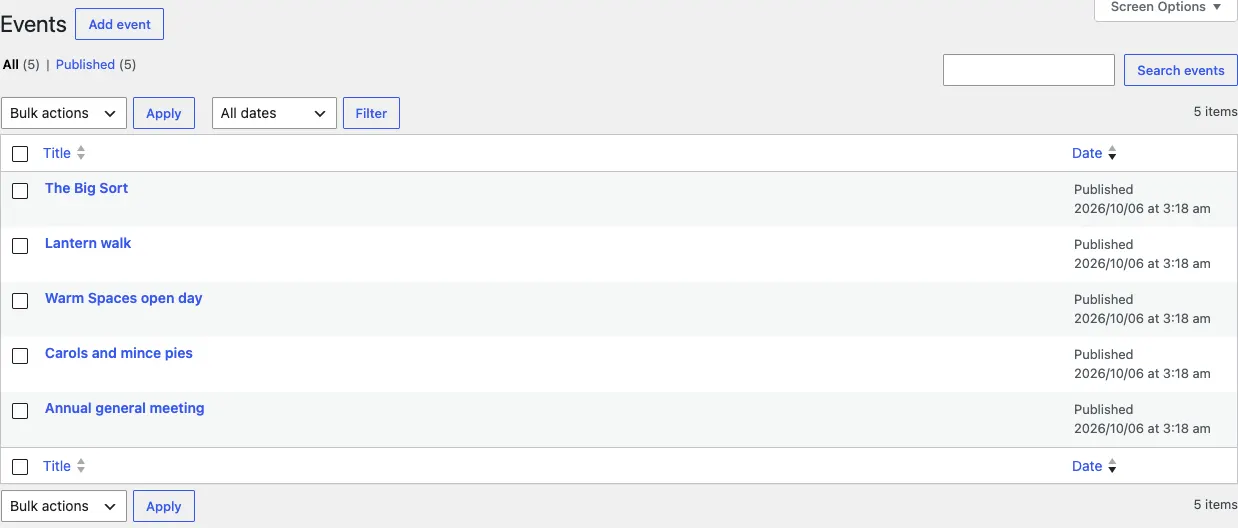
The Events page lists what's on, with filters for each kind of event, the time, place, price and how many are going.
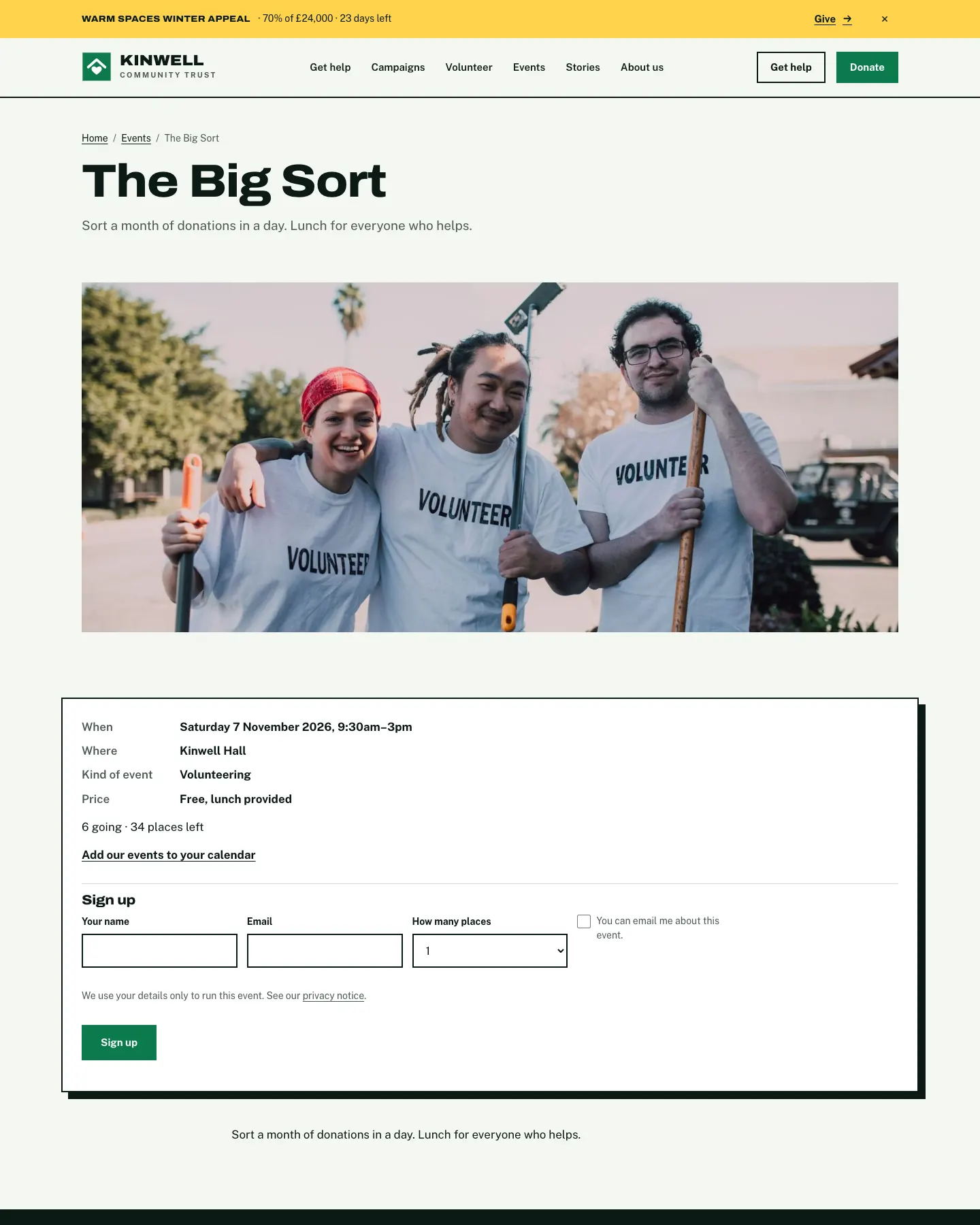
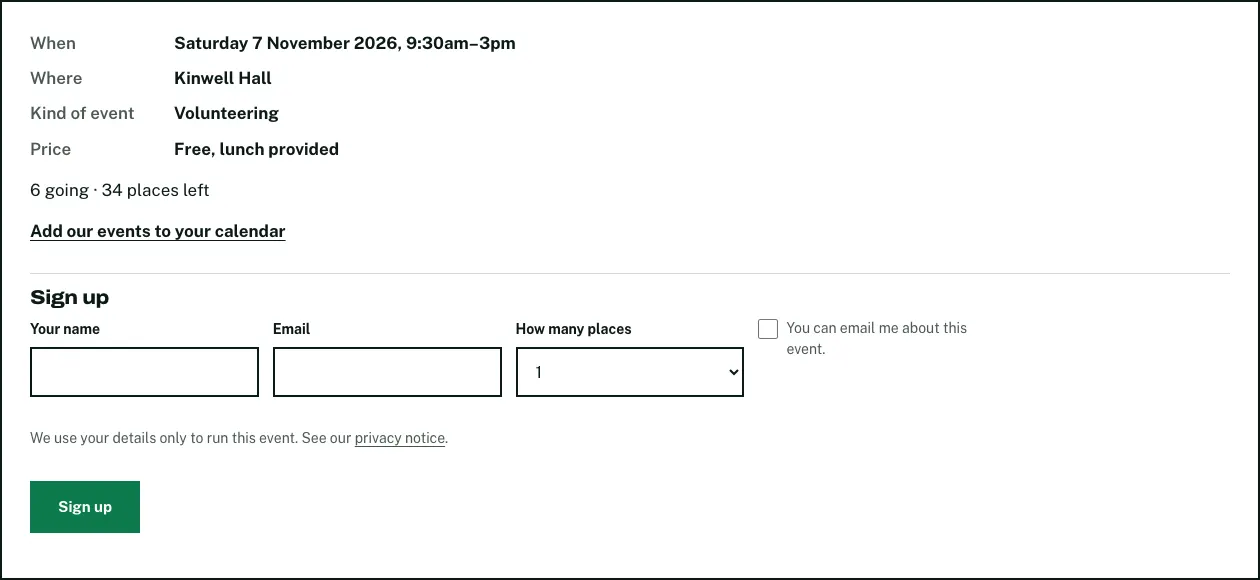
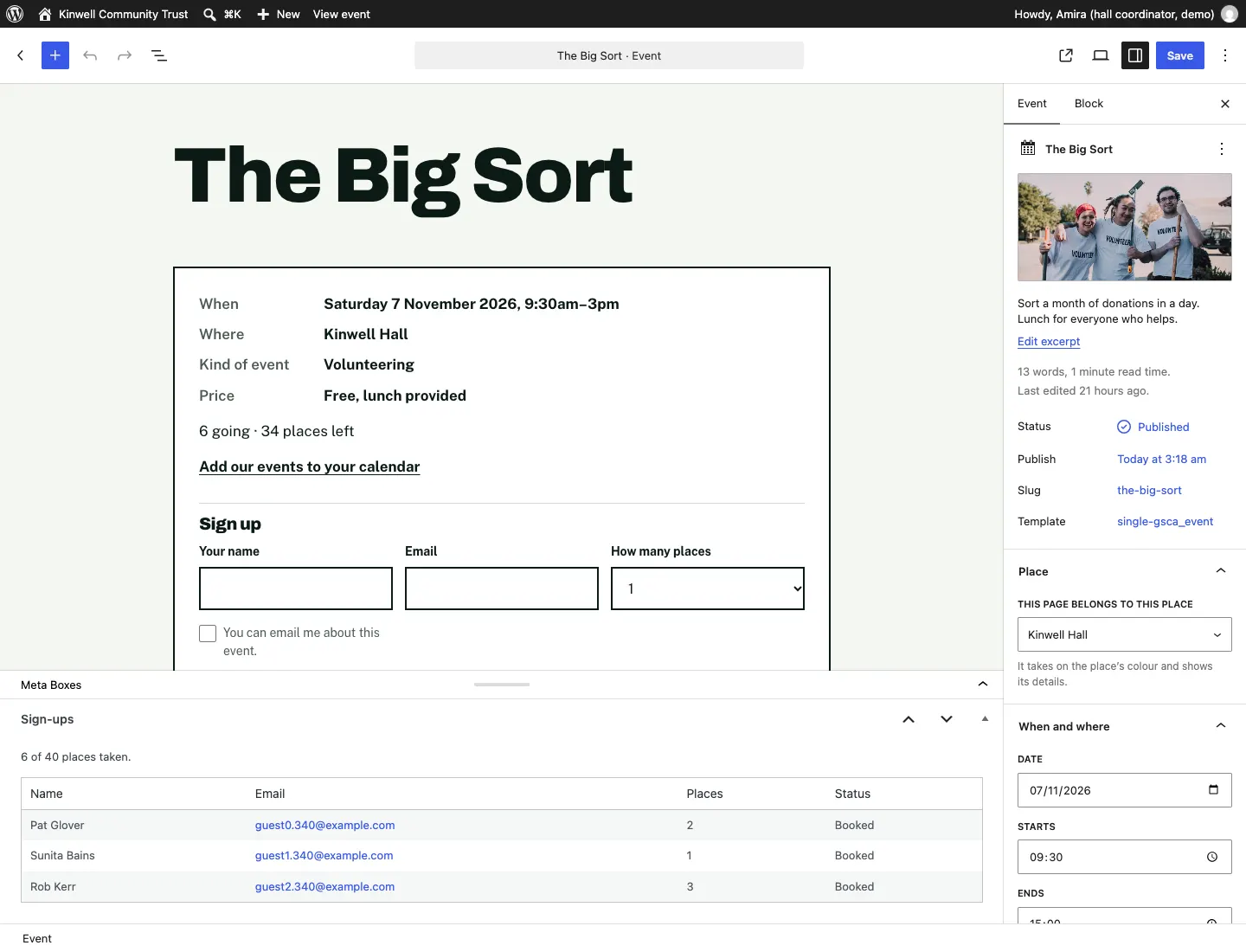
Each event's page has the details and, if you take sign-ups here, a short form: their name, email, how many places, and whether you can email them about the event.
They get an email with a calendar file and a link to cancel.
How to add an event
- Go to Charity → Events and click Add event.
- Type the title and describe the event. Add a Featured image and a short Excerpt.
- In When and where:
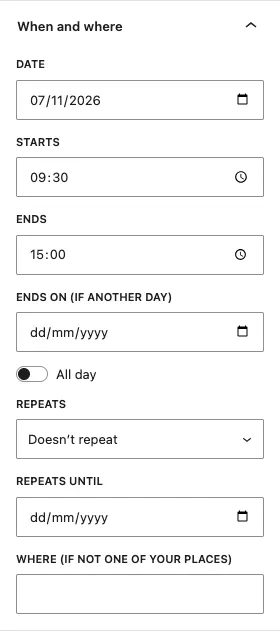
- Set the Date, when it Starts and Ends, and Ends on (if another day) for an event over several days. Or tick All day.
- Repeats: Doesn't repeat, Every week, Every two weeks, Every month on the same date or Every month on the same weekday (e.g. first Saturday), and Repeats until.
- Where (if not one of your places), or choose the place in the Place panel.
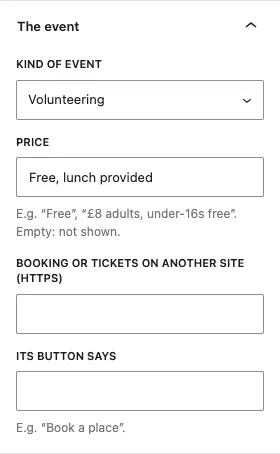
- In The event:
- Kind of event: Fundraising, Volunteering, Open day, Public meeting or Community.
- Price, for example "Free" or "£8 adults, under-16s free". Empty: not shown.
- Booking or tickets on another site (https) and what Its button says, if tickets are sold elsewhere.
- Click Publish.
How to take sign-ups on the website
Sign-ups work for one-off events only.
- Open the event.
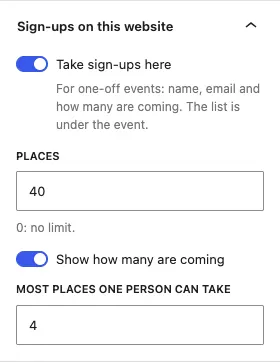
- In Sign-ups on this website, tick Take sign-ups here.
- Set the number of Places. 0 means no limit.
- Tick Show how many are coming to show "6 going · 34 places left".
- Set Most places one person can take.
- Click Save.
How to see who's coming
- Open the event in Charity → Events.
- Scroll to Sign-ups at the bottom of the editor. It shows how many places are taken and each person's Name, Email, Places and Status.
You aren't emailed for each sign-up unless you switch on Event sign-up under Charity → Settings → Email (it's off at first, because the list is on the event).
Your events calendar
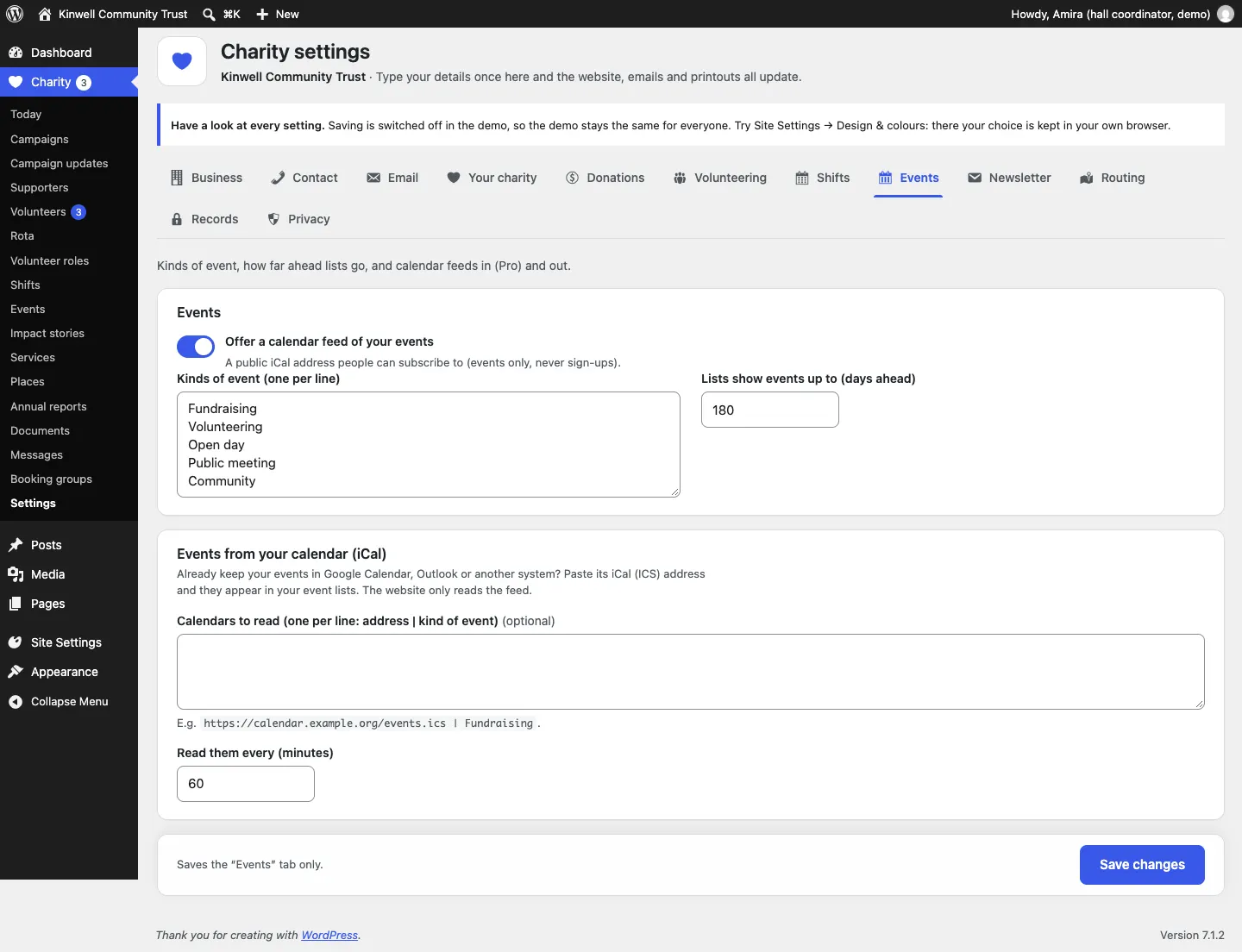
- Calendar feed out: the Events page has Subscribe to the events calendar (iCal). People add it to their phone or computer calendar and your events appear there. Only events are in it, never sign-ups. Switch it on or off under Charity → Settings → Events → Offer a calendar feed of your events.
- (Pro) Events from your calendar: if you already keep your events in Google Calendar, Outlook or another system, paste its iCal (ICS) address under Charity → Settings → Events → Calendars to read, one per line as
address | kind of event. Those events join your lists, read every 60 minutes unless you change Read them every (minutes). The website only reads the feed.
Also under Charity → Settings → Events: Kinds of event (one per line) and Lists show events up to (days ahead).
Reviewing old sign-ups
Event sign-ups come up for review some months after the event (6 out of the box, under Charity → Settings → Records). An administrator deletes them from Charity → Volunteers → Due for review. See Volunteers and roles.