Running your website
Donations, Gift Aid and supporters
How donating works for your supporters, connecting your donation provider, amounts and what gifts do, embedded forms, monthly giving, Gift Aid, payments and what the website keeps about donors.
On this page
People always give on your donation provider's own secure page: JustGiving, Enthuse, CAF Donate, PayPal Giving Fund, Stripe Payment Links or another provider you already use. Your website shows the amounts and what each one does, then sends the donor to the provider with the amount filled in where the provider allows it. Or it can show the provider's own form inside your page.
This keeps things simple and safe: your website never sees or stores card or bank details, and it keeps no Gift Aid declarations. The provider takes the money, handles Gift Aid and sends receipts.
What your donors see
On a campaign page
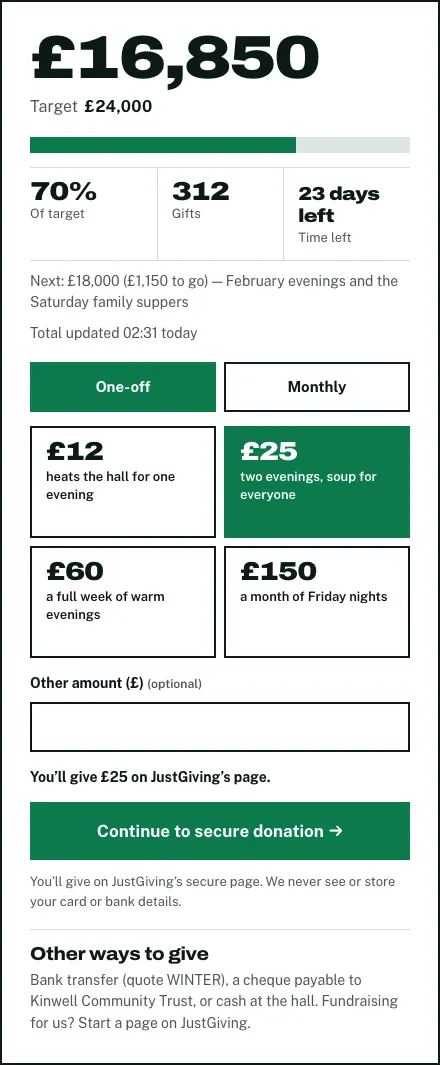
- The donor opens a campaign and sees the progress card on the right.
- They choose One-off or Monthly.
- They pick an amount. Each amount shows what it does, for example "£12 heats the hall for one evening". Or they type their own in Other amount (£).
- The panel says, for example, "You'll give £25 on JustGiving's page."
- They click Continue to secure donation. Your provider's page opens, where they pay and can add Gift Aid.
On the Donate page
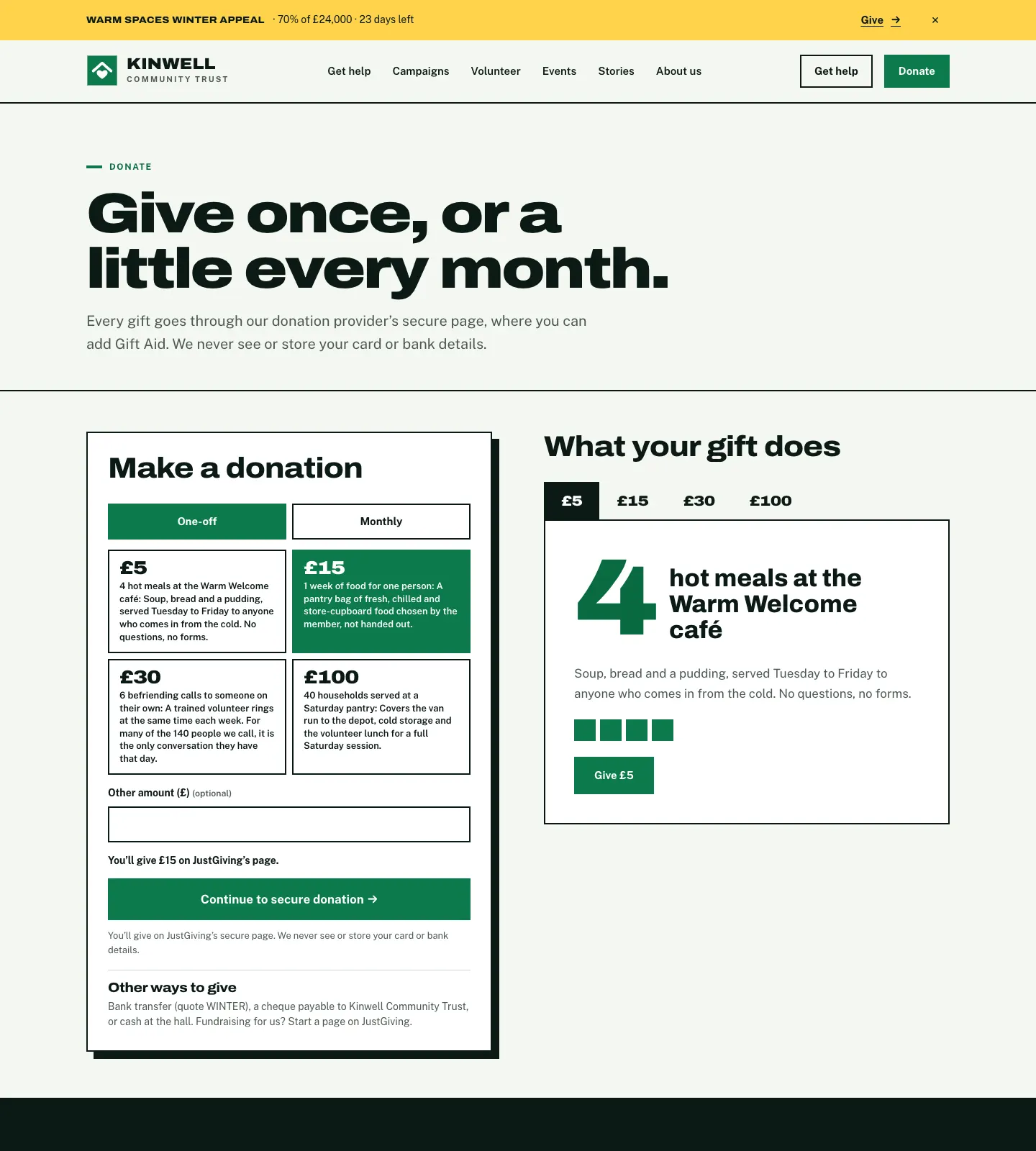
The Donate page is for general gifts, not tied to a campaign. It shows the same donate panel with your general amounts, and What your gift does beside it.
When the donor chooses Monthly, the amounts change to your monthly amounts:
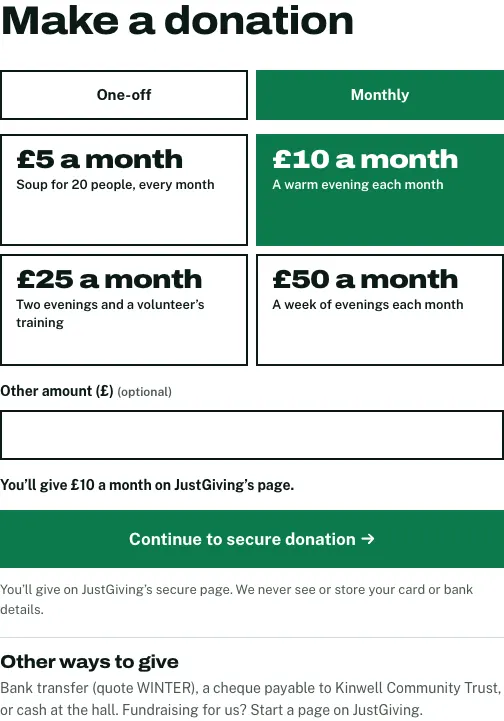
On a phone the panel stacks into one column:

At the provider
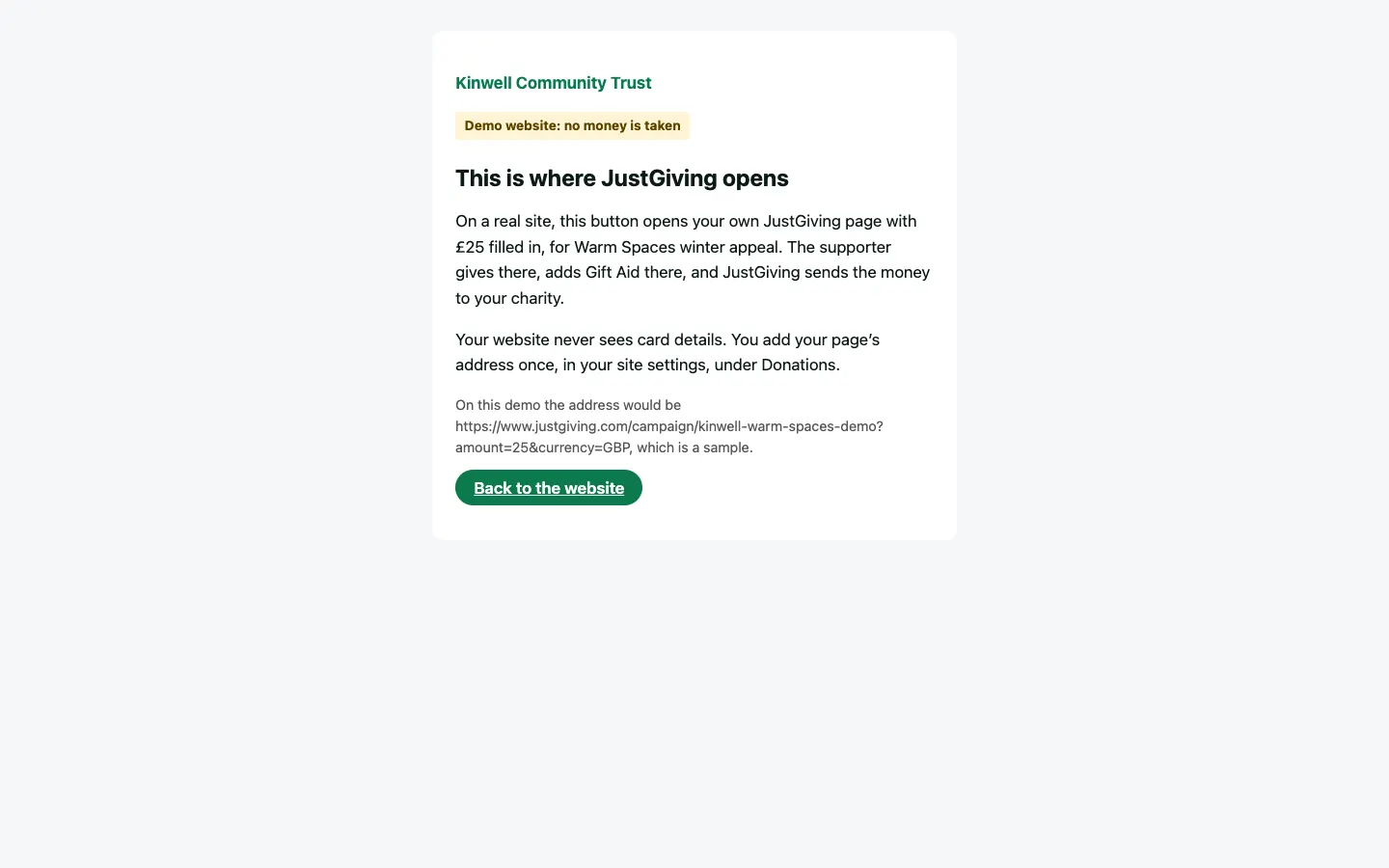
On your real website, Continue to secure donation opens your page on your provider's website. On the demo, a short page explains this instead, because the demo's JustGiving address is only a sample:
How to connect your donation provider
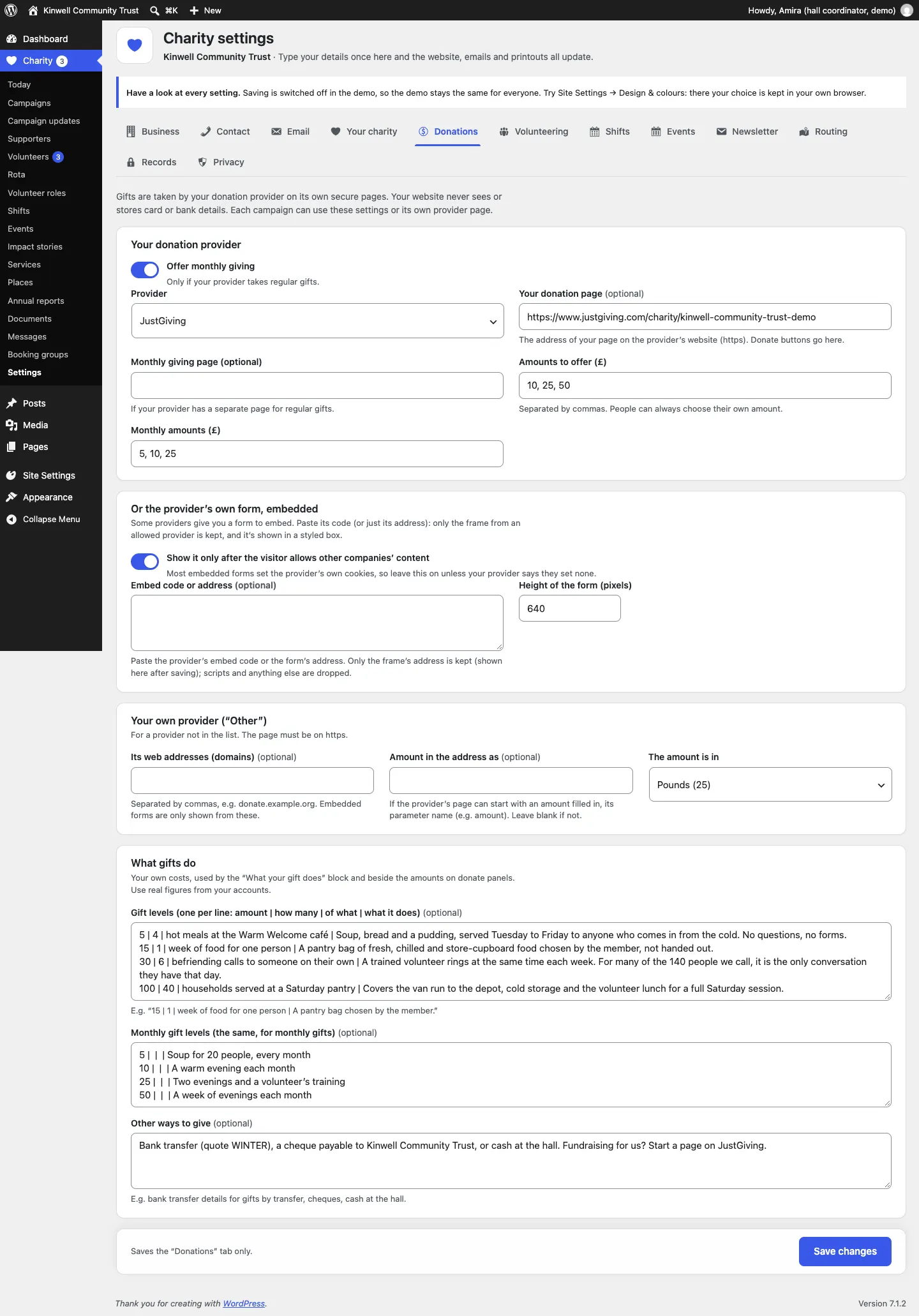
- Go to Charity → Settings → Donations.
- Under Your donation provider, choose your Provider.
- Paste Your donation page: the address of your page on the provider's website. It must start with https:// and be on the provider's own website. Donate buttons go here.
- If your provider takes regular gifts, tick Offer monthly giving. If it has a separate page for monthly gifts, paste it in Monthly giving page.
- In Amounts to offer (£), type the one-off amounts separated by commas, for example
10, 25, 50. Do the same in Monthly amounts (£). People can always choose their own amount. - Under Other ways to give, add anything else, such as bank transfer details or "cash at the hall".
- Click Save changes.
How to use the provider's embedded form
Some providers give you a form to put inside your own page.
- In your provider's dashboard, copy the embed code for your donation form.
- Go to Charity → Settings → Donations, and under Or the provider's own form, embedded paste it into Embed code or address. Only the frame from an allowed provider is kept; anything else is dropped.
- Leave Show it only after the visitor allows other companies' content switched on. Most embedded forms set the provider's own cookies, so the form appears only after the visitor accepts them in the cookie banner.
- Set the Height of the form (pixels) if it looks cut off.
- Click Save changes.
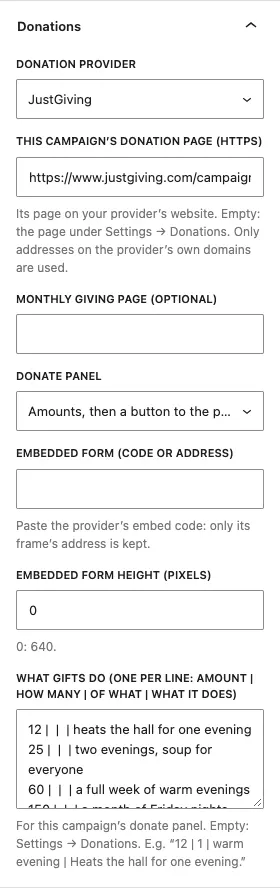
To use the embedded form on one campaign only, open the campaign, and in its Donations panel set Donate panel to The provider's embedded form and paste the code into Embedded form (code or address).
How to give a campaign its own donation page
- Create the campaign's page on your provider (for example a JustGiving campaign page).
- Open the campaign in Charity → Campaigns.
- In the Donations panel, choose the Donation provider (or leave As Settings → Donations) and paste This campaign's donation page (https).
- Choose how the Donate panel works: Automatic, Amounts, then a button to the provider's page, or The provider's embedded form.
- Click Save.
How to set what gifts do
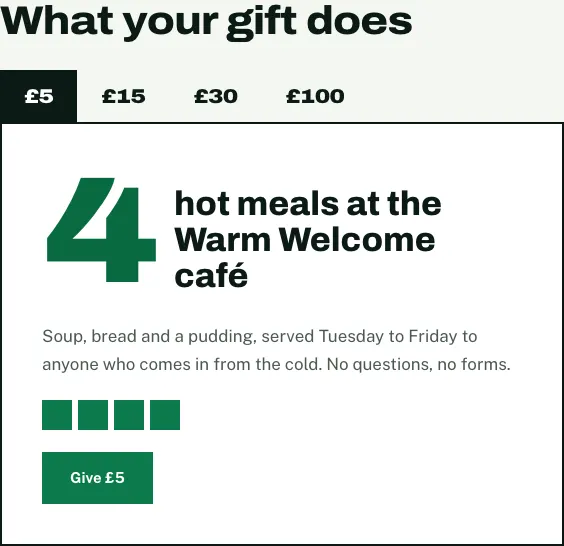
These lines appear beside the amounts on donate panels and in the What your gift does block. Use real figures from your own accounts.
- Go to Charity → Settings → Donations and find What gifts do.
- In Gift levels, add one line per amount:
amount | how many | of what | what it does. For example:15 | 1 | week of food for one person | A pantry bag chosen by the member. - Do the same for monthly gifts in Monthly gift levels.
- Click Save changes.
A campaign can have its own levels: fill in What gifts do in the campaign's Donations panel. Empty means it uses the settings.
A provider that isn't in the list
- Under Your donation provider, choose Another provider.
- Under Your own provider ("Other"), list Its web addresses (domains), separated by commas, for example
donate.example.org. - If the provider's page can start with an amount filled in, type its name in Amount in the address as (for example
amount), and choose whether The amount is in pounds or pence. - Paste your donation page as usual and click Save changes.
Gift Aid
Gift Aid is handled entirely by your provider. The donor ticks the Gift Aid box on the provider's page, and the provider keeps the declaration and claims it (or passes it to you, depending on the provider). The website keeps no Gift Aid declarations and has no Gift Aid settings.
Payments
The website doesn't take any payments for donations. There's no payments list and nothing to refund on the website: all of that is in your provider's dashboard. Use your provider's dashboard for:
- the total raised (which you then type into the campaign, see Campaigns and appeals),
- receipts and refunds,
- Gift Aid claims,
- donor details and thank-you emails.
Event prices work the same way: the event shows the price, and if tickets are sold elsewhere, a Booking or tickets on another site link sends people there (see Events).
Donors and supporters
Because people give on the provider's page, the website keeps no donor list. What it does keep:
- Recent gifts that you copy onto a campaign, only for donors who chose to show their name (see Campaigns and appeals).
- (Pro) Charity → Supporters: people who asked for a campaign's updates by email. Only their email, the campaign, whether they confirmed and when they asked. See Campaigns and appeals.
- Your newsletter list stays with your mailing provider (see Stories, annual reports and documents).
Features marked (Pro) need a Pro or Agency licence.