Running your website
Volunteers and roles
The volunteer sign-up form, volunteer roles, looking after each volunteer's record (status, notes, DBS date), who gets the sign-ups, and reviewing and erasing records.
On this page
The Volunteer page lets people offer to help. They choose a role, tick any shifts they can do (with Pro), and leave their details. Each sign-up becomes a private record under Charity → Volunteers, where you change its status as you go, add notes after each call and note when a DBS check is complete. Records are never published.
Features marked (Pro) need a Pro or Agency licence. Shifts have their own chapter: Shifts, the rota and My shifts.
What volunteers see
The Volunteer page walks them through four steps: Role, Shifts, Details and a phone call from you.
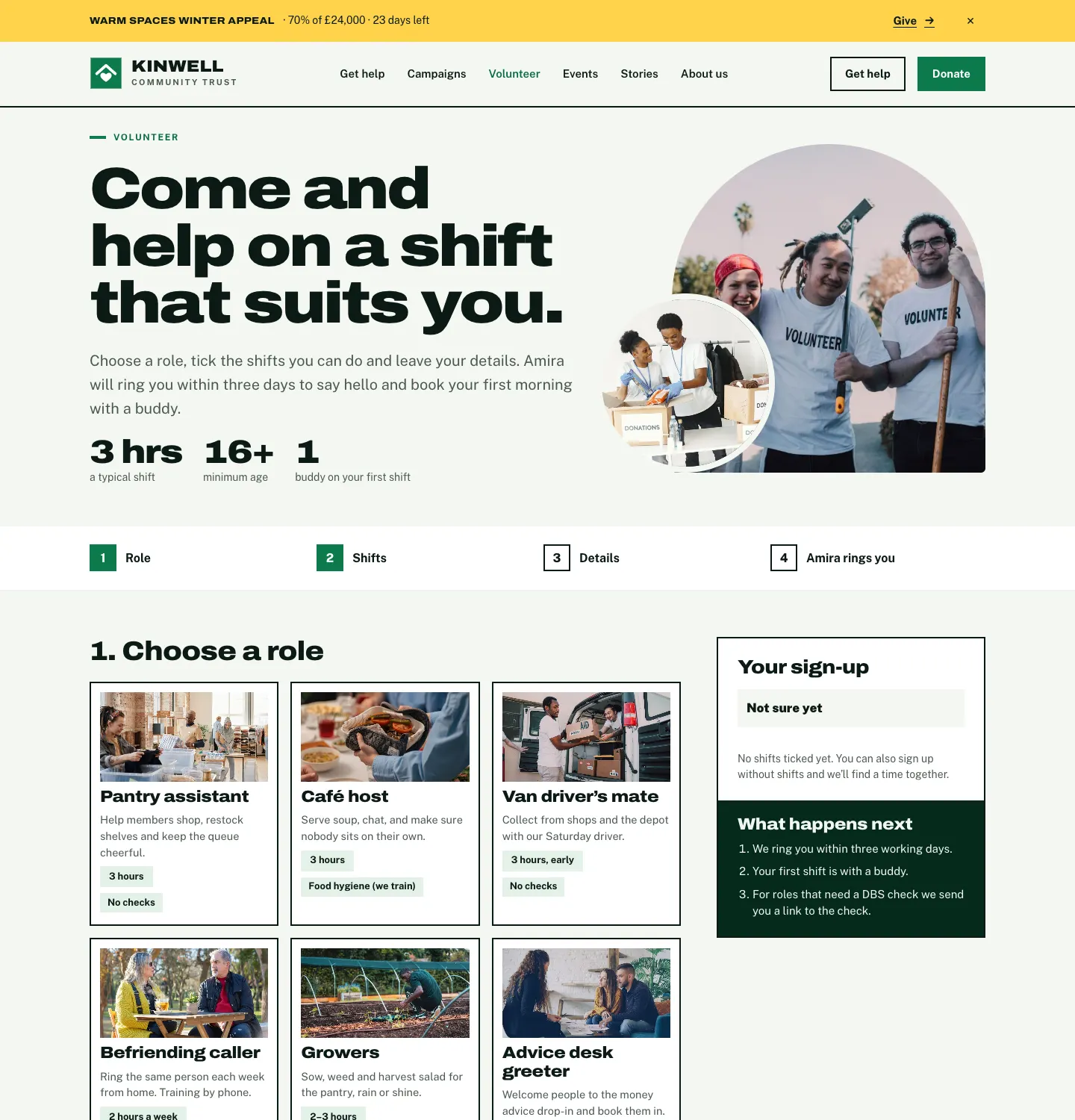
- Choose a role. Each role card shows what it involves, the time it takes and any checks or training. Not sure yet is always there too.
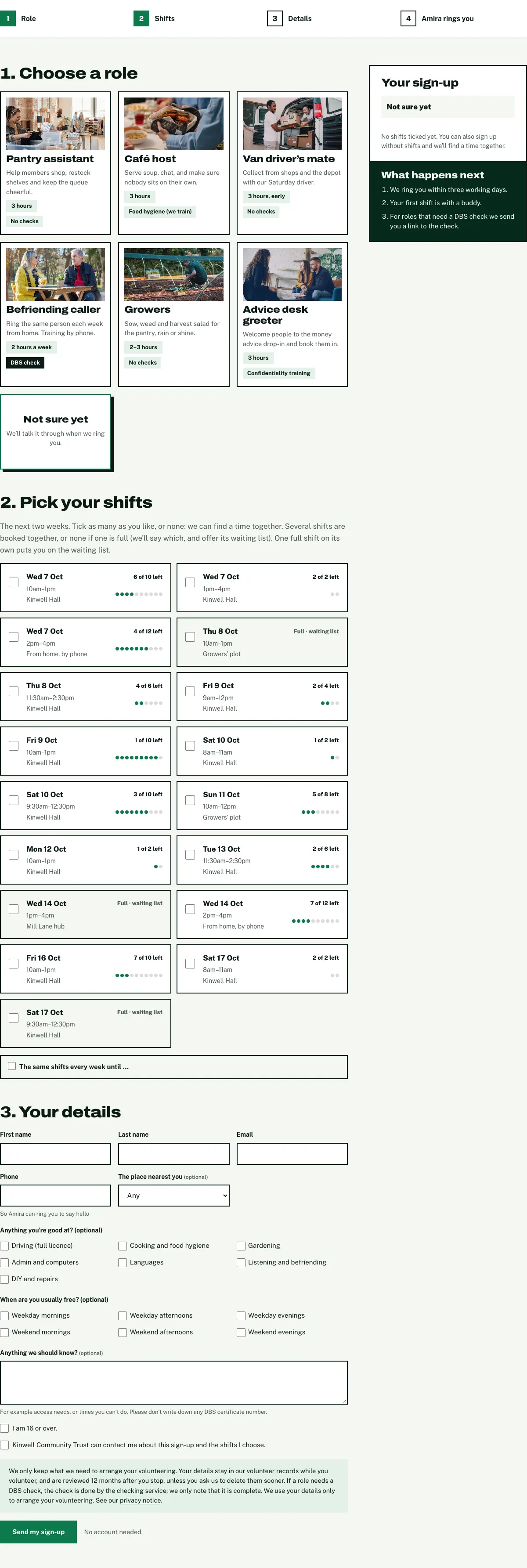
- Pick your shifts (Pro). The next two weeks of shifts, with places left. They can tick as many as they like, or none.
- Your details. First name, last name, email and phone, and optionally the place nearest them, their skills, when they're usually free and anything you should know.
- They tick that they're old enough (16 or over unless you change it) and that you can contact them, then click Send my sign-up. No account is needed.
They get an automatic email with the role, any shifts they chose, what happens next and (with Pro) their My shifts link.
On a phone, the form is one column:

How to set up the form
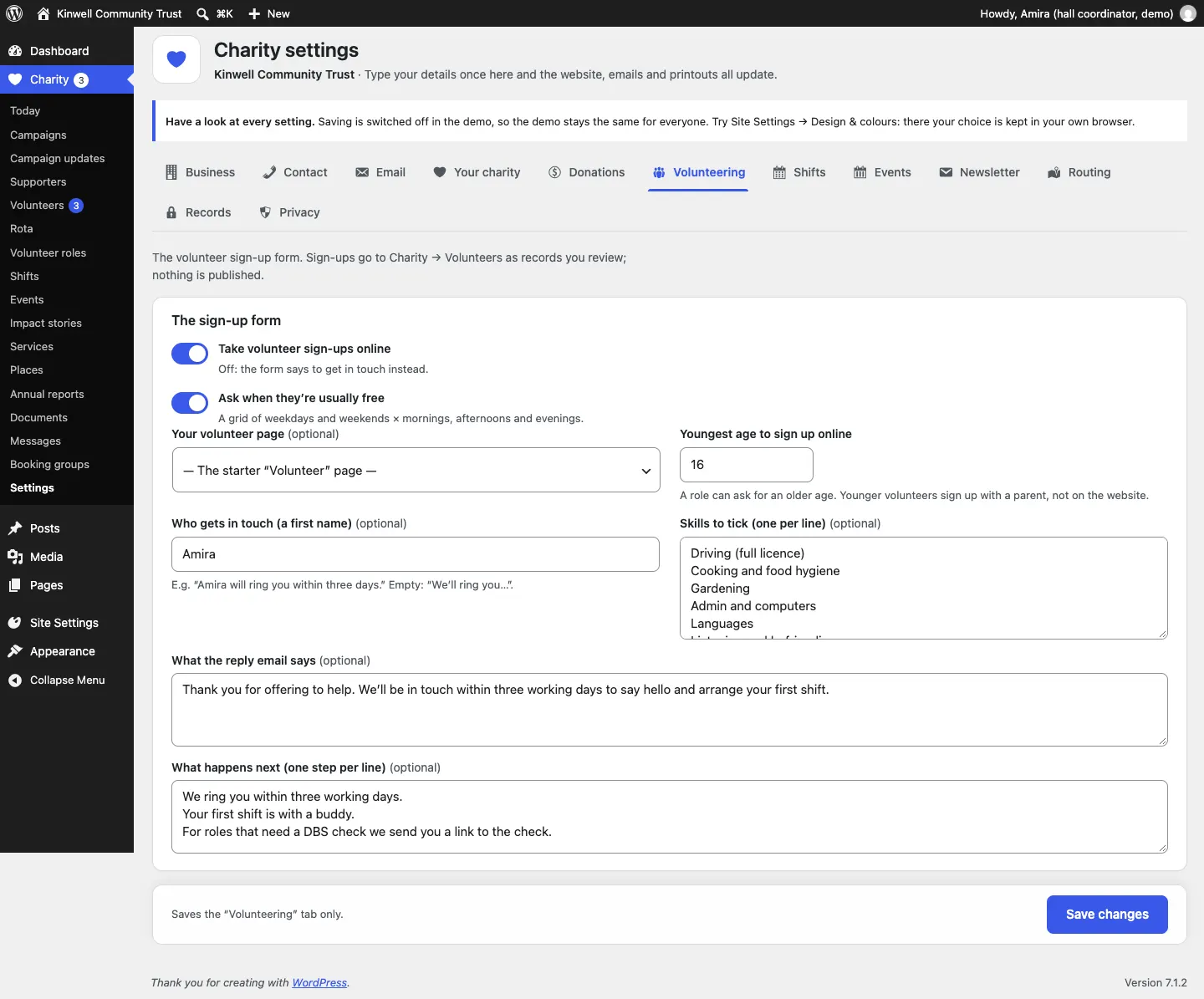
- Go to Charity → Settings → Volunteering.
- Keep Take volunteer sign-ups online switched on. Off, the form says to get in touch instead.
- Ask when they're usually free adds the grid of weekday and weekend mornings, afternoons and evenings.
- Youngest age to sign up online: 16 out of the box. A role can ask for an older age. Younger volunteers sign up with a parent, not on the website.
- Who gets in touch (a first name): for example "Amira", so the page says "Amira will ring you". Empty: "We'll ring you…".
- Skills to tick: one per line.
- What the reply email says and What happens next (one step per line).
- Click Save changes.
How to add a volunteer role
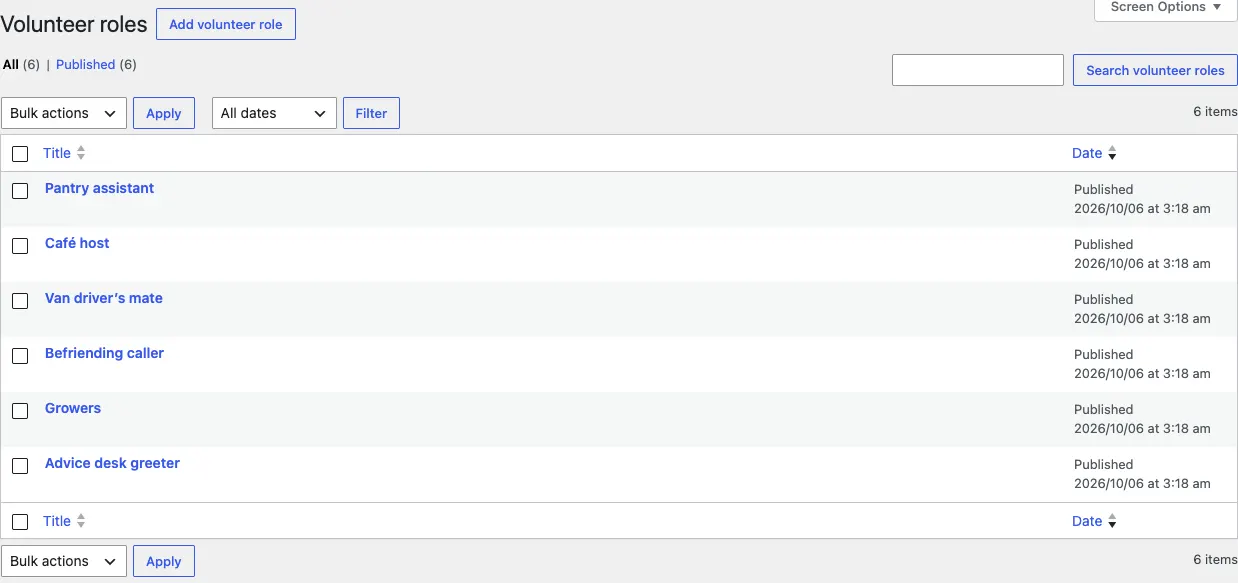
- Go to Charity → Volunteer roles and click Add volunteer role.
- Type the name of the role, for example "Pantry assistant", and describe what the volunteer does.
- Add a photo as the Featured image and a one-line Excerpt: this is the text on the role card.
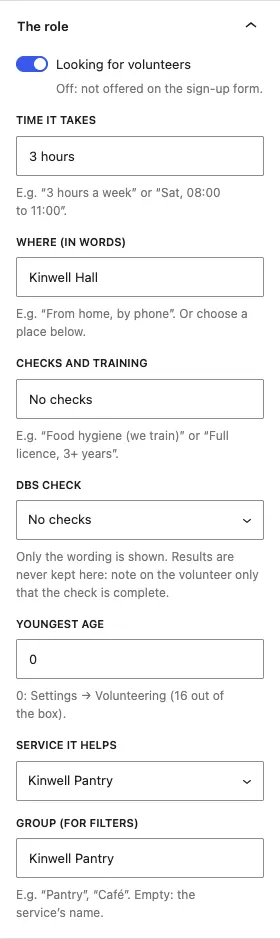
- In The role panel on the right:
- Keep Looking for volunteers on. Switch it off to take the role off the sign-up form.
- Time it takes, for example "3 hours a week".
- Where (in words), for example "From home, by phone", or choose a place in the Place panel.
- Checks and training, for example "Food hygiene (we train)".
- DBS check: No checks, or the wording for a basic, standard or enhanced check. Only the wording is shown to volunteers; results are never kept.
- Youngest age: 0 uses the setting (16 out of the box).
- Service it helps and Group (for filters).
- Click Publish.
How to find a volunteer
- Go to Charity → Volunteers.
- Use the links at the top to show All, New, Contacted, Active, Paused or Left.
- To narrow it down, choose a role (Every role) or a place (Every place), or type a name, email, phone number or words in the search box, then click Filter.
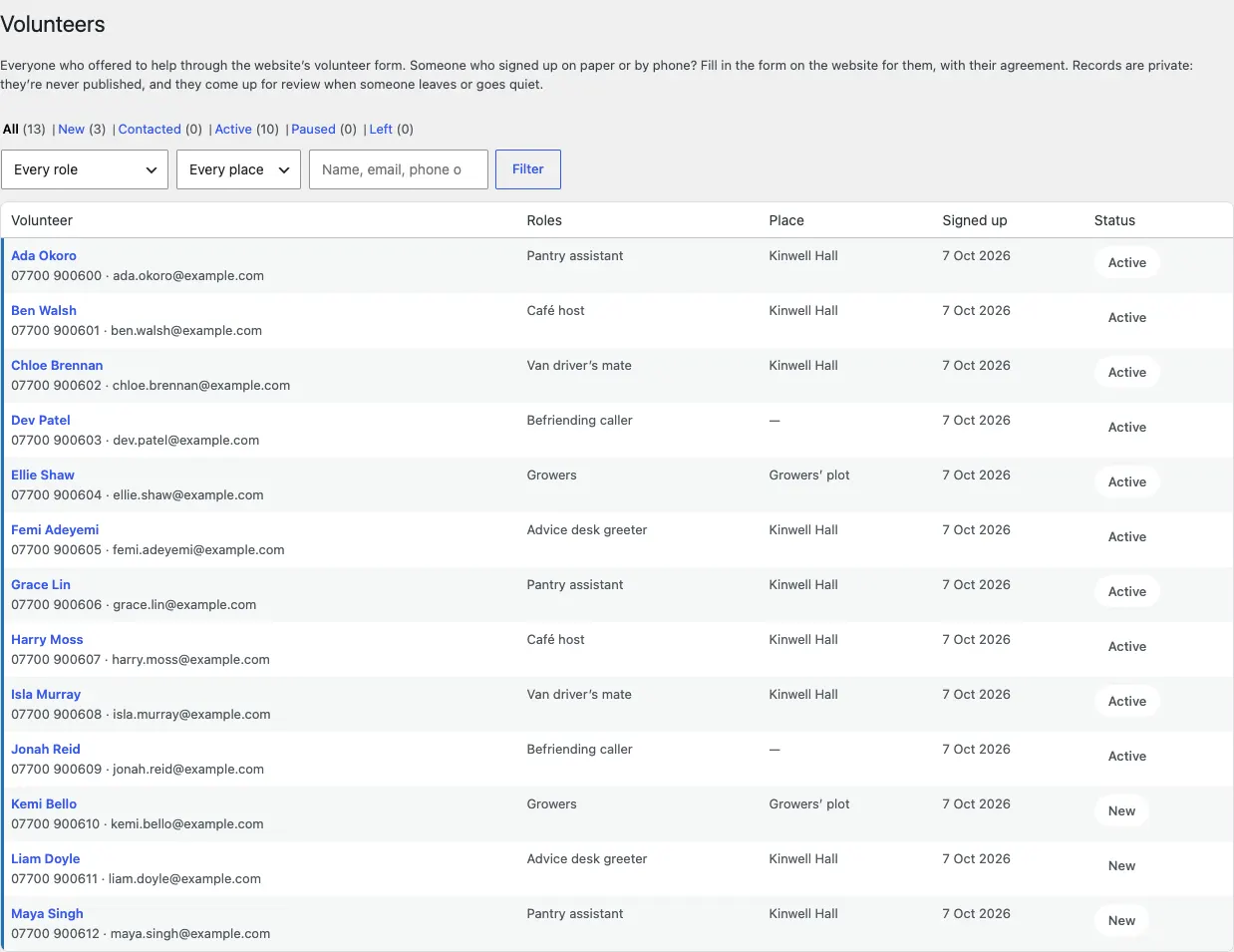
The number beside Volunteers in the menu shows how many new volunteers are waiting for a call.
Someone signed up on paper or by phone? Fill in the volunteer form on the website for them, with their agreement. The screen says so at the top.
How to look after a volunteer
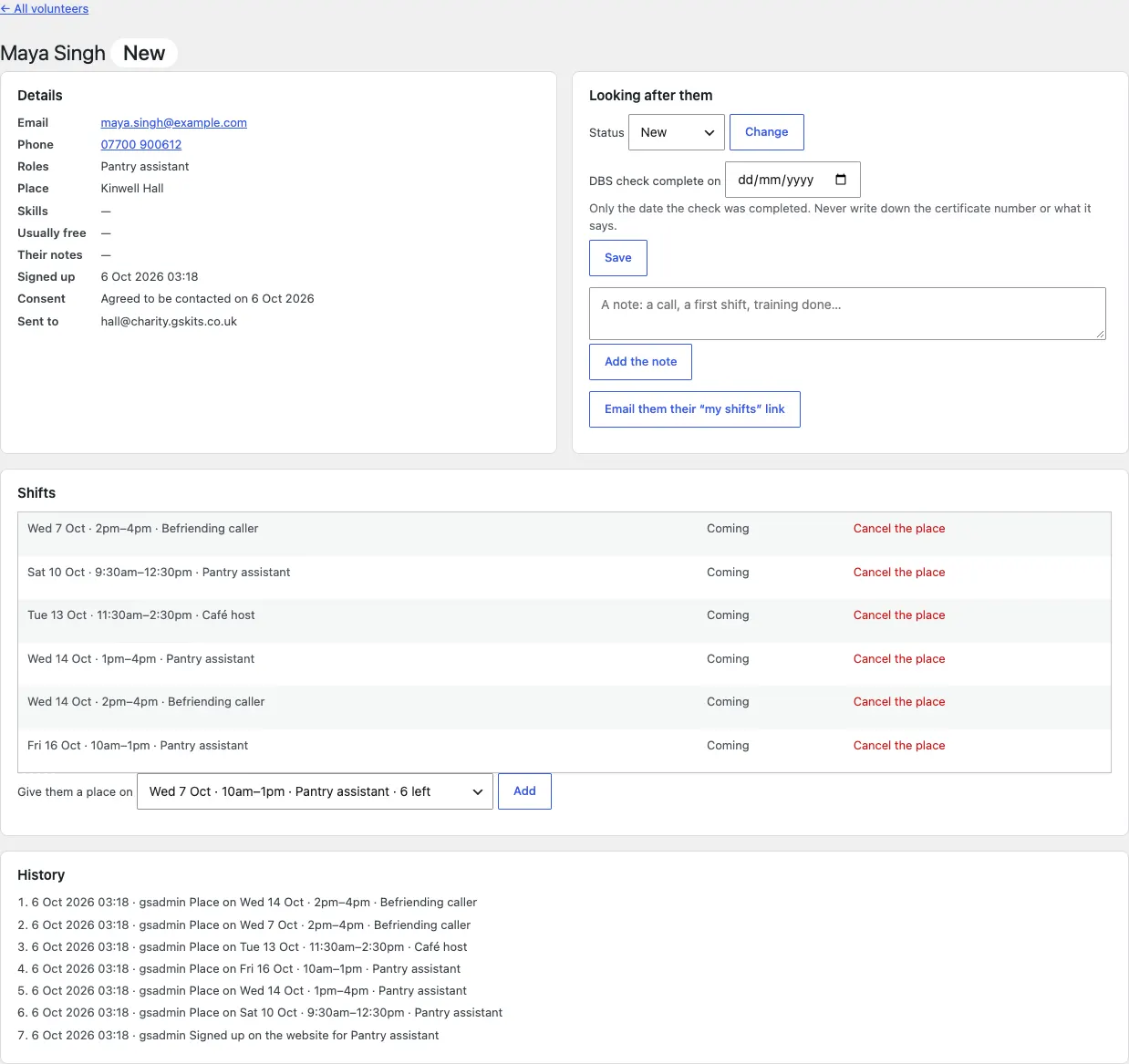
- Click the volunteer's name.
- Details shows their email, phone, roles, place, skills, when they're usually free, their notes, when they signed up, their consent and who the sign-up was sent to.
- Under Looking after them:
- Status: choose New, Contacted, Active, Paused or Left, then click Change. Move them on as you go: New when they sign up, Contacted after your first call, Active once they're helping.
- DBS check complete on: if their role needs a check, enter only the date it was completed and click Save. Never write down the certificate number or what it says.
- Add a note: type what happened ("Rang, first shift booked with a buddy") and click Add the note.
- (Pro) Email them their "my shifts" link if they've lost it.
- Shifts (Pro) lists their shifts. See Shifts, the rota and My shifts.
- History lists everything that has happened, with the date and who did it.
Who gets the sign-ups
- New volunteers are emailed to the address in Charity → Settings → Email → Send notifications to. For several people, put commas between the addresses.
- (Pro) With routing on, each place's volunteers go to that place's coordinator instead. Switch it on under Charity → Settings → Routing and set the Coordinator's email on each place. See Places and services.
The record's Sent to line shows where each sign-up went.
Reviewing old records
Data protection law asks you to keep personal data only as long as you need it. Nothing is deleted automatically.
- Under Charity → Settings → Records, set Review volunteers after (months since they left or last did anything): 12 out of the box. Set Review event sign-ups after (months since the event) too: 6 out of the box.
- Records that reach that age (and have no shifts coming up) are listed under Charity → Volunteers → Due for review, together with old event sign-ups.
- An administrator ticks the ones there's no reason to keep and clicks Delete the ticked records, then types DELETE to confirm. They're deleted for good, with their shift places.
When someone asks for their data
- An administrator goes to Tools → Export Personal Data (for a copy) or Tools → Erase Personal Data (to delete it).
- Type the person's email address and send the request.
It covers their volunteer record and shifts, event sign-ups and campaign-update requests. See Privacy, cookies and emails.