Running your website
Messages
Messages sent with the website's contact form: where they go, how to read and answer them, sending a place's messages to its coordinator, and reviewing old messages.
On this page
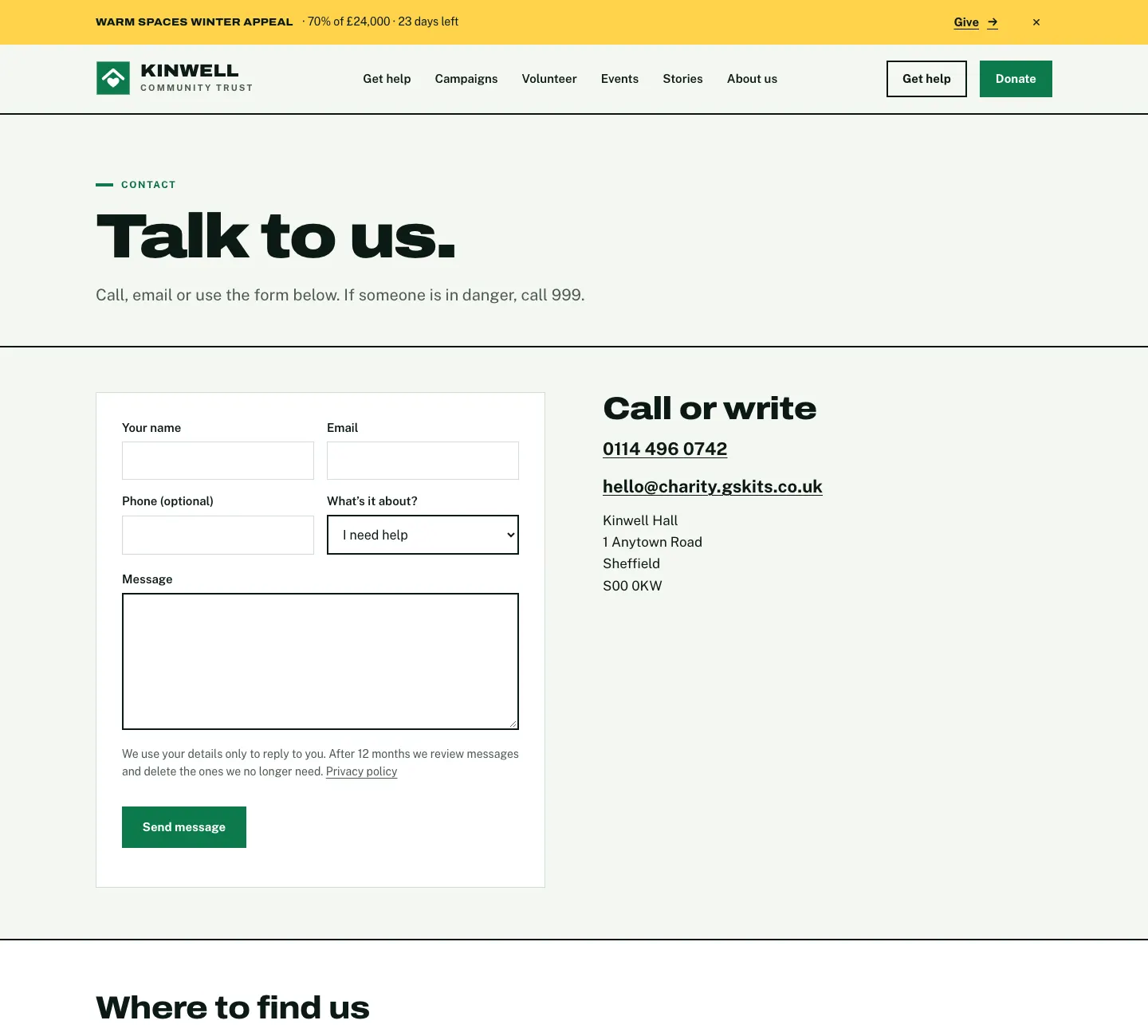
The Contact page has a short form: name, email, an optional phone number, what it's about, and the message. When someone sends it, you get an email straight away, they get an automatic reply, and the message is kept under Charity → Messages so nothing is lost.
Features marked (Pro) need a Pro or Agency licence.
How to answer a message
- Open the "New message from…" email. It shows who it's from, their email and phone, the subject, the page it was sent from and what they wrote.
- Press Reply in your email program. Your reply goes straight to them.
How to see all messages
- Go to Charity → Messages, or click All messages on Charity → Today.
- The list shows each Message, who it's From, What they wrote and when it was Received.
- Click a message to read it in full.

New messages also appear under New messages on Charity → Today.
How to set up the contact form
- Go to Charity → Settings → Contact.
- Under Contact form, list the Subjects to choose from, one per line (for example "I need help", "Volunteering", "Donations"). Leave it empty to hide the subject list.
- Change the Automatic reply if you like. It's emailed to the visitor straight away.
- Click Save changes.
Messages are emailed to the addresses in Charity → Settings → Email → Send notifications to.
Messages for a place (Pro)
With routing on, a message sent from a place's page also goes to that place's coordinator (the Coordinator's email on the place). Switch it on under Charity → Settings → Routing. See Places and services.
Reviewing old messages
Data protection law asks you not to keep personal data longer than you need it.
- Under Charity → Settings → Contact, set Review messages after (months): 12 in the demo.
- Choose When messages are due:
- List them for review before deleting (recommended): older messages are listed under Messages → Due for review, and an administrator deletes what isn't needed.
- Delete them automatically: older messages are deleted each night.
- Click Save changes.
The privacy line under the form tells visitors how long you keep messages.