Running your website
Running the website day to day
Your daily start on Charity → Today, the numbers in the menu, a weekly and yearly routine, and who on your team can do what.
On this page
Once the website is set up, running it takes a few minutes a day. This chapter gives you a simple routine: what to check each morning, each week and each year, and who on your team looks after what.
Features marked (Pro) need a Pro or Agency licence.
Signing in
- Go to your website's address followed by /wp-admin, for example yourcharity.org.uk/wp-admin.
- Sign in with your own username and password. Please don't share accounts: the website records who did what, and each person should only see what their job needs.
- You go straight to Charity → Today.
Forgotten your password? Click Lost your password? on the sign-in page. After 5 wrong passwords, sign-in pauses for 15 minutes. See Staff accounts and sign-in.
Your daily start: Charity → Today
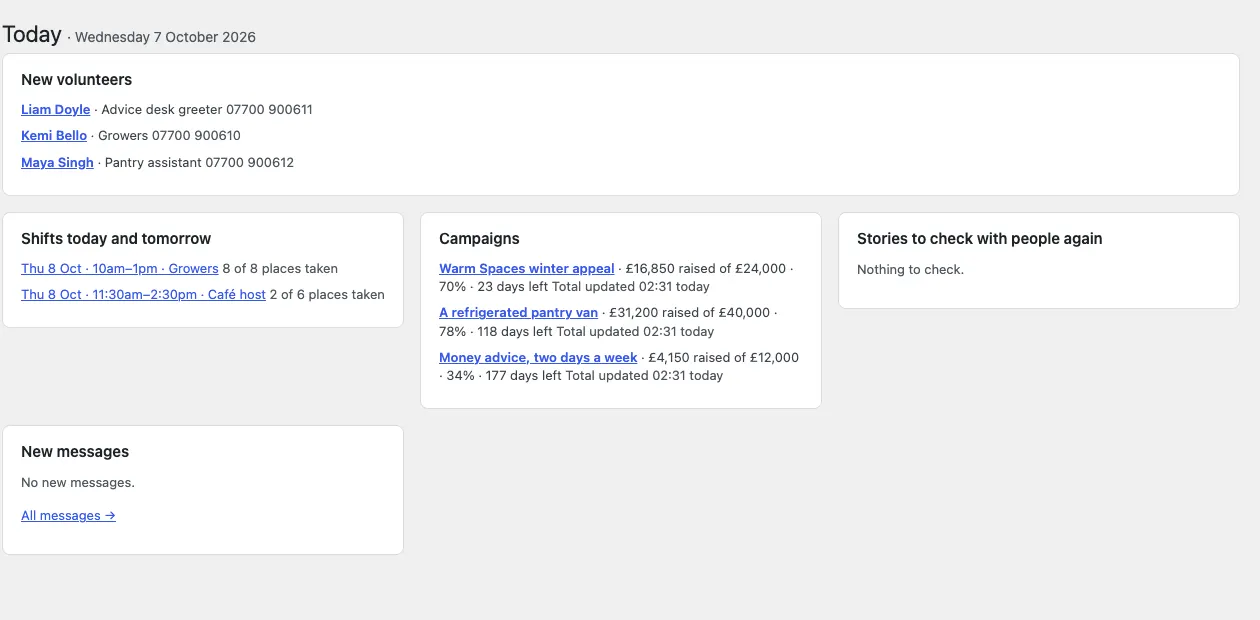
- New volunteers waiting for a call, with their role and phone number. Click a name to open their record.
- Shifts today and tomorrow (Pro), with how many places are taken. Click one to open that week's rota.
- Campaigns: each open campaign with how much it has raised of its target, how far it has got, the days left and when its total was last updated ("Total not entered yet" if it has none).
- Stories to check with people again, when a story's "check again by" date comes.
- New messages from the contact form, with All messages.
- For administrators, records due for review.
The numbers in the menu

The numbers beside Charity and Volunteers show how many things are waiting, such as new volunteers who haven't been contacted yet. Once you change a volunteer's status from New, the number goes down.
Every day
- Open Charity → Today.
- Ring each new volunteer, add a note on their record and change their status to Contacted (see Volunteers and roles).
- (Pro) Check today's and tomorrow's shifts. Fill gaps by giving volunteers places, or post the shift on social media (see Shifts, the rota and My shifts).
- Answer new messages (see Messages).
- During a busy appeal, update the campaign total from your provider's dashboard (see Campaigns and appeals).
Every week
- Look at Charity → Rota for the week ahead (Pro).
- Update each open campaign's total and recent gifts.
- Post a campaign update when you pass a milestone, ticking Email it to supporters with Pro.
- Check Charity → Events for sign-ups to coming events.
- Add any new shifts for the weeks ahead.
Every month or so
- Add an impact story, with consent recorded.
- Change the featured campaign in the appeal banner if your main appeal has changed.
- Check that roles you're no longer recruiting for have Looking for volunteers switched off.
Every year
- Add the new Annual report with the year's figures and PDF.
- Update your trustees under Charity → Settings → Your charity, and your documents (accounts, policies, minutes).
- An administrator reviews Charity → Volunteers → Due for review and old messages, and deletes what there's no reason to keep.
- Check that your licence is active and that updates have been installed (see Backups and updates).
Who can do what
Each member of staff should have their own account with the role that fits their job:
| Role | What they can look after |
|---|---|
| Administrator | Everything, including settings, staff access and deleting records |
| Volunteer coordinator | Volunteers, roles, shifts and the rota, event sign-ups and messages |
| Fundraiser | Campaigns, their totals and updates, supporters, and the website's content |
| Editor | Services, stories, events, reports and documents |
An administrator can change what each role can do under Charity → Staff access. See Staff accounts and sign-in.
When something isn't right
- A donate button goes to the wrong page: check Your donation page under Charity → Settings → Donations, and the campaign's own Donations panel.
- Volunteer emails aren't arriving: check Send notifications to on the Email tab and use Send a test email.
- A story won't publish: fill in They agreed to share it on and What they agreed to in its Consent panel.
- Shifts or the rota are missing: these need a Pro or Agency licence.
For anything else, see Troubleshooting and support, or email support@thegradespace.com with what you were doing, what you expected and a screenshot.