Running your website
Your businesses
Add, edit, hide and reorder the businesses in your group; set each one's page, inbox, contact question and (Pro) brand kit; and file services, team members, testimonials and news under a business.
On this page
Everything on a Group website is organised by business. Each business has its own page, its own services, its own inbox for enquiries and its own question on the contact form. When you add a business, it appears on the homepage, in the Our businesses menu and in the contact form straight away.
This chapter covers Group → Businesses, and the Business box on services, team members, testimonials and news posts.
Features marked (Pro) need a Pro or Agency licence.
The Businesses list
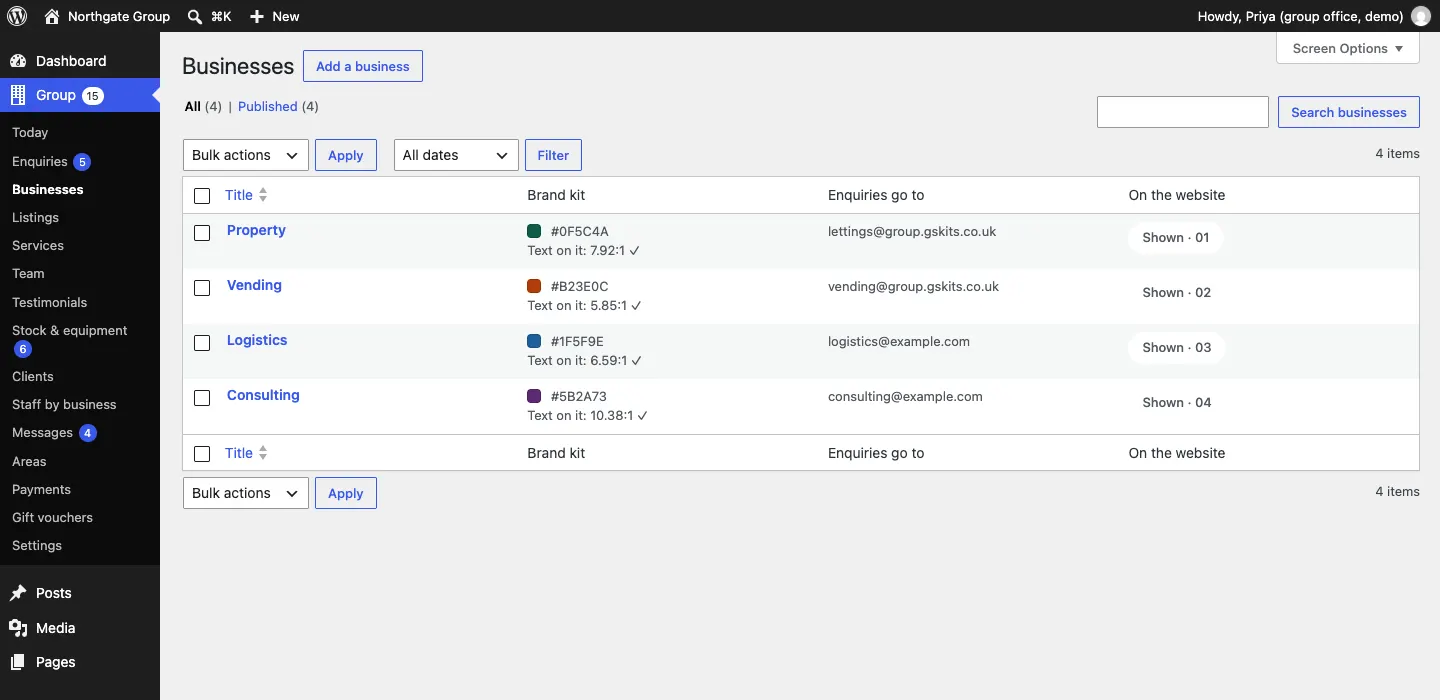
Go to Group → Businesses. Each row shows the business, its brand colour (and whether text on it is easy to read), where its enquiries go, and whether it's shown on the website along with its number.
How to add a business
- Go to Group → Businesses and click Add a business.
- Type the business's name in the title at the top, for example "Property".
- Write a short introduction in the sidebar under Excerpt (click Edit excerpt if you don't see it). This is the paragraph under its name on the homepage and its page.
- Set a photo with Featured image.
- Fill in the boxes described below, starting with The business and Contact and enquiries.
- Click Save (or Publish for a new business).
You can also add a business with the setup wizard: Group → Settings → Run setup again, then Add another business. It never adds anything twice. (Only administrators see the Run setup again button.)
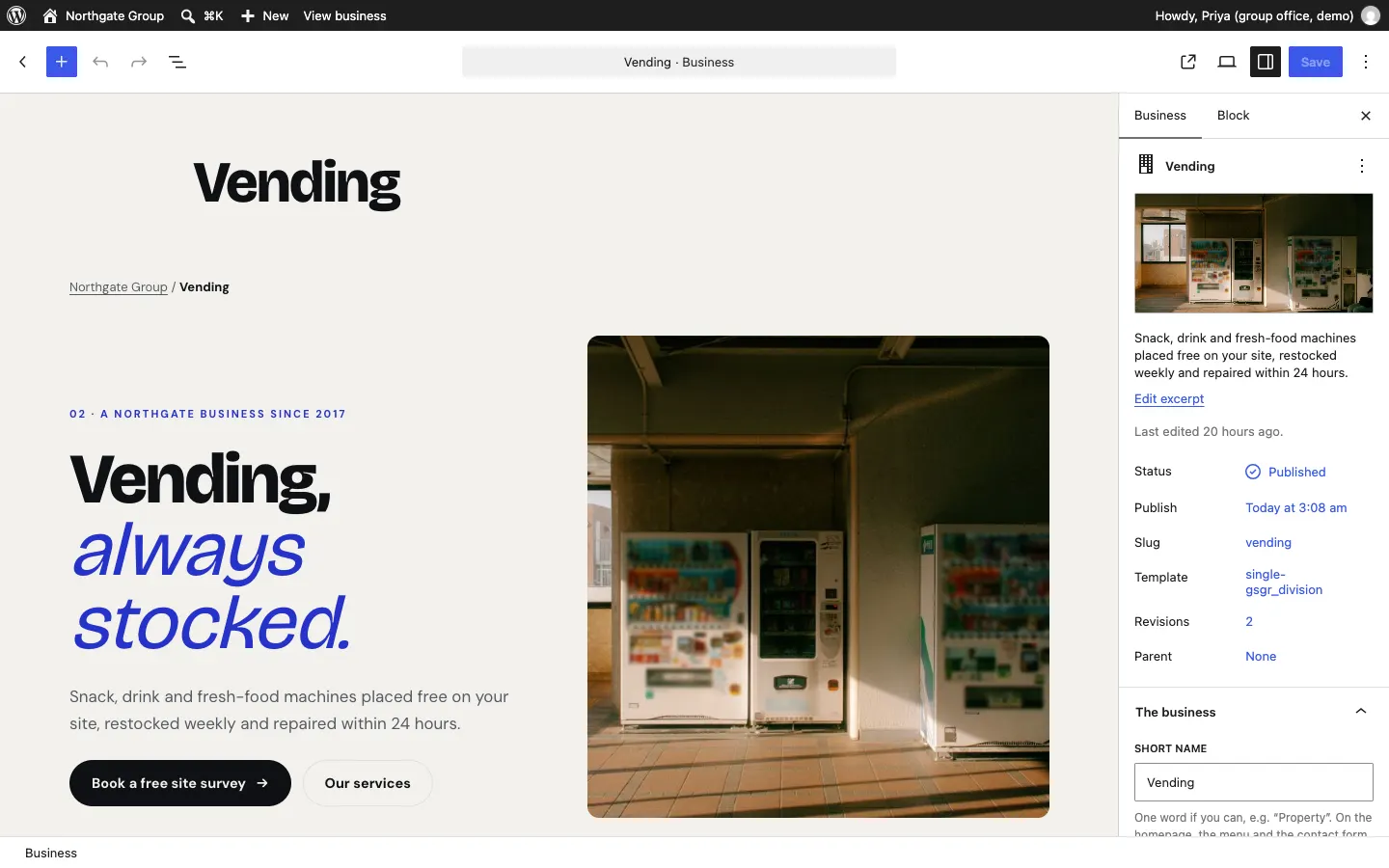
The boxes are in the right-hand sidebar under the page's own settings. Click a box's name to open it.
The business
- Short name: one word if you can, for example "Property". Used on the homepage, the menu and the contact form.
- Its own brand name (optional): for example "Kestrel Homes", if it trades under its own name.
- Since (year): the year it started.
- In a few words: shown under its name in the contact form and menus, for example "Lettings, sales, management".
- What it does (tags): separated by commas.
- Its headline, Its section heading on the homepage, The heading on its page (optional): the big lines on the homepage and its page.
- Its main button: for example "Book a valuation". It opens the business's enquiry form.
- Its link from the homepage (optional): for example "Browse homes".
- Hide it from the website for now: takes it off the homepage, the menus and the contact form without deleting anything.

Contact and enquiries
-
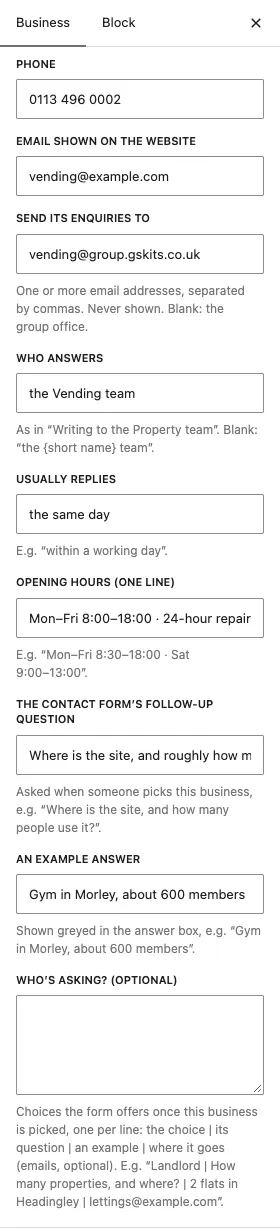
Phone and Email shown on the website.
-
Send its enquiries to: one or more email addresses, separated by commas. Never shown on the website. If you leave it blank, its enquiries go to the group office.
-
Who answers: as in "Writing to the Property team".
-
Usually replies: for example "within a working day".
-
Opening hours (one line).
-
The contact form's follow-up question: asked when someone picks this business, for example "How many properties, and where?".
-
An example answer: shown greyed out in the answer box.
-
Who's asking? (optional): choices the form offers once this business is picked, one per line. Each line can have its own question, example and inbox, separated by
|:Landlord | How many properties, and where? | 2 flats in Headingley | landlords@yourgroup.com
On its page and the homepage
- Headline figure, What it counts and Note under it: for example "412", "homes and units managed", "Average tenancy 3.4 years".
- Share of the group's turnover (%): its part of the bar in "The group in numbers".
- Facts across its page: up to four, one per line: the figure | what it is.
- Live figures (operations panel): up to three, one per line.
- How it works: heading and How it works: steps: up to four steps, one per line: the step | a line about it.
- Its own menu (optional): the menu on its page, one per line: the words | the link. For example
To let | #listings. - Its footer note (optional): for example the client money protection scheme.

Brand kit (Pro)
Used when Group → Settings → Group → Display mode is set to Each business its own brand.
- Colour: a colour code such as #0F5C4A. If text on your colour wouldn't be easy to read, the website uses a deeper shade (or dark text) automatically. The Businesses list shows the check, for example "Text on it: 7.92:1 ✓".
- Heading font and Corners.
- Mark (when there's no logo).
- Logo (optional) and Logo for dark backgrounds (optional).
- Second photo (optional): for its card on the homepage.
Search and sharing
Title in search results and Description in search results. Leave them blank to use the business's name and its introduction.
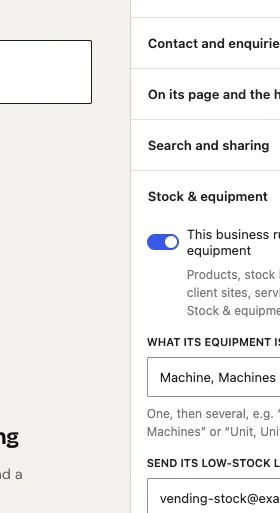
Stock & equipment (Pro)
- This business runs stock and equipment: switch this on to use Group → Stock & equipment for this business.
- What its equipment is called: one, then several, for example "Machine, Machines".
- Send its low-stock list to: email addresses for the morning low-stock email.
- What its listings are called: for example "Homes". Blank: Listings.
How to hide a business
- Open the business from Group → Businesses.
- In The business, switch on Hide it from the website for now.
- Click Save.
It disappears from the homepage, the menus and the contact form. Its enquiries, listings and records are kept. Switch it off again to bring it back.
How to change the order of the businesses
The number in the On the website column ("Shown · 01") is the business's place in the order. The homepage, the menu and the contact form all follow it.
- On Group → Businesses, hover over a business and click Quick Edit.
- Change Order (lower numbers come first).
- Click Update.
Services, team, testimonials and news by business
Services, team members, testimonials and news posts each have a Business box. Tick (or choose) the business they belong to, and they show on that business's page as well as across the group.
Services
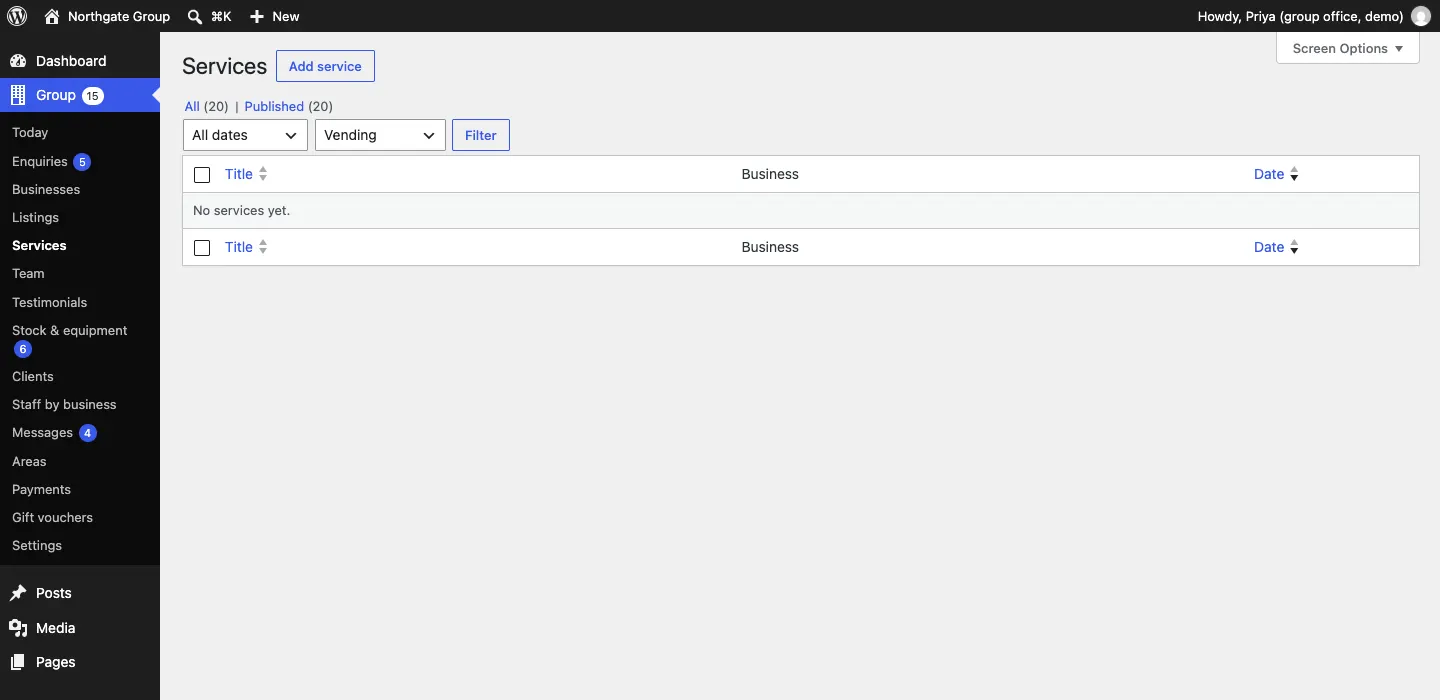
Group → Services lists every service. Use the Business filter at the top to see one business's services.
- Click Add service.
- Type the service's name and a short description.
- Fill in Price ("10% of rent + VAT", "From £38 a drop", "By quote"), and optionally A short label and Show it as a card with its photo.
- Choose the Business.
- Click Save.
The team
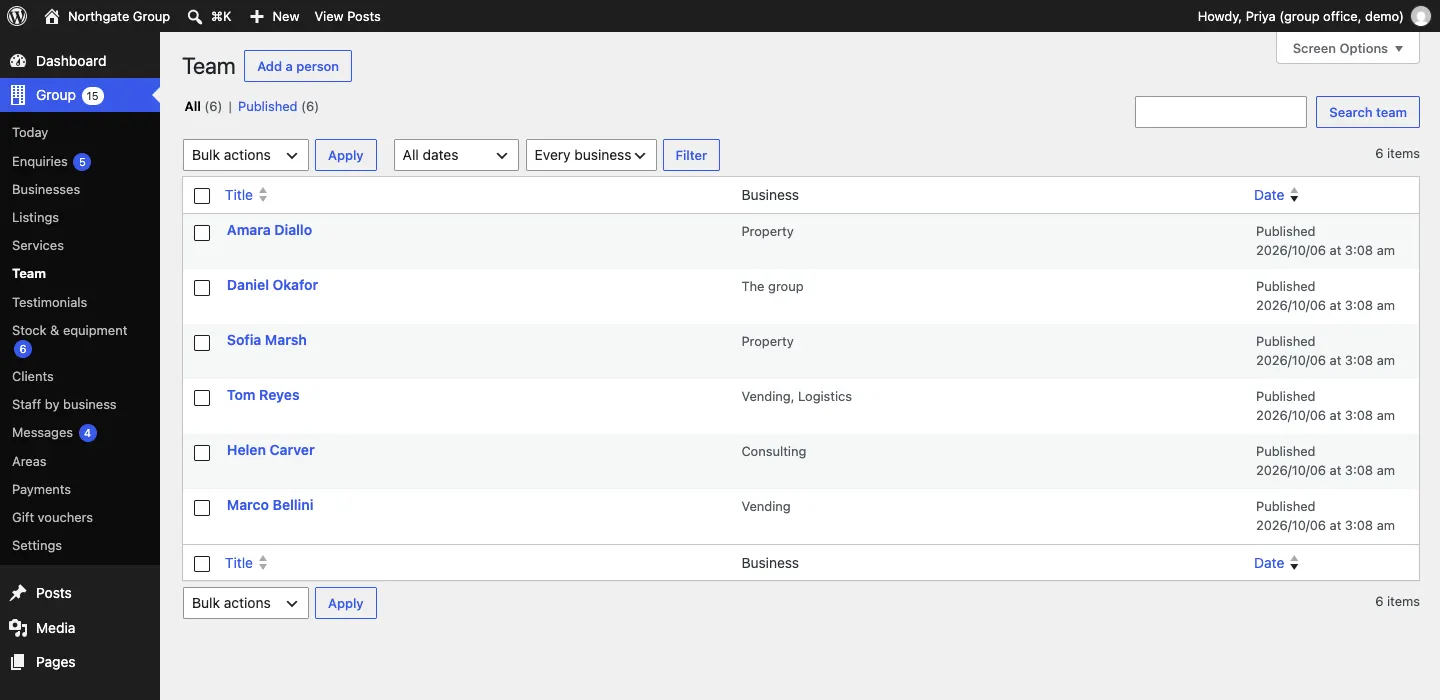
Group → Team is the team directory on the People page.
- Click Add a person.
- Type their name, add a photo with Featured image, and fill in Role.
- Tick Part of the leadership to show them under "Leadership".
- Tick Businesses they work in. People can be in several businesses, or none for head office ("The group").
- Optionally link Their sign-in (optional) to their staff account.
- Click Save.
Testimonials
Group → Testimonials: add Their words, Who and where (for example "Landlord, Headingley") and the Business.
News
Write news as ordinary posts under Posts → Add Post (see Pages and content). Choose the Business in the post's sidebar, and the post shows in that business's news as well as the group's news page.