Running your website
Group settings
Every tab of Group → Settings: Business, Contact, Email, Group, Listings, Stock & equipment, Client area and Privacy, and what each setting does.
On this page
Group → Settings is where you type your details once: the website, emails, invoices and printouts all update from here. Each tab has its own Save changes button, which saves that tab only.
Administrators also see Run setup again at the top, which runs the setup wizard again (see The Group setup wizard). It never adds anything twice.
Features marked (Pro) need a Pro or Agency licence. On a Starter website the Pro tabs show what the feature does and how to upgrade.
Business
The parent company: its names, company details, logo, the staff sign-in page and social media.
- Trading name: what people see. Also the website's title.
- Registered company name (optional) and Company number (optional): used on invoices, receipts and the copyright line.
- Tagline (optional).
- The parent company: VAT number (optional), Registered in (optional), Registered office (optional), Short name (optional) (as in "A Northgate business") and Where the group is based (optional).
- Logo: shown in the header and footer, in emails and on the sign-in page. Click Choose image, pick a picture from the media library or upload one, then click Select; Change image swaps it later.
- Sign-in page: a photo (chosen the same way) and a line for the staff sign-in page.
- Search and sharing and Social media.
Contact
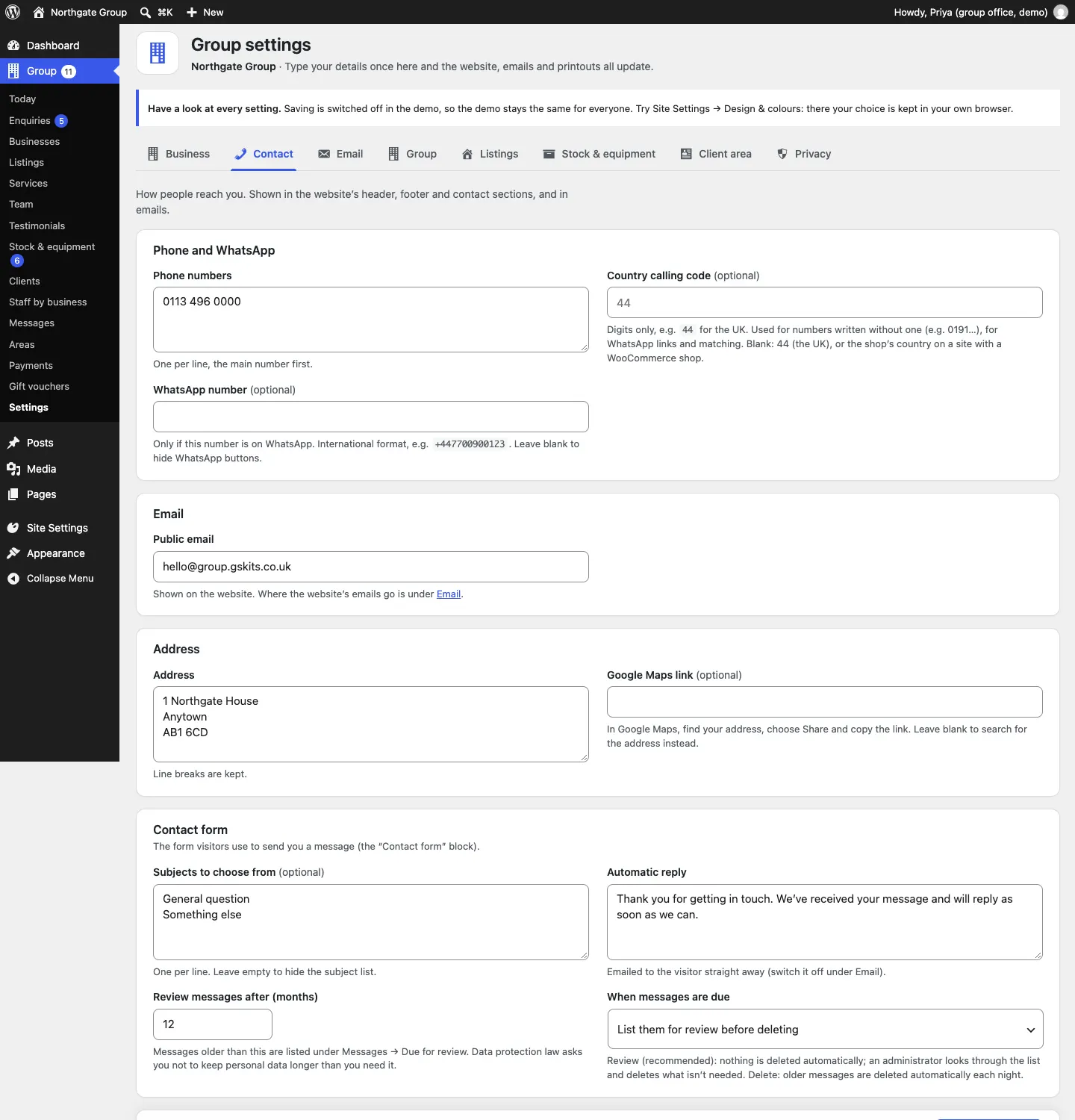
How people reach the group: Phone numbers, WhatsApp number (optional), Public email, Address and Google Maps link (optional); the plain contact form's Subjects to choose from (optional); and how long messages are kept (Review messages after (months) and When messages are due). See Messages.
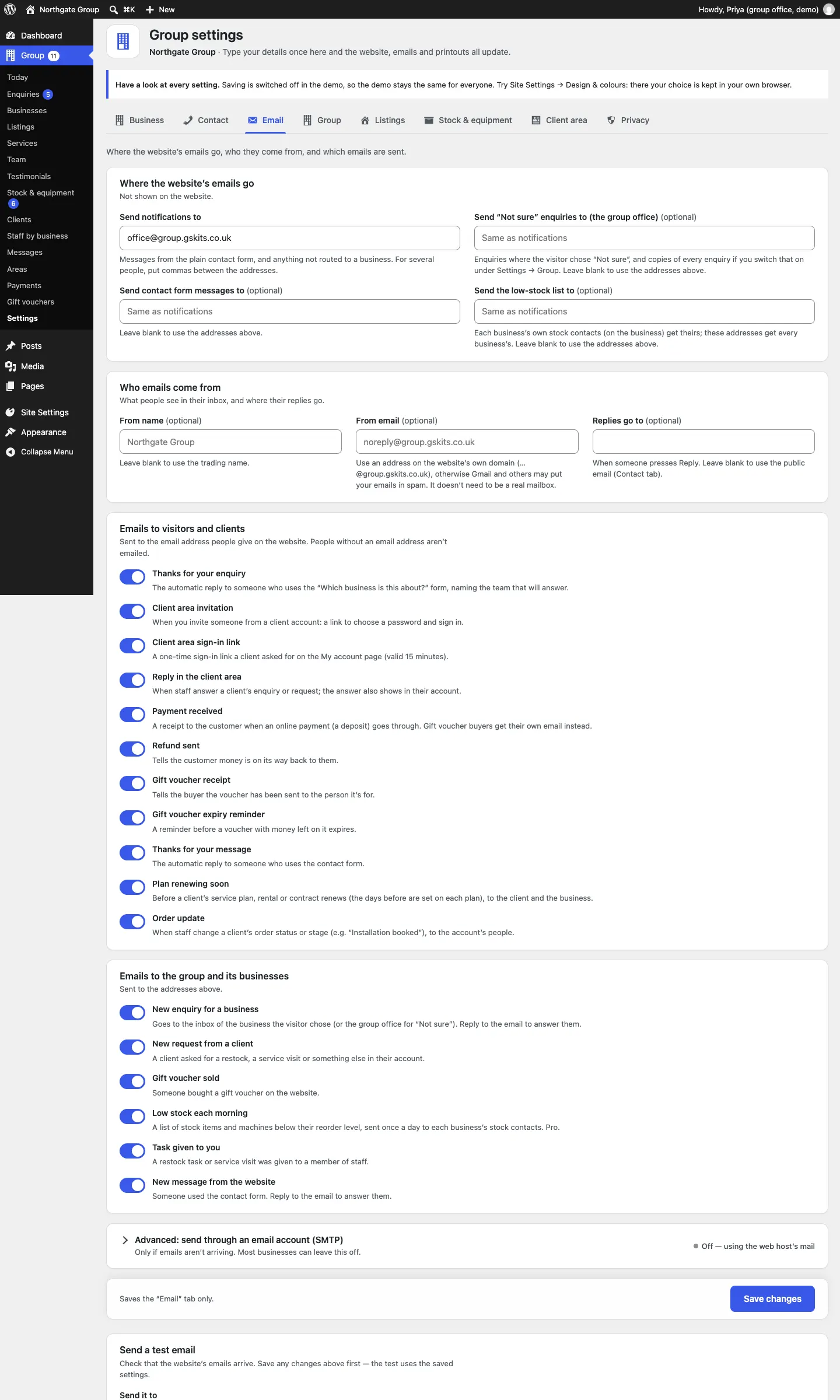
- Send notifications to: the group office. Gets messages from the plain contact form, "Not sure" enquiries and anything for a business without its own inbox.
- Optional lists that use those addresses when left blank: Send “Not sure” enquiries to (the group office) (optional) (also gets a copy of every enquiry if you switch that on in the Group tab), Send contact form messages to (optional) and Send the low-stock list to (optional) (the whole group's morning list; each business's own list goes to the addresses on the business).
- Who emails come from: From name (optional), From email (optional) (use an address on your website's own domain) and Replies go to (optional).
- Emails to visitors and clients and Emails to the group and its businesses: switch each email on or off and change its words. Group emails include Thanks for your enquiry, Client area invitation, Client area sign-in link, Reply in the client area, Plan renewing soon, Order update, New enquiry for a business, New request from a client, Low stock each morning and Task given to you.
- Send a test email: check emails arrive.
More: Privacy and emails.
Group
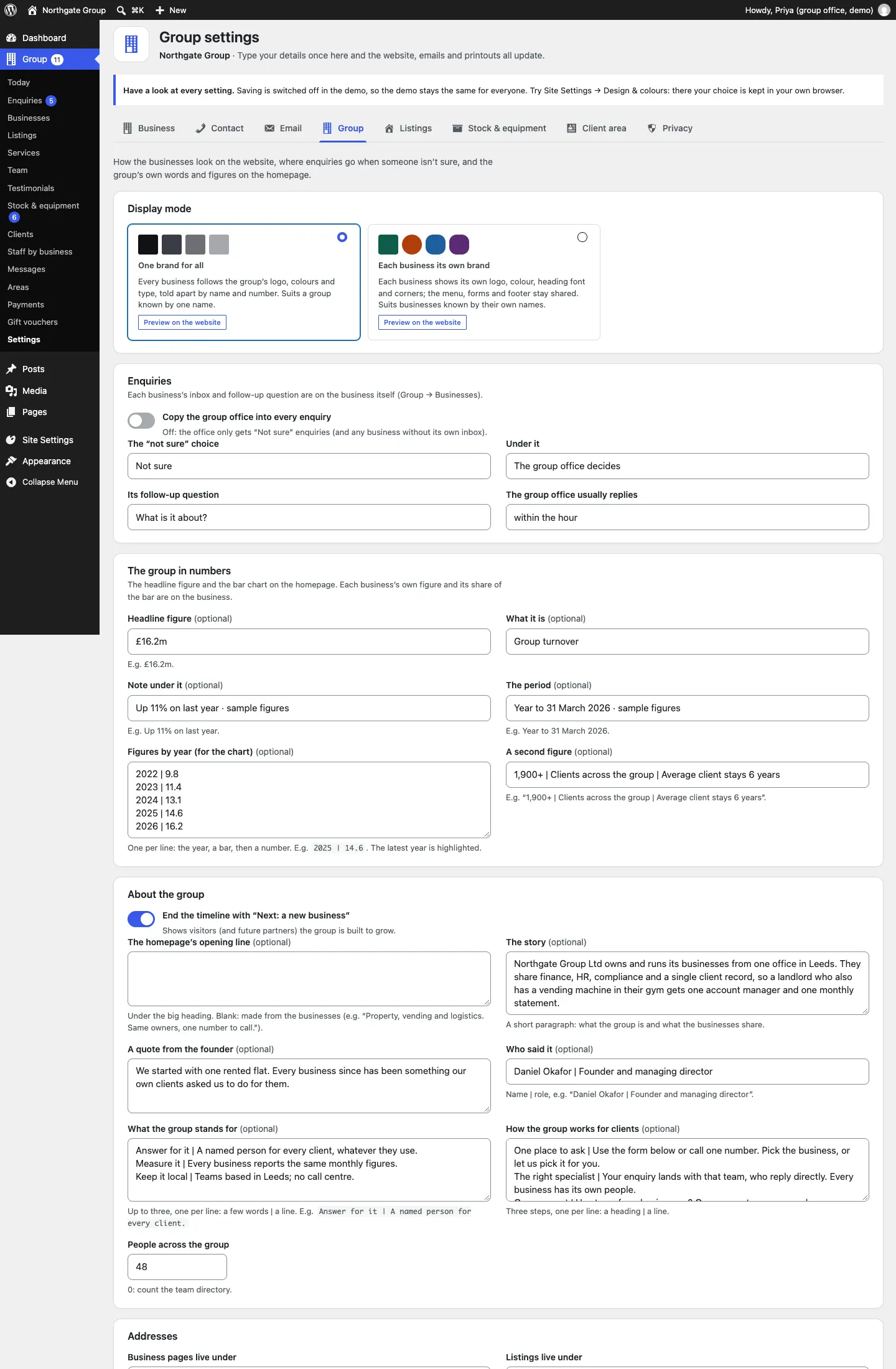
- Display mode: One brand for all, or Each business its own brand (Pro), each with Preview on the website. See Designs, pages and menus.
- Enquiries: Copy the group office into every enquiry, and the words for The "not sure" choice (Under it, Its follow-up question, The group office usually replies).
- The group in numbers: the homepage's Headline figure, What it is, Note under it, The period, Figures by year (for the chart) (one per line, for example
2025 | 14.6) and A second figure. - About the group: End the timeline with "Next: a new business", The homepage's opening line, The story, A quote from the founder, Who said it, What the group stands for, How the group works for clients and People across the group.
- Addresses: Business pages live under (for example "businesses" gives /businesses/property/) and Listings live under.
Listings
Keep let and sold listings on the website, the listing Types, Currency symbol and Listings per page. See Listings.
Stock & equipment (Pro)
The morning low-stock email, the usual service interval and rows per page. See Stock & equipment.
Client area (Pro)
-
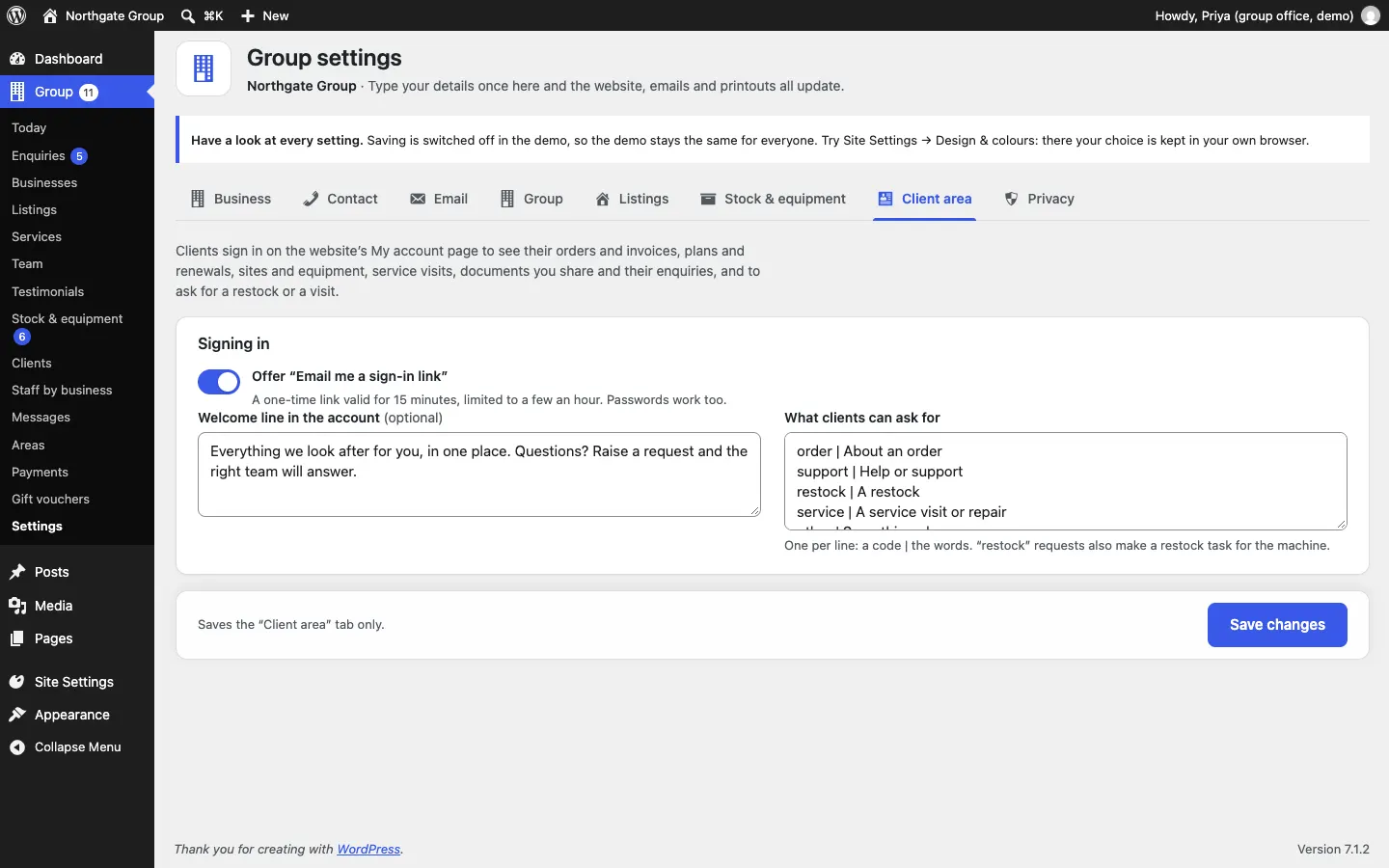
Offer "Email me a sign-in link": a one-time sign-in link valid for 15 minutes. Passwords work too.
-
Welcome line in the account (optional).
-
What clients can ask for: one per line, a code | the words. The usual list is:
order | About an ordersupport | Help or supportrestock | A restockservice | A service visit or repairother | Something elseRequests with the code
restockalso make a restock task for the machine.
See The client area.
Privacy
The cookie banner and the details used in your legal pages (Law that applies, Email for privacy requests (optional)). See Privacy and emails.