Running your website
Stock & equipment (Pro)
Products, categories, suppliers, stock in each place, every movement recorded, machines at client sites, service visits and restock tasks, with low-stock alerts.
On this page
Group → Stock & equipment is for businesses that run physical stock or machines, such as a vending business with a warehouse, vans and machines at client sites. It keeps track of what you have where, records every delivery, sale, transfer and count with who did it and why, and tells you when stock or a machine is running low.
Stock can never go below zero. If two people record at the same time and there isn't enough, the second person is told so and nothing is recorded.
Everything in this chapter is part of Pro: features marked (Pro) need a Pro or Agency licence. On a Starter website, Stock & equipment shows a Pro badge.
Before you start
Switch it on for each business that needs it:
- Go to Group → Businesses and open the business.
- Open the Stock & equipment box in the sidebar.
- Switch on This business runs stock and equipment.
- Optionally set What its equipment is called (for example "Machine, Machines") and Send its low-stock list to (who gets the morning email).
- Click Save.
The tabs follow the order you set things up in: Overview, then Products, Categories and Suppliers, then Stock, Movements, Machines, Service visits, Restock tasks and Activity. Each tab has its Add button at the top, which opens a form in a box over the page. Click Cancel, the cross or press Esc to close it. If something needs adding first (a stock item needs a product), the tab says so with a link.
The Overview
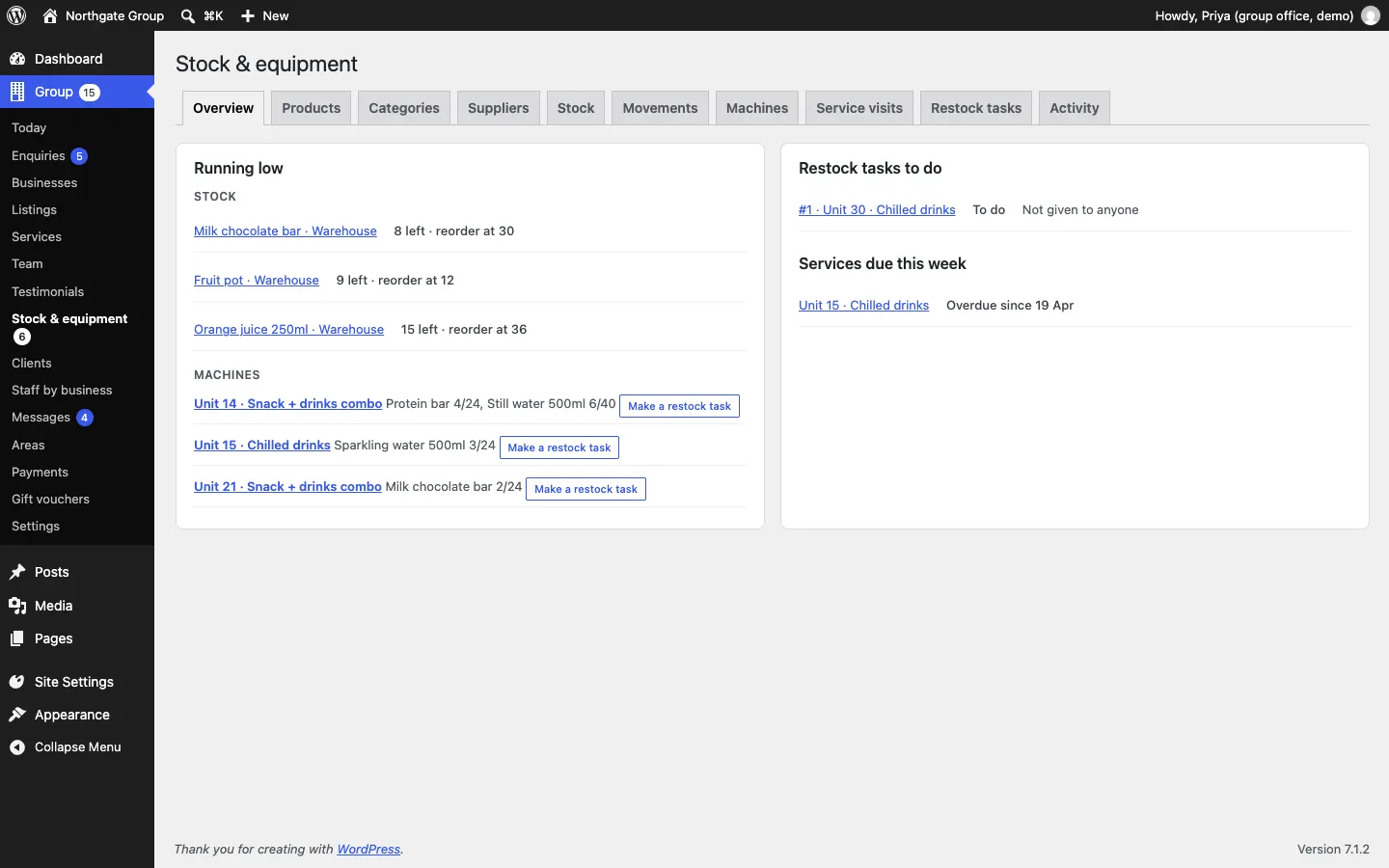
The Overview shows what needs doing:
- Running low: stock items at or below their reorder level, and machines with products below their low level, each with Make a restock task.
- Restock tasks to do.
- Services due this week, including overdue ones.
The red number next to Stock & equipment in the menu counts the stock items and machines running low.
Products
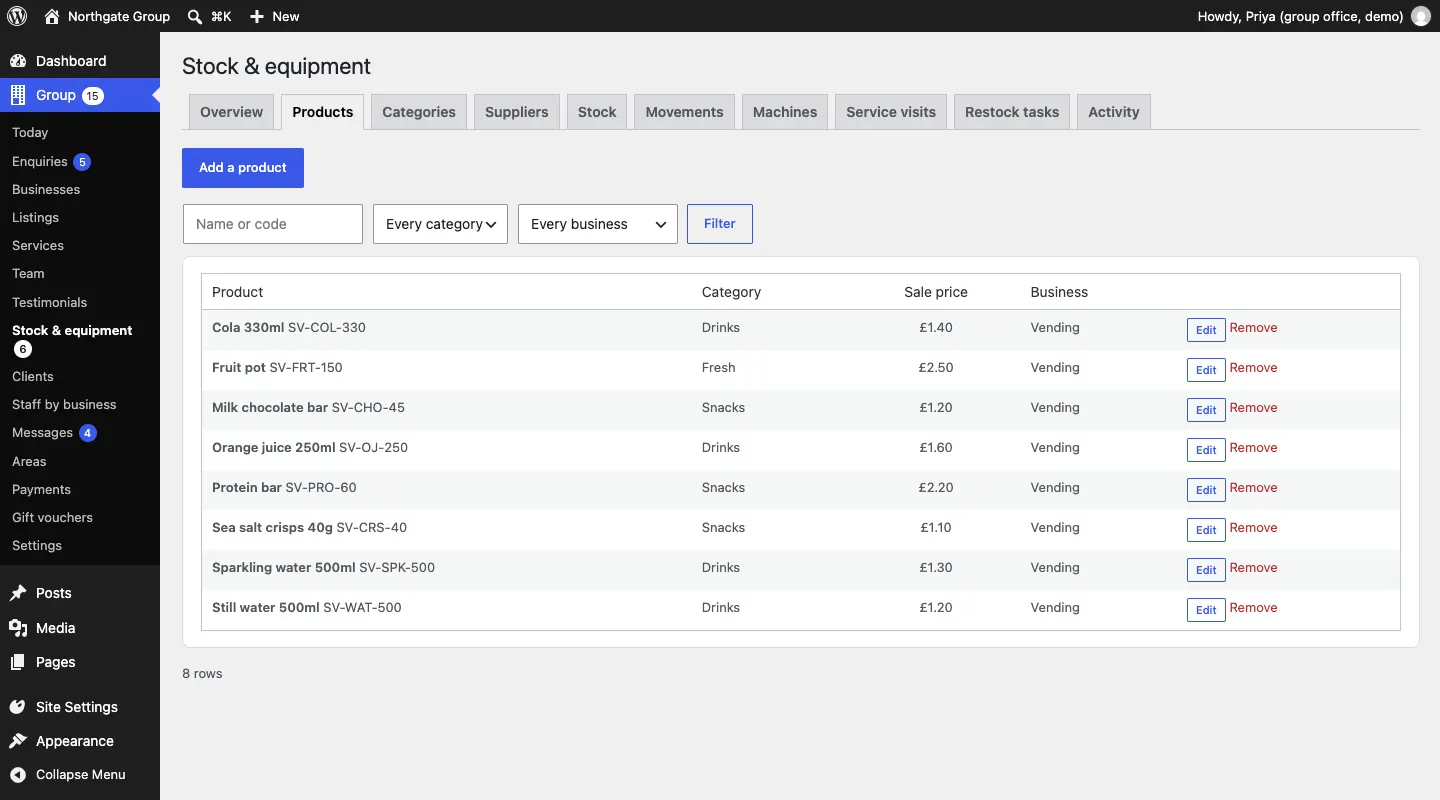
A product is something you stock, such as "Cola 330ml".
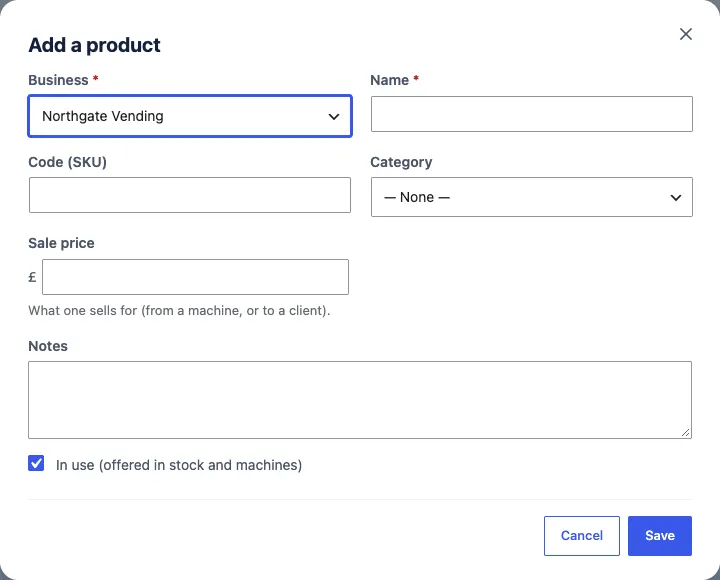
- Click the Products tab, then Add a product.
- Choose the Business and type the Name.
- Optionally fill in the Code (SKU), Category, Sale price (what one sells for) and Notes.
- Leave In use (offered in stock and machines) ticked.
- Click Save.
Click Edit on a product's row to change it, or Remove to delete it. Search by name or code, and filter by Category or Business.
Categories
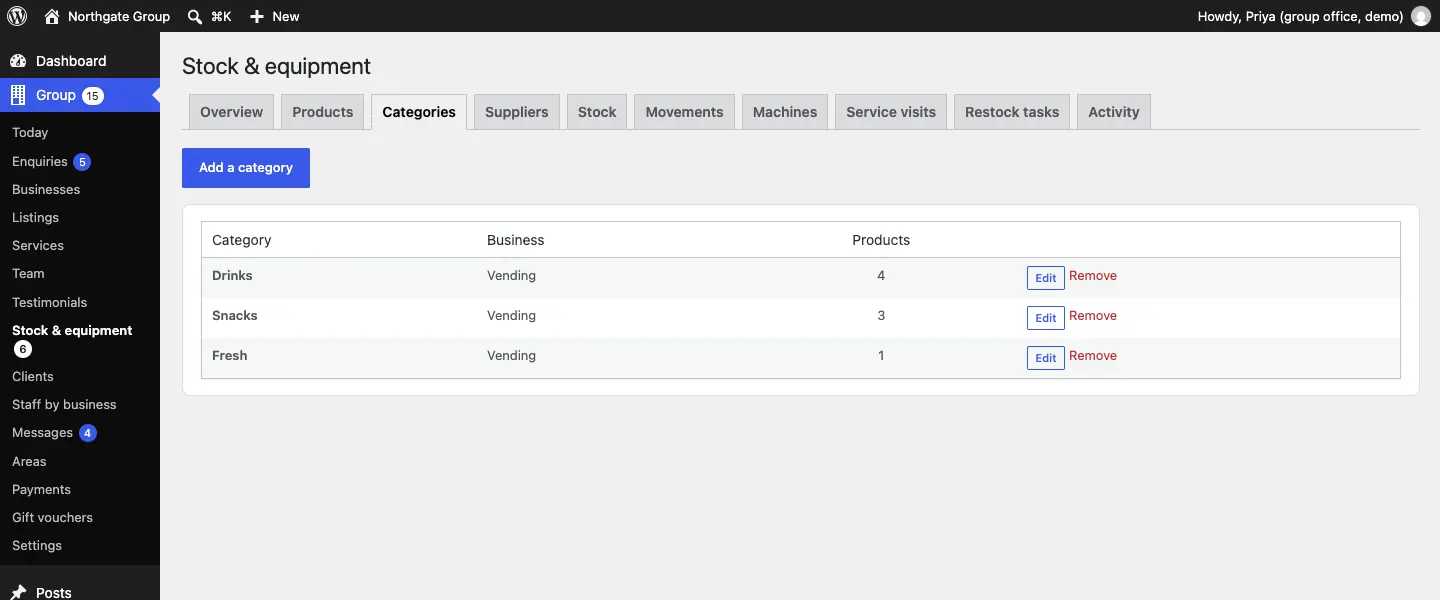
Categories group your products, such as Drinks, Snacks and Fresh.
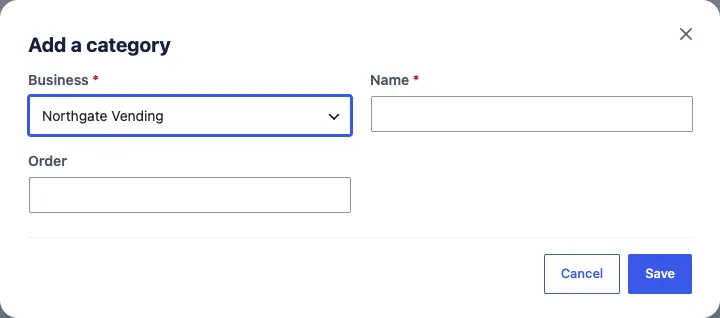
- Click the Categories tab, then Add a category.
- Choose the Business and type the Name.
- Optionally type an Order number (lower numbers come first).
- Click Save.
Suppliers
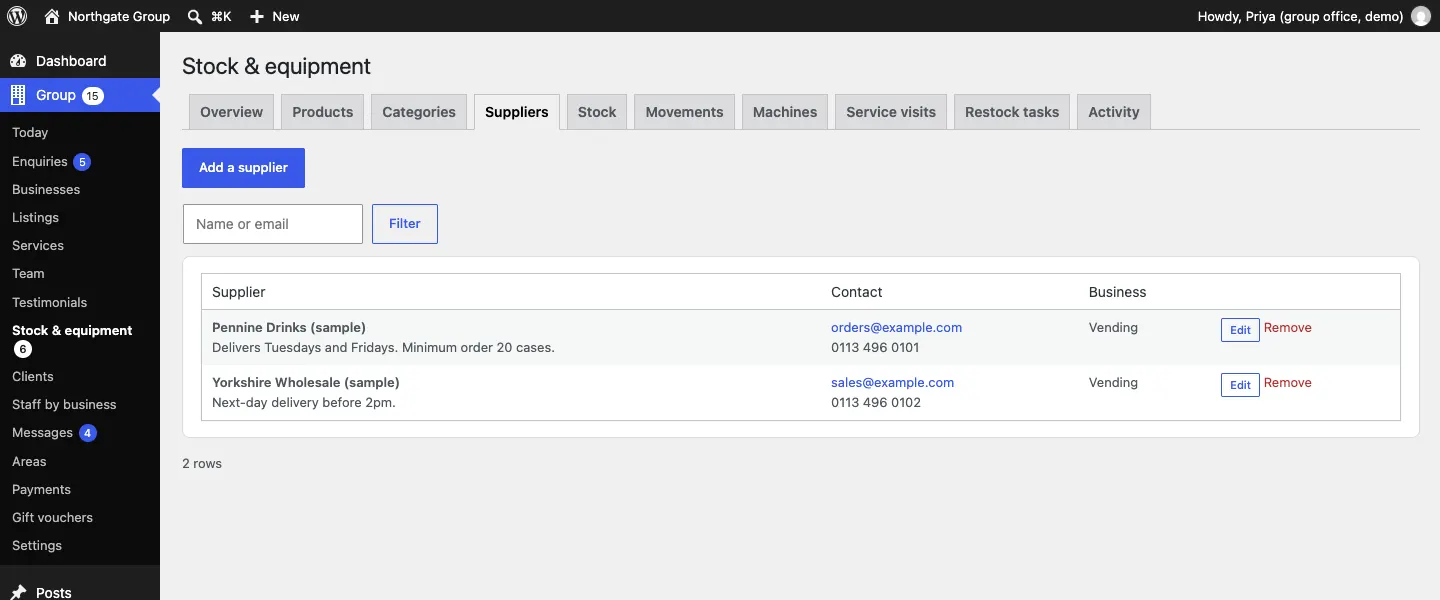
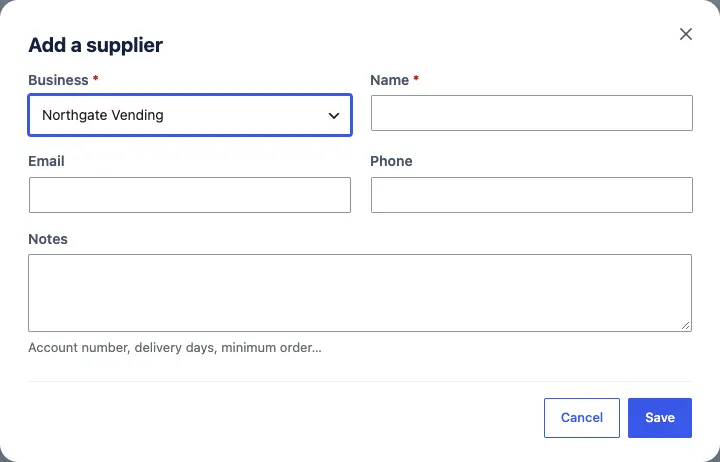
- Click the Suppliers tab, then Add a supplier.
- Choose the Business and type the Name.
- Fill in the Email and Phone, and Notes such as your account number, delivery days or minimum order.
- Click Save.
Stock
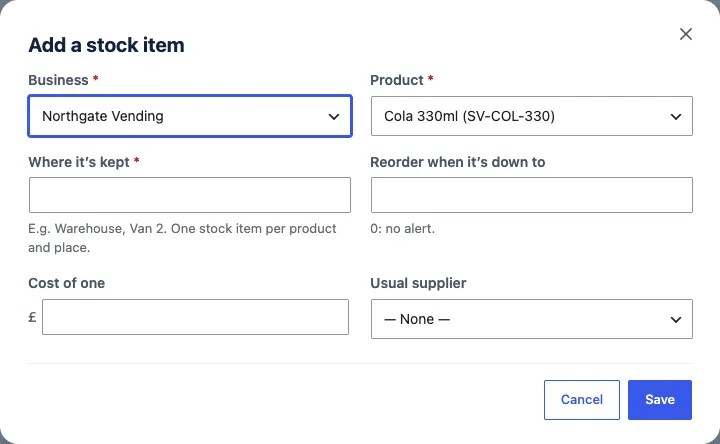
A stock item is one product in one place: "Cola 330ml in the Warehouse" and "Cola 330ml in Van 1" are two stock items.
How to add a stock item
- Click the Stock tab, then Add a stock item.
- Choose the Business and Product.
- Type Where it's kept, for example "Warehouse" or "Van 2".
- Set Reorder when it's down to: the level that counts as low (0 means no alert).
- Optionally fill in Cost of one and the Usual supplier.
- Click Save.
New stock items start at zero. Record a delivery to put stock in (below).
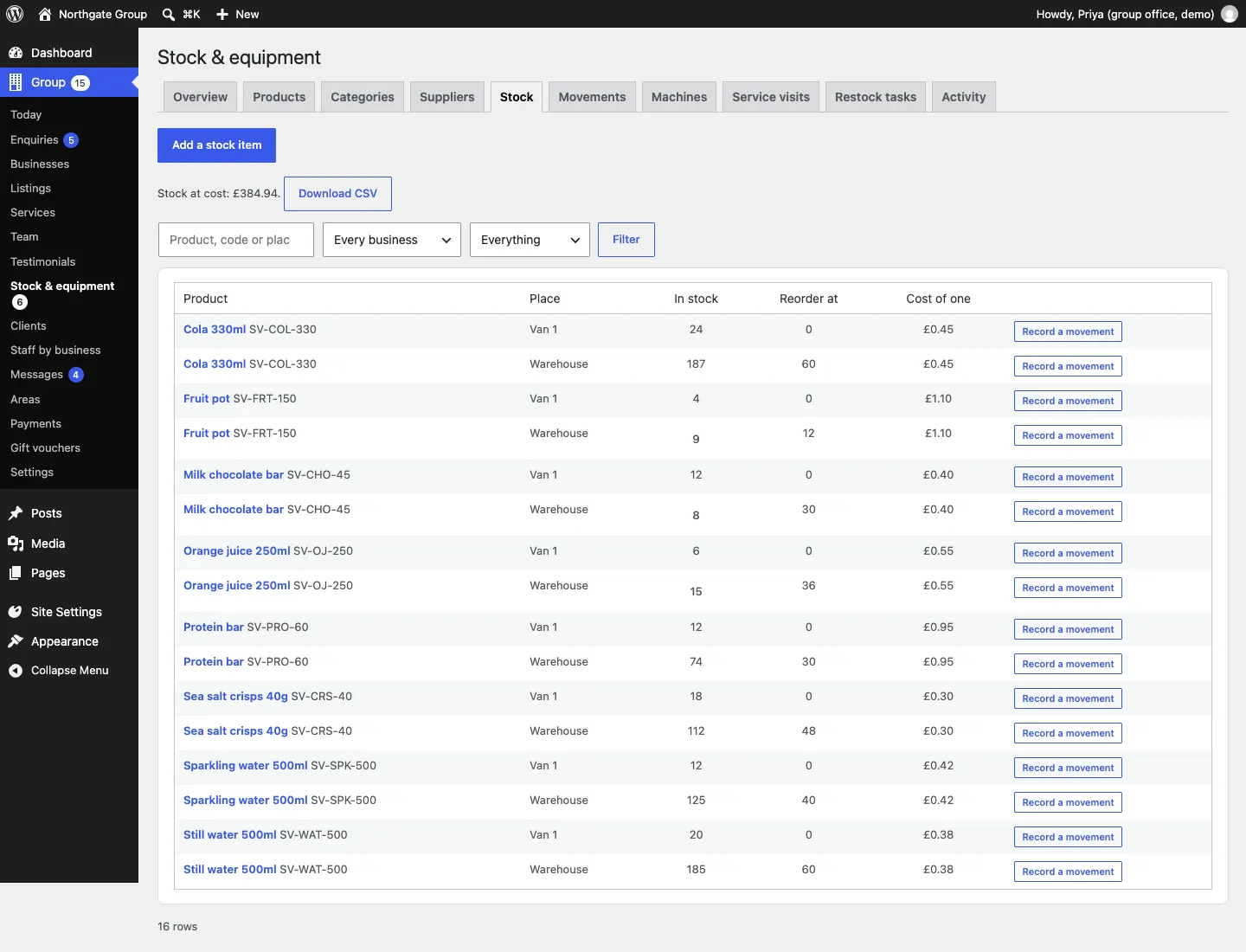
The Stock tab lists every item with how many are in stock, the reorder level and the cost of one, and the value of all your stock at cost. Under Show, choose Only what's low and click Filter to see what needs reordering. Download CSV gives you a spreadsheet.
Movements
Every change to a quantity is a movement. You record movements on the stock item.
How to record a movement
- On the Stock tab, click Record a movement next to the item (or click the item's name).
- Under What happened?, choose one:
- Delivery in: stock arriving, for example from a supplier.
- Out (sold or used): sold, used, damaged, out of date.
- Transfer: moved to another place, for example from the Warehouse to Van 1.
- Count (adjust): you've counted it, and this is what's really there.
- Restock into a machine: put into a machine.
- Type How many.
- Choose the Reason (or leave The usual one) and add a Note (optional).
- Click Record it.
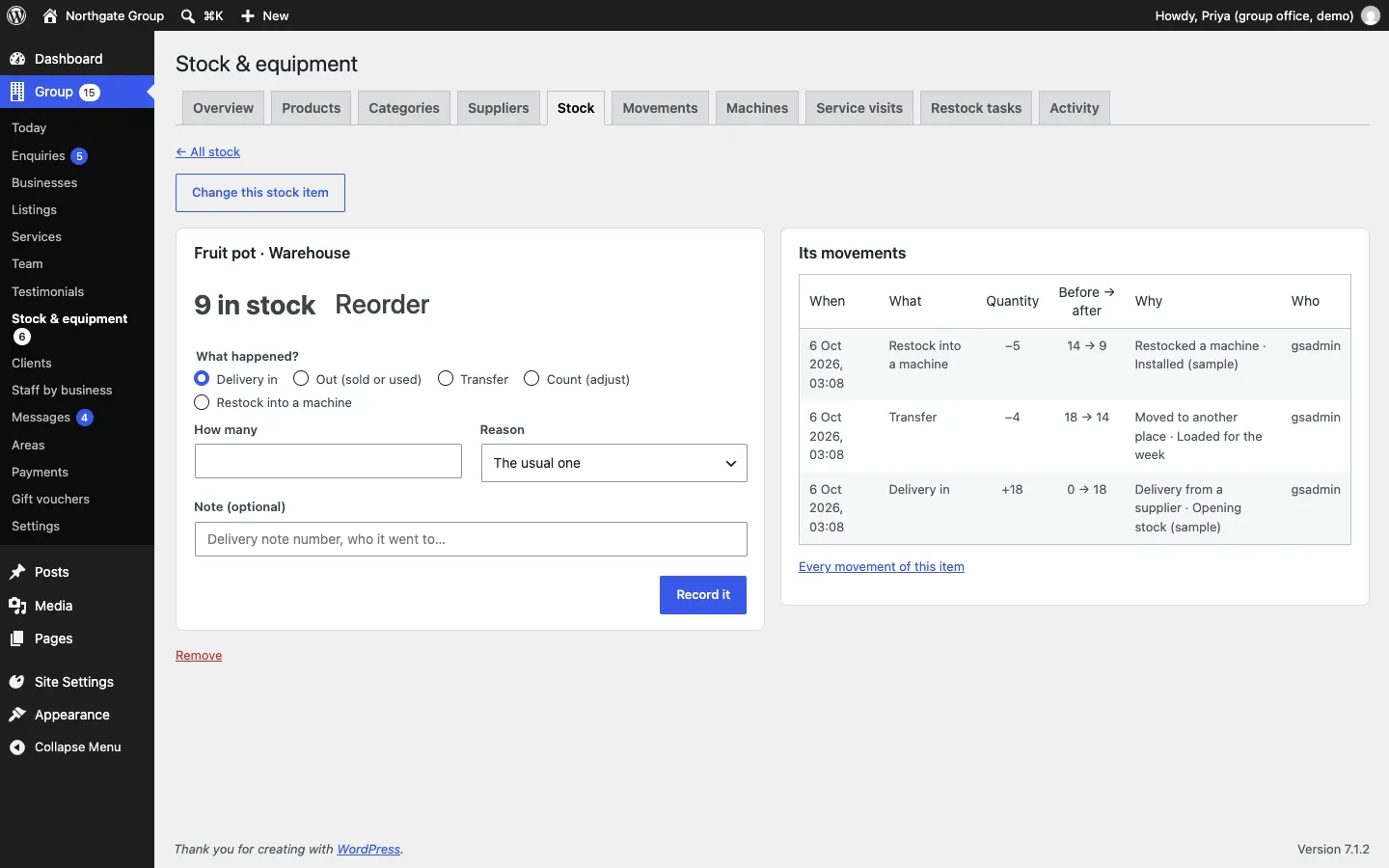
To change the item's place, reorder level, cost or supplier, click Change this stock item at the top.
The Movements tab
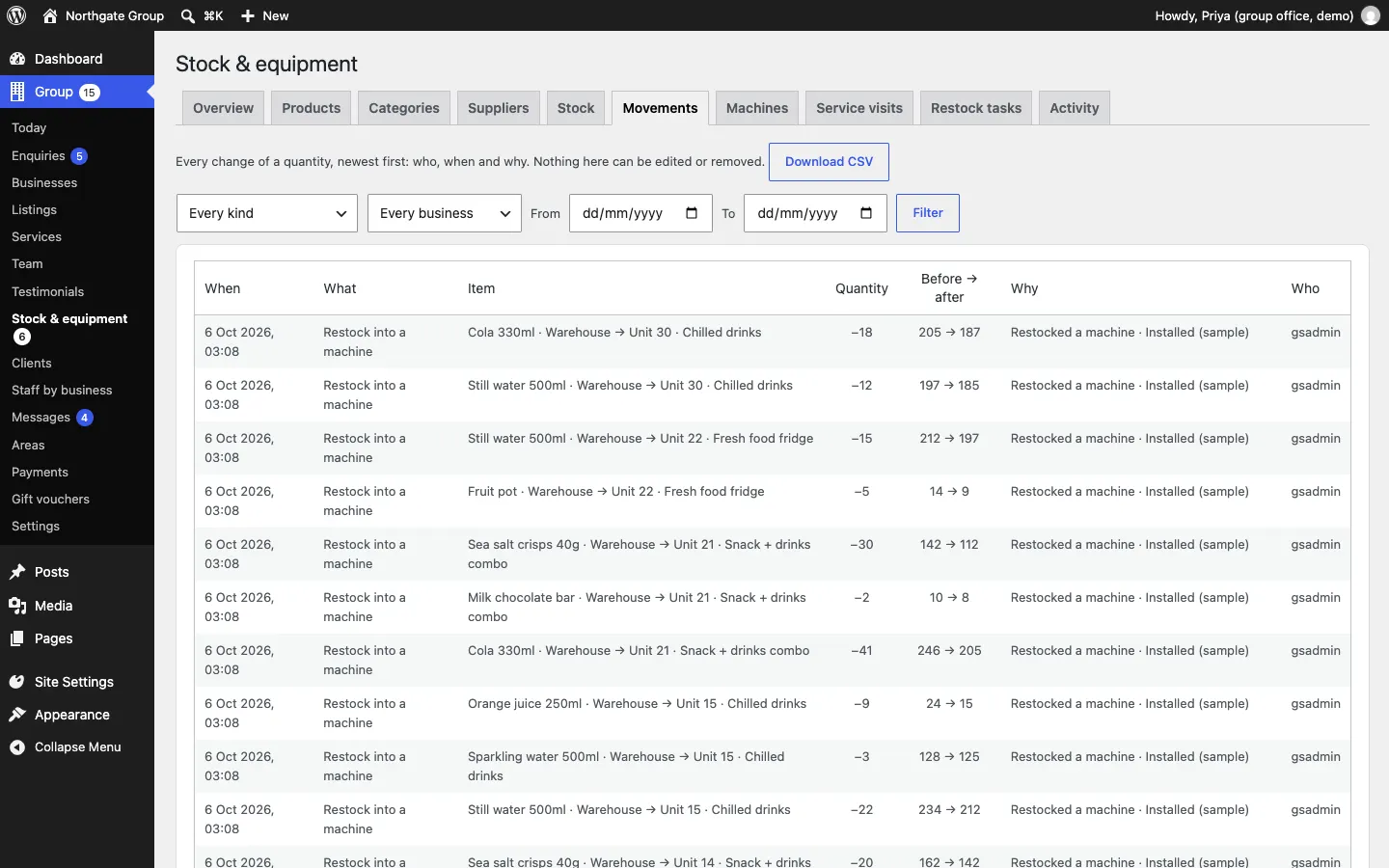
The Movements tab lists every movement, newest first, with who, when and why. Filter by kind, business and dates, or Download CSV. Movements can't be edited or removed: if something was wrong, record a Count (adjust) to put it right.
Machines
Machines (or whatever your business calls its equipment) are placed at client sites.
How to add a machine
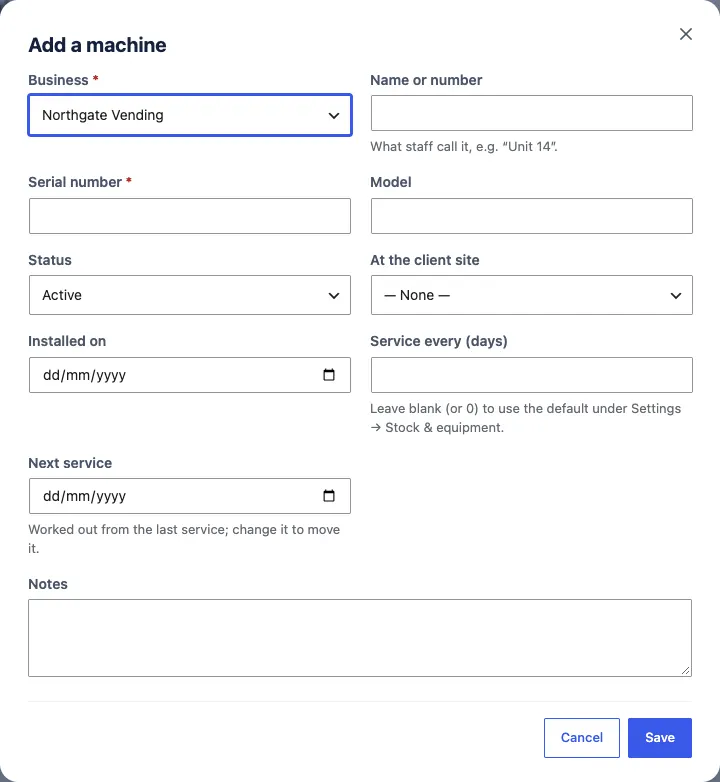
- Click the Machines tab, then Add a machine.
- Choose the Business, type the Name or number (for example "Unit 14") and the Serial number.
- Fill in the Model and Status (Active, Needs service, Offline or Removed).
- Choose where it is: At the client site. (Sites are added on the client's page; see Clients. You can add the site later.)
- Set Installed on, Service every (days) (leave blank or 0 for the usual setting) and Next service.
- Click Save.
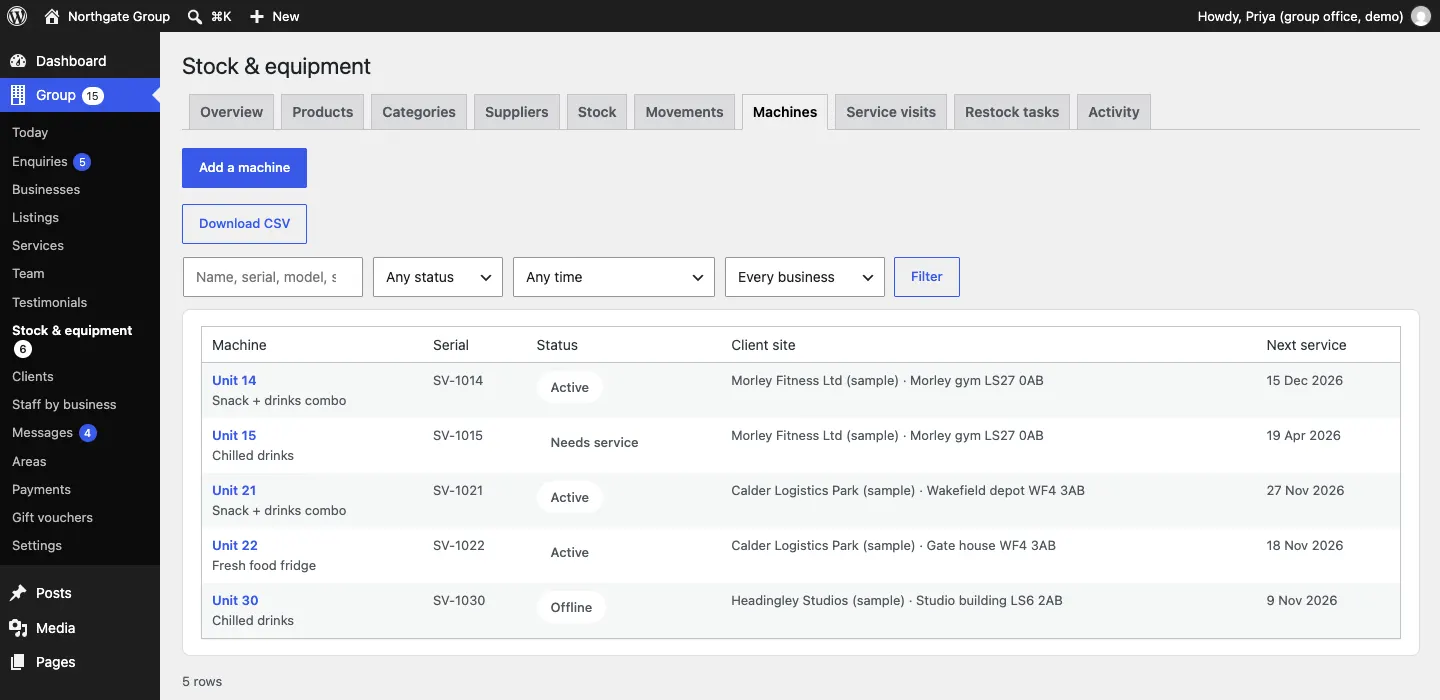
The Machines tab lists every machine with its serial number, status, client site and next service. Filter by status or Due this week or overdue.
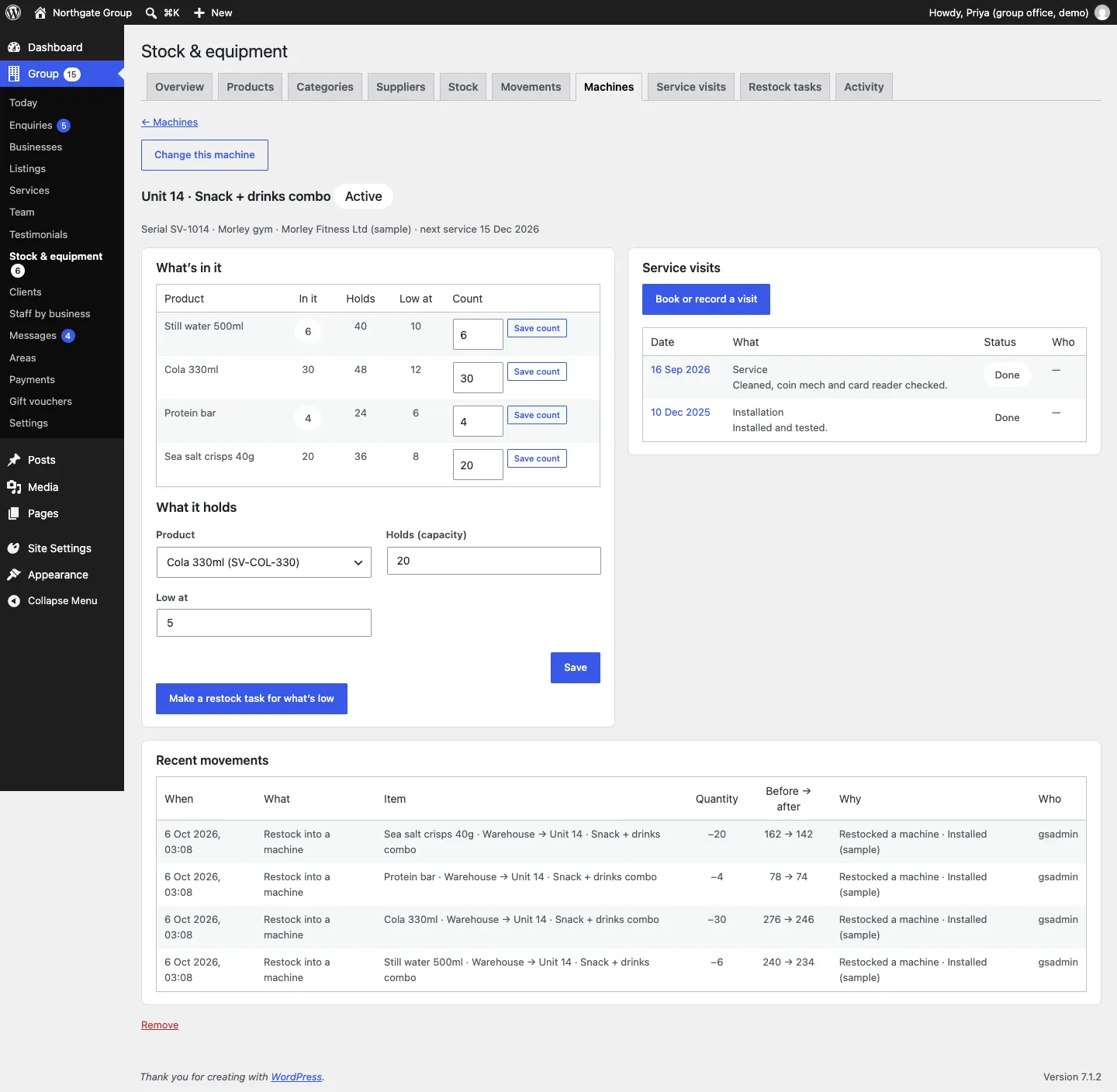
A machine's page
Click a machine to open it:
- What's in it: each product, how many are in it, how many it Holds, and when it's Low at. To record a count, type the number in Count and click Save count.
- What it holds: add a product the machine holds, with Holds (capacity) and Low at, and click Save.
- Make a restock task for what's low.
- Book or record a visit, and its visits.
- Recent movements.
- Change this machine at the top, and Remove at the bottom.
Service visits
How to book or record a visit
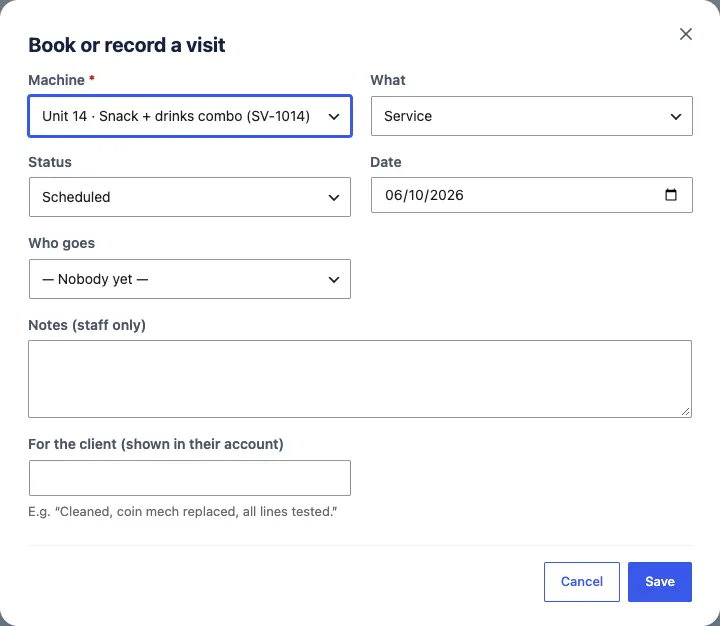
- Click the Service visits tab (or open the machine), then Book or record a visit.
- Choose the Machine and What (for example Service).
- Choose the Status (Scheduled, In progress, Done or Cancelled) and the Date.
- Choose Who goes. They get an email.
- Write Notes (staff only) and, for the client, For the client (shown in their account), for example "Cleaned, coin mech replaced, all lines tested."
- Click Save.
When a service is marked Done, the machine's next service date is worked out from it.
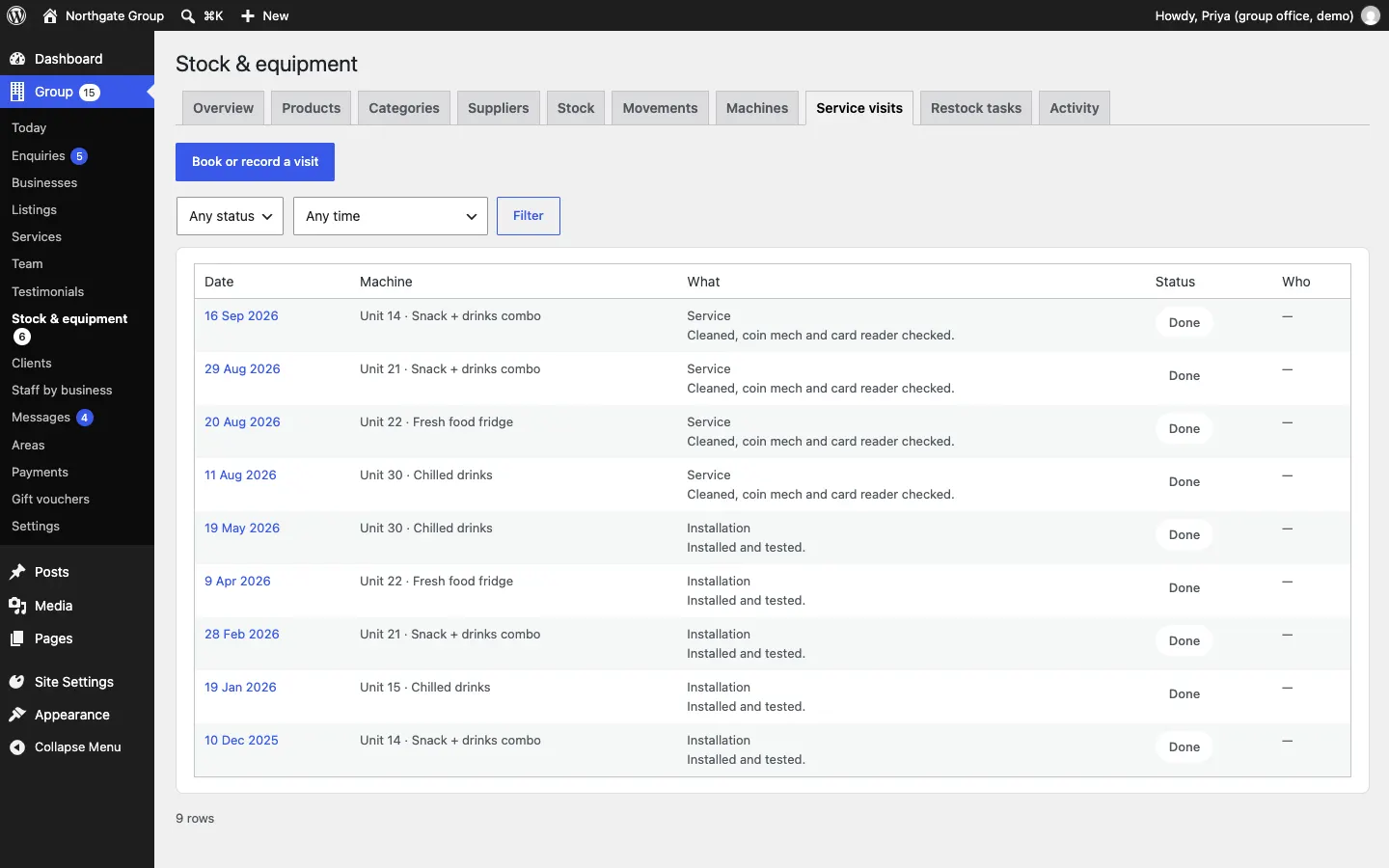
To change a visit, click its date.
Restock tasks
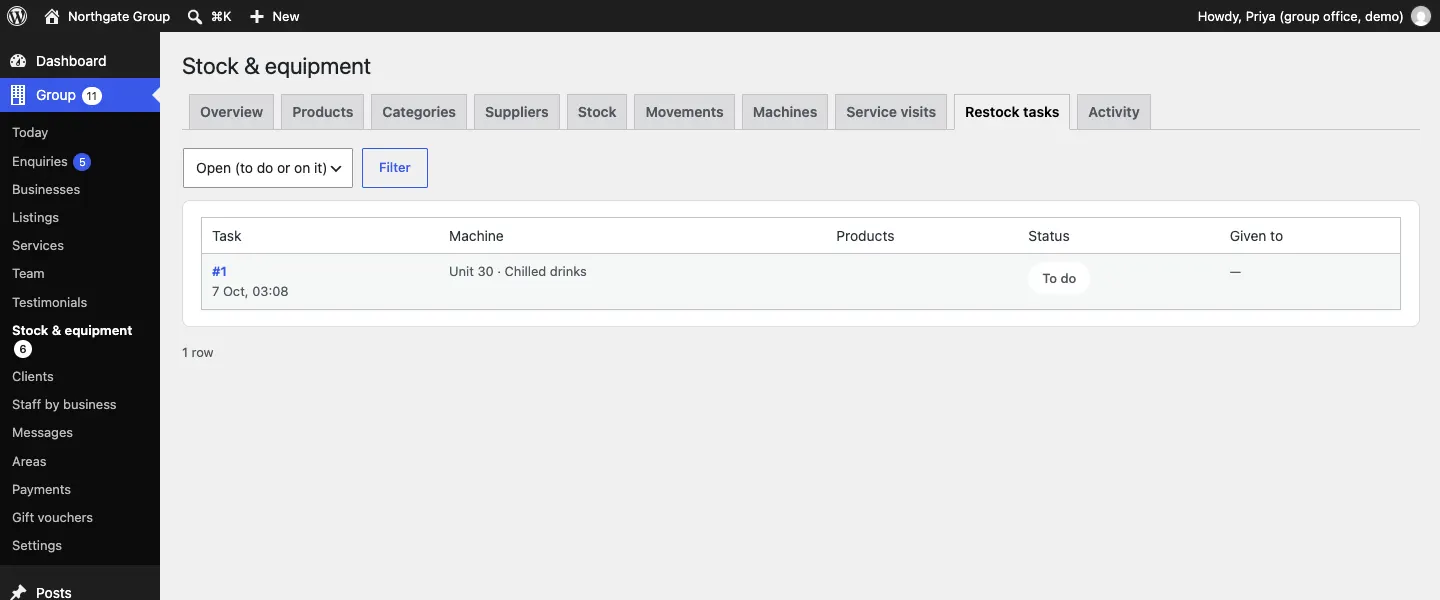
A restock task is a list of what to put into a machine, given to someone to do.
How to make a restock task
- On the Overview or a machine's page, click Make a restock task (or Make a restock task for what's low). The task fills the machine up to capacity for each product that's low.
- On the task, under Who, choose who it's Given to. They get an email.
- Click Save.
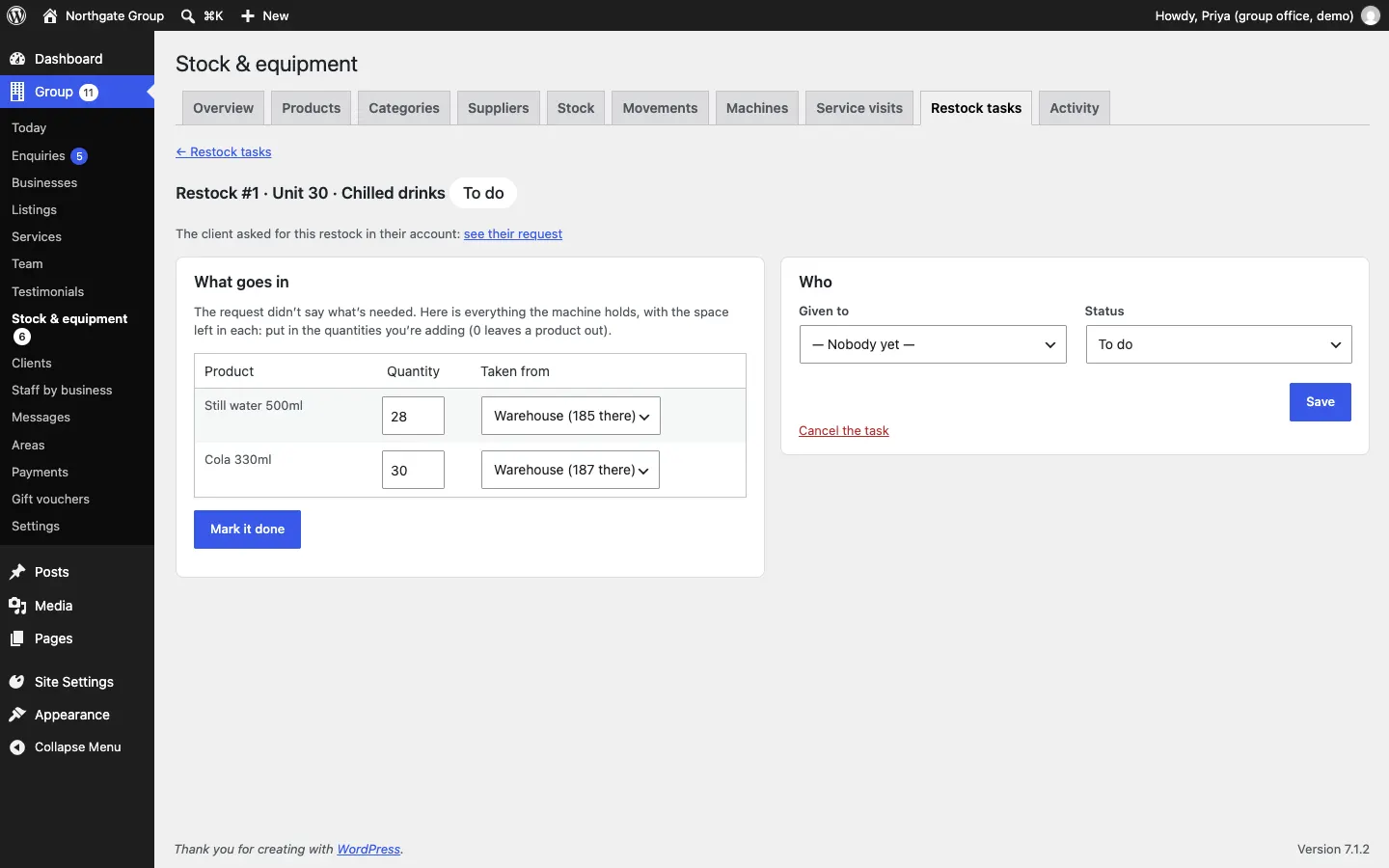
A client's restock request makes a task too, linked to their request. If the request doesn't say what's needed, the task lists everything the machine holds, with the space left in each, for you to fill in.
Each machine has at most one open task. Making another one for the same machine adds to the open task instead of starting a new one. If nothing in the machine is low, you're told there's nothing to restock.
How to complete a restock task
- Open the task from Restock tasks (or the email).
- Check What goes in: each product, how many and where it's Taken from. On a task from a client's request, type the Quantity you're adding for each product (0 leaves a product out).
- Click Mark it done.
Everything is taken out of stock and put in the machine in one go. If there isn't enough of something, nothing is moved and you're told what's short. Use Status (To do or On it) to show progress, or Cancel the task if it's no longer needed.
Activity
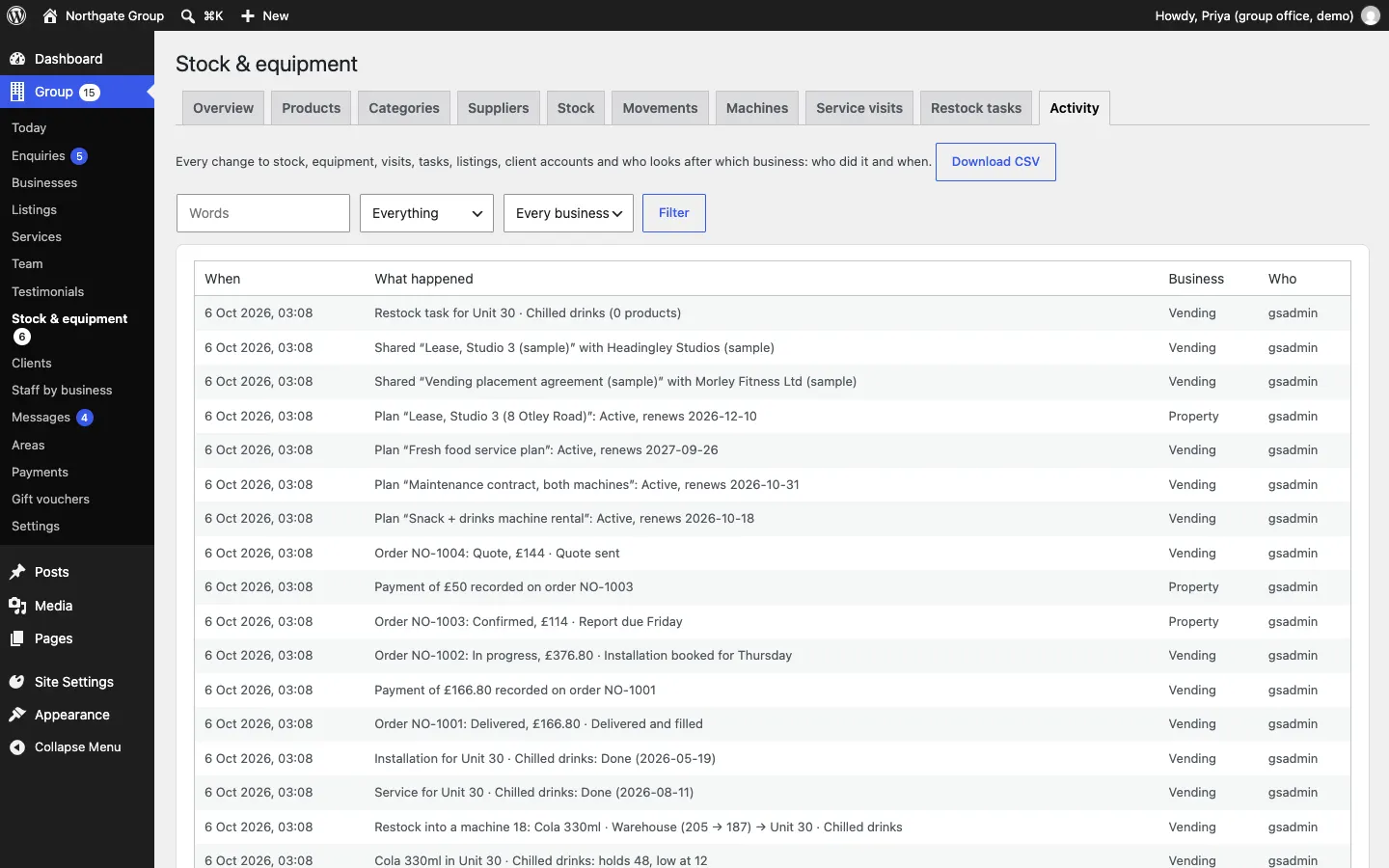
The Activity tab shows every change to stock, machines, visits, tasks, listings, client accounts, documents and who looks after which business: what happened, the business and who did it. Filter by words, kind and business, or Download CSV.
The morning low-stock email
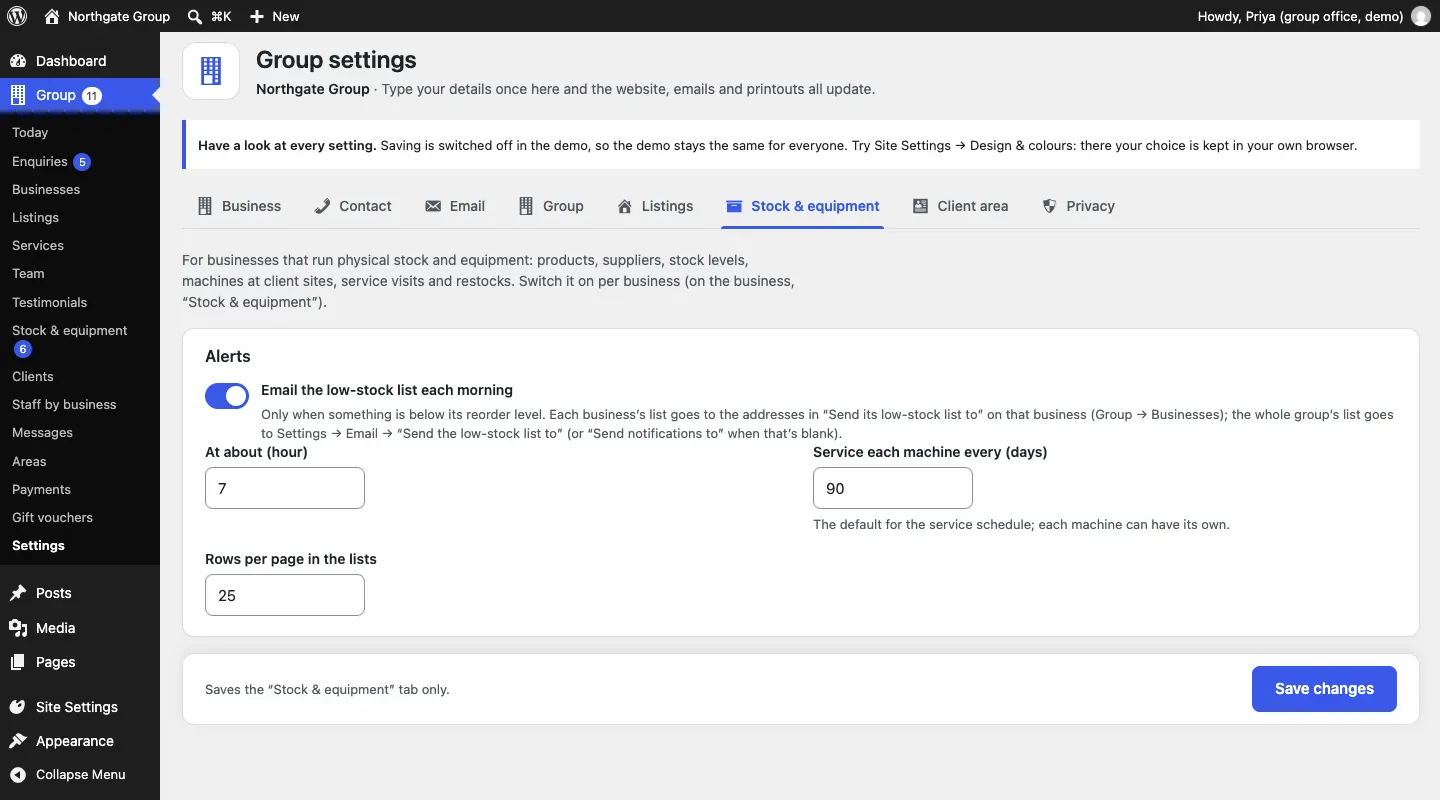
Each morning the website emails a list of what's below its reorder level to each business's Send its low-stock list to addresses (on the business). The whole group's list goes to Group → Settings → Email → Send the low-stock list to (or Send notifications to when that's blank). It's only sent when something is low. Change it under Group → Settings → Stock & equipment:
- Email the low-stock list each morning: on or off.
- At about (hour): for example 7.
- Service each machine every (days): the usual service interval; each machine can have its own.
- Rows per page in the lists.