Running your website
Running the website day to day
The daily and weekly routine for a group website: signing in, the Today screen, the red numbers in the menu, and a quick reference to where everything is.
On this page
Once your group website is set up, most days follow the same pattern: sign in, look at Group → Today, deal with what's waiting, and check stock and renewals now and then. This chapter is that routine, plus a quick reference to where everything lives.
Features marked (Pro) need a Pro or Agency licence.
Signing in
- Go to your website's address followed by /wp-admin (for example yourgroup.com/wp-admin), or click Staff sign-in at the very bottom of any page.
- Sign in with your own username and password. Please don't share accounts: the website records who did what, and with Pro each person sees only the businesses they look after.
- You go straight to Group → Today.
Forgotten your password? Click Lost your password? on the sign-in page. After 5 wrong passwords, sign-in pauses for 15 minutes. More: Staff and sign-in.
The Today screen
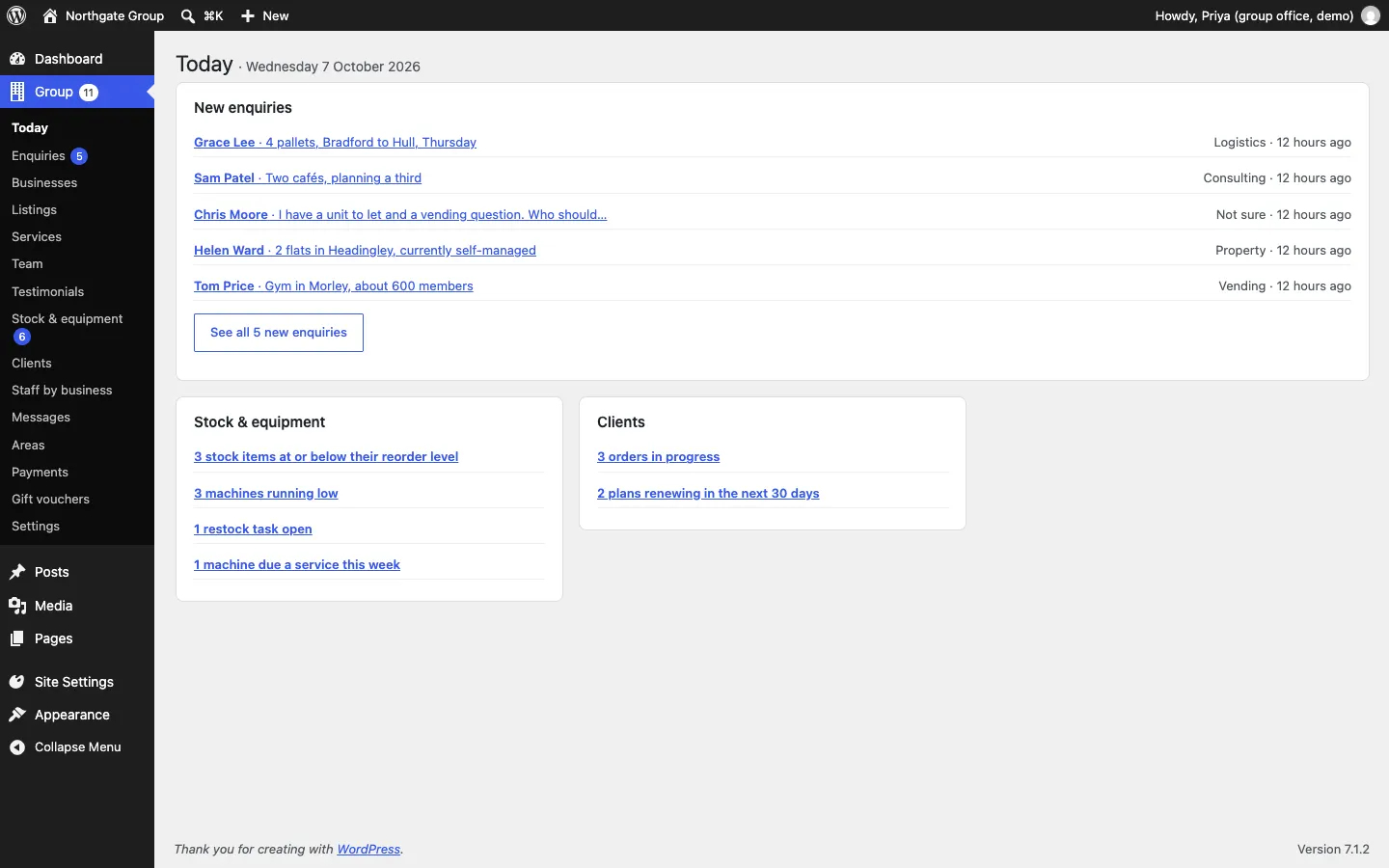
Group → Today shows what needs doing, for the businesses you look after:
- New enquiries, newest first, with the business each one is for. Click one to open it, or See all … new enquiries.
- Stock & equipment (Pro): stock items at or below their reorder level, machines running low, restock tasks open and machines due a service this week.
- Clients (Pro): orders in progress and plans renewing in the next 30 days.
Every line is a link to the screen where you deal with it.
The red numbers
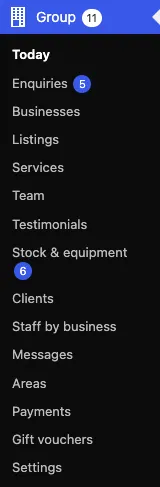
The red numbers in the left-hand menu show how many things are waiting:
- Enquiries: new enquiries.
- Stock & equipment (Pro): stock items and machines running low.
- Messages: messages from the plain contact form you haven't opened yet.
- Group: all of these added together.
A new enquiry is counted once, under Enquiries, not under Messages too.
Every day
- Open Group → Today.
- Open each new enquiry. Give it to someone (Given to), reply with Send as a reply, and set the Status. See Enquiries.
- Answer client requests the same way. Your reply also shows in their client area. (Pro)
- Update orders that have moved on: change the status and stage, and leave Email the client ticked. See Orders, invoices and plans. (Pro)
- Record deliveries, sales and transfers as they happen, and mark restock tasks done when the machine is filled. See Stock & equipment. (Pro)
- Change listing statuses straight from Group → Listings when a home goes under offer, is let or sold. See Listings.
Every week
- Check Stock & equipment → Overview for anything running low, and Services due this week. (Pro)
- Make restock tasks for low machines and give them to someone. (Pro)
- Check Group → Clients → Plans and renewals → Renewing in the next 60 days, and click Renewed once a renewal is agreed. (Pro)
- Close enquiries that are finished, so Group → Enquiries only shows what's live.
- Add a news post for a business, if you have something to say.
Every month or so
- Do a stock Count (adjust) for each place, so the figures match what's really on the shelves. (Pro)
- Look at Group → Messages → Due for review and delete what you no longer need. See Messages.
- Check the business pages and figures on the homepage are up to date.
- Check for updates under Dashboard → Updates, after a backup. See Backups and updates.
Where everything is
| To... | Go to |
|---|---|
| See what's waiting | Group → Today |
| Answer an enquiry or client request | Group → Enquiries |
| Change a business's page, inbox or question | Group → Businesses |
| Add or update a listing | Group → Listings |
| Add a service, person or testimonial | Group → Services, Group → Team, Group → Testimonials |
| Products, stock, machines, visits, restock tasks (Pro) | Group → Stock & equipment |
| Clients, orders, invoices, plans (Pro) | Group → Clients |
| Who sees which business (Pro) | Group → Staff by business |
| Look up a website message | Group → Messages |
| Payments taken on the website | Group → Payments |
| Company details, emails, display mode, listing types, alerts | Group → Settings |
| Design and colours | Site Settings → Design & colours |
| Pages and news | Pages, Posts |
| Your licence | Settings → Gradespace licence |
Getting help
If something isn't working, see Troubleshooting and support, or email support@thegradespace.com with what you were doing, what you expected and a screenshot.