Setting up
Designs, pages and menus
The three Group designs (Mosaic, Charter and Parallel) and their colour palettes, one brand or each business its own, and the pages and menus the kit makes for you.
On this page
The Group theme comes with three designs. Each one shows the same content (your businesses, their services, listings, team, news and the contact form) in a different style, so you can change design at any time without retyping anything. Each design has seven colour palettes, plus its own colours.
This chapter shows each design on a computer and a phone, explains how to switch between one brand for the whole group and each business in its own brand, and lists the pages and menus the setup wizard makes. For the logo, menus, sticky header and footer in general, see Your look.
Features marked (Pro) need a Pro or Agency licence.
The three designs
Mosaic
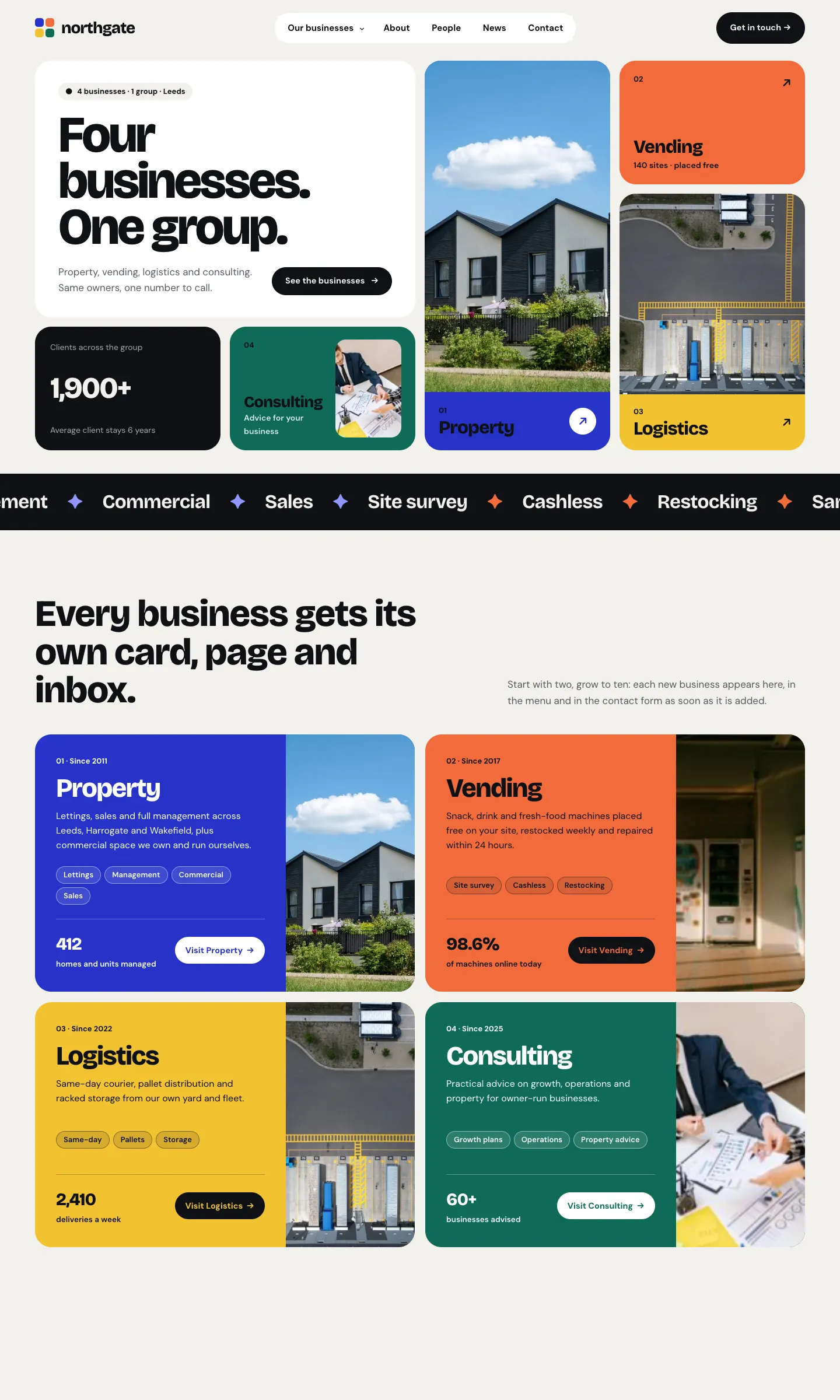
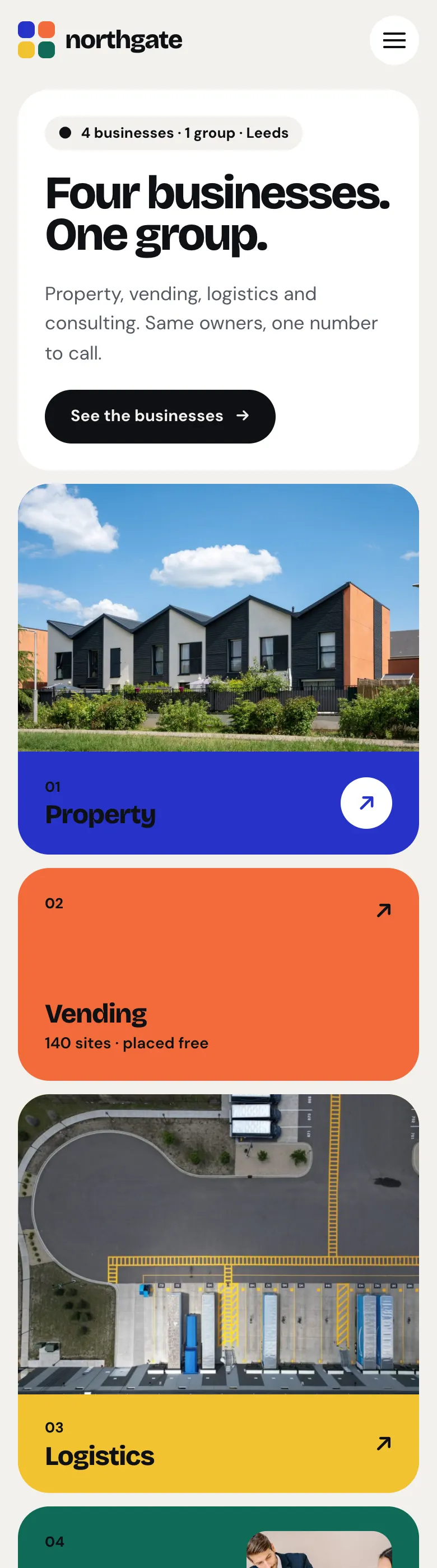
Bold and modern. The homepage is a grid of colour cards, one per business, followed by a card for each business with its figures, a tabbed "What each business does" section, a bento of numbers, and the group's name in huge letters at the foot of every page.
Charter
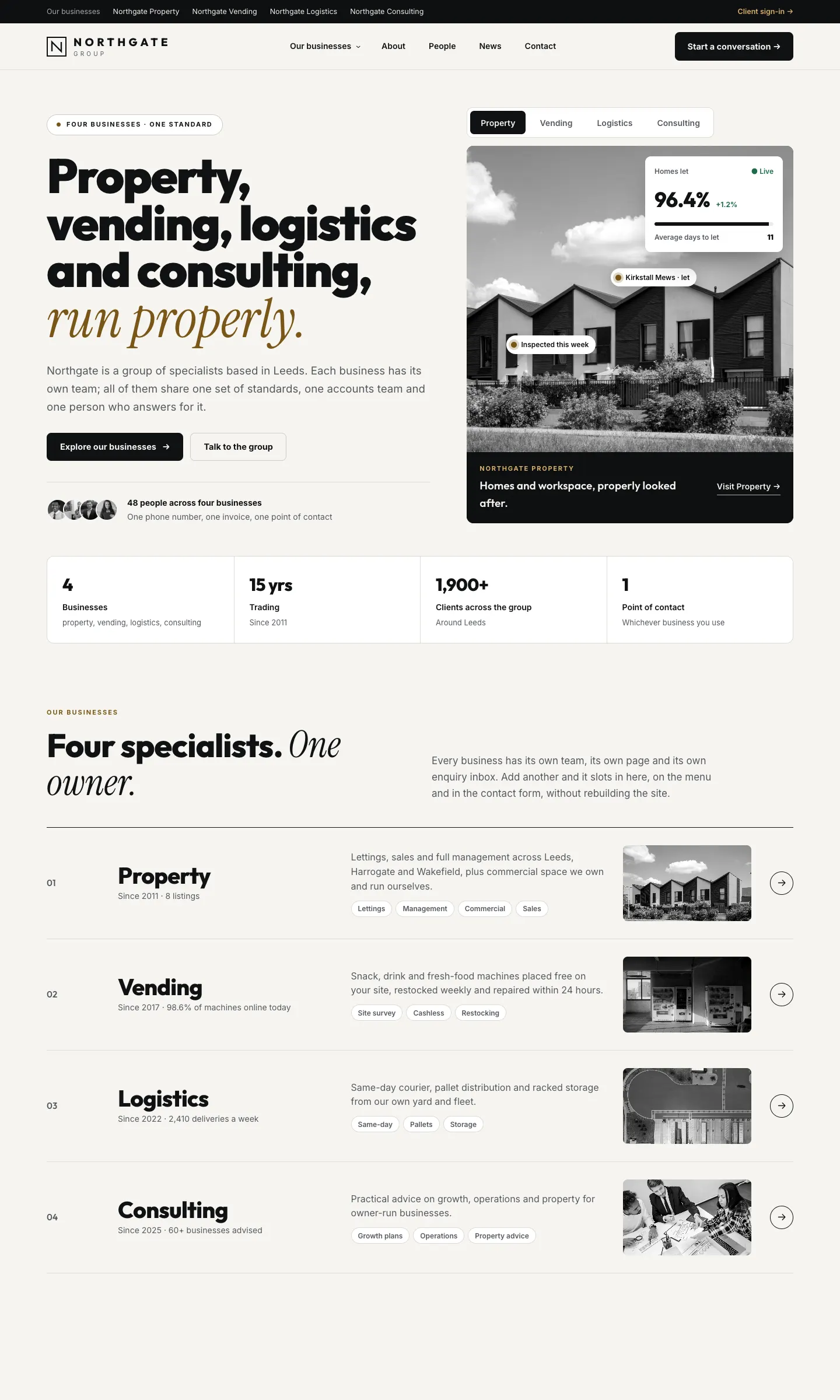
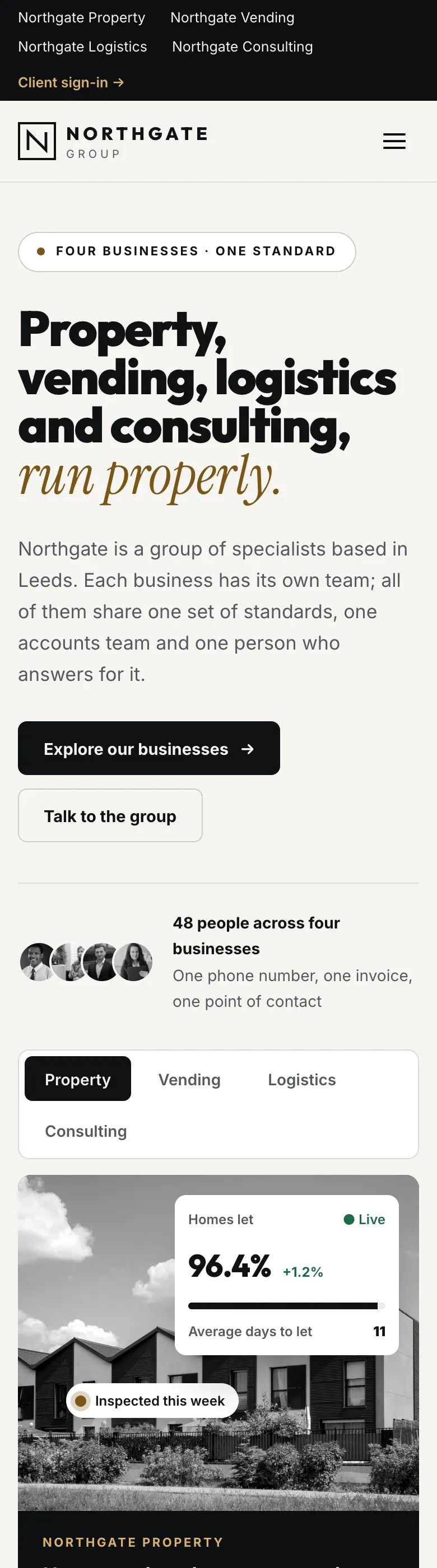
Editorial and quiet, made for a group known by one name. Ink on warm paper, thin rules, a numbered index of businesses, black-and-white photos and one accent colour. A thin bar at the very top lists every business and has a Client sign-in link.
Parallel
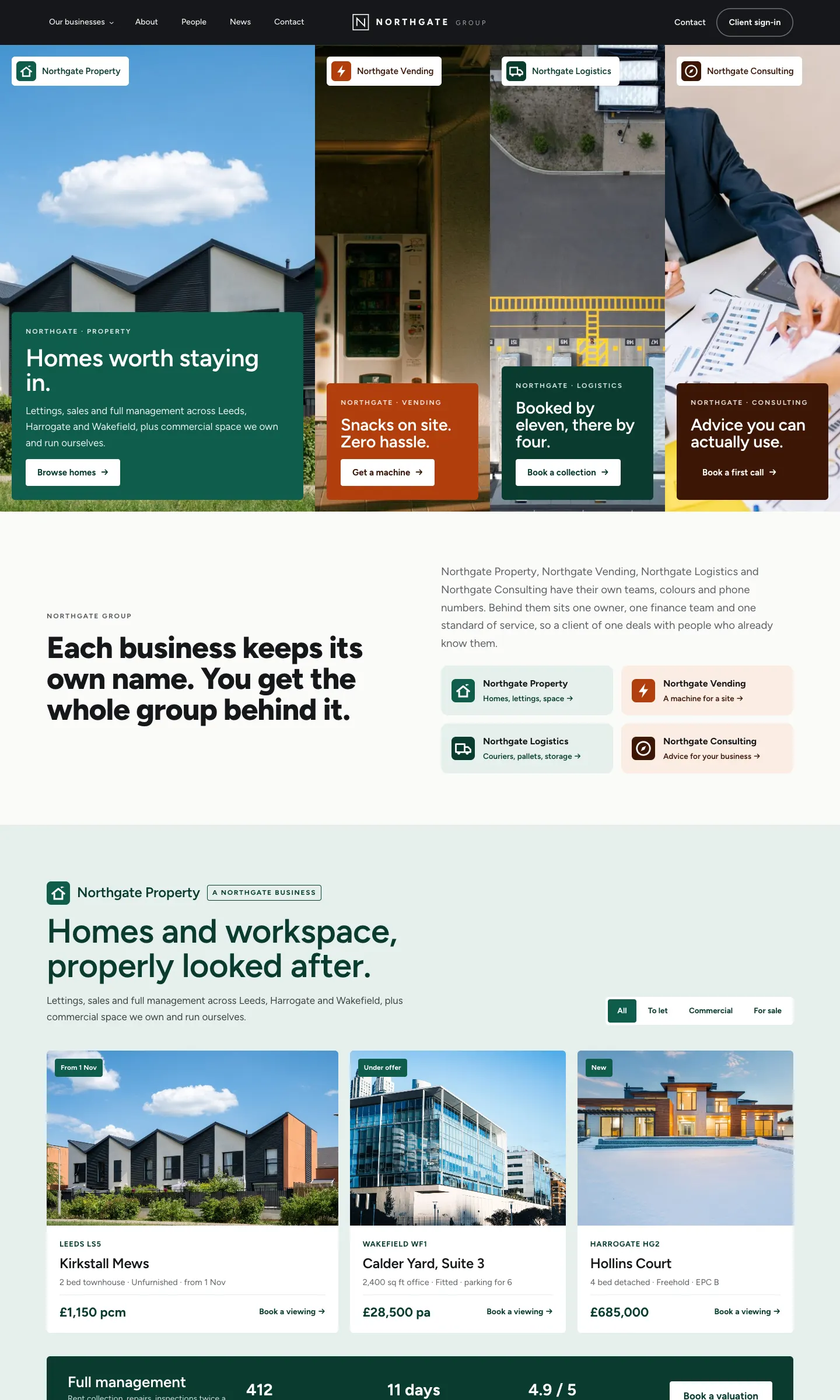
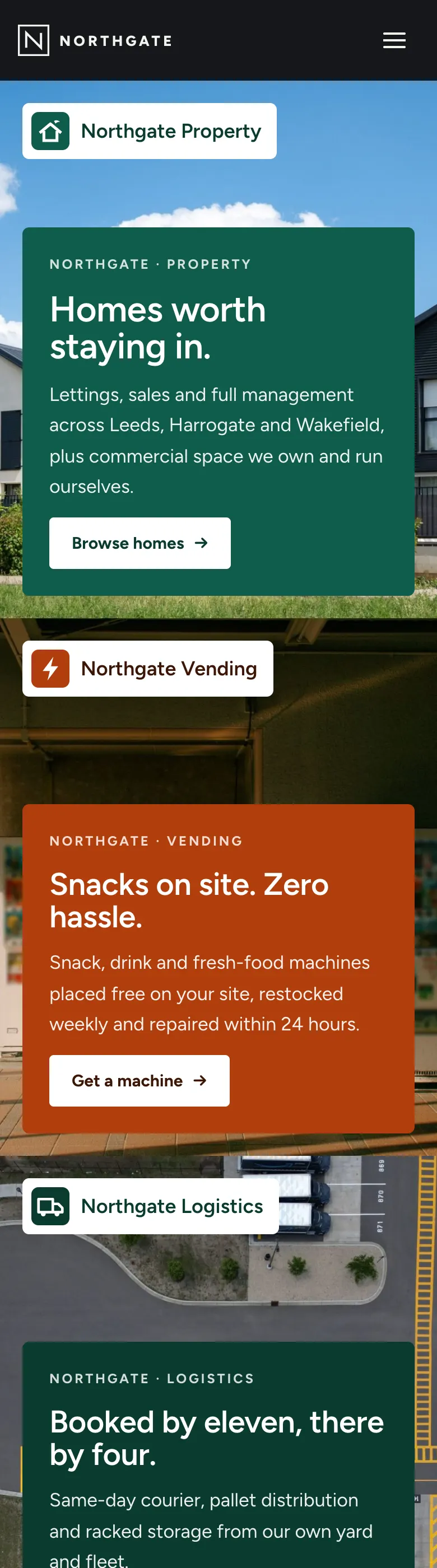
A split screen for businesses that have their own brands. A neutral group frame surrounds the businesses, and each business looks like itself, with its own colour, mark and main button. On a computer, moving the mouse over one half of the screen widens it.
How to choose a design and palette
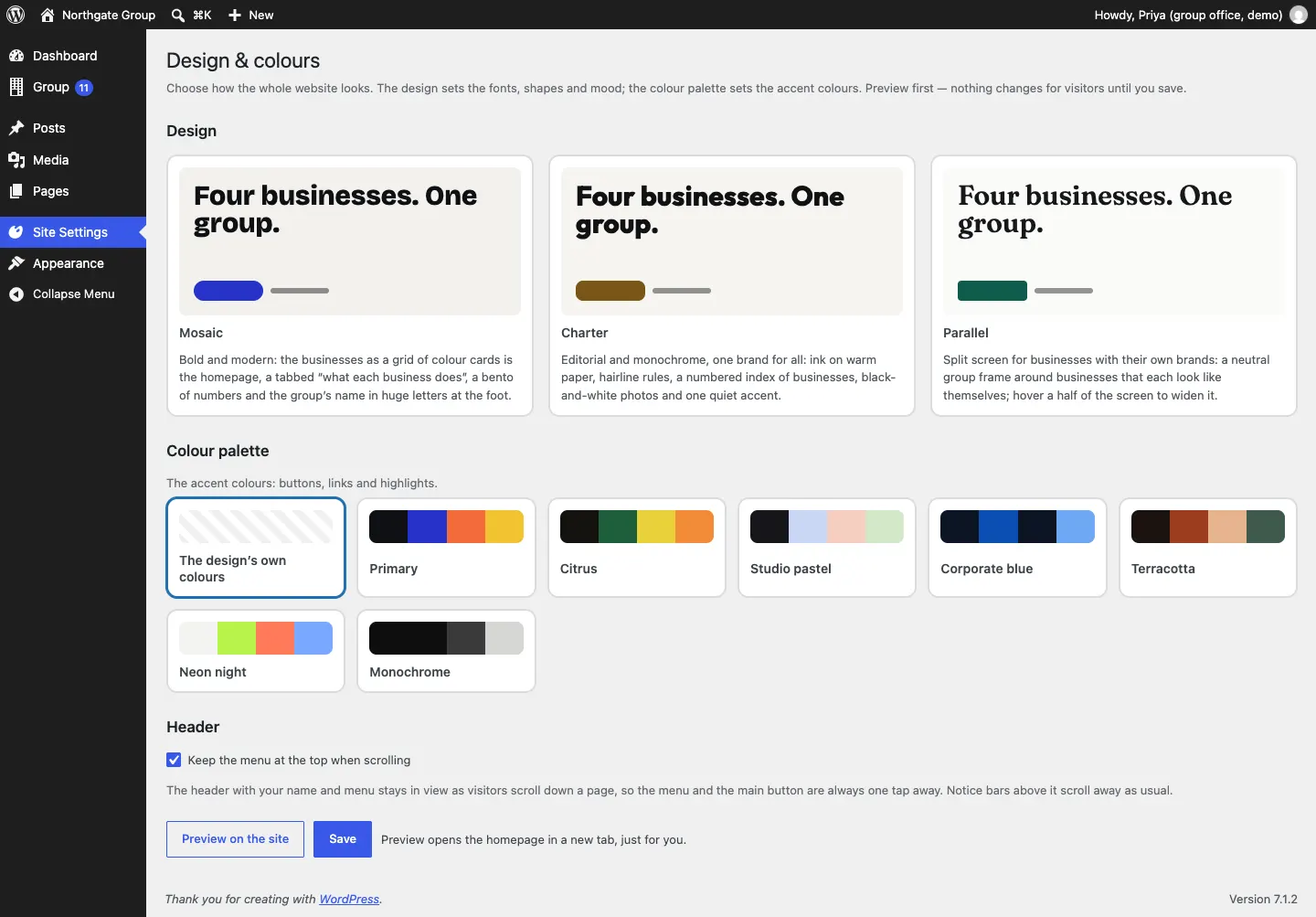
- Go to Site Settings → Design & colours.
- Under Design, click Mosaic, Charter or Parallel.
- Under Colour palette, click a palette: The design's own colours, Primary, Citrus, Studio pastel, Corporate blue, Terracotta, Neon night or Monochrome.
- Leave Keep the menu at the top when scrolling ticked if you want the menu always in view.
- Click Preview on the site. The homepage opens in a new tab with your choice, just for you.
- If you like it, come back and click Save. Visitors see the new look straight away.
One brand, or each business its own
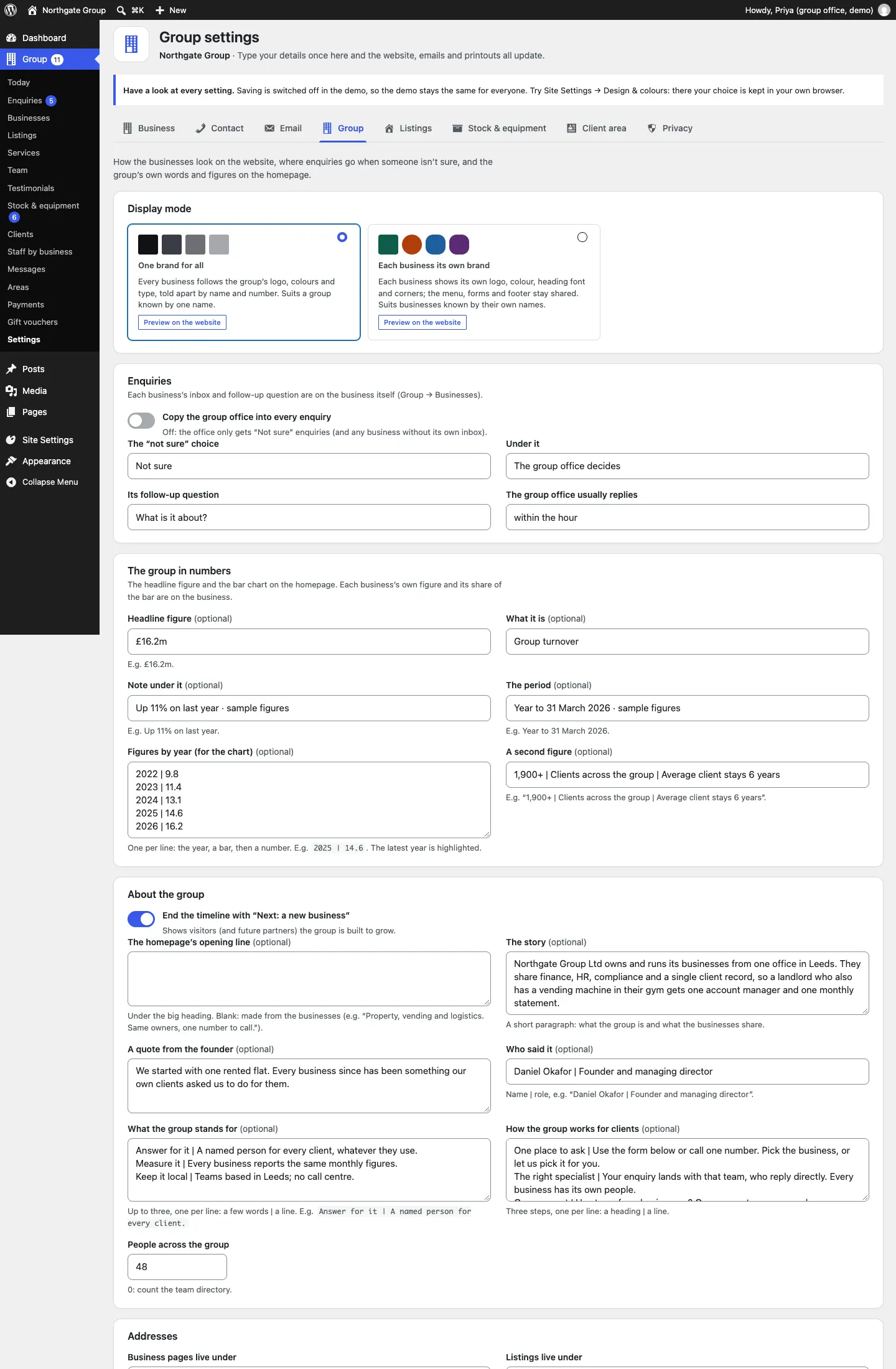
Group → Settings → Group → Display mode decides how the businesses look:
- One brand for all: every business uses the group's logo, colours and type, told apart by name and number. Good for a group known by one name. (Starter and Pro.)
- Each business its own brand (Pro): each business shows its own logo or mark, colour, heading font and corners. The menu, forms and footer stay shared. Good for businesses known by their own names.
- Go to Group → Settings and click the Group tab.
- Under Display mode, click Preview on the website under either choice to see it first.
- Choose the one you want and click Save changes.
Each business's colour, font, corners and logo are set on the business itself, in its Brand kit box. See Your businesses.
The pages the kit makes
The setup wizard adds these pages. You can edit any of them under Pages (see Pages and content).
| Page | Web address | What's on it |
|---|---|---|
| Home | / | Your businesses, what each does, listings, the group in numbers, how the group works, about, team, news, testimonials and the contact form |
| About | /about/ | The group's story, the founder's quote and what the group stands for |
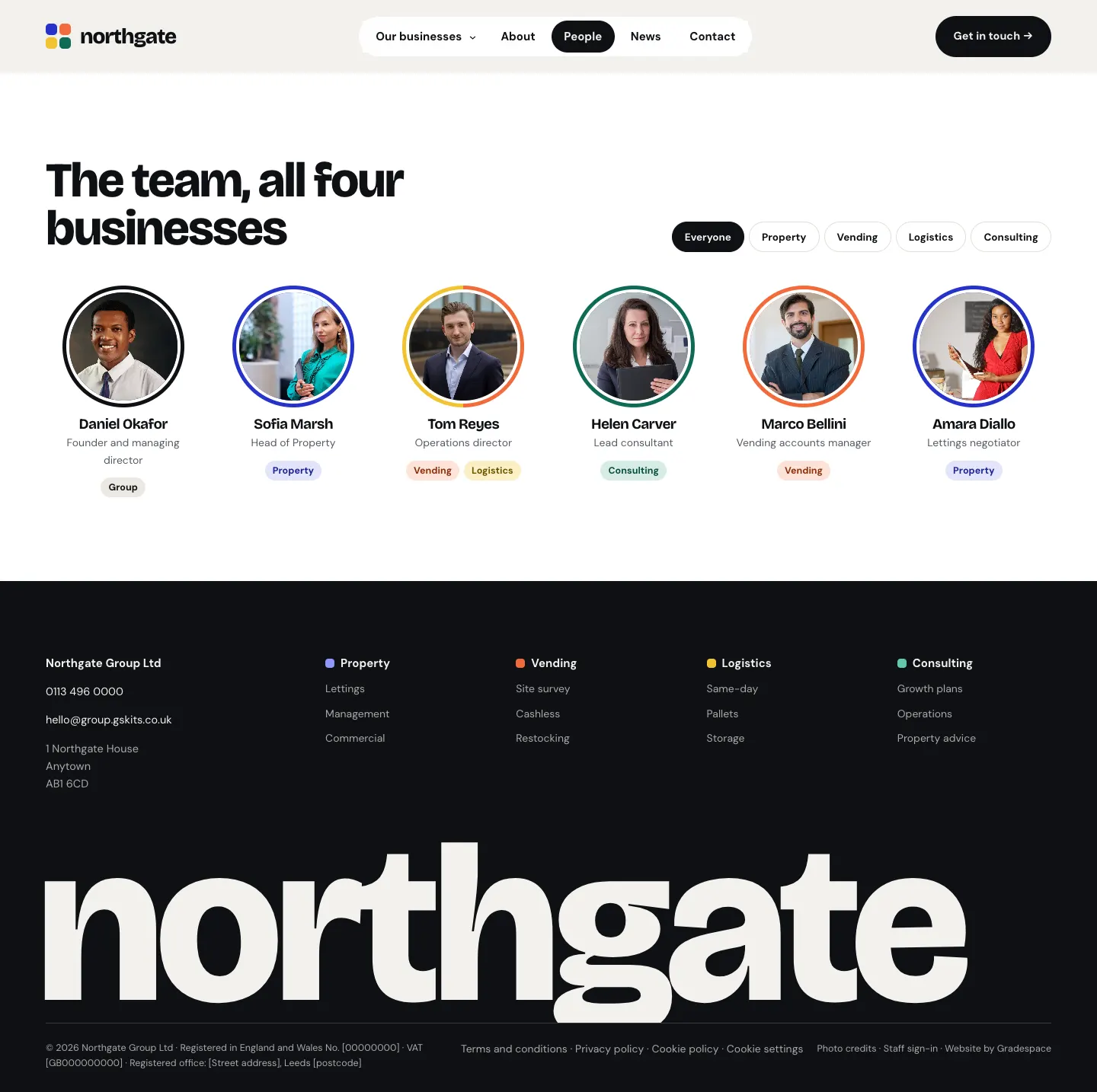
| People | /team/ | The team directory, with a filter for each business |
| News | /news/ | News posts, with a filter for each business |
| Contact | /contact/ | The "Which business is this about?" form |
| My account | /account/ | The client sign-in and client area (Pro) |
| A page for each business | /businesses/property/ and so on | Its heading, photo, facts, services, listings, how it works, team, news and enquiry form |
| Listings | /listings/ | Every listing with filters |
| Photo credits | /credits/ | Credits for the sample photos |
| Terms and conditions, Privacy policy, Cookie policy | /terms/, /privacy-policy/, /cookie-policy/ | Starter legal pages filled in from your settings |
The first part of the business and listing addresses (/businesses/ and /listings/) can be changed under Group → Settings → Group → Addresses.
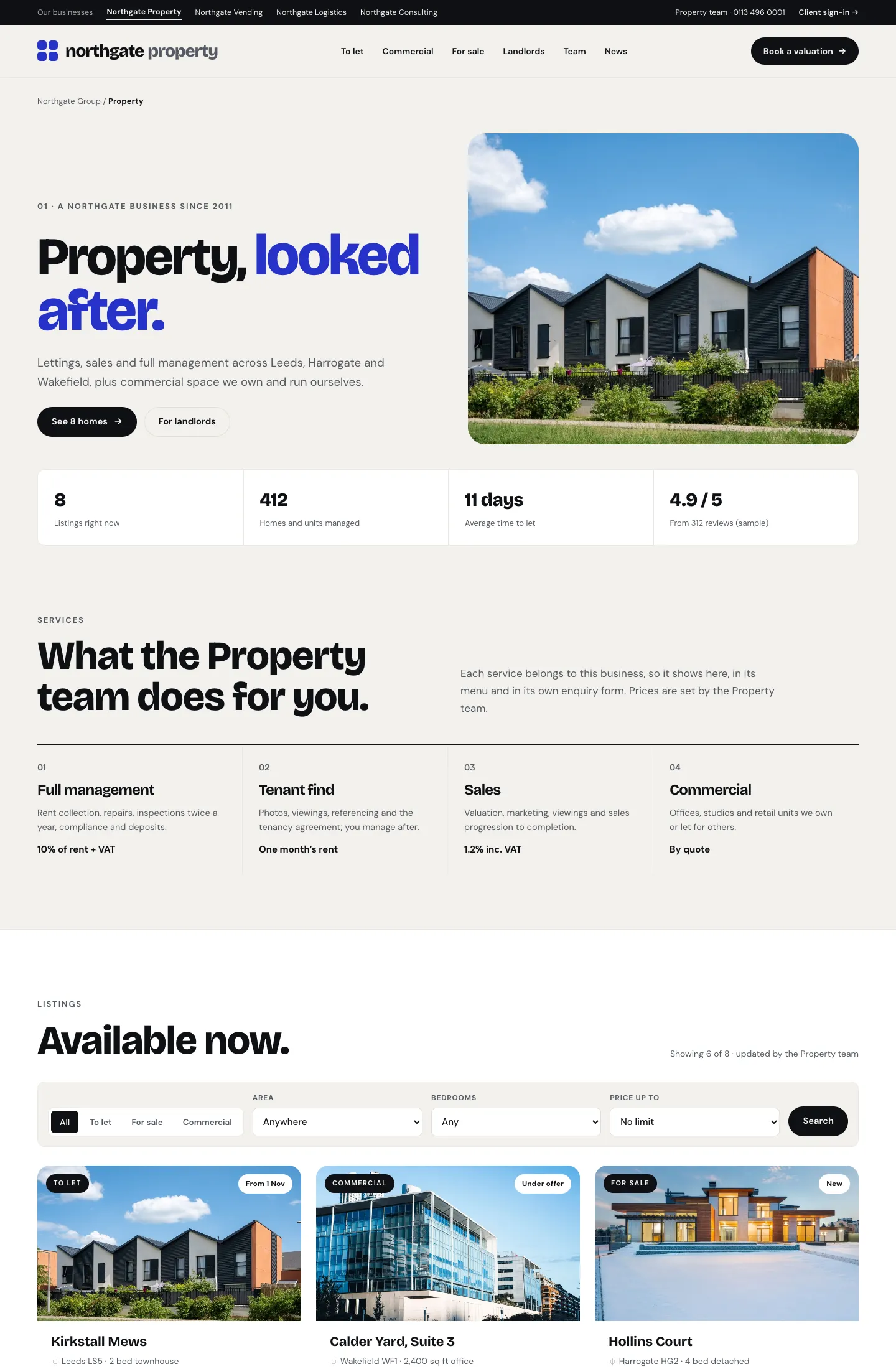
A business page
Each business has its own page, with its own menu at the top, its own main button (for example Book a valuation), its facts and figures, its services with prices, and its listings.
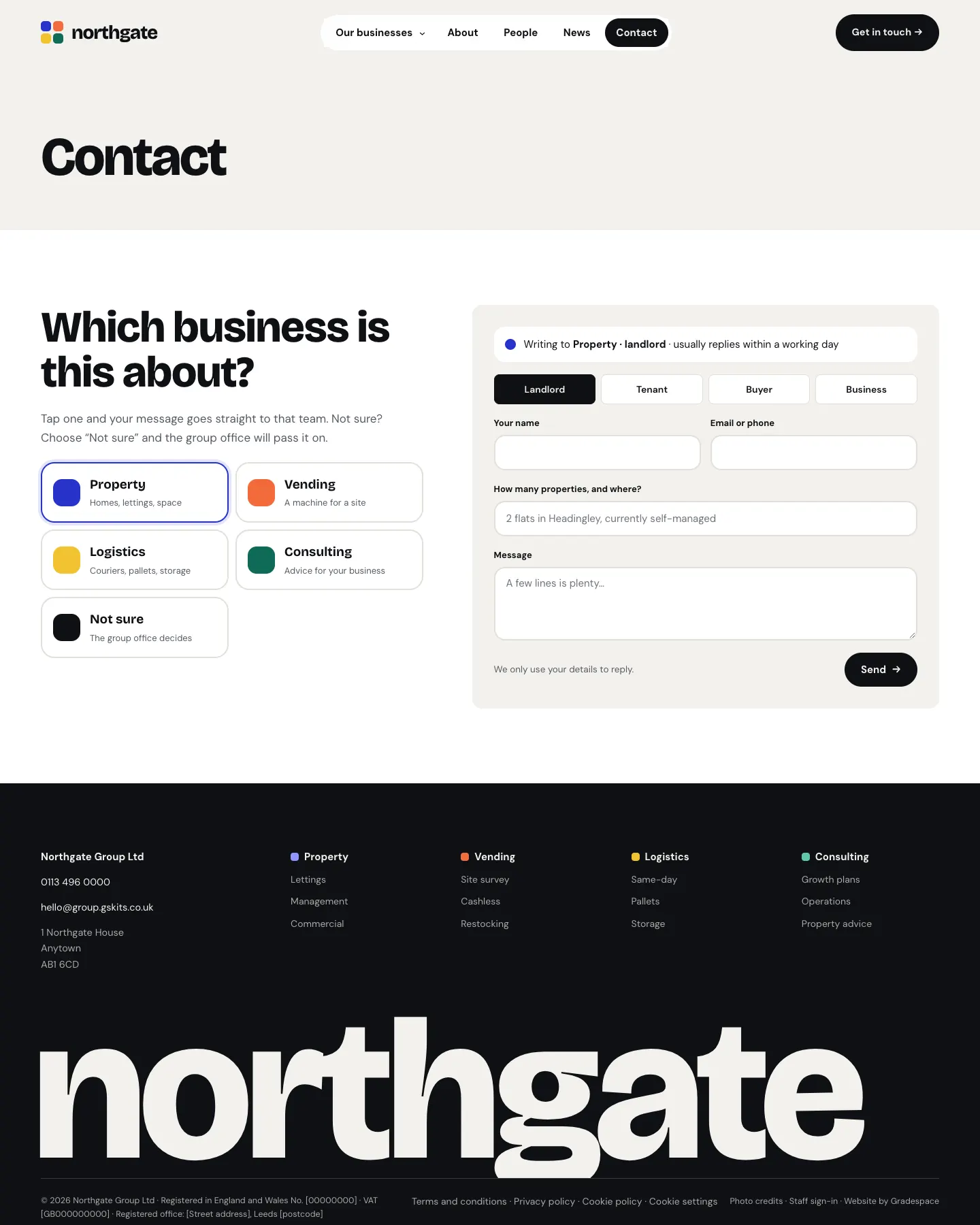
The contact page
Visitors tap the business their message is about (or Not sure), and the form changes to that business's own question and "who's asking" choices.
The team page
The menus
The wizard makes the main menu for you:
- Our businesses: a drop-down that lists every business that isn't hidden. It updates itself when you add, hide or reorder a business.
- About, People, News and Contact.
- A main button on the right: Get in touch (Mosaic) or Start a conversation (Charter), which opens the contact page, or Client sign-in (Parallel), which opens My account. Charter also has a Client sign-in link in the thin bar at the top, and every business page has one at the top right.
Each business page has its own menu too. You set it on the business, in Its own menu (see Your businesses).
The footer shows the parent company's name, phone, email and address, a column of services for each business, the legal links, Cookie settings, Photo credits and Staff sign-in. The bottom line shows the registered company details from Group → Settings → Business.
To change the main menu yourself, see Your look.