Running your website
Enquiries
How the contact form sends each enquiry to the right business, and how to filter, assign, note, reply to and close enquiries under Group → Enquiries.
On this page
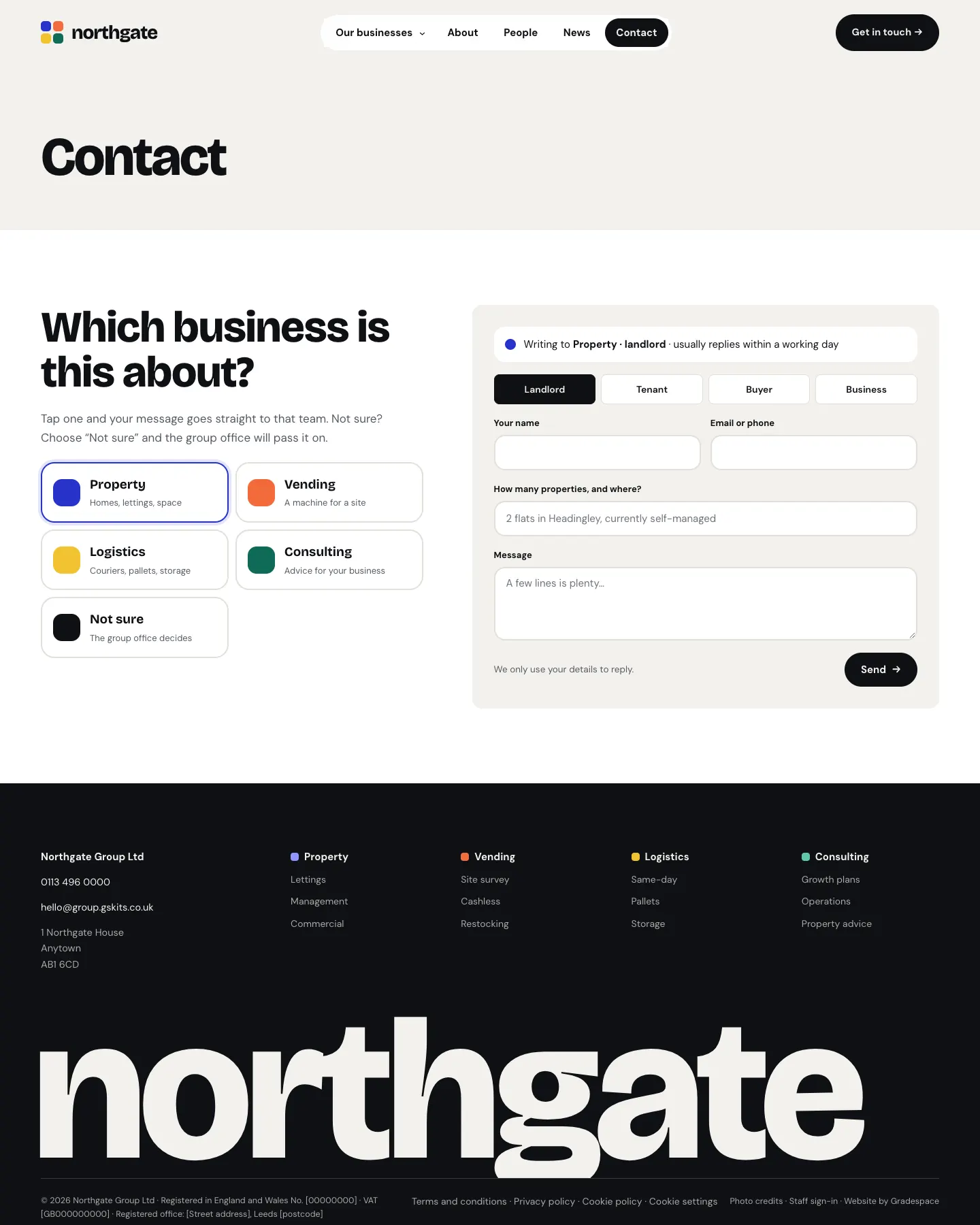
The Group website has one contact form for the whole group: "Which business is this about?". Visitors tap a business (or Not sure), answer that business's own question, and the enquiry goes straight to that business's inbox. Every enquiry is also kept under Group → Enquiries, where your team can see who's dealing with it, add notes and reply.
Enquiries come from three places, called kinds:
- Enquiry: the "Which business is this about?" form on the homepage, the Contact page and each business page.
- About a listing: the Ask about it form on a listing.
- Client request: a request a client sent from their client area (Pro). See The client area.
Where each enquiry goes
- To the inbox in the business's Send its enquiries to box (see Your businesses).
- If the visitor chose a "Who's asking?" option that has its own inbox, to that inbox instead.
- If the visitor chose Not sure, or the business has no inbox, to the group office: the addresses in Group → Settings → Email → Send notifications to.
If you want the group office to see everything, go to Group → Settings → Group and switch on Copy the group office into every enquiry.
The visitor gets an automatic "Thanks for your enquiry" email naming the team that will answer. You can change or switch off that email under Group → Settings → Email.
How to see your enquiries
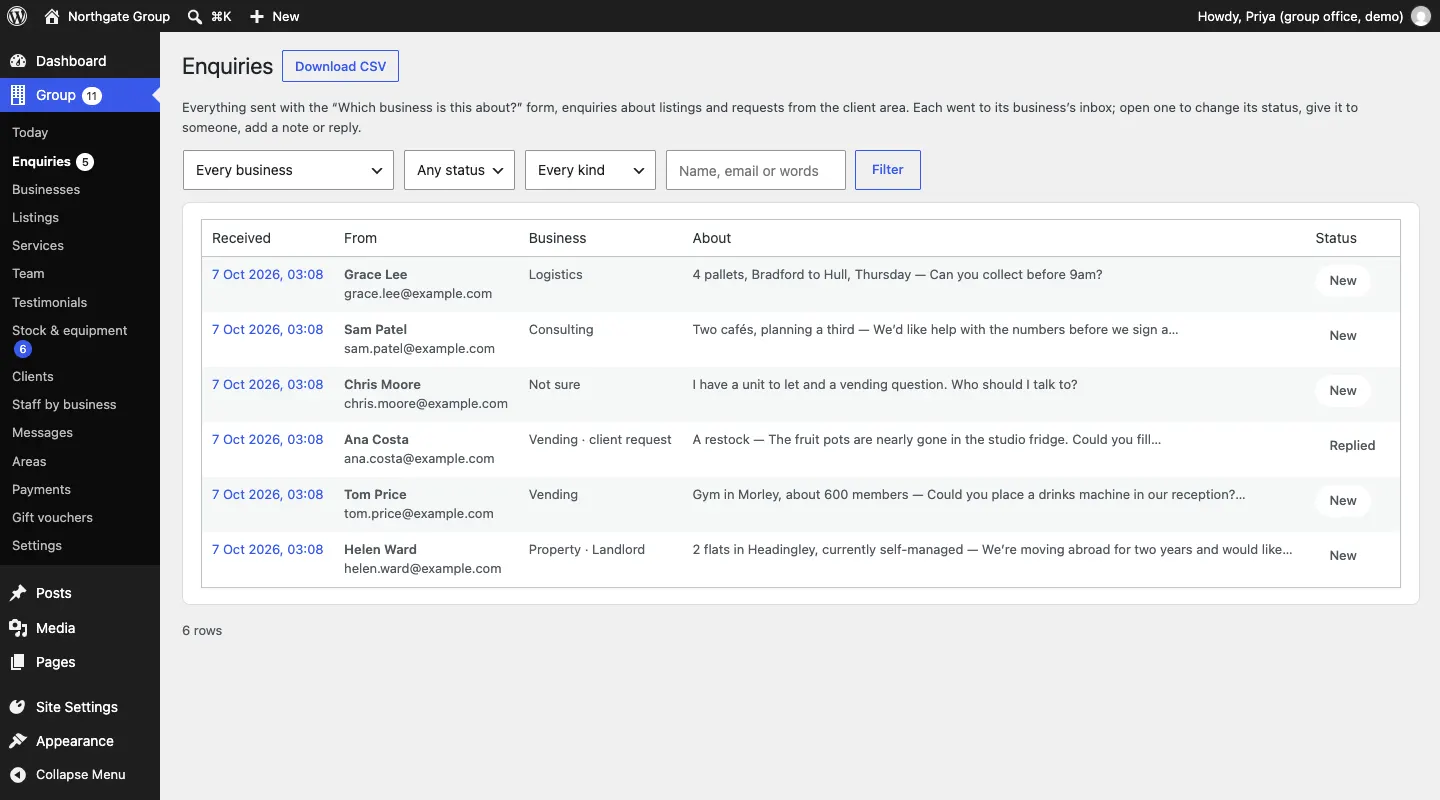
Go to Group → Enquiries. The newest are at the top. The red number next to Enquiries in the menu shows how many are New.
To narrow the list:
- Choose a Business (or Not sure (the group office)), a Status and a Kind, or type in Search.
- Click Filter.
With Pro, staff who look after only some businesses see only those businesses' enquiries (see Staff by business).
How to deal with an enquiry
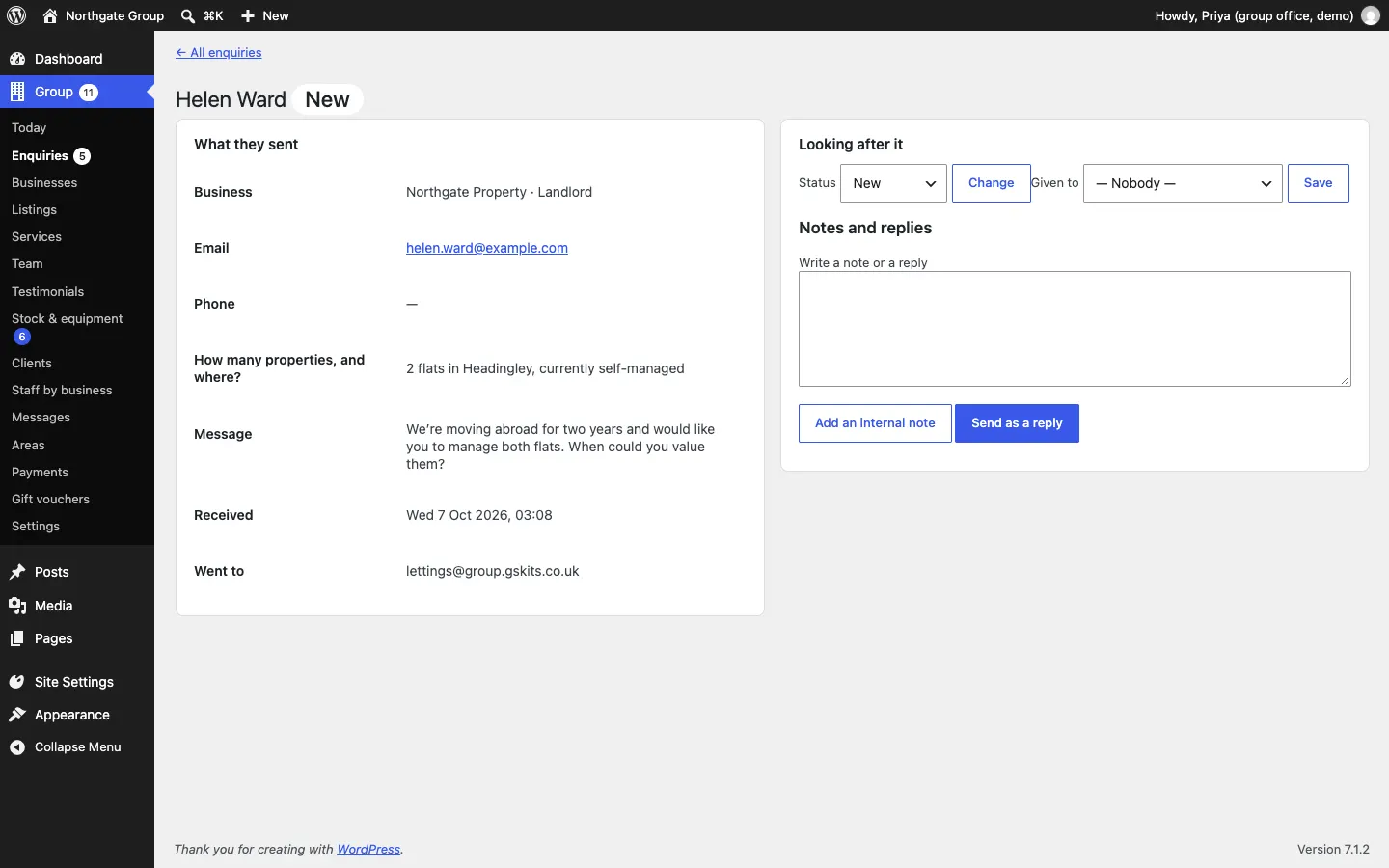
- In Group → Enquiries, click the date of the enquiry to open it.
- What they sent shows the business, their email and phone, their answer to the business's question, their message, when it arrived and which inbox it Went to.
- Under Looking after it, choose a Status and who it's Given to, then click Save.
- Under Notes and replies, type in Write a note or a reply, then:
- click Add an internal note for a note only staff see, or
- click Send as a reply to email your answer to them.
- When it's dealt with, set the Status to Won or Closed and click Save.
The statuses are:
| Status | Use it when |
|---|---|
| New | Nobody has looked at it yet. |
| Replied | You've answered. Sending a reply sets this for you. |
| In progress | You're working on it (a viewing booked, a quote being prepared). |
| Won | It became work. |
| Closed | Finished, or not going anywhere. |
Client requests (Pro)
When a client sends a request from their client area, it arrives here as a Client request, for the business that looks after that client. The enquiry shows what they asked for under Request (for example "A restock") and which Client it came from. Your replies (Send as a reply) are emailed to the client and also appear in their client area under Messages.
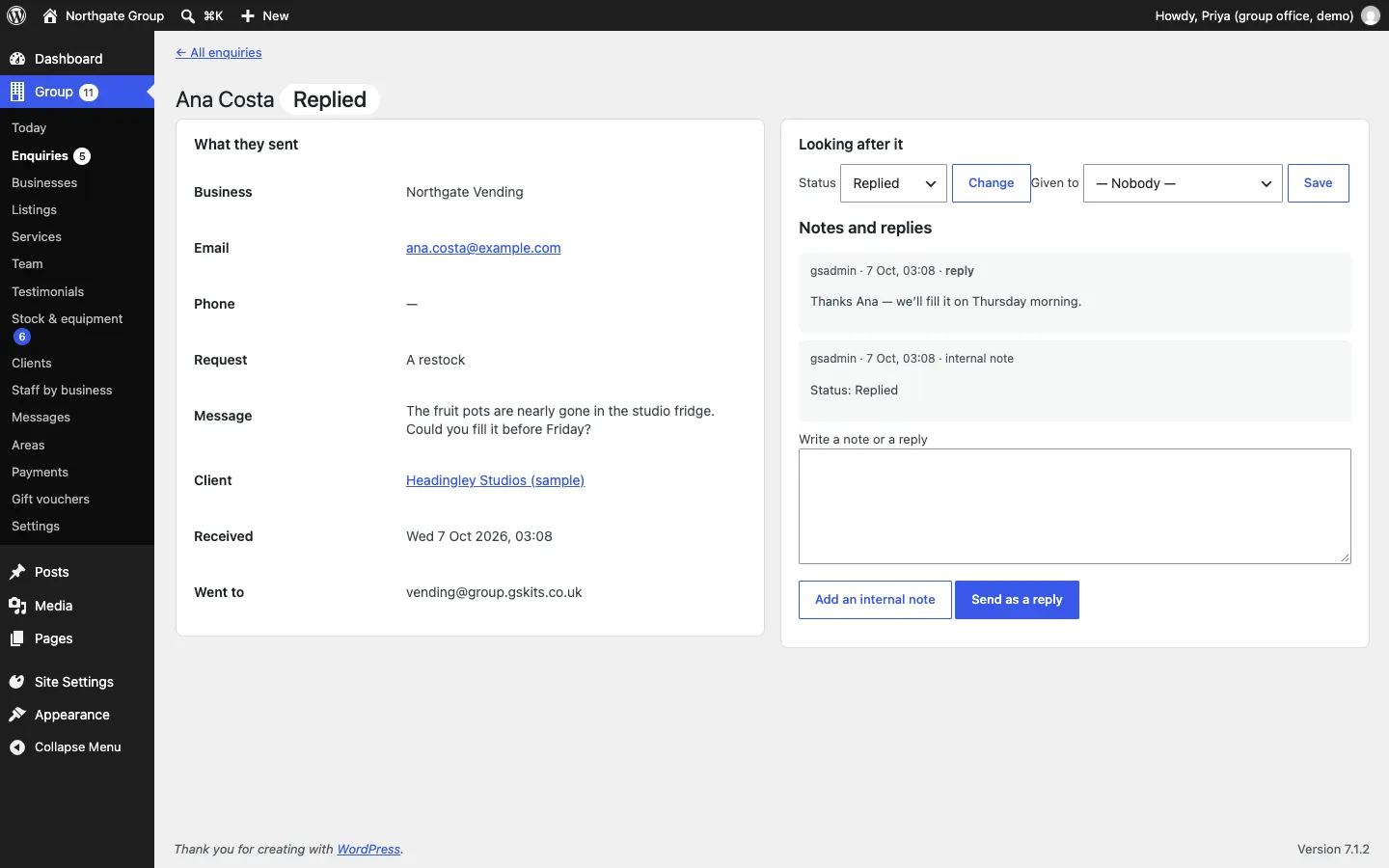
A restock request also makes a restock task for the machine (see Stock & equipment).
How to download your enquiries
Click Download CSV at the top of Group → Enquiries. You get a spreadsheet of the enquiries in the current filter, which opens in Excel, Numbers or Google Sheets.
Keeping enquiries tidy
Enquiries contain personal details. Under Group → Settings → Contact, Review messages after (months) sets when old messages are listed for review under Messages → Due for review. See Messages and Privacy and emails.