Running your website
What your clients see: the client area (Pro)
How clients sign in at My account, and everything they see there: orders and invoices, plans, sites and machines, service visits, requests, messages and documents.
On this page
The client area is the website's My account page. The people you invite from a client's page (see Clients) sign in there and see everything the group does for their company, from every business, in one place. They can also ask for help, a restock or a service visit, and the request goes straight to the right business.
They only ever see their own company. Nobody at another client, and no visitor, can see it.
This chapter shows the client area as a client sees it, using the demo's sample client, Ana Costa at Headingley Studios. It's useful for your staff, and you can share it with your clients as a how-to.
Everything in this chapter is part of Pro: features marked (Pro) need a Pro or Agency licence.
Signing in
- Go to the website and click Client sign-in (at the top of the page in some designs and on business pages), or go straight to the My account page (yourwebsite/account).
- Type your Email and Password and click Sign in. Tick Keep me signed in on this device on your own computer or phone.
- No password, or forgotten it? Type your email under Email me a sign-in link and click Send the link. A one-time link arrives by email. It works for 15 minutes.
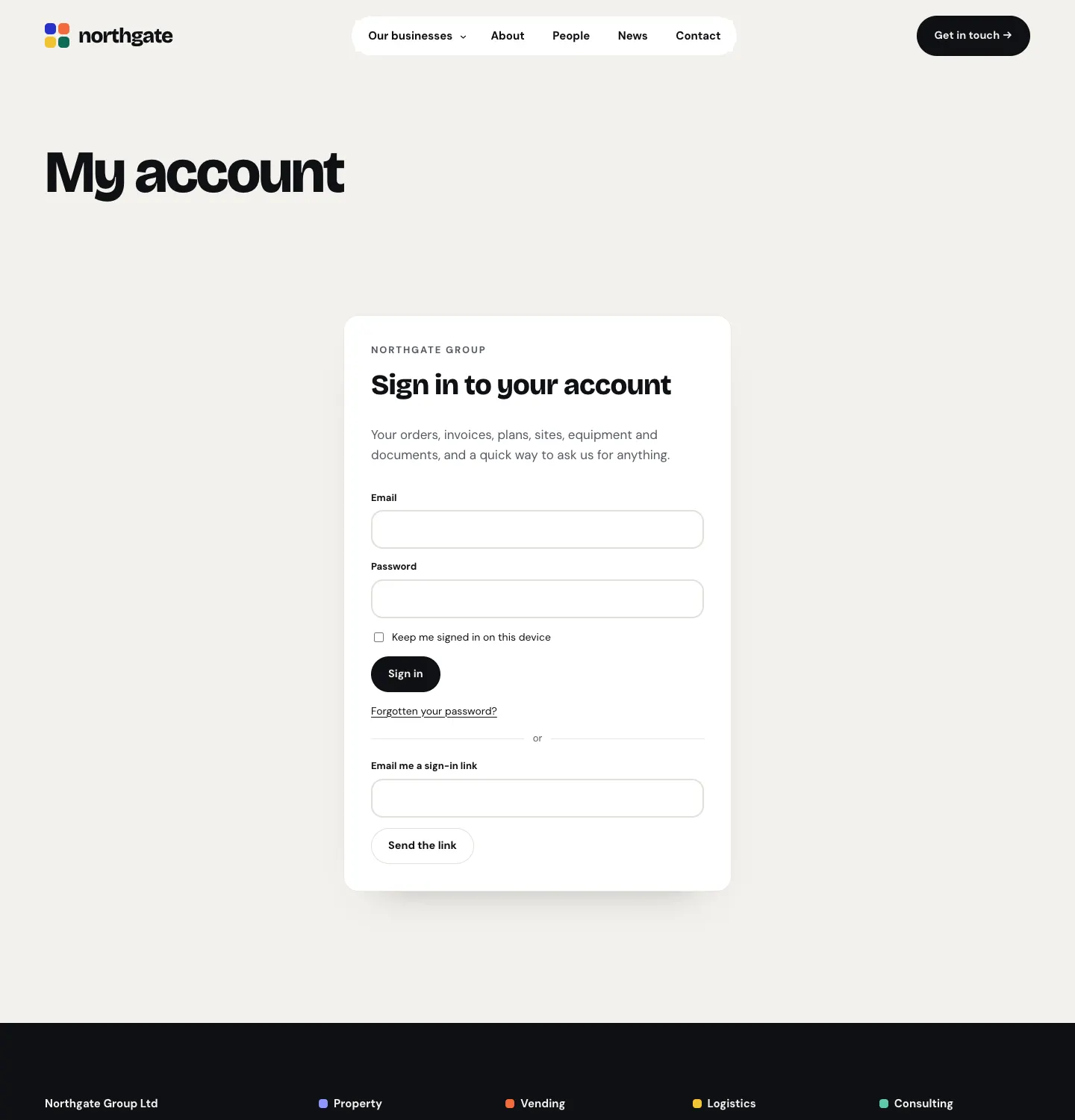
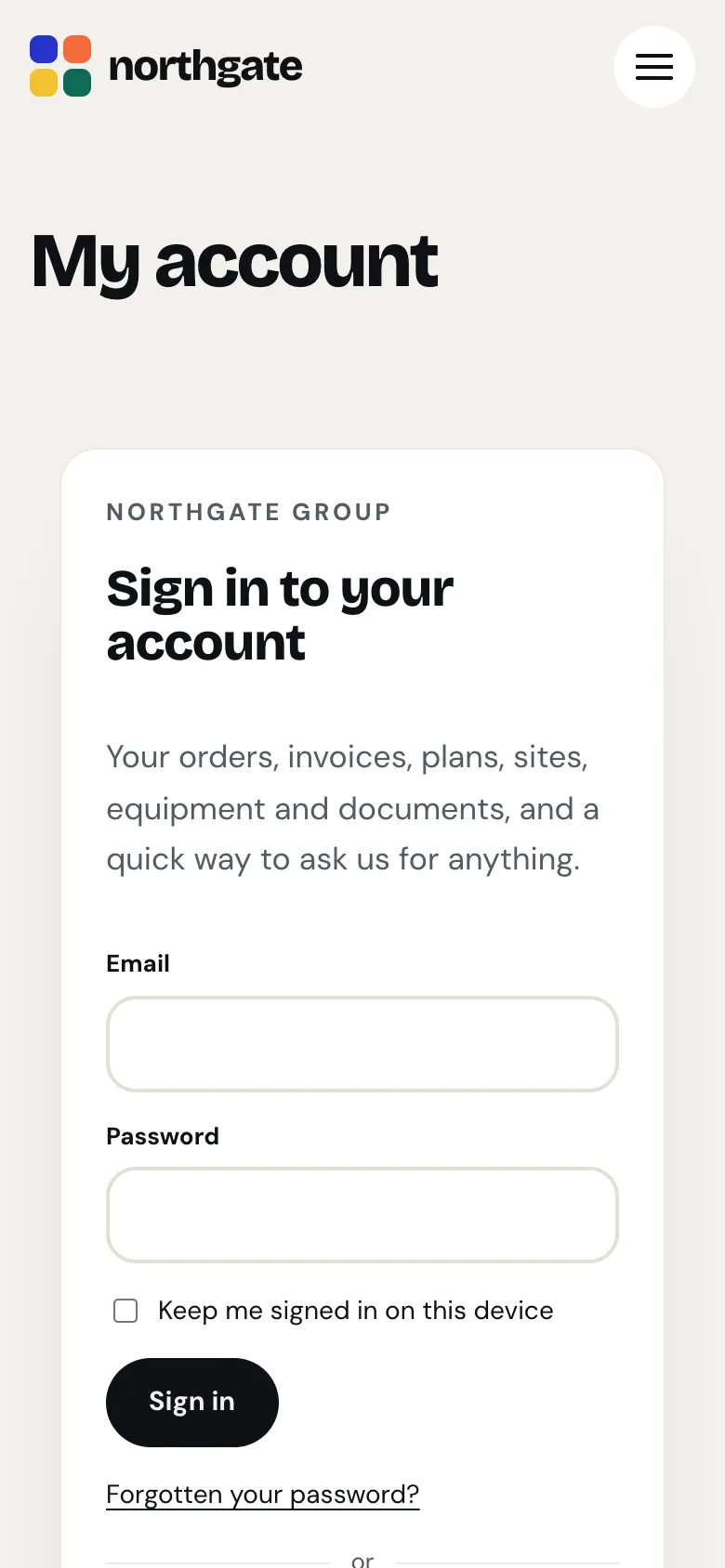
The first time, use the link in the invitation email to choose a password.
The overview
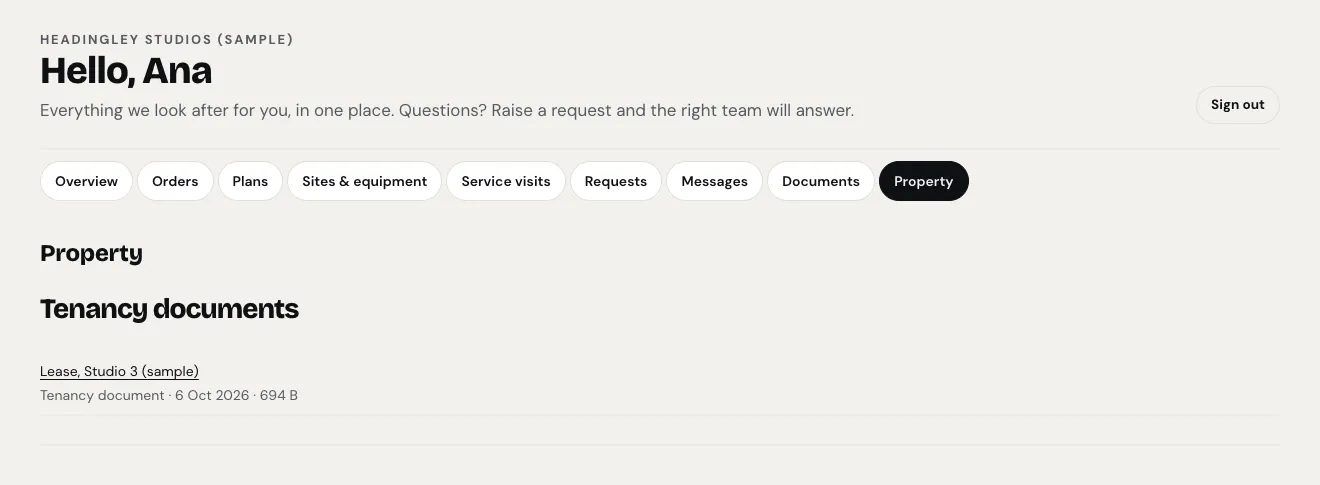
After signing in, the client sees their company name, a welcome line and a row of tabs, one for each part: Overview, Orders, Plans, Sites & equipment, Service visits, Requests, Messages and Documents. If a business has shared business-specific papers with them (such as Property's tenancy documents), there's also a tab with that business's name.
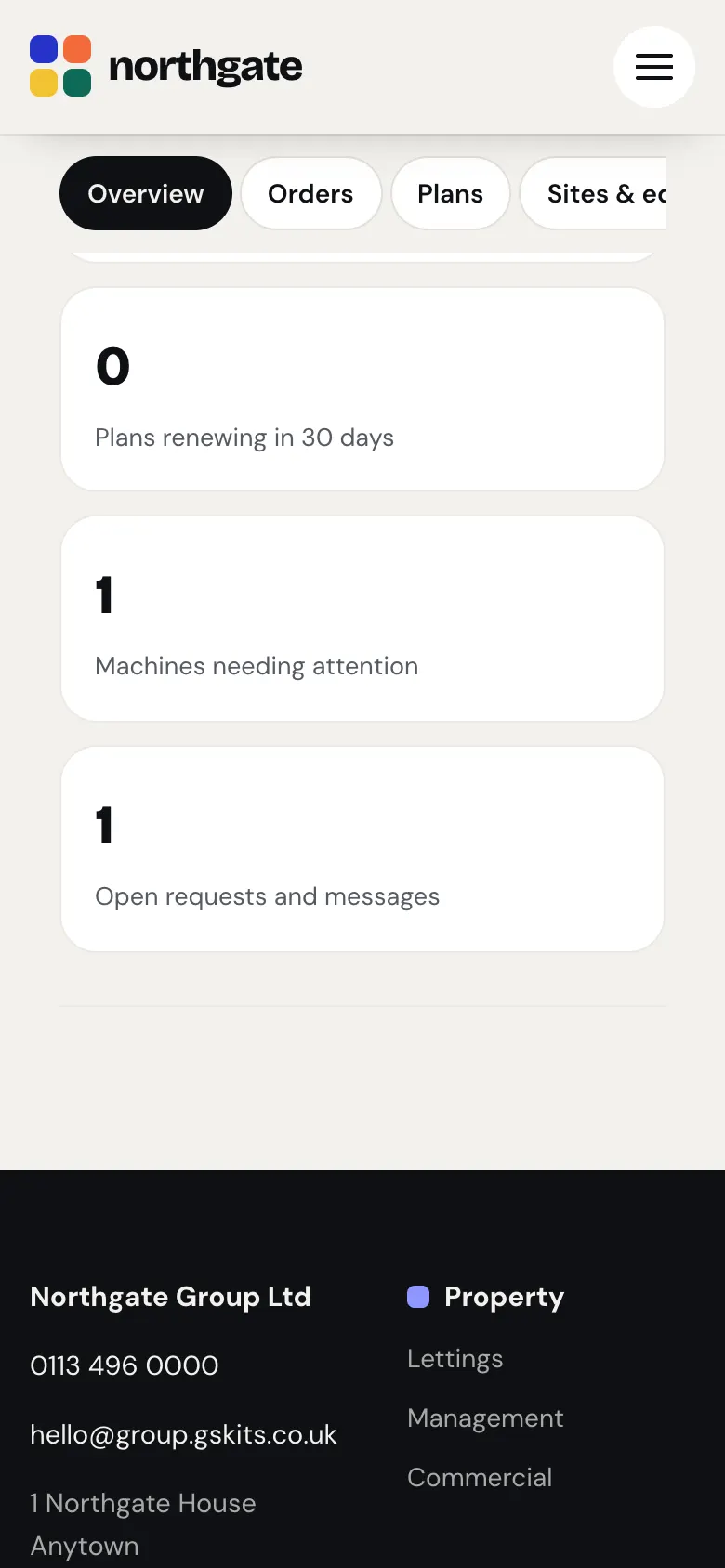
The Overview counts what needs their attention: orders in progress, how much there is to pay, plans renewing in the next 30 days, machines needing attention, and open requests and messages. Each one jumps to that part.
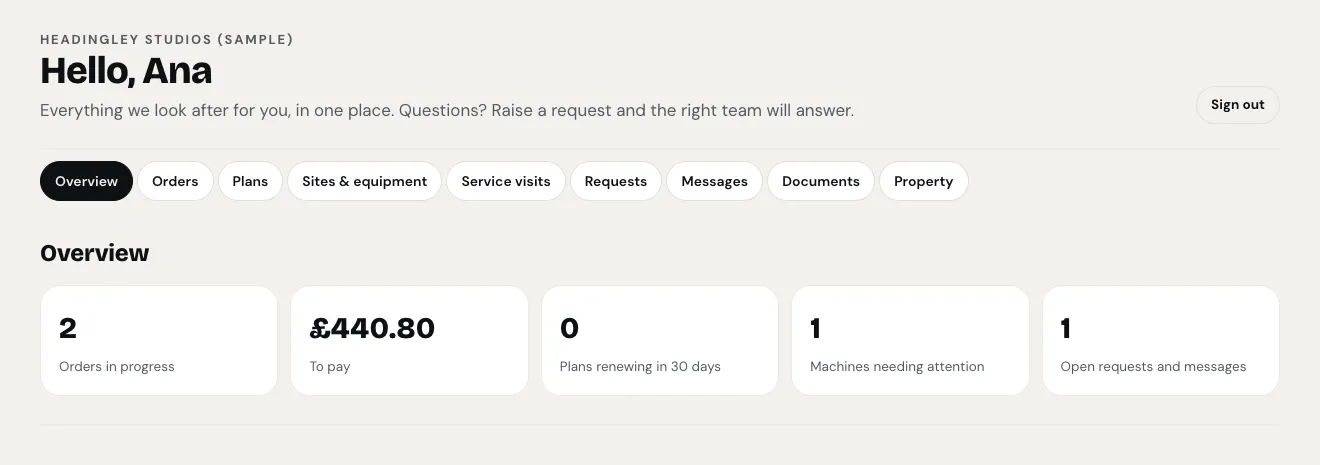
You can change the welcome line under Group → Settings → Client area → Welcome line in the account.
Orders
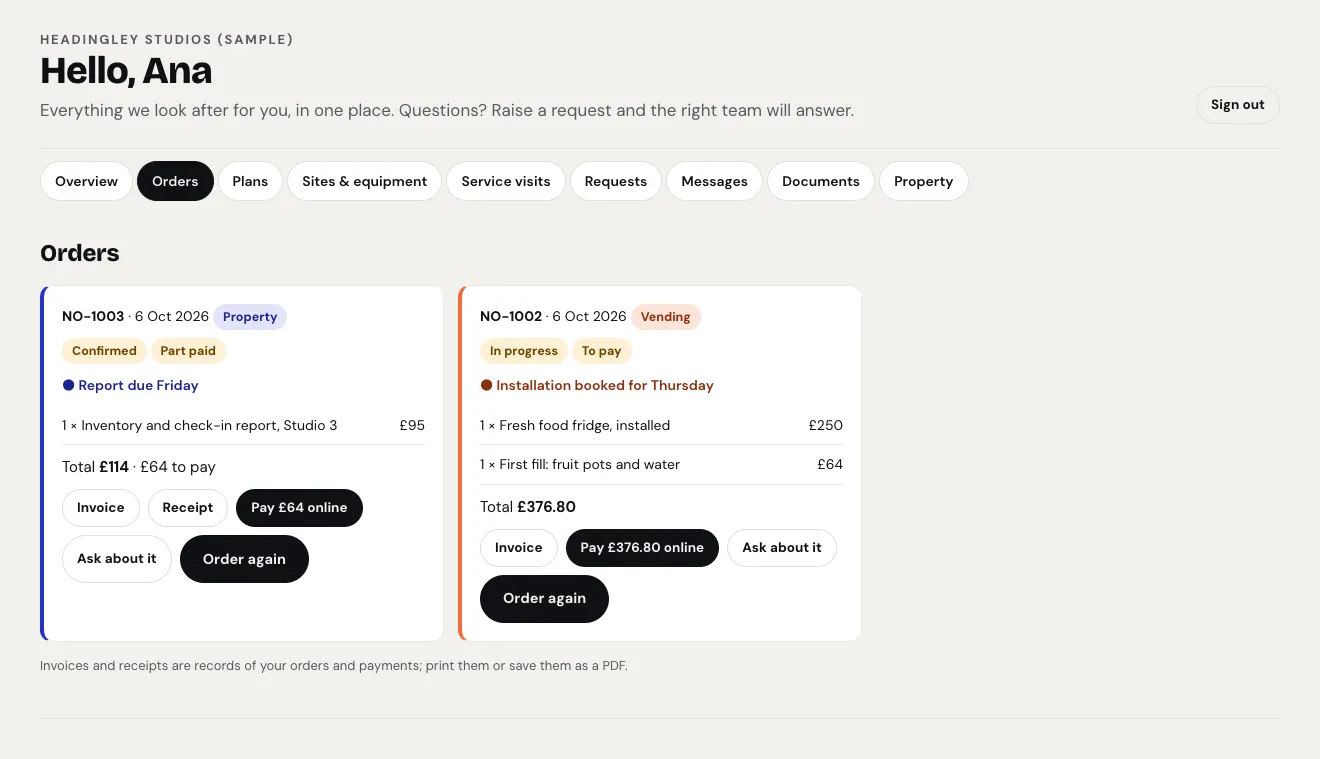
Every order from every business, newest first. Each shows its number and date, the business, its status, whether it's paid, the latest stage ("Installation booked for Thursday"), the lines and the total, with buttons:
- Invoice and Receipt: open the printable invoice or receipt.
- Pay … online: if your website takes online payments.
- Ask about it: opens a request about that order.
- Order again: sends a request to the business to order the same again.
Plans
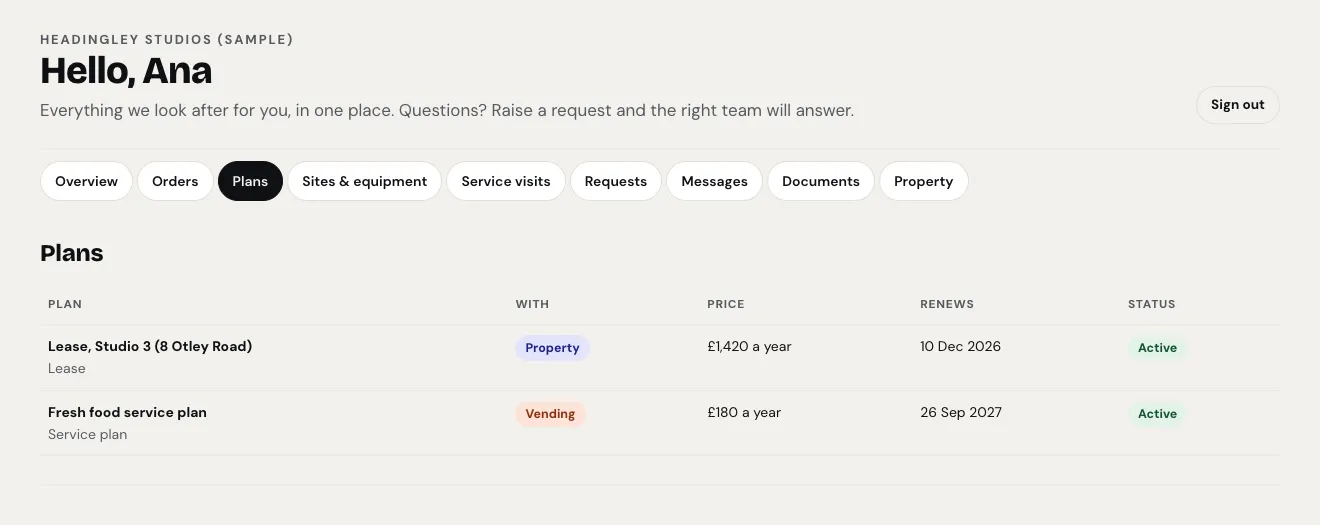
The client's service plans, rentals, leases and contracts, with the business, price, renewal date and status.
Sites & equipment, and service visits
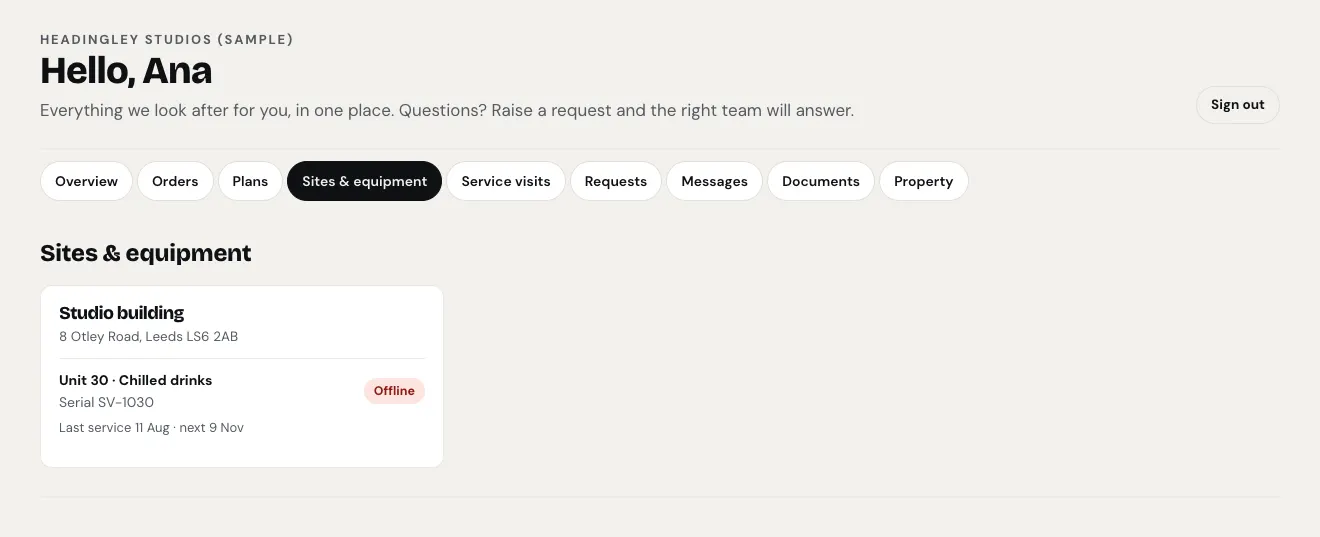
Sites & equipment lists each of the client's sites with its address and the machines there: name, serial number, last and next service, and status.
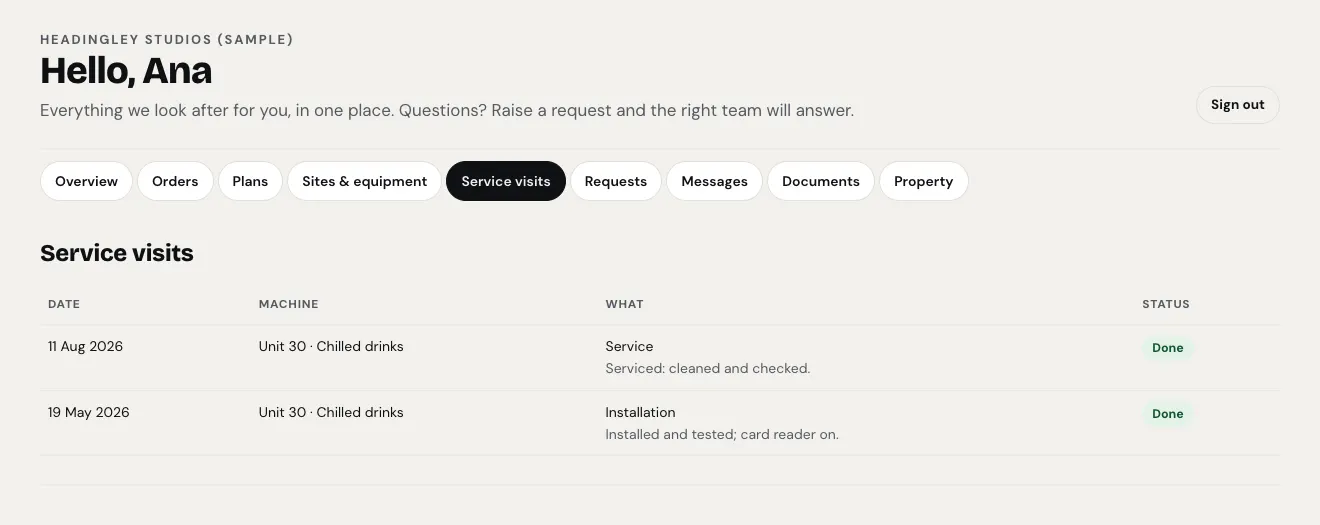
Service visits lists each visit with its date, machine, what was done (the words your staff wrote in For the client (shown in their account)) and status.
Requests
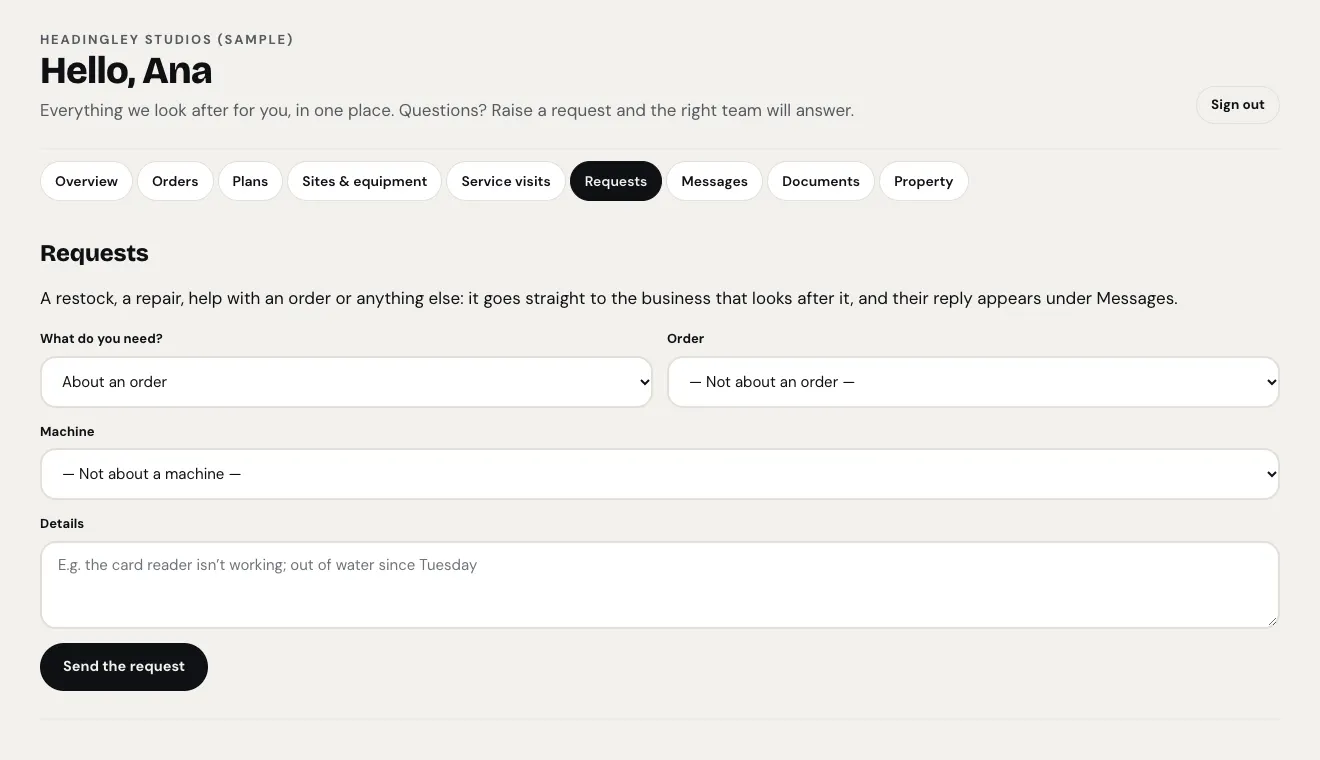
The client asks for anything here, and it goes straight to the business that looks after it.
- Under What do you need?, choose About an order, Help or support, A restock, A service visit or repair or Something else.
- If it's about an order, choose the Order. If it's about a machine, choose the Machine.
- Write the Details.
- Click Send the request.
The request arrives under Group → Enquiries as a Client request for the right business, and its team is emailed. A restock request also makes a restock task for the machine. See Enquiries.
You can change the list of things clients can ask for under Group → Settings → Client area → What clients can ask for.
Messages
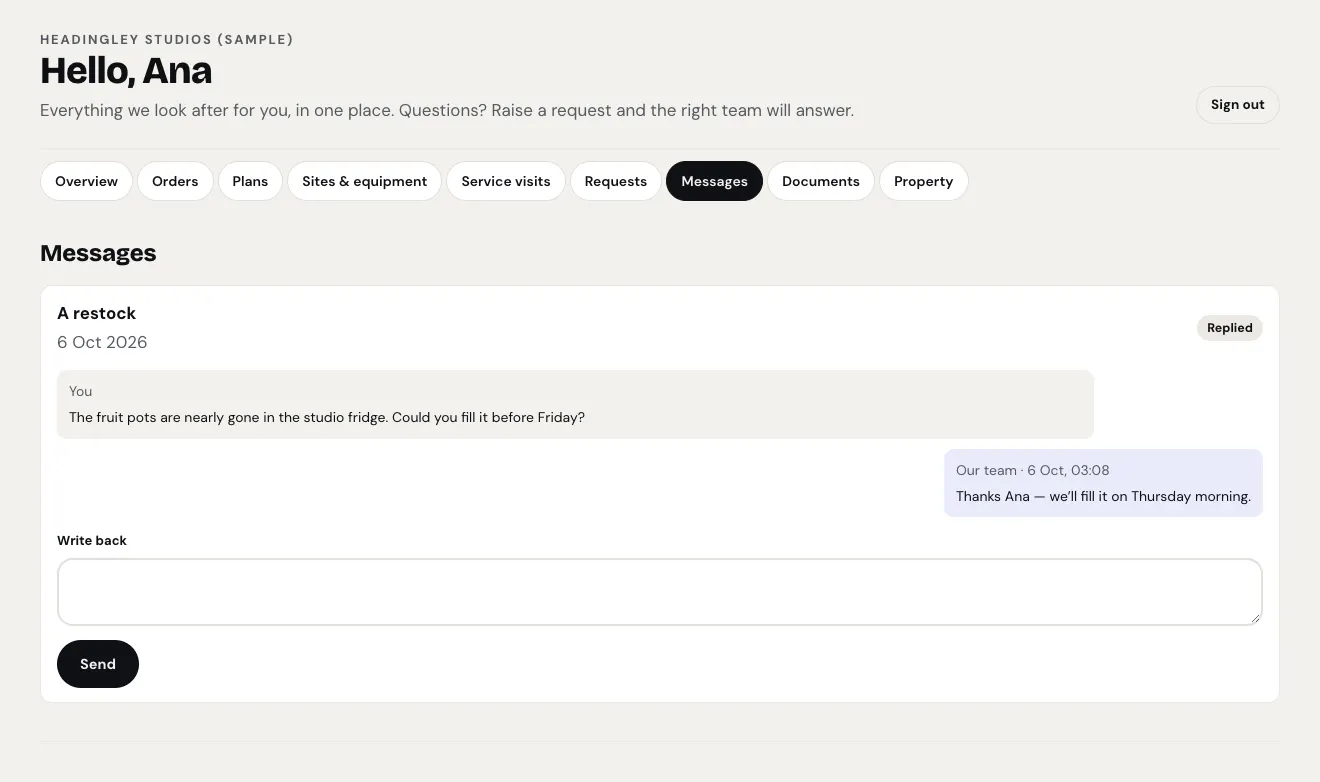
Each request the client has sent, with its status and your team's replies underneath. The client can answer in Write back and click Send. Their answer is added to the same request for your team.
Documents
Documents your staff have shared with the client: contracts, reports, certificates and so on. Click one to open or download it.
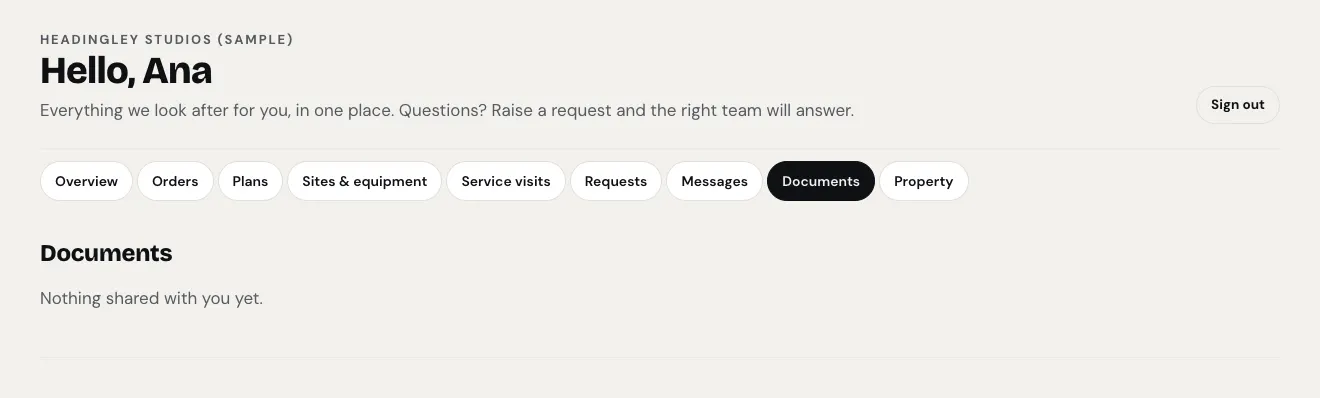
Some papers belong to one business and show on that business's own tab instead. In the demo, Headingley Studios' lease is a tenancy document from Property, so it's under the Property tab, while Documents says "Nothing shared with you yet."
On a phone
The client area works on a phone the same way. Swipe the row of tabs sideways to see them all.
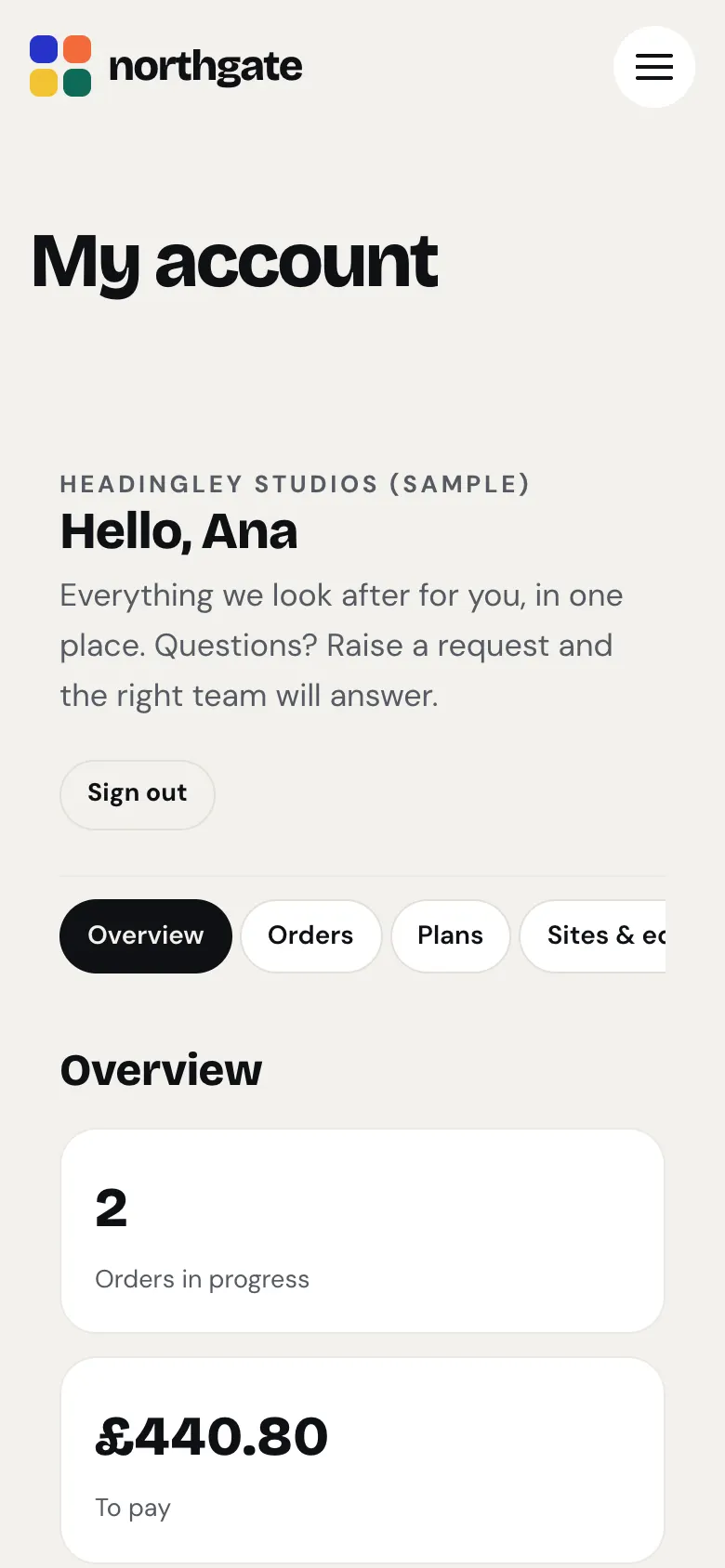
When the website keeps its menu at the top, the row of tabs stays in view just below it as the client scrolls, so they can always jump to another part.
Signing out
Click Sign out at the top of the client area.