Running your website
Messages
Group → Messages, the plain record of every message sent through the website's forms, how to reply and how to review old ones; and the Messages part of the client area.
On this page
Group → Messages is the website's record of every message sent through its forms: the "Which business is this about?" form, listing enquiries, client requests and the plain contact form, if you use one. It's where you look up a message, reply by email, and clear out old ones for data protection.
For day-to-day work on enquiries (who's dealing with it, its status, notes), use Group → Enquiries instead: see Enquiries. The same enquiry appears in both places.
How to read a message
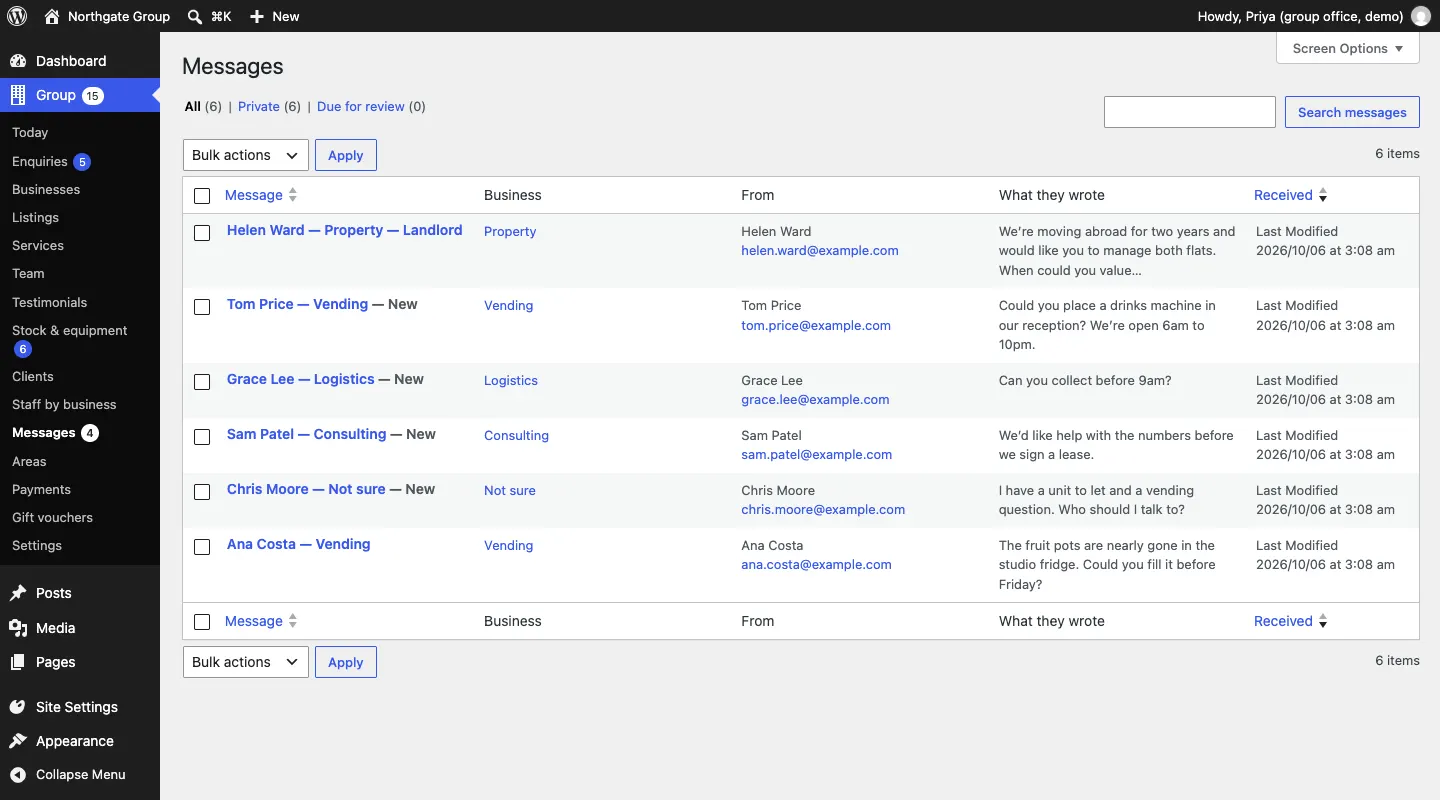
- Go to Group → Messages. The red number shows how many you haven't opened yet.
- Each row shows the message, the Business it was for, who it's From, What they wrote and when it was Received.
- Click a message's name to open it.
The open message shows From, Email, Phone, Subject (the business and "who's asking" choice), Received, Sent from (the page it was sent from) and the Message.
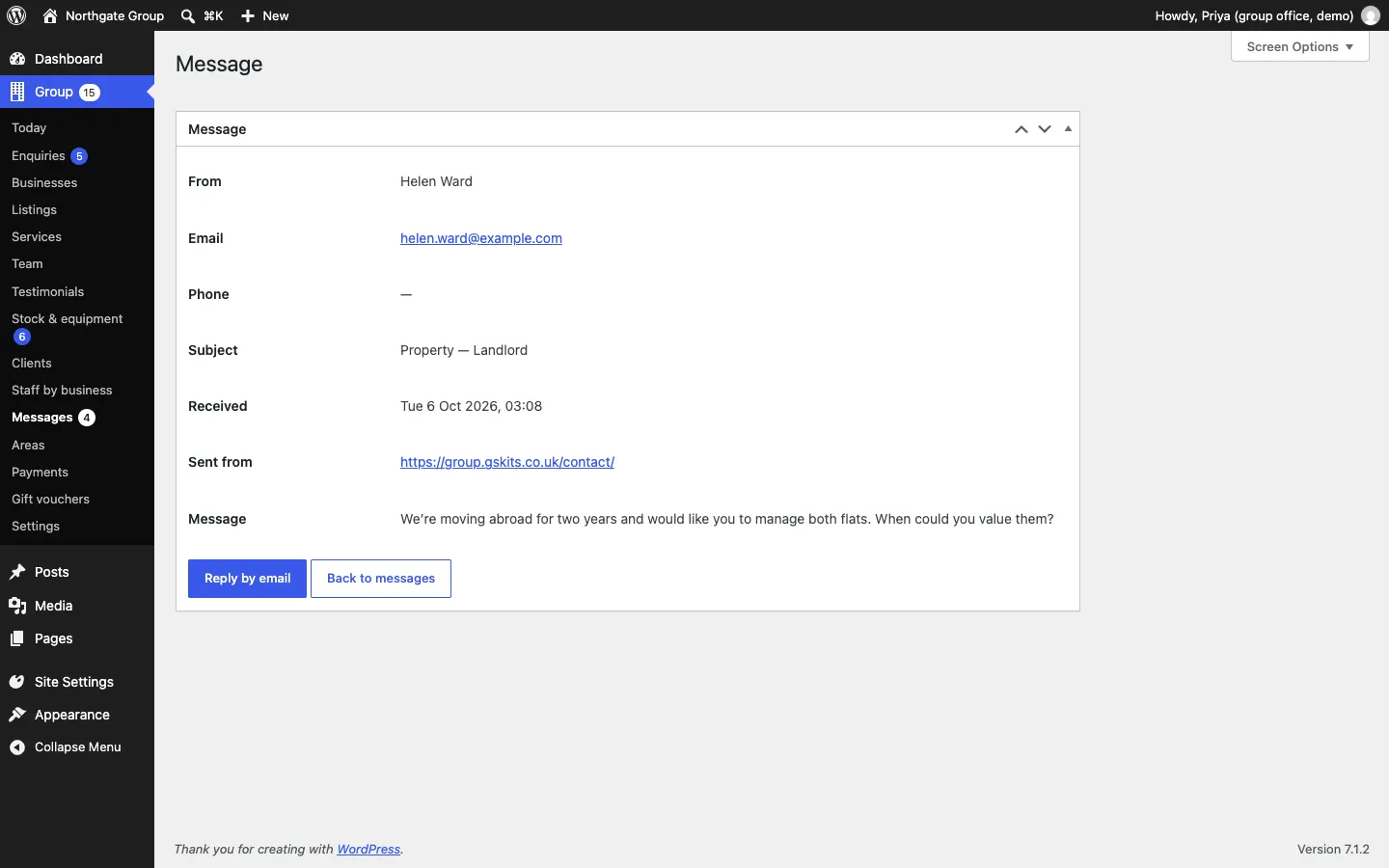
How to reply
- Open the message.
- Click Reply by email. Your own email program opens with their address filled in.
- Write and send your reply as usual.
How to review and delete old messages
Data protection law asks you not to keep personal details longer than you need them.
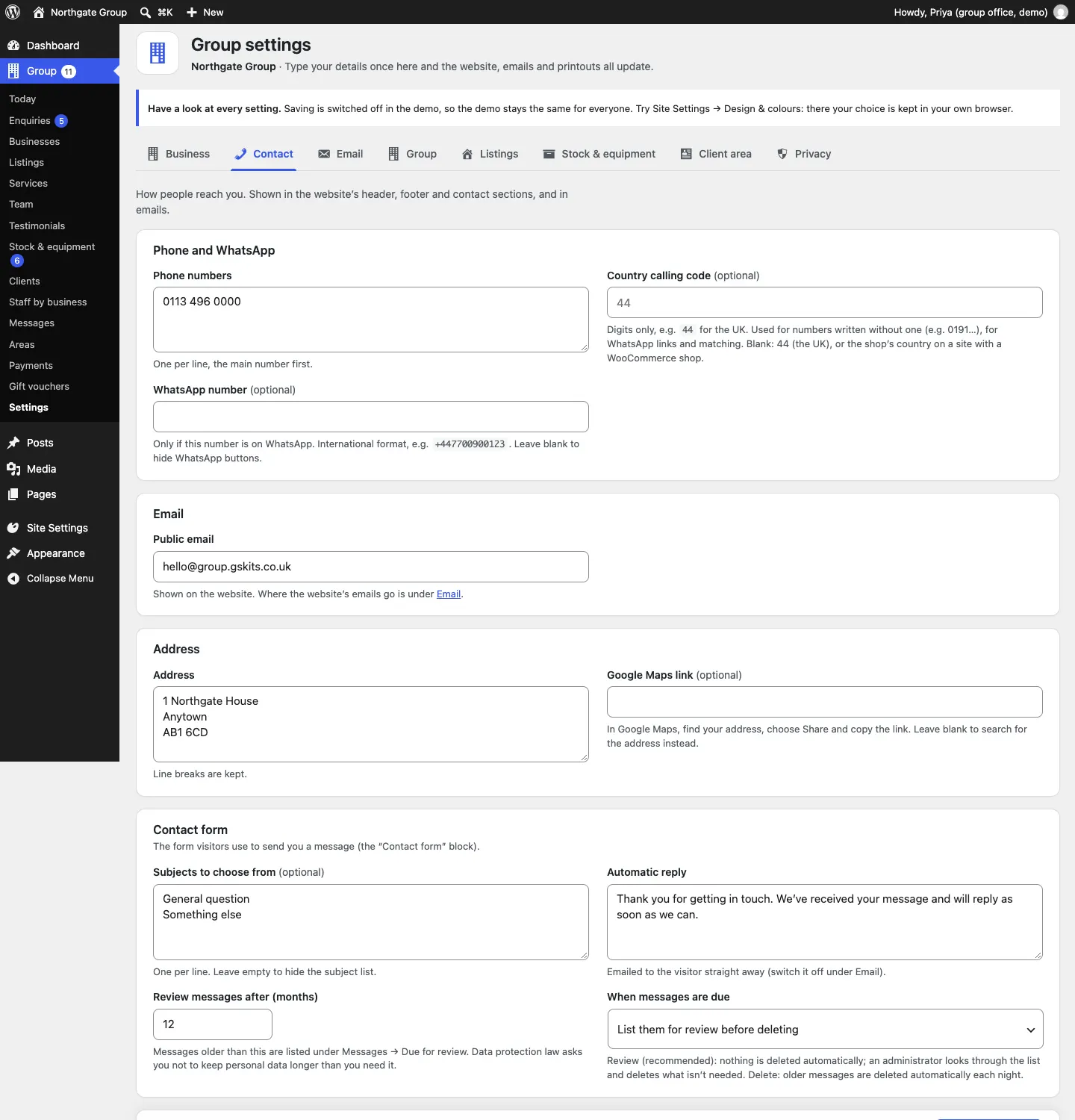
- Go to Group → Settings and click the Contact tab.
- Set Review messages after (months).
- Under When messages are due, choose List them for review before deleting (recommended) or Delete them automatically.
- Click Save changes.
With review switched on, older messages are listed under Group → Messages → Due for review. Look through them, tick the ones you no longer need, choose Move to Trash from Bulk actions and click Apply.
More: Privacy and emails.
Messages in the client area (Pro)
Clients have a Messages part in their client area. It shows each request they've sent, with your team's replies underneath, and a Write back box so they can answer. Their answers come back to the business as part of the same request. See The client area.