Running your website
Listings
Add homes to let and for sale, commercial units or anything else a business offers; change a listing's status from the list; and set your own listing types.
On this page
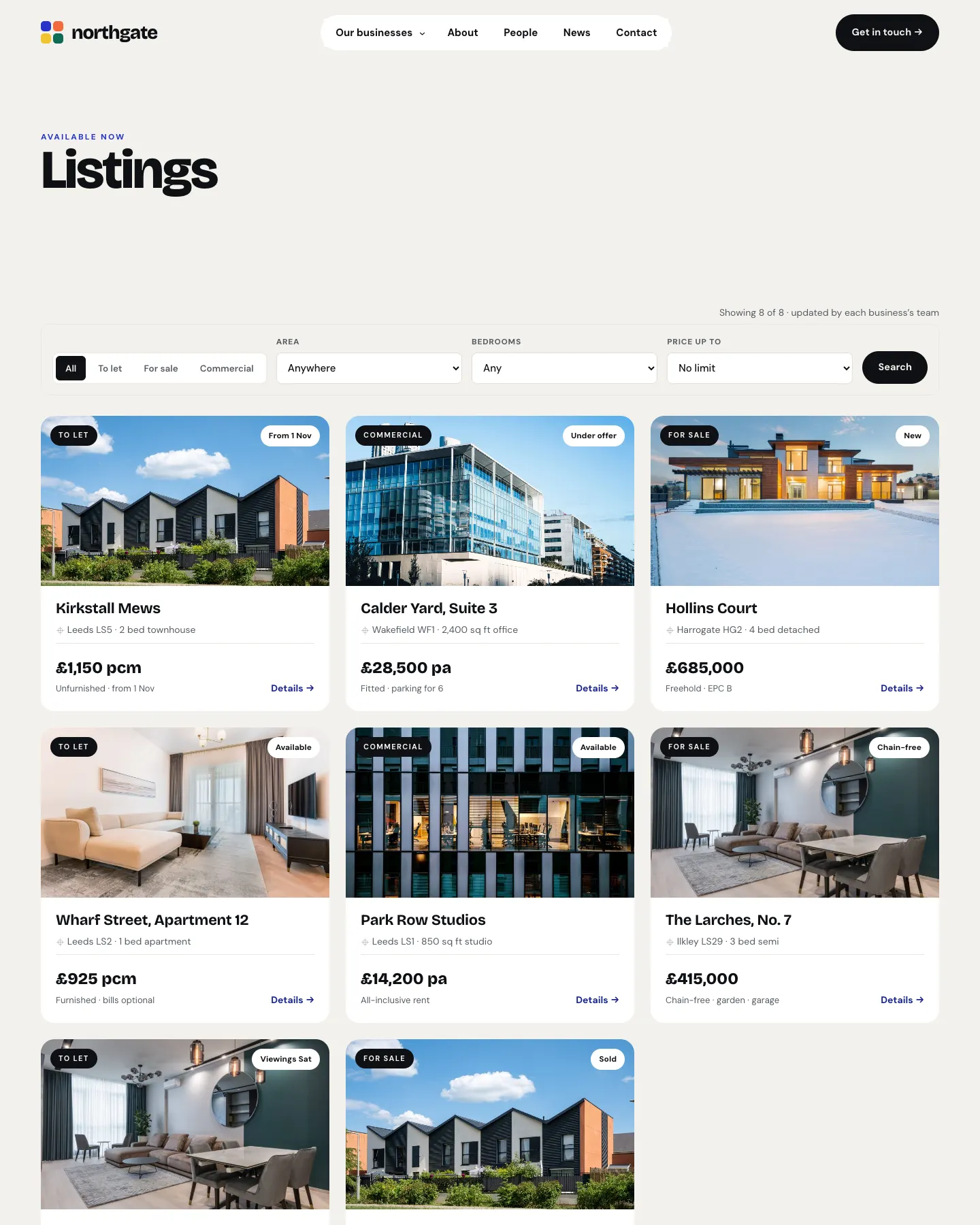
Listings are a portfolio for a business: homes to let and for sale, commercial units, or anything else a business offers. Each listing belongs to one business, has its own page with photos, features and documents, and its own enquiry form that goes to the right team. Visitors can filter the listings page by type, area, bedrooms and price.
Listings are part of both Starter and Pro.
The Listings list
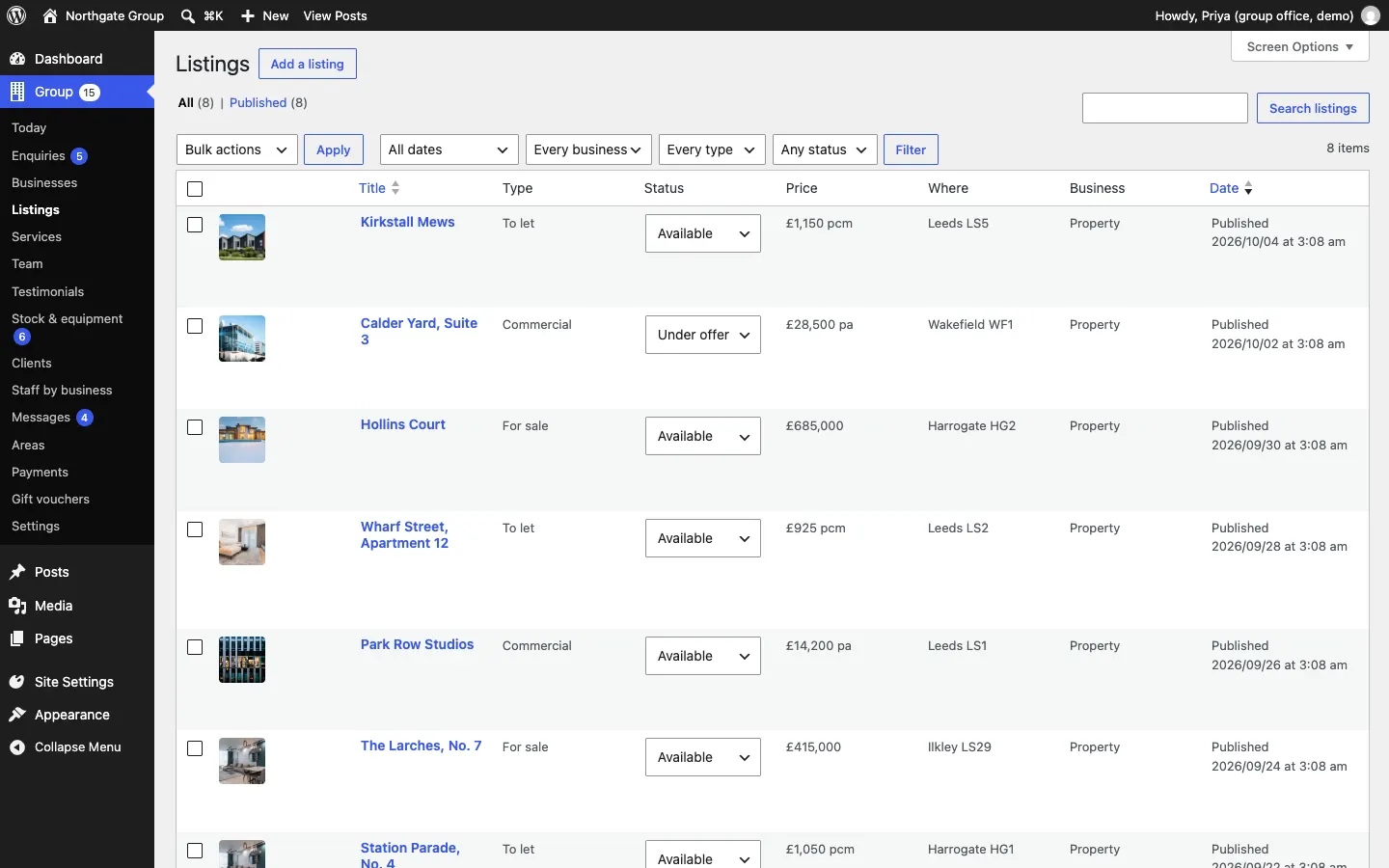
Go to Group → Listings. Each row shows the photo, title, type, status, price, where it is and which business it belongs to. Filter by Business, Type or Status at the top.
How to change a listing's status
You don't need to open the listing:
- choose the new status in its Status drop-down on the list (it saves as soon as you choose), or
- hover over the listing and click Mark under offer, Mark let, Mark sold or Mark available.
The statuses are Available, Under offer, Let and Sold. Whether let and sold listings stay on the website is set under Group → Settings → Listings → Keep let and sold listings on the website.
How to add a listing
- Go to Group → Listings and click Add a listing.
- Type its name in the title, for example "Kirkstall Mews".
- Write the description in the page. Add a Gallery block for its extra photos (see Pages and content).
- Set the main photo with Featured image in the sidebar.
- Choose its Business in the sidebar.
- Fill in the boxes in the sidebar:
- The listing: Type, Status, Price or rent (a number, such as 1150) and Per (pcm, a year…), or Or the price in words ("Offers over £400,000"), Note under the price ("Unfurnished · from 1 Nov"), Yield or return (optional) and Badge (optional) ("New", "Chain-free").
- Where: Street (optional) (shown on its page only), Town and Postcode (lists show only the first part, such as LS5).
- Details: In one line ("2 bed townhouse"), Bedrooms, Bathrooms, Size, Available from and Features (one per line).
- Documents: Brochure, Floor plan, Energy certificate (EPC) and Another document.
- Click Publish.
Enquiries about a listing
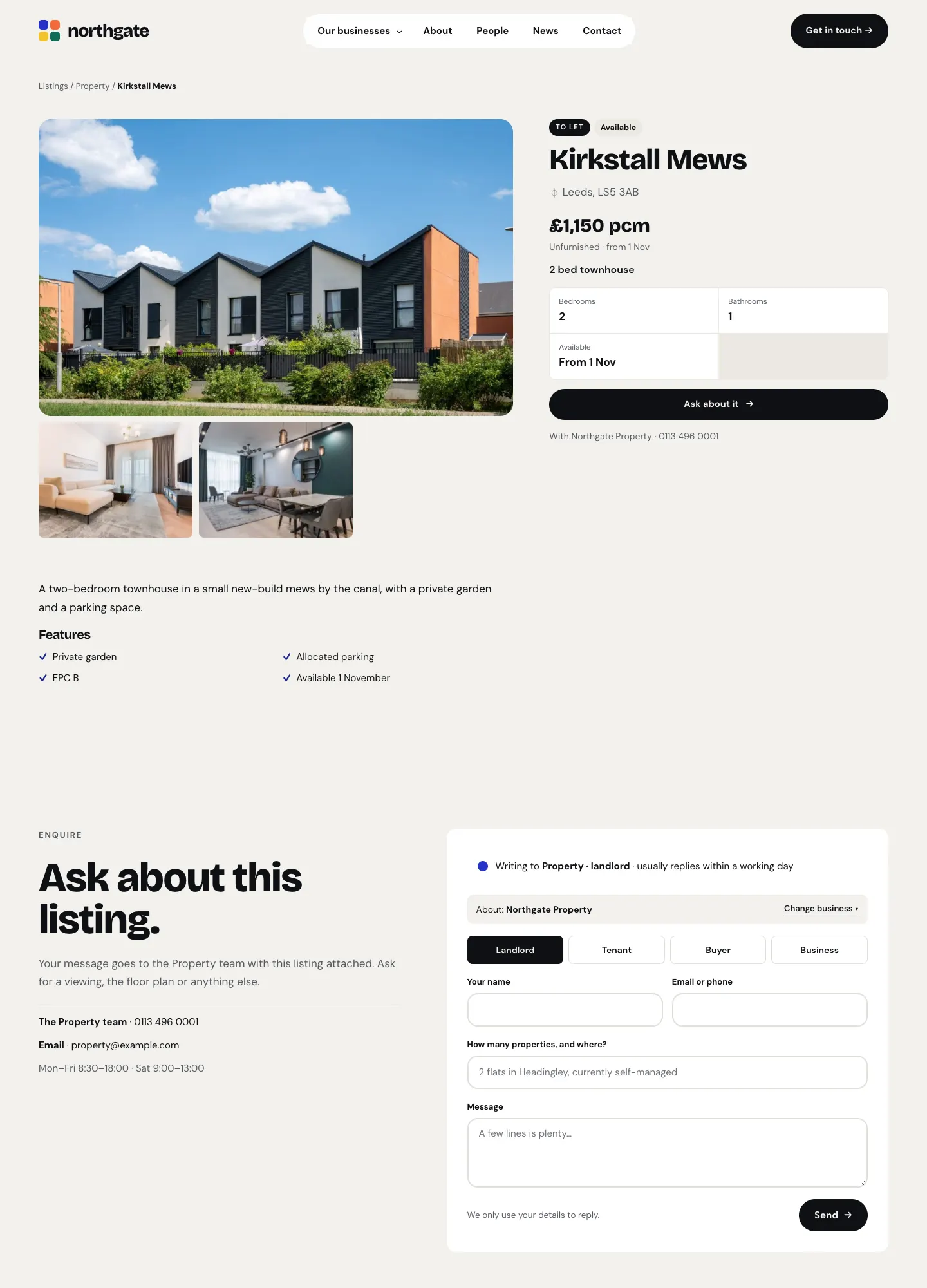
Each listing's page has an Ask about it button and an enquiry form for the business it belongs to. These enquiries arrive under Group → Enquiries with the kind About a listing, and the listing is attached. See Enquiries.
How to set your own listing types
-
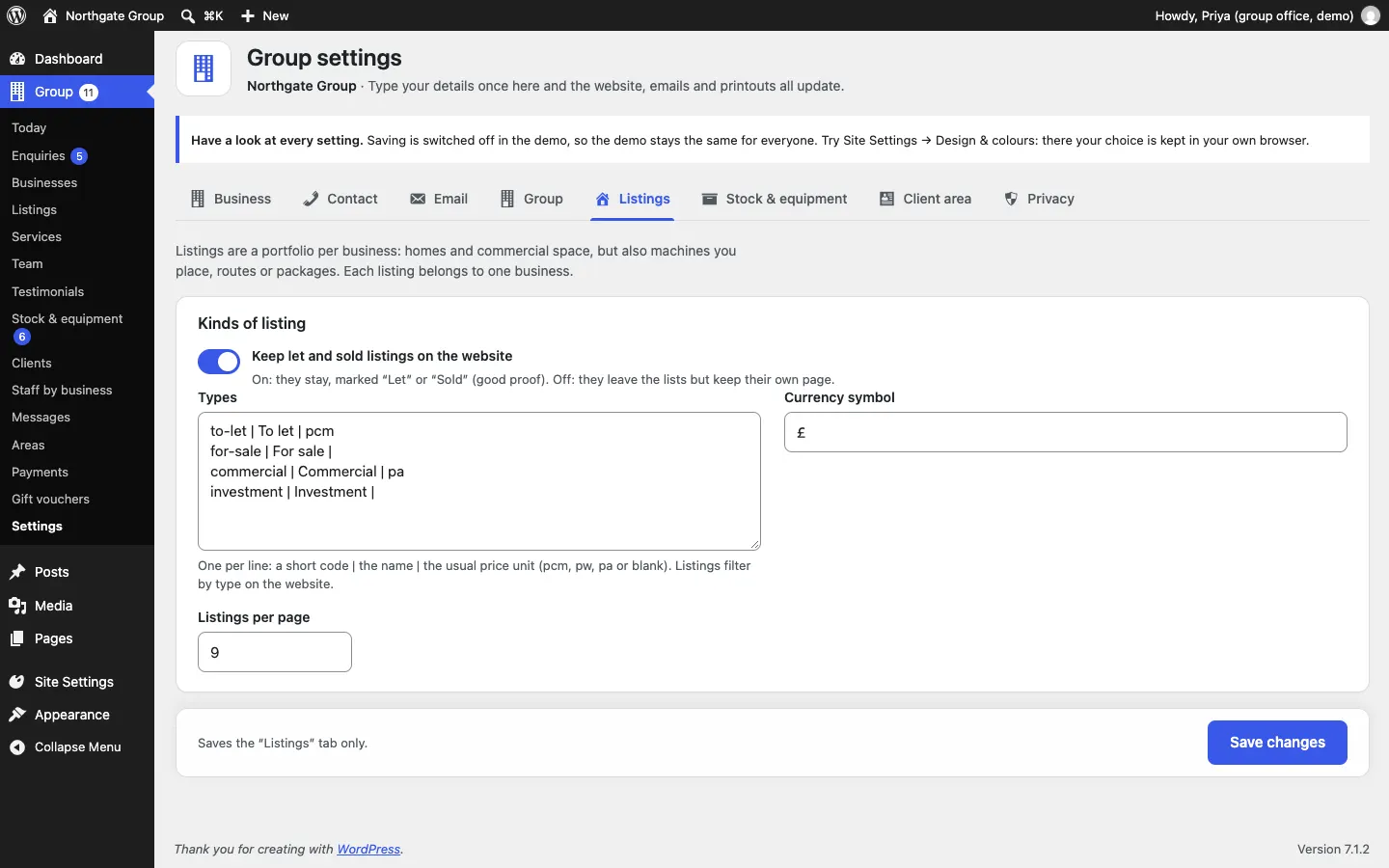
Go to Group → Settings and click the Listings tab.
-
Under Types, write one type per line: a short code | the name | the usual price unit (pcm, pw, pa or blank). For example:
let | To let | pcm -
Set the Currency symbol and Listings per page if you need to.
-
Click Save changes.