Running your website
Running the school day to day
The Today screen, the red numbers in the menu, a daily, weekly and termly routine for the office and tutors, site stats, and a quick reference of where everything is.
On this page
Once your website is set up, running it takes a few minutes a day. This chapter gives you a routine, explains the Today screen and the red numbers in the menu, and ends with a quick reference of where everything lives.
Features marked (Pro) need a Pro or Agency licence.
Signing in
Go to your website's address followed by /wp-admin (for example yourschool.com/wp-admin), or click Staff sign-in at the very bottom of any page. After signing in you go straight to Music school → Today. See Staff and sign-in.
The Today screen
Music school → Today shows everything that needs attention, with today's date and opening hours at the top.
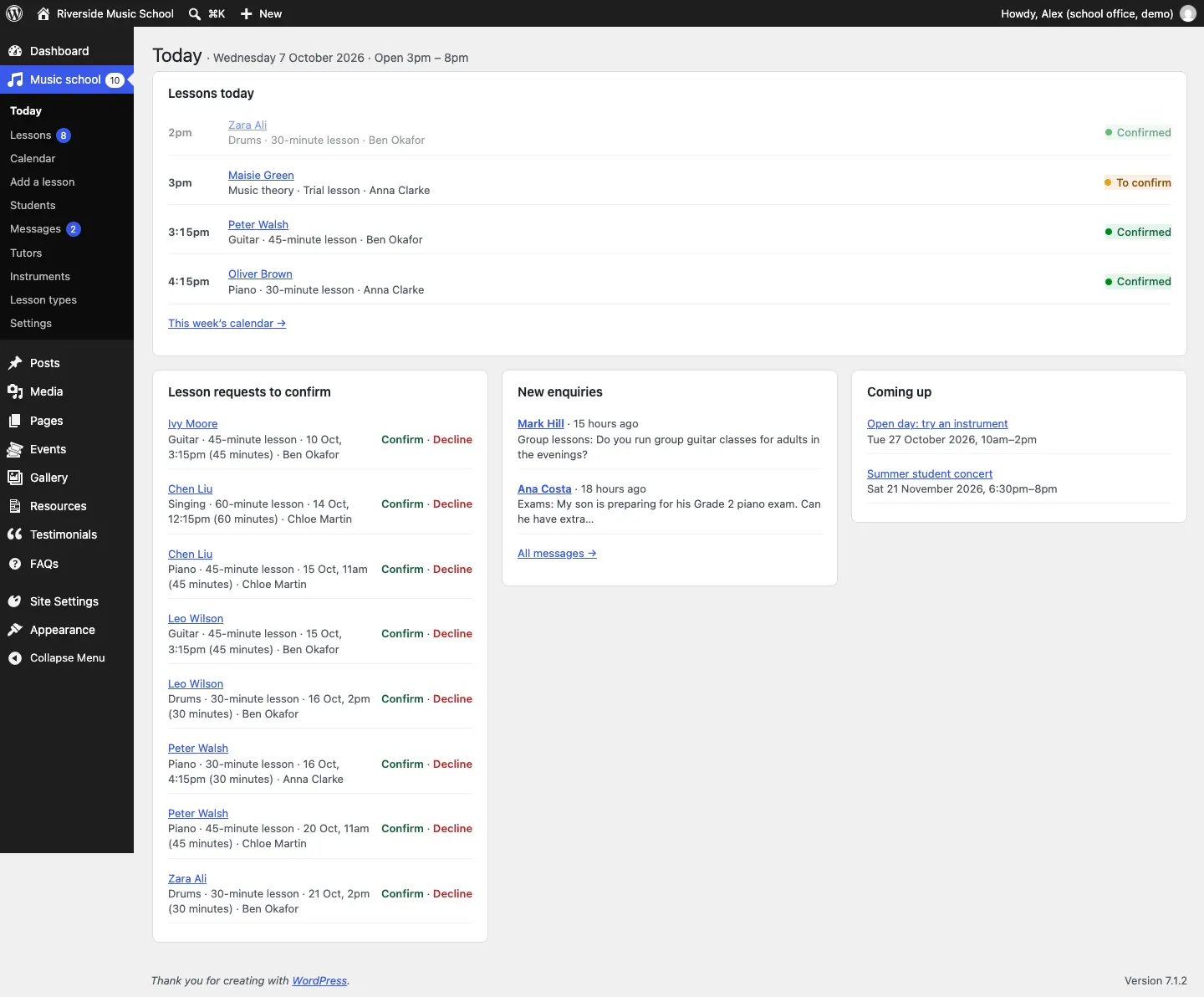
- Lessons today, in time order, each marked To confirm or Confirmed. Click This week's calendar → for the calendar.
- Lesson requests to confirm: click Confirm or Decline right here. See Lessons and the calendar.
- New enquiries: the latest contact form messages. Click All messages → for the rest. See Messages.
- Coming up: the next events.
When students are due for review, Today tells you how many (see Students).
The red numbers in the menu
The numbers in circles in the left-hand menu show how many things are waiting:
- next to Music school: everything waiting, added together;
- next to Lessons: lesson requests to confirm;
- next to Messages: new contact form messages.
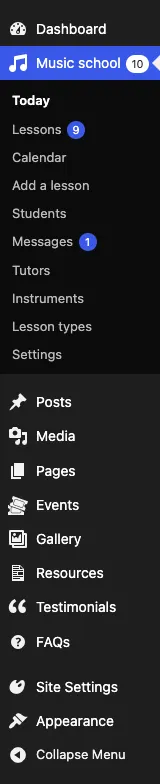
The numbers go down as you deal with things.
A routine for the office
Every morning
- Open Music school → Today.
- Confirm or decline every lesson request. Aim to do this the same day: the time is held for the student meanwhile, and they're waiting for your email.
- Answer new enquiries.
- Glance at Lessons today in case anyone has cancelled.
When the phone rings
- To book a lesson: Music school → Add a lesson.
- To move or cancel one: find it in Music school → Lessons or on the Calendar, open it and use Move or change or Cancel lesson.
- To check who's free: Music school → Calendar → Day shows a column for each tutor.
Every week
- Look at next week in Music school → Calendar → Week.
- Check tutors' days off and holidays are entered (on their profiles, under Teaching hours).
- Add any new events, photos or practice resources.
Every term
- Add the school's closed days and holidays in Music school → Settings → Opening days.
- Check lesson types and prices in Music school → Lesson types.
- Review old student records under Music school → Students → Due for review, and old messages under Messages → Due for review.
- Check updates are installed. See Backups and updates.
A routine for tutors
If tutors sign in:
- Check Music school → Today or Calendar for your own lessons.
- Keep My teaching hours and days off up to date, so nobody books a time you can't do.
- If a lesson needs to change, ask the office: tutors can't confirm, move or cancel lessons.
- (Pro) Add your private calendar address to your phone, from the bottom of Music school → Calendar.
Site stats (Pro)
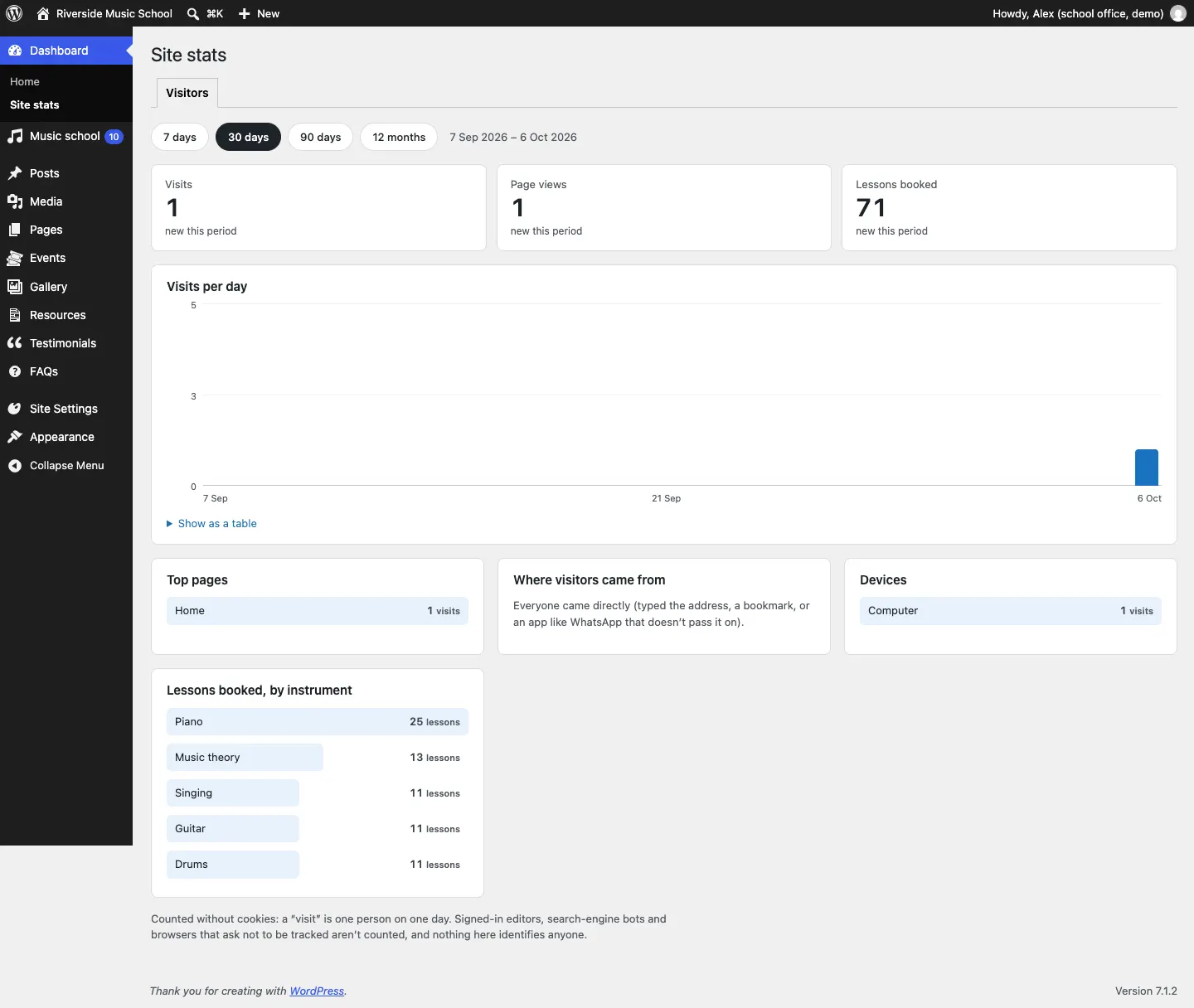
Dashboard → Site stats shows how many people visit your website, your top pages, where visitors came from, which devices they use, and Lessons booked, by instrument. Choose 7 days, 30 days, 90 days or 12 months. It's counted without cookies and nothing identifies anyone.
Good habits
- Confirm lesson requests the same day.
- Don't share sign-ins. Each person has their own, so the website records who did what, and everyone only sees what their job needs. Students may be children, so this matters.
- Never type passwords or card numbers into the website, for example in office notes.
- If an email doesn't seem to arrive, look at Music school → Settings → Email → Email log (Pro). It shows whether each email was sent and, if not, why.
- If something looks wrong, take a screenshot and send it to whoever looks after your website. See Troubleshooting and support.
Quick reference: where everything is
| To... | Go to |
|---|---|
| See what needs doing today | Music school → Today |
| Confirm, decline, move or cancel a lesson | Music school → Lessons, then open the lesson |
| Book a lesson by phone | Music school → Add a lesson |
| See the timetable | Music school → Calendar (Day, Week, Month) |
| Look up a student or parent | Music school → Students |
| Read contact form messages | Music school → Messages |
| Change a tutor's profile, hours or days off | Music school → Tutors |
| Add an instrument | Music school → Instruments |
| Change a lesson's length or price | Music school → Lesson types |
| Change booking rules, notice, prices on/off | Music school → Settings → Lessons |
| Change opening days and holidays | Music school → Settings → Opening days |
| Change who gets emails, send a test email | Music school → Settings → Email |
| Change phone, address, email | Music school → Settings → Contact |
| Add staff | Music school → Staff access (administrators) |
| Add a concert or open day | Events → Add event |
| Add photos | Gallery → Add album |
| Add a practice handout | Resources → Add resource |
| Add a testimonial or FAQ | Testimonials or FAQs |
| Change the design and colours | Site Settings → Design & colours |
| Edit a page | Pages |
| Write a news post | Posts → Add Post |
| Reopen the setup wizard | Music school → Settings → Run setup again (administrators) |