Running your website
Lessons and the calendar
How the office confirms, declines, moves and cancels lessons, books lessons by phone, and uses the day, week and month calendar and private calendar feeds.
On this page
Every lesson, whether booked online or added by the office, is kept under Music school → Lessons. A lesson booked online starts as To confirm: the time is held, and the office confirms or declines it. Once confirmed, the student gets an email with a calendar invite, the tutor is told, and a reminder goes out the day before.
This chapter is for the office and administrators. Tutors who sign in see only their own lessons and can't change them.
Features marked (Pro) need a Pro or Agency licence.
The Lessons list
Go to Music school → Lessons. Each row shows the student (and who booked, if a parent did), their phone and email, when, the lesson and instrument, the tutor and the status, with quick buttons on the right.
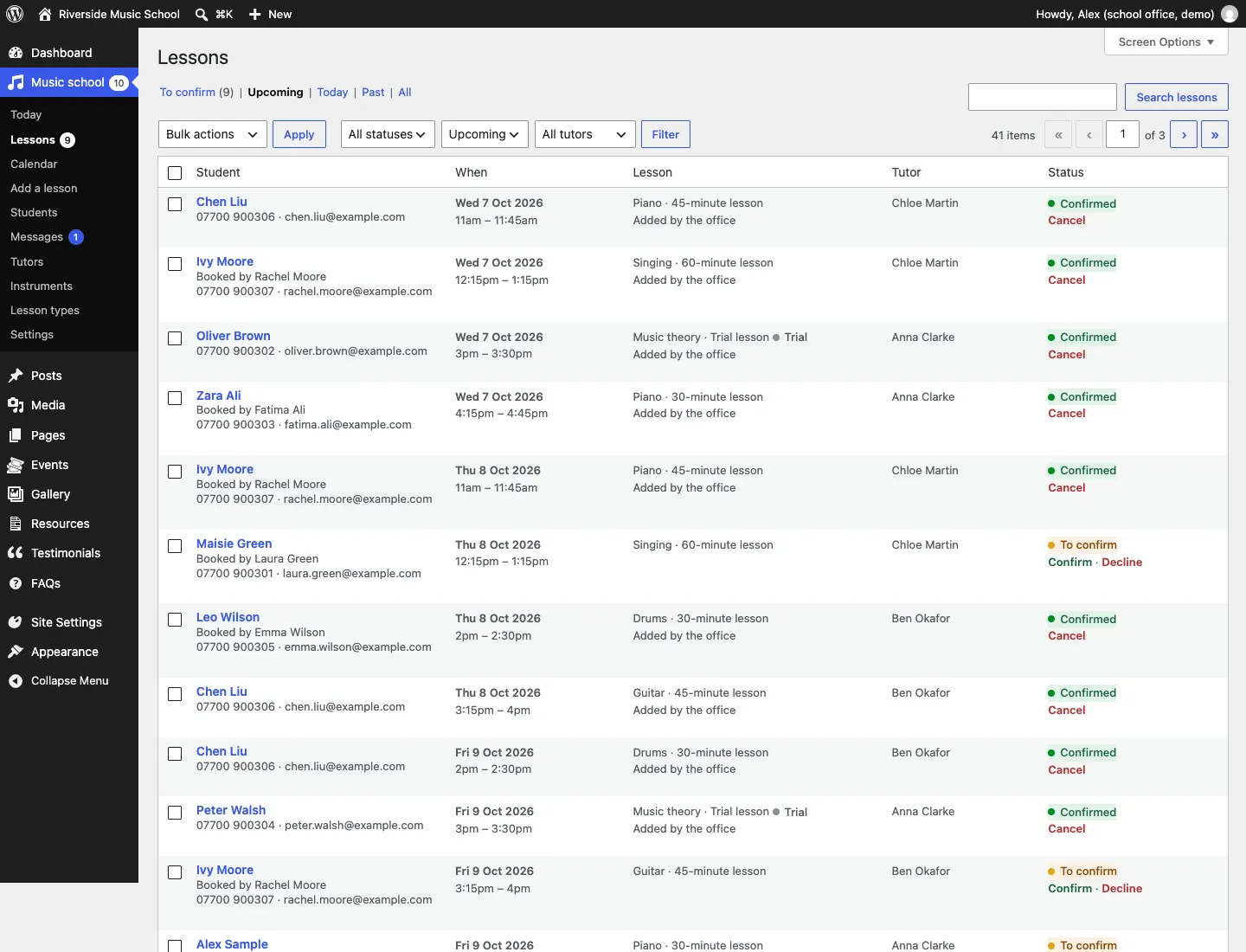
- Use the links along the top, To confirm, Upcoming, Today, Past and All, to change what you see.
- Use the Status, When and Tutor menus to narrow it down, for example one tutor's upcoming lessons.
- Search lessons helps you find a student's lessons by name.
- "Added by the office" marks lessons you booked yourself; "Trial" marks trial lessons.
How to confirm or decline a request
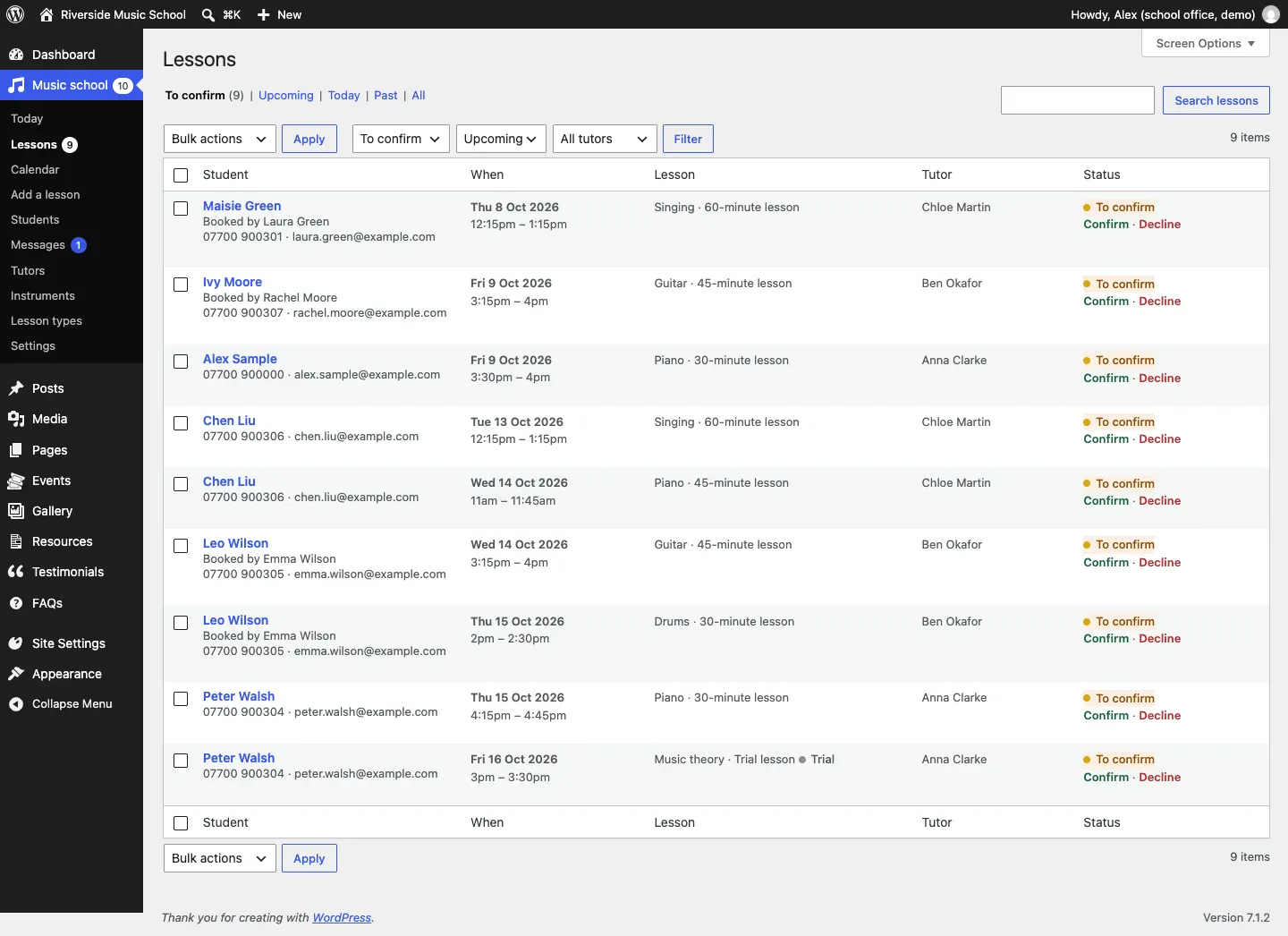
The quickest way is from the To confirm list (or the Lesson requests to confirm box on Today):
-
Go to Music school → Lessons and click To confirm.
-
Click Confirm on the row. The student is emailed a confirmation with a calendar invite, and the tutor is told.
-
If the time doesn't work, click Decline and click OK in the box that asks "Decline this request? We'll email them to choose another time."
To add a personal note to the email, open the lesson instead:
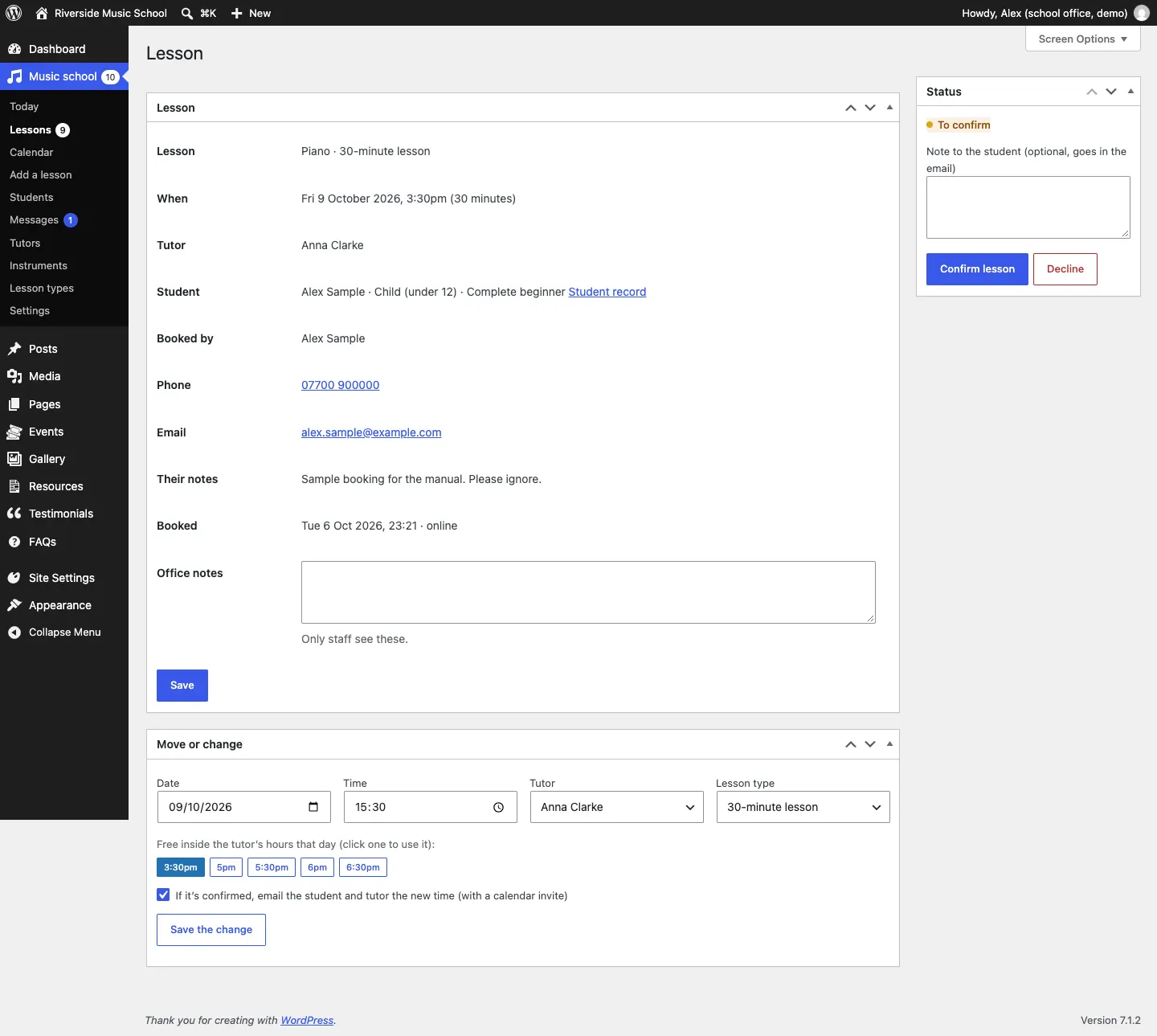
- Click the student's name (or Open).
- In the Status box on the right, type your note in Note to the student (optional, goes in the email).
- Click Confirm lesson or Decline.
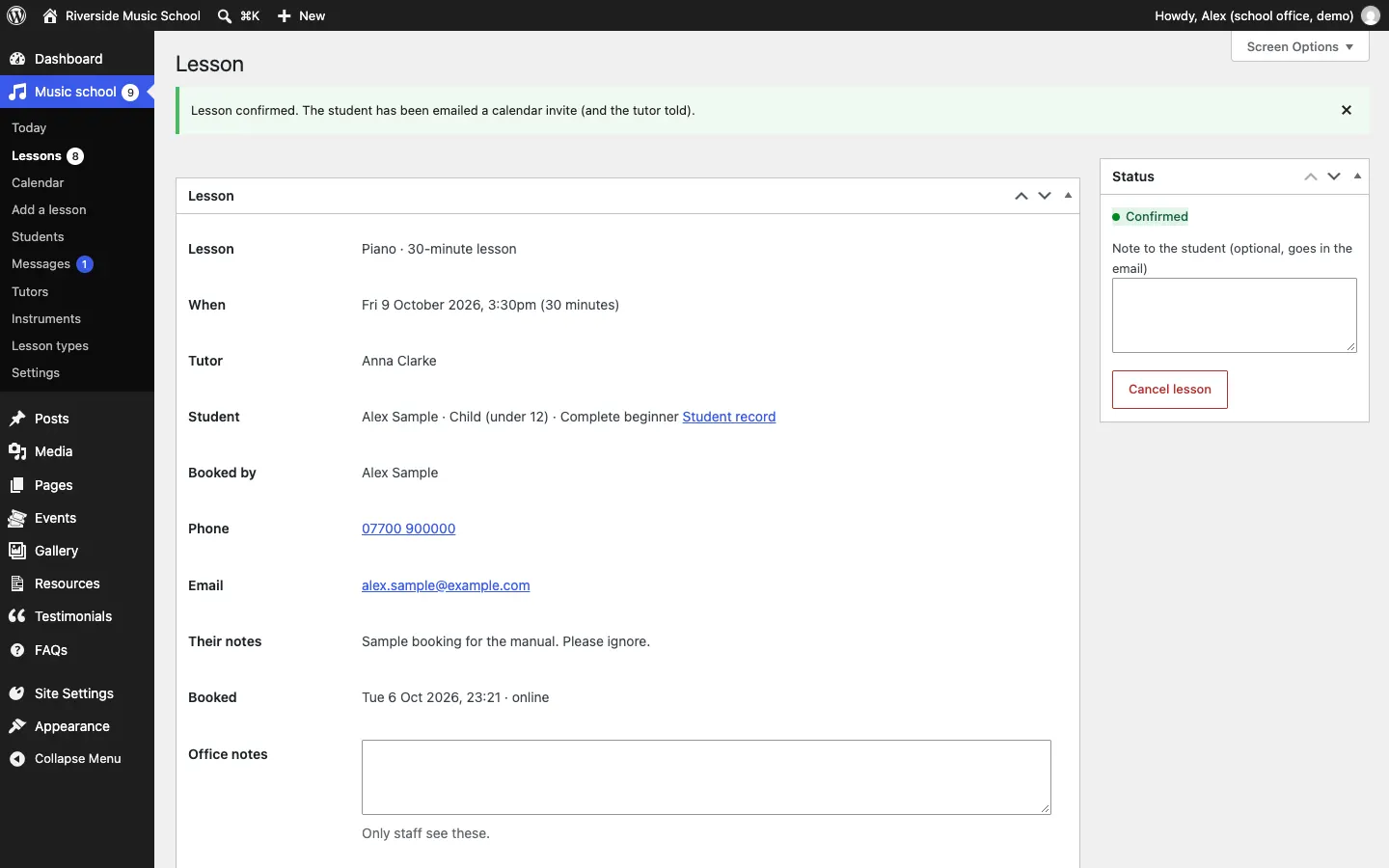
A green message confirms what happened, for example "Lesson confirmed. The student has been emailed a calendar invite (and the tutor told)."
How to add office notes
Open the lesson, type in Office notes and click Save. Only staff see these. The student's own notes from the booking form are shown above as Their notes.
How to move a lesson, or change the tutor or lesson type
- Open the lesson.
- In the Move or change box, change the Date, Time, Tutor or Lesson type.
- Under "Free inside the tutor's hours that day (click one to use it)", click a free time to fill in the time for you.
- Leave If it's confirmed, email the student and tutor the new time (with a calendar invite) ticked, unless you've already told them.
- Click Save the change.
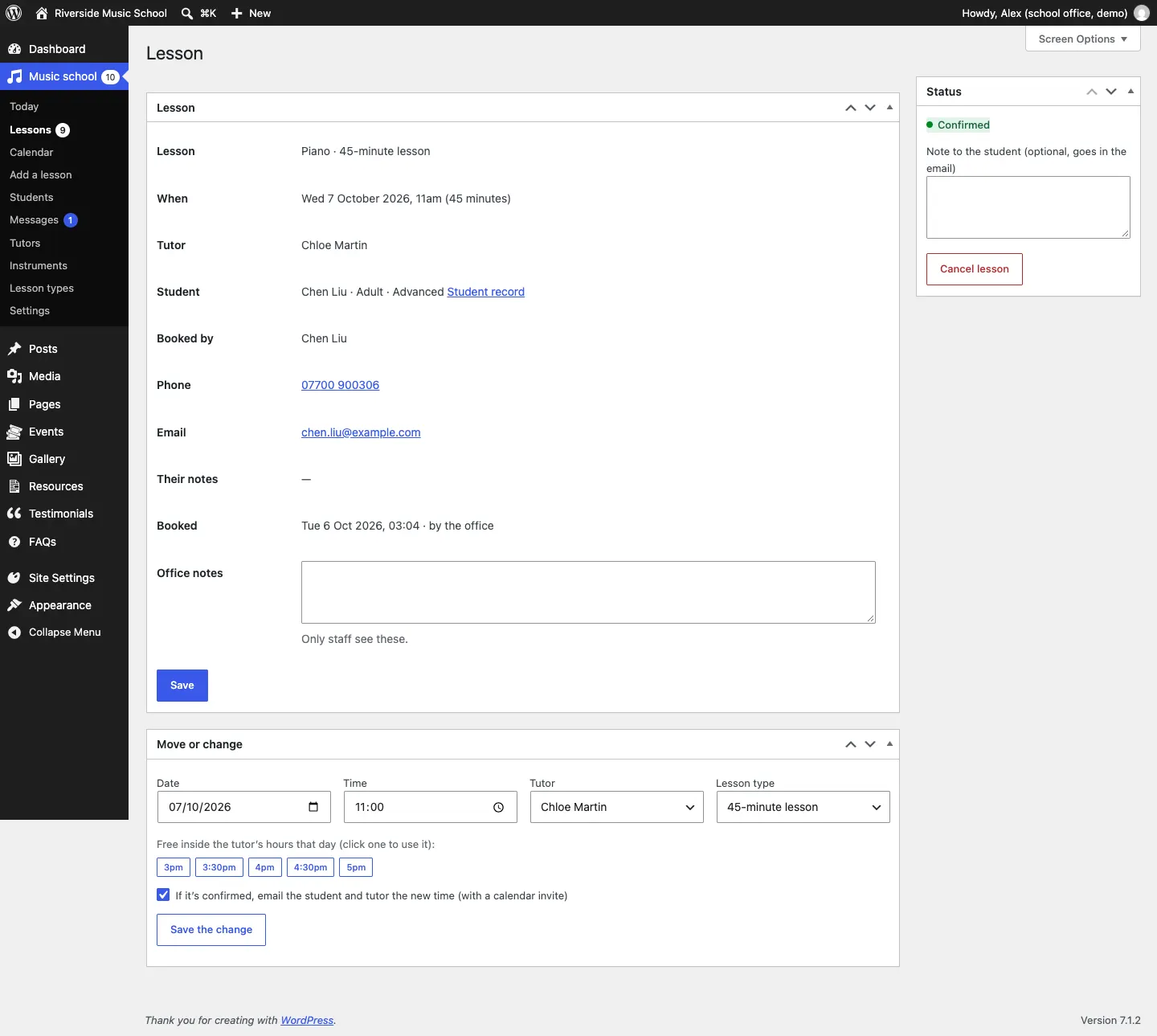
If the tutor already has a lesson at the new time, the change is refused and nothing moves.
How to cancel a lesson
- Open the lesson (or find it in the Lessons list).
- Optionally add a Note to the student.
- Click Cancel lesson (or Cancel in the list), then OK in the box that asks "Cancel this lesson? We'll email the student and the tutor."
The student and tutor are emailed and the time becomes free again. A cancelled or declined lesson can be brought back with Reinstate or Confirm after all in its Status box, if the time is still free.
How to book a lesson by phone or in person
- Go to Music school → Add a lesson (or click Add a lesson on the Calendar).
- Under The lesson, choose the Instrument, Lesson type, Tutor, Date, Time and Status (Confirmed or To confirm).
- Under Who it's for, fill in Name (the person booking), Student's name, if different, Email, Phone and any Office notes.
- Leave Email them the details (with a calendar invite when confirmed) ticked if they should get the email.
- Click Add the lesson.
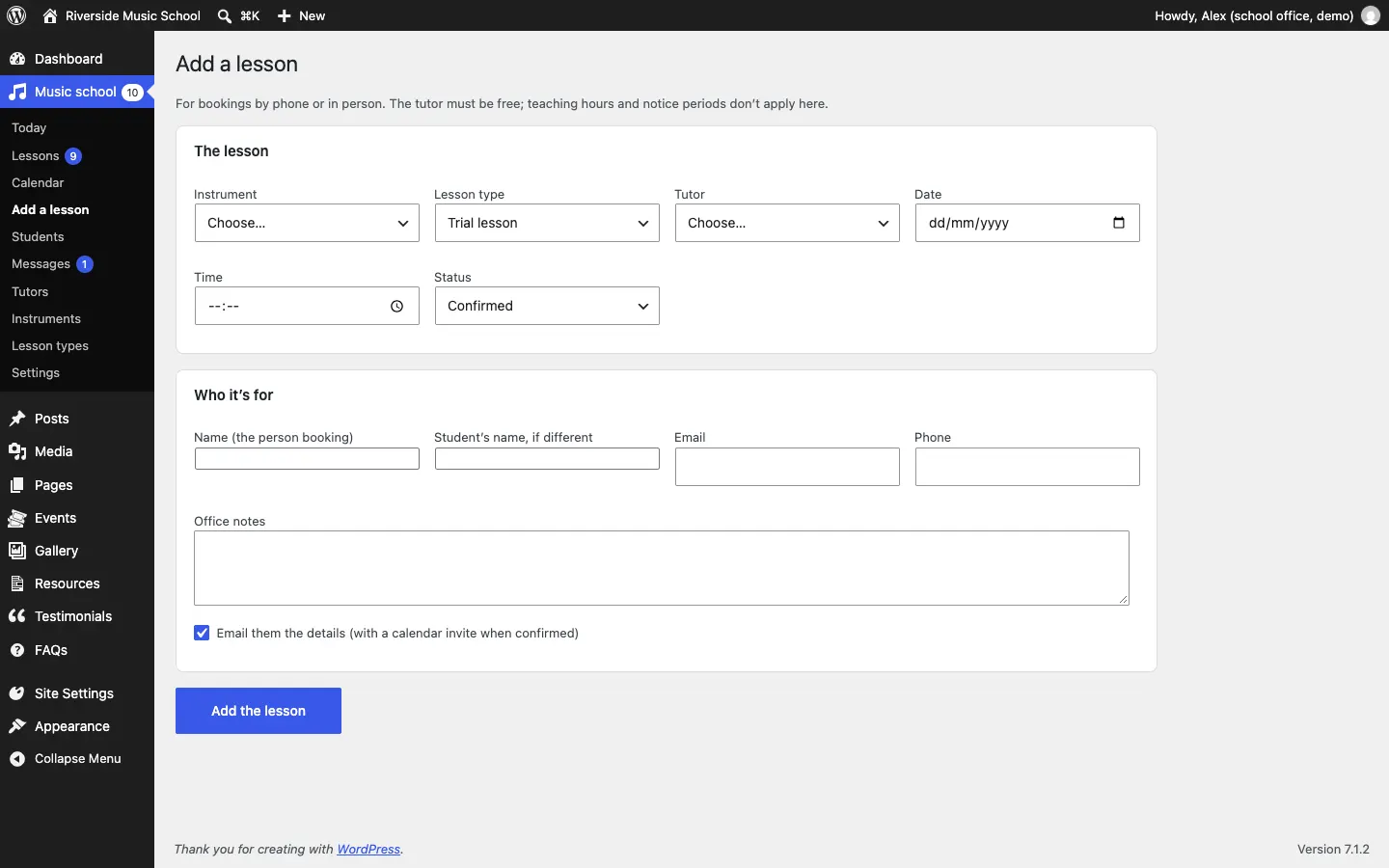
The tutor must be free (clashes are refused), but teaching hours and notice periods don't apply here, so you can fit someone in outside the usual times. Lessons you add yourself don't send the school a "new lesson request" email.
The calendar
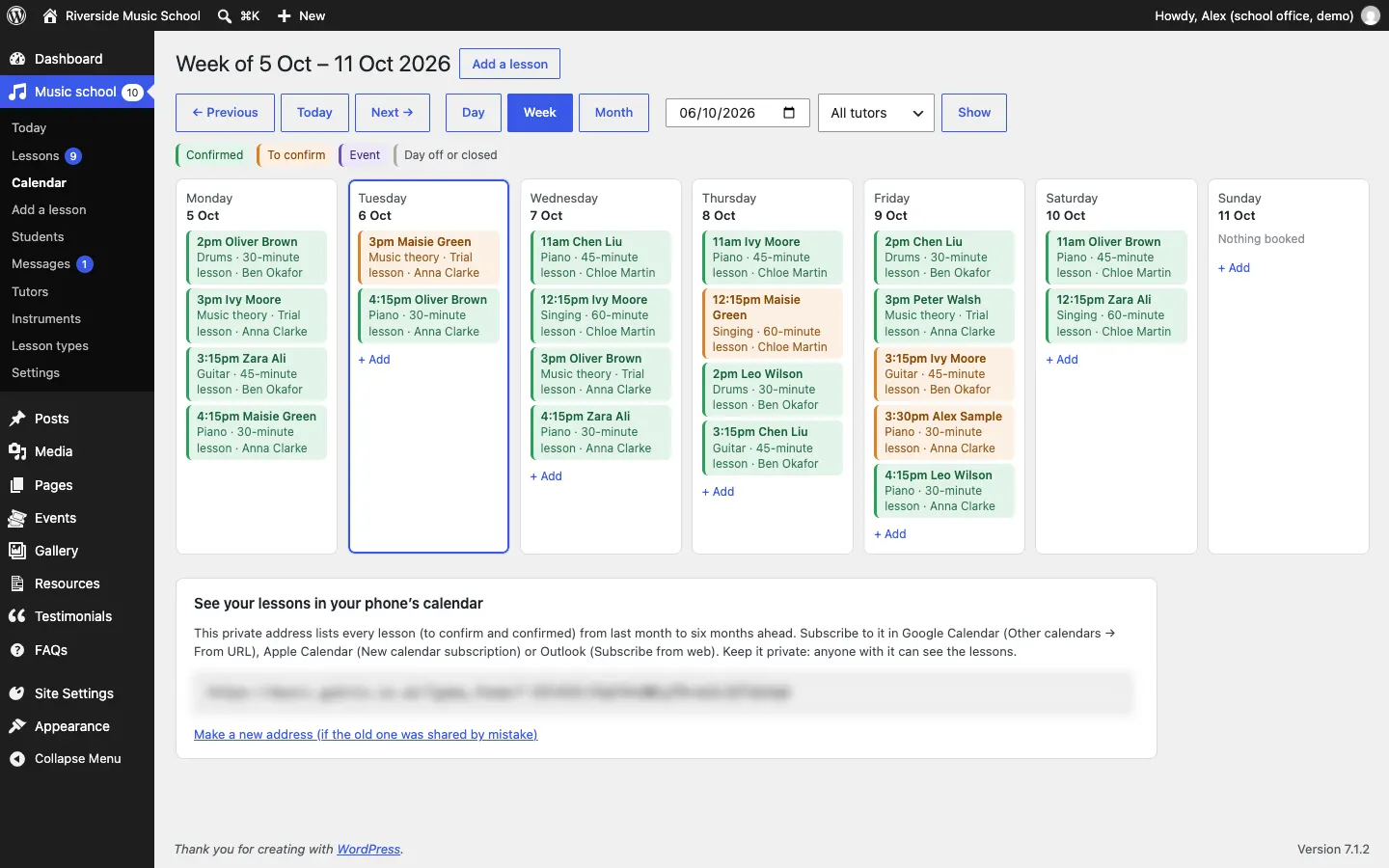
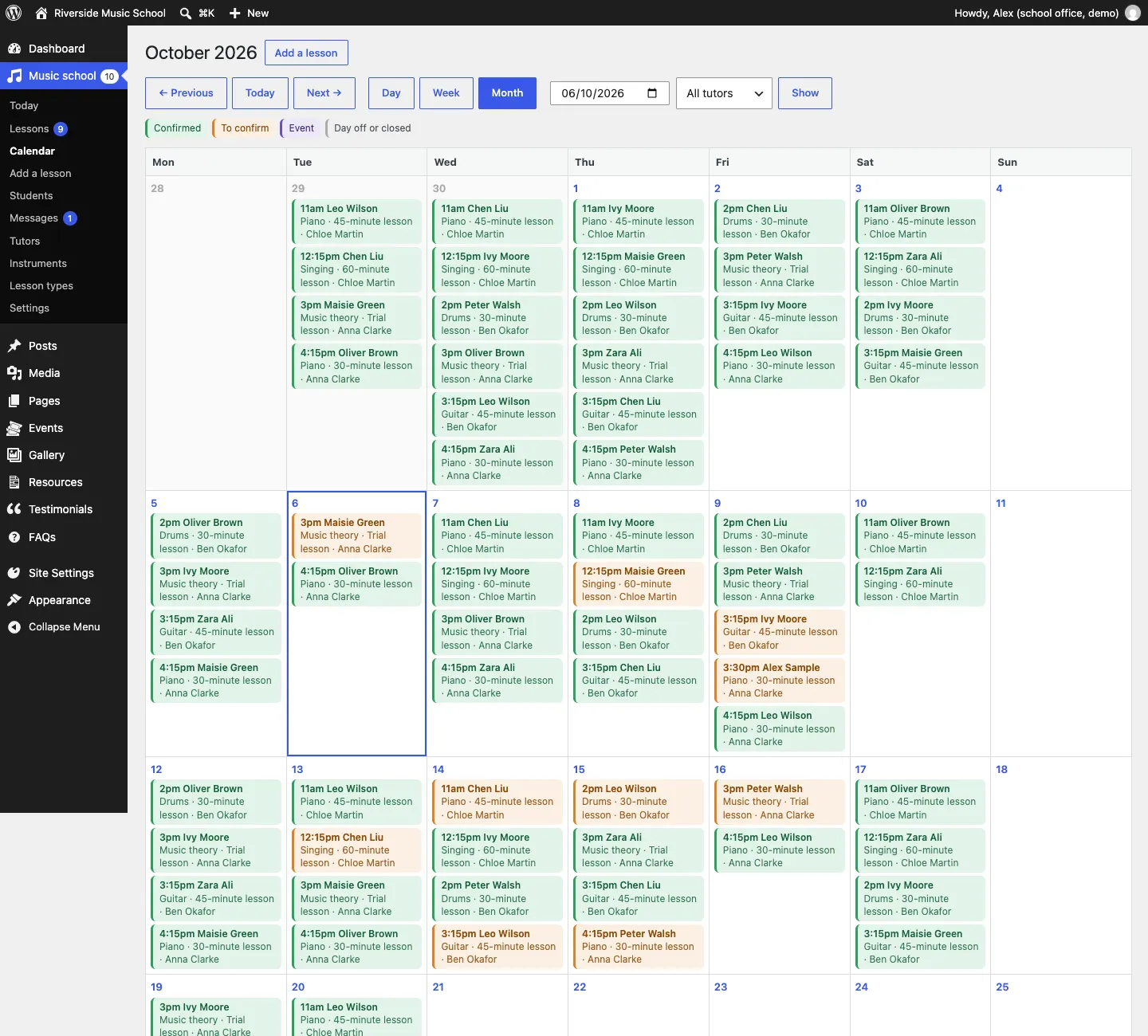
Go to Music school → Calendar. Choose Day, Week or Month, move with ← Previous, Today and Next →, or pick a date in the box. Choose one tutor in the Tutor menu and click Show to see only their lessons. The calendar opens on the view you used last.
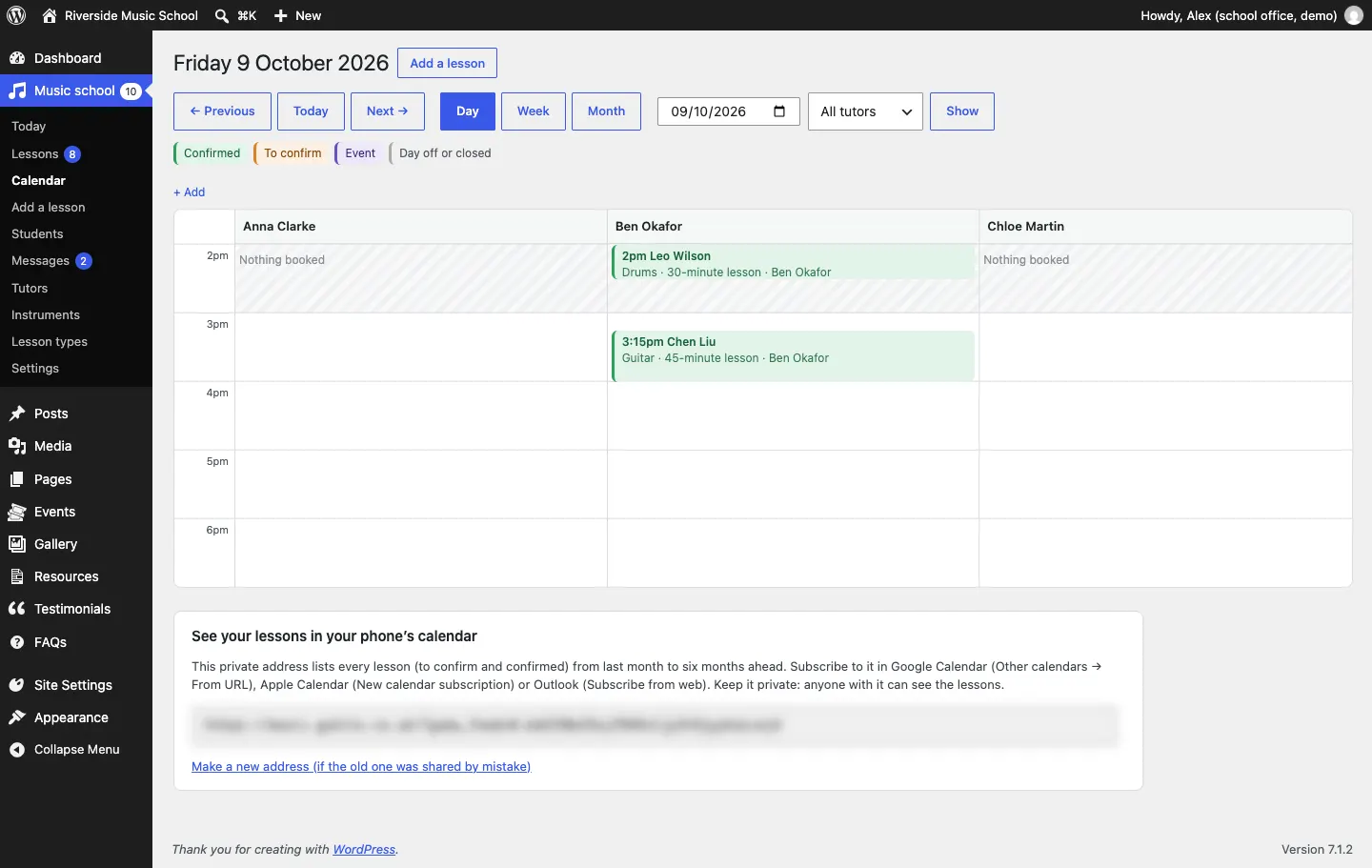
The colours are explained along the top: Confirmed (green), To confirm (orange), Event and Day off or closed (shaded). Click any lesson to open it.
Week
Each day of the week with its lessons in time order. Click + Add under a day to book a lesson on that day.
Day
A column for each tutor, so you can see at a glance who is free. Shaded areas are outside the tutor's hours or when the school is closed. A lesson you've put in at such a time still shows clearly on top of the shading.
Month
The whole month, with every lesson in its day.
Calendar feeds (Pro)
A calendar feed puts your lessons into the calendar app on your phone or computer, and keeps it up to date.
- At the bottom of Music school → Calendar, find See your lessons in your phone's calendar.
- Copy Your calendar address.
- Add it to your calendar app: in Google Calendar choose Other calendars → From URL; in Apple Calendar choose New calendar subscription; in Outlook choose Subscribe from web.
The office's address lists every lesson (to confirm and confirmed) from last month to six months ahead. A tutor who signs in gets their own address with only their lessons.

Without Pro, this box shows what Pro adds instead.