Running your website
Music school settings
Every tab of Music school → Settings: your business details, contact details, emails, lesson booking rules, opening days and holidays, record reviews, privacy and your licence, plus staff access.
On this page
Music school → Settings is where you type your school's details once, so the website, emails and printouts all use them. Change your phone number or opening hours here and every page updates.
The settings are on tabs along the top. Each tab has its own Save changes button at the bottom, which saves that tab only. Most tabs are for administrators.
Features marked (Pro) need a Pro or Agency licence.
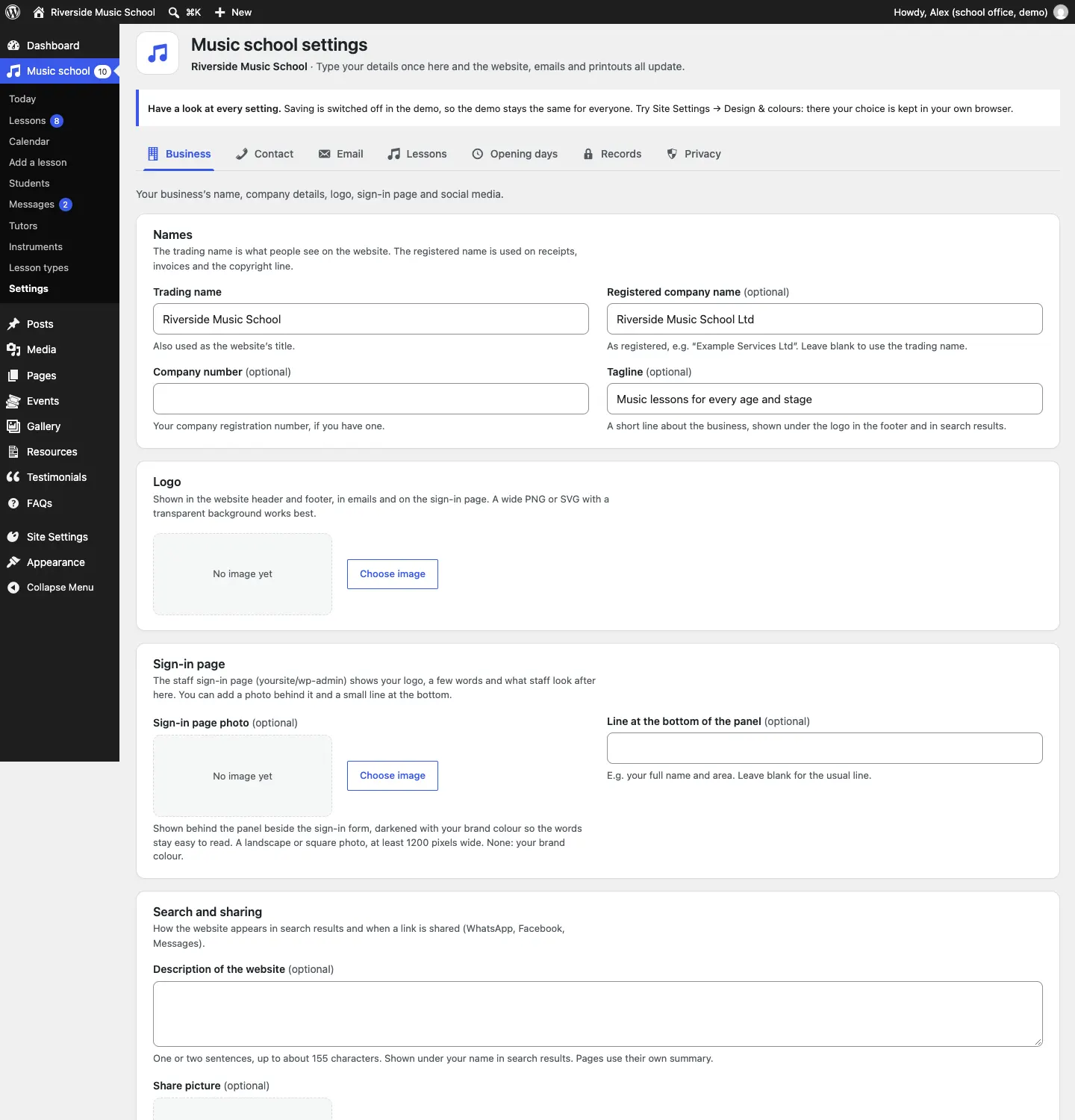
Business
Your name, company details, logo, sign-in page and social media.
- Trading name: what people see on the website; also the website's title.
- Registered company name (optional) and Company number (optional): used on the copyright line and legal pages.
- Tagline (optional): a short line shown under the logo in the footer and in search results.
- Logo: click Choose image, pick a picture from the media library or upload one, then click Select. Change image swaps it later. A wide PNG or SVG with a transparent background works best.
- Sign-in page: an optional Sign-in page photo and a Line at the bottom of the panel for the staff sign-in page.
- Search and sharing: a Description of the website for search results and a Share picture for when a link is shared on WhatsApp or Facebook.
- Social media: paste the full link to each of your pages (Facebook, Instagram, TikTok, X, YouTube, LinkedIn). Icons appear in the footer; leave a box blank to hide that icon.
Contact
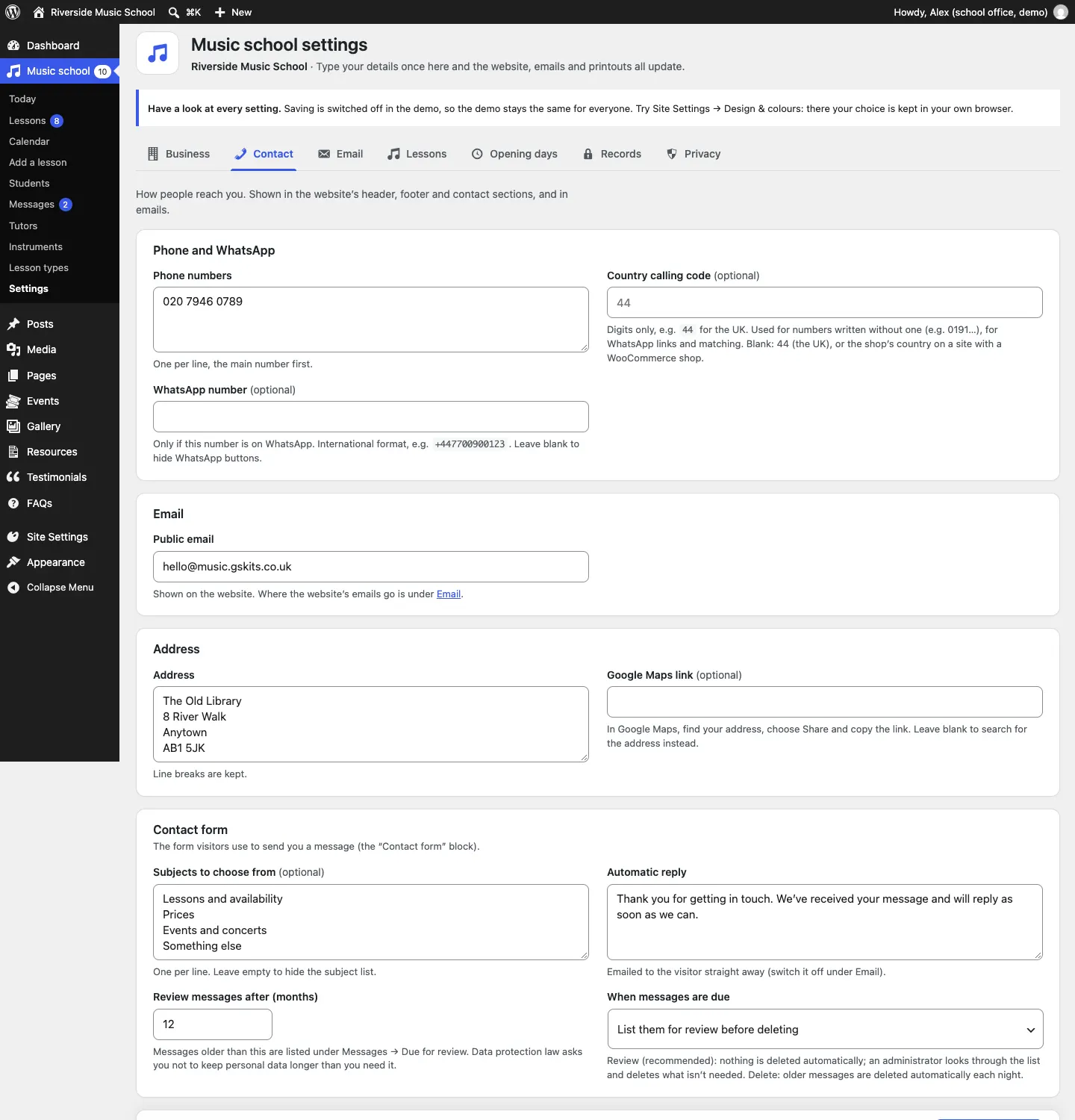
How people reach you, shown in the header, footer, contact sections and emails.
- Phone numbers: one per line, the main number first.
- Country calling code (optional) and WhatsApp number (optional): fill in WhatsApp only if the number is on WhatsApp; blank hides WhatsApp buttons.
- Public email: shown on the website.
- Address and Google Maps link (optional).
- Contact form: Subjects to choose from, the Automatic reply, Review messages after (months) and When messages are due. See Messages.
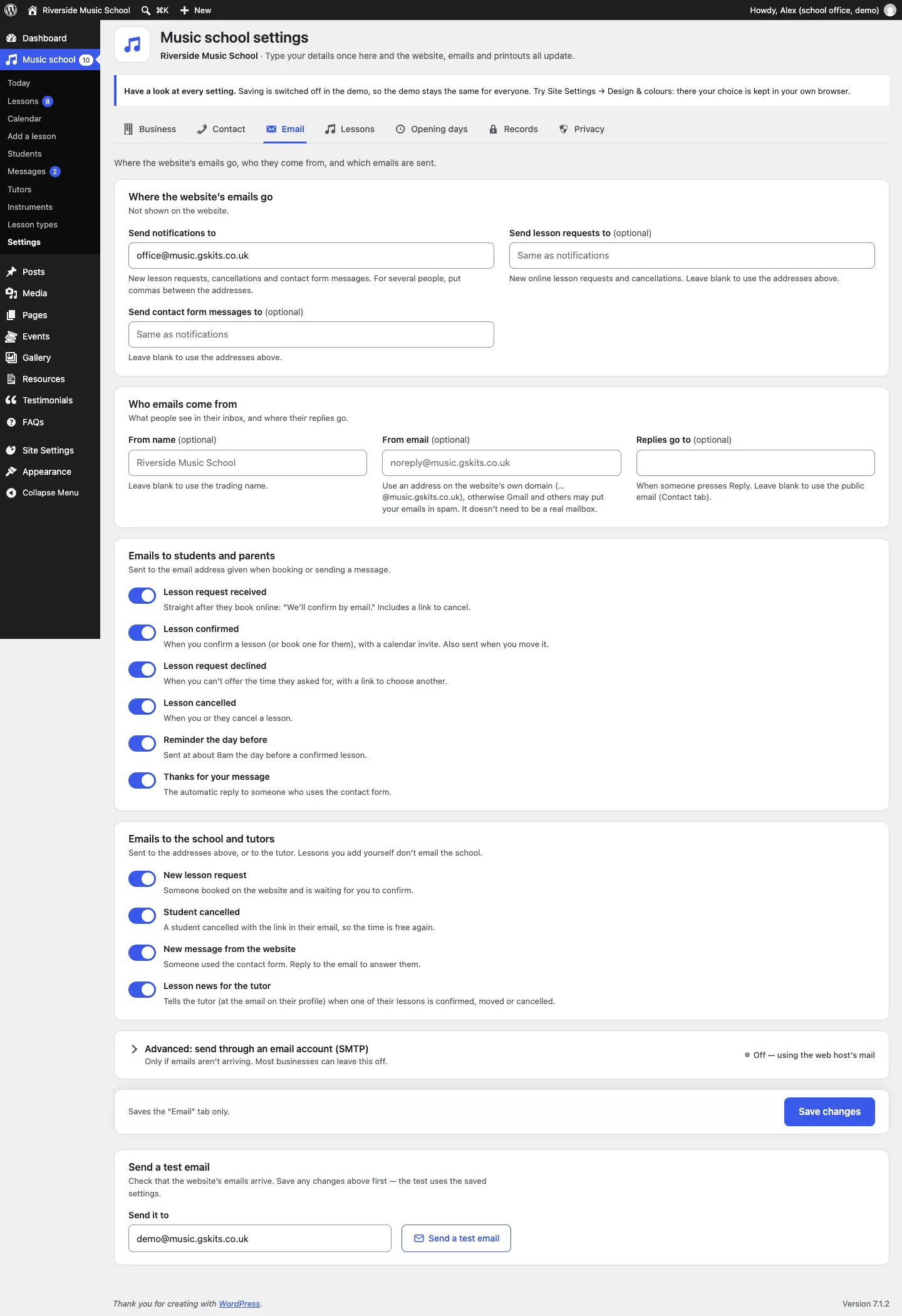
Where the website's emails go, who they come from, and which emails are sent.
- Send notifications to: who gets new lesson requests, cancellations and contact form messages. For several people, put commas between the addresses.
- Send lesson requests to (optional): new online lesson requests and cancellations, for example the office. Leave blank to use the addresses above.
- Send contact form messages to (optional): leave blank to use the addresses above.
- From name (optional), From email (optional) and Replies go to (optional): what people see in their inbox. Use a From email on your website's own domain, otherwise Gmail and others may put your emails in spam.
- Emails to students and parents: switch each one on or off: Lesson request received, Lesson confirmed, Lesson request declined, Lesson cancelled, Reminder the day before and Thanks for your message.
- Emails to the school and tutors: New lesson request, Student cancelled, New message from the website and Lesson news for the tutor (sent to the email on the tutor's profile). Lessons you add yourself don't email the school.
- Advanced: send through an email account (SMTP): only if emails aren't arriving. Most schools leave this off.
- Send a test email: type an address under Send it to and click Send a test email. Save any changes first; the test uses the saved settings.
- Email log (Pro): shows whether each email was sent and, if not, why.
See Privacy and emails for more about emails and the log.
Lessons
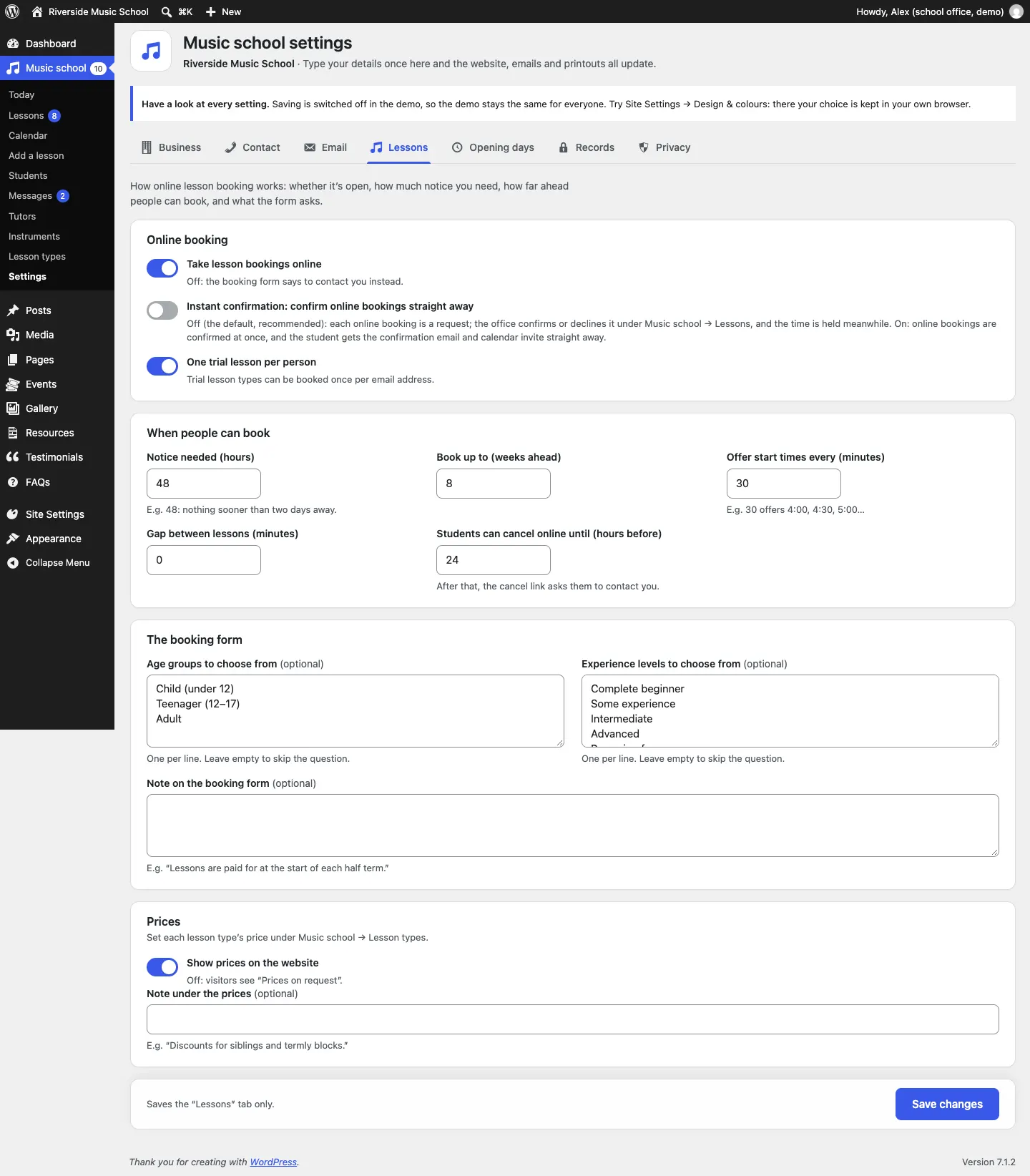
How online lesson booking works.
Online booking
- Take lesson bookings online: off, the booking form says to contact you instead.
- Instant confirmation: confirm online bookings straight away: off (the default, recommended), each online booking is a request the office confirms or declines; on, bookings are confirmed at once and the student gets the confirmation and calendar invite straight away.
- One trial lesson per person: trial lesson types can be booked once per email address.
When people can book
- Notice needed (hours): for example 48 means nothing sooner than two days away.
- Book up to (weeks ahead).
- Offer start times every (minutes): for example 30 offers 4:00, 4:30, 5:00.
- Gap between lessons (minutes).
- Students can cancel online until (hours before): after that, the cancel link asks them to contact you.
The booking form
- Age groups to choose from (optional) and Experience levels to choose from (optional): one per line; leave empty to skip the question.
- Note on the booking form (optional): for example "Lessons are paid for at the start of each half term."
Prices
- Show prices on the website: off, visitors see "Prices on request". Each lesson type's price is set under Music school → Lesson types.
- Note under the prices (optional): for example "Discounts for siblings and termly blocks."
Opening days
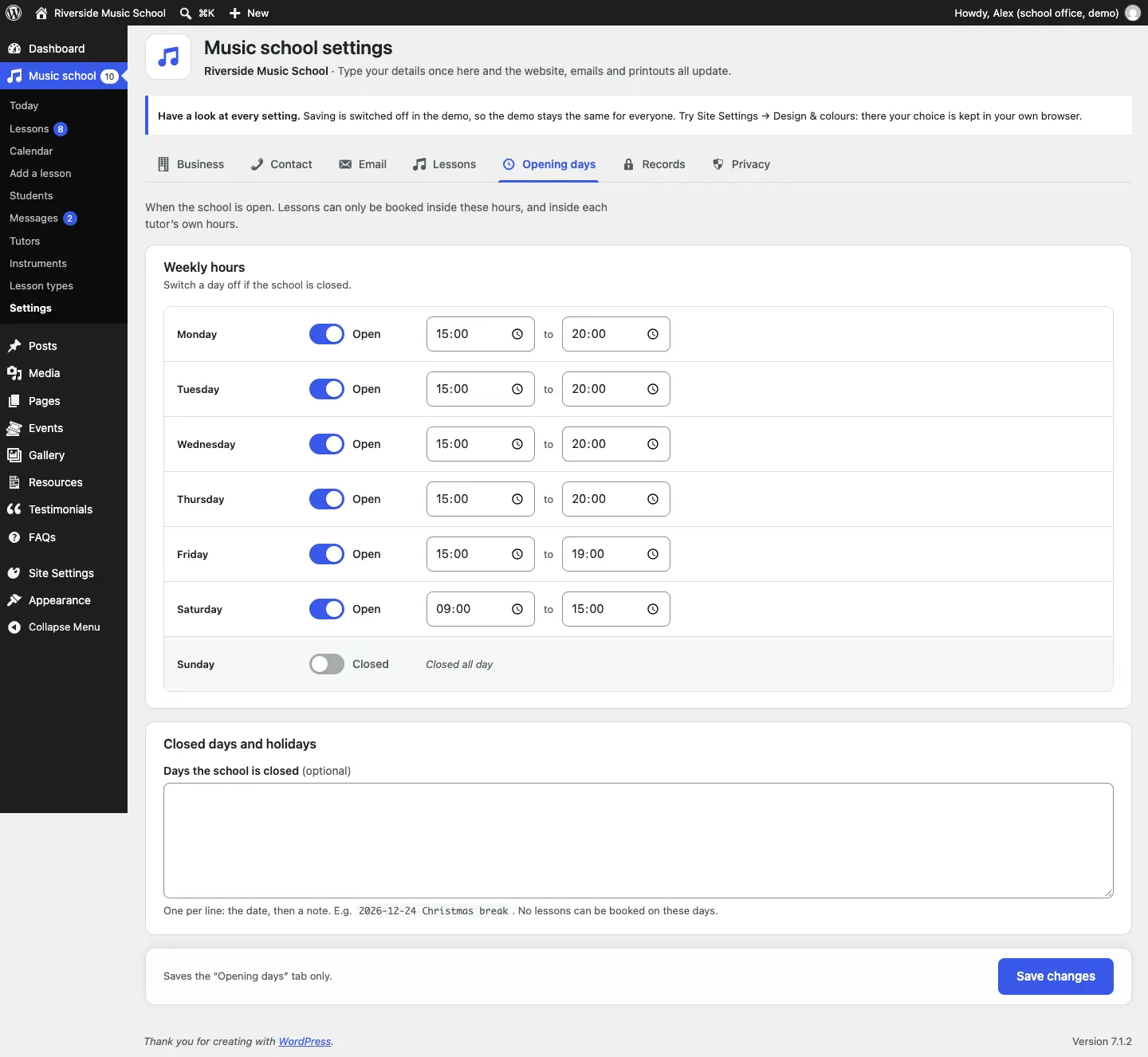
When the school is open. Lessons can only be booked inside these hours, and inside each tutor's own hours.
- Under Weekly hours, set each day's opening and closing time. Switch a day to Closed if the school is closed that day.
- Under Closed days and holidays, type one closed day per line: the date, then a note, for example
2026-12-24 Christmas break. No lessons can be booked on these days. - Click Save changes.
Records
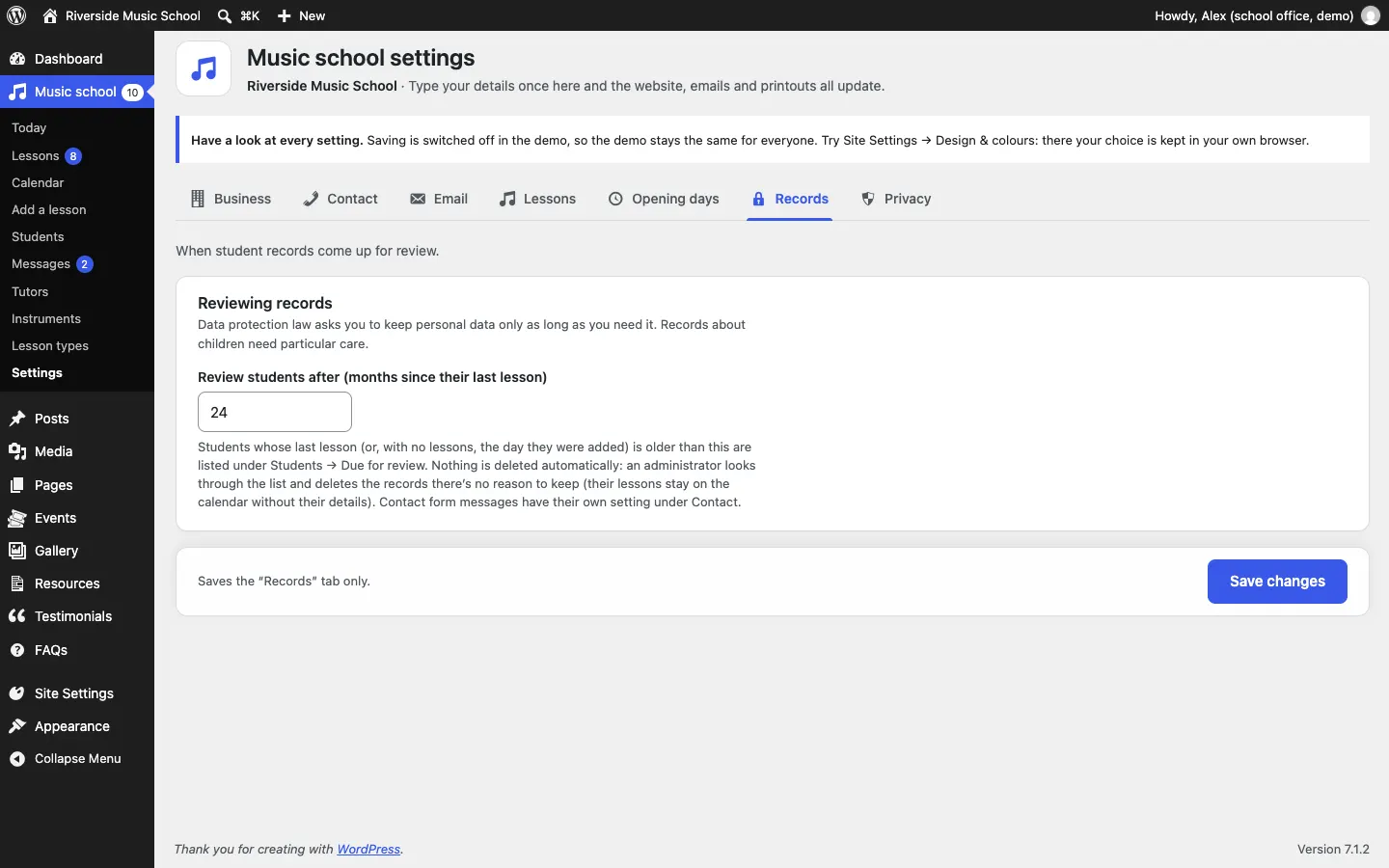
- Review students after (months since their last lesson): 24 by default. Students whose last lesson is older than this are listed under Students → Due for review. Nothing is deleted automatically. See Students.
Privacy
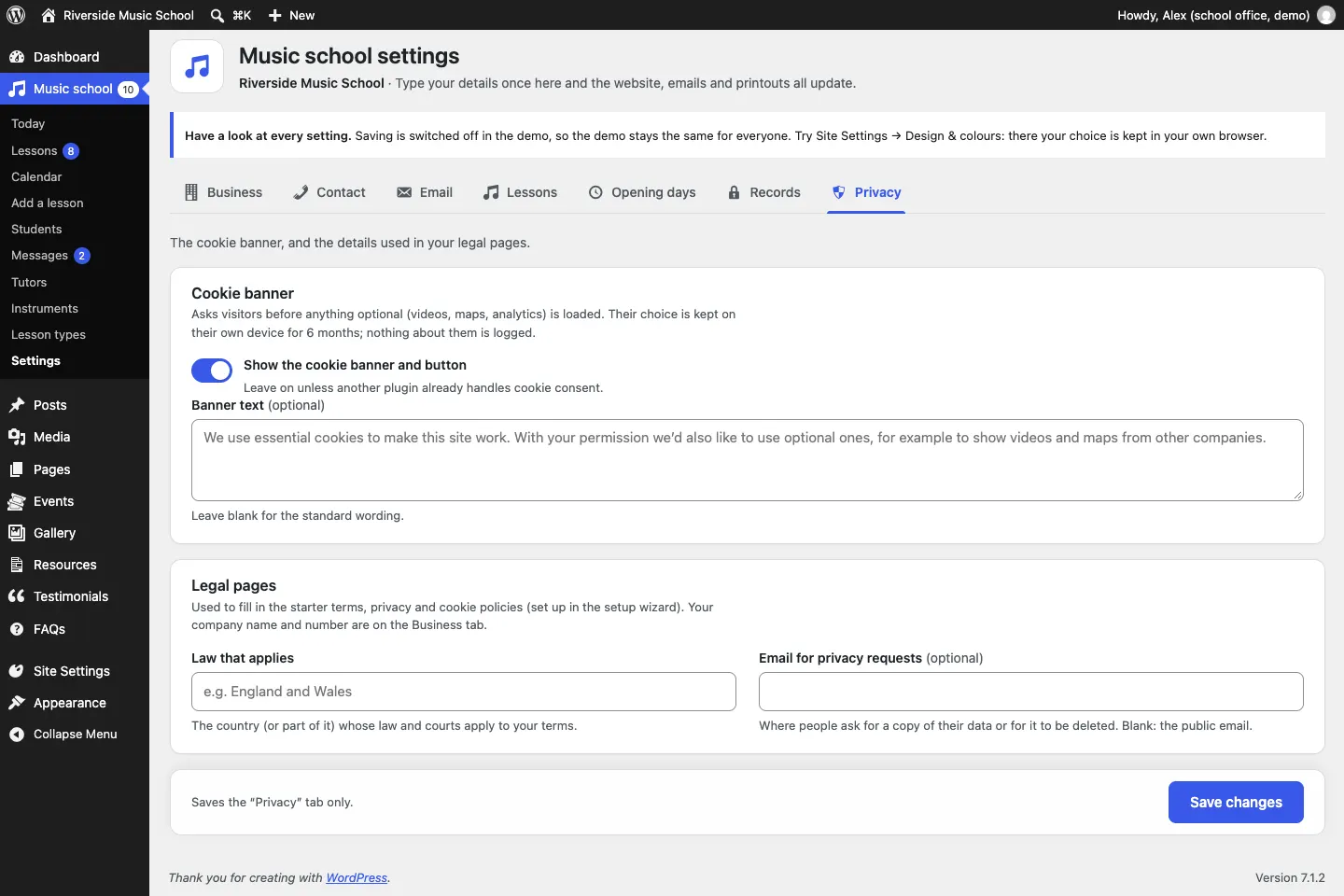
- Cookie banner: Show the cookie banner and button, and optional Banner text.
- Legal pages: Law that applies and Email for privacy requests (optional), used to fill in your starter terms, privacy and cookie pages.
See Privacy and emails.
Licence
Administrators see a Licence tab with your licence key (it looks like GS-XXXX-XXXX-XXXX-XXXX). It's the same as Settings → Gradespace licence. See Buying and your licence.
Run setup again
Administrators see Run setup again on the Settings screen. It reopens the setup wizard. See The Music setup wizard.
Staff access
Music school → Staff access (administrators only) is where you add staff and choose their role:
- Office: the people who run bookings, tutors, students and messages;
- Tutor: teachers, who see only their own lessons (link each to their tutor profile, see Tutors).
To add someone, click Add staff member. This opens Users → Add User with the role already chosen; they get an email to set their own password. Give Administrator only to the owner and one deputy.
With a Pro licence you can also tick exactly what each role can do (Pro). Because students may be children, managing bookings, tutors and contact form messages is given only to Administrators and Office out of the box.
See Staff and sign-in.
Design & colours
The look of the website is under Site Settings → Design & colours, not here. See Designs, pages and menus.