Running your website
Events, gallery, resources, testimonials and FAQs
How to add concerts, recitals and open days, photo albums, downloadable practice resources, testimonials and frequently asked questions, and where each shows on the website.
On this page
Besides lessons, the kit looks after the things that make a music school's website feel alive: concerts and open days, photos from them, handouts students can download, kind words from parents, and answers to the questions everyone asks. Each has its own item in the left-hand menu. Add an entry once and it appears in the right places across the website, in whichever design you use.
Events
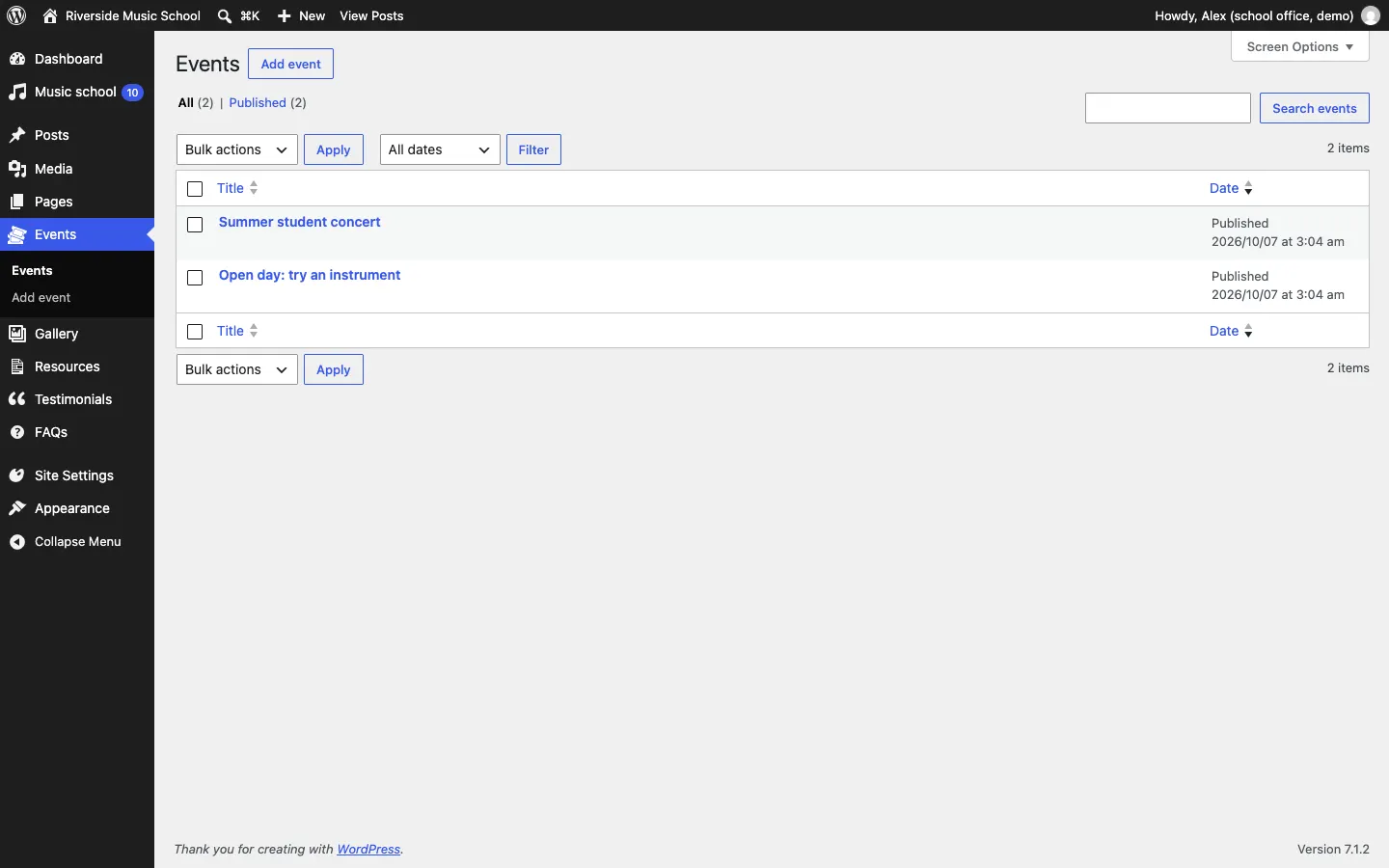
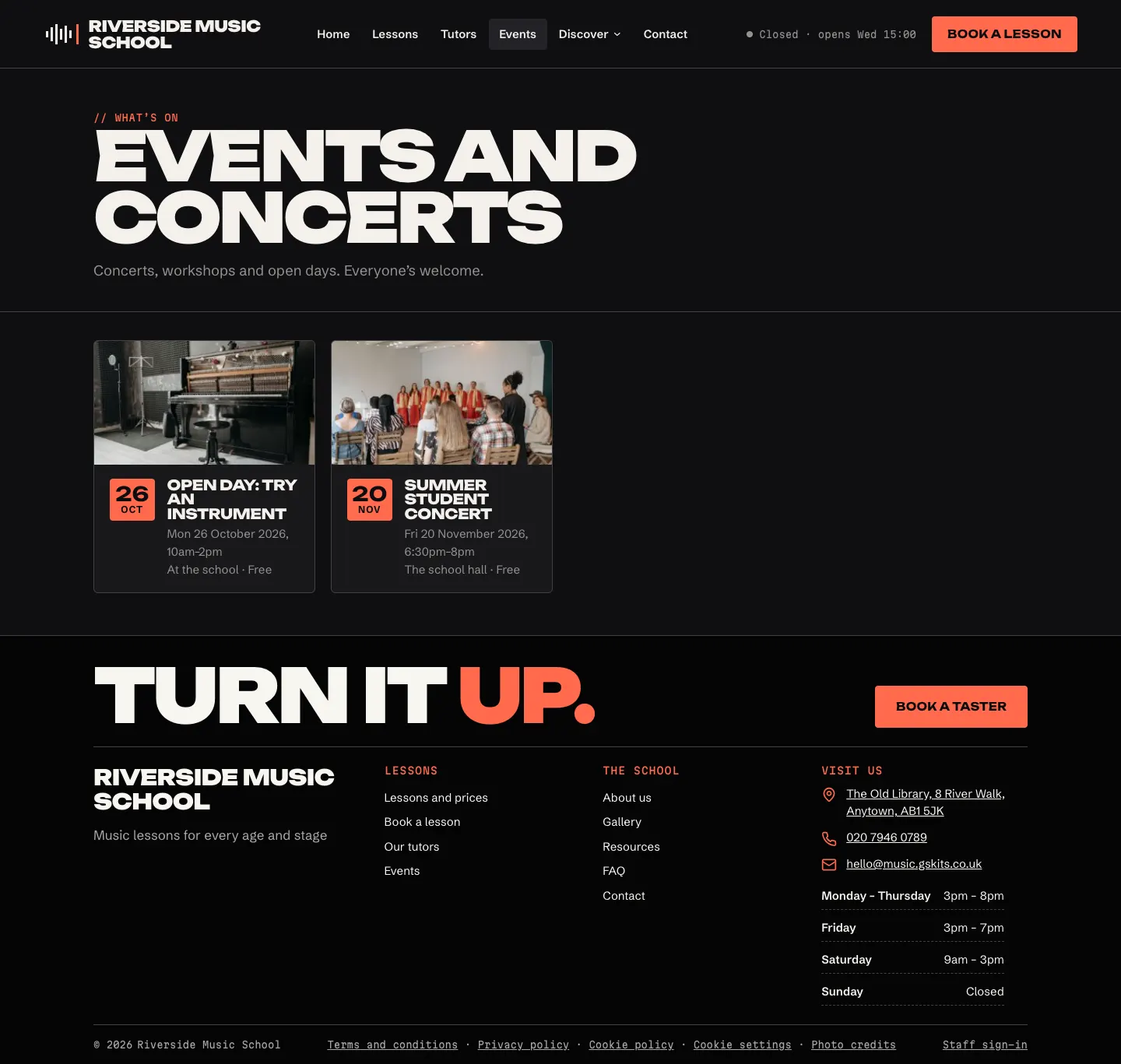
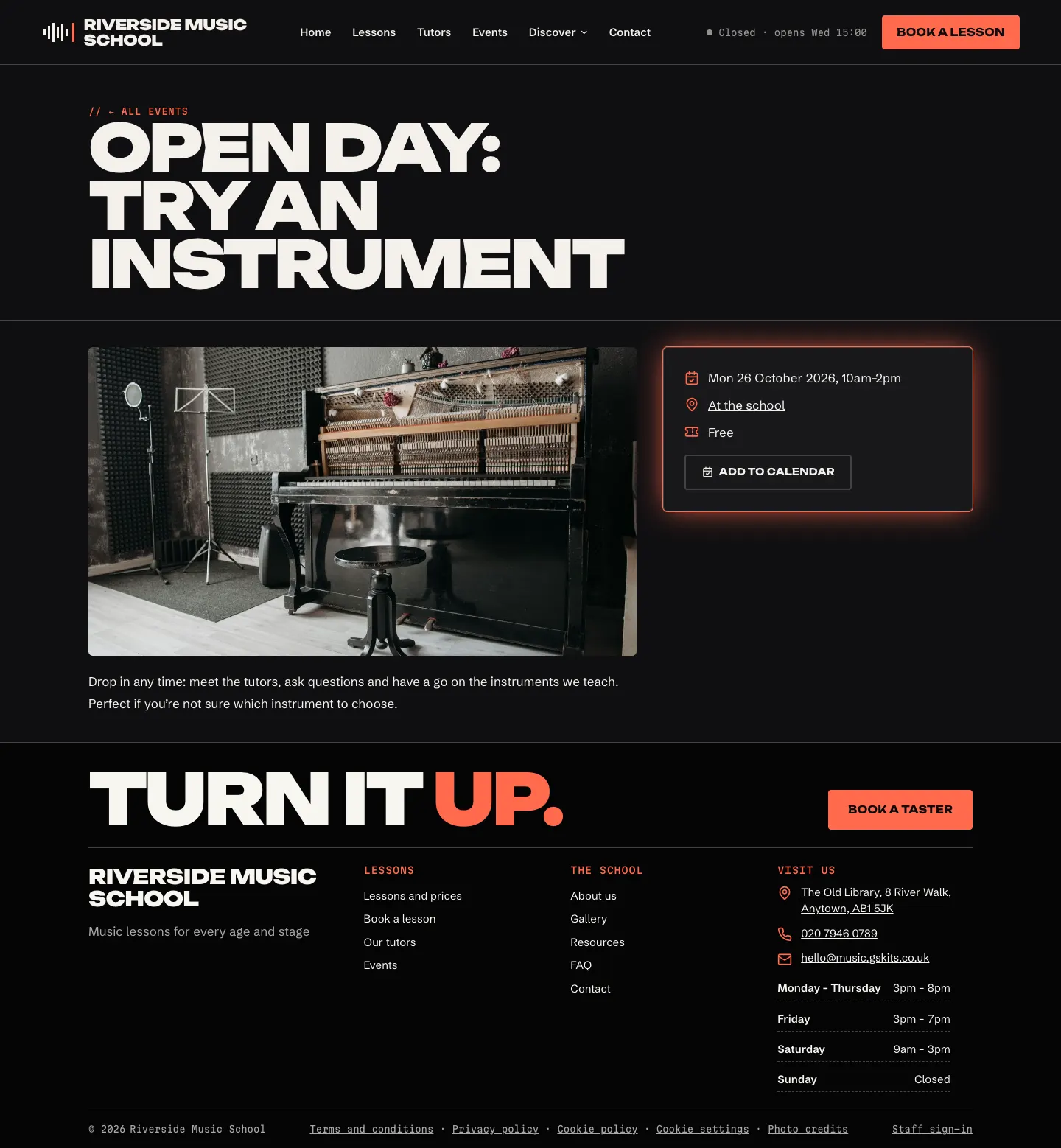
Concerts, recitals, open days and workshops. Visitors see them on the Events page, on the home page and on Today under Coming up. Each event has an Add to calendar button for visitors.
How to add an event
- Go to Events → Add event.
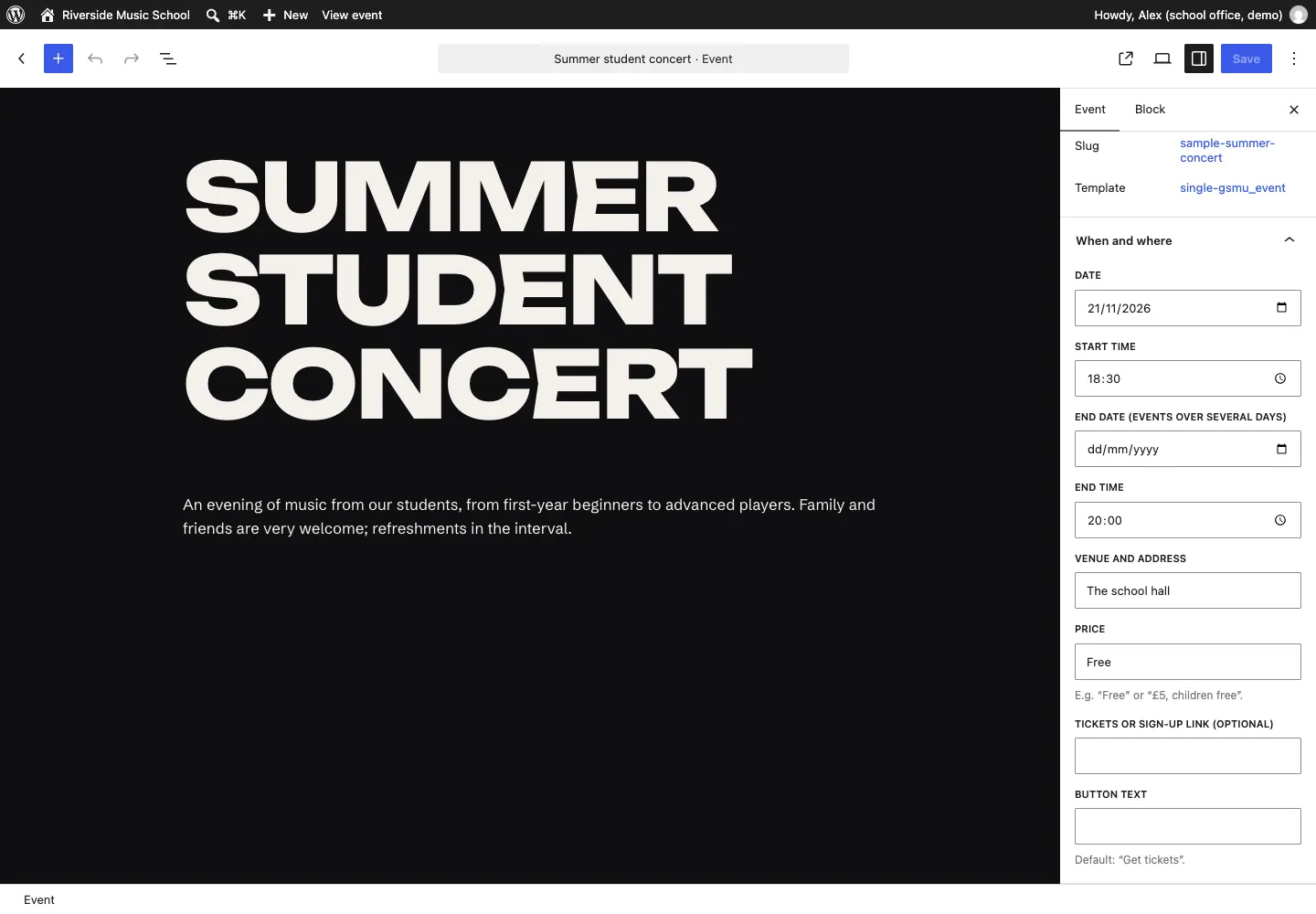
- Type the Event name, for example "Summer student concert".
- Below the name, write about the event: what's happening, who's performing, what to bring.
- On the right, add a featured image if you have a photo.
- Open the When and where panel on the right and fill in:
- Date and Start time;
- End date (events over several days) and End time;
- Venue and address;
- Price, for example "Free" or "£5, children free";
- Tickets or sign-up link (optional) and its Button text (default "Get tickets").
- Click Publish.
Upcoming events are listed first, soonest first. An event counts as upcoming until the end of its last day, then it no longer shows on the home page or under Coming up.
Gallery
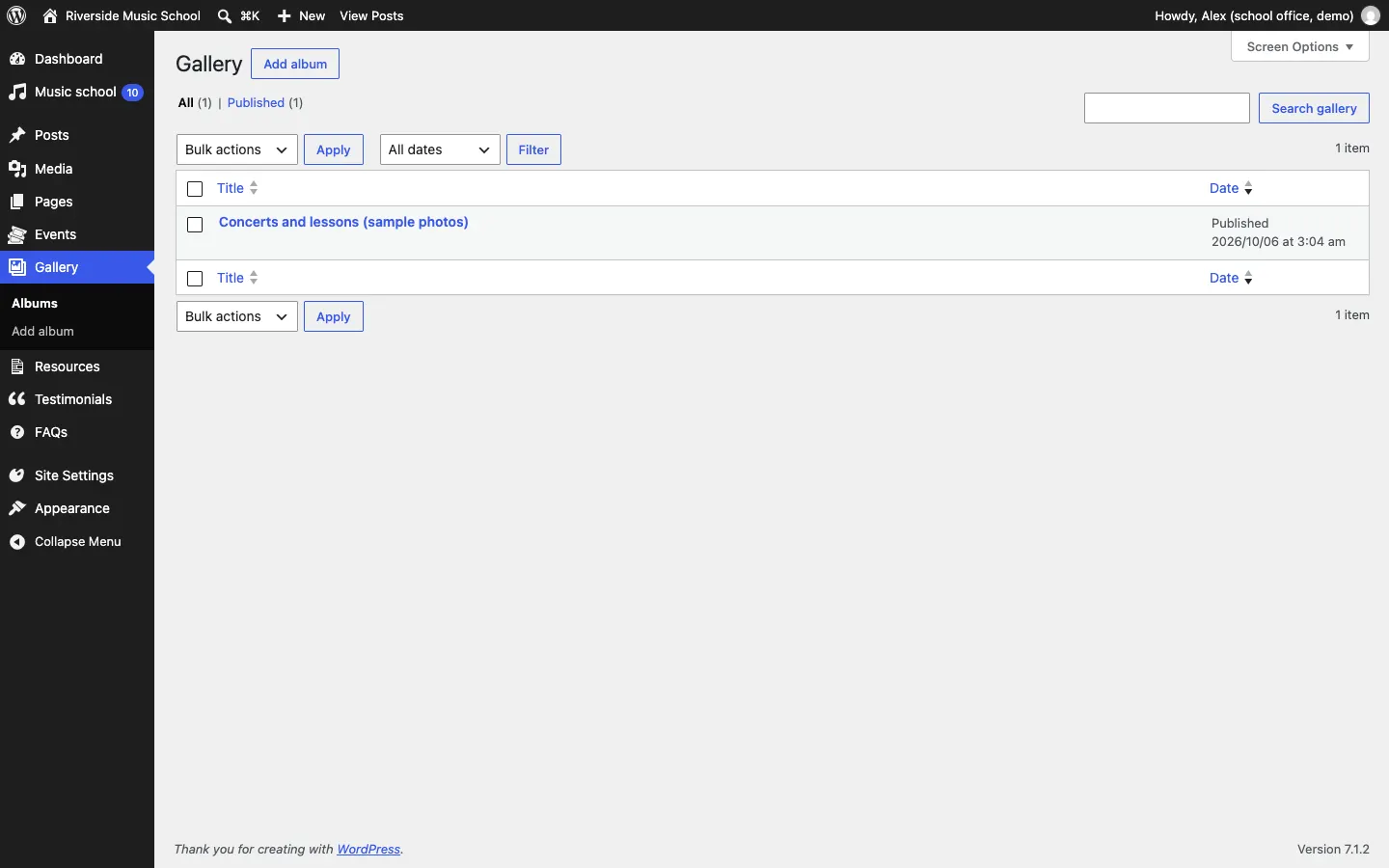
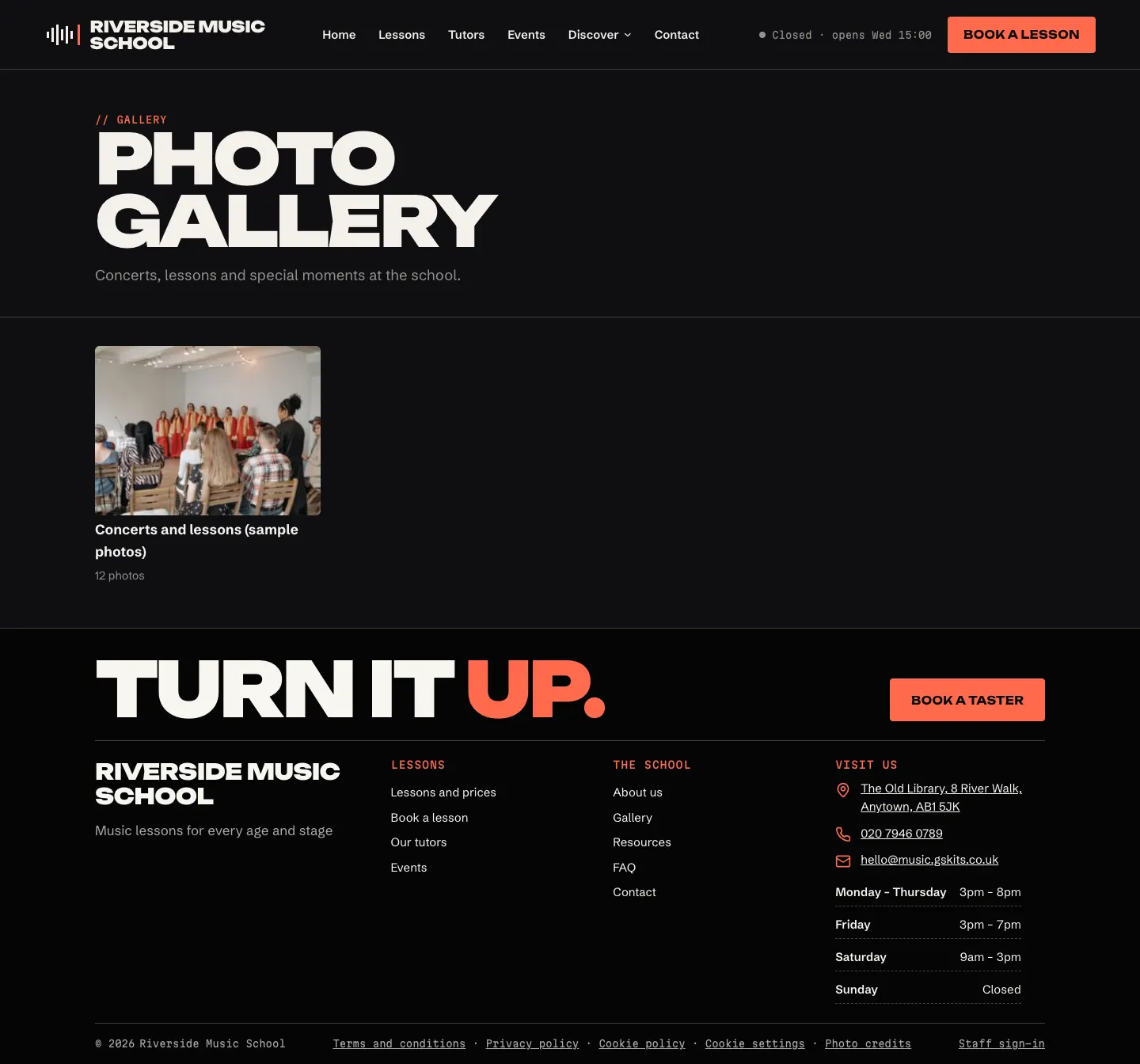
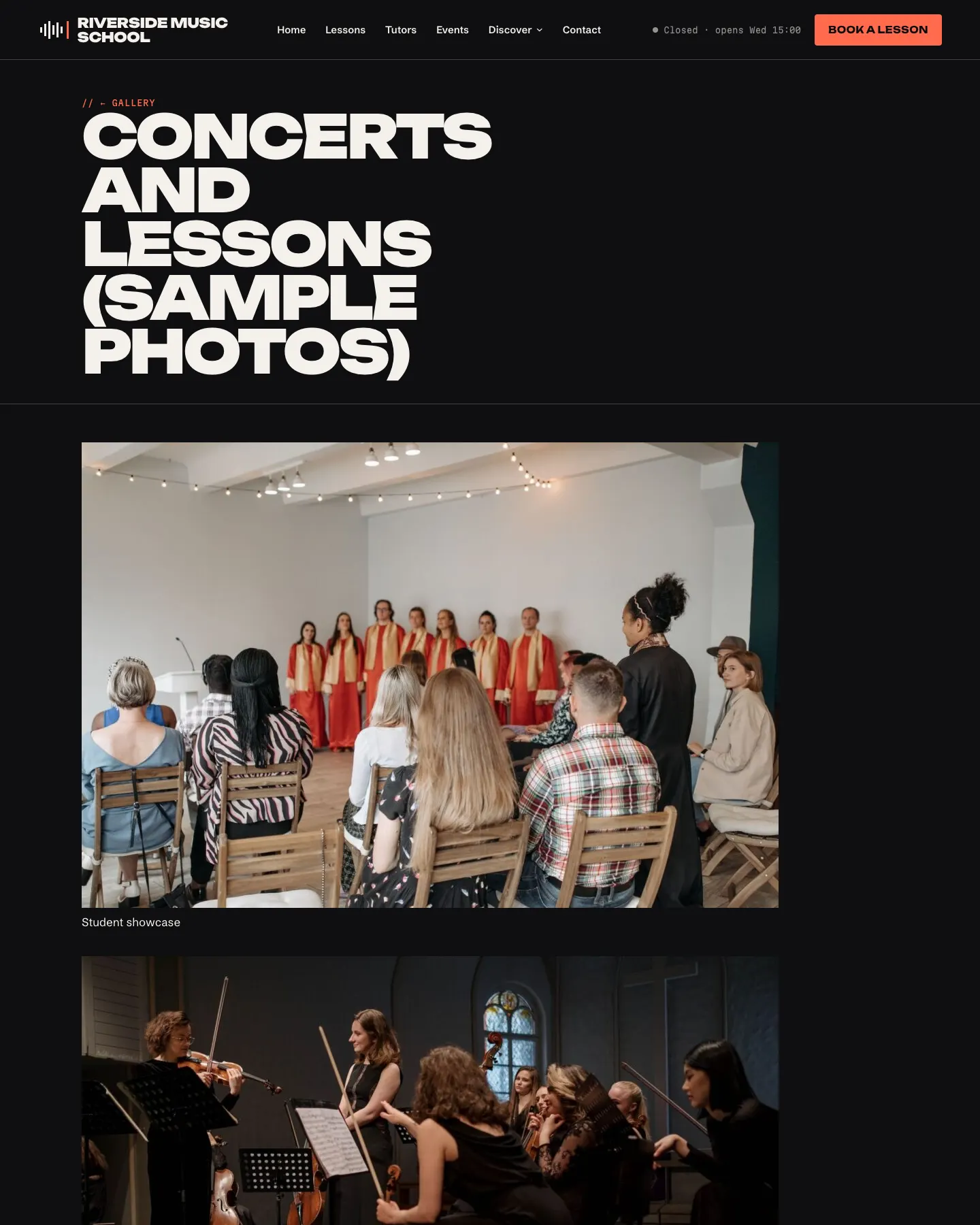
Photo albums, for example one per concert, term or project.
How to add an album
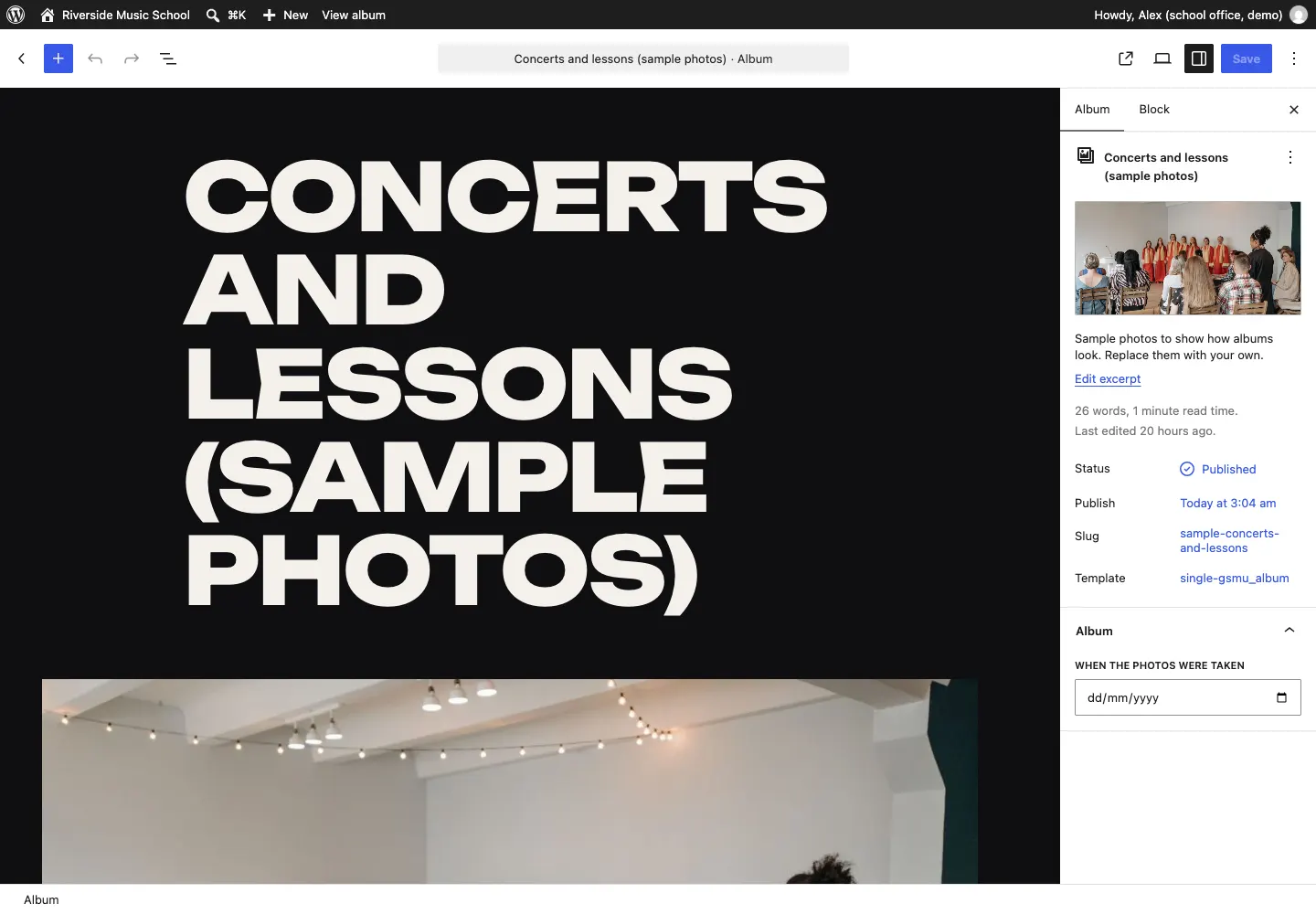
- Go to Gallery → Add album.
- Type the Album name, for example "Summer concert".
- The album starts with a gallery: click Upload or Media Library in it and choose your photos.
- Optionally write a line about the album, and fill in When the photos were taken in the Album panel on the right.
- Click Publish.
Resources
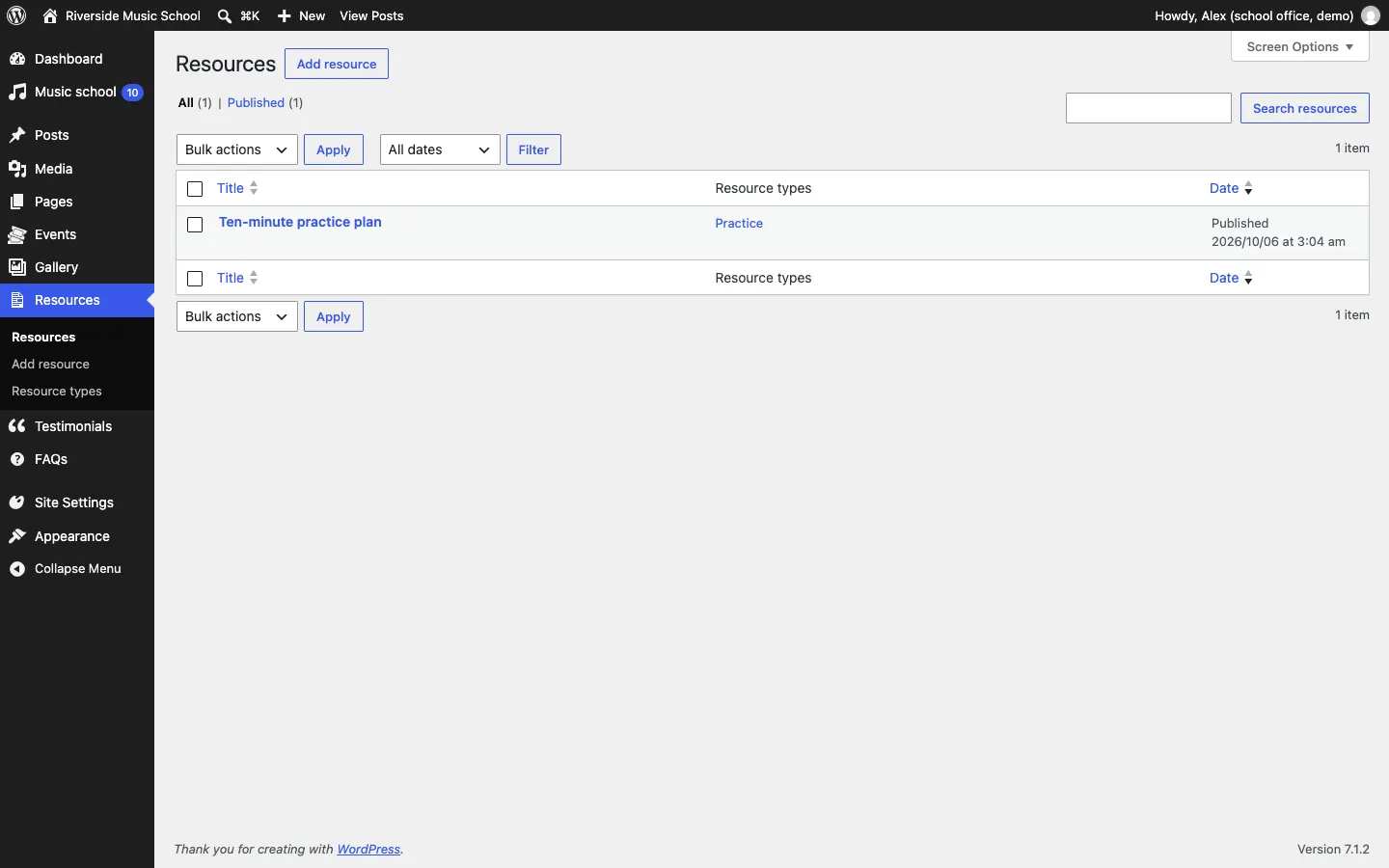
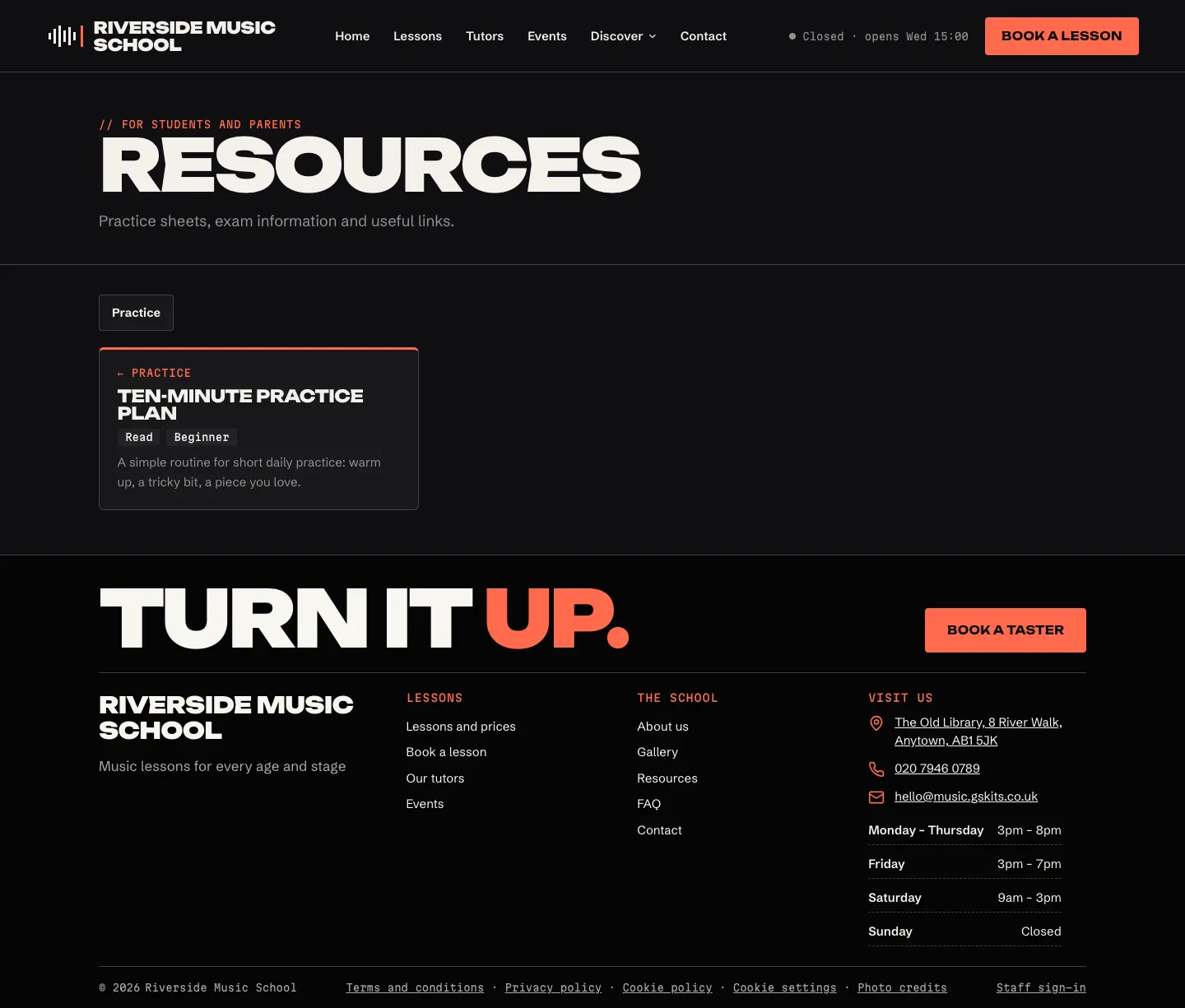
Practice sheets, scales, exam information and handouts that students can download or open.
How to add a resource
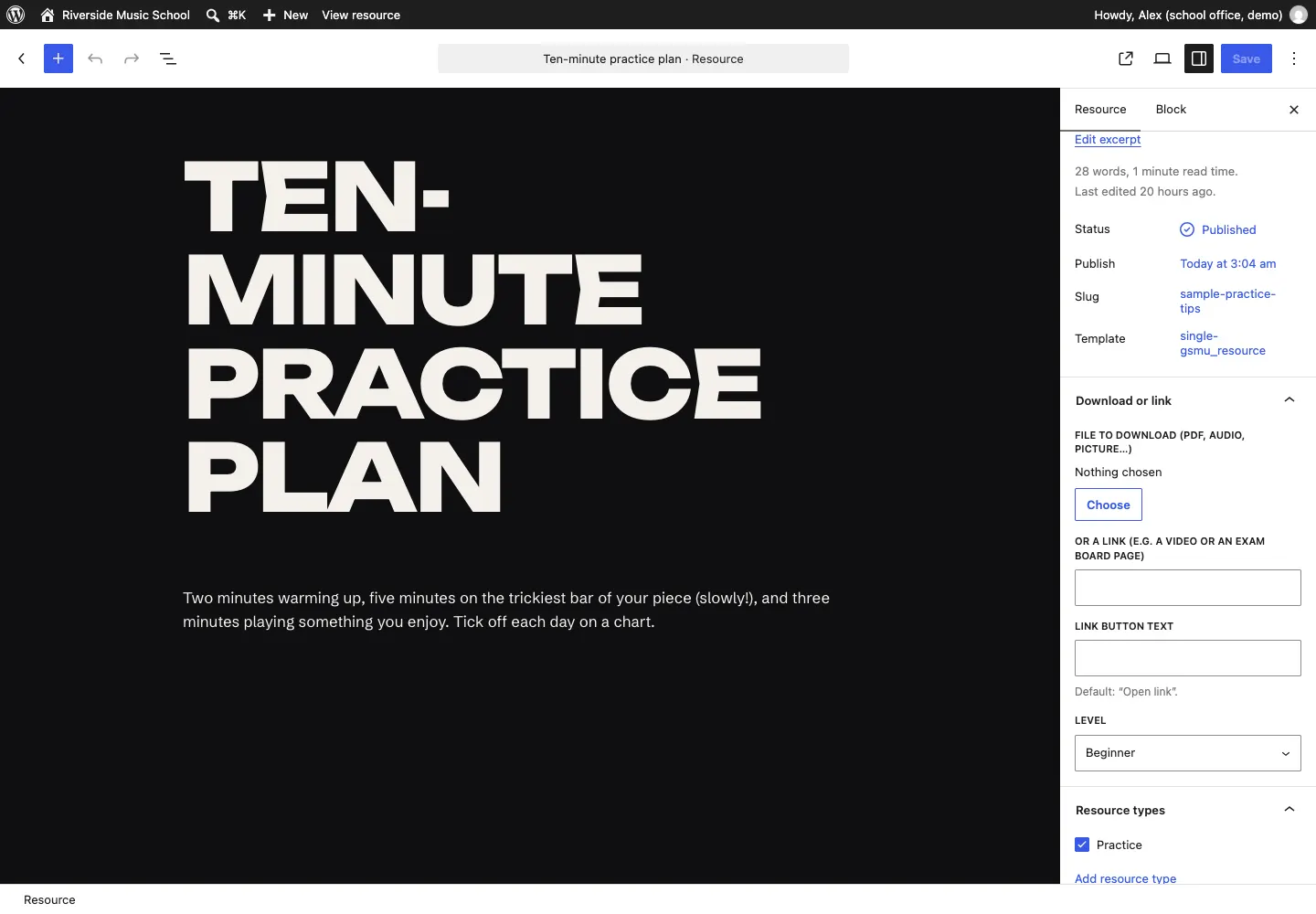
- Go to Resources → Add resource.
- Type the Resource name, for example "Ten-minute practice plan".
- Write a short description below the name.
- In the Download or link panel on the right:
- File to download (PDF, audio, picture…): click Choose and upload the file; or
- Or a link (e.g. a video or an exam board page), with its Link button text (default "Open link");
- Level: All levels, Beginner, Intermediate or Advanced.
- Under Resource types, tick a type such as Practice, or click Add resource type to make one (for example "Theory" or "Exams").
- Click Publish.
Testimonials
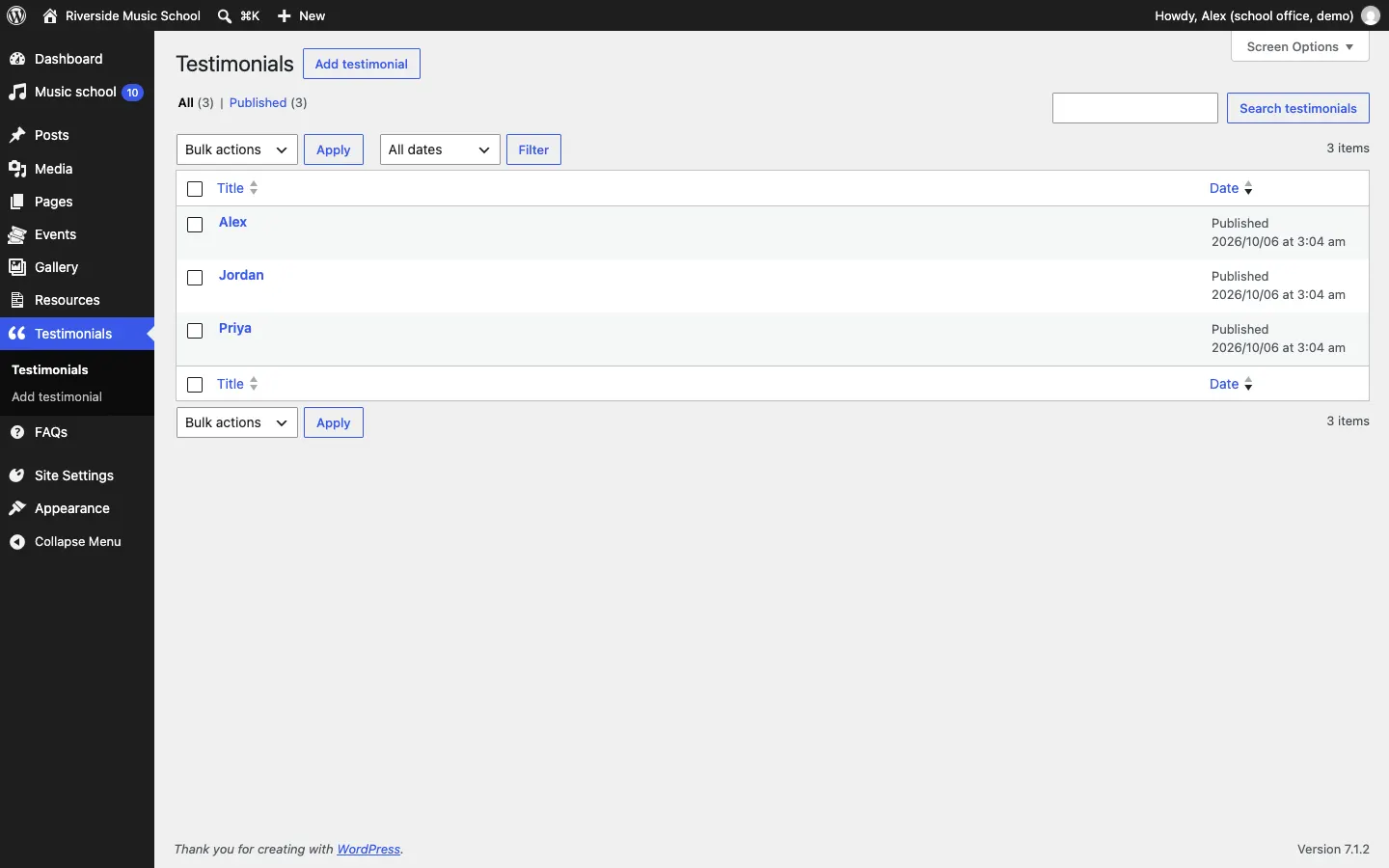
Kind words from students and parents, shown in the testimonials section of the home page and other pages.
- Go to Testimonials → Add testimonial.
- Type their name at the top, for example "Sam, parent". Use first names only, with their permission.
- In What they said, type Their words and Who they are, for example "Parent of a piano student".
- Under Order, a lower number shows first.
- Click Publish.
FAQs
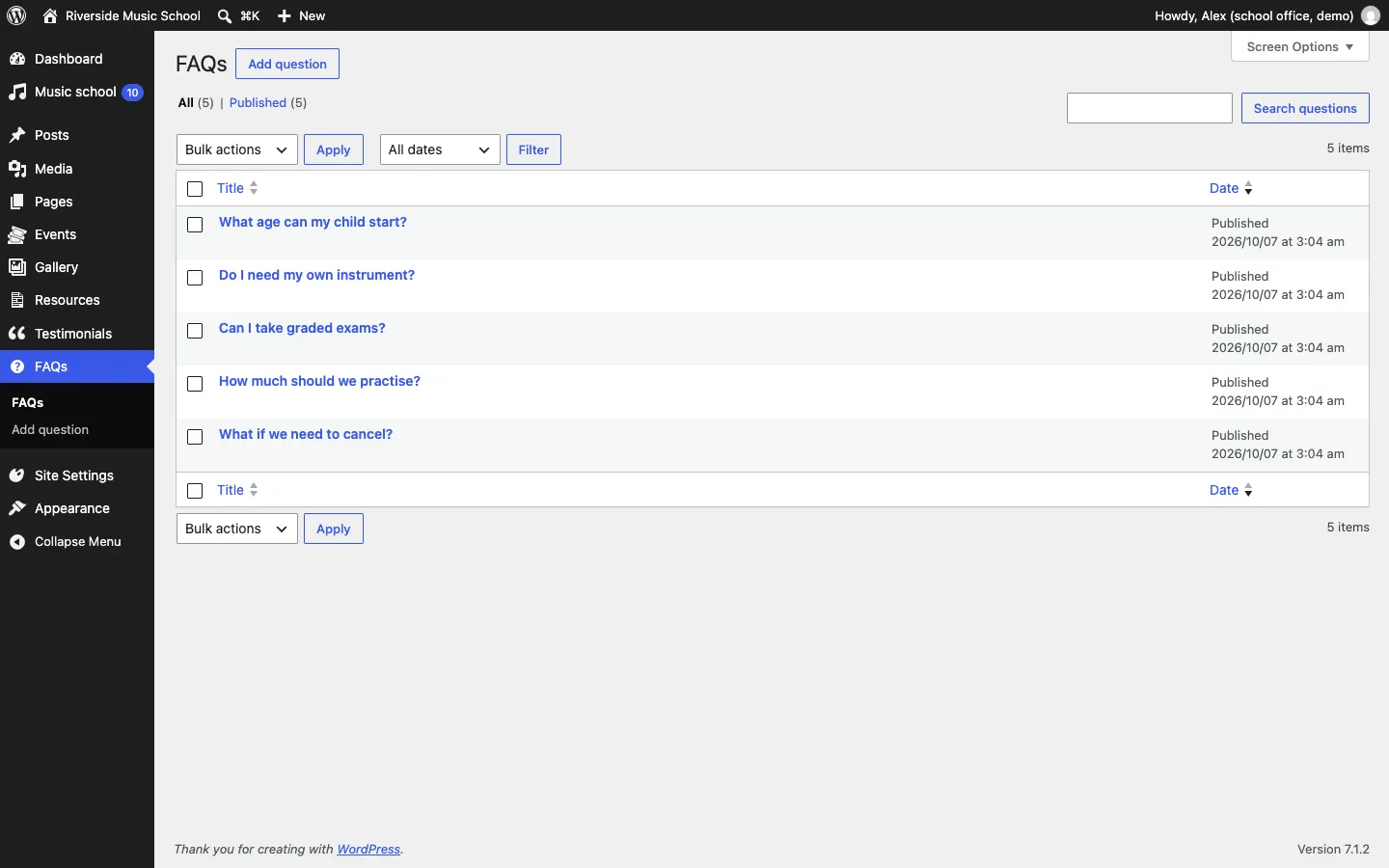
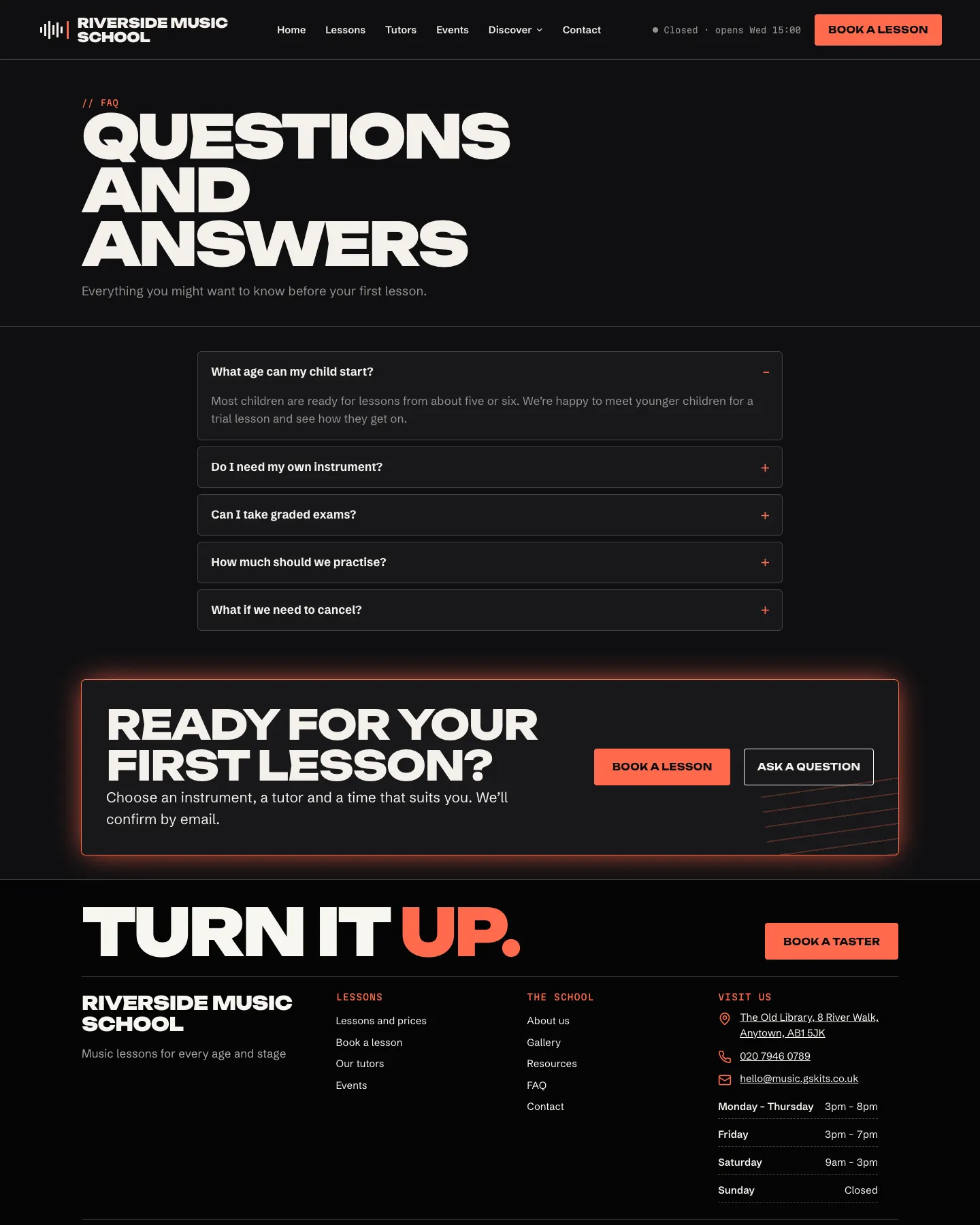
Questions and answers, shown on the FAQ page and in FAQ sections.
- Go to FAQs → Add faq.
- Type The question at the top, for example "How much should we practise?"
- Type the answer below it.
- Under Order, a lower number shows first.
- Click Publish.
Sample content
If you ticked the sample content in the setup wizard, you'll see a few example FAQs, testimonials, two events, an album and a practice resource. Their web addresses start with "sample-" so you can find them. Replace them with your own or move them to the bin before you go live.
News
For news and blog posts, use Posts → Add Post. See Pages and content.