Running your website
Messages from the contact form
How enquiries from your website's contact form reach you, how to read and answer them under Music school → Messages, and how long they are kept.
On this page
Not everyone is ready to book straight away. Parents ask about exams, adults ask about evening classes, and some people simply prefer to ask first. The contact form on your Contact page sends these messages to your email, and also keeps a copy under Music school → Messages, so nothing is lost if an email goes astray. A tutor's page can have an Ask a question button that leads to the same form; messages always go to the school, never straight to a tutor.
What visitors see
The Contact page has your address, map, phone, email and opening days, and the form. Visitors fill in Your name, Email, Phone (optional), What's it about? and Message, then press Send message.
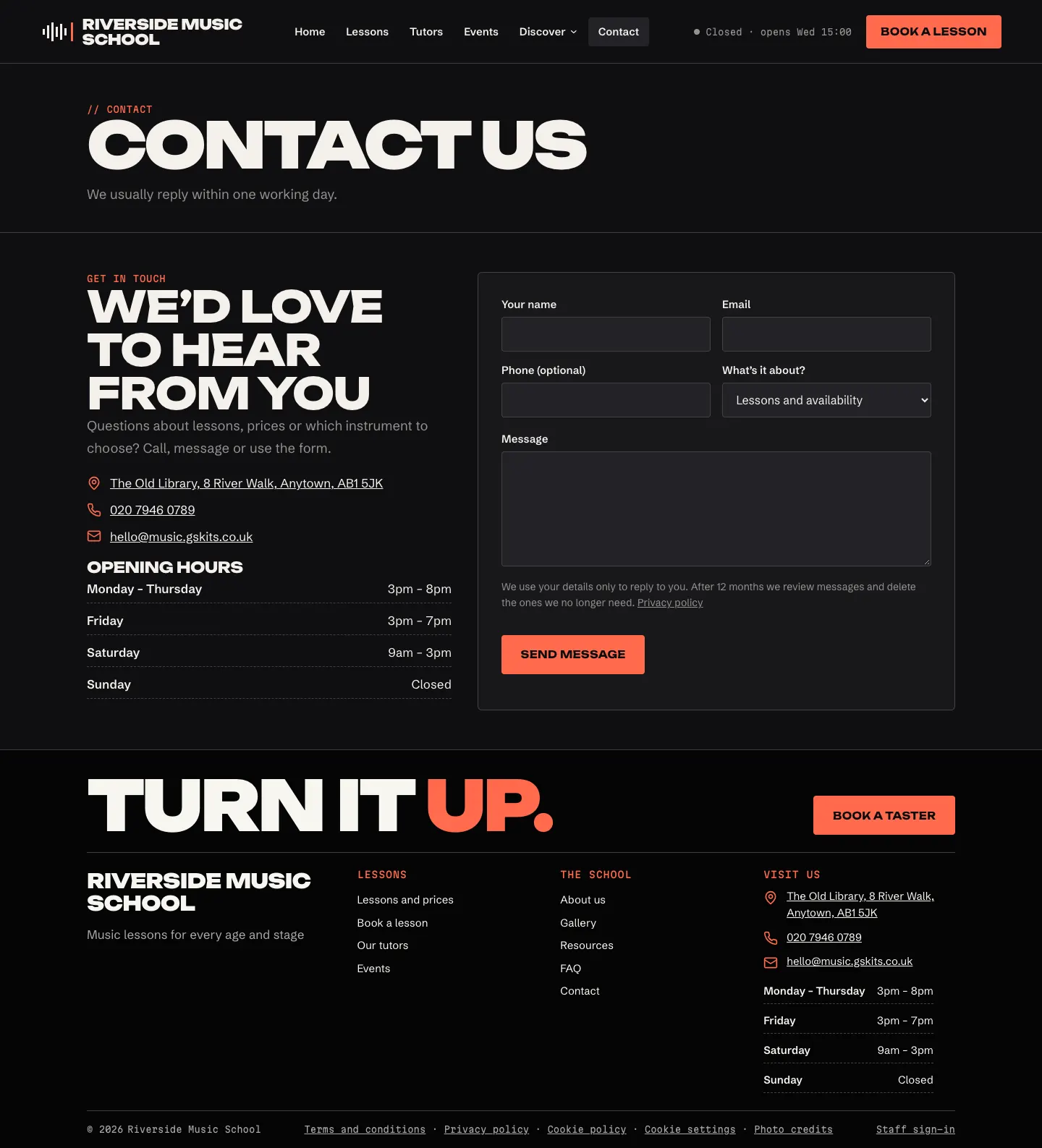
They get an automatic "Thanks for your message" email straight away. You can switch it off or change the subjects they choose from (see below).
How to read and answer a message
-
A red number next to Messages in the menu shows how many are new. The New enquiries box on Today shows the latest ones too.
-
Go to Music school → Messages.
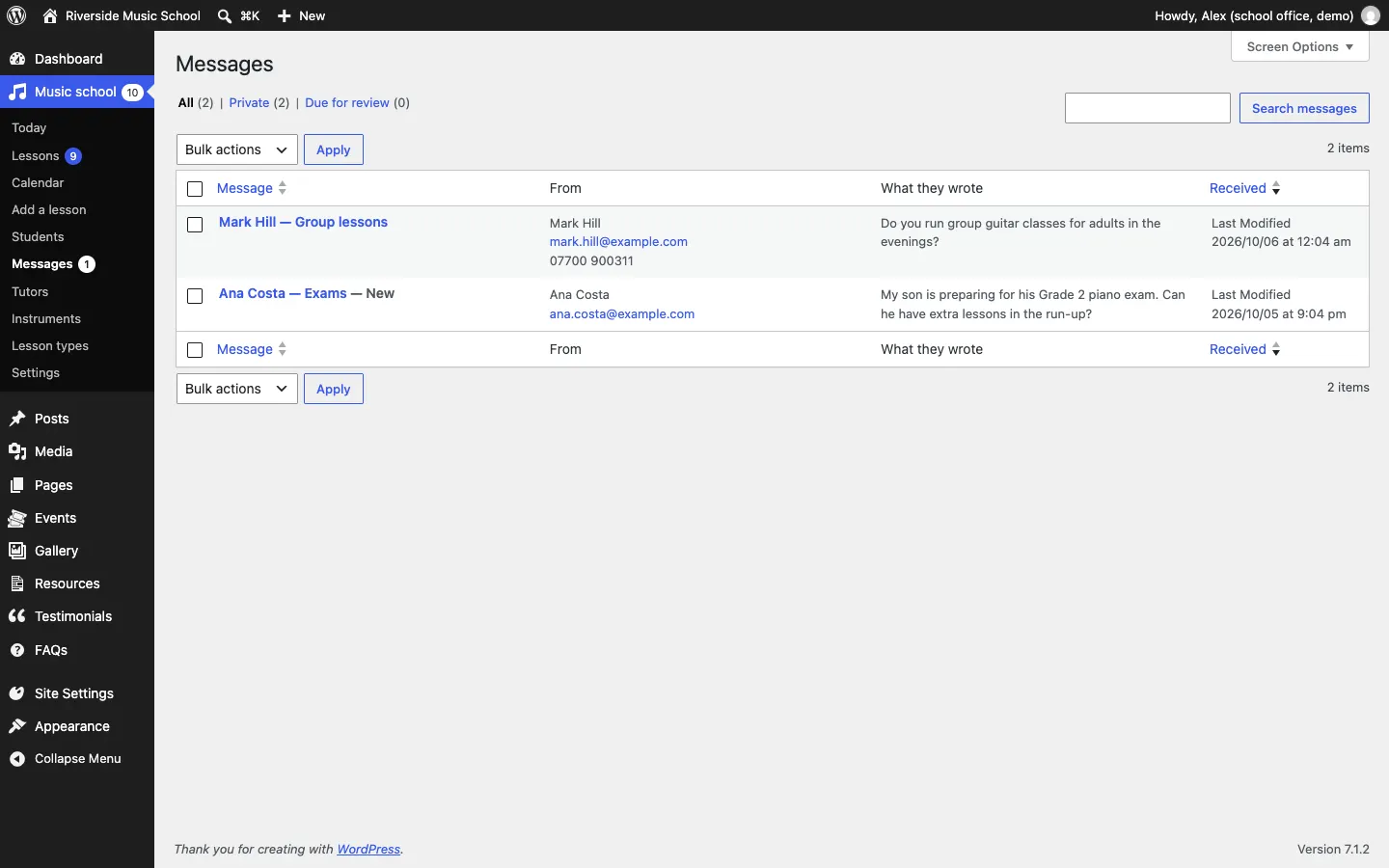
-
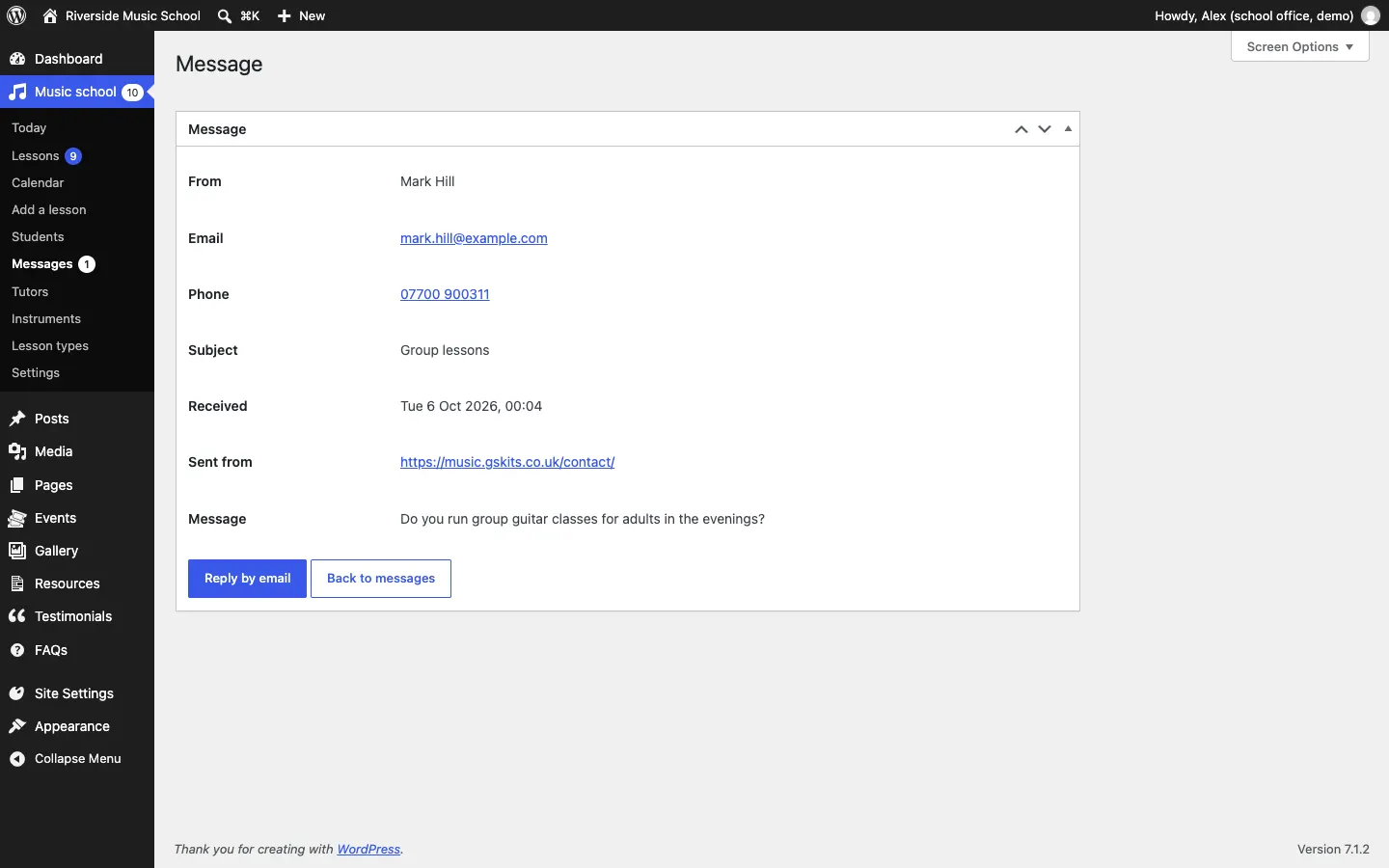
Click a message to open it. You see who it's from, their email and phone, the subject, when it arrived, which page it was sent from, and the message.
-
Click Reply by email to answer from your own email program. Or ring them on the number given.
-
Click Back to messages when you're done.
Who sees messages
Administrators and the Office role. Tutors don't, because messages may contain details about children. An administrator can change this in Music school → Staff access (see Staff and sign-in).
Settings for the contact form
In Music school → Settings → Contact, under Contact form:
- Subjects to choose from (optional): one per line, for example "Lessons and availability", "Prices", "Events and concerts", "Something else". Leave empty to hide the subject list.
- Review messages after (months): how long before old messages are listed under Messages → Due for review.
- When messages are due: List them for review before deleting (recommended: an administrator looks through and deletes what isn't needed) or Delete them automatically (older messages are deleted each night).
Click Save changes.
In Music school → Settings → Email:
- Send notifications to: who gets the "New message from the website" email.
- Thanks for your message: switch the automatic reply on or off.
See Settings and Privacy and emails.