Running your website
Practice tools (Pro)
The instrument tuner and metronome your students can use on your website: how to add them to a page, what visitors see, the block settings, and how the tuner keeps sound private.
On this page
Features marked (Pro) need a Pro or Agency licence.
Two tools for students practising at home, right on your website: an Instrument tuner and a Metronome. They work on phones, tablets and computers, follow your design and colours, and give students one more reason to come back to your website between lessons.
Without Pro, visitors don't see either tool. Administrators see a short note in their place, and the editor shows what Pro adds.
How to add the Practice tools page
The easiest way is the setup wizard: tick Practice tools page under Starter content. It makes a Practice tools page with both tools. Then add it to your menu when you're ready (see Your look).
To put either tool on any other page:
- Open the page in Pages.
- Click + (top left) and search for "tuner" or "metronome".
- Click Instrument tuner or Metronome to add it.
- Click Save.
Some designs also have a practice-tools section for the home page that links to this page.
The tuner: what students do
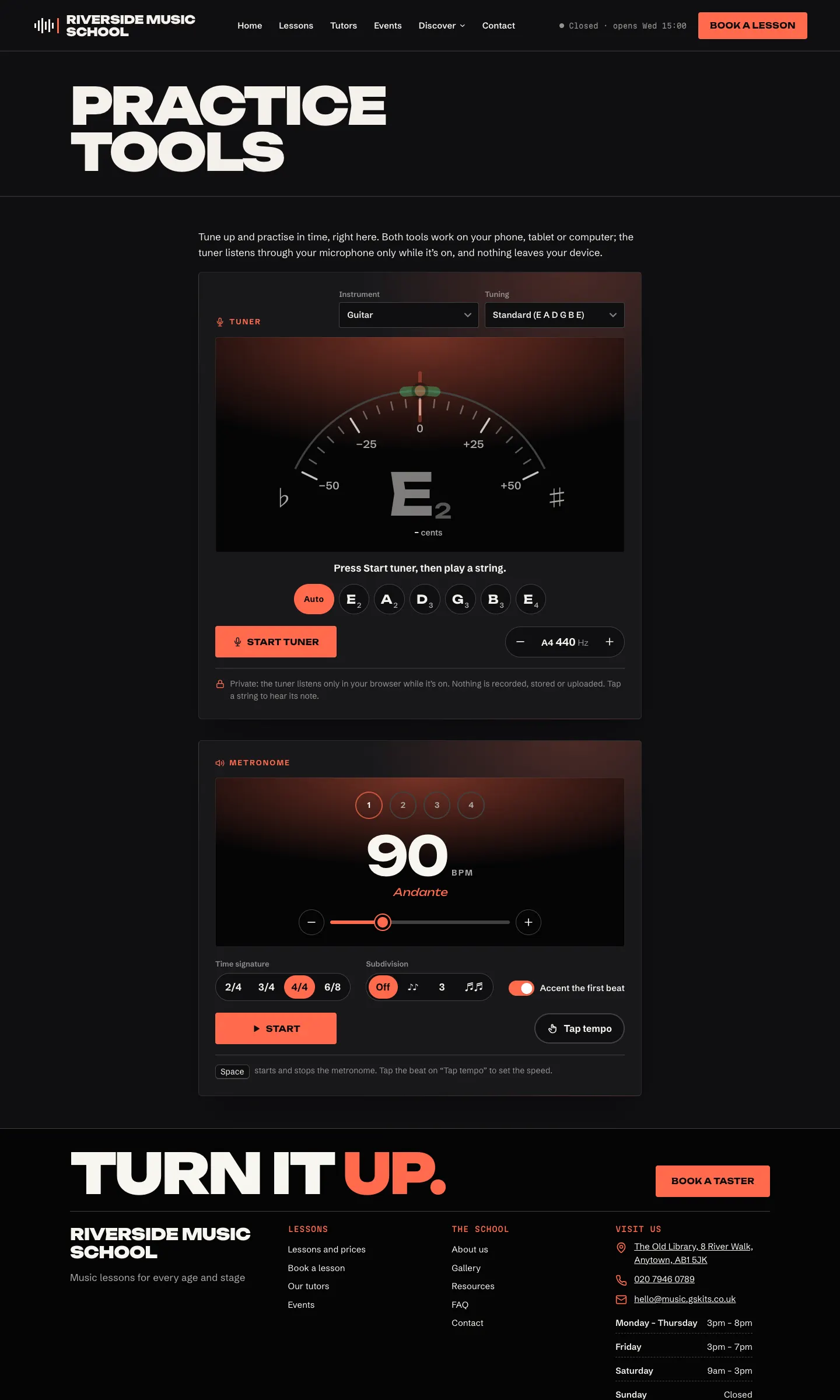
- Press Start tuner, and allow the microphone when the browser asks.
- Play a string. The big letter shows the note, and the gauge shows how far off it is. It turns green within 5 cents (a twentieth of a semitone), and the words say tune up or tune down.
- Auto picks the nearest string. Tapping a string button plays the note to tune to and fixes the tuner on that string.
- Choose a different Instrument or Tuning at the top: guitar (standard, drop D, DADGAD, open G, half-step down), bass, violin, viola, cello, ukulele, or Chromatic for any note (singers, piano, wind).
- Use − and + next to A4 440 Hz to move the reference pitch between 430 and 450 Hz.
- Press Stop when done.
Privacy
The sound is analysed in the visitor's own browser while the tuner is on. It is never recorded, stored or sent anywhere, and the tuner says so under the buttons. The microphone switches off when they press Stop or leave the page.
Browsers only allow the microphone on secure (https) pages. If a visitor has blocked the microphone, the tuner tells them how to allow it.
The metronome: what students do
- Set the speed with the slider, the − and + buttons, or Tap tempo (tap the beat a few times). It goes from 30 to 250 beats a minute.
- Choose the Time signature: 2/4, 3/4, 4/4 or 6/8.
- Choose a Subdivision: off, eighths, triplets or sixteenths.
- Accent the first beat on or off (6/8 accents beats 1 and 4).
- Press Start, or the Space key, to start and stop.
How to change the block settings
- Open the page with the tool in Pages.
- Click the tuner or metronome to select it.
- The settings appear in the panel on the right (click the Settings button at the top right if the panel is hidden).
For the tuner you choose:
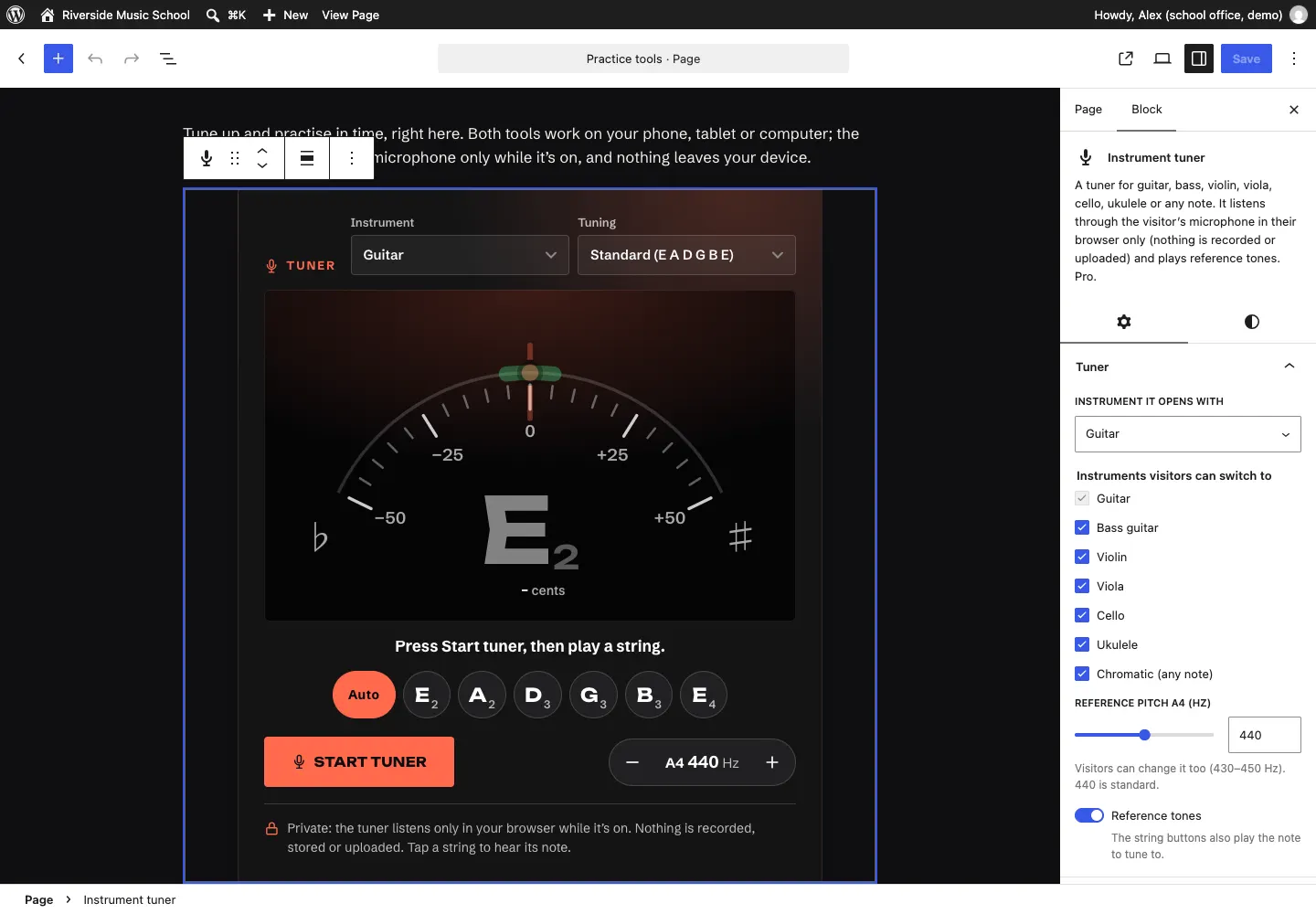
- Instrument it opens with;
- Instruments visitors can switch to: untick the ones your school doesn't teach;
- Reference pitch A4 (Hz): where it starts (visitors can still change it between 430 and 450; 440 is standard);
- Reference tones: whether the string buttons also play the note to tune to.
For the metronome you choose where it starts: Starting tempo (beats per minute) (90 unless you change it), Time signature, Subdivision (Off, Eighth notes, Triplets or Sixteenth notes) and Accent the first beat.