Running your website
Online booking: what students and parents see
How a student or parent books a lesson on your website, what they see afterwards, the emails they get, how they cancel, and the settings that control it.
On this page
The Book a lesson page lets a student, or a parent booking for a child, choose a lesson and a real free time in three steps. Nobody needs an account. The website only offers times when the chosen tutor teaches, the school is open, the time isn't already taken and there is enough notice. Two people can't book the same time: if both try at once, the second is asked to choose another.
It helps to know exactly what your students see, so you can answer their questions. Try it yourself on your own website or on the demo.
The booking form
The form is on the Book a lesson page. Buttons such as Book a lesson in the header, Book a drums lesson under the instrument buttons, a Book link next to a lesson, or Book a lesson with Anna on a tutor's page all lead here, some with the instrument, lesson or tutor already chosen.
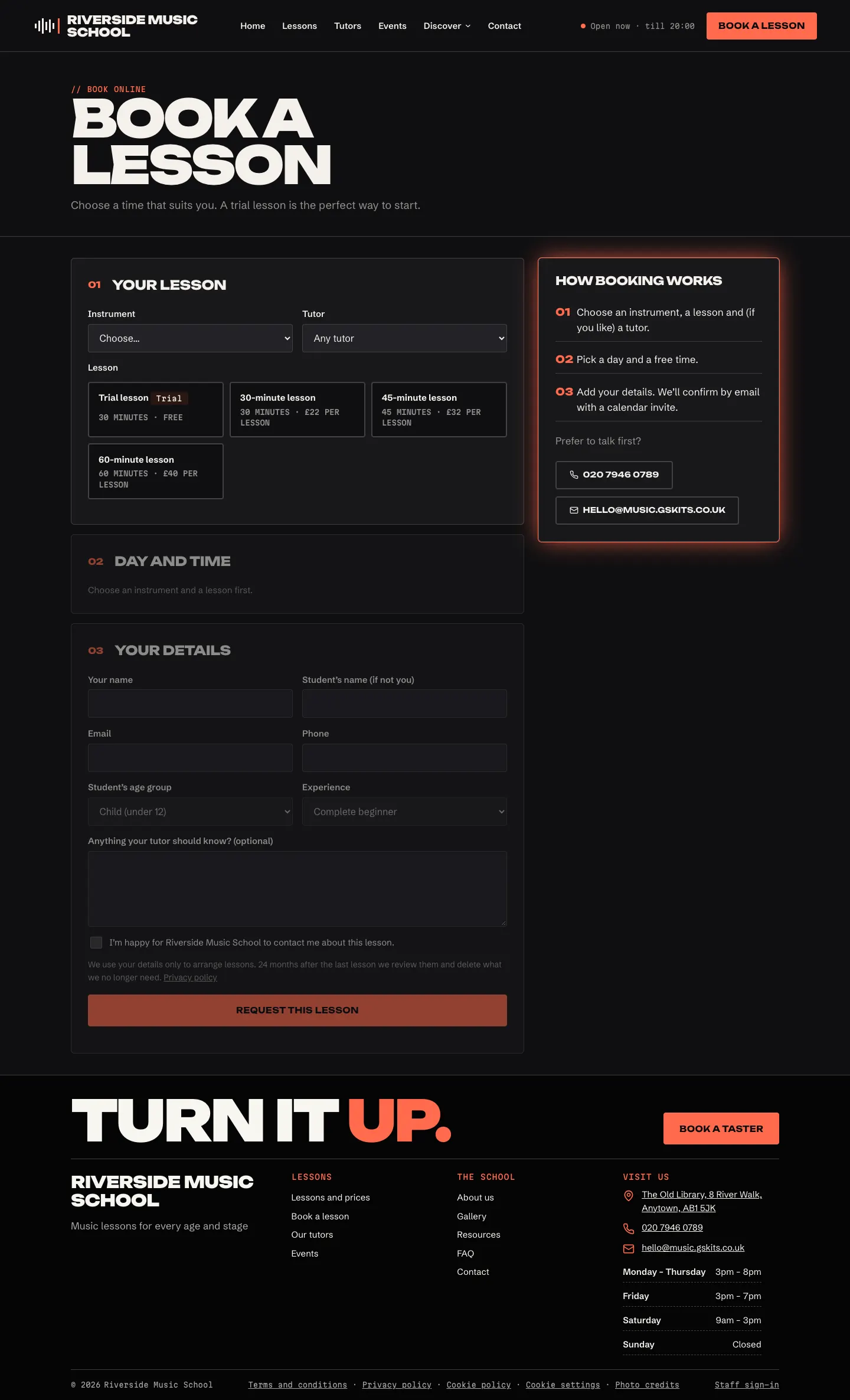
Step 1: Your lesson
- Instrument: they choose what they want to learn.
- Tutor: they choose a tutor, or leave Any tutor. With any tutor, the website picks a free tutor who teaches that instrument and lesson, giving the lesson to the least busy one.
- Lesson: they tap a lesson type. Each shows its length and price ("Free" for a trial lesson with no price, otherwise "Price on request"). Trial lessons are marked Trial. Lessons that aren't bookable online, such as group classes, aren't offered here.

Step 2: Day and time
A calendar shows the month. Days with free times can be tapped; the others are greyed out. When they tap a day, the free start times for that day appear. They tap one.
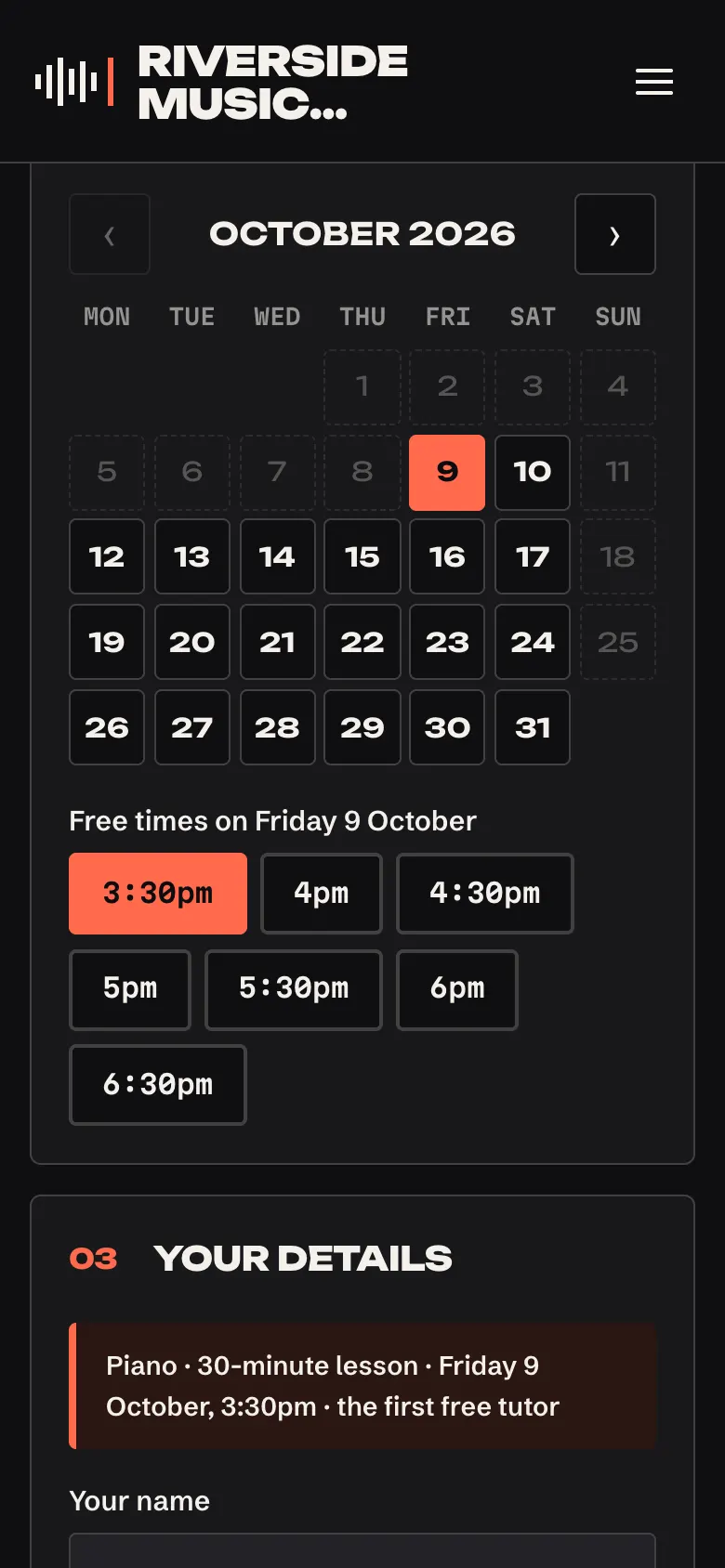
Step 3: Your details
They fill in:
- Your name: the person booking (a parent, if it's for a child);
- Student's name (if not you): the child's name;
- Email and Phone;
- Student's age group and Experience, if you use these questions;
- Anything your tutor should know? (optional);
- the tick box I'm happy for [your school] to contact me about this lesson.
Under the tick box, a line says how long you keep their details, with a link to your privacy policy. They then press Request this lesson (or Book this lesson if you use instant confirmation).
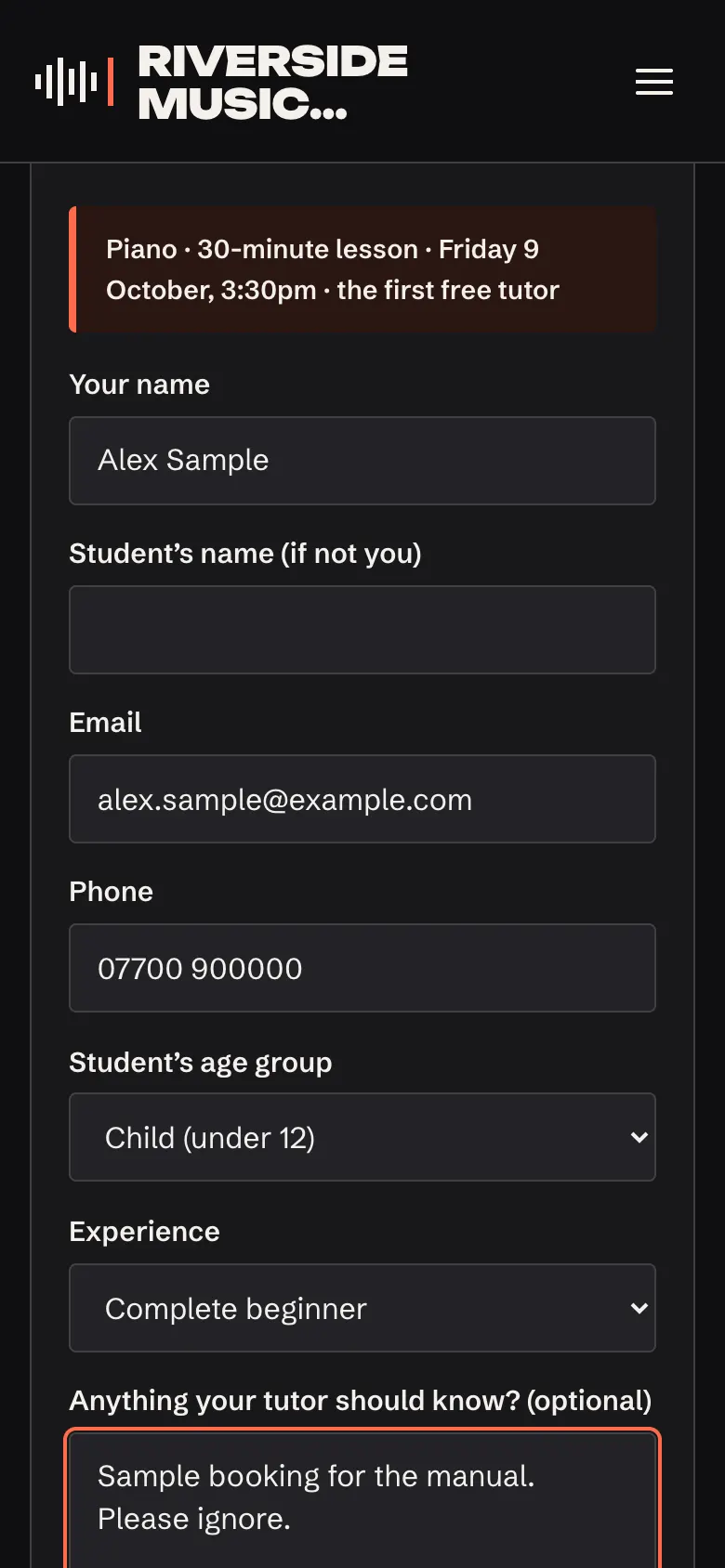
If anything is missing, the form says what in plain words next to the box, for example "Please add a phone number we can reach you on."
After booking
The form changes to a thank-you message with the lesson, day, time and tutor, and a link See or cancel this lesson.
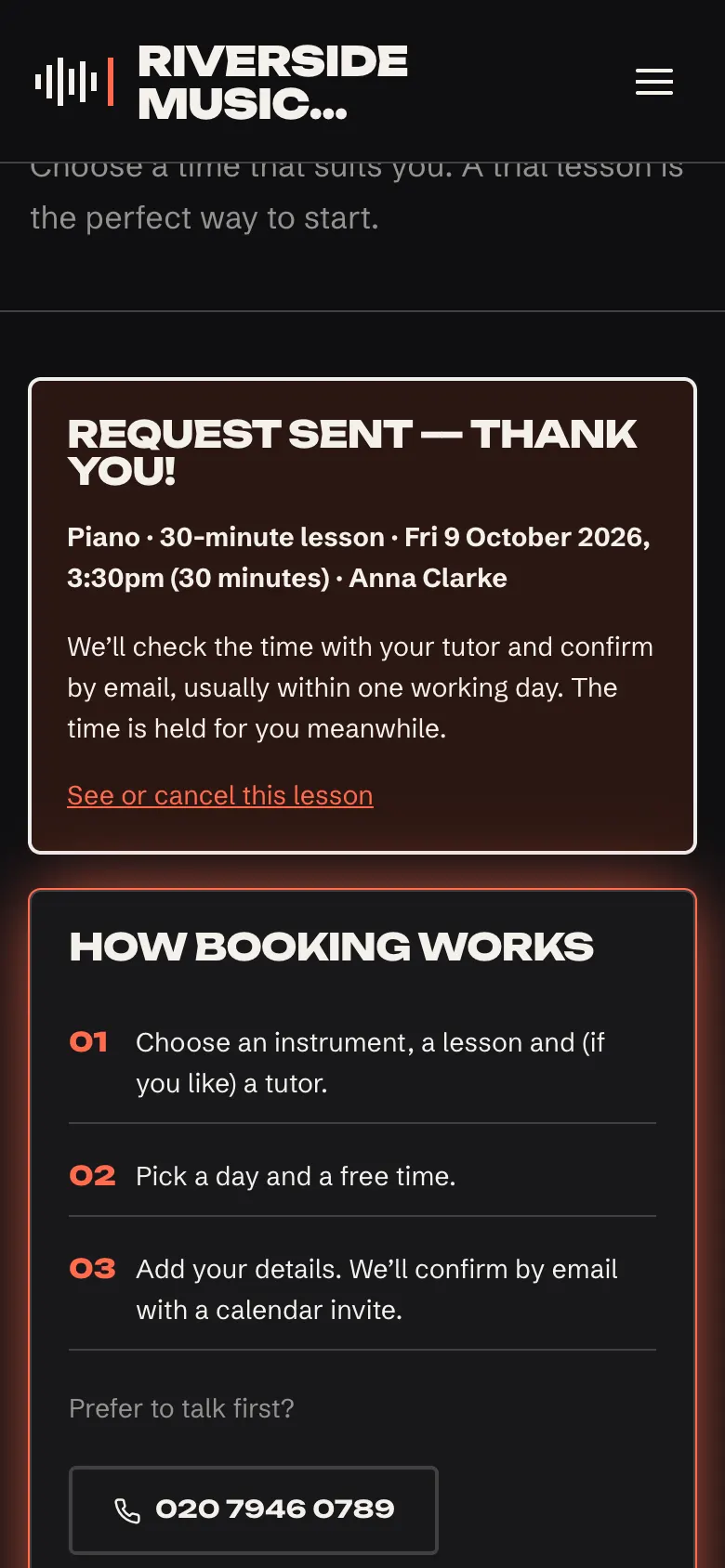
The time is held for them straight away, so nobody else can book it while you decide.
The emails students and parents get
Each email goes to the address given when booking. You can switch any of them off in Music school → Settings → Email (see Settings).
| When | |
|---|---|
| Lesson request received | Straight after they book: "We'll confirm by email", with a link to see or cancel the lesson |
| Lesson confirmed | When you confirm it, or book one for them, with a calendar invite. Also sent when you move it |
| Lesson request declined | When you can't offer that time, with a link to choose another |
| Lesson cancelled | When you or they cancel |
| Reminder the day before | At about 8am the day before a confirmed lesson |
The lesson page: see, add to calendar or cancel
The link in every email (and on the thank-you message) opens a private page for that lesson. It shows the day and time, tutor, student and status (Waiting for us to confirm, Confirmed and so on), with:
- Add to my calendar: adds the lesson to their phone or computer calendar;
- Cancel this lesson: cancels it after asking "Cancel this lesson? The time will be offered to someone else.";
- Book another lesson.
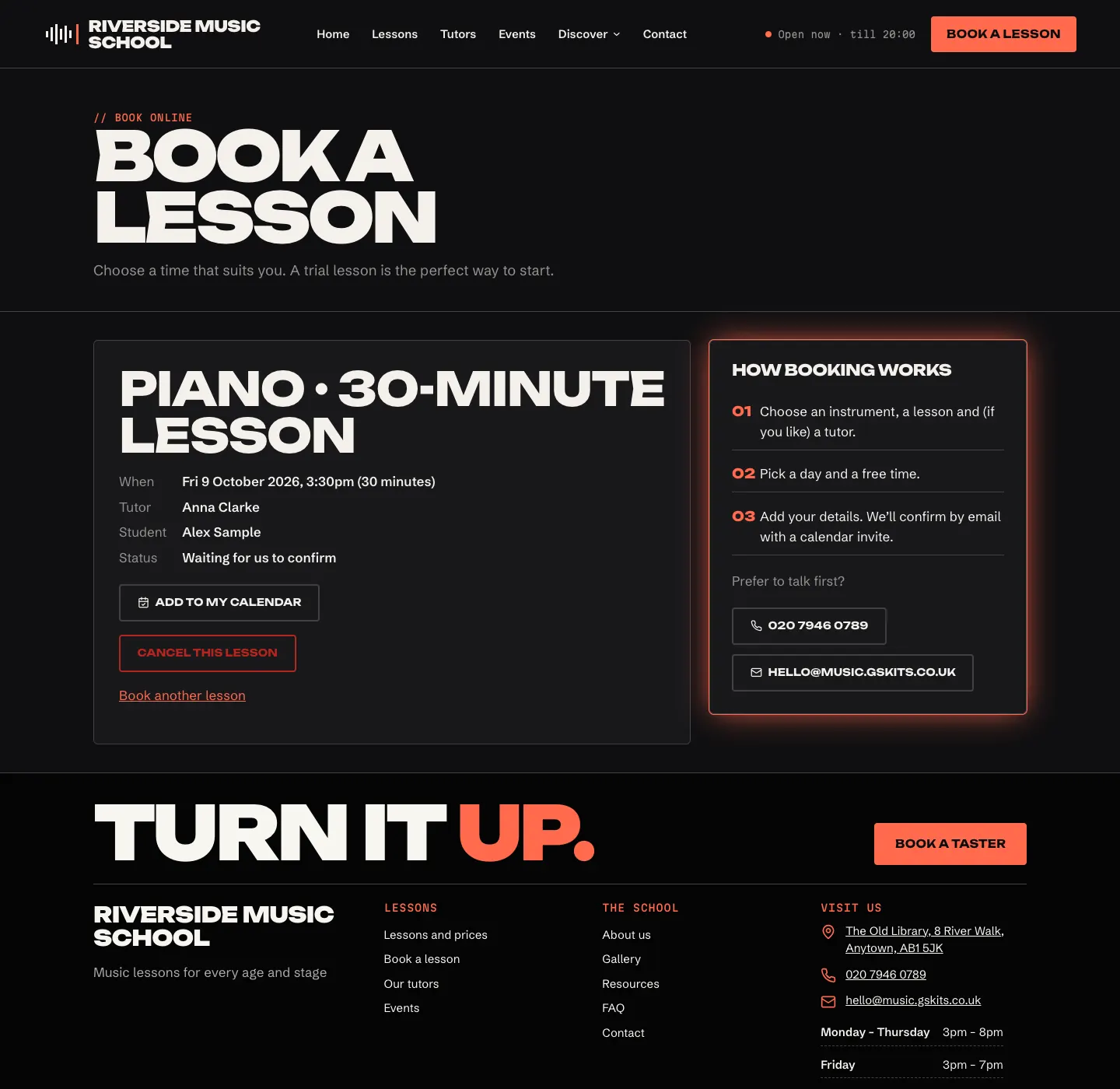
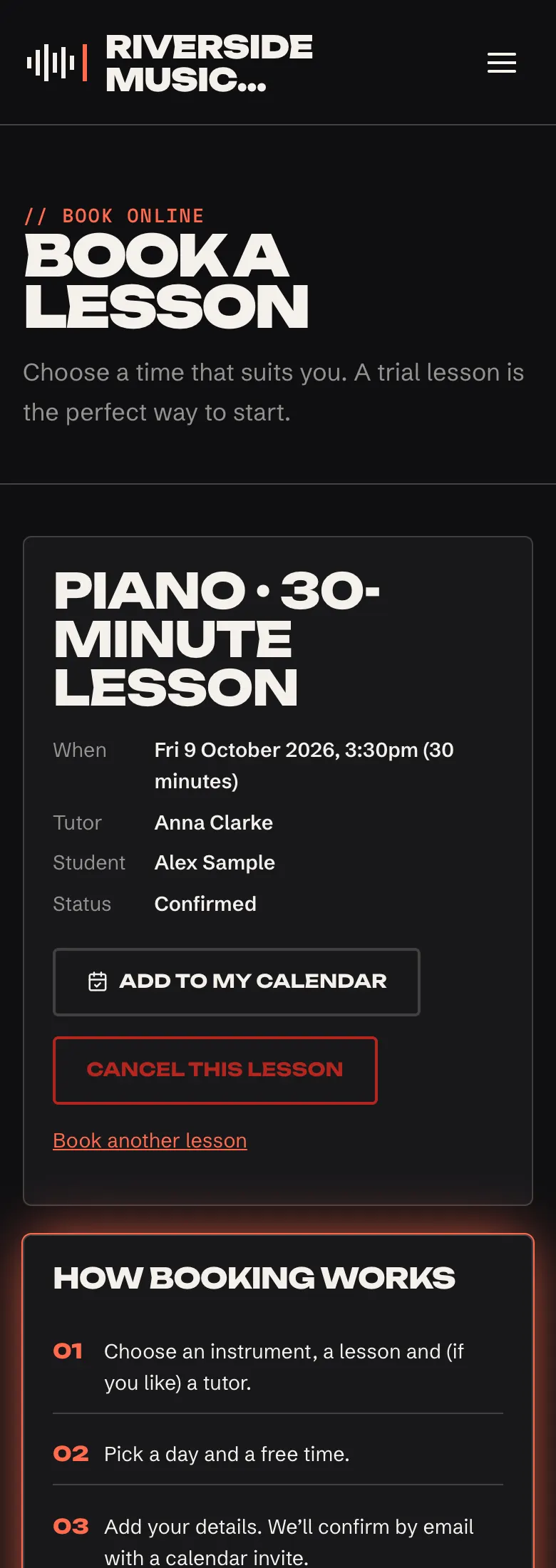
When they press Cancel this lesson, a box asks "Are you sure? Cancel this lesson? The time will be offered to someone else." They press Cancel lesson to go ahead, or Keep the lesson to leave it booked.
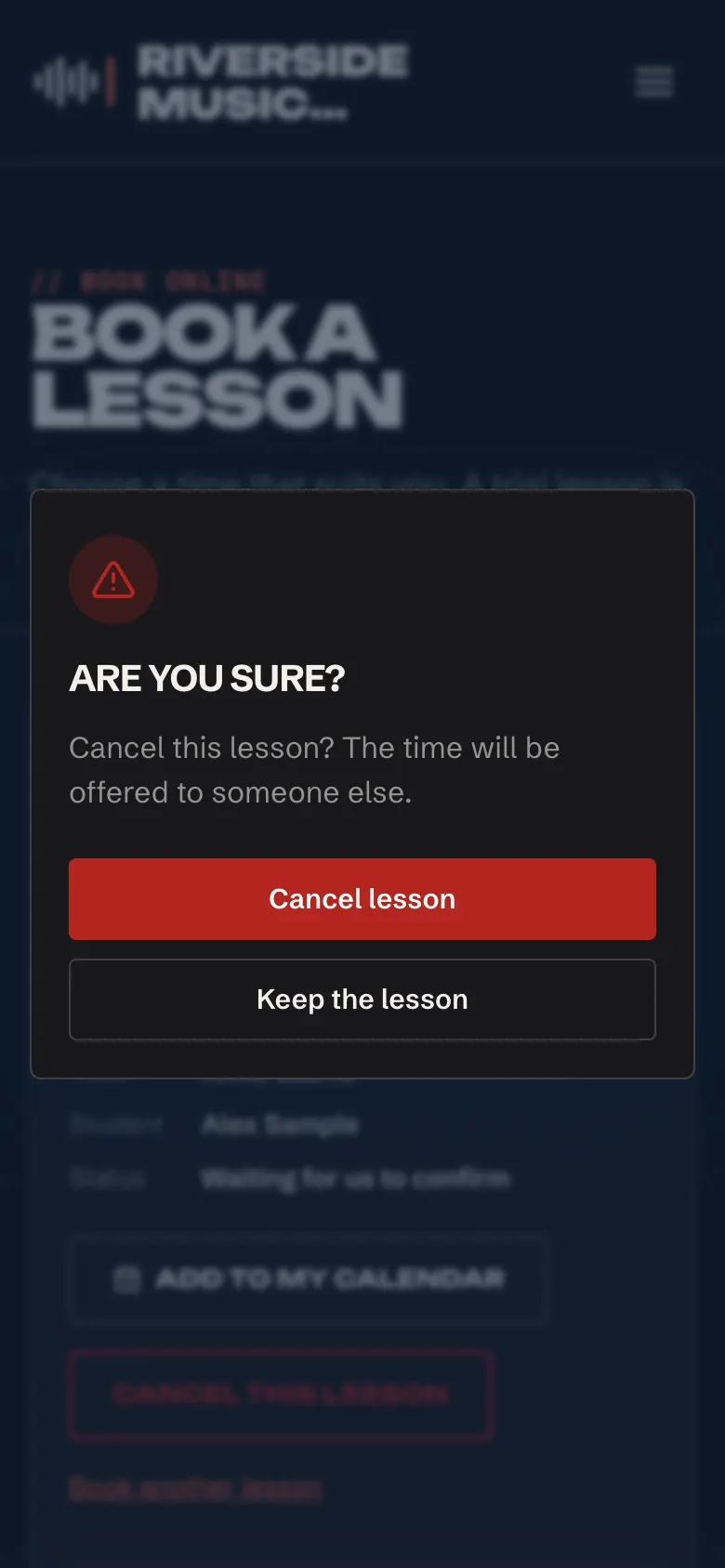
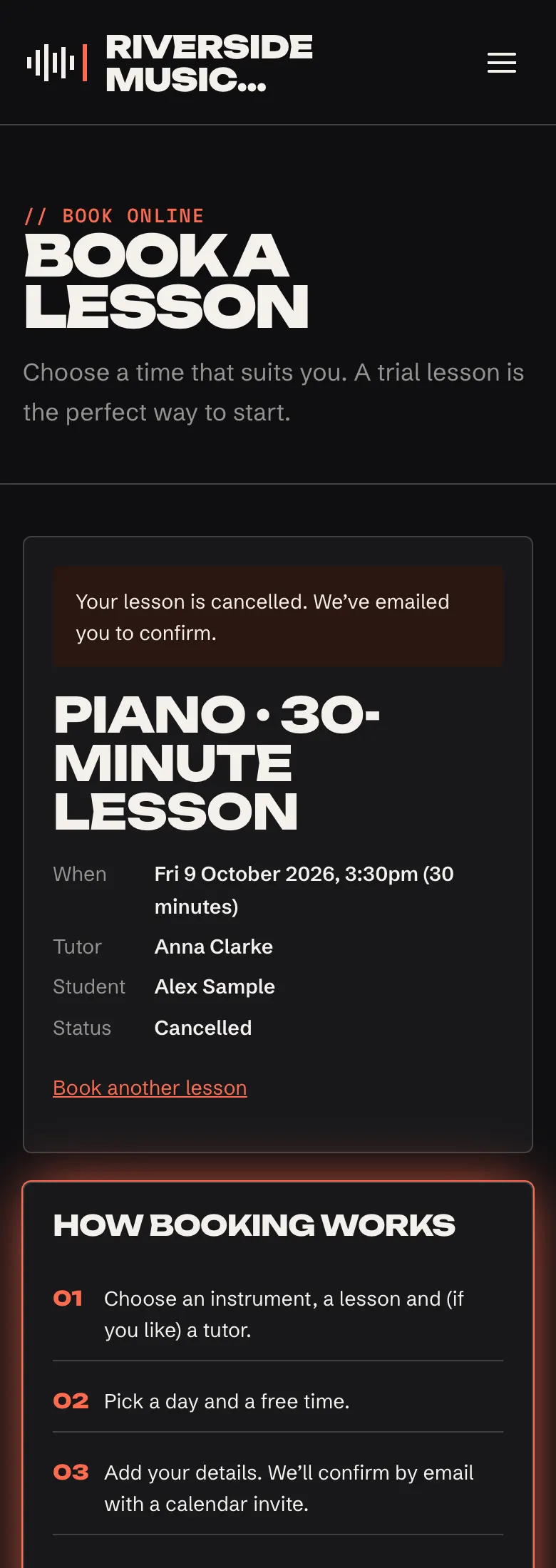
Once cancelled, the page says "Your lesson is cancelled. We've emailed you to confirm.", the time is free again, and the school gets a Student cancelled email. If they open the link again later, the status shows Cancelled, with Book another lesson.
They can cancel online until a set number of hours before the lesson (24 by default). After that, the page says "It's too close to the lesson to cancel online. Please contact us."
Settings that change what visitors see
All in Music school → Settings → Lessons (see Settings):
| Setting | What it does |
|---|---|
| Take lesson bookings online | Off: the form says to contact you instead |
| Instant confirmation | Off (the default): bookings are requests you confirm. On: they're confirmed at once |
| One trial lesson per person | Each email address can book a trial lesson once |
| Notice needed (hours) | For example 48: nothing sooner than two days away |
| Book up to (weeks ahead) | How far ahead the calendar goes |
| Offer start times every (minutes) | For example 30 offers 4:00, 4:30, 5:00 |
| Gap between lessons (minutes) | Time kept free after each lesson |
| Students can cancel online until (hours before) | After that, the cancel link asks them to contact you |
| Age groups and Experience levels | The choices in those two questions; leave empty to skip a question |
| Note on the booking form | A line near the end of the form, for example how lessons are paid for |
| Show prices on the website | Off: "Prices on request" |
Free times also depend on the tutor's teaching hours and days off and the school's Opening days and closed days.