Running your website
Tutors
How to add a tutor's public profile, set their instruments, lessons and weekly teaching hours, block days off, and let tutors sign in to see their own lessons.
On this page
Each tutor has a profile: a public page with their photo and a few words, plus the details the booking form needs, such as the instruments and lessons they teach, their weekly teaching hours and their days off. The booking form only offers times inside a tutor's hours (and inside the school's opening days), so keeping hours up to date is what stops people booking a time nobody can teach.
If you teach on your own, add yourself as the only tutor.
Features marked (Pro) need a Pro or Agency licence.
How to add a tutor
-
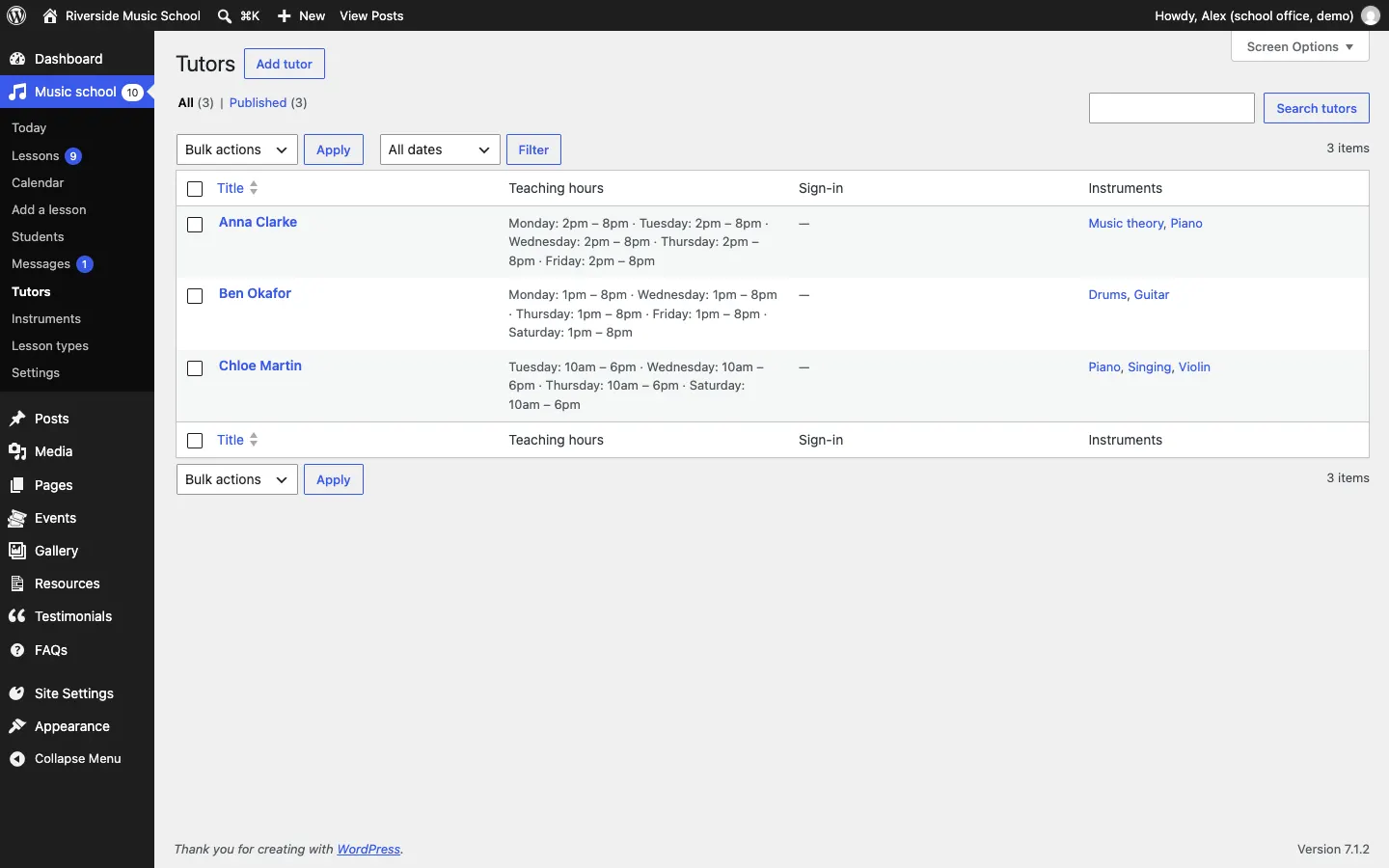
Go to Music school → Tutors and click Add tutor (or Music school → Add tutor).
-
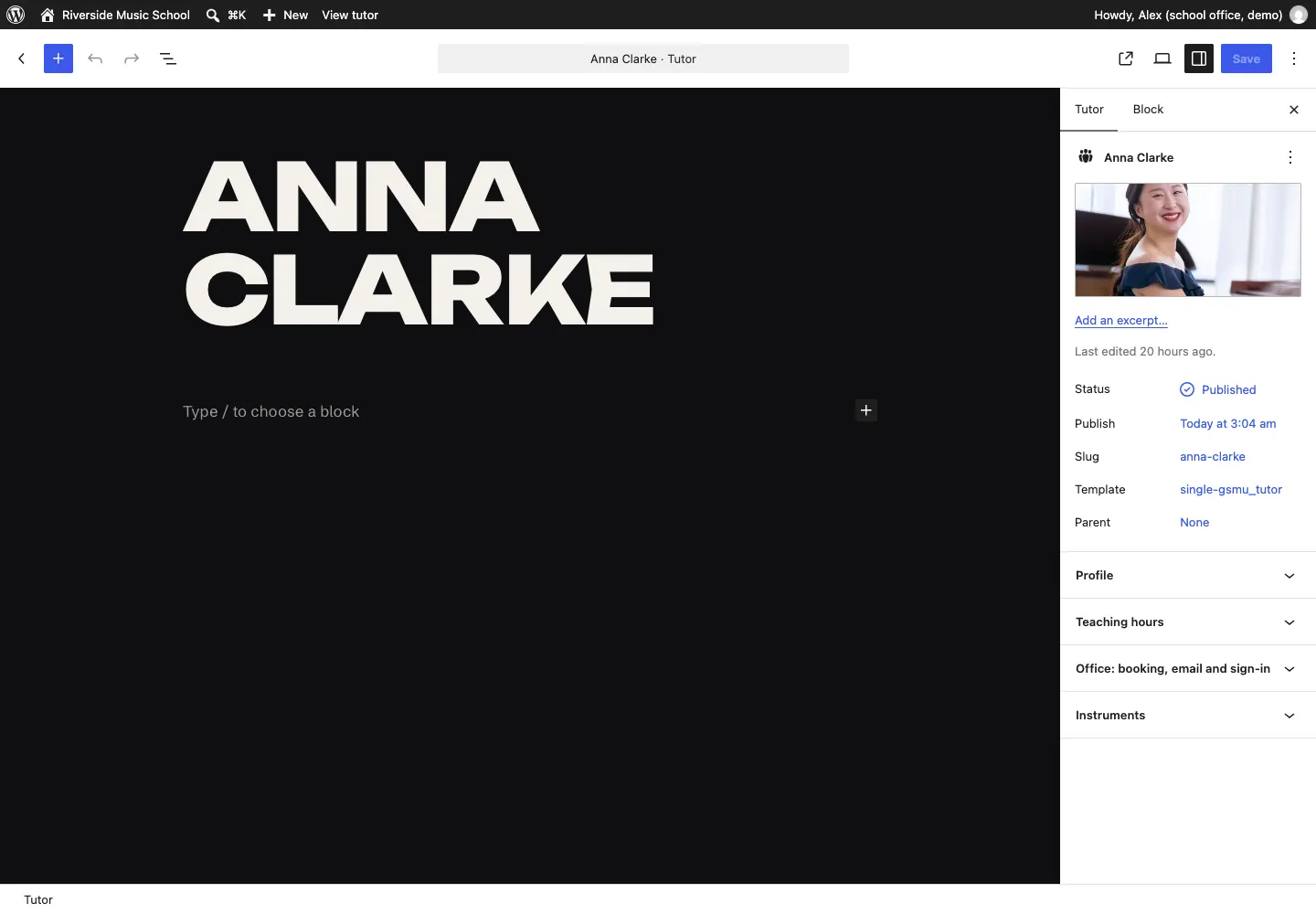
Type the tutor's name where it says Add title.
-
Click in the space below the name and write a few words about them: their background, what they love teaching, exams they prepare students for.
-
On the right, in the Tutor tab, click the picture area to add their photo. A portrait photo works best.
-
Fill in the panels on the right (open each by clicking its name). They are described below.
-
Click Publish (or Save for a tutor that's already published).
The Profile panel
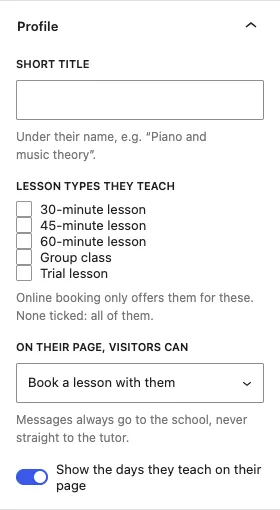
- Short title: under their name, for example "Piano and music theory".
- Lesson types they teach: tick the ones they teach. Online booking only offers them for these. With none ticked, they're offered for all lesson types.
- On their page, visitors can: choose Book a lesson with them, Ask the school about lessons with them, Book, or ask the school, or Neither (just read about them). Messages always go to the school, never straight to the tutor.
- Show the days they teach on their page: tick to show, for example, "Teaches on Monday, Tuesday and Friday".
The Teaching hours panel
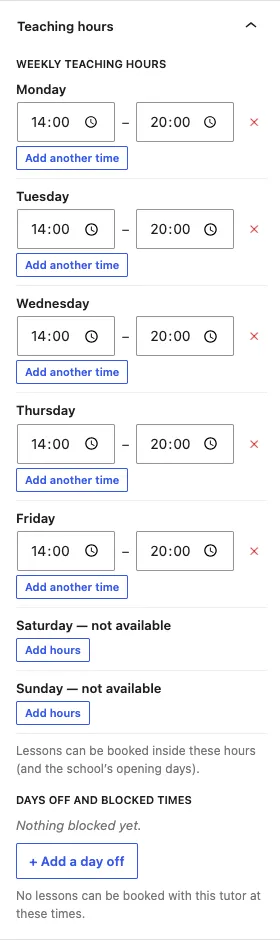
- For each day they teach, set the start and end time, for example 14:00 to 20:00.
- If they teach in two blocks on one day (say a morning and an evening), click Add another time.
- For a day they don't teach, click the red ✕ next to the times. It then says "not available"; click Add hours to teach that day again.
- Under Days off and blocked times, click + Add a day off for holidays, a concert or an appointment. You can block a whole day, a run of days, or part of a day.
Lessons can only be booked inside these hours and the school's opening days. The school's own hours and closed days are in Music school → Settings → Opening days (see Settings).
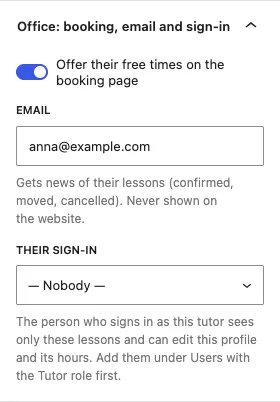
The Office: booking, email and sign-in panel
Only the office can change these; a tutor can't change them on their own profile.
- Offer their free times on the booking page: switch off to take a tutor out of online booking, for example while they're on leave for a term. Their profile still shows.
- Email: where news of their lessons goes (confirmed, moved, cancelled). Never shown on the website.
- Their sign-in: the staff account that belongs to this tutor (see below).
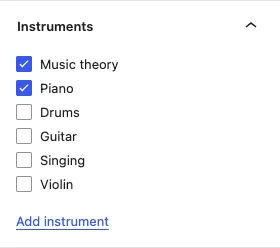
The Instruments panel
Tick each instrument they teach. Click Add instrument to add a new one. See Instruments, lesson types and prices.
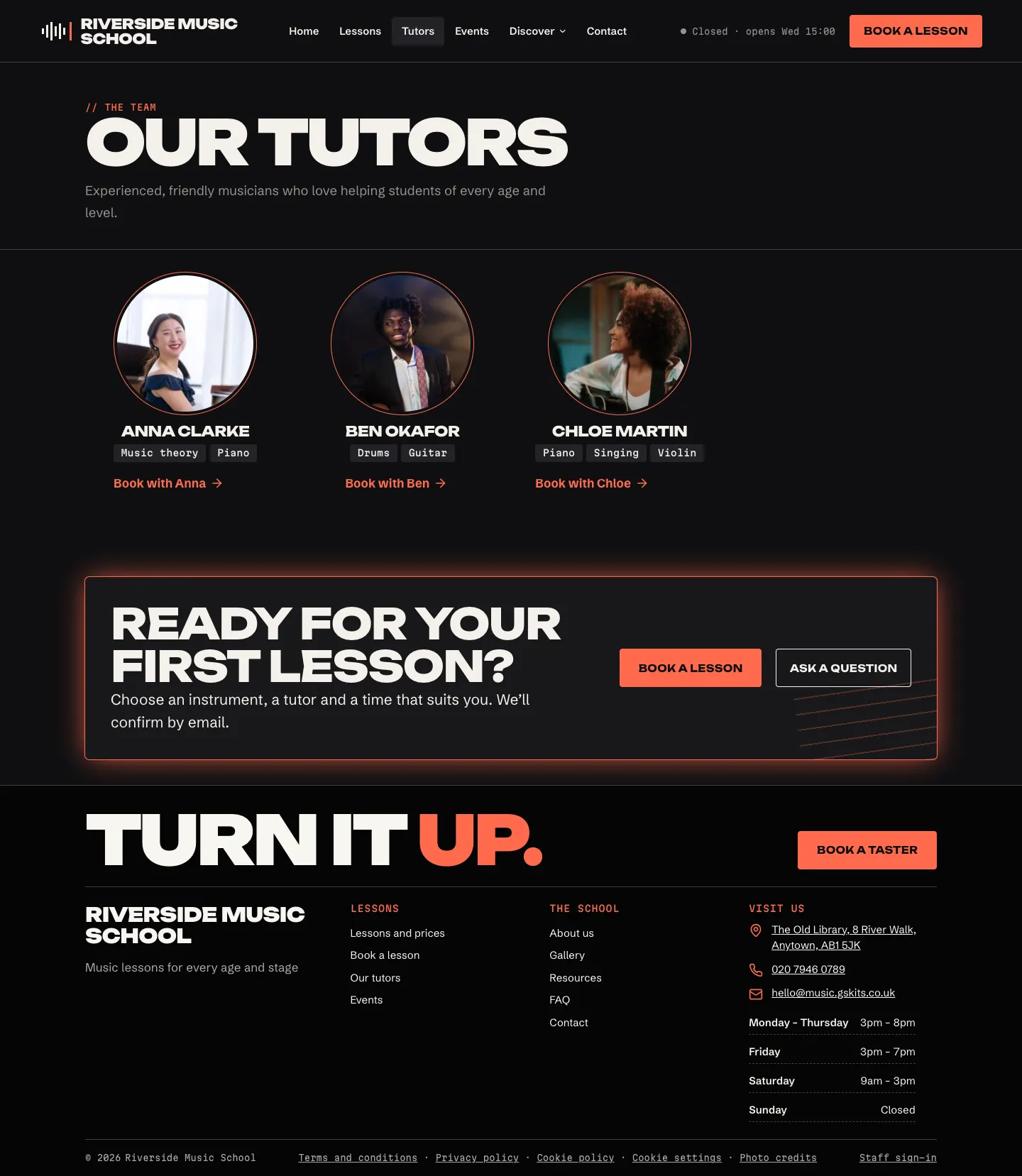
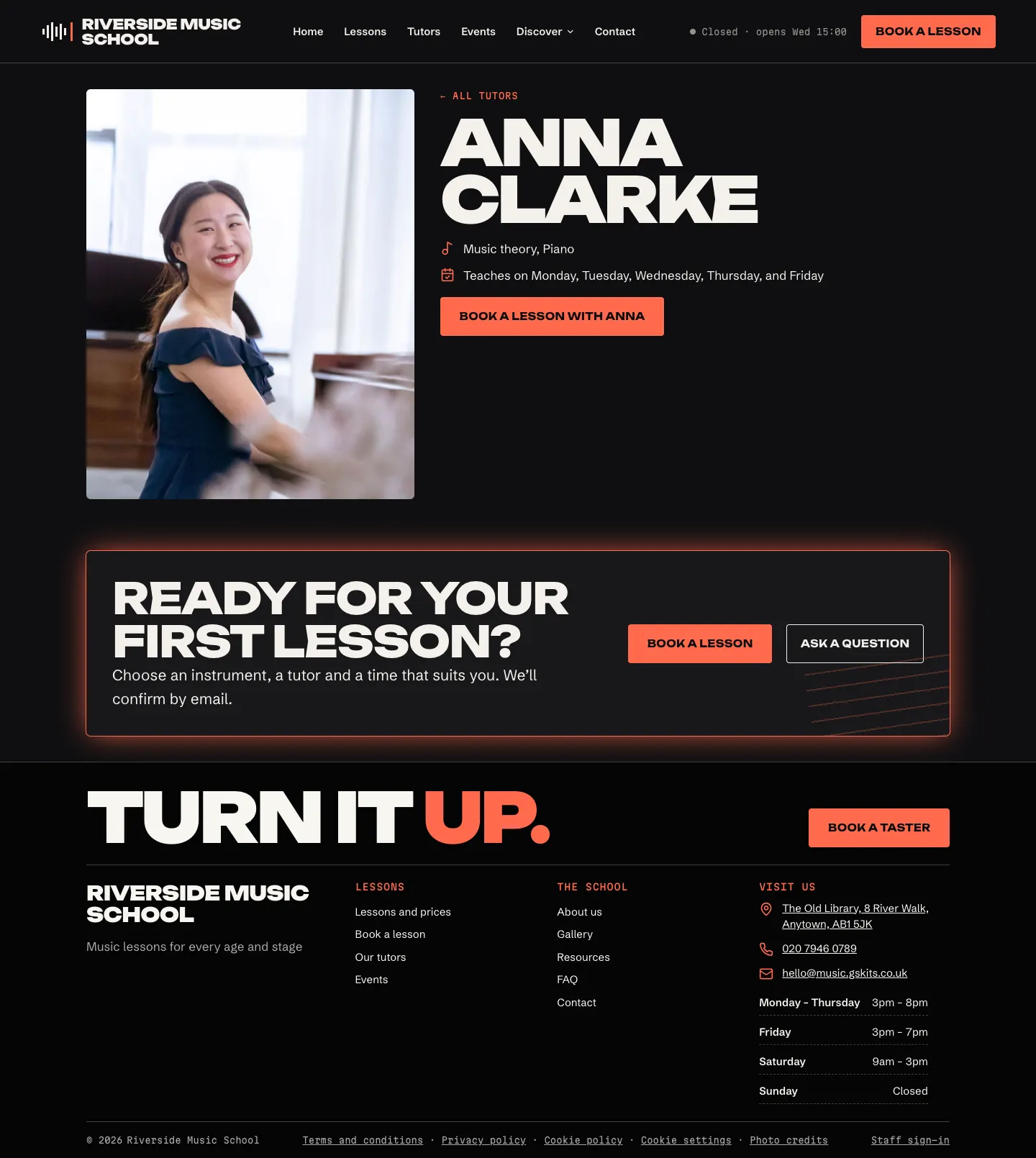
What visitors see
The Tutors page lists every tutor. Each tutor's own page shows their photo, instruments, the days they teach and a button such as Book a lesson with Anna, which opens the booking form with that tutor already chosen.
How to let a tutor sign in
A tutor who signs in sees only their own lessons and can update their own hours and profile. This is optional: many schools let the office do everything.
- Add the tutor as a staff member with the Tutor role: Music school → Staff access → Add staff member (administrators only). See Staff and sign-in.
- Open the tutor's profile in Music school → Tutors.
- In the Office: booking, email and sign-in panel, choose them under Their sign-in.
- Click Save.
When the tutor signs in they see:
- Music school → Today, Lessons and Calendar, showing only their own lessons;
- My teaching hours: their weekly hours (with Add hours, Remove and Not teaching), and a box for Days off and blocked times, one per line, for example
2026-12-24 Christmas Eve,2027-02-15 to 2027-02-19 Half termor2026-11-03 16:00-18:00 Dentist. They click Save my hours and online booking uses the new hours straight away; - My profile: their own profile, where they can change their words, photo, short title, instruments, the lessons they teach and what visitors can do on their page.
Their name, web address, email, whether they're bookable and their sign-in stay with the office. Tutors can't confirm, move or cancel lessons; their screen says "The office confirms, moves and cancels lessons. Contact them if something needs to change."
Calendar feeds for tutors (Pro)
Each tutor who signs in has their own private calendar address at the bottom of Music school → Calendar. Added to the calendar on their phone, it shows their lessons. See Lessons and the calendar.
How to remove a tutor
To stop new bookings but keep their page, switch off Offer their free times on the booking page. To take them off the website altogether, open Music school → Tutors, hover over their name and click Trash. Their past lessons stay on the calendar. Move or cancel their future lessons first (see Lessons and the calendar).