Running your website
Students and parents
How student records are made from bookings, what they hold (including a parent or guardian), how to add one by hand, and how to export, erase and review records for data protection.
On this page
Every student has a simple record: their name, the parent or guardian who books for them (if they're a child), contact details, age group, level, staff notes and a list of all their lessons. You don't have to type these in: the first time someone books, a record is made for them, and later bookings with the same email address and student name are added to it.
Students and parents don't have accounts or passwords on your website. They manage each lesson through the private link in their emails (see Online booking).
Because students may be children, only administrators and the Office role can see student records by default.
The Students list
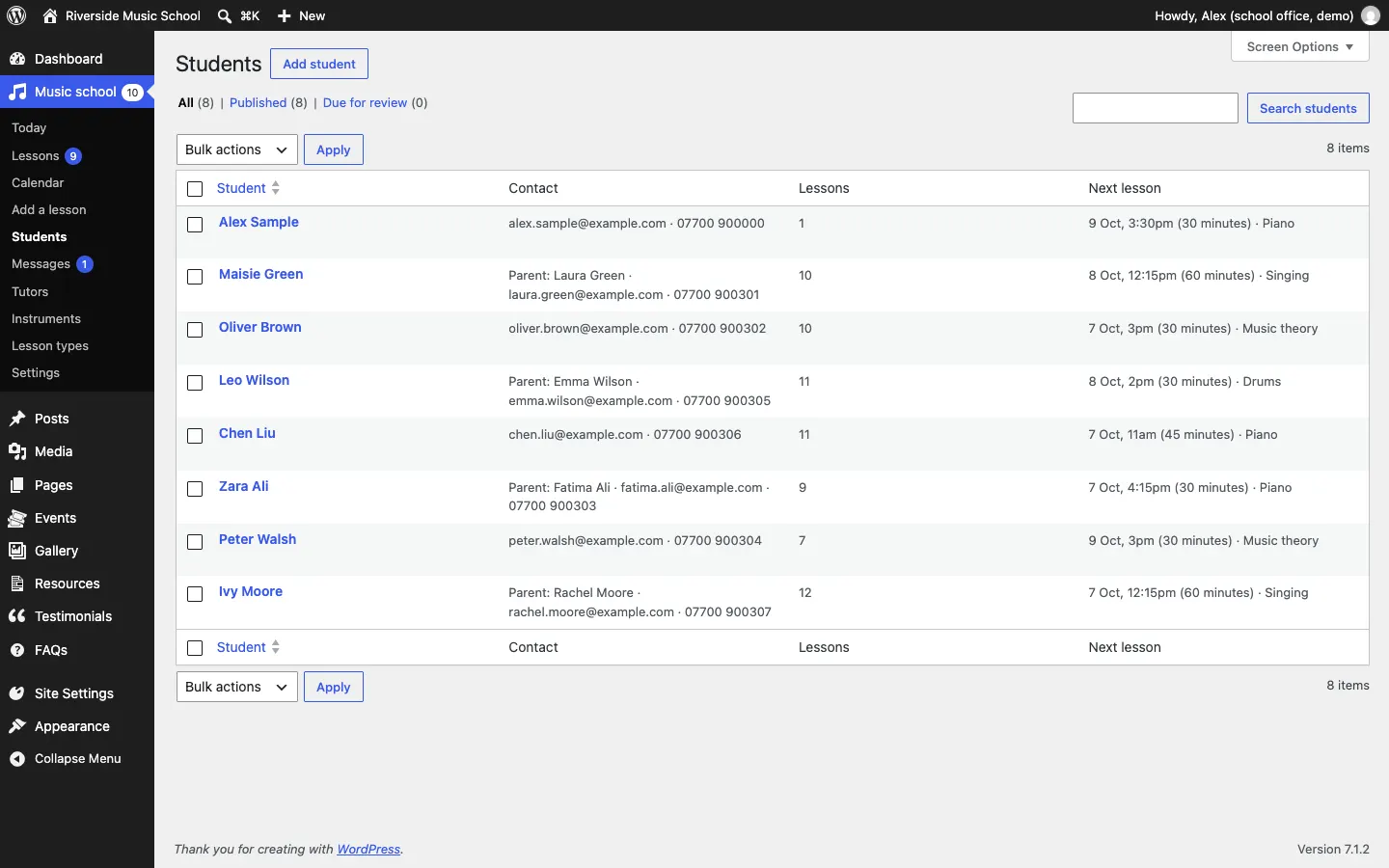
Go to Music school → Students. Each row shows the student, their contact details (with "Parent:" and the parent's name when someone books for a child), how many lessons they've had and their next lesson.
How to see a student's record
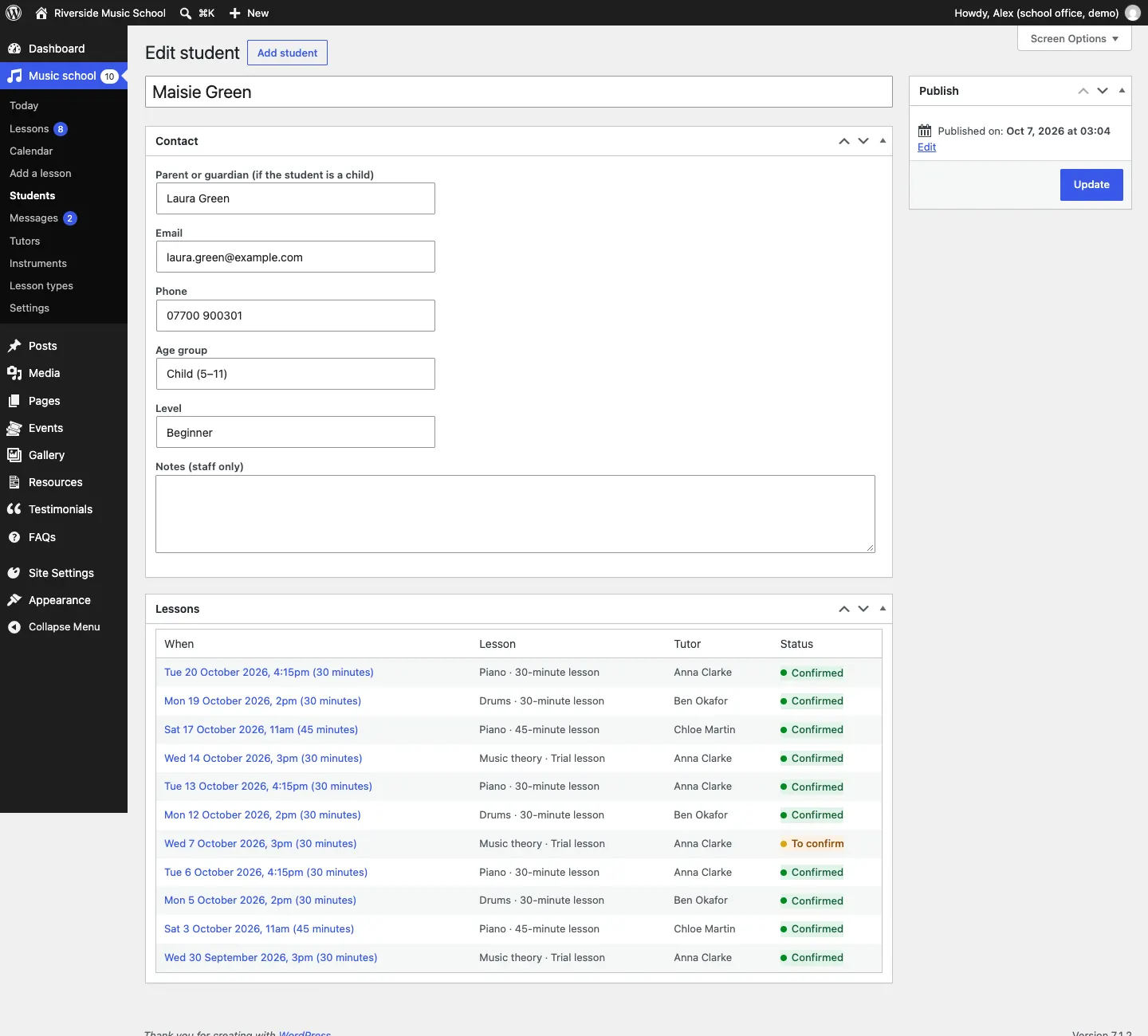
Click the student's name. You see:
- Contact: Parent or guardian (if the student is a child), Email, Phone, Age group, Level and Notes (staff only);
- Lessons: every lesson they've booked, newest first, with the tutor and status. Click a lesson to open it.
Change anything you need and click Update.
How to add a student by hand
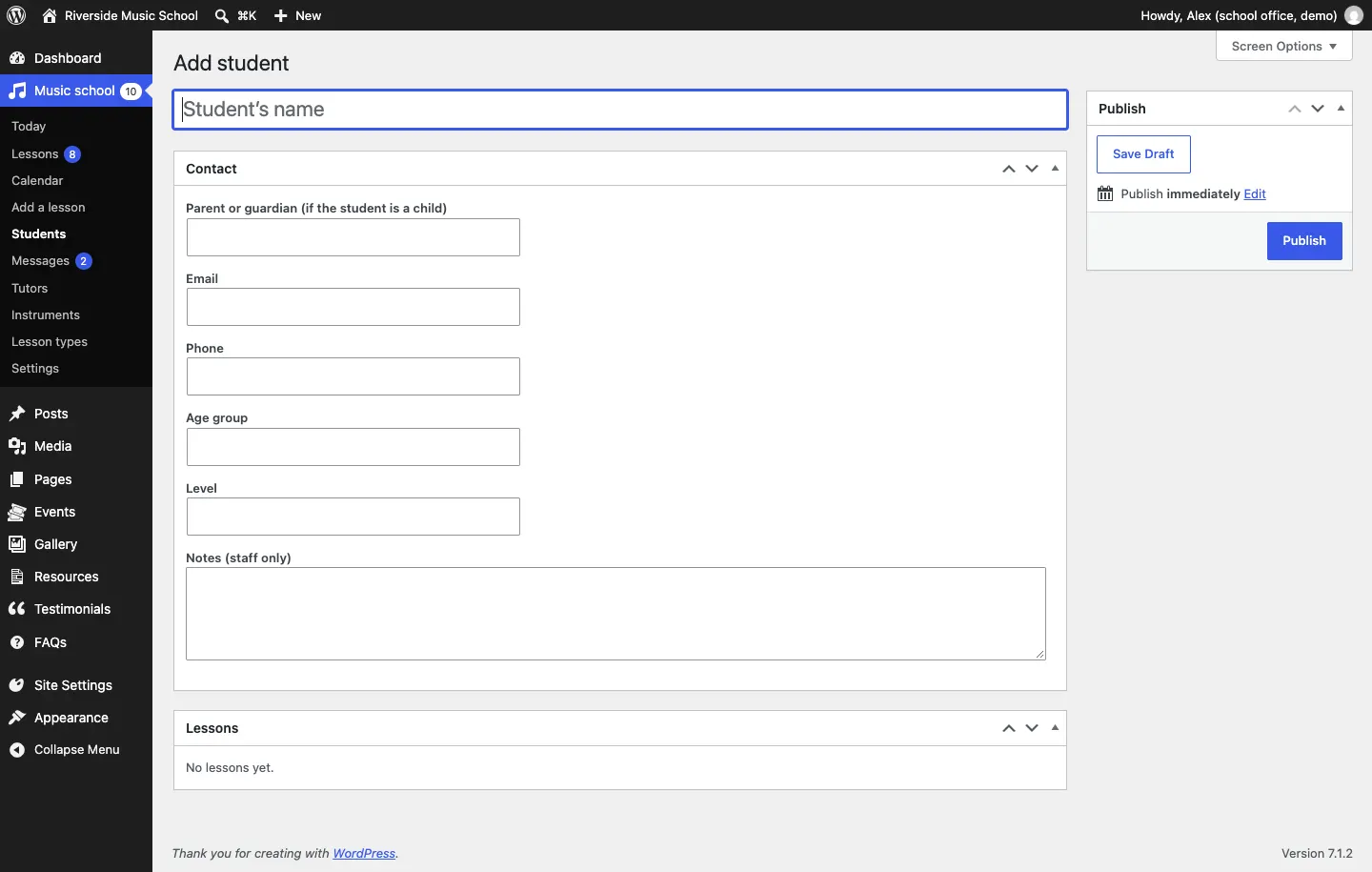
- Go to Music school → Students and click Add student (or Music school → Add student).
- Type the Student's name at the top.
- Fill in the Contact box.
- Click Publish.
To book them a lesson, use Music school → Add a lesson with the same email address (see Lessons and the calendar).
Parents and guardians
When a parent books for a child, they type their own name in Your name and the child's in Student's name (if not you). The record is in the child's name, with the parent in Parent or guardian, and all emails go to the parent's address. In the Lessons list this shows as the student's name with "Booked by" and the parent's name.
The booking form's privacy note and your starter privacy policy ask parents to book for under-18s. Never publish a child's details or photo without their parent's permission.
Data protection: copies and deleting
If someone asks for a copy of the data you hold about them, or asks you to delete it, an administrator uses WordPress's own tools:
- Tools → Export Personal Data: type their email address and send them the file. Their student record and lessons are included.
- Tools → Erase Personal Data: type their email address to remove their details. Their past lessons stay on the calendar with "(details removed)".
See Privacy and emails for how these requests work.
How to review old records
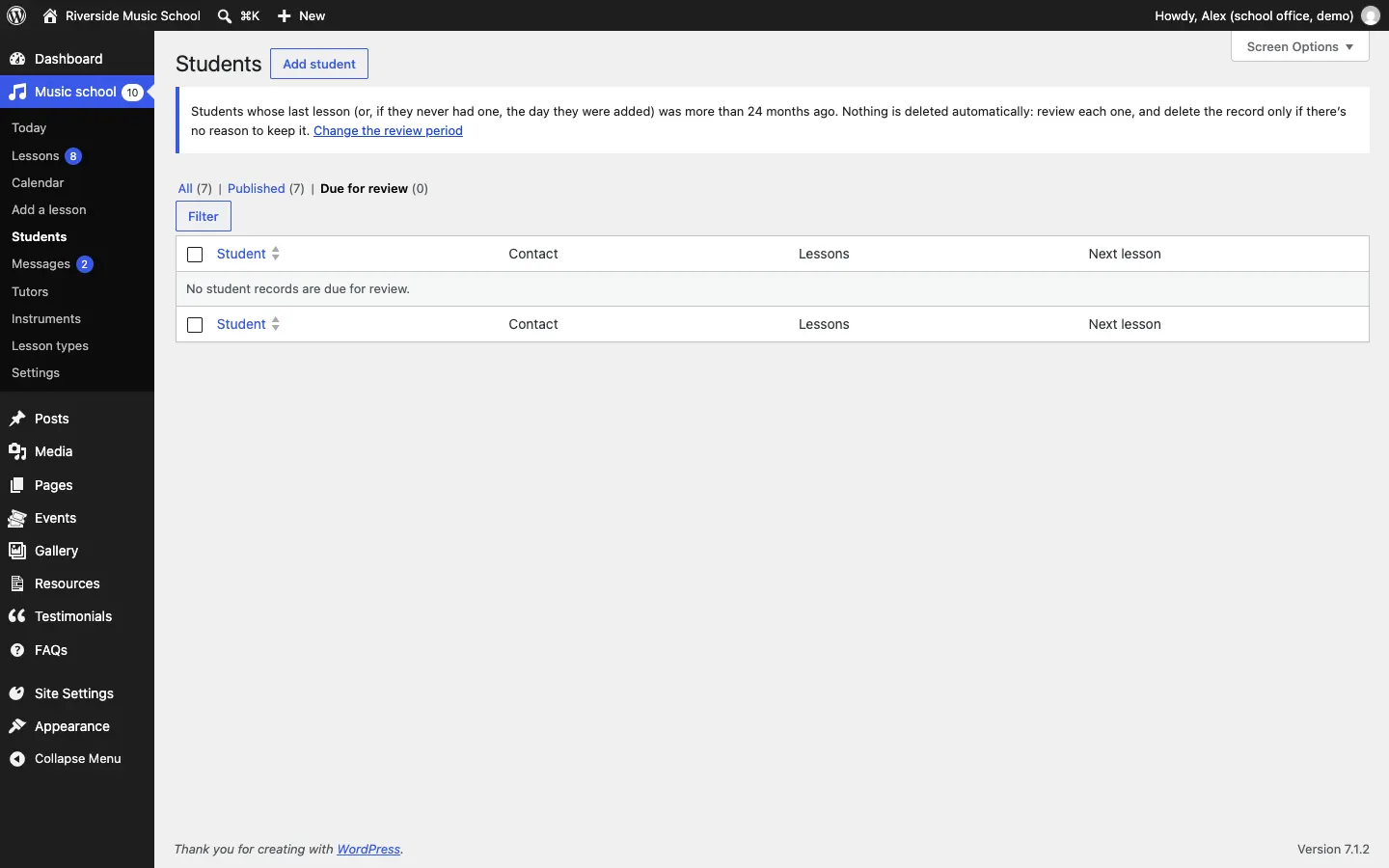
Data protection law asks you to keep personal data only as long as you need it. The kit never deletes student records by itself. Instead, it lists students whose last lesson (or, with no lessons, the day they were added) is older than the time you set, so an administrator can decide.
-
Set the time in Music school → Settings → Records: Review students after (months since their last lesson), 24 by default. See Settings.
-
Go to Music school → Students and click Due for review. Today also shows when some are due.
-
Tick the students there's no reason to keep.
-
Choose Delete selected.
-
Type DELETE in the box to confirm, and click Delete for good.
Their lessons stay on the calendar without their details. This can't be undone. Only administrators can delete from the review list.