Setting up
Designs, pages and menus
The seven designs and seven colour palettes of the Music theme, how to preview and choose one, and the pages and menus the setup wizard makes.
On this page
The Music theme comes with seven designs. A design sets the fonts, shapes, home page layout and mood; a colour palette sets the accent colours. Your content stays the same whichever you choose: your instruments, tutors, lessons, prices, events and opening hours fill every design automatically. You can change design at any time without losing anything.
This chapter shows each design, then the pages and menus the kit makes. For the general steps (logo, menus, sticky header, footer) see Your look.
How to choose a design and colours
- Go to Site Settings → Design & colours.
- Under Design, click a design. Each one has a short description.
- Under Colour palette, choose The design's own colours or one of the seven palettes: Coral, Teal, Emerald, Plum, Cobalt, Navy & red or Charcoal & gold.
- Under Header, tick Keep the menu at the top when scrolling if you want the menu always in view.
- Click Preview on the site. The home page opens in a new tab with your choice, just for you. Visitors still see the old look.
- When you're happy, click Save.
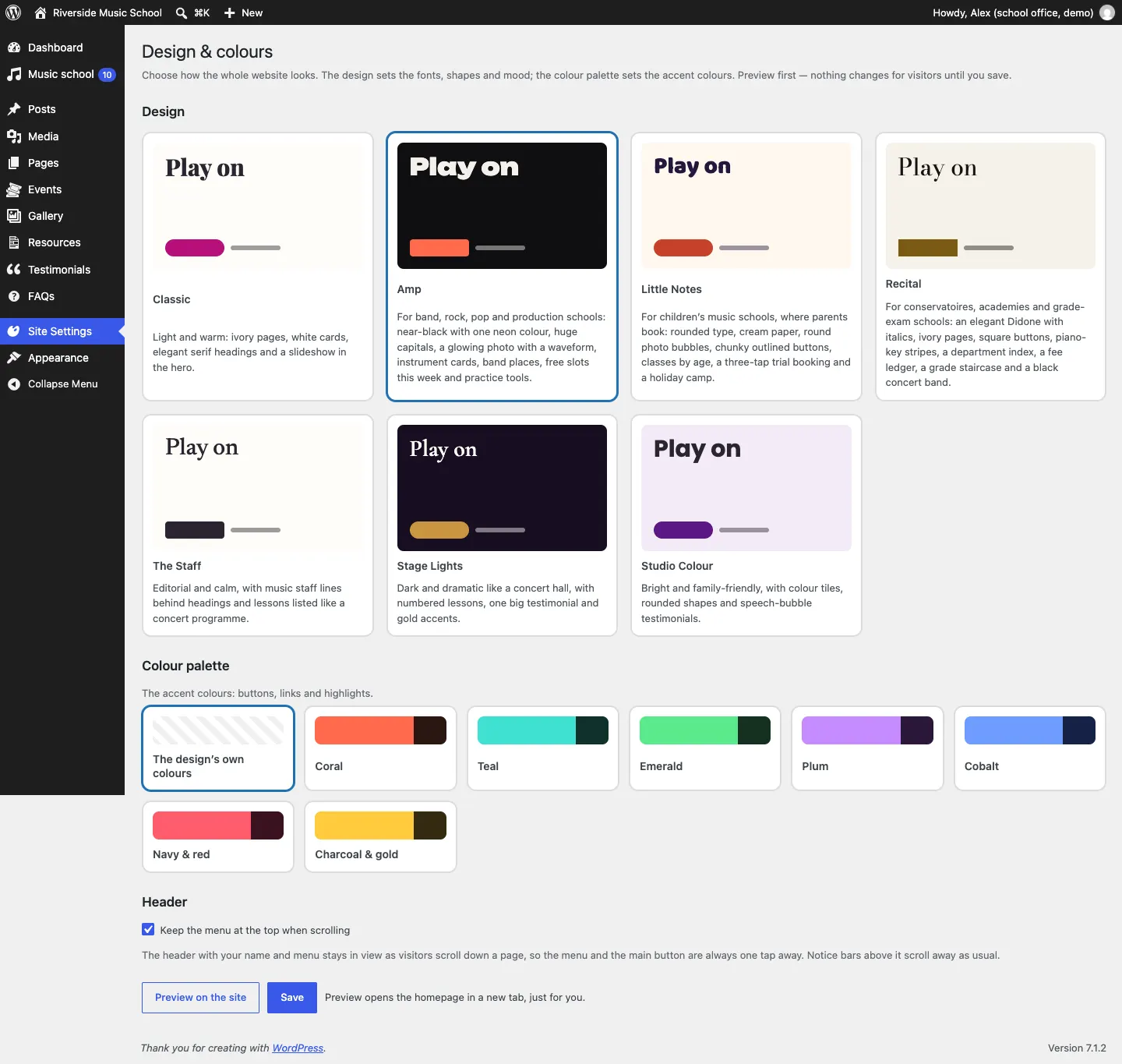
The seven designs
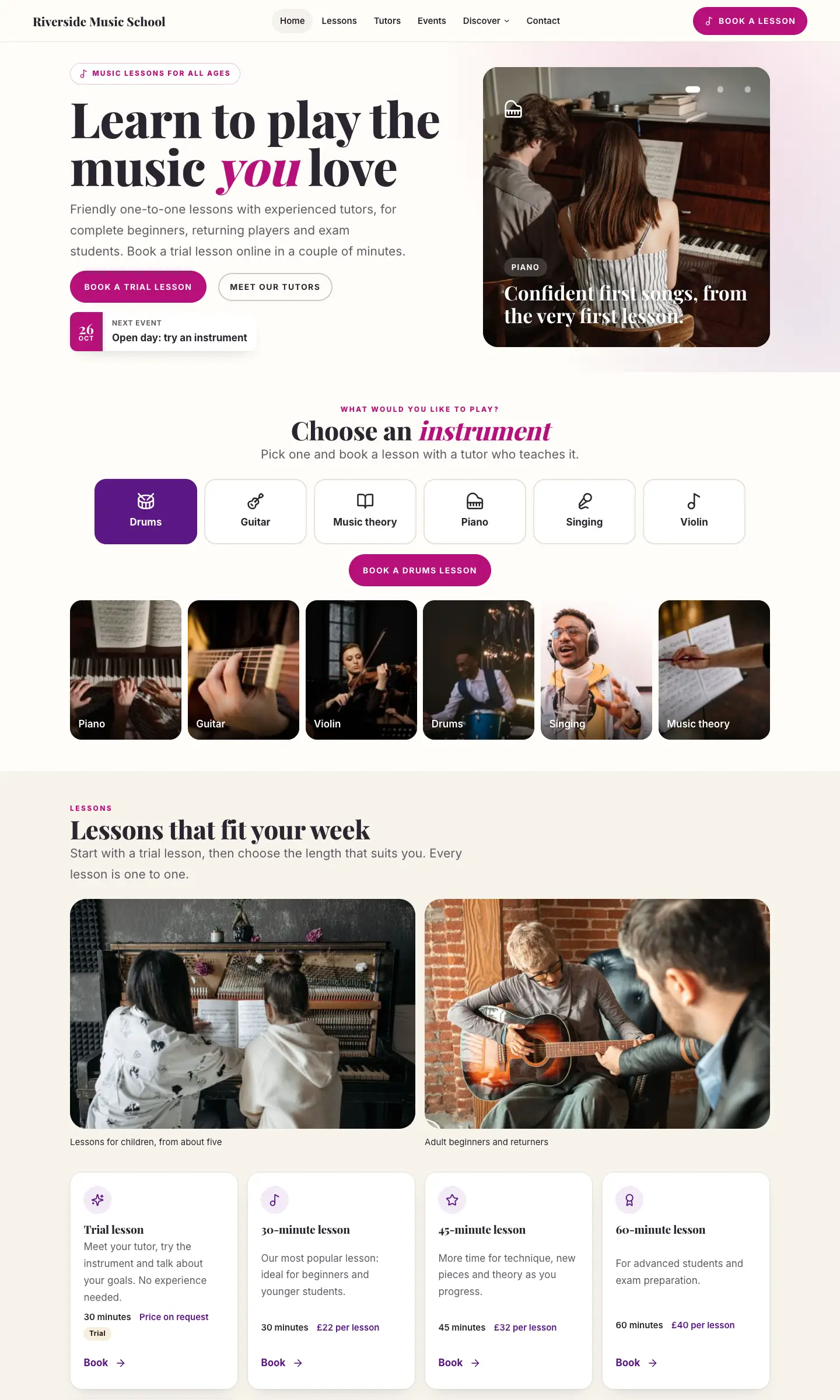
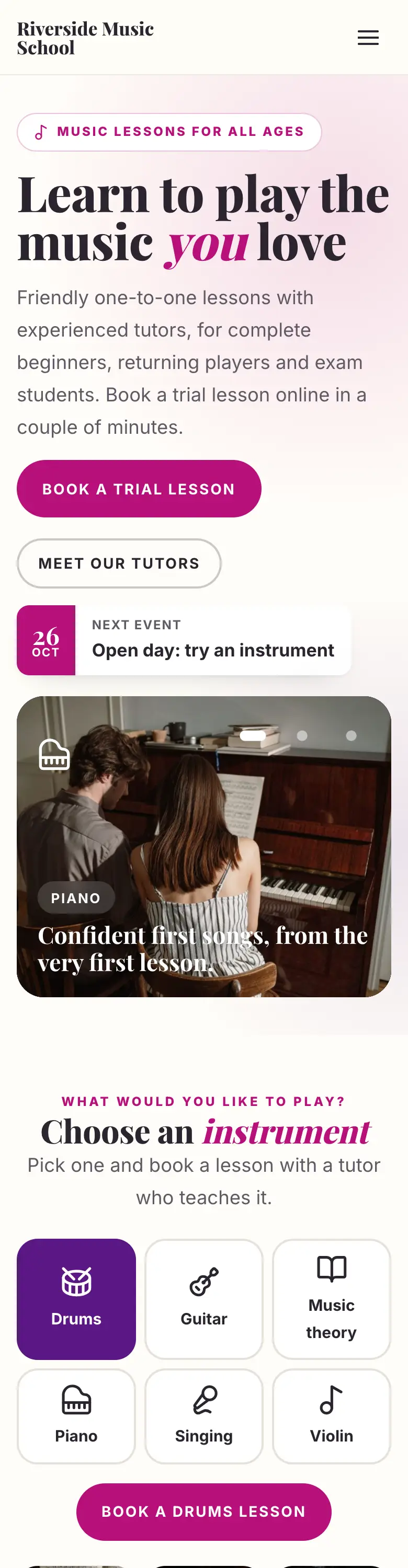
Classic
Light and warm: ivory pages, white cards, elegant serif headings and a slideshow in the hero. A safe choice for most schools.
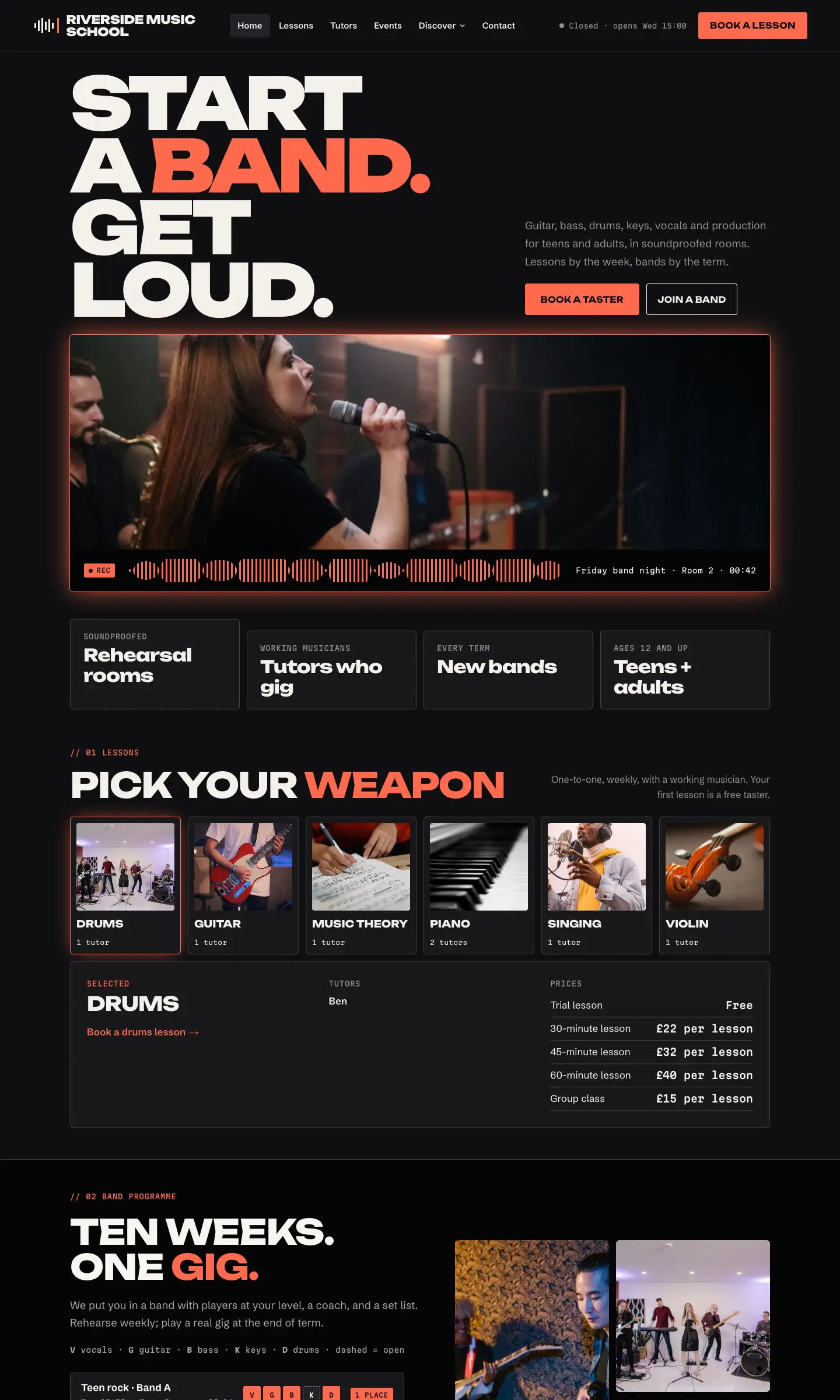
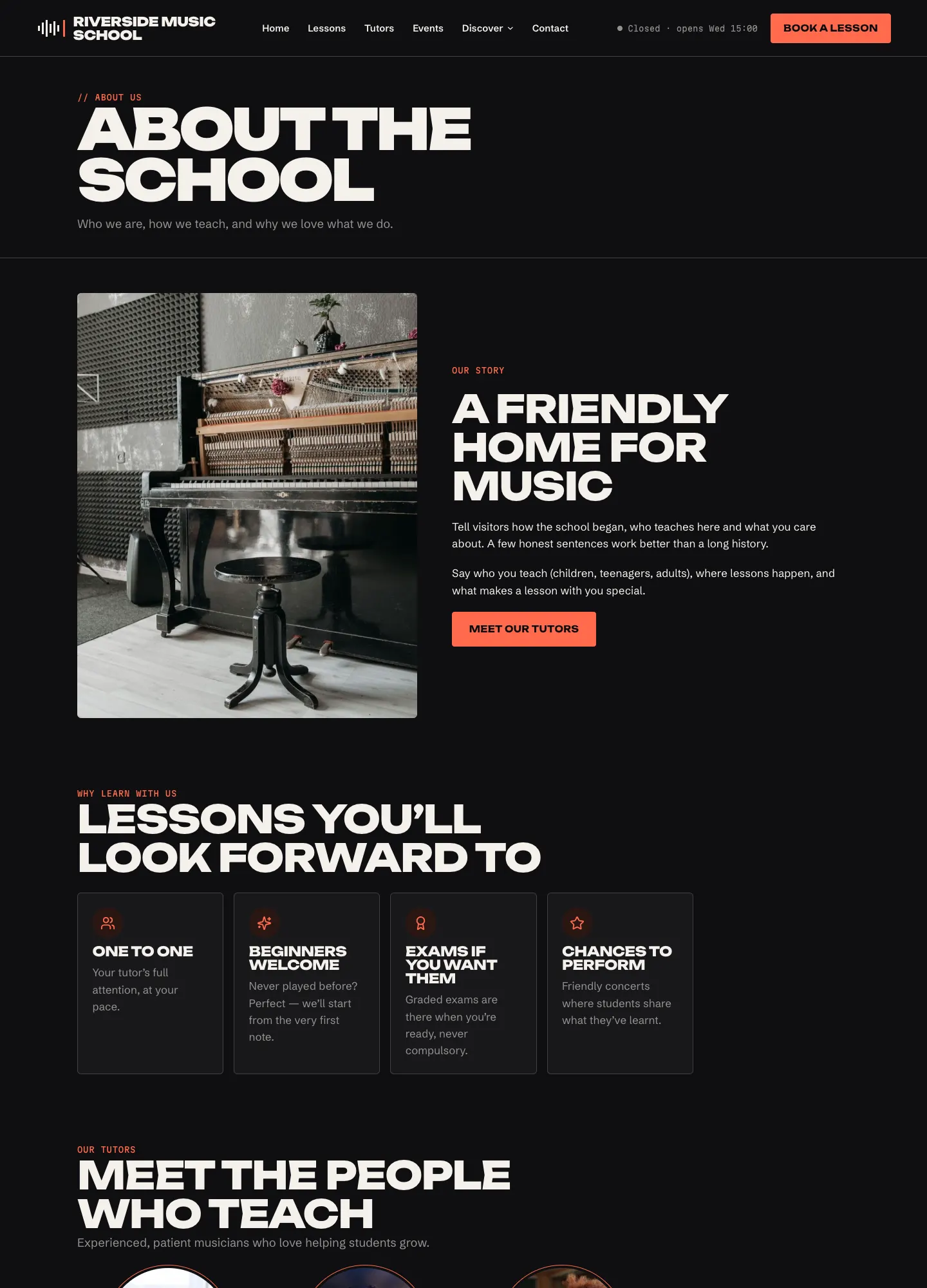
Amp
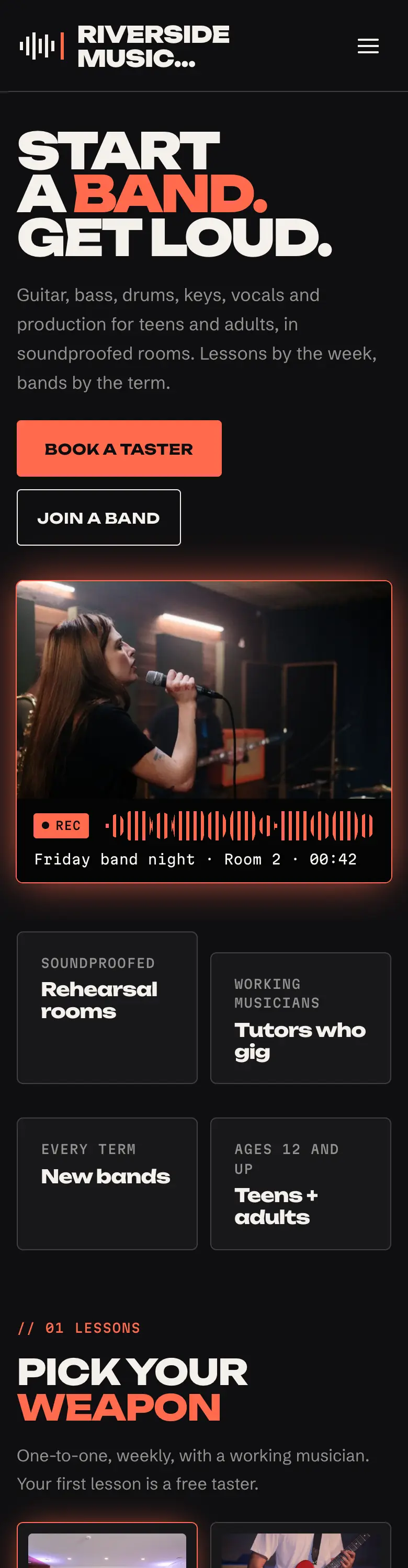
For band, rock, pop and production schools: near-black pages with one neon colour, huge capitals, a glowing photo with a waveform, instrument cards, band places, the free slots this week and practice tools.
Little Notes
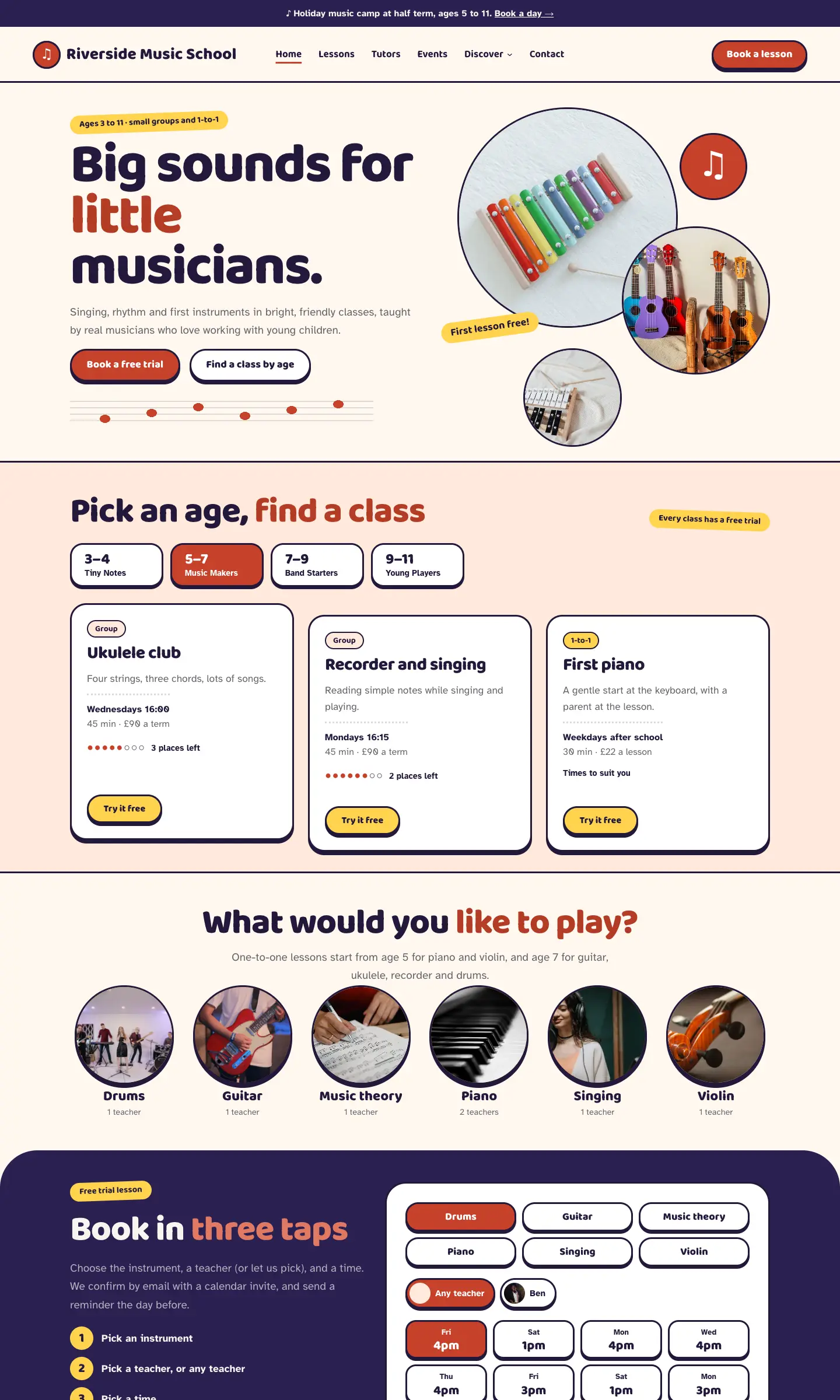
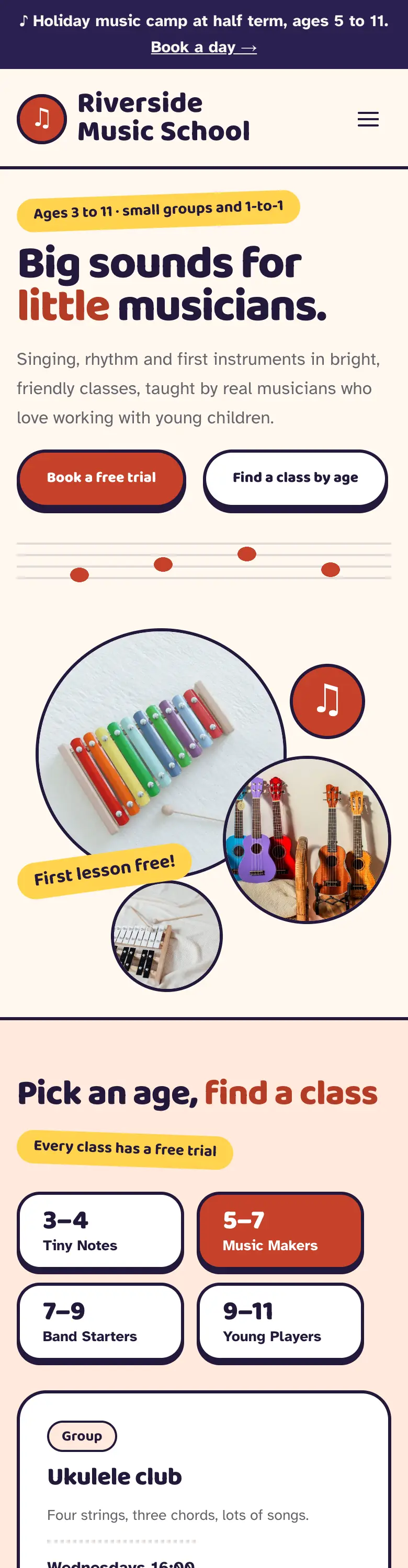
For children's music schools, where parents book: rounded type, cream paper, round photo bubbles, chunky outlined buttons, classes by age, a three-tap trial booking and a holiday camp section.
Recital
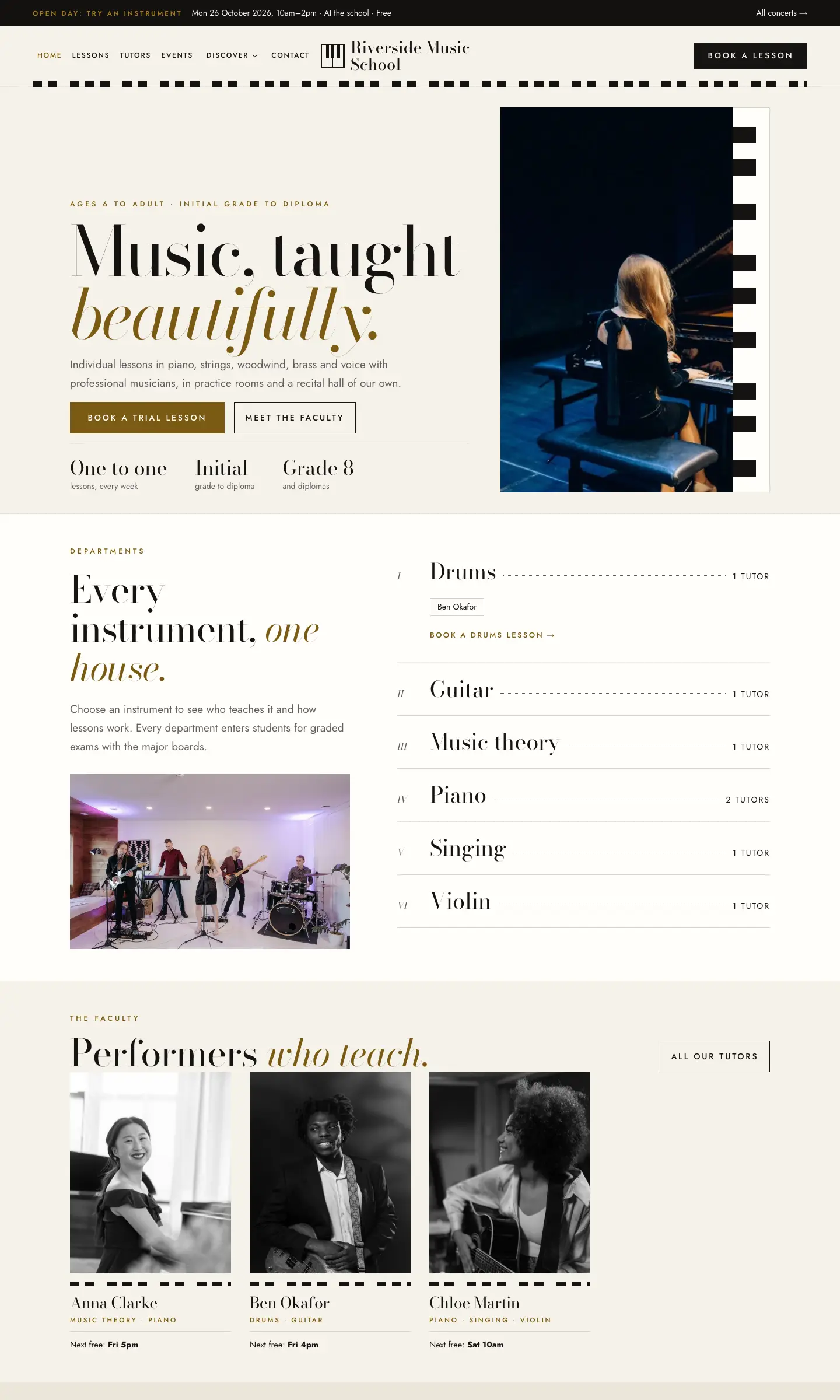
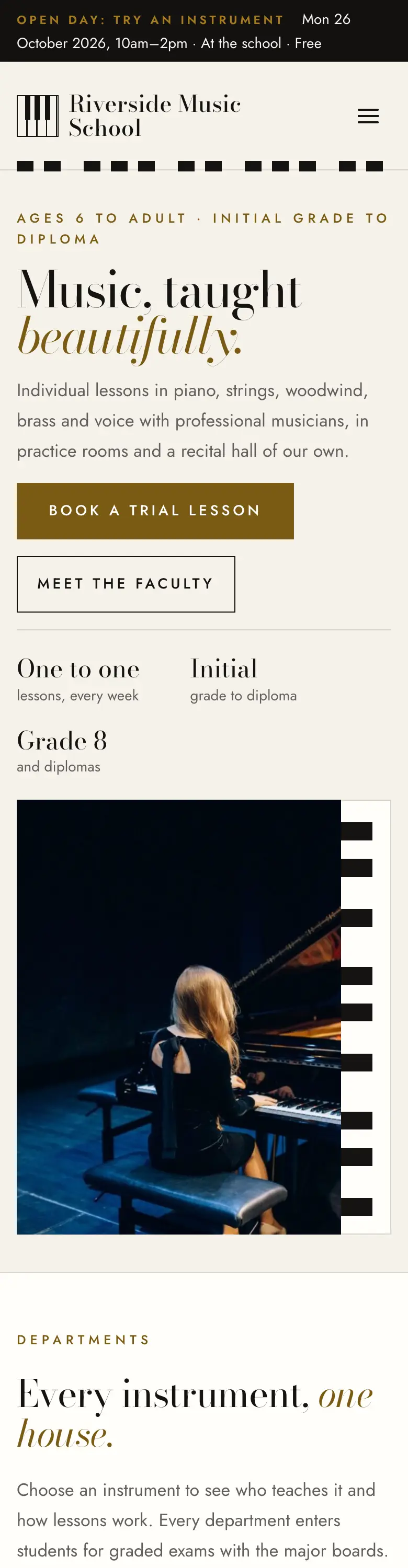
For conservatoires, academies and grade-exam schools: an elegant high-contrast serif with italics, ivory pages, square buttons, piano-key stripes, a department index, a fee ledger, a grade staircase and a black concert band.
The Staff
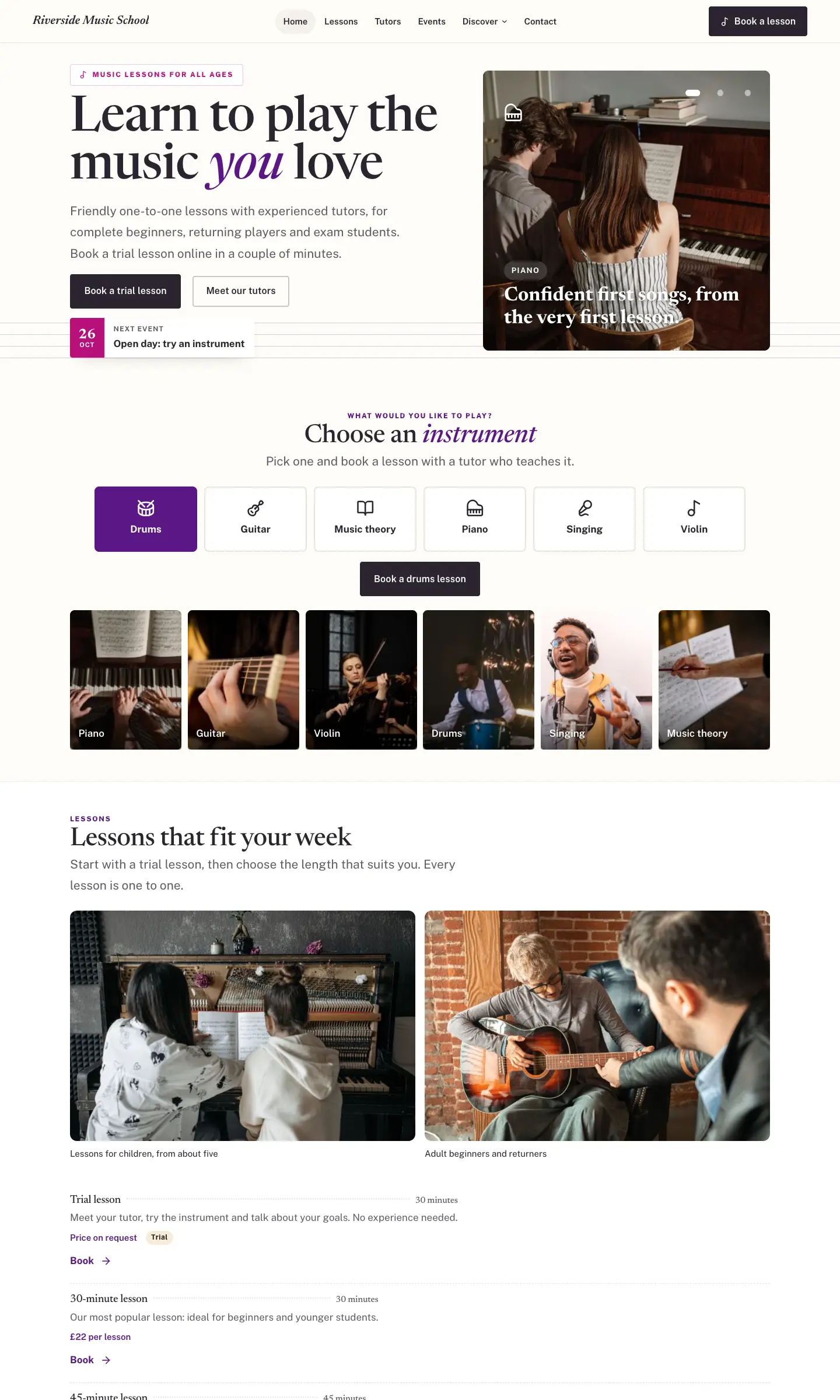
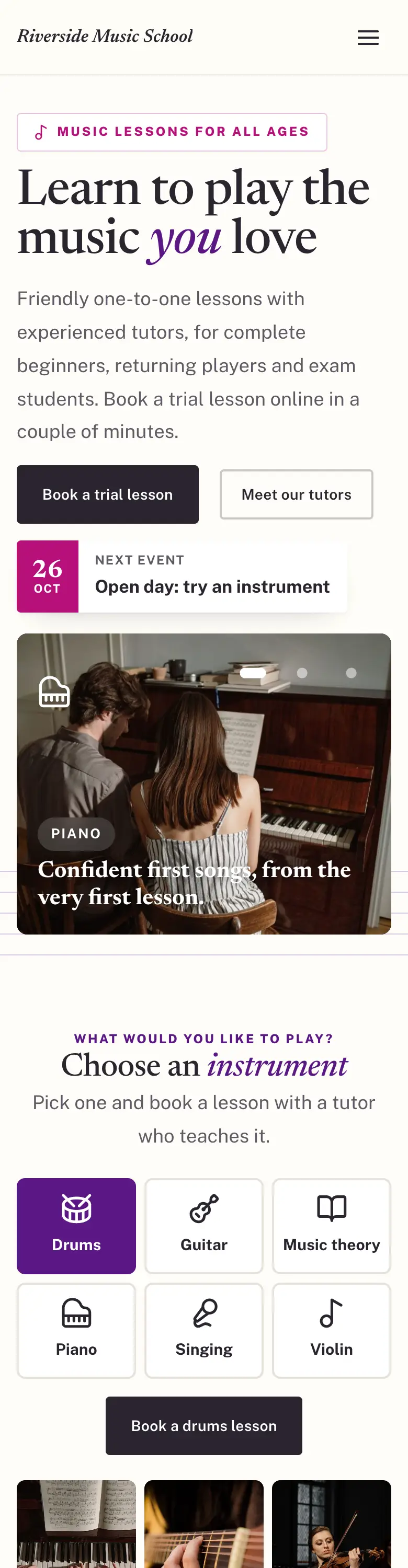
Editorial and calm, with music staff lines behind headings and lessons listed like a concert programme.
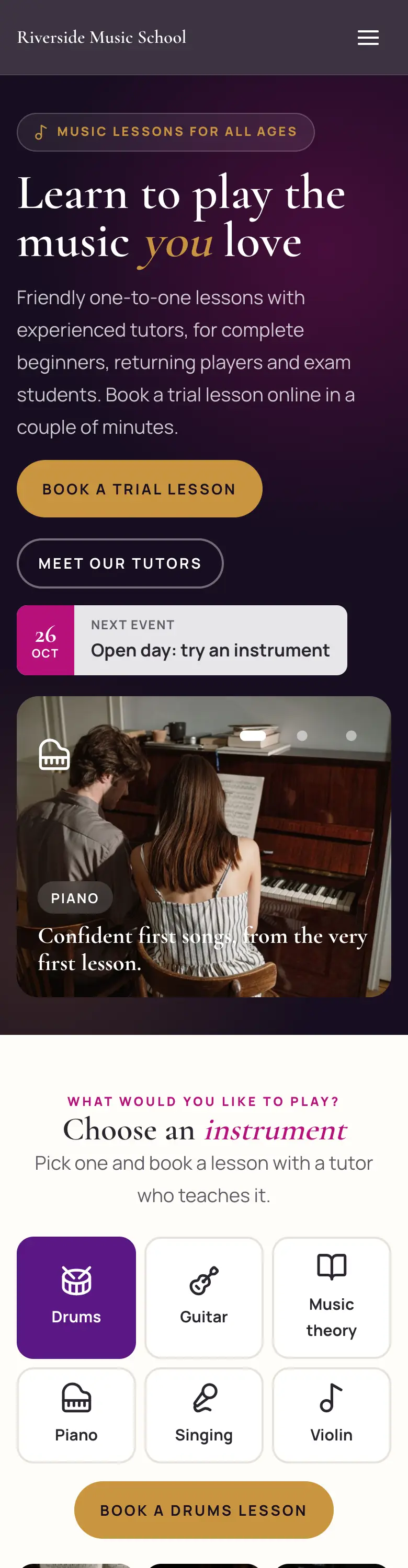
Stage Lights
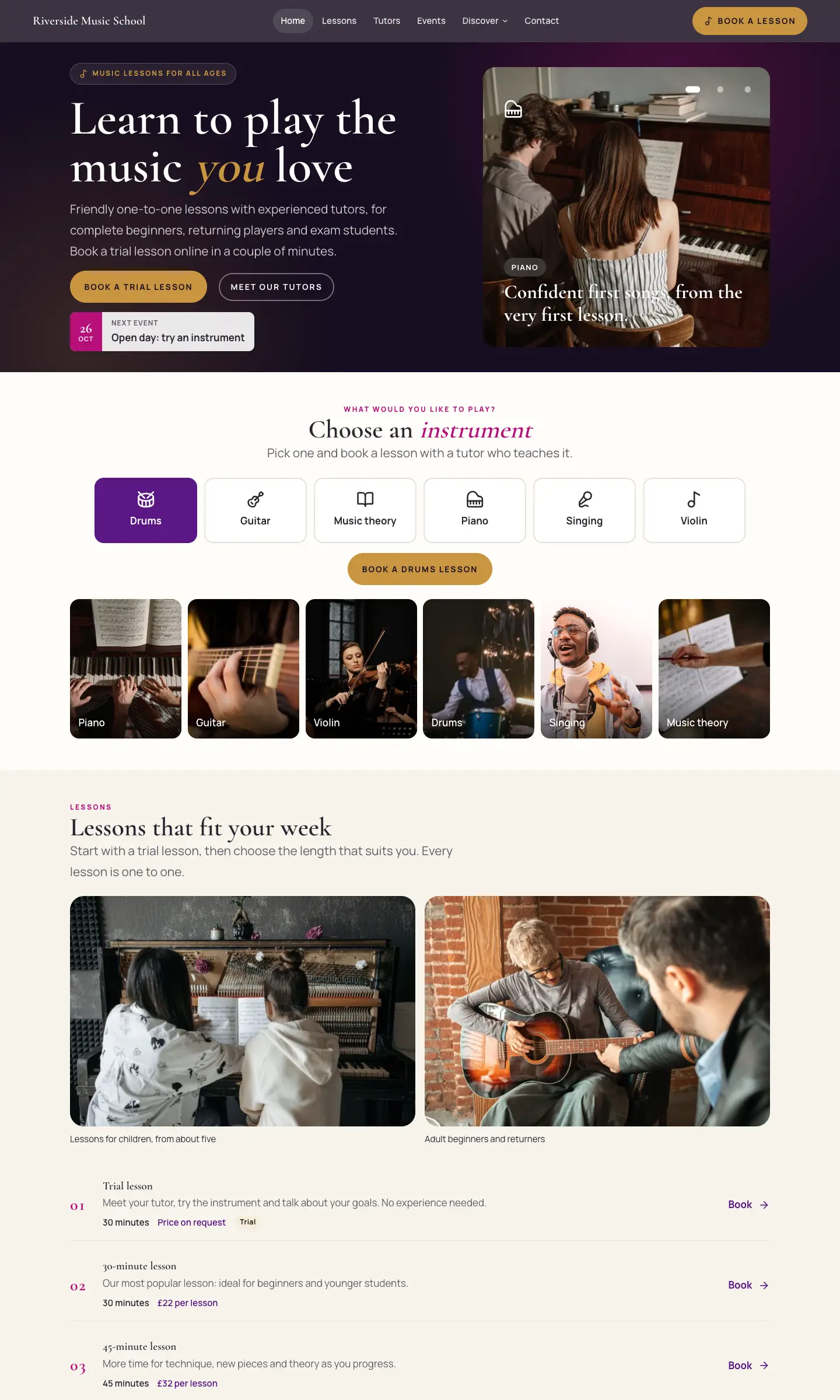
Dark and dramatic like a concert hall, with numbered lessons, one big testimonial and gold accents.
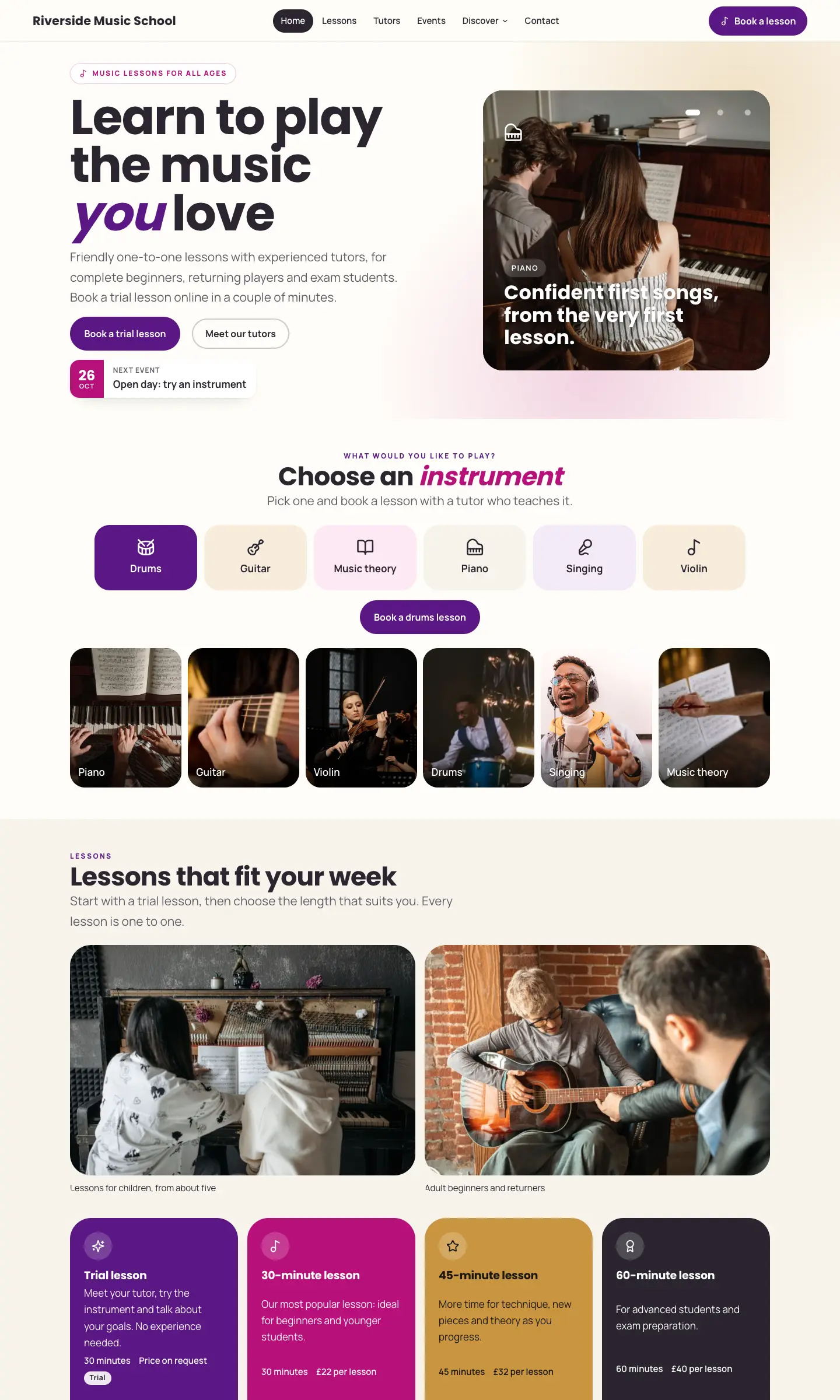
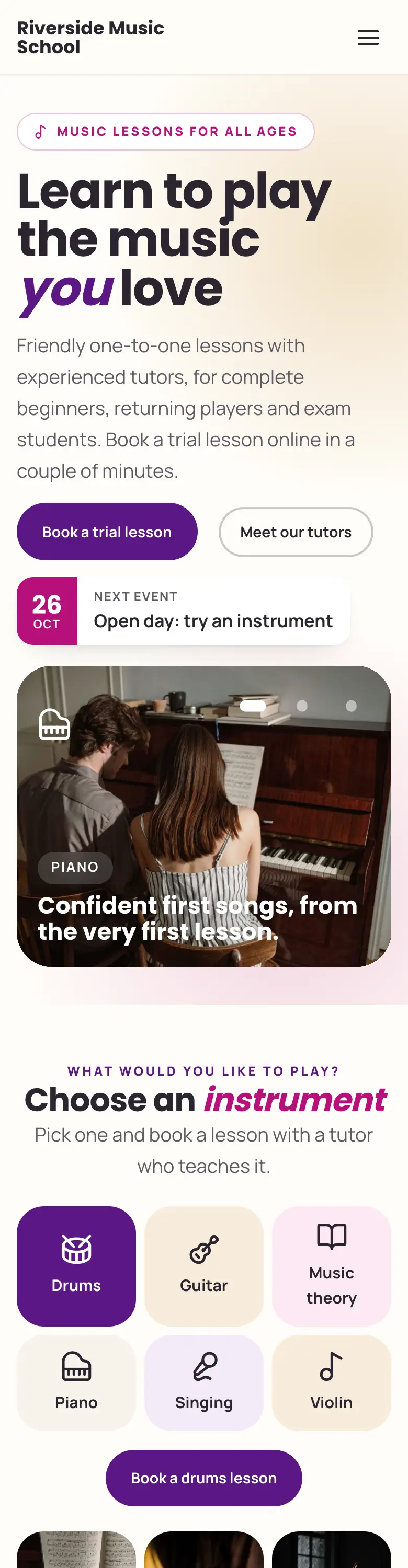
Studio Colour
Bright and family-friendly, with colour tiles, rounded shapes and speech-bubble testimonials.
The pages the kit makes
The setup wizard adds these pages (you can leave some out). Edit their words and pictures as described in Pages and content.
| Page | What's on it |
|---|---|
| Home | The design's home page: hero, instruments, lessons and prices, tutors, events, testimonials and a booking button |
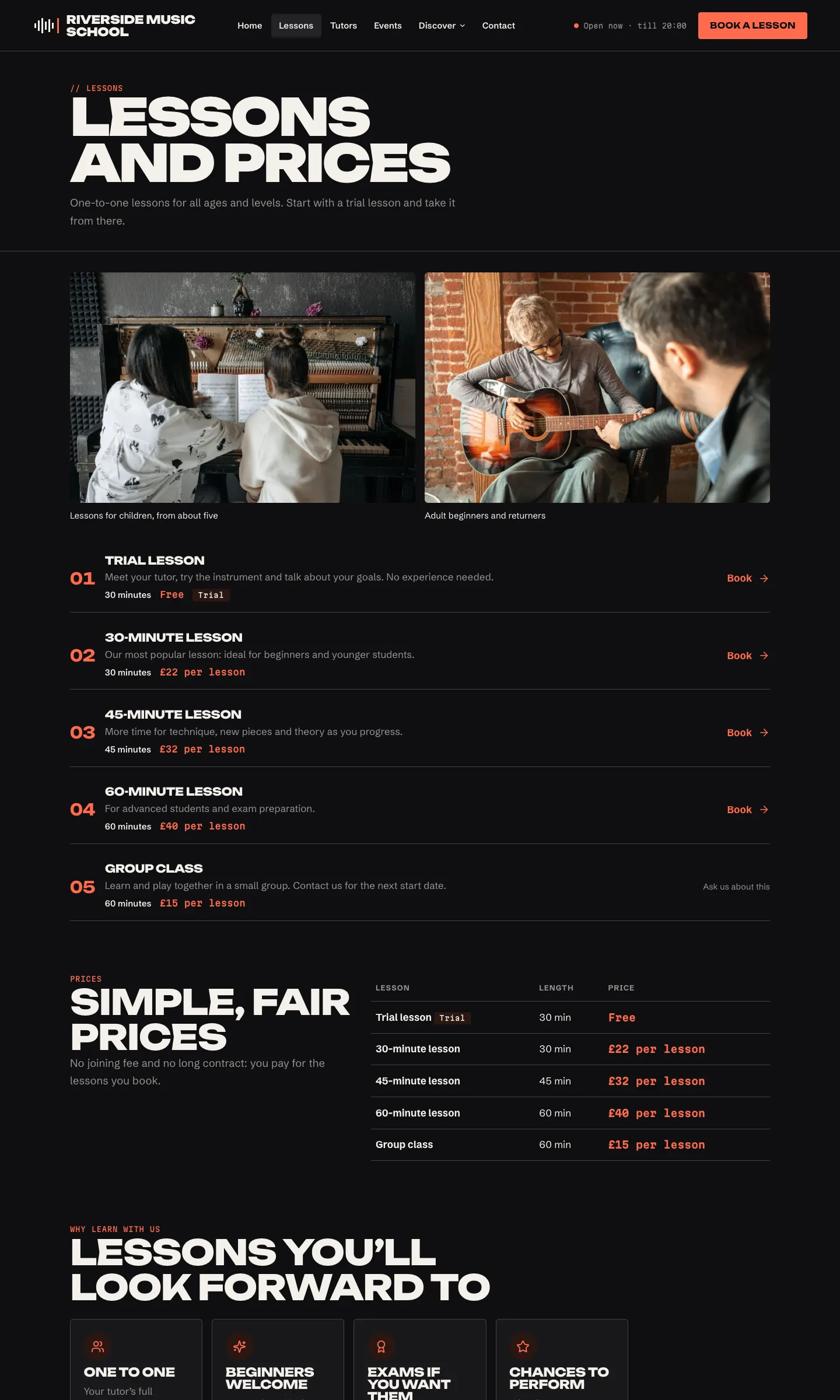
| Lessons and prices | Your lesson types with lengths and prices, a price table and why to learn with you |
| Book a lesson | The online booking form (see Online booking) |
| About us | Your story |
| Contact | Your address, map, phone, opening days and the contact form |
| FAQ | Your questions and answers |
| News | Your blog posts |
| Practice tools (Pro) | The tuner and metronome (see Practice tools) |
| Terms and conditions, Privacy policy, Cookie policy | Starter legal pages filled from Settings → Privacy |
| Photo credits | Credits for the sample photos |
These pages are made for you from your records, so you don't edit them as pages:
- Tutors (
/tutors/) and each tutor's own page, from Music school → Tutors; - Events (
/events/) and each event, from Events; - Gallery (
/gallery/) and each album, from Gallery; - Resources (
/resources/) and each resource, from Resources.
The menus
The wizard sets up:
- The main menu: Home, Lessons, Tutors, Events, Discover (a drop-down with Gallery, Resources, News, About and FAQ) and Contact, with a Book a lesson button on the right. In some designs the header also shows whether you're open now, for example "Closed · opens Wed 15:00", worked out from your opening days.
- The footer: your name and tagline, a Lessons column (Lessons and prices, Book a lesson, Our tutors, Events), a The school column (About us, Gallery, Resources, FAQ, Contact), and Visit us with your address, phone, email and opening days. Along the bottom: the copyright line, the legal pages, Cookie settings, Photo credits and Staff sign-in.
On a phone, the main menu folds into a menu button at the top right.
To change the menus, see Your look. The address, phone, email and opening days come from Music school → Settings, so change them there and every page updates.