Running your website
The attendance register (Pro)
Taking the register for a day's lessons and groups (present, late, absent, excused, with a note), what it changes on one-to-one lessons, and downloading the register as a spreadsheet.
On this page
The register records who came to each lesson and group session: Present, Late, Absent or Excused, with an optional note per student. The office can take it for every lesson; each tutor takes it for their own. You can download it as a spreadsheet for any dates, for example for a parents' report or your own records.
The register needs a Pro or Agency licence. Features marked (Pro) need a Pro or Agency licence.
How to take the register
- Go to Tutoring → Attendance. It opens on today. (From Tutoring → Today, Today's register → does the same; on a group session's screen, click Register.)
- To see another day, use the arrows or type a date, and click Show. To see one tutor's lessons, choose them in the Every tutor menu.
- Each lesson is listed with its time, name and tutor, and the students in it.
- For each student, choose Present, Late, Absent or Excused.
- Optionally, type a Note (for example "Left 20 minutes early" or "Homework not done").
- Click Save the register at the bottom.
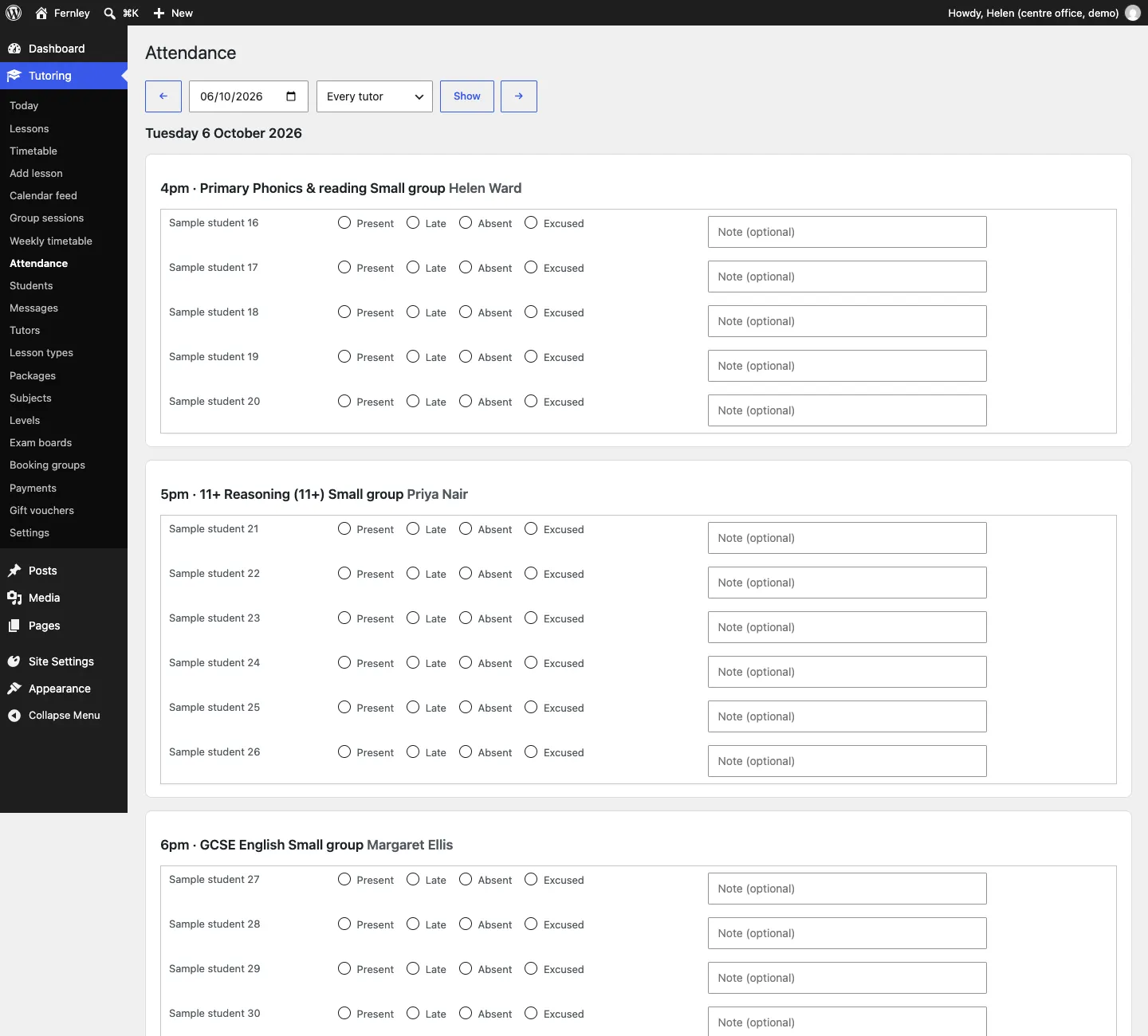
Marking a one-to-one lesson that has started also sets its status: Present or Late marks it Taught, Absent marks it Didn't come.
What tutors see
A tutor who signs in sees only their own lessons on Attendance, and takes the register for those. See Tutors.
How to download the register
- Go to Tutoring → Attendance and scroll to the bottom.
- Under Download the register, choose the From and To dates.
- Click Download CSV.
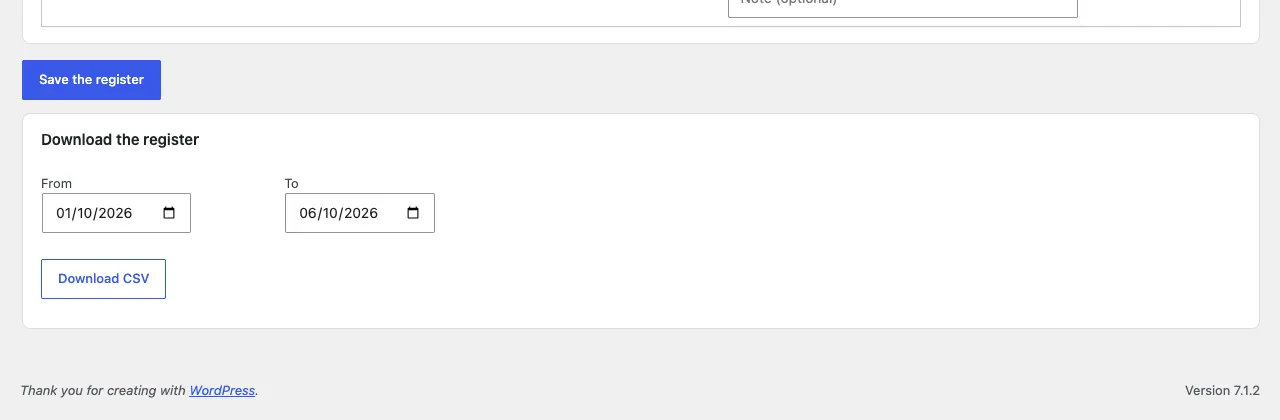
You get a spreadsheet file (CSV, which opens in Excel, Numbers or Google Sheets) with one row per student per lesson: the date, time, tutor, lesson, subject, level, student, mark and note. Only the office can download it.
Notes about a student
The register note is about one lesson. For what tutors need to know about a student (topics to work on, an exam date, how they like to learn), use Notes (staff only) on the student's record. For notes about one lesson that only the office should see, use Office notes on the lesson. See Students and parents and Lessons and the timetable.