Setting up
Designs, pages and menus
The four Tutor designs and their seven colour palettes, how to preview and choose one, and the pages and menu the kit makes for you.
On this page
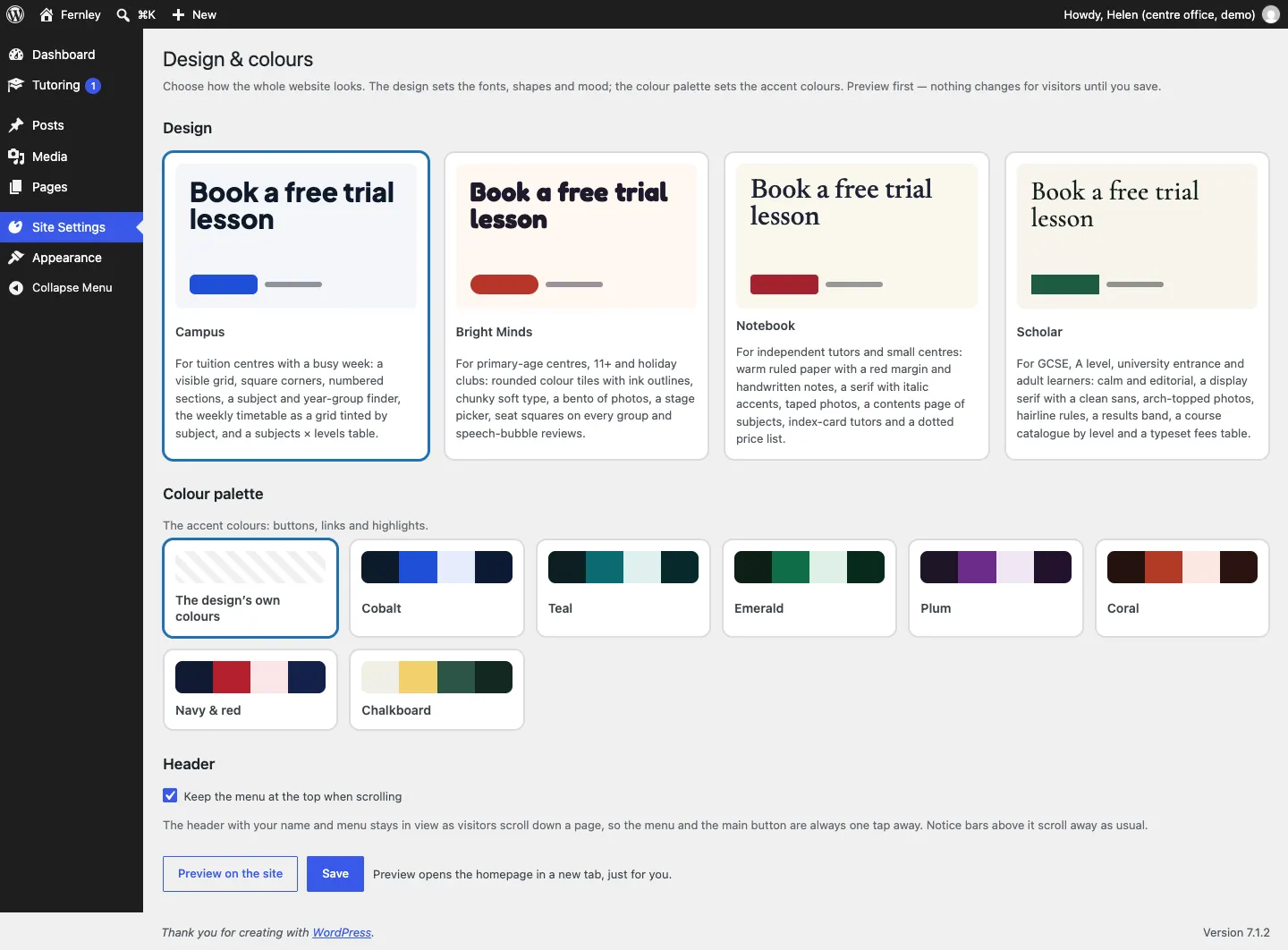
The Tutor theme has four designs. Each one has its own fonts, shapes and home page sections, and seven colour palettes. Your tutors, lessons and bookings are kept separately from the design, so you can change the look at any time without losing anything.
The four designs
| Design | Best for | What it looks like |
|---|---|---|
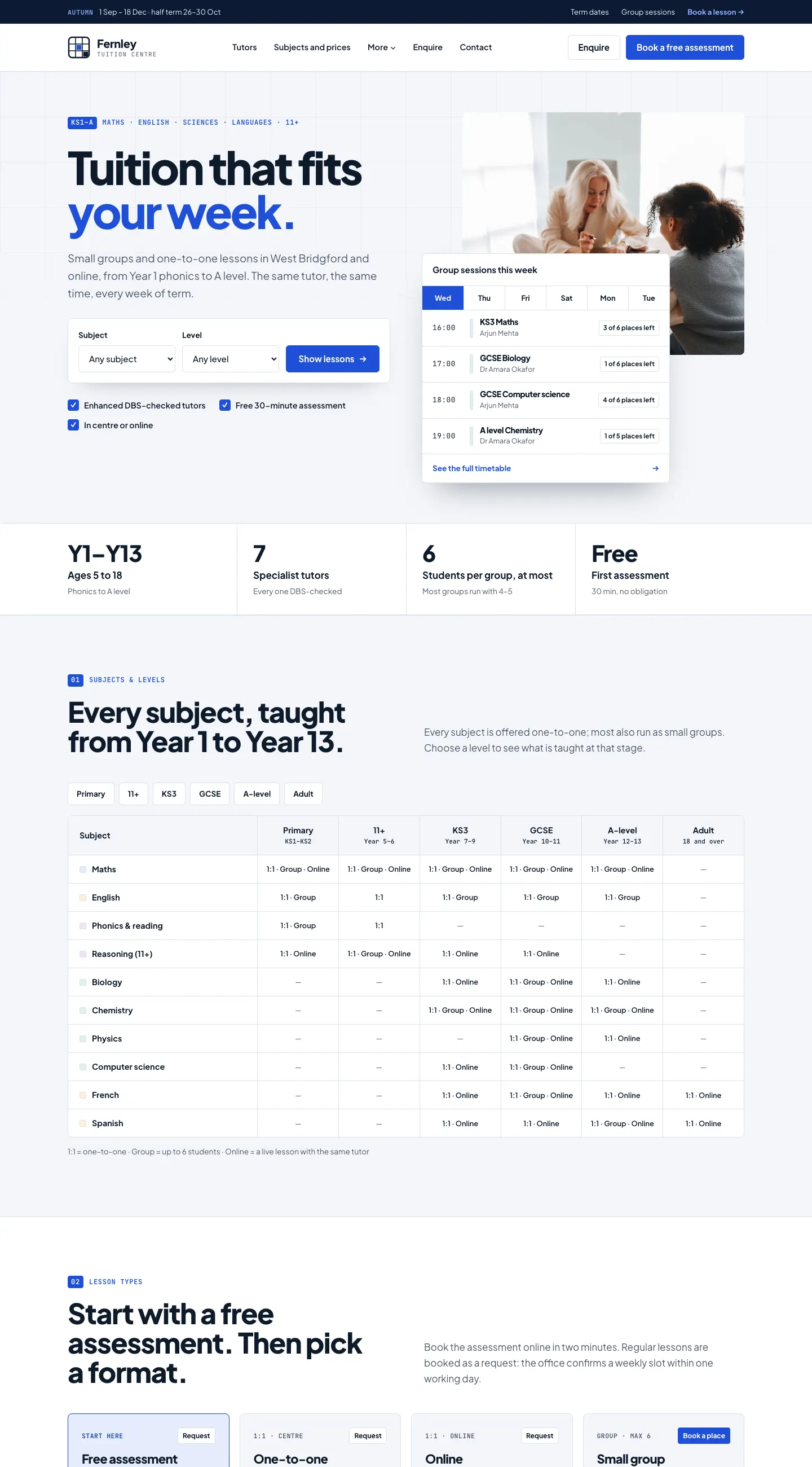
| Campus (the default) | Tuition centres with a busy week | A visible grid, square corners, numbered sections, a subject and year-group finder, the weekly timetable as a grid tinted by subject, and a subjects × levels table. |
| Bright Minds | Primary-age centres, 11+ and holiday clubs | Rounded colour tiles with ink outlines, chunky soft type, a bento of photos, a stage picker, seat squares on every group and speech-bubble reviews. |
| Notebook | Independent tutors and small centres | Warm ruled paper with a red margin and handwritten notes, a serif with italic accents, taped photos, a contents page of subjects, index-card tutors and a dotted price list. |
| Scholar | GCSE, A level, university entrance and adult learners | Calm and editorial: a display serif with a clean sans, arch-topped photos, hairline rules, a results band, a course catalogue by level and a fees table. |
The home page holds a set of sections for each design. Only the set for the design you choose is shown, so each design really does look different, not just in colour.
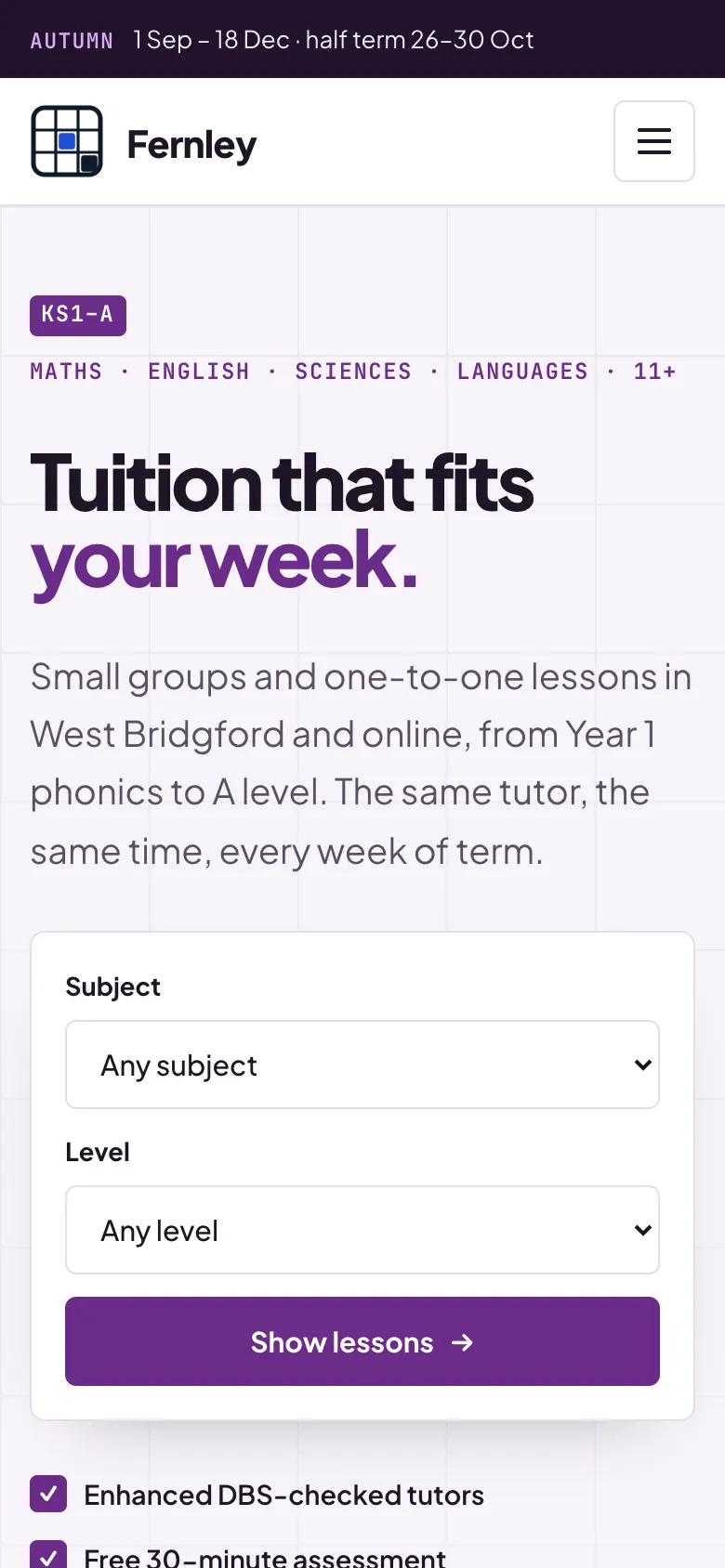
On a phone, the menu folds into a button at the top right and every section stacks into one column. Nothing scrolls sideways.

Colour palettes
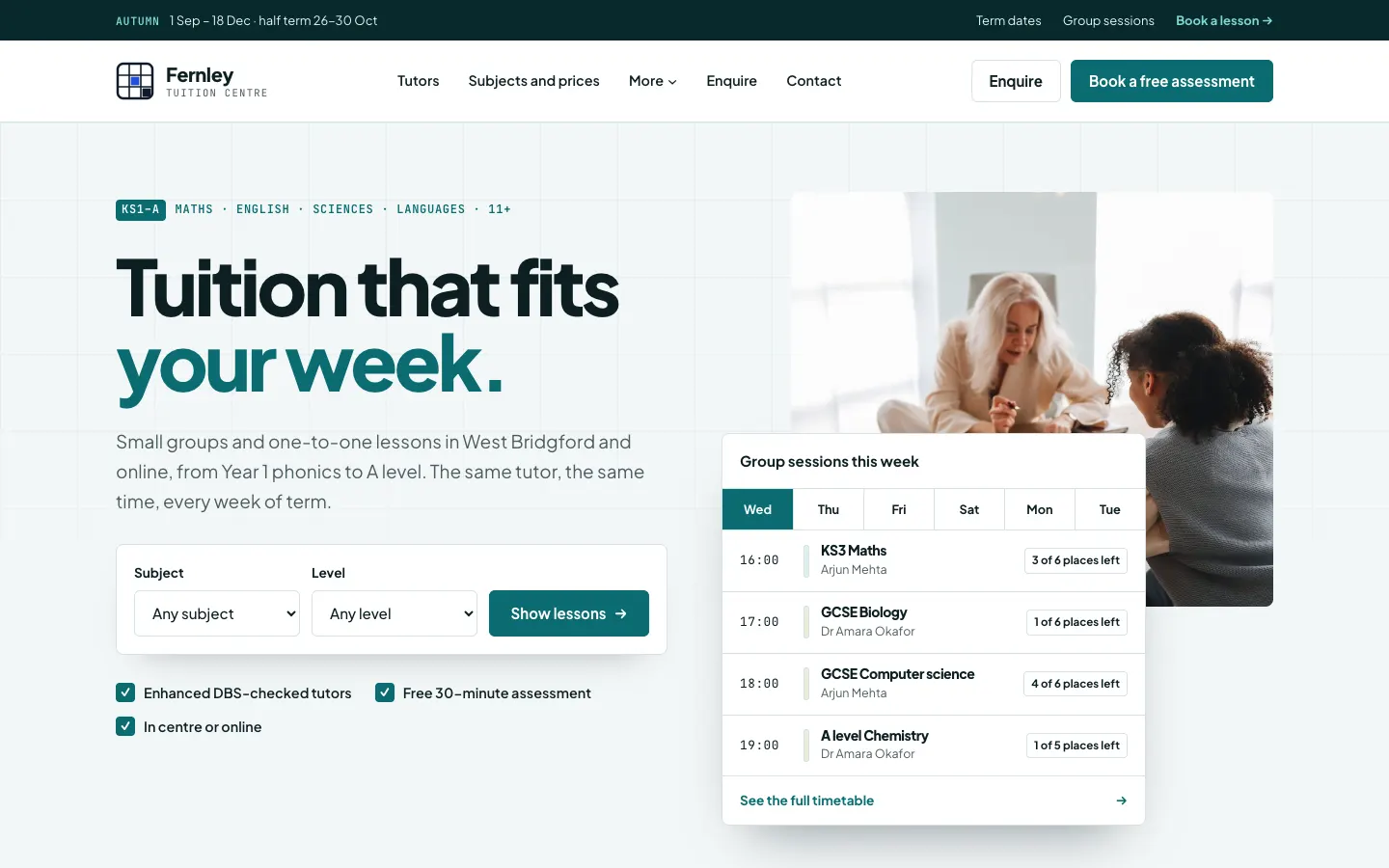
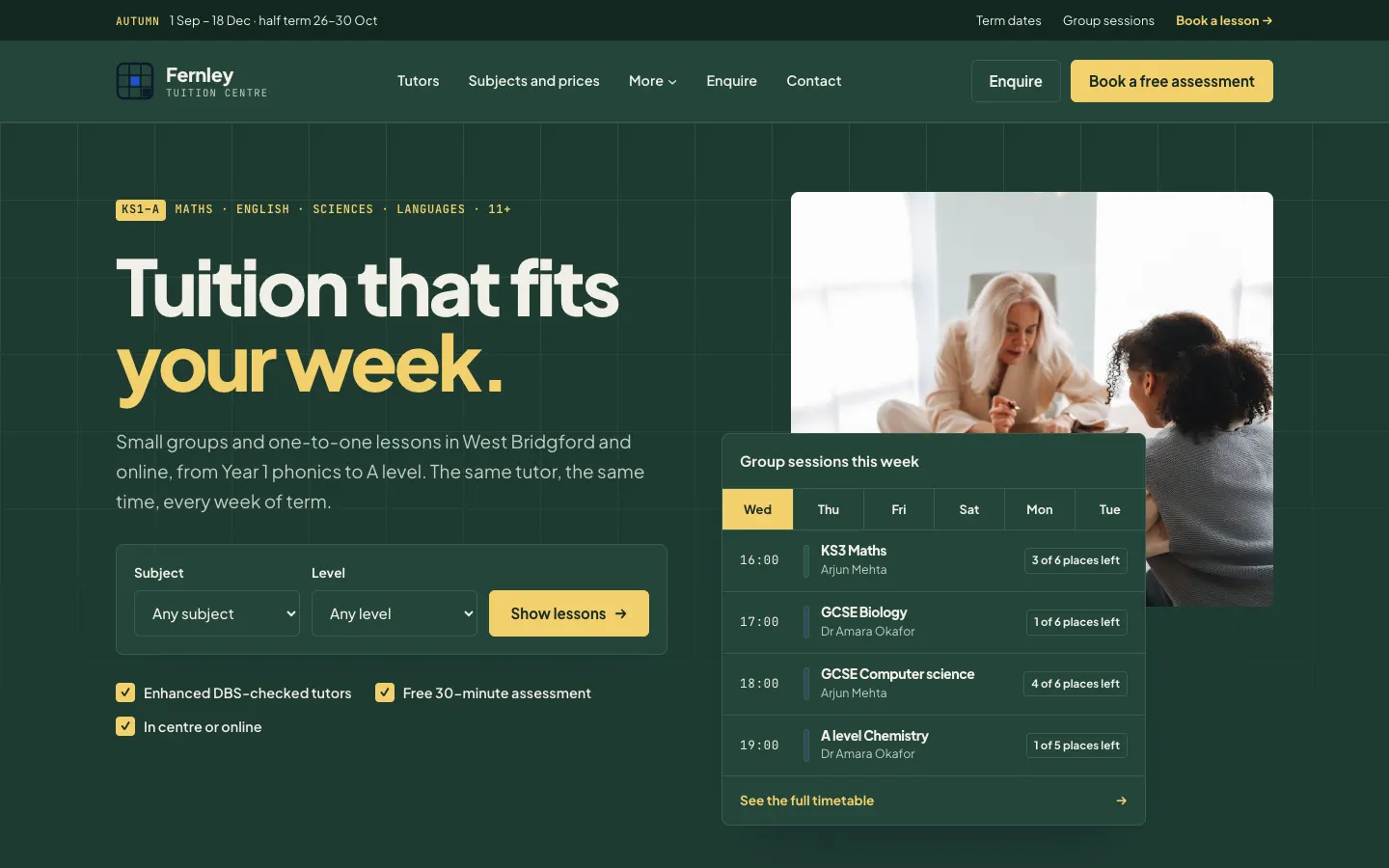
Each design comes with The design's own colours plus seven palettes: Cobalt, Teal, Emerald, Plum, Coral, Navy & red and Chalkboard. A palette changes the buttons, links, highlights and accent colours. Chalkboard is a dark palette: the page turns dark and the palette colours the buttons and highlights. Every palette is checked so text stays easy to read.
How to choose a design and palette
- Go to Site Settings → Design & colours.
- Under Design, click the card for the design you want.
- Under Colour palette, click a palette, or leave The design's own colours.
- Under Header, leave Keep the menu at the top when scrolling ticked if you want the menu always in view.
- Click Preview on the site. Your home page opens in a new tab with the new look, just for you. Visitors still see the usual look.
- When you are happy, go back and click Save.
For your logo, the footer and the other look settings, see Your look.
The pages the kit makes
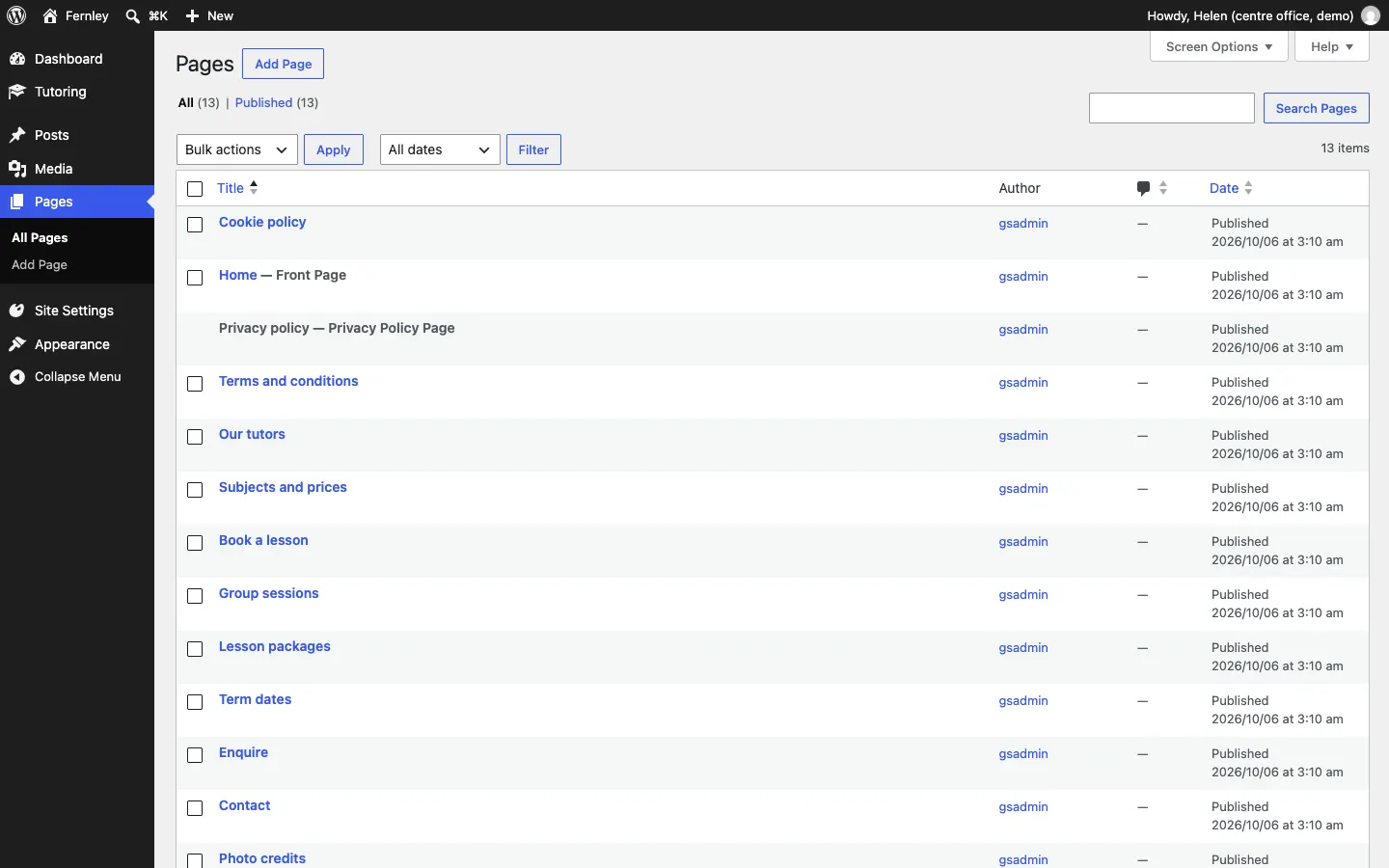
The setup wizard makes these pages for you. You find them all under Pages.
| Page | Web address | What's on it |
|---|---|---|
| Home | / | The welcome, a finder, this week's groups, subjects and levels, lesson types, tutors, reviews and term dates (the sections depend on the design). |
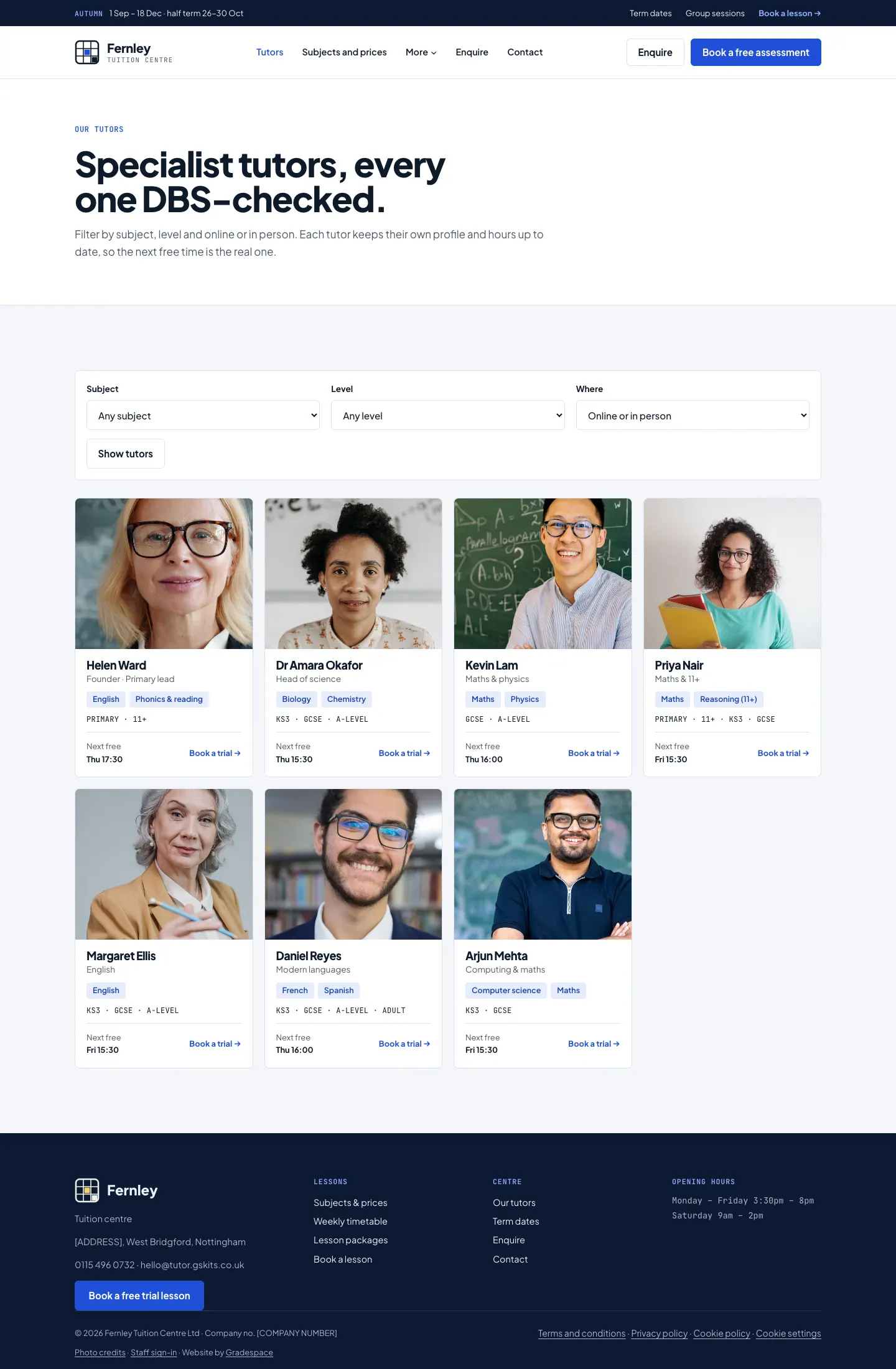
| Our tutors | /tutors/ | Every tutor with a filter by subject, level and online or in person, and each tutor's next free time. |
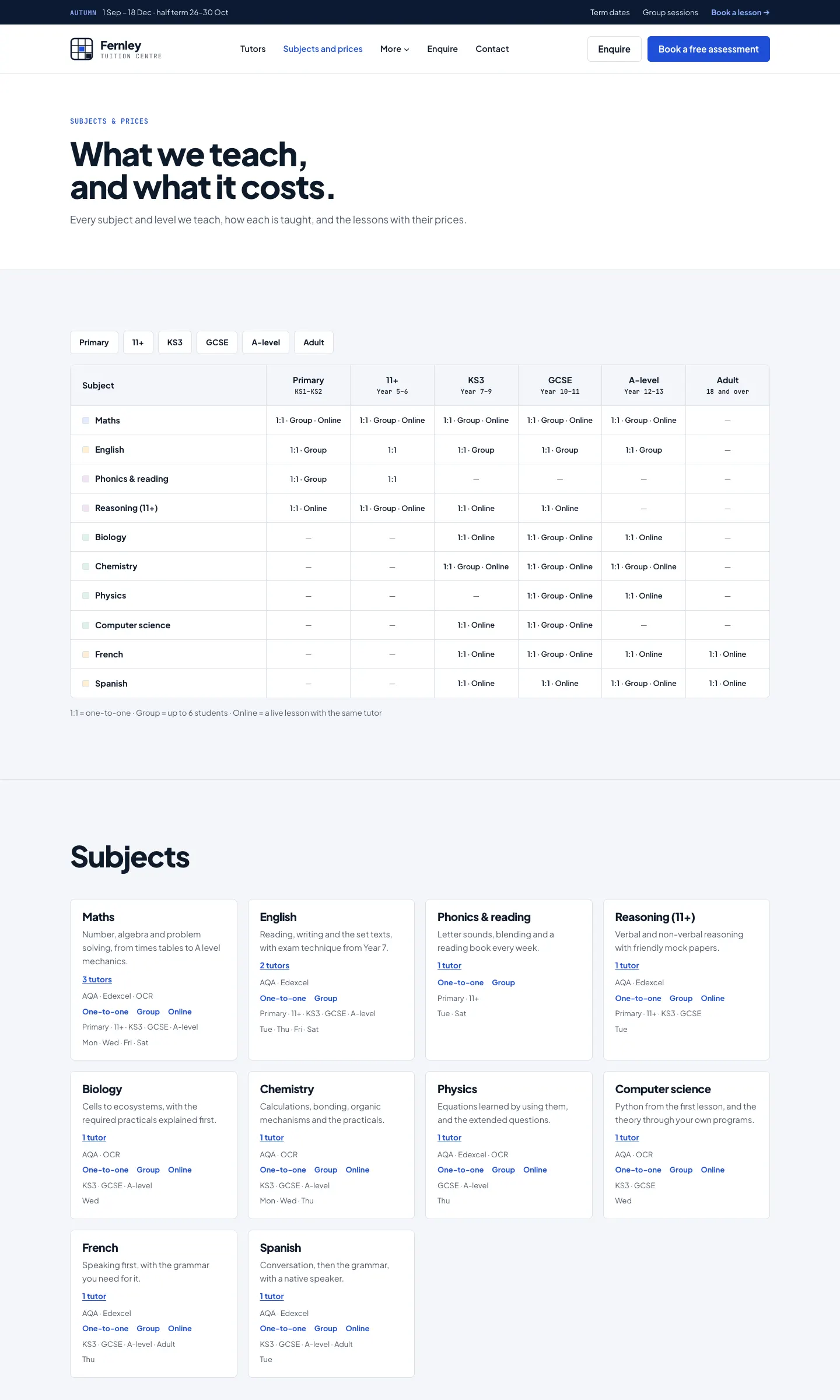
| Subjects and prices | /subjects/ | The subjects × levels table, each subject with its tutors and exam boards, and your lessons with prices. |
| Book a lesson | /book/ | The booking form. See Online booking. |
| Group sessions | /groups/ | (Pro) The weekly timetable of groups and the sessions coming up, with places left. |
| Lesson packages | /packages/ | (Pro) Your packages and the form to buy one. |
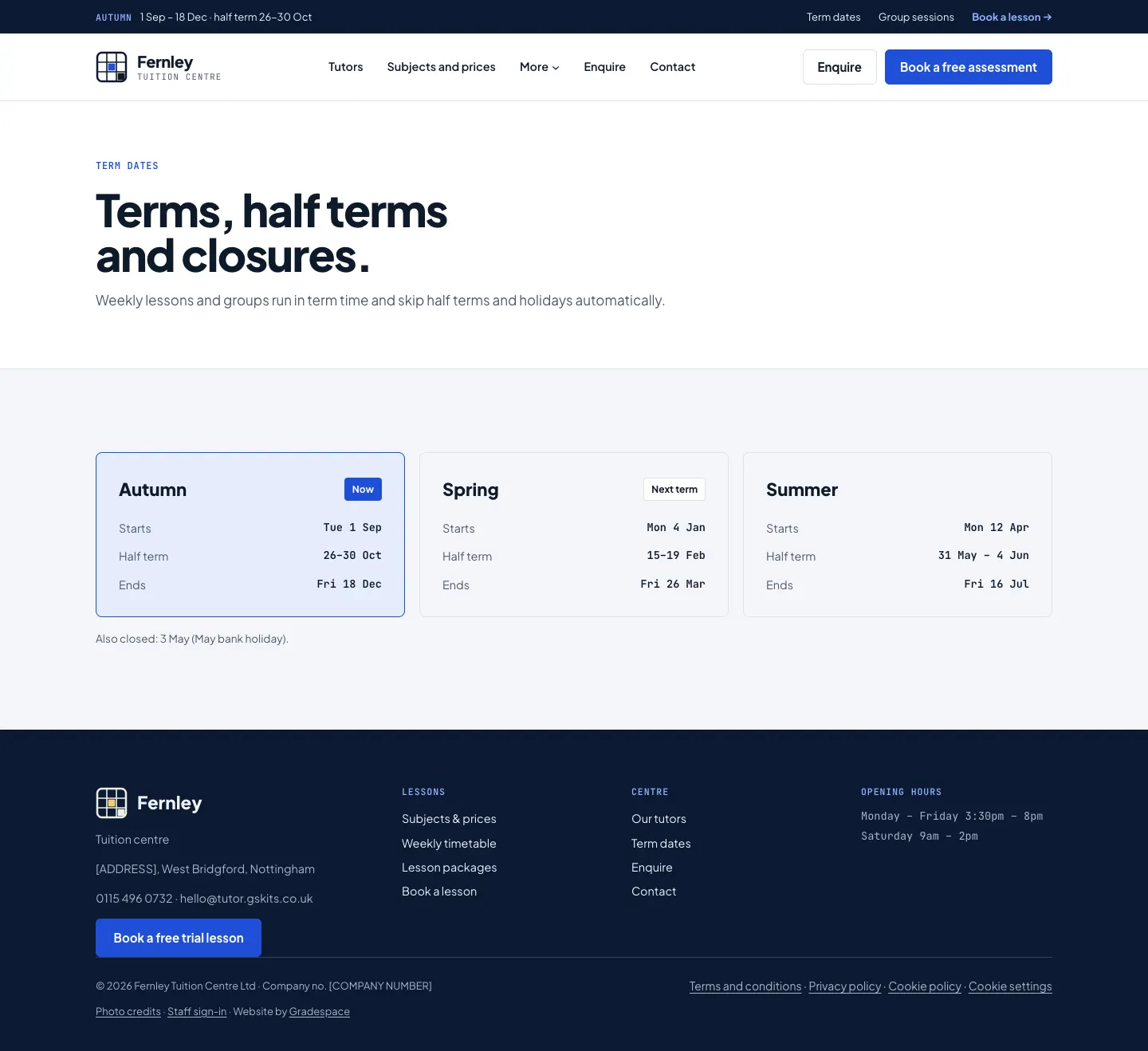
| Term dates | /term-dates/ | (Pro) Your terms, half terms and closures. |
| Enquire | /enquire/ | The parent enquiry form. See Enquiries and messages. |
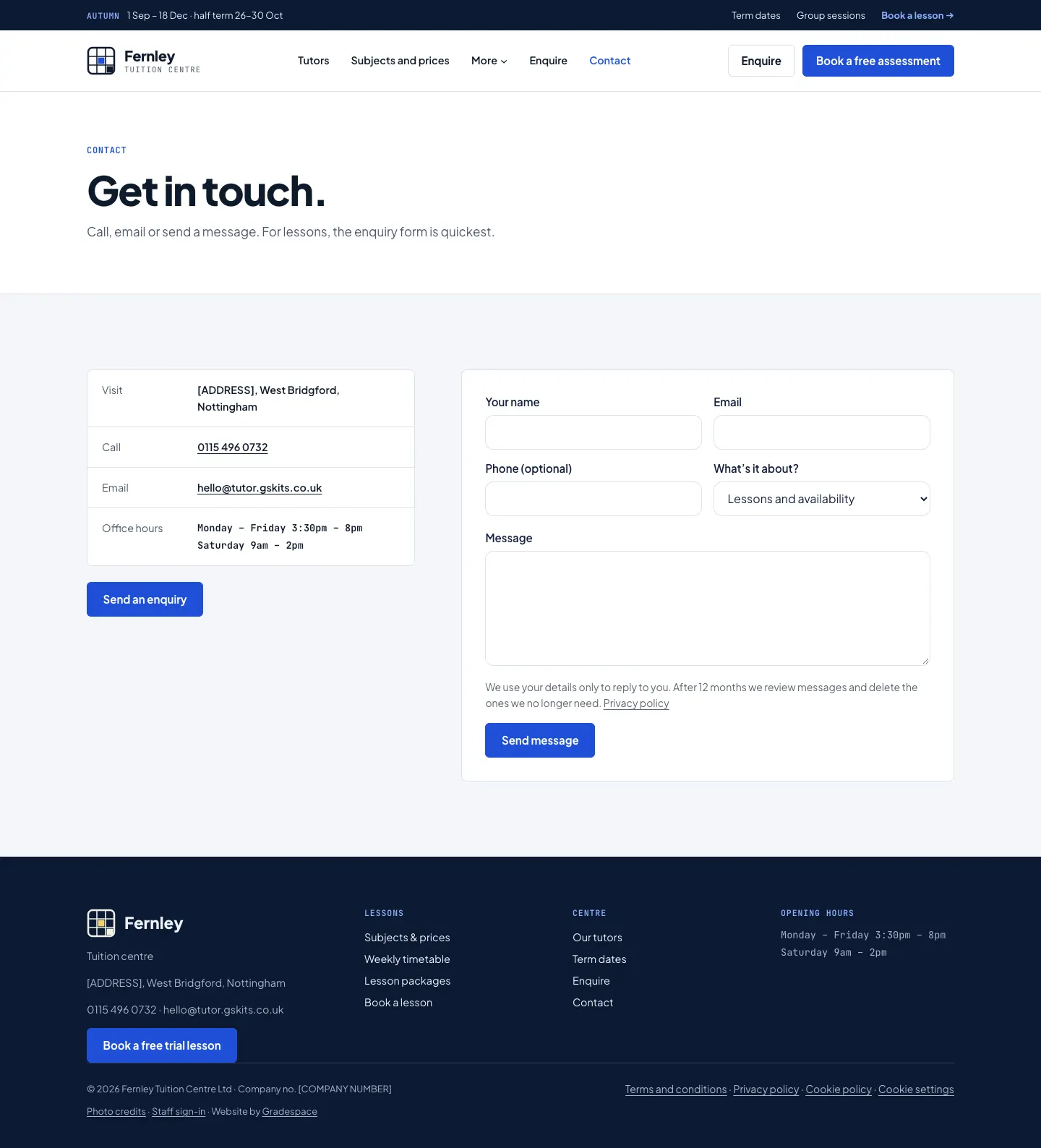
| Contact | /contact/ | Your address, phone, email, opening hours and the contact form. |
| Terms and conditions, Privacy policy, Cookie policy | Starter legal pages filled in from your settings. See Privacy and emails. | |
| Photo credits | /credits/ | Credits for the sample photos. Remove it when you use your own photos. |
Each tutor also gets their own page at /tutors/their-name/. See Tutors.
To change the words and photos on any page, see Pages and content.
The menu
The header has:
- A notice bar at the very top with the current term and half term (it links to Term dates), and quick links to Term dates, Group sessions and Book a lesson.
- Your name and logo on the left.
- The menu: Tutors, Subjects and prices, More (Group sessions, Lesson packages, Term dates), Enquire and Contact.
- Two buttons on the right: Enquire and the main booking button (on the demo, Book a free assessment).
The footer repeats the main links, your phone, email and the term dates, the legal pages, Cookie settings and Staff sign-in.
To change the menu, see Your look.