Running your website
Group sessions (Pro)
Small-group sessions with a number of places and a waiting list: adding a one-off session, how families book a place or join the waiting list, and managing places, the waiting list and cancellations.
On this page
A group session is a lesson for several students at once, for example a GCSE revision group of six. It has a number of places. When it's full, families can join a waiting list, and when a place is freed the first family waiting gets it automatically.
Group sessions need a Pro or Agency licence. Features marked (Pro) need a Pro or Agency licence.
There are two ways to make group sessions:
- Regular groups that run every week of term come from the Weekly timetable. Their sessions are made automatically. See The weekly timetable and term dates.
- One-off sessions (a revision day, a holiday workshop) are added under Tutoring → Group sessions, as below.
Either way, a group session uses a lesson type whose Kind is Group session (see Subjects, levels and lesson types), and it holds the tutor's time, so nobody can book them one-to-one then.
How to add a one-off group session
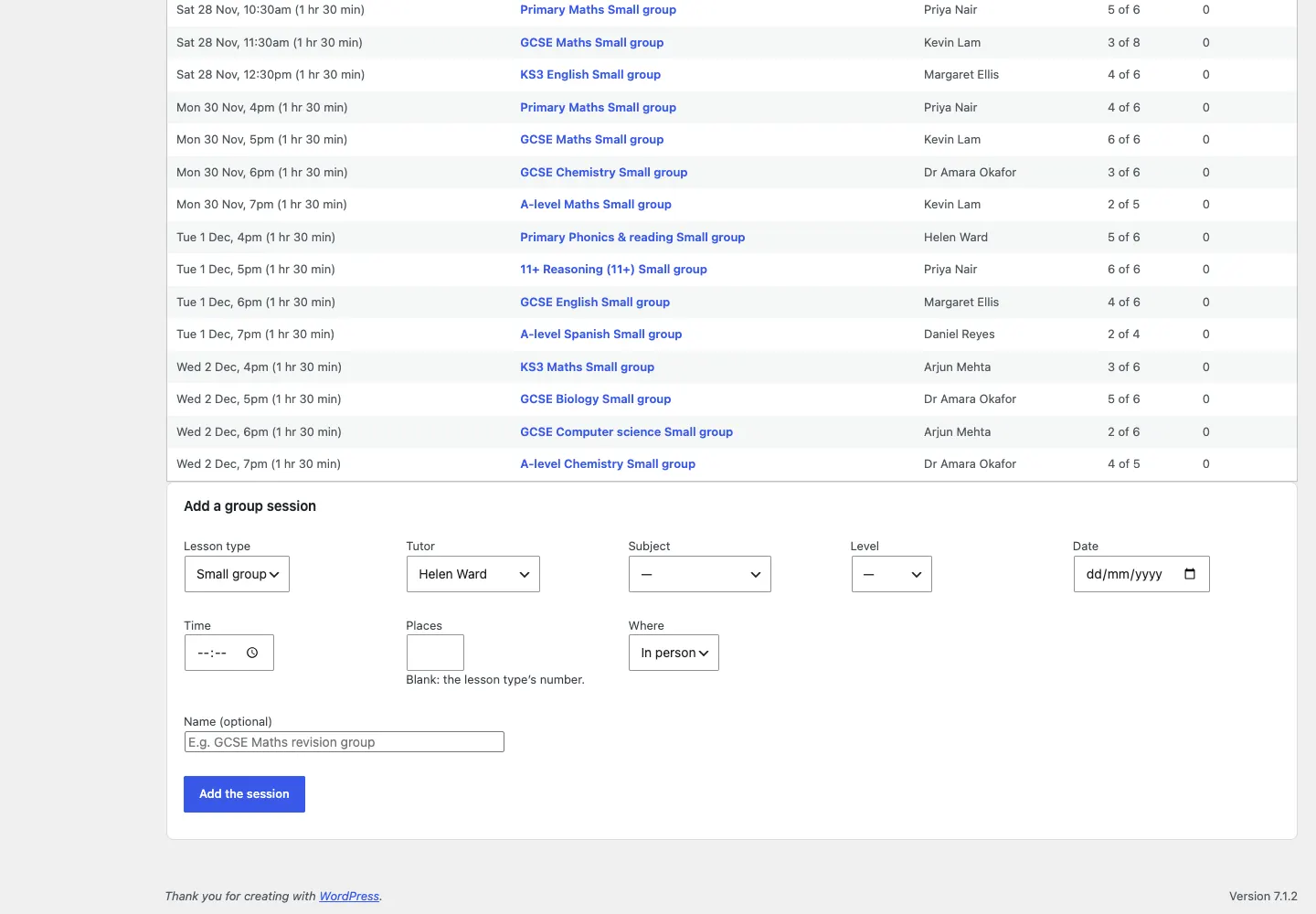
- Go to Tutoring → Group sessions.
- Scroll down to Add a group session.
- Choose the Lesson type (a group kind, for example Small group), the Tutor, the Subject and the Level.
- Fill in the Date and Time, the number of Places (leave it empty for the lesson type's usual number) and Where.
- Optionally, give it a Name, for example "GCSE Maths revision group".
- Click Add the session.
The Group sessions list
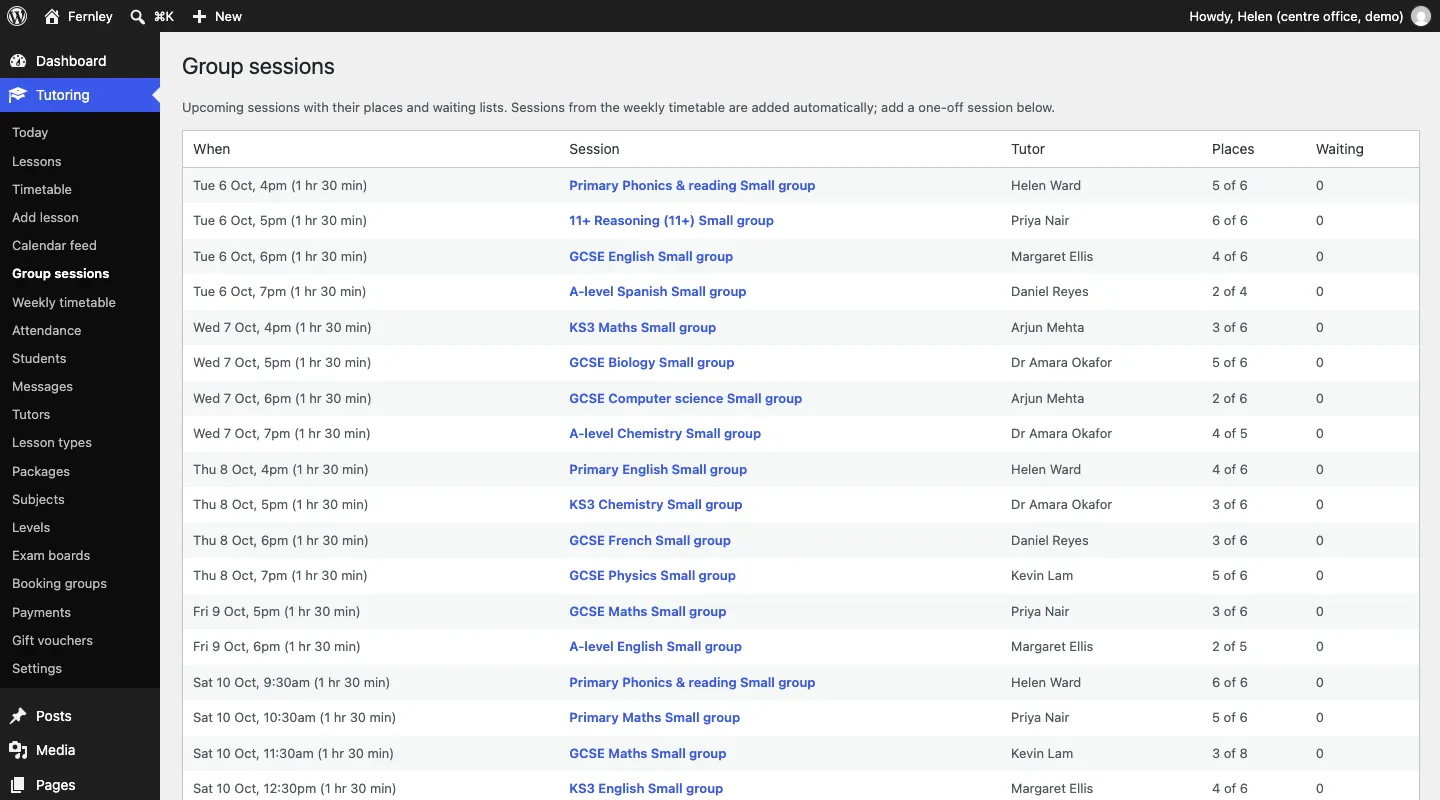
Tutoring → Group sessions lists every session coming up: when, the session, the tutor, the places booked (for example "5 of 6") and how many are waiting.
How families book a place
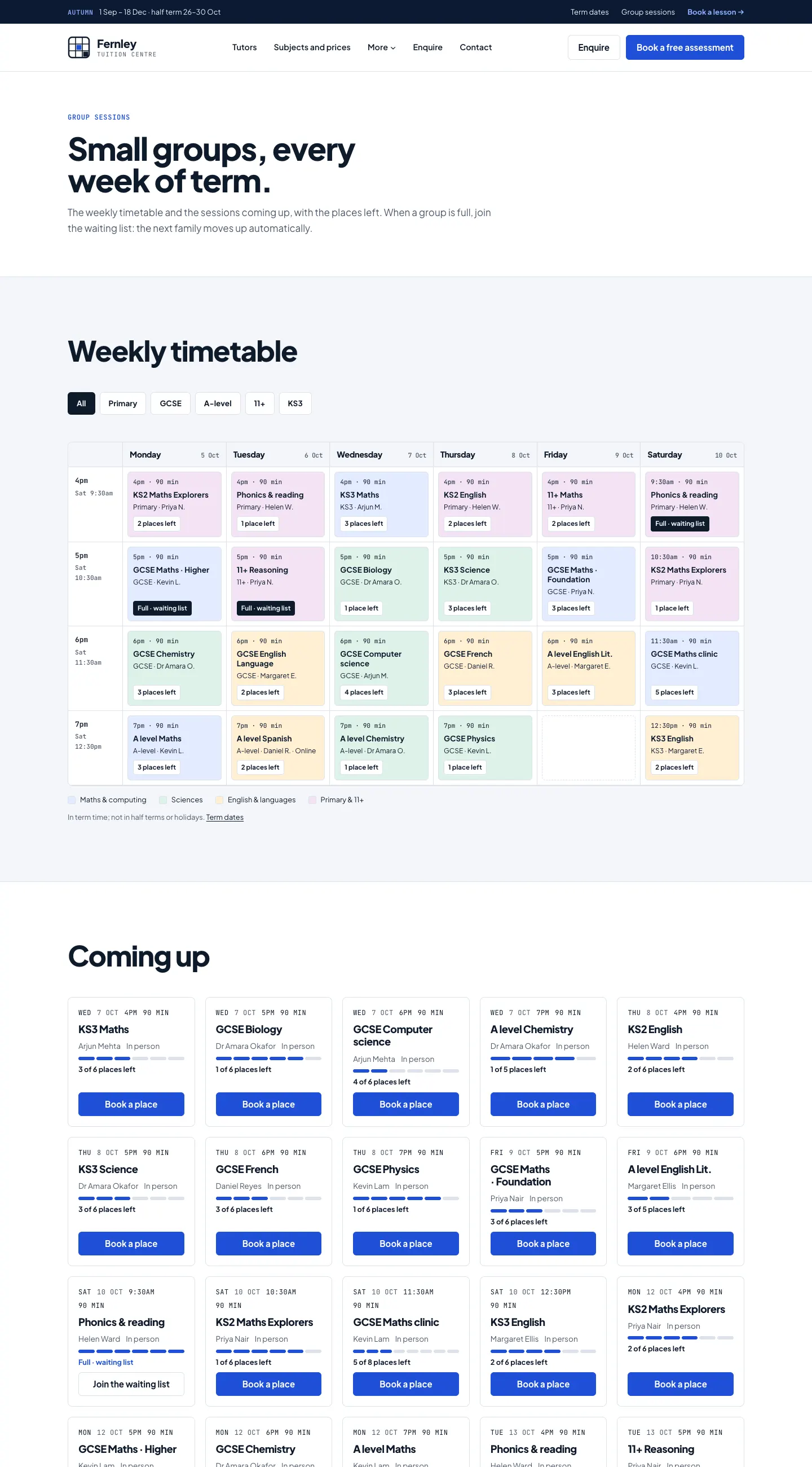
The Group sessions page (/groups/) shows the weekly timetable of groups, filtered by level and coloured by subject, and the sessions coming up, each with the places left. Group sessions also show on the home page and on each tutor's page.
- The family clicks Book a place on a session.
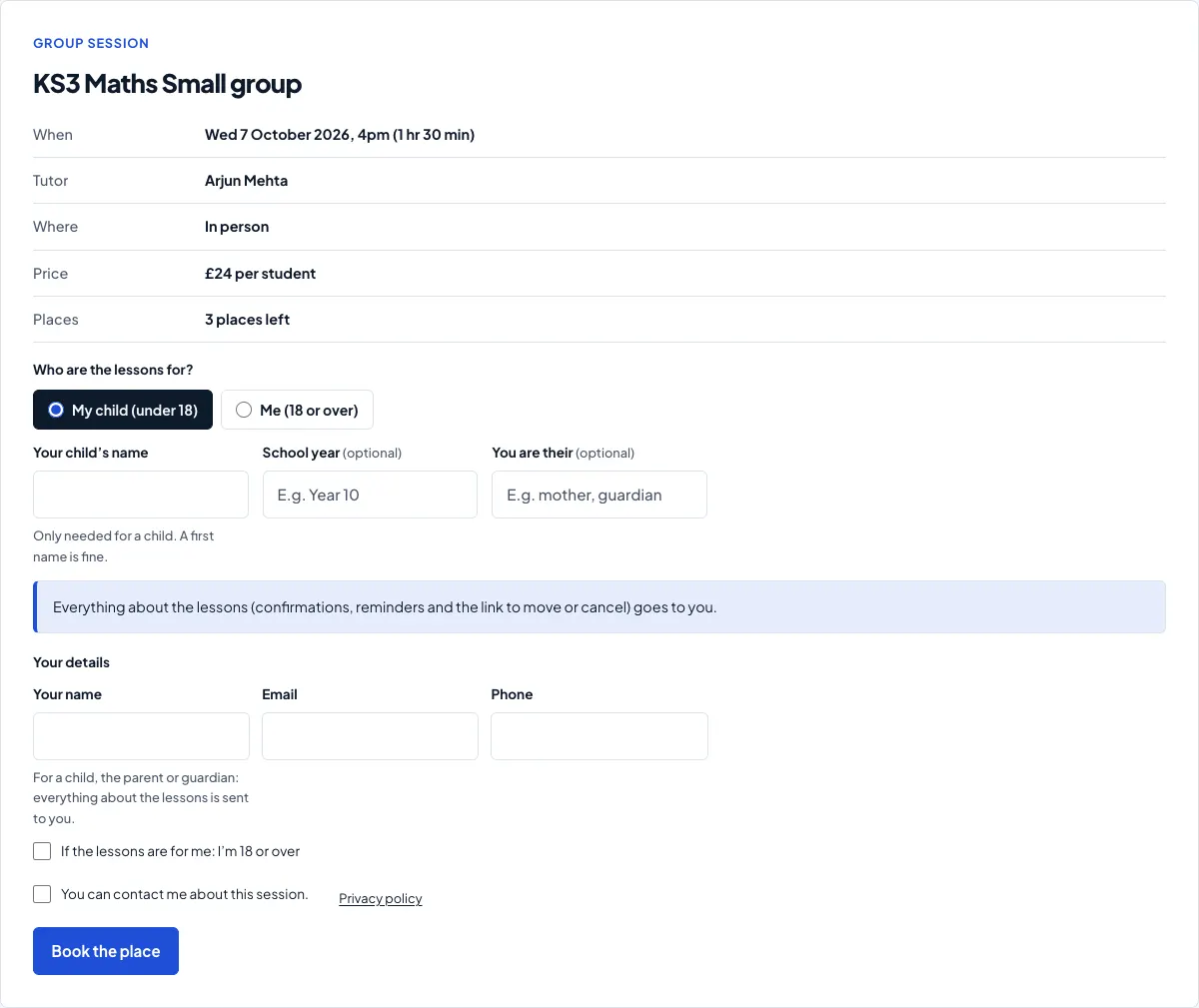
- They see the session's details (when, tutor, where, price and places left).
- They choose who it's for, give their details (the parent's for a child), tick You can contact me about this session and click Book the place.
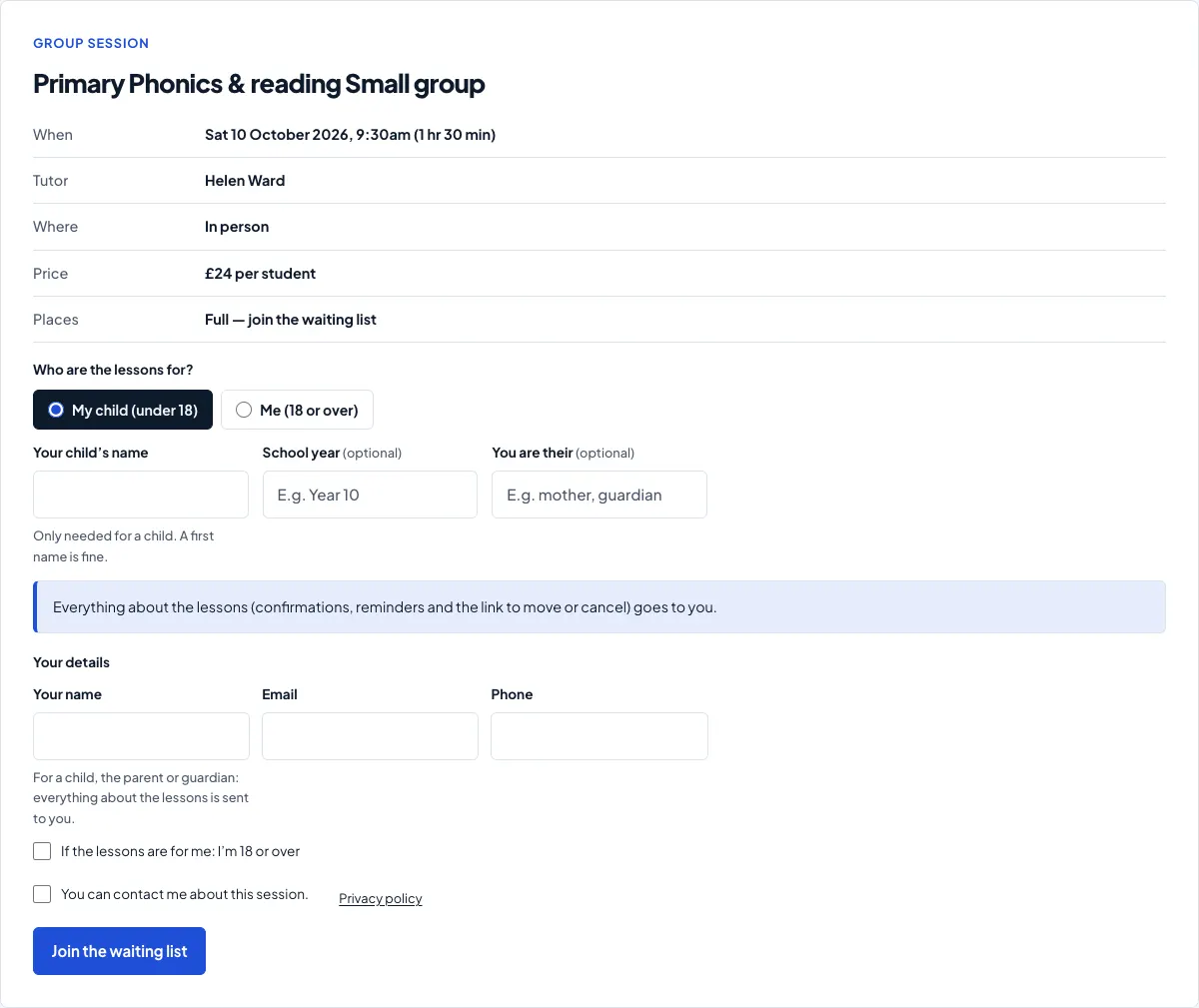
When a session is full, the button says Join the waiting list, the form says "Full — join the waiting list" and its button is Join the waiting list. The family gets an "On the waiting list" email.
How to manage a session's places
- In Tutoring → Group sessions, click the session.
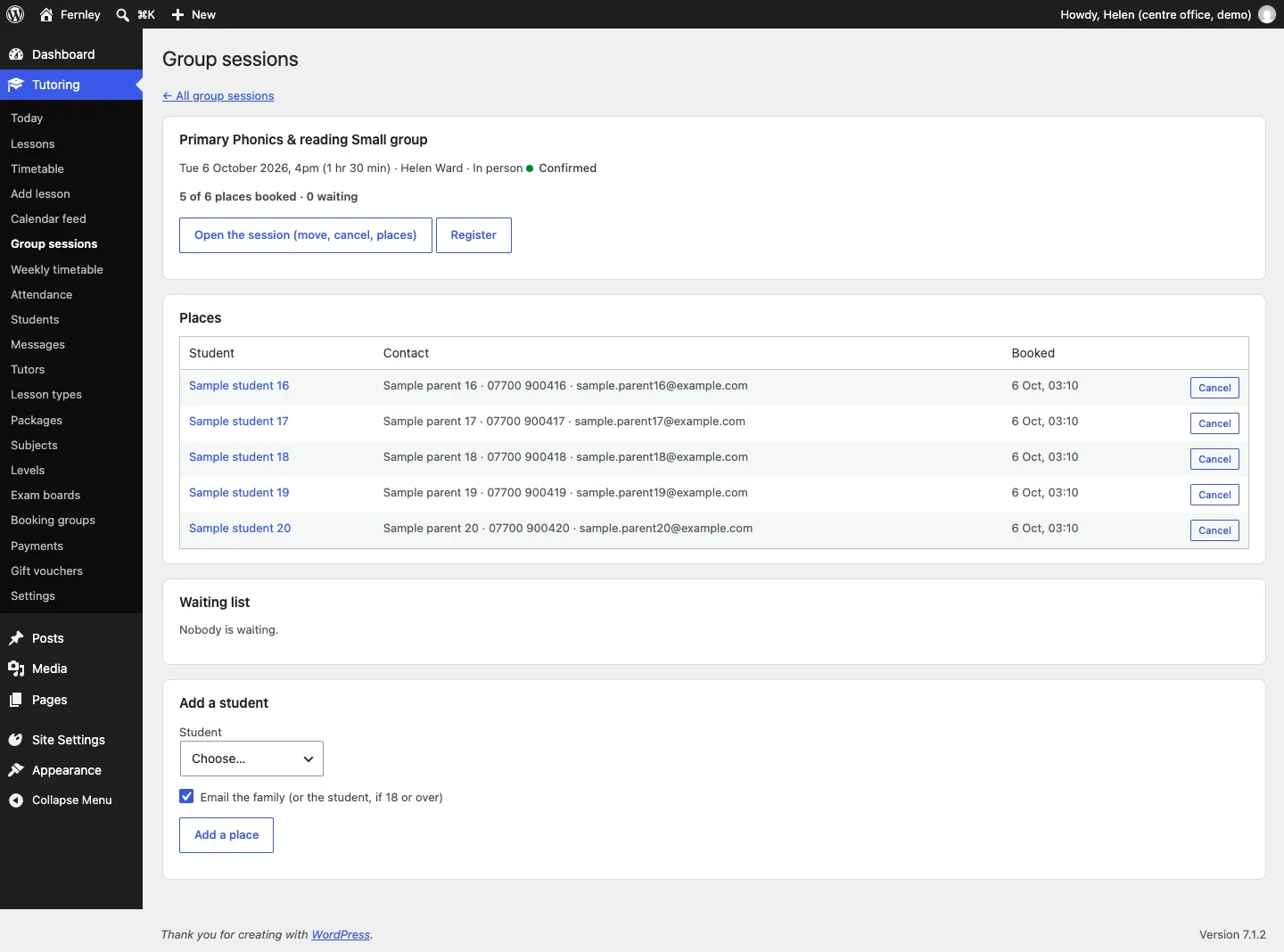
- You see each place (the student, the parent's contact details and when they booked) and the waiting list.
- To cancel someone's place, click Cancel next to it.
- To give a place to someone on the waiting list, click Give a place next to them.
- To add a student yourself, choose them under Add a student, leave Email the family (or the student, if 18 or over) ticked if you want them told, and click Add a place.
- Register opens the attendance register for the session (see The attendance register).
The waiting list
When a place is freed (a family cancels, or you add places), the first family on the waiting list gets it automatically and is emailed, with a link to cancel if they can't come. To move people up yourself instead, switch off Tutoring → Settings → Lessons → Give a freed place to the first on the waiting list automatically.
Waiting lists also show on Tutoring → Today under Waiting lists.
Move, change or cancel the whole session
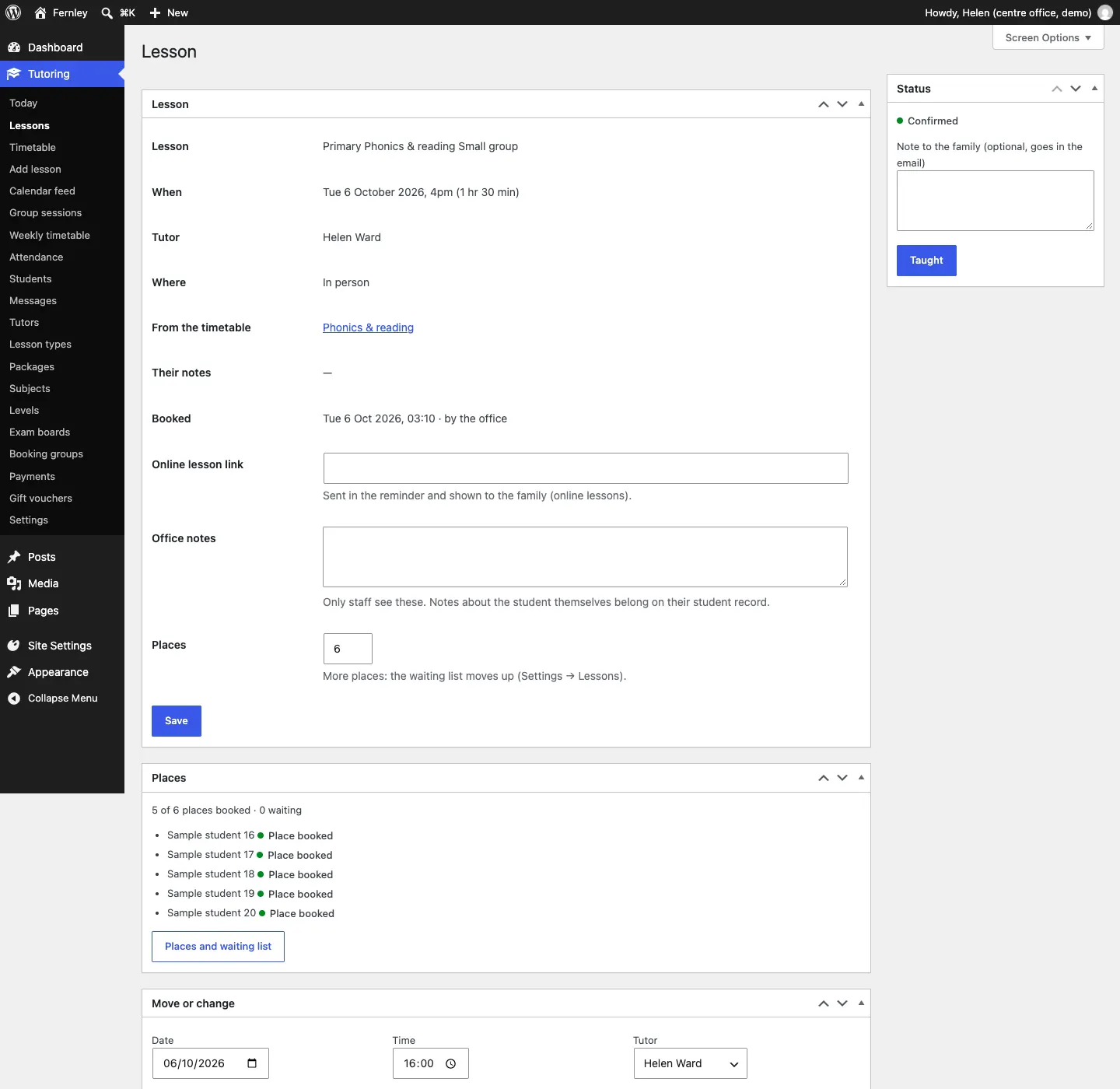
Click Open the session (move, cancel, places) on the session's screen. This opens it like any other lesson:
- Places: change the number of places. More places means the waiting list moves up.
- Move or change: a new date, time or tutor. Tick the box to email everyone the new time.
- Status: cancel the session before it starts, or mark it Taught once it has started. You can also cancel a session with the Cancel link in Tutoring → Lessons.