Running your website
Online booking: the family's side
What a parent or adult student sees when they book a lesson on your website: the four steps, booking for a child, trial lessons, repeating weekly until the end of term, and moving or cancelling with the link in their email.
On this page
The Book a lesson page (/book/) takes a family from "which lesson?" to a held time in four short steps: Lesson, Tutor, Day, Time and details. It only offers times that are really free: inside the tutor's teaching hours and the centre's opening hours, not on their days off or closed days, with the gap you set after each lesson, and not already booked.
It's worth booking a test lesson yourself (signed out, or in a private window) so you know what families see.
Features marked (Pro) need a Pro or Agency licence.
Where families start
Families reach the booking form from the Book a lesson buttons in the header and footer, the Book a trial button on any tutor's card or page (the tutor and the trial lesson are then already chosen), and the Book buttons beside each lesson type on the Subjects and prices page.
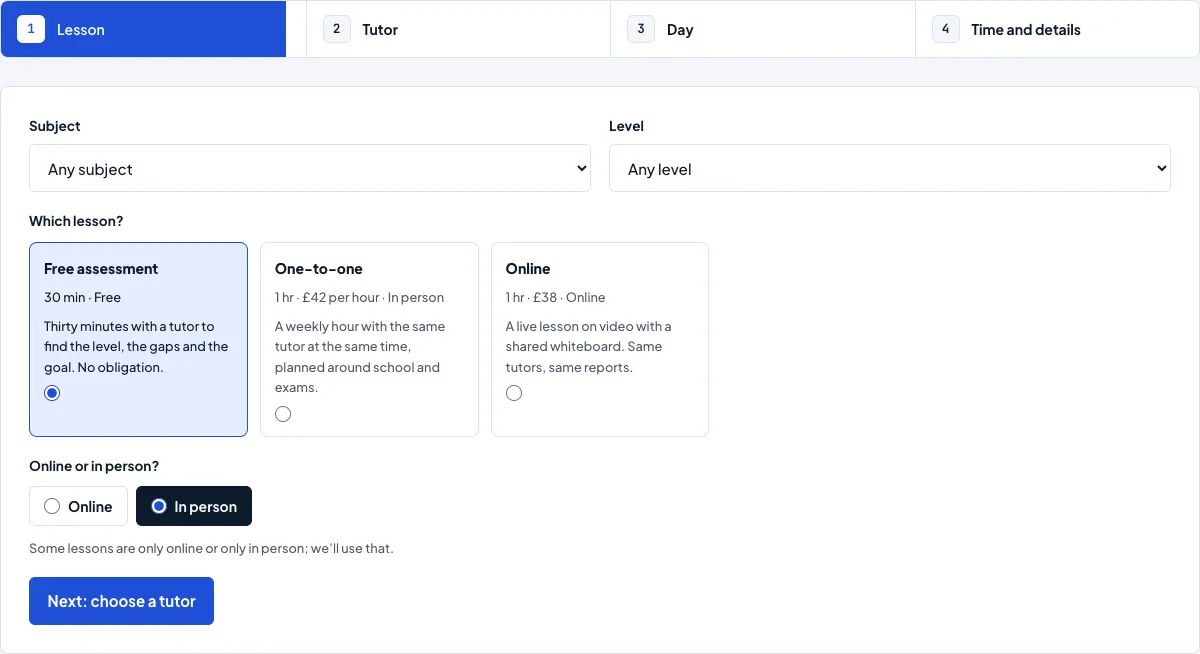
Step 1: the lesson
- Optionally narrow the choice with Subject and Level.
- Under Which lesson?, choose a lesson. Each card shows its length, price, where it happens and a sentence about it.
- Under Online or in person?, choose one. Some lessons are only online or only in person; the form then uses that.
- Click Next: choose a tutor.
Group sessions aren't booked here: families book a place on a session from the Group sessions page. See Group sessions.
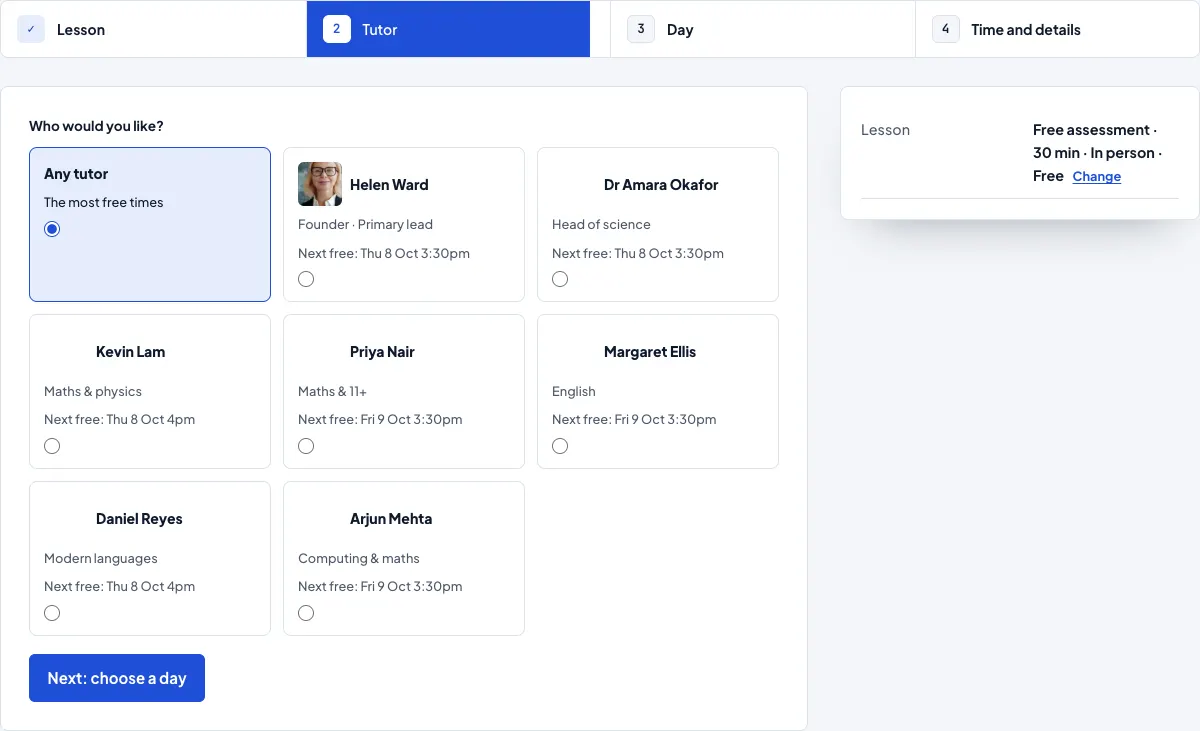
Step 2: the tutor
Families choose Any tutor ("The most free times") or a named tutor. Each tutor shows their short title and their next free time. Only tutors who teach the chosen lesson, subject, level and mode, and who are switched on for online booking, are listed.
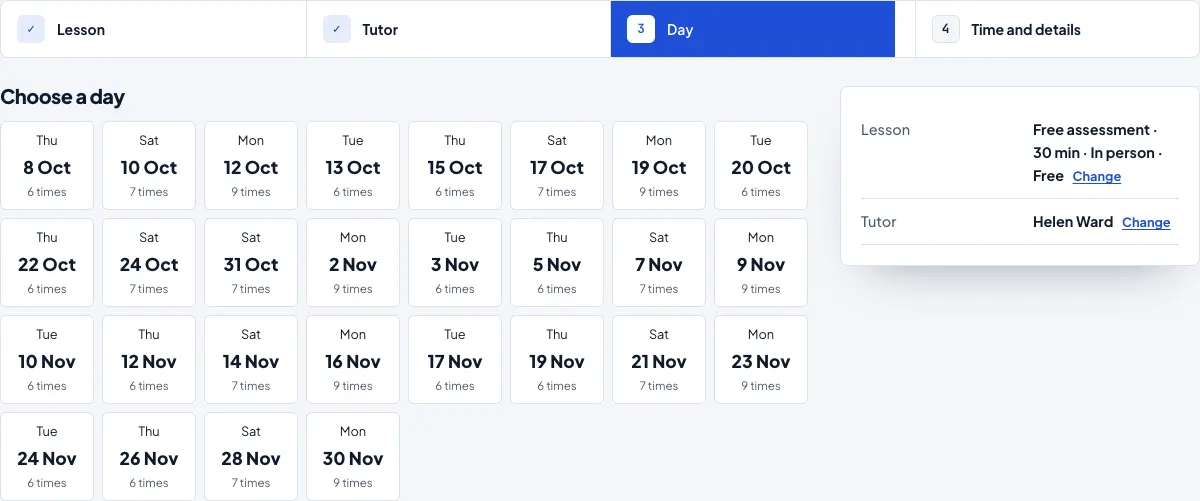
Step 3: the day
The form shows the days with free times in the weeks ahead, and how many times are free on each day. Days the tutor doesn't teach, holidays and closed days aren't shown.
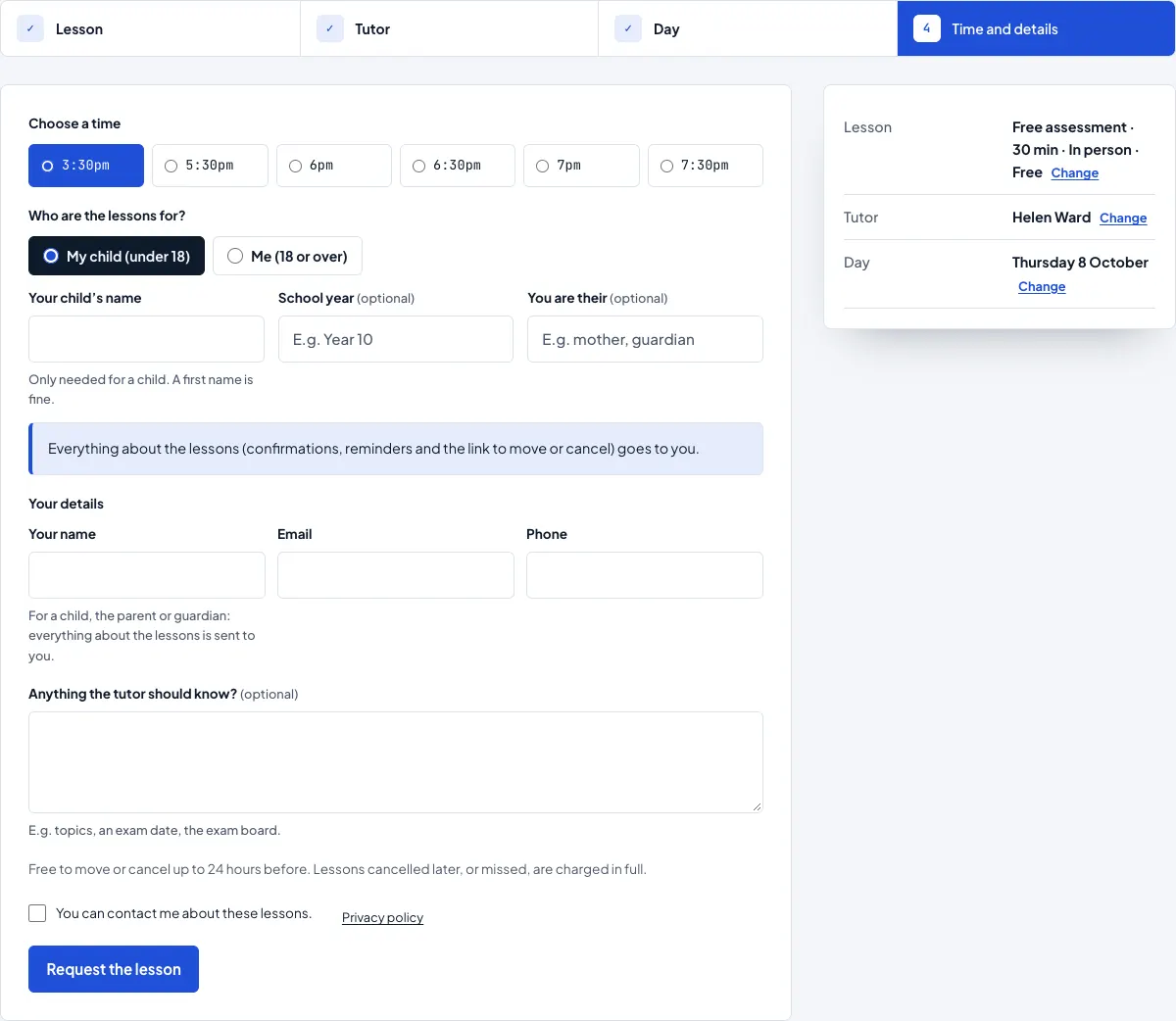
Step 4: the time and the details
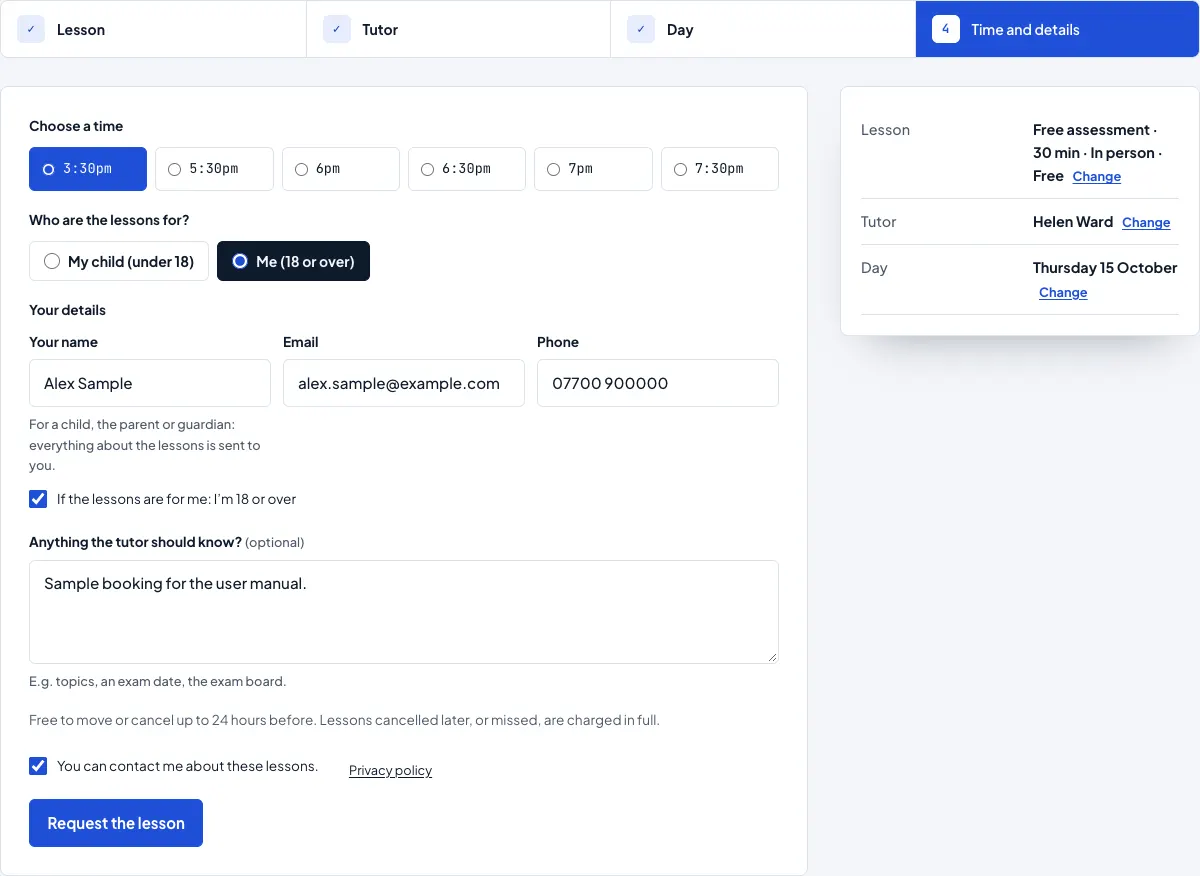
- Choose a time.
- Under Who are the lessons for?, choose My child (under 18) or Me (18 or over).
- For a child, type Your child's name (a first name is fine), and optionally their School year and You are their (mother, guardian…).
- Under Your details, type Your name, Email and Phone. For a child these are the parent or guardian's details, and everything about the lessons is sent to them.
- If you chose Me (18 or over), tick If the lessons are for me: I'm 18 or over (this box shows only for Me).
- Optionally, fill in Anything the tutor should know? (topics, an exam date, the exam board).
- Read your cancellation policy, tick You can contact me about these lessons and click Request the lesson.
Trial lessons
If a student has already had or booked a trial lesson, or (with the setting on) has already had lessons with you, the form asks them to book a normal lesson instead. Brothers and sisters each get their own trial. See Subjects, levels and lesson types.
Repeat weekly until the end of term (Pro)
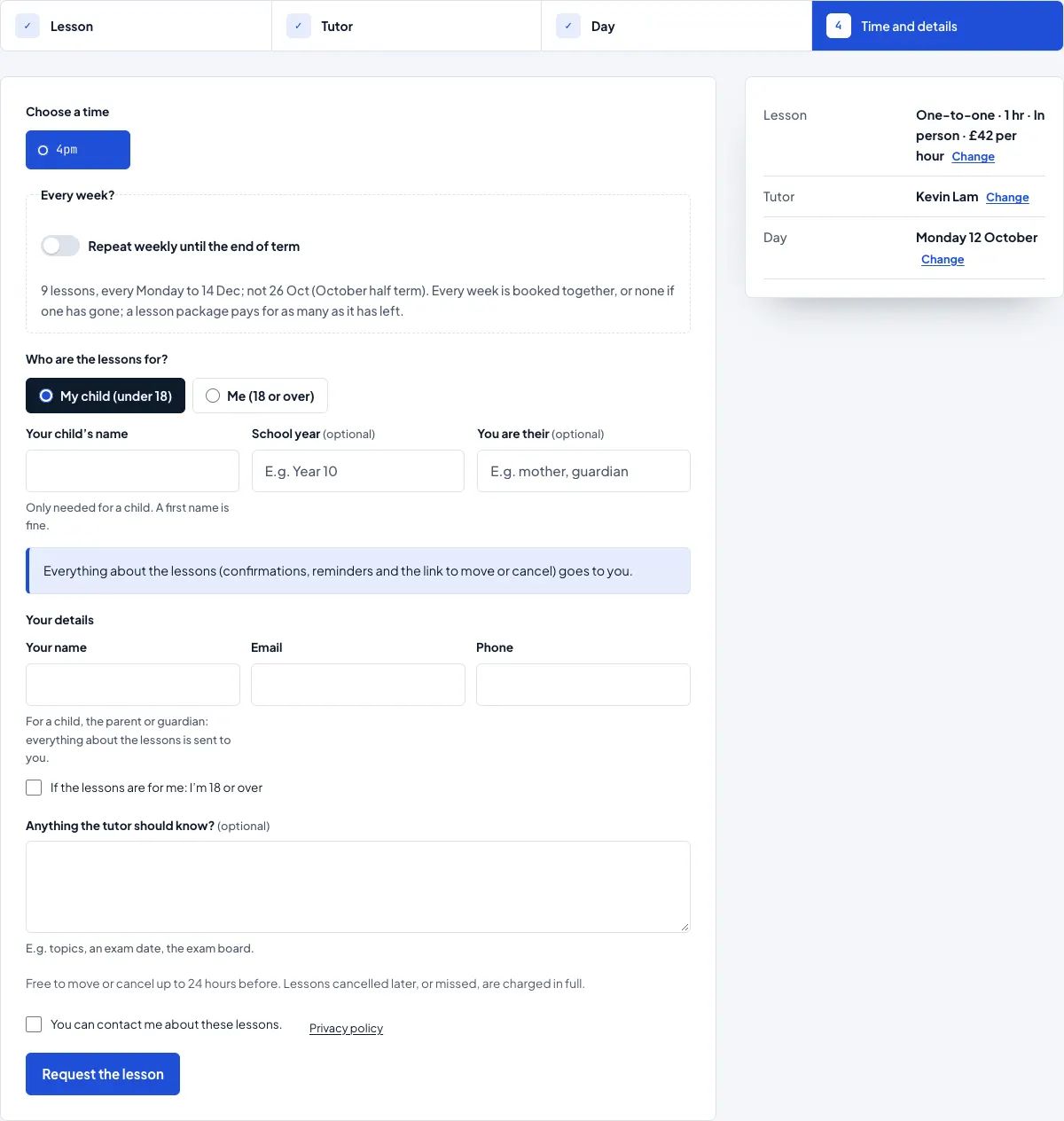
With term dates set up, a normal lesson shows an Every week? box with a Repeat weekly until the end of term switch. It says exactly what will be booked, for example "9 lessons, every Monday to 14 Dec; not 26 Oct (October half term)".
- Every week is booked together, or none of them if one of the times has gone.
- Half terms, holidays and closed days are left out.
- With Any tutor, the same tutor is kept for the whole series.
- A lesson package pays for as many lessons as it has left.
- The family gets one email and one calendar file for the series, and one page where they can change or cancel one lesson or all of them. Reminders still come before each lesson.
You can switch this off under Tutoring → Settings → Terms → Families can repeat a lesson weekly until the end of term. Series booked together are listed under Tutoring → Booking groups (see Lessons and the timetable).
Paying before the lesson (Pro)
If the lesson type asks for a deposit or the full price, the family goes to a secure payment page after step 4. The time is held while they pay. See Lesson packages and payments.
What happens next
- If you confirm each booking (the default): the time is held and the family is told you'll confirm by email. They get a "Lesson request received" email with a link to move or cancel. When you confirm, they get a confirmation with a calendar invite.
- If you confirm bookings straight away: they get the confirmation with the calendar invite at once.
- Reminders go the day before, from about 8am.
- The tutor gets news of their lessons at the email on their profile.
Moving or cancelling (the family)
The link in every email opens the family's own page for the lesson. There they can see the lesson, download it to their calendar, move it to another free time or cancel it, up to the cut-off you set (24 hours before by default). After the cut-off, the page asks them to call you. The page on your website also says: "Already booked? Use the link in your confirmation email to see, move or cancel the lesson."
On a phone
The booking form works the same way on a phone, with each step in one column.
