Running your website
Students and parents
The student record with the parent or guardian's details, the under-18 rules, notes for tutors, packages sold at the desk, reviewing old records and answering a family's request for their data.
On this page
Tutoring → Students has a record for each student. It's made automatically the first time a student books, takes a place in a group or buys a package, matched by the email address and the student's name. You can also add one yourself.
A record holds the essentials only: the student's school year, the parent or guardian's details (for under-18s), their lessons and group places, any lesson packages and notes for tutors.
Features marked (Pro) need a Pro or Agency licence.
The Students list
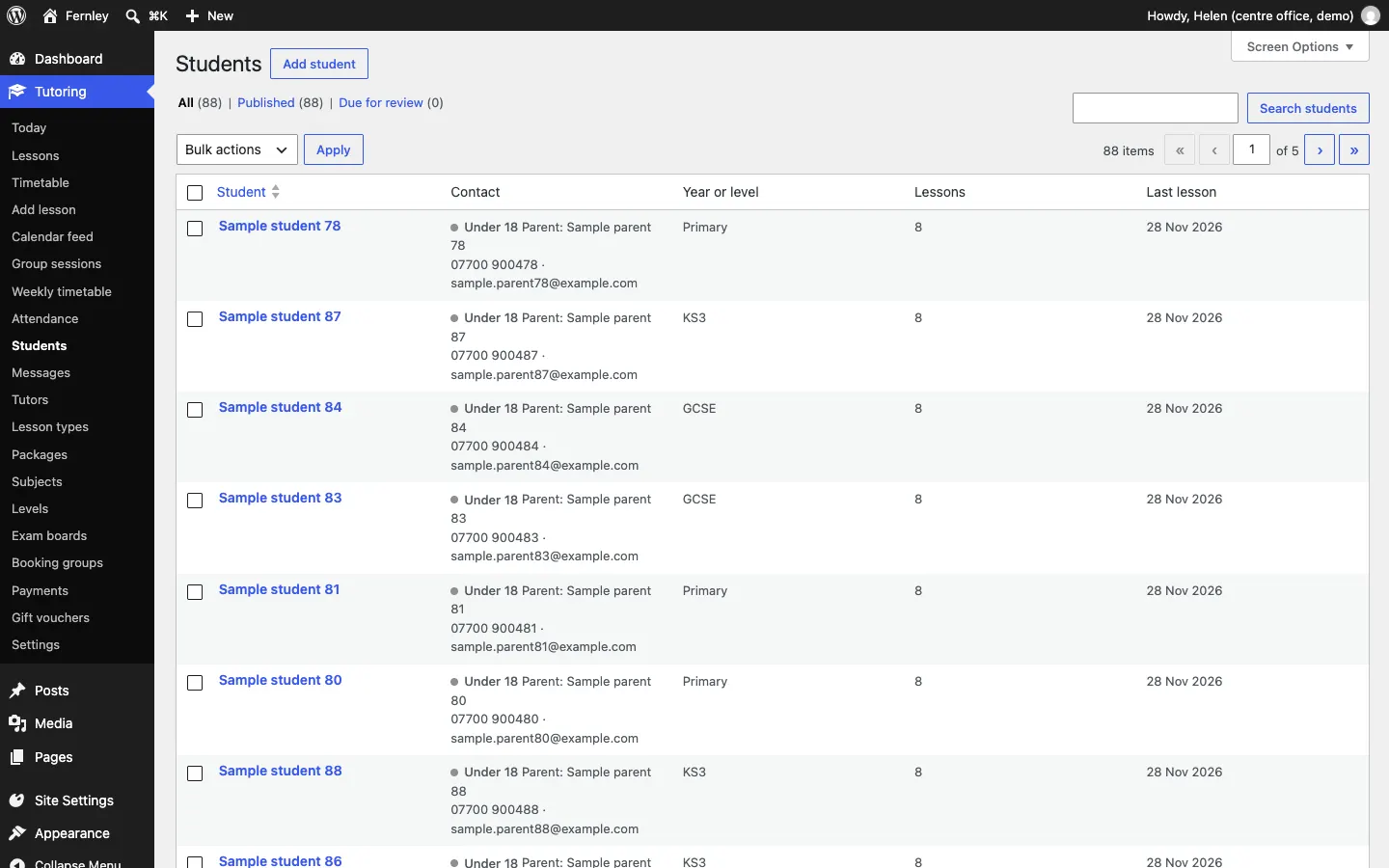
Each row shows the student, the contact (for a child, "Under 18" and the parent's name, phone and email), the year or level, how many lessons they have and the date of their last lesson. Use Search students to find someone.
What's in a student record
Click a student's name to open their record.
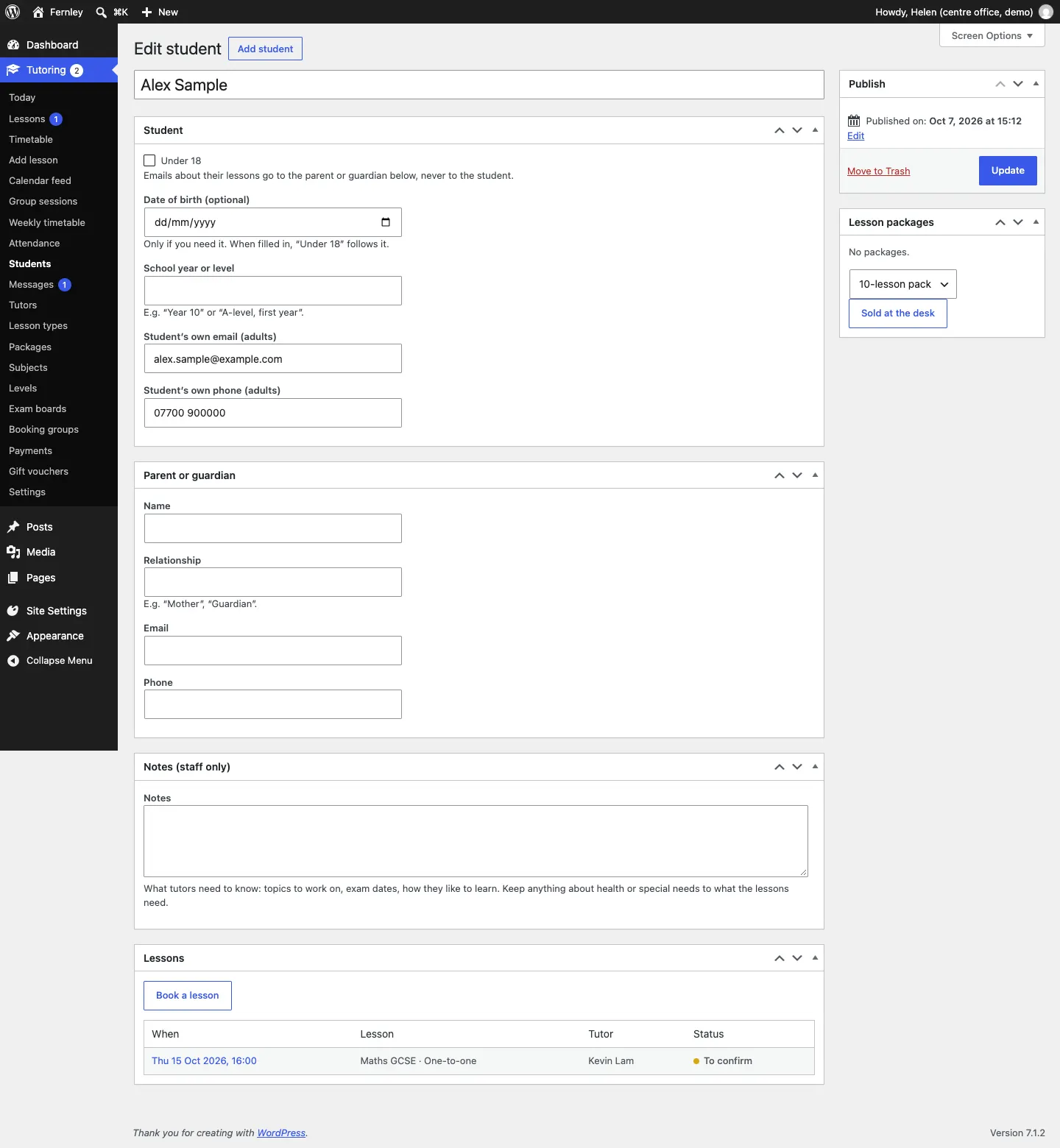
- Student:
- Under 18: ticked automatically when a parent books. While it's ticked, emails about their lessons go to the parent or guardian, never to the student.
- Date of birth (optional): only if you need it. When it's filled in, Under 18 follows it.
- School year or level: for example "Year 10" or "A-level, first year".
- Student's own email and Student's own phone: for adult students.
- Parent or guardian: Name, Relationship (for example "Mother", "Guardian"), Email and Phone.
- Notes (staff only): what tutors need to know: topics to work on, exam dates, how they like to learn.
- Lessons: every lesson and group place, with its status. Book a lesson opens Add lesson for this student.
- Lesson packages (Pro): the packages they have, and how many lessons are left. See below.
How to add a student yourself
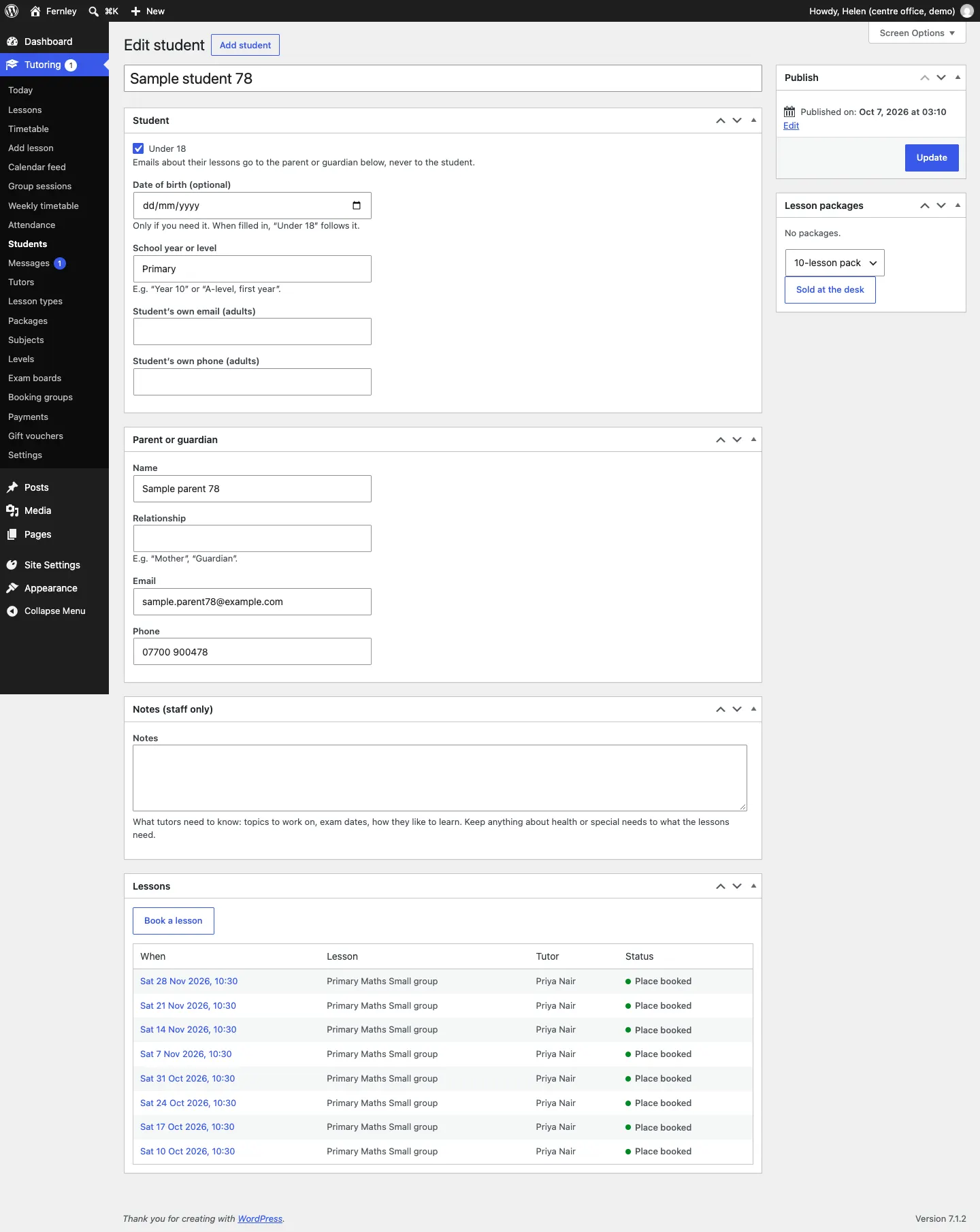
- Go to Tutoring → Add student.
- Type the Student's name at the top.
- Tick Under 18 for a child and fill in the Parent or guardian box.
- Fill in the School year or level, and the student's own email and phone if they are an adult.
- Click Publish.
Usually you don't need to: Add lesson makes the record for a new student for you.
Sell a package at the desk (Pro)
- Open the student's record.
- In the Lesson packages box, choose the package (for example 10-lesson pack).
- Click Sold at the desk.
The lessons are added to their record and recorded under Payments as paid in person. See Lesson packages and payments.
Reviewing old records
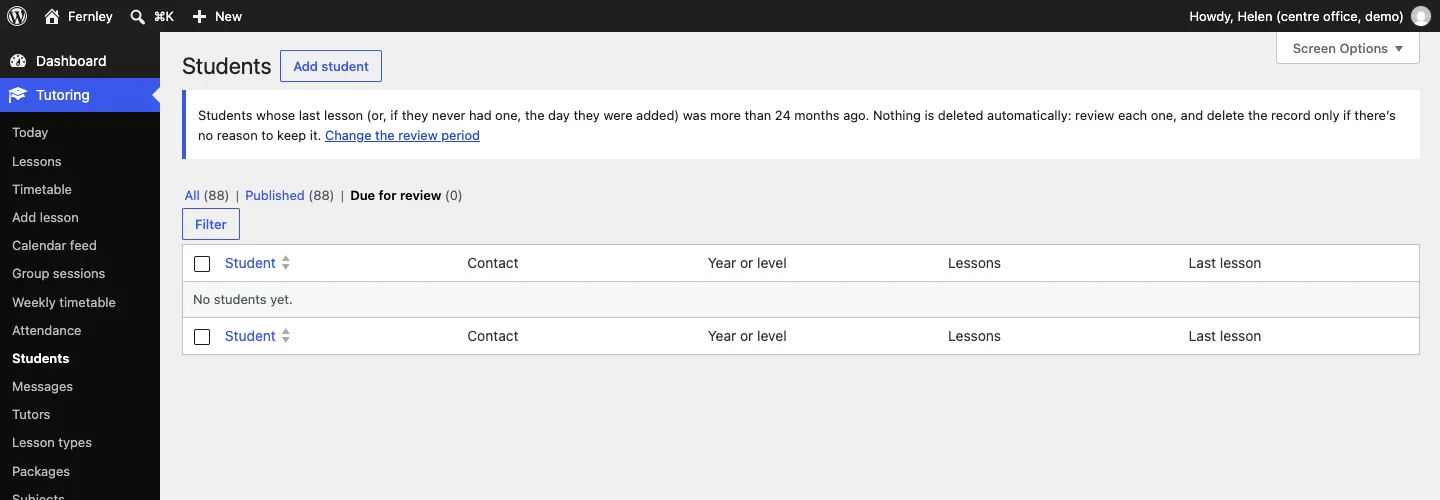
Data protection law asks you to keep personal data only as long as you need it. Students whose last lesson (or, if they never had one, the day they were added) was longer ago than the months you set under Tutoring → Settings → Records (24 by default) are listed under Students → Due for review.
Nothing is deleted automatically. An administrator looks through the list and deletes the records there's no reason to keep:
- Go to Tutoring → Students and click Due for review.
- Look at each student. Keep any you still need.
- Tick the records to delete and choose Delete selected.
- Type DELETE to confirm.
Their lessons stay in the timetable, without their details.
When a family asks for their data
A family can ask for a copy of the data you hold, or for it to be deleted. Go to Tools → Export Personal Data or Tools → Erase Personal Data and enter their email address. This covers their student records, lessons, group places and register marks. Erased lessons stay in the timetable without the person's details. See Privacy and emails.
Who can see students
Out of the box, only administrators and staff with the Office role see students, parents, lessons and enquiries. Tutors see only their own lessons, with the student's name and the parent's phone. Editors (who write the website's pages) see none of it. See Staff and sign-in.