Running your website
Daily running and settings
The daily and weekly routine for the office, the Today screen and the red badges, and a reference to every Tutoring setting: lessons, opening hours, terms, records, email and staff access.
On this page
Once the website is set up, running it takes a few minutes a day. This chapter gives you a routine, explains the Today screen and the red numbers in the menu, and lists every setting in one place.
Features marked (Pro) need a Pro or Agency licence.
Signing in
Go to your website's address followed by /wp-admin (for example yourcentre.co.uk/wp-admin), or click Staff sign-in at the very bottom of any page. After signing in you go straight to Tutoring → Today. Forgotten your password? Click Lost your password? on the sign-in page. After 5 wrong passwords, sign-in pauses for 15 minutes. See Staff and sign-in.
The Today screen
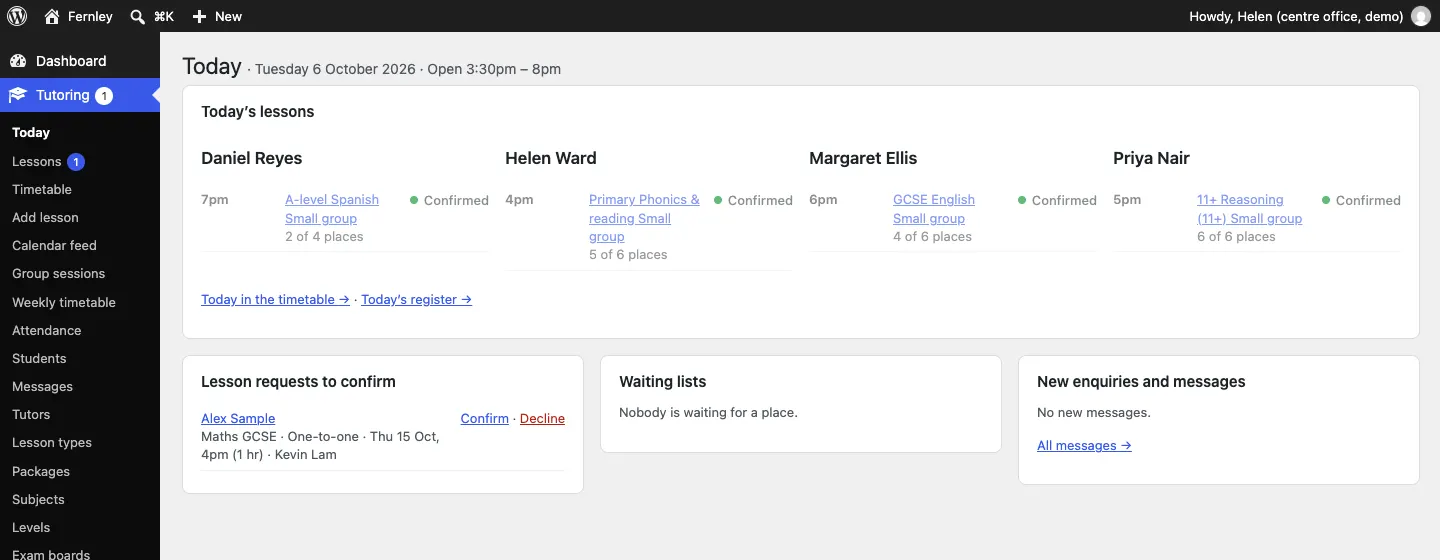
Tutoring → Today shows the date and today's opening hours, then:
- Today's lessons, by tutor, in time order, with each lesson's status. Group sessions show how many places are booked. Today in the timetable → and Today's register → take you straight there.
- Lesson requests to confirm: online bookings waiting for you, with quick Confirm and Decline links.
- Waiting lists for group sessions (Pro).
- New enquiries and messages, with All messages →.
The red badges
A red number beside Tutoring in the left-hand menu means something is waiting. Open the menu to see where: beside Lessons for requests to confirm, beside Messages for new messages and enquiries. When you've dealt with them, the numbers go away.

A daily routine
- Open Tutoring → Today.
- Confirm or decline each lesson request. Families are waiting to hear. See Lessons and the timetable.
- Answer new enquiries and messages. See Enquiries and messages.
- Check the waiting lists (Pro). If you move people up by hand, give freed places. See Group sessions.
- For online lessons, check each one has its Online lesson link before the reminders go (from about 8am the day before).
- After the lessons, take the register (Pro), or check the tutors have. See The attendance register.
A weekly routine
- Look at next week in Tutoring → Timetable. Check days off, holidays and any gaps.
- Check the top of Tutoring → Weekly timetable (Pro) for dates that couldn't be made because a tutor was busy.
- Check tutors' days off are on their profiles (or ask tutors to add their own).
- Look at Tutoring → Payments (Pro) for anything waiting or to decide.
Every term, and once a year
- Add next term's dates and half terms (Pro) under Settings → Terms, then click Make lessons now on the Weekly timetable.
- Stop slots for students and groups that have finished, and tell the families yourself (stopping sends no emails).
- Look through Students → Due for review and Messages → Due for review, and delete what there's no reason to keep. See Students and parents.
- Check DBS dates on tutors' profiles.
The settings
Go to Tutoring → Settings. Each tab saves on its own: click Save changes at the bottom of the tab you changed.
The Business, Contact and Privacy tabs are the same for every kit: your names, logo, sign-in page, social media, phone, address, contact form and cookie banner. See Your look and Privacy and emails.
Lessons settings
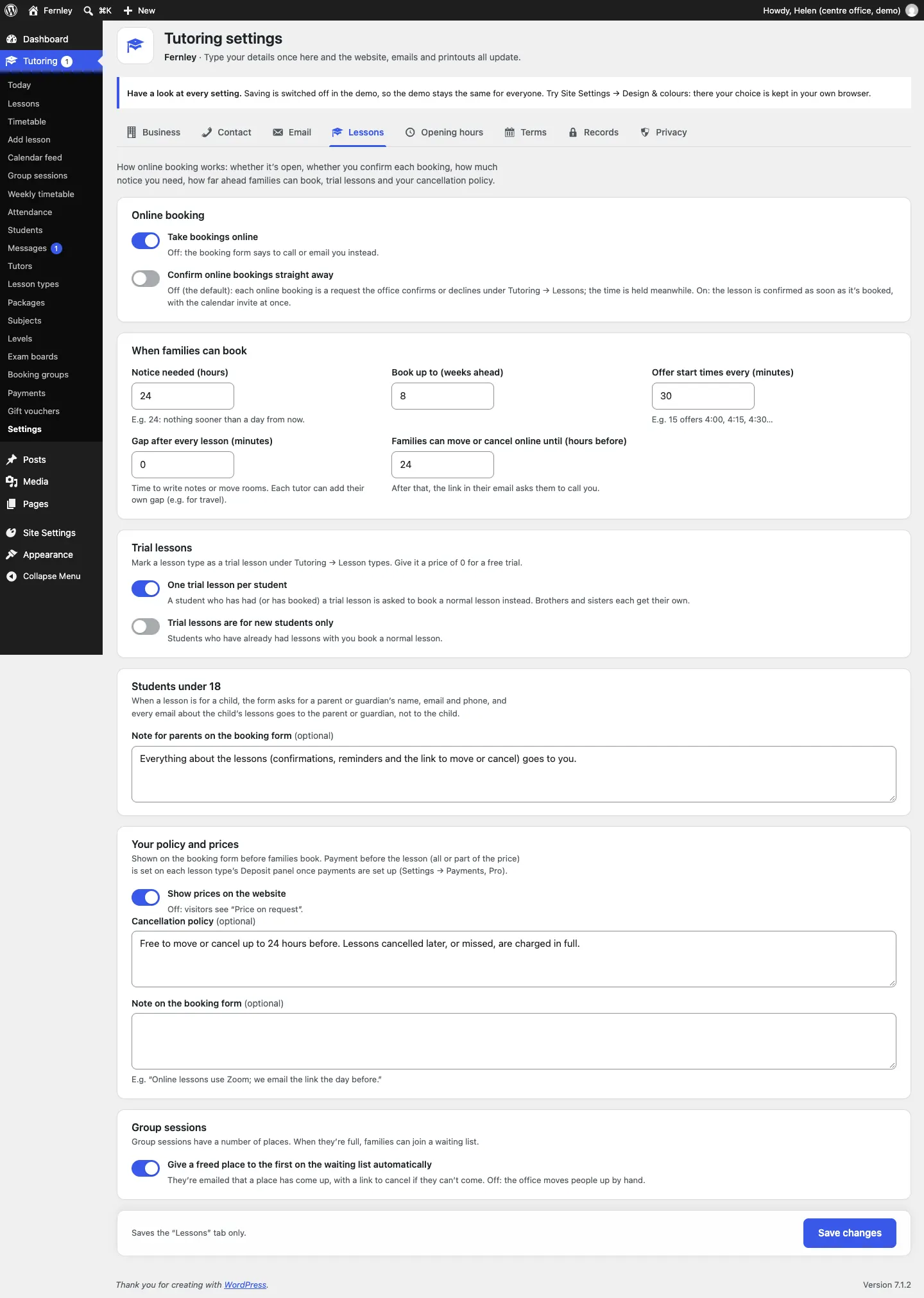
How online booking works.
- Take bookings online: off means the booking form says to call or email you instead.
- Confirm online bookings straight away: off (the default) makes each online booking a request you confirm or decline; the time is held meanwhile. On confirms it as soon as it's booked, with the calendar invite at once.
- Notice needed (hours): for example 24 means nothing sooner than a day from now.
- Book up to (weeks ahead).
- Offer start times every (minutes): for example 15 offers 4:00, 4:15, 4:30…
- Gap after every lesson (minutes): time to write notes or move rooms. Each tutor can add their own gap.
- Families can move or cancel online until (hours before): after that, the link in their email asks them to call you.
- One trial lesson per student and Trial lessons are for new students only. See Subjects, levels and lesson types.
- Note for parents on the booking form (optional).
- Show prices on the website: off means visitors see "Price on request".
- Cancellation policy (optional) and Note on the booking form (optional), for example "Online lessons use Zoom; we email the link the day before."
- Give a freed place to the first on the waiting list automatically (Pro).
Opening hours
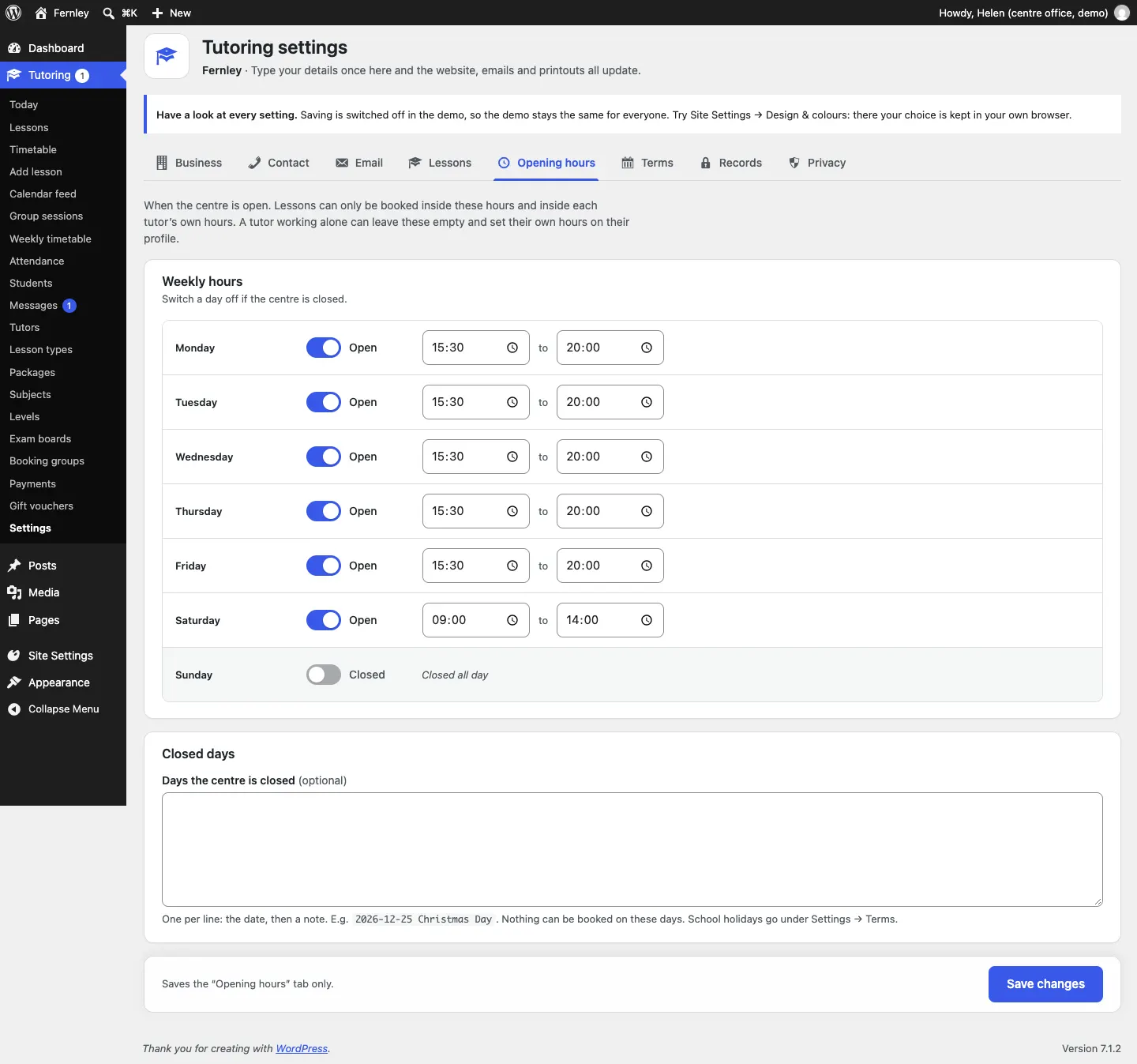
When the centre is open. Lessons can only be booked inside these hours and inside each tutor's own hours. A tutor working alone can leave these empty and set their own hours on their profile.
- Weekly hours: switch a day off if the centre is closed, and set the opening and closing time for the others.
- Days the centre is closed (optional): one per line, the date then a note, for example
2026-12-25 Christmas Day. Nothing can be booked on these days. School holidays go under Terms.
Terms (Pro)
Term dates, half terms and holidays, term-time-only booking, repeating lessons weekly and how many weeks ahead the timetable makes lessons. See The weekly timetable and term dates.
Records
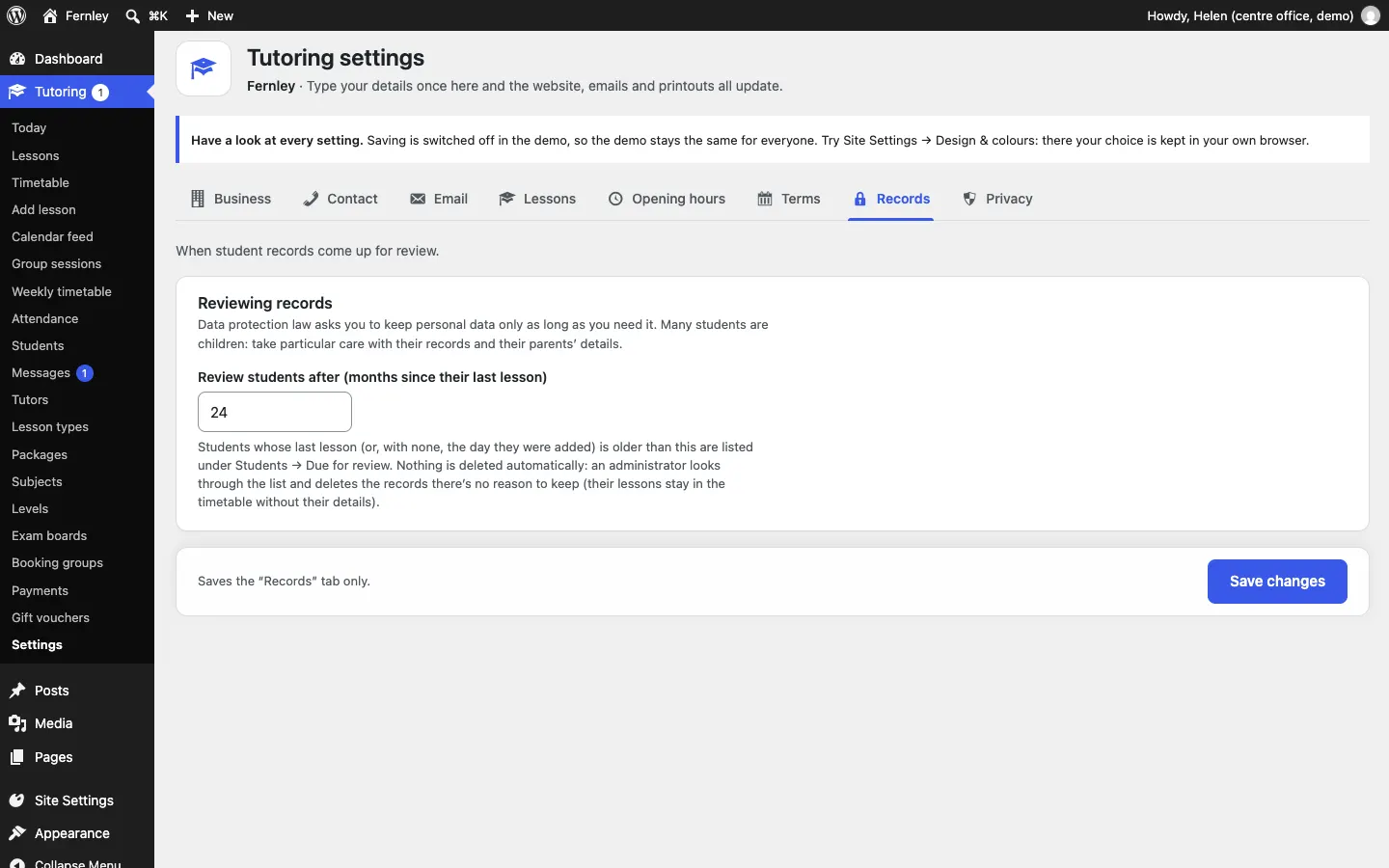
Review students after (months since their last lesson): students older than this are listed under Students → Due for review. Nothing is deleted automatically. See Students and parents.
Email settings
- Send notifications to: who gets news of new bookings, cancellations, enquiries and contact form messages. Put commas between several addresses.
- Send new bookings and enquiries to (optional) and Send contact form messages to (optional): send those emails to other addresses instead, for example bookings to the office and contact messages to you. Leave them blank to use Send notifications to.
- From name, From email and Replies go to: what people see in their inbox. Use an address on your website's own domain for From email, or Gmail and others may put your emails in spam.
- A switch for every email the website sends, to families (lesson request received, lesson confirmed, declined, cancelled, the reminder the day before, place in a group session, on the waiting list, payment received, package bought, enquiry received…) and to the office and tutors (new online booking, cancelled by the family, new parent enquiry, lesson news for the tutor…). For students under 18, family emails go to the parent or guardian.
- Send a test email: check the website's emails arrive. Save any changes first.
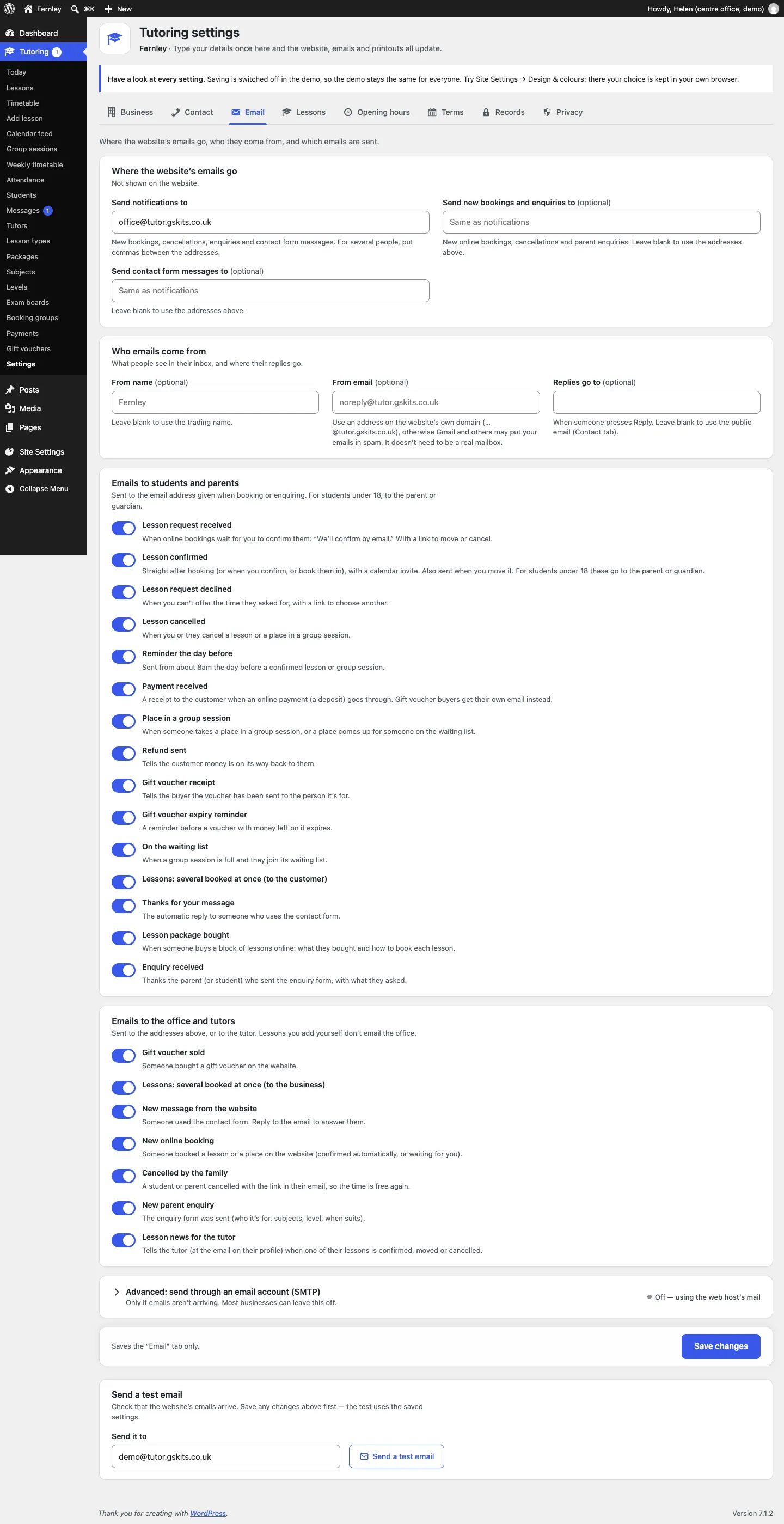
See Privacy and emails for the email log and sending through your own email account.
Payments (Pro)
Connect Stripe or WooCommerce for packages, deposits and gift vouchers. See Lesson packages and payments.
Staff access
Who can do what. Out of the box:
- Administrators and the Office role see lessons, students, parents, enquiries and messages.
- Tutors see only their own lessons, hours, groups and register.
- Editors (who write the website's pages) see none of it.
With Pro, you can change these under staff access. See Staff and sign-in.
Running the setup wizard again
Tutoring → Settings → Run setup again opens the setup wizard. See The Tutor setup wizard.
Site stats
Dashboard → Site stats shows visits, page views and lessons booked over the last 7 days, and your most visited page.