Running your website
Lessons and the timetable: the office's side
Confirming or declining online requests, booking lessons taken by phone or in person, changing, moving and cancelling a lesson, the Lessons list, the Timetable and lessons booked together.
On this page
Every lesson, whether a family booked it online or the office added it, lives under Tutoring → Lessons and shows on Tutoring → Timetable. This chapter covers the office's jobs: confirming requests, adding lessons taken by phone, and changing, moving or cancelling them.
Features marked (Pro) need a Pro or Agency licence.
Confirm or decline a lesson request
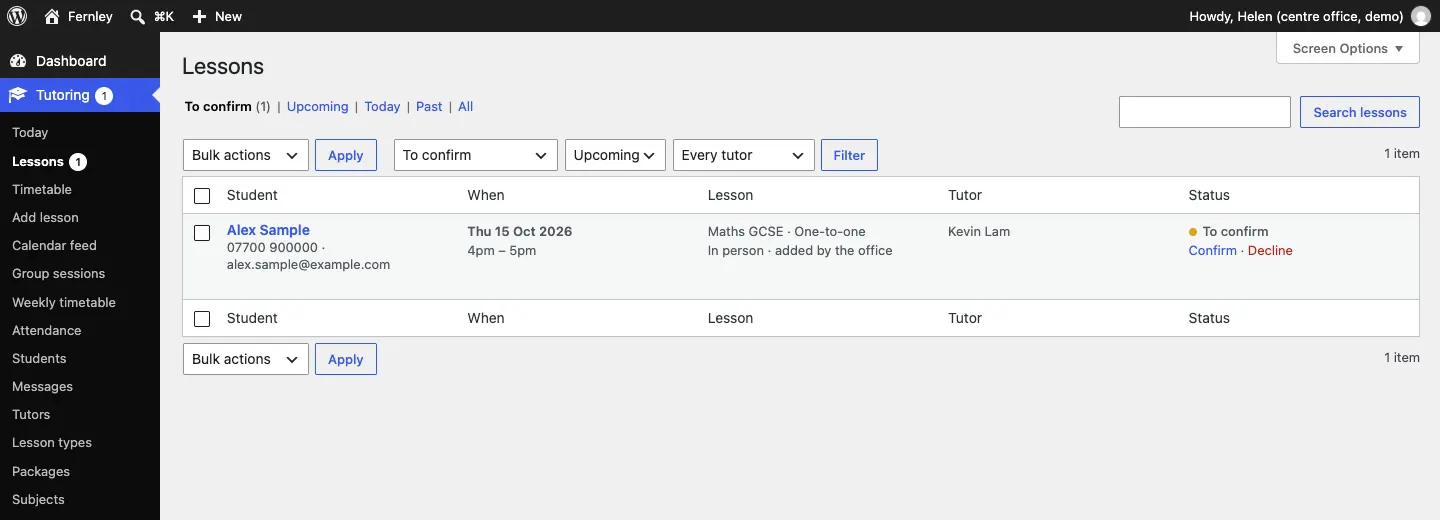
By default each online booking is a request: the time is held, the family is told you'll confirm, and the request waits for you. The red number next to Tutoring and Lessons in the left-hand menu shows how many are waiting.
- Go to Tutoring → Today. New requests are listed under Lesson requests to confirm. (Or go to Tutoring → Lessons and click To confirm.)
- If you already know the time is fine, click Confirm (or Decline) right there. Otherwise click the student's name to open the request.
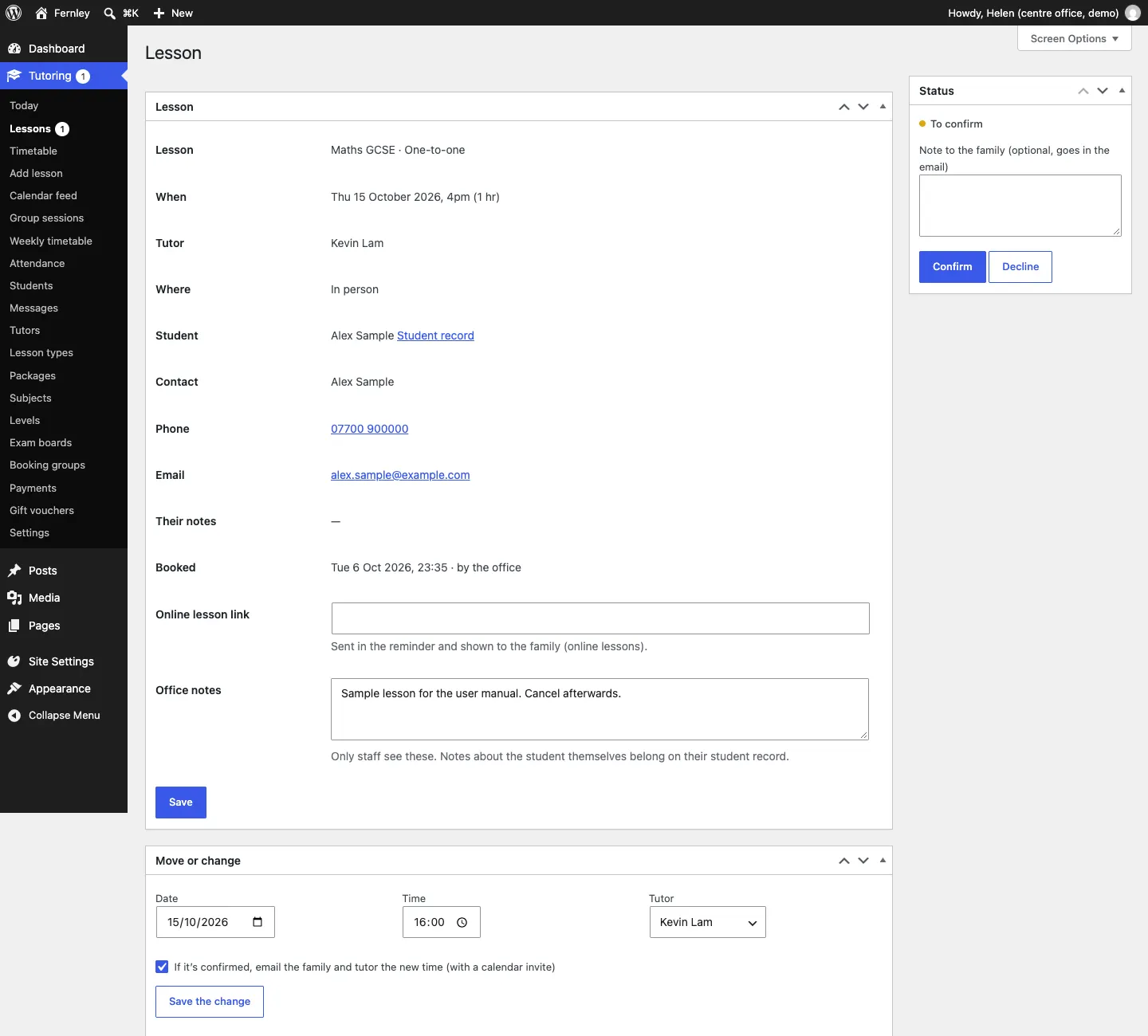
- Check the lesson, the day and time, the tutor, the student and their notes.
- Optionally, type a Note to the family. It goes in the email.
- Click Confirm, or Decline if you can't offer that time.
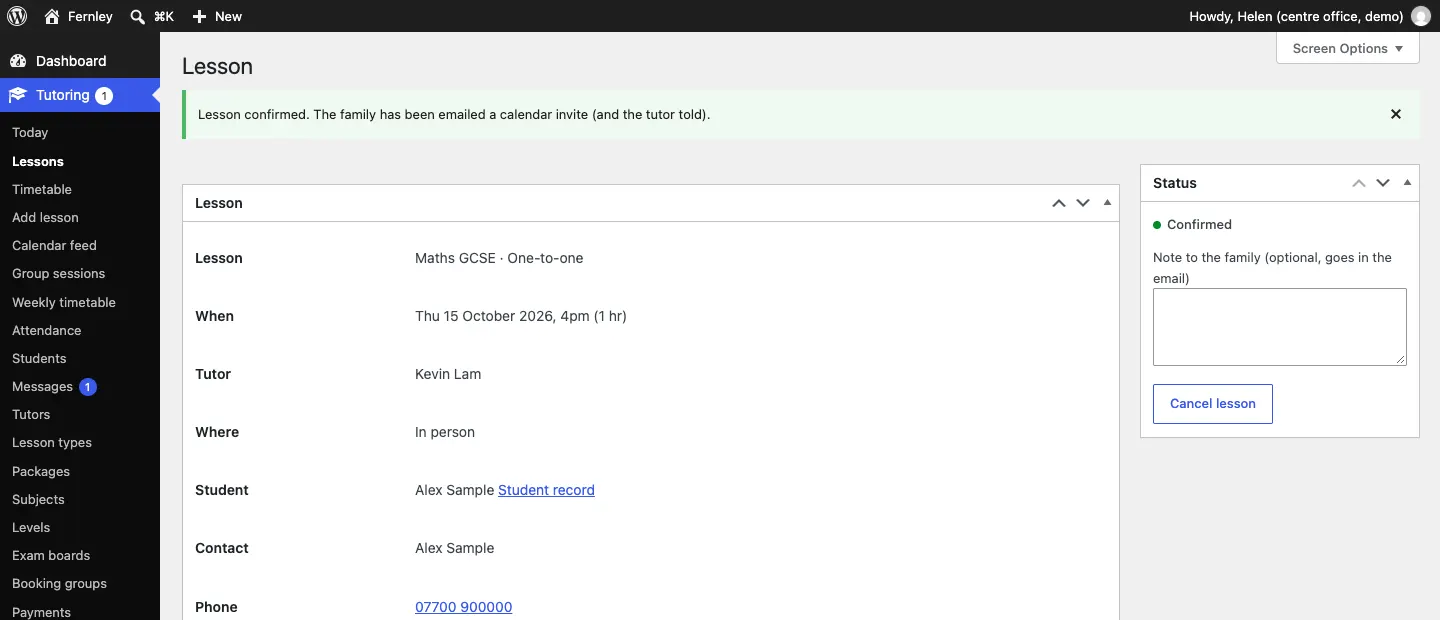
When you confirm, the family gets an email with a calendar invite and the link to see, move or cancel, and the tutor is told.
When you decline, the family gets an email (with your note) and a link to choose another time.
Add a lesson booked by phone or in person
- Go to Tutoring → Add lesson.
- Under The lesson, choose the Lesson type, the Tutor, the Subject and Level, the Date and Time, Where (online or in person) and the Status (Confirmed or To confirm).
- Under Student, either choose A student you know from the list, or choose A new student (fill in below):
- choose Under 18 (we take a parent or guardian's details) or 18 or over;
- for a child, type the Student's name (under 18);
- type the Name (parent, or the adult student), Email and Phone.
- Optionally, type Office notes (only staff see them).
- Leave Email the family the details (with a calendar invite when confirmed) ticked, or untick it if you don't want an email sent.
- Click Add the lesson.
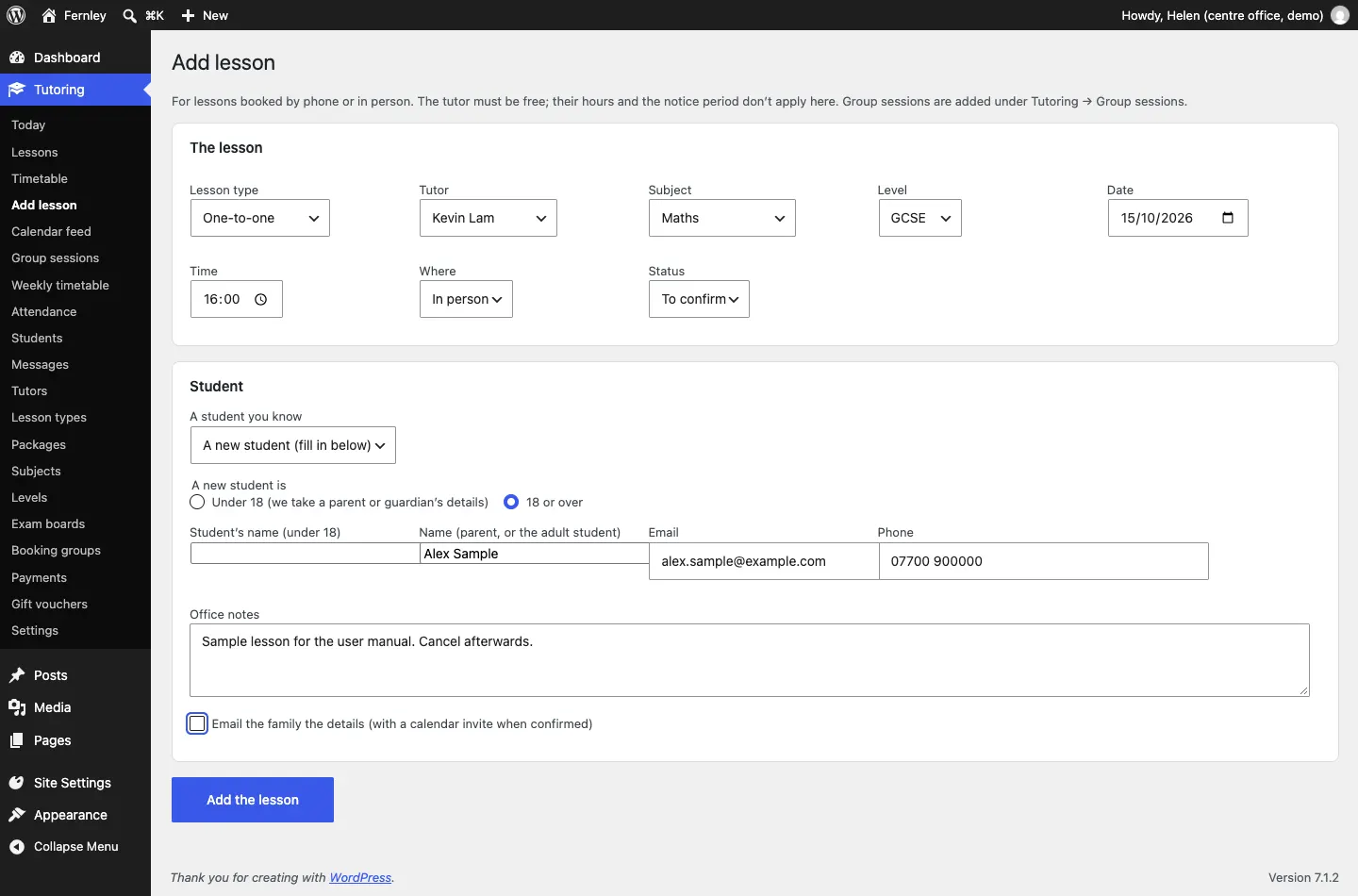
The tutor must be free at that time, but their usual hours and the notice period don't apply here. Group sessions are added under Tutoring → Group sessions instead (see Group sessions).
Change, move or cancel a lesson
Open the lesson from Tutoring → Lessons, Tutoring → Today or the Timetable.
- Status (top right): a lesson waiting for you has Confirm and Decline. A confirmed lesson has Cancel lesson. Once a lesson has started you can also mark it Taught or Didn't come. A cancelled lesson has Reinstate. A note you type goes in the email.
- Online lesson link: for online lessons, paste the video link here. It is shown to the family and sent in the reminder.
- Office notes: only staff see them. Notes about the student themselves belong on their student record. Click Save.
- Move or change: choose a new Date, Time or Tutor. Leave If it's confirmed, email the family and tutor the new time (with a calendar invite) ticked, then click Save the change.
Families can also move or cancel online with the link in their email, until the cut-off (24 hours before by default). After that, the link asks them to call you.
The Lessons list
Tutoring → Lessons lists every lesson. Use the links at the top (To confirm, Upcoming, Today, Past, All) or the menus (All statuses, Upcoming, Every tutor) and click Filter. Each row shows the student (or "Group session" with its places), when, the lesson, the tutor and the status, with a quick Cancel link.
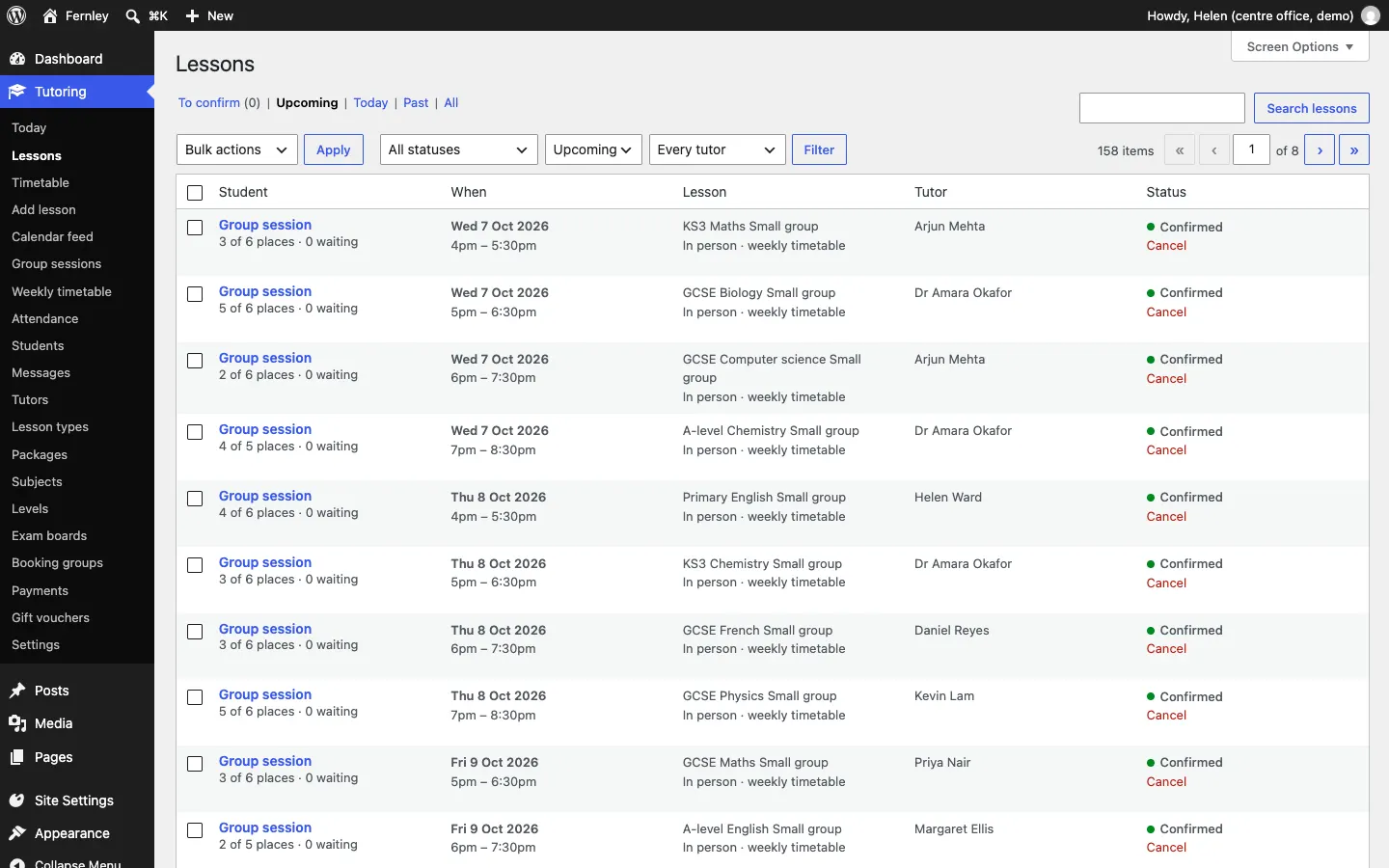
The statuses are To confirm, Confirmed, Taught, Didn't come, Declined, Cancelled and Waiting for payment (Pro, while a family pays).
The Timetable
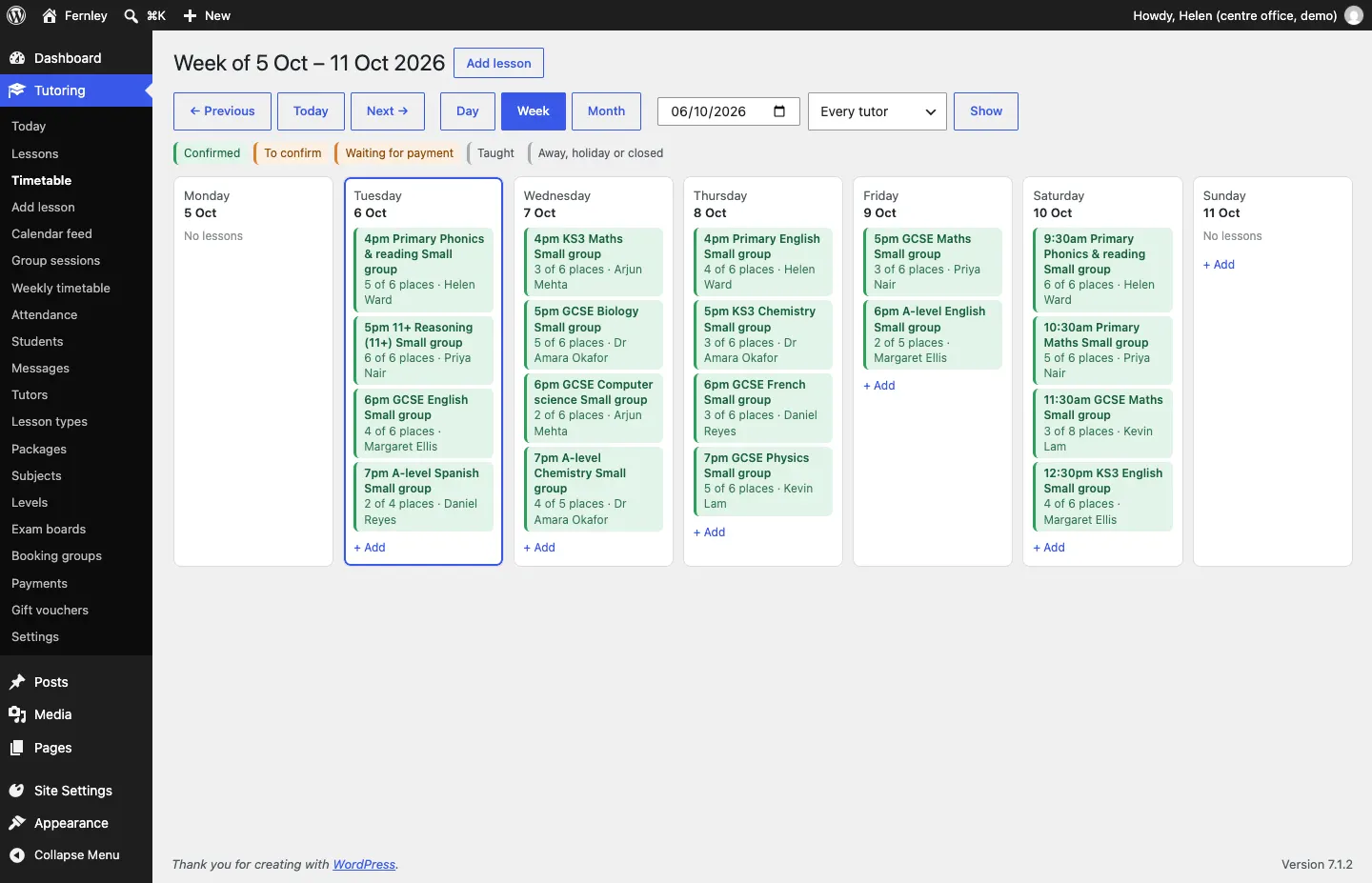
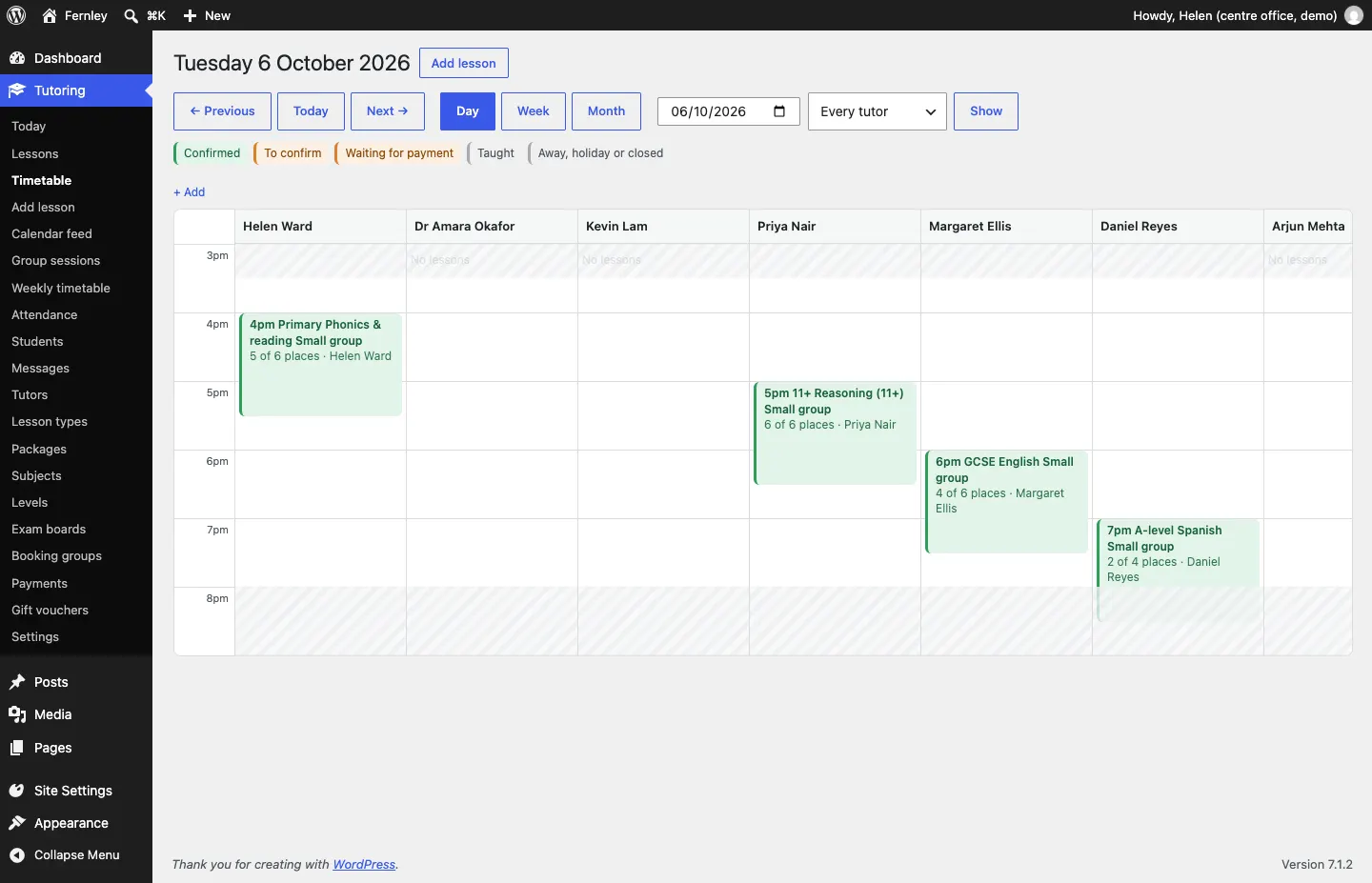
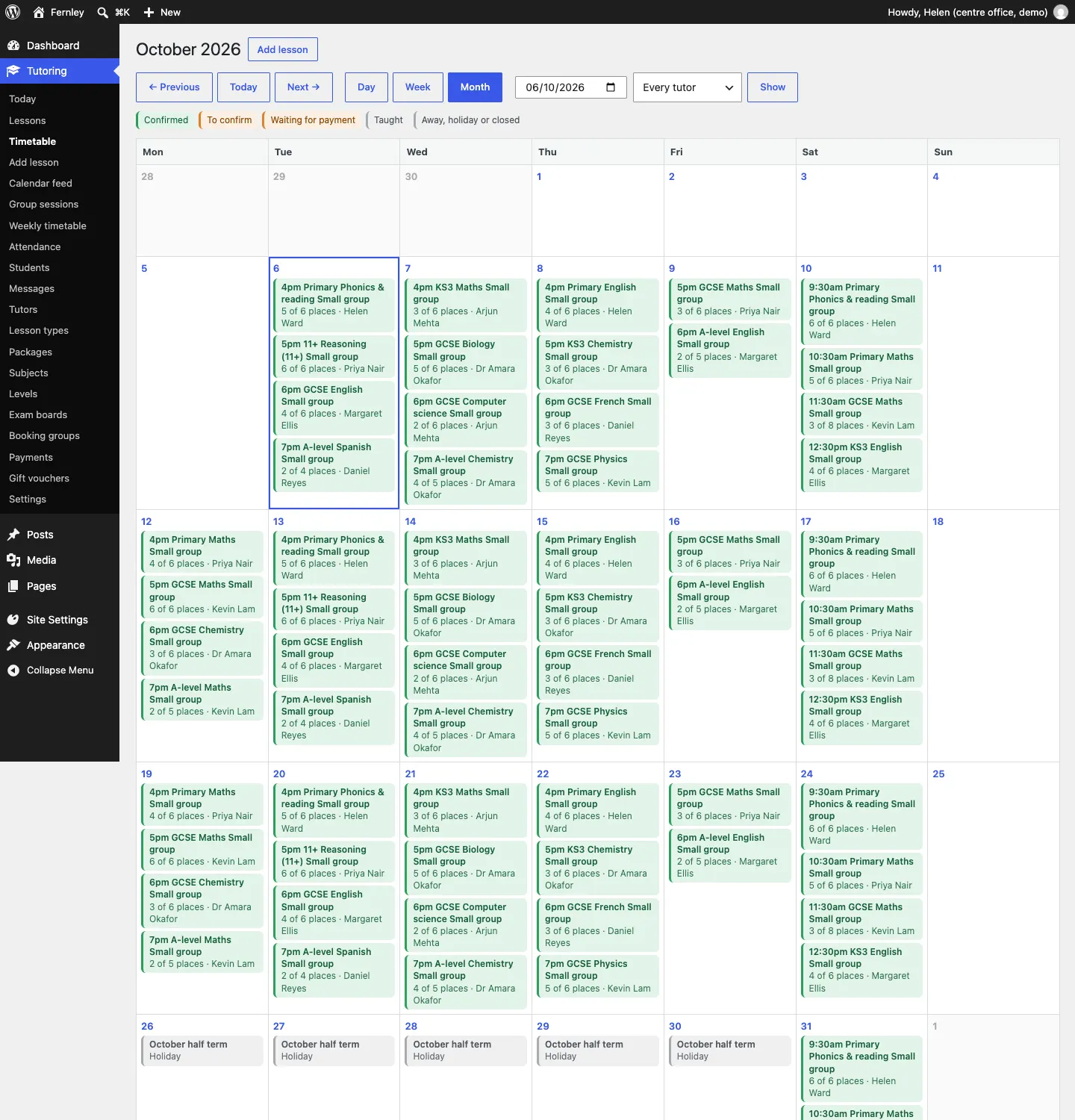
Tutoring → Timetable shows your lessons on a calendar. It opens on the view you used last.
- Week: every lesson of the week, day by day.
- Day: a column for each tutor, hour by hour. Shaded times are outside opening hours, days away, holidays or closed.
- Month: the whole month at a glance.
Use ← Previous, Today and Next → to move, or type a date. Choose one tutor in the Every tutor menu and click Show to see only theirs. Click + Add on a day (or Add lesson at the top) to book a lesson. Click a lesson to open it. The colours show Confirmed, To confirm, Waiting for payment, Taught and Away, holiday or closed.
Lessons booked together
When a family books a weekly series ("Repeat weekly until the end of term", Pro) or several lessons in one go, the lessons are kept together as a booking group, with one reference, one email and one payment. Each lesson in it is also in the timetable and the Lessons list as usual.
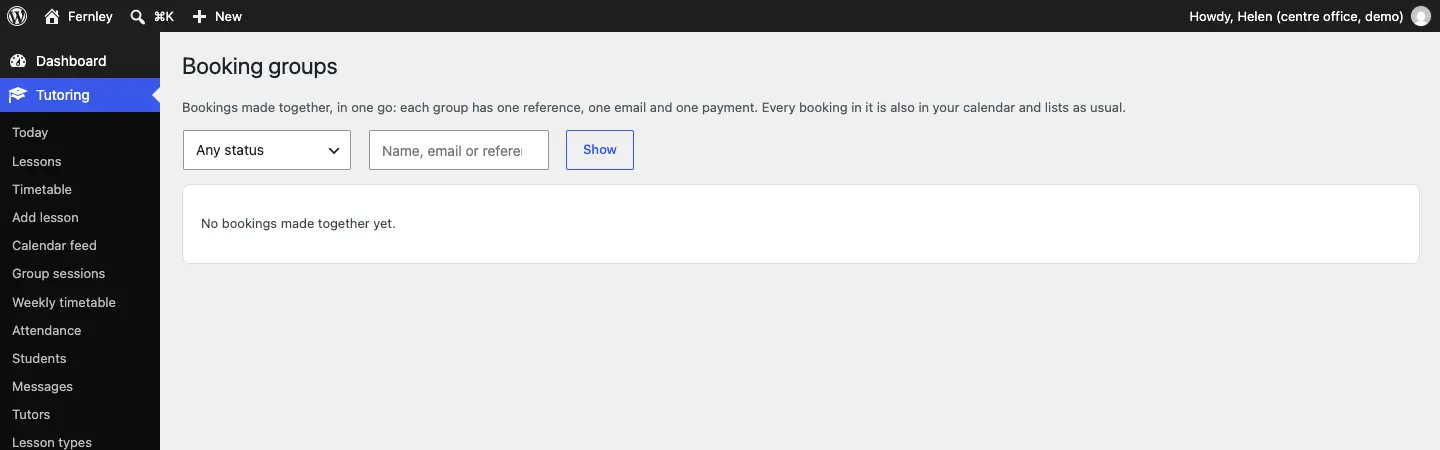
Go to Tutoring → Booking groups to see them. Filter by status (Waiting for payment, To confirm, Confirmed, Partly cancelled, Completed, Cancelled) or search, and click Show.
Calendar feed (Pro)
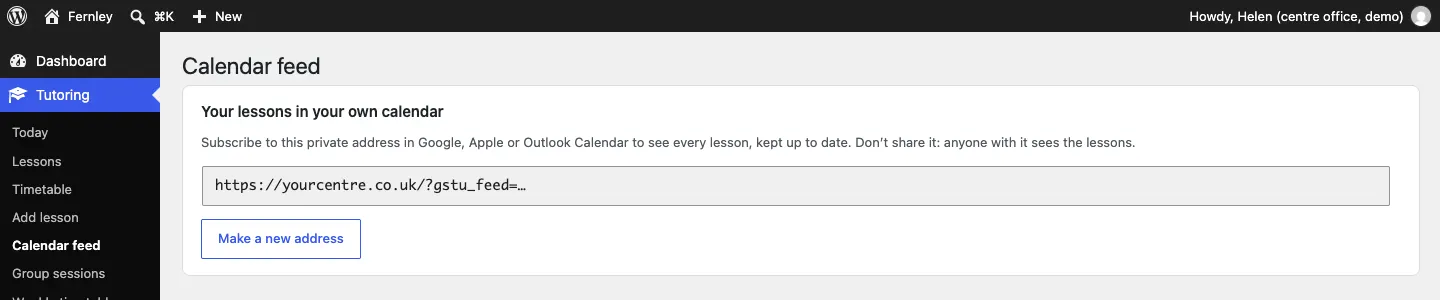
Tutoring → Calendar feed gives you a private address to subscribe to in Google, Apple or Outlook Calendar, so every lesson appears in your own calendar and stays up to date. Tutors have the same under My lessons, with only their own lessons.