Running your website
The weekly timetable and term dates (Pro)
Your term dates and holidays, regular weekly lessons and groups that are made automatically for the weeks ahead, clashes, stopping a slot, and term-time-only booking.
On this page
Most tutoring is weekly: the same student or group, the same tutor, the same time, every week of term. Instead of booking each week by hand, you add a timetable slot once ("Saturday 11:30, GCSE Maths clinic, Kevin Lam") and the website makes the lessons for the weeks ahead, skipping half terms, holidays and closed days.
The weekly timetable and term dates need a Pro or Agency licence. Features marked (Pro) need a Pro or Agency licence.
Step 1: add your term dates
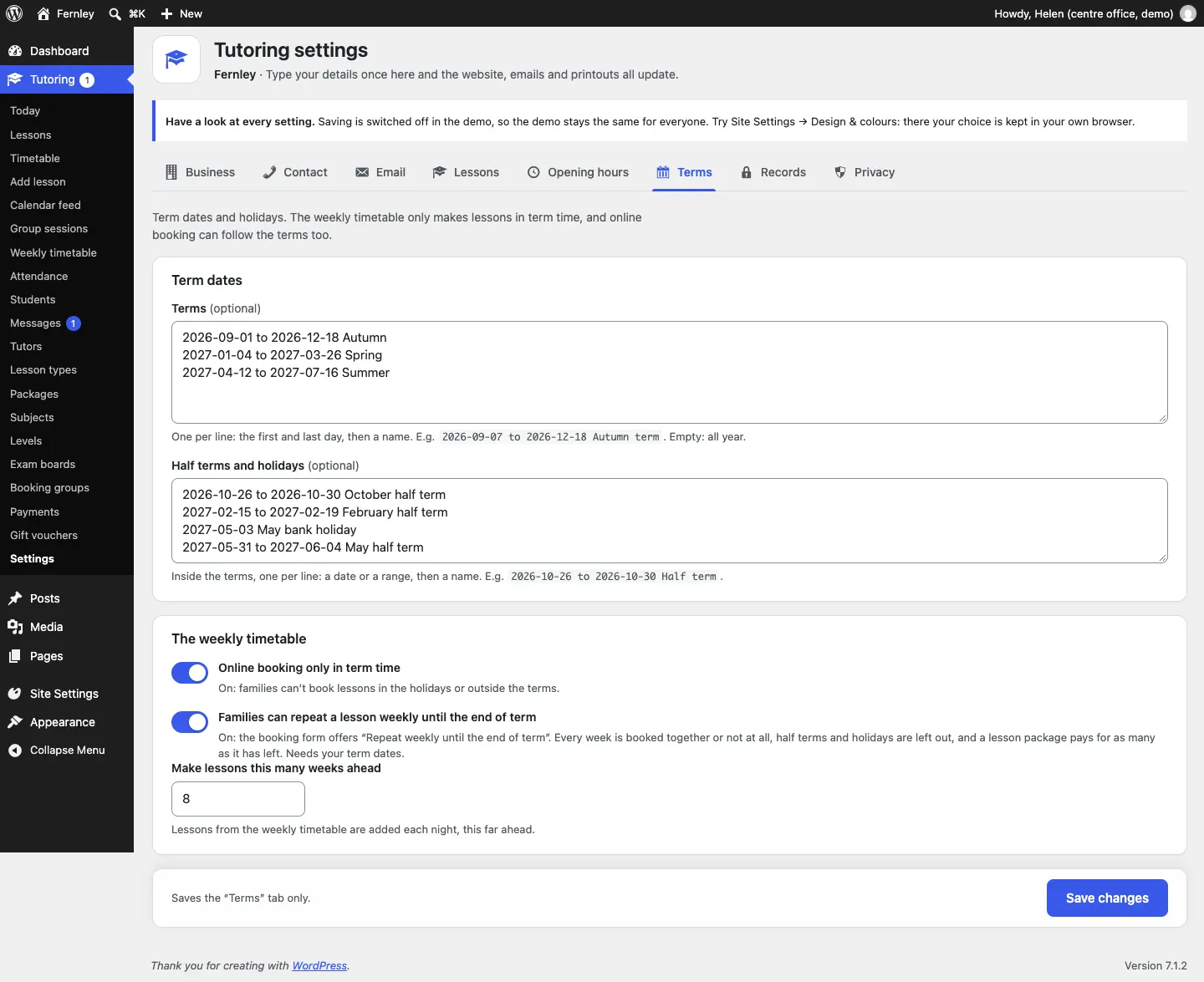
- Go to Tutoring → Settings and click the Terms tab.
- In Terms (optional), type one term per line: the first and last day, then a name. For example
2026-09-07 to 2026-12-18 Autumn term. Leave it empty for "all year". - In Half terms and holidays (optional), type one per line, inside the terms: a date or a range, then a name. For example
2026-10-26 to 2026-10-30 Half term. - Choose the switches under The weekly timetable:
- Online booking only in term time: families can't book lessons in the holidays or outside the terms.
- Families can repeat a lesson weekly until the end of term: the booking form offers "Repeat weekly until the end of term" (see Online booking).
- Make lessons this many weeks ahead: how far ahead lessons are made from the timetable each night.
- Click Save changes.
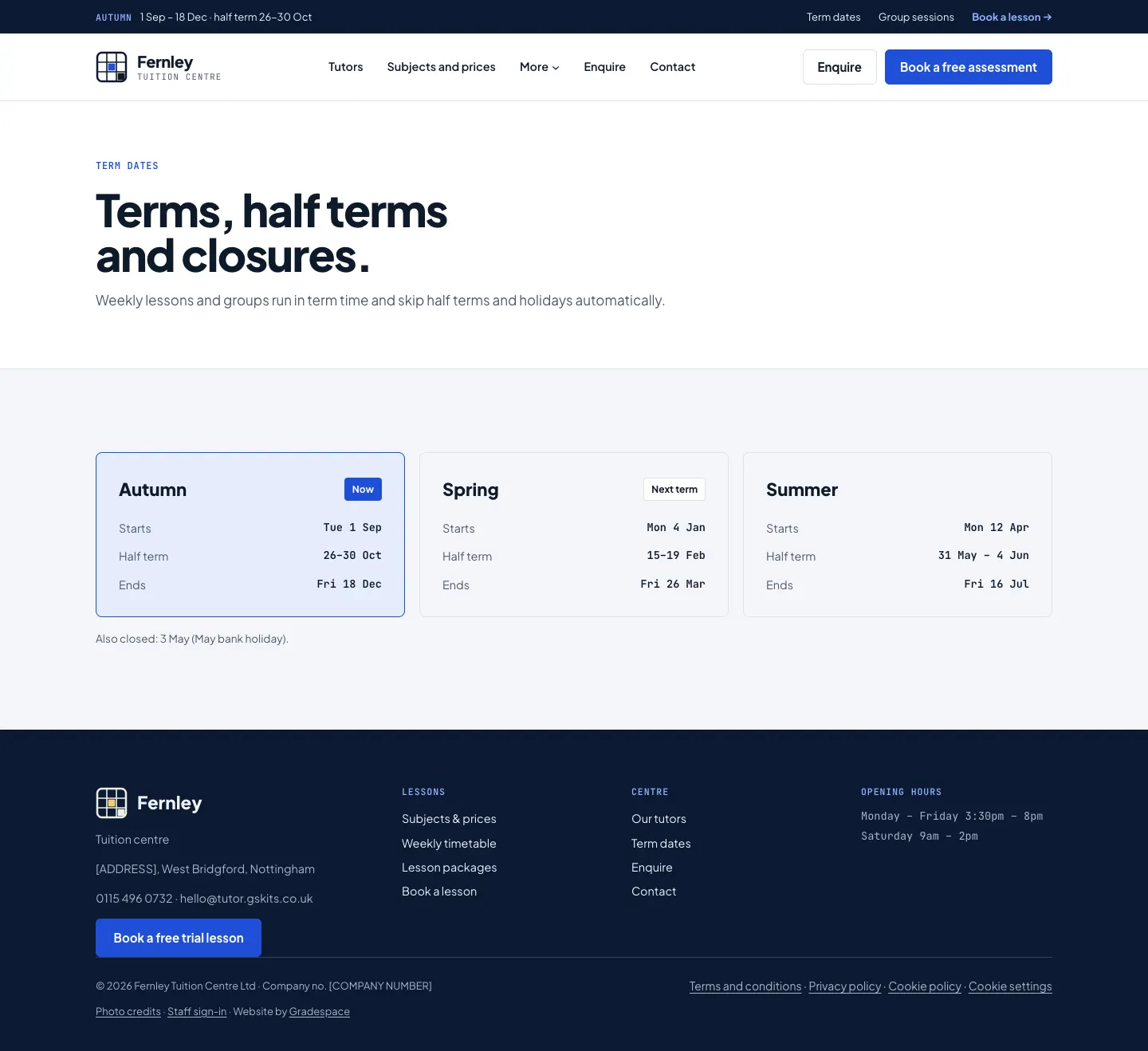
Your term dates show on the Term dates page, in the notice bar at the top of every page, and on tutors' pages.
Step 2: add a timetable slot
-
Go to Tutoring → Add timetable slot (or click Add timetable slot on Tutoring → Weekly timetable).
-
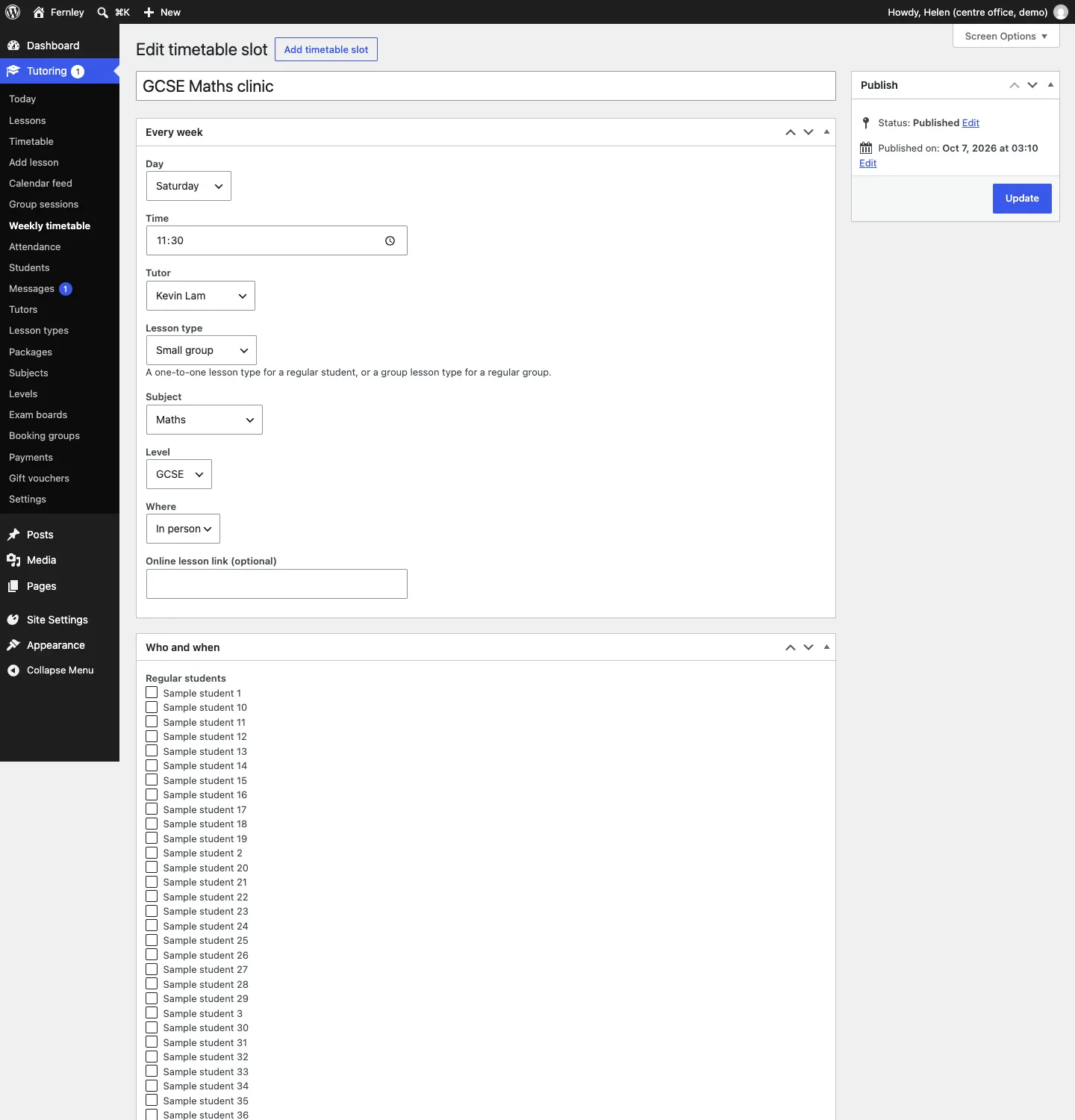
Give the slot a name at the top, for example "GCSE Maths clinic". Families see it on the Group sessions page.
-
In the Every week box, choose the Day, Time, Tutor, Lesson type (a one-to-one lesson type for a regular student, or a group lesson type for a regular group), Subject, Level and Where. For online lessons, paste the Online lesson link.
-
In the Who and when box:
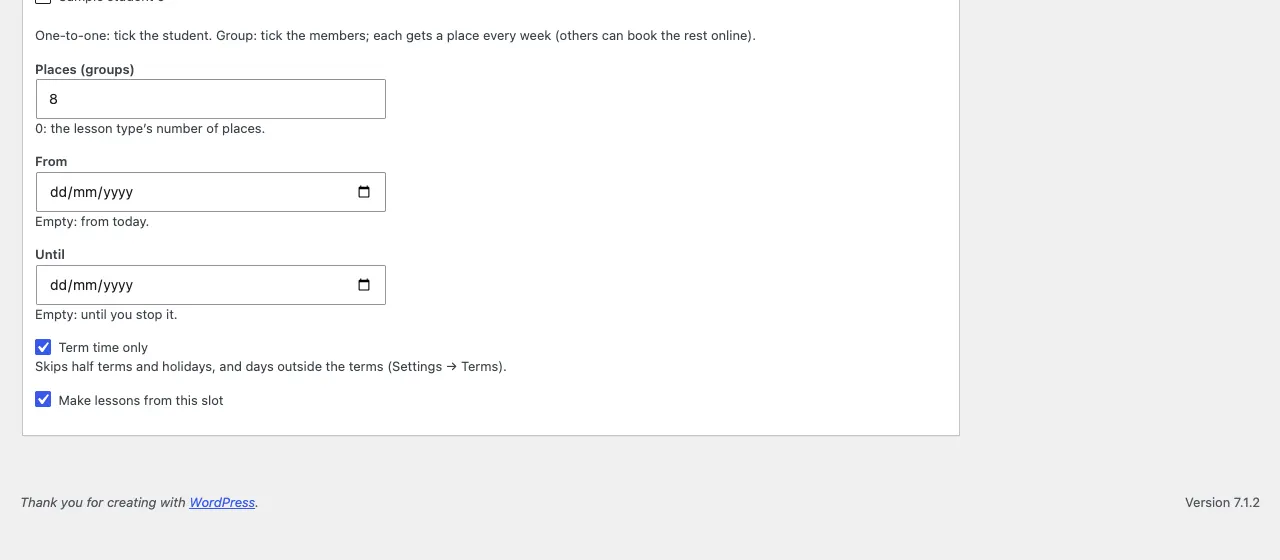
- Regular students: for a one-to-one, tick the student. For a group, tick the members: each gets a place every week, and others can book the rest online.
- Places (groups): 0 uses the lesson type's number of places.
- From: empty means from today. Until: empty means until you stop it.
- Term time only: skips half terms and holidays, and days outside the terms.
- Make lessons from this slot: leave it ticked.
-
Click Publish. The lessons for the weeks ahead are made straight away.
The Weekly timetable list
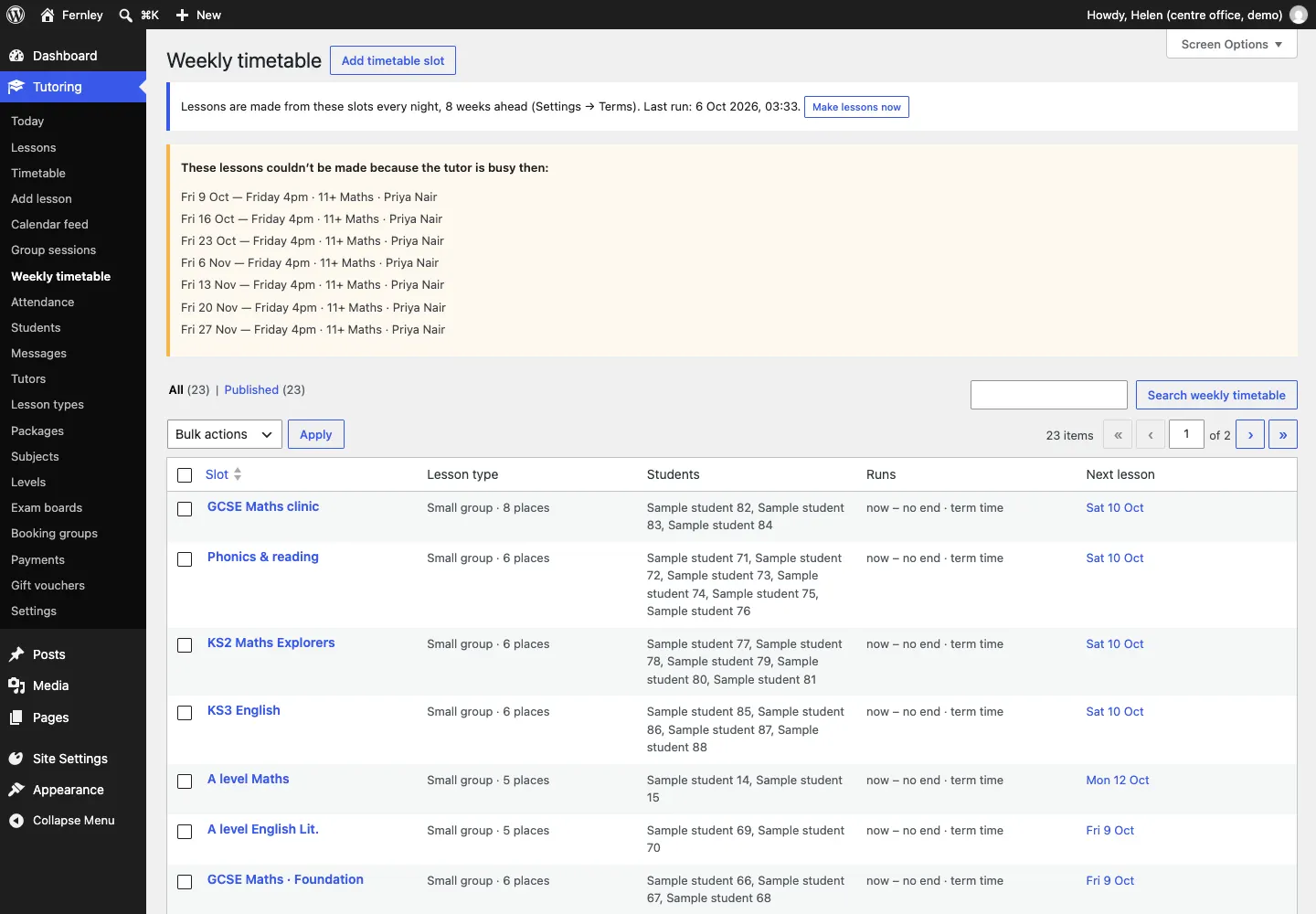
Tutoring → Weekly timetable lists every slot with its lesson type and places, its regular students, when it runs ("now – no end · term time") and its next lesson.
At the top it says when lessons were last made ("Lessons are made from these slots every night, 8 weeks ahead"). Click Make lessons now to make them straight away, for example after changing your term dates.
How the lessons are made:
- Every night, lessons are made from each slot for the weeks ahead, skipping closed days, holidays and (for term-time slots) days outside the terms.
- A date is never made twice. A lesson you cancel by hand isn't made again.
- If the tutor is already busy at that time, the date is listed at the top of the Weekly timetable as a clash ("These lessons couldn't be made because the tutor is busy then"), instead of double-booking. Move the other lesson, or change the slot.
Stop a slot when it ends
When a regular student stops or a group finishes, hover over the slot in the list and click Stop.
- No more lessons are made from it.
- Its lessons still to come are cancelled without emails.
Where it shows on the website
The Group sessions page shows the weekly timetable of groups with the places left, and the home page (in the Campus design) shows this week's groups.