Running your website
Enquiries and messages
The parent enquiry form for families who'd rather ask first, the contact form, and how to read and answer both under Messages.
On this page
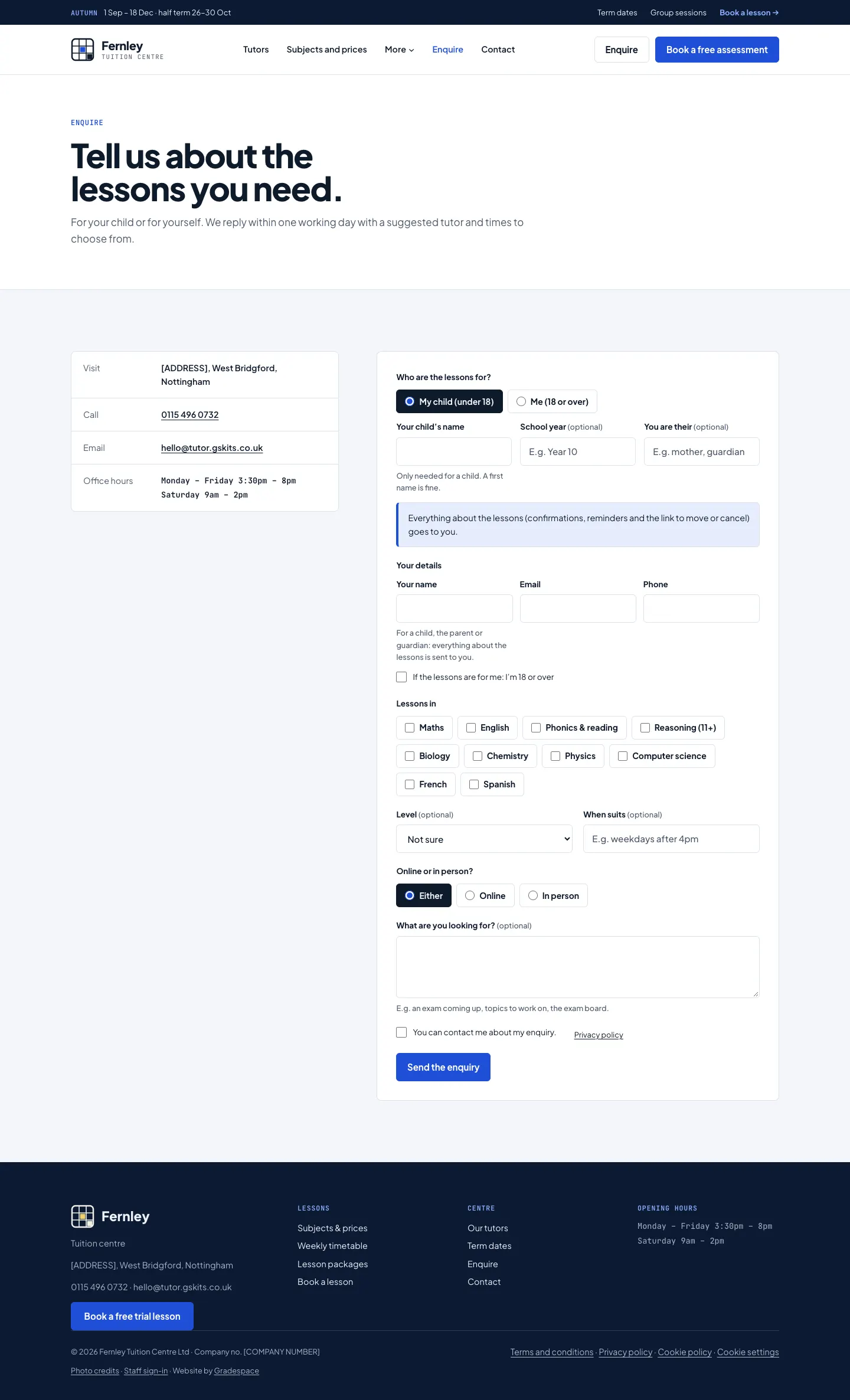
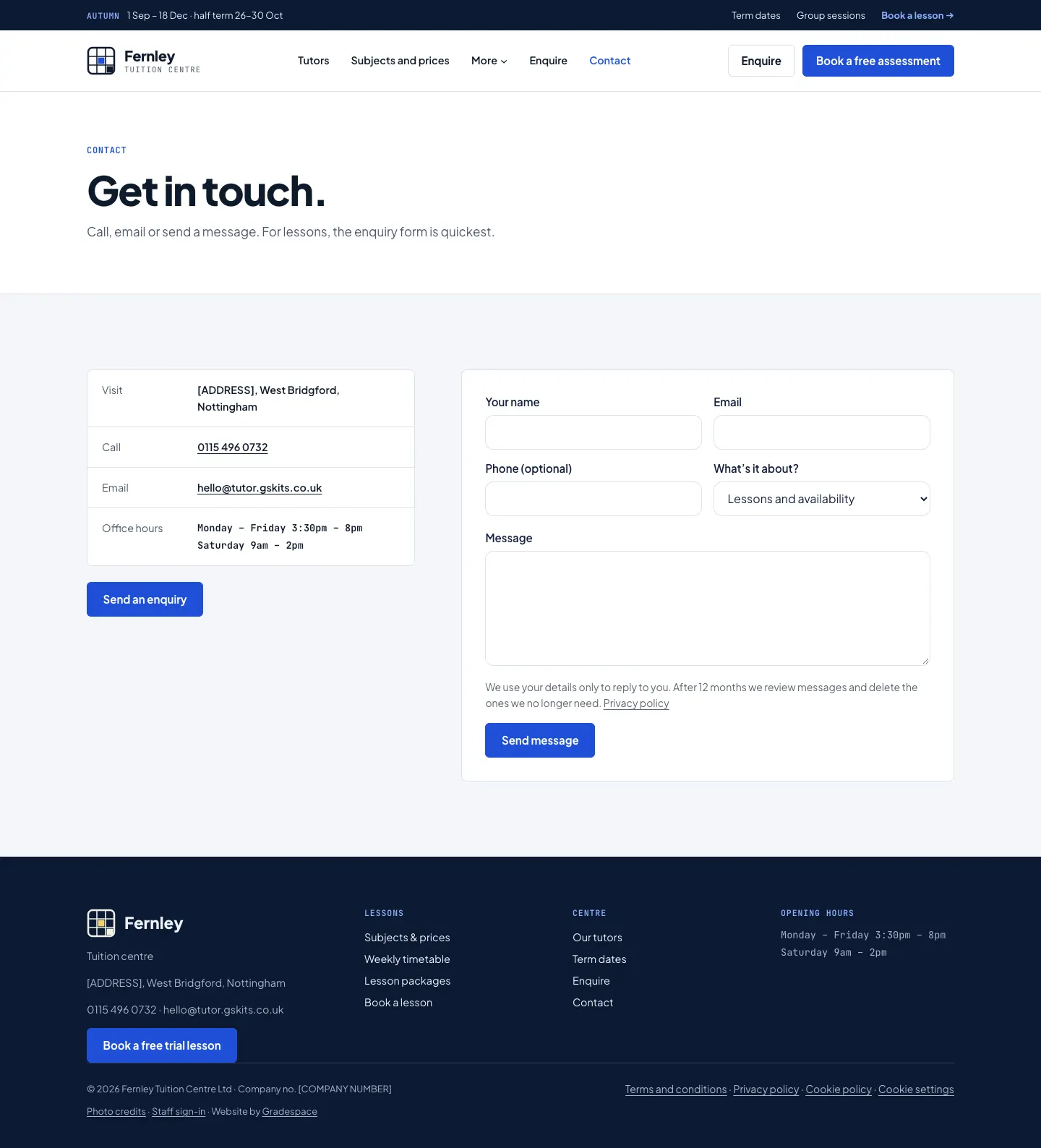
Not every family wants to book straight away. The Enquire page has a form for those who'd rather ask first: who the lessons are for, the school year, the subjects, the level, online or in person, and when suits. The Contact page has a shorter, general contact form.
Both arrive by email and are kept under Tutoring → Messages, so nothing gets lost in an inbox.
The enquiry form (the family's side)
On the Enquire page (/enquire/), the family:
- Chooses My child (under 18) or Me (18 or over). For a child, they give the child's name, school year and their relationship.
- Types their name, email and phone. For a child, these are the parent or guardian's details.
- Ticks the subjects under Lessons in, and chooses the Level (or Not sure).
- Optionally says When suits, Online or in person? and What are you looking for? (an exam coming up, topics, the exam board).
- Ticks You can contact me about my enquiry and clicks Send the enquiry.
The family gets a thank-you email with what they asked.
How to read and answer an enquiry
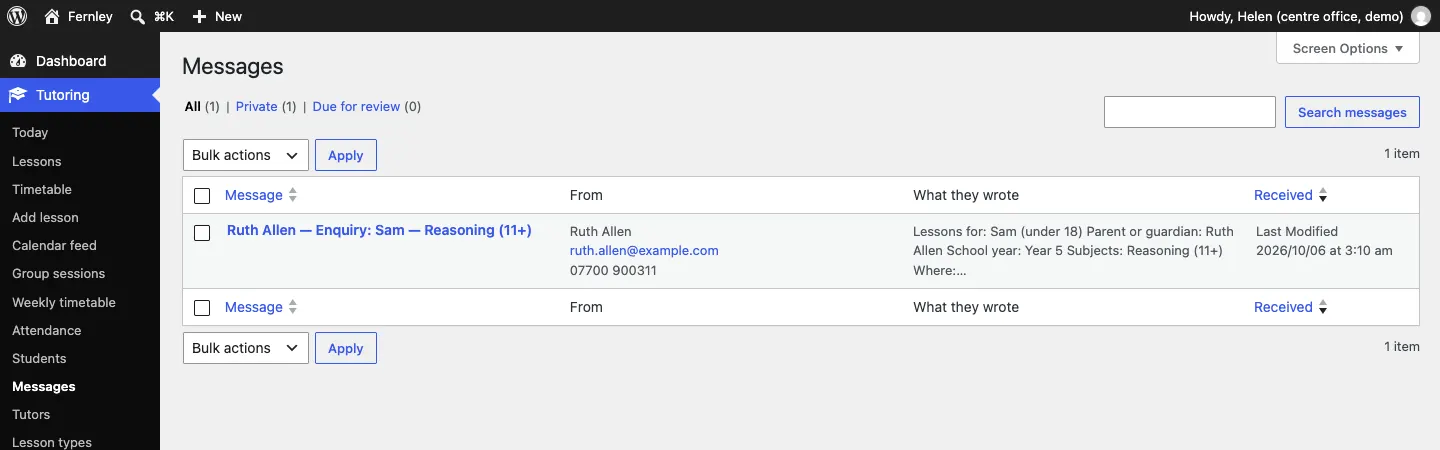
- New enquiries show on Tutoring → Today under New enquiries and messages, and the red number beside Messages counts the new ones.
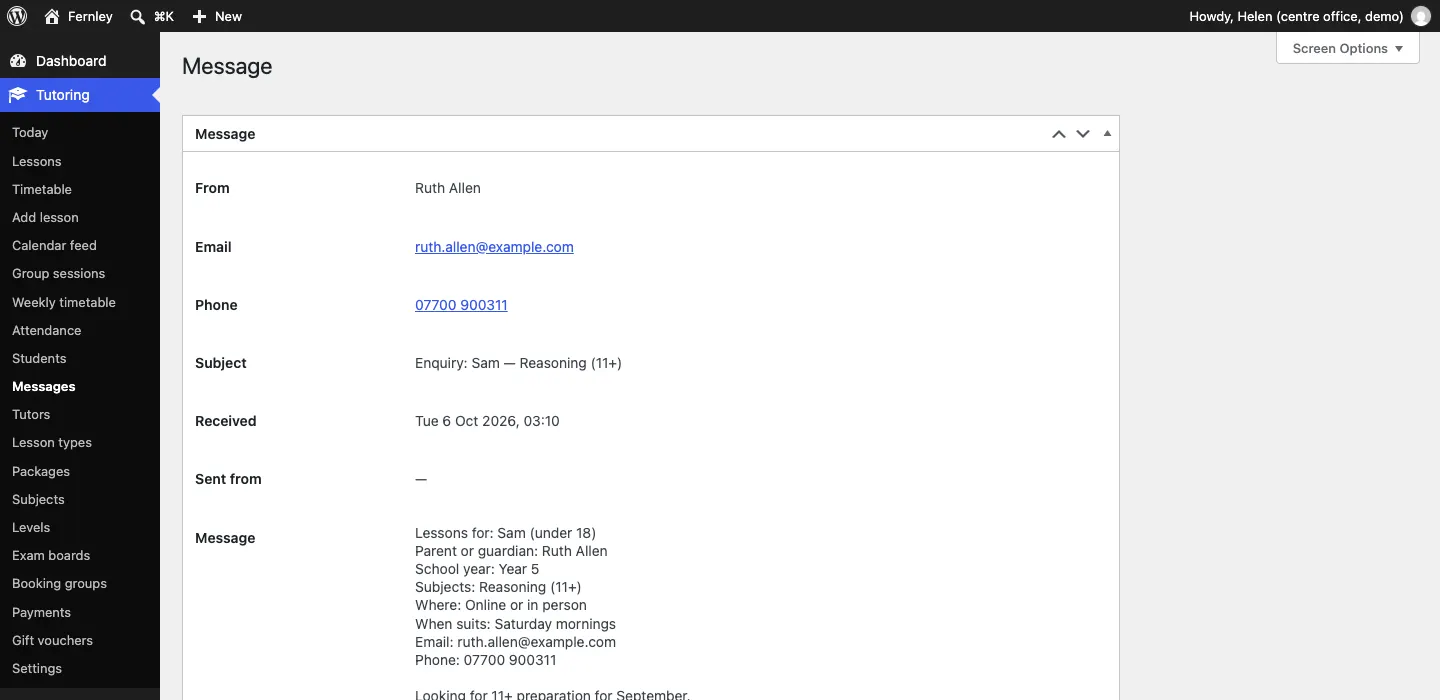
- Go to Tutoring → Messages and click the message.
- Read who it's from, their email and phone, and what they wrote. An enquiry starts with "Enquiry:" and lists who the lessons are for, the parent or guardian, the school year, the subjects, where and when suits.
- Click Reply by email to answer from your own email program, or reply to the email you received: it goes straight to the family.
The contact form
The Contact page has a general form: name, email, phone (optional), What's it about? and the message. These messages also arrive by email and under Tutoring → Messages. The subjects in What's it about? are set under Tutoring → Settings → Contact → Subjects to choose from.
Old messages
Messages older than the months you set under Tutoring → Settings → Contact → Review messages after are listed under Messages → Due for review. Choose List them for review before deleting (recommended: nothing is deleted automatically) or Delete them automatically each night. See Privacy and emails.
Who gets the emails
New enquiries and contact messages go to the addresses in Tutoring → Settings → Email → Send notifications to. Each email can be switched off there: New parent enquiry, New message from the website, Enquiry received (the thank-you to the family) and Thanks for your message. See Daily running and settings.