Running your website
Tutors
Adding a tutor, their public page, teaching hours and days off, the office-only fields (online booking, DBS certificate, email, sign-in), and what a tutor sees when they sign in.
On this page
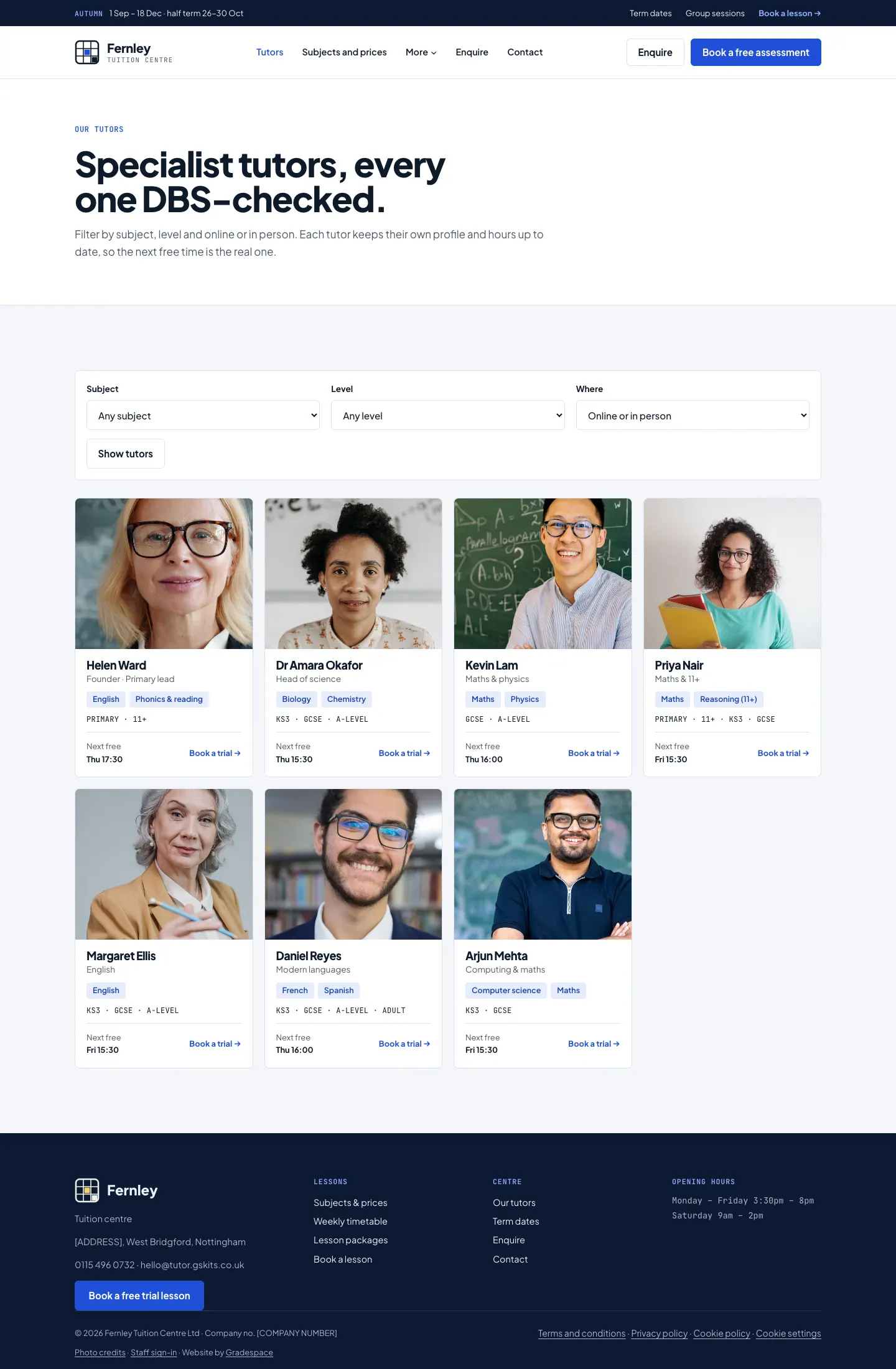
Each tutor has a public page with their photo, a few words, their subjects, levels and exam boards, whether they teach online or in person, their rate, qualifications and their real free times. The booking form only offers times inside each tutor's own teaching hours.
Tutors can sign in and keep their own profile and hours up to date, so the office doesn't have to. The office keeps a few fields to itself: whether the tutor is offered for online booking, the DBS line, their email and their sign-in.
Features marked (Pro) need a Pro or Agency licence.
How to add a tutor
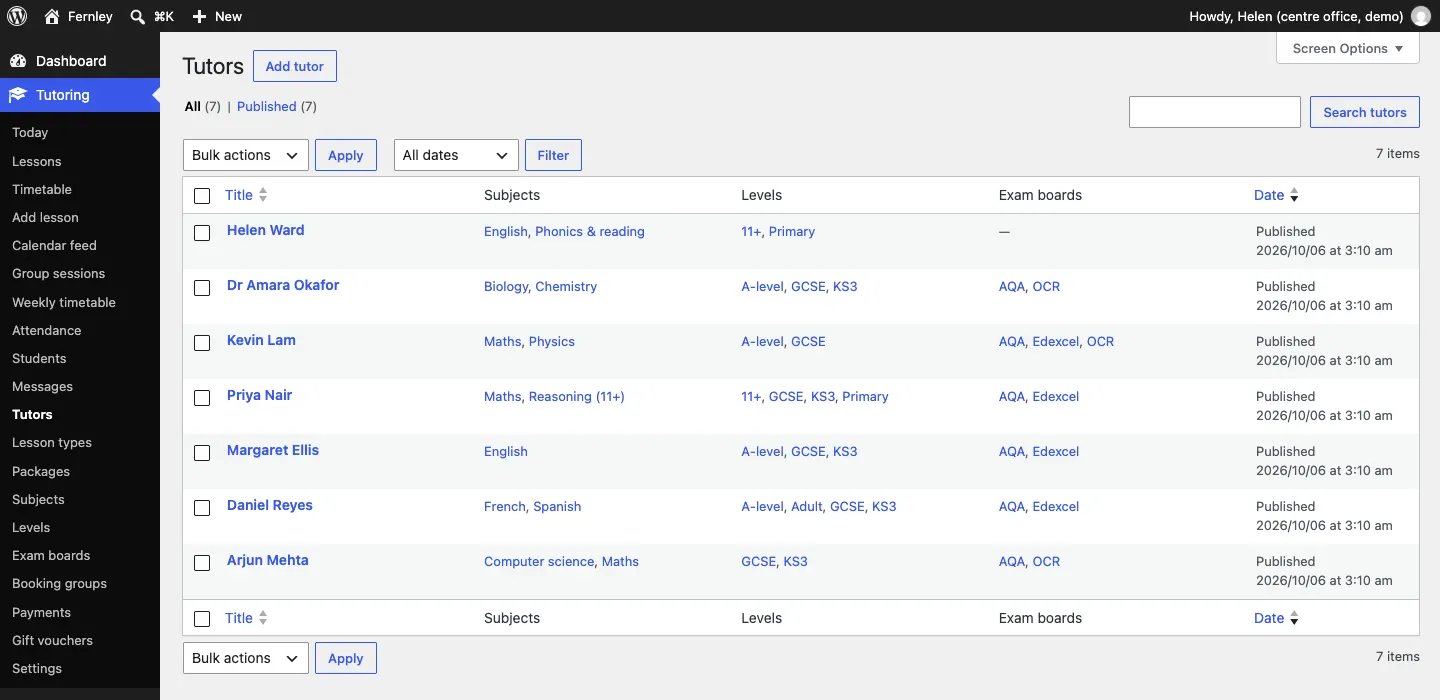
- Go to Tutoring → Add tutor (or click Add tutor at the top of Tutoring → Tutors).
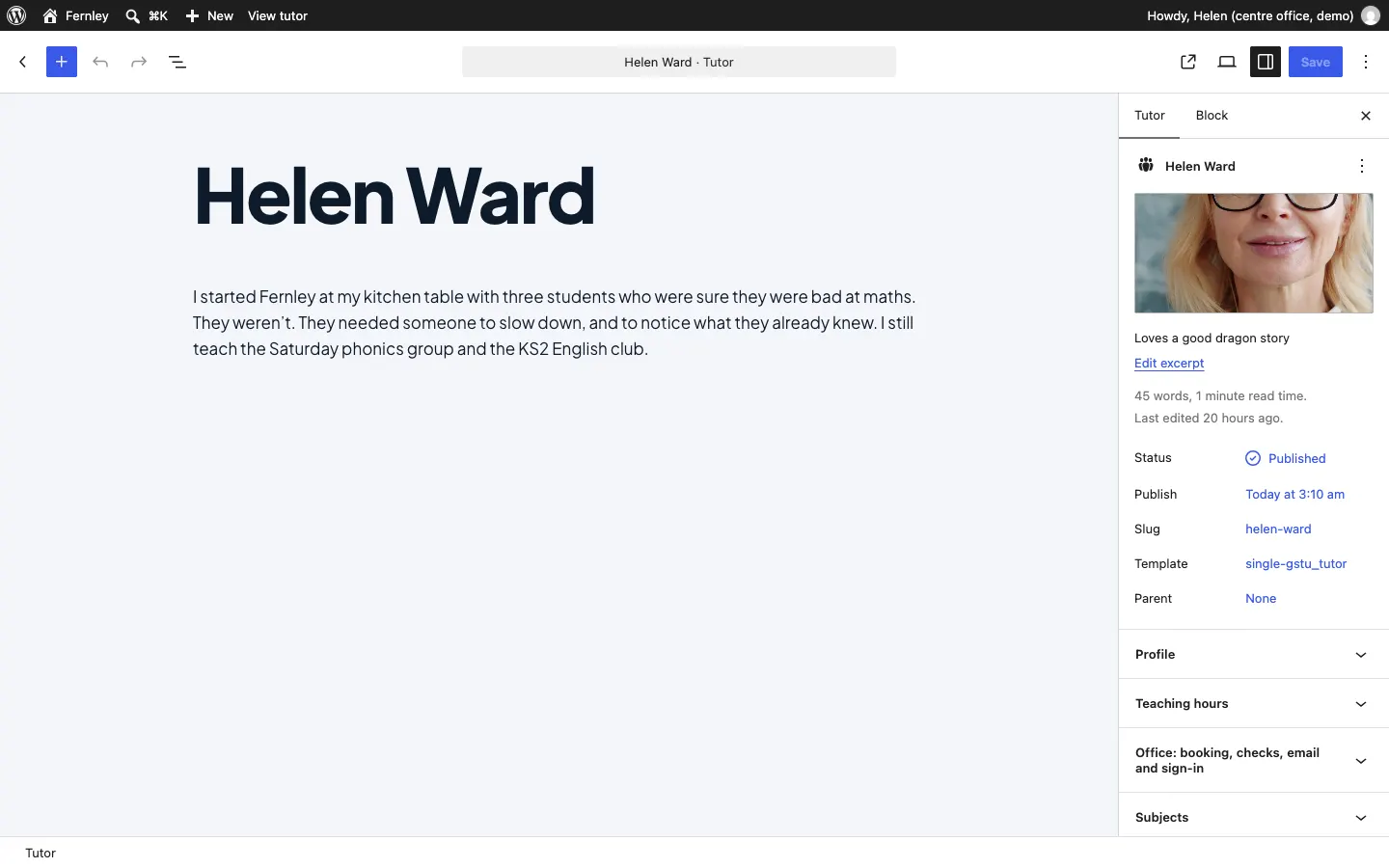
- Type the tutor's name as the title, for example "Helen Ward".
- Below the name, write a few paragraphs about them in the tutor's own voice: how they teach, who they work with. This is the About section of their page.
- On the right, under Tutor, add their photo (the featured image) and a short line in Edit excerpt, for example "Loves a good dragon story".
- Fill in the panels further down the right-hand side: Profile, Teaching hours, Office: booking, checks, email and sign-in, Subjects, Levels and Exam boards (see below).
- Click Save (or Publish for a new tutor).
The Profile panel
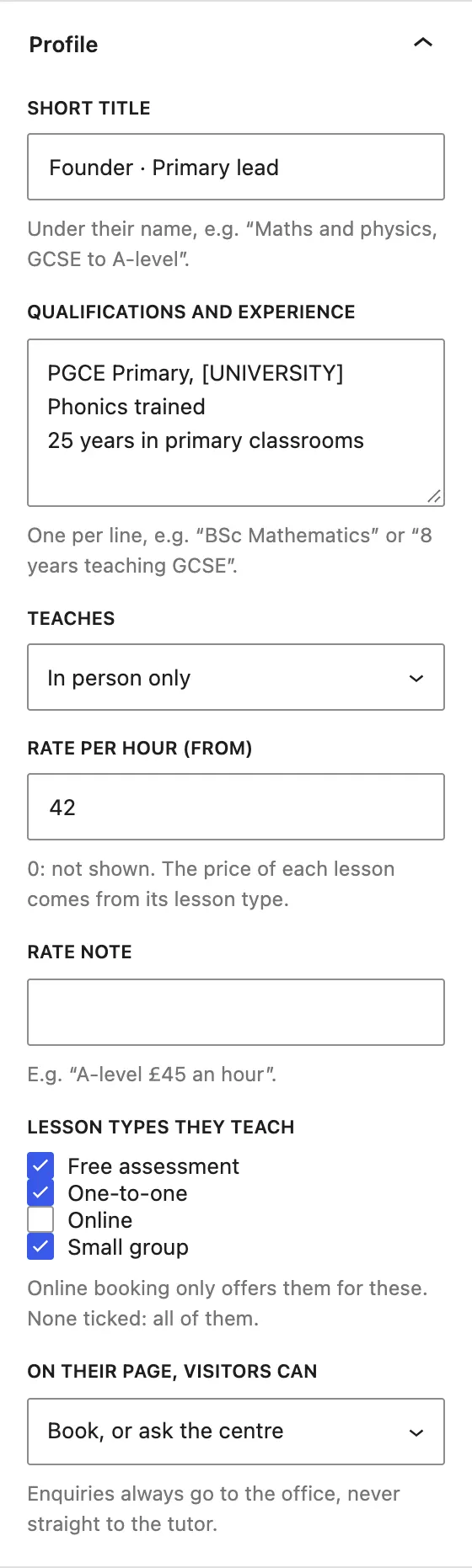
- Short title: under their name, for example "Maths and physics, GCSE to A-level".
- Qualifications and experience: one per line, for example "BSc Mathematics" or "8 years teaching GCSE".
- Teaches: Online and in person, Online only or In person only.
- Rate per hour (from): shown as "from £42 an hour". 0 hides it. The price of each lesson always comes from its lesson type.
- Rate note: for example "A-level £45 an hour".
- Lesson types they teach: online booking only offers them for these. None ticked means all of them.
- On their page, visitors can: Book a lesson with them, Ask the centre about lessons with them, Book, or ask the centre, or Neither (just read about them). Enquiries always go to the office, never straight to the tutor.
Subjects, levels and exam boards
Open the Subjects, Levels and Exam boards panels and tick what this tutor teaches. To add a new subject to the list, see Subjects, levels and lesson types.
How to set a tutor's teaching hours and days off
Open the Teaching hours panel.
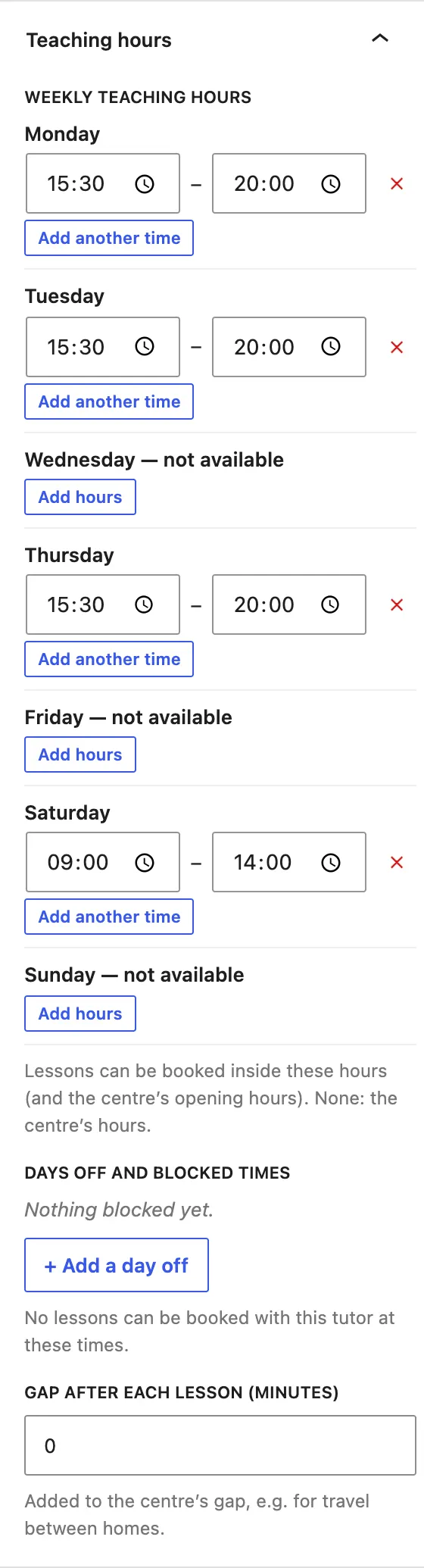
- Under Weekly teaching hours, set a start and end time for each day they teach. Click Add another time for a split day (for example 9:00 to 12:00 and 16:00 to 19:00), or Add hours on a day marked "not available". The red cross removes a time.
- Under Days off and blocked times, click + Add a day off for a holiday, a single day or a few hours (for example a parents' evening). No lessons can be booked with this tutor then.
- Gap after each lesson (minutes) is added to the centre's own gap, for example travel time between students' homes.
- Click Save.
Lessons can only be booked inside the tutor's hours and the centre's opening hours. A tutor with no hours at all teaches in the centre's opening hours.
The Office panel
Only the office sees these fields; a tutor editing their own profile doesn't.
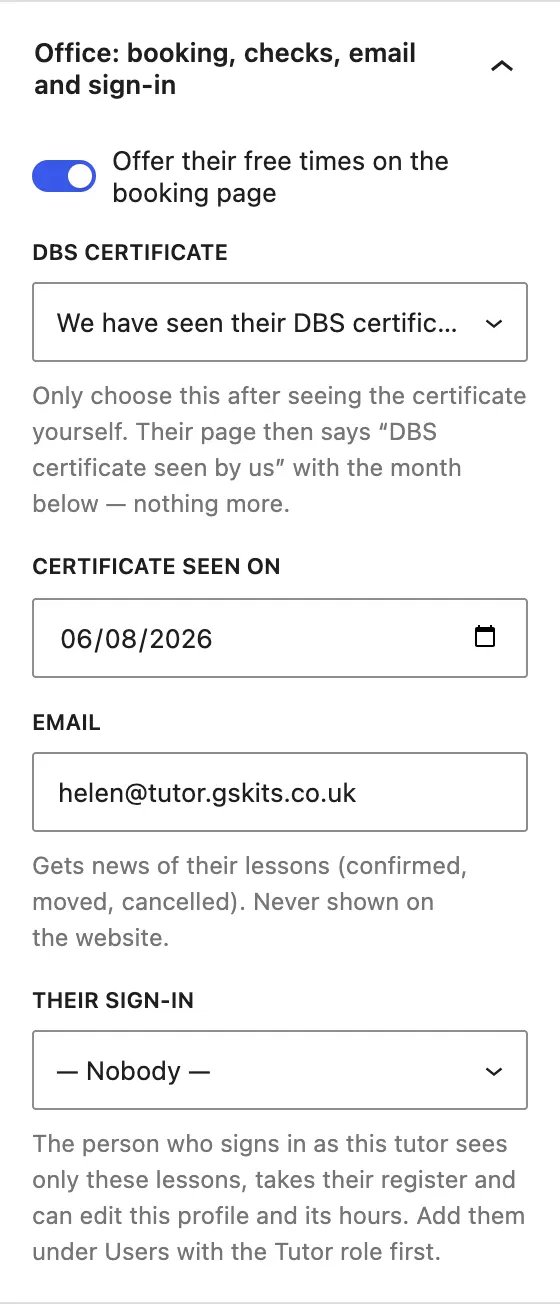
- Offer their free times on the booking page: switch it off to keep the tutor's page but not offer them for online booking (for example while they are on leave).
- DBS certificate: Not recorded or We have seen their DBS certificate, and Certificate seen on the date you saw it.
- Email: where the tutor gets news of their lessons (confirmed, moved, cancelled). It's never shown on the website.
- Their sign-in: the WordPress account this tutor signs in with (see below).
Give a tutor their own sign-in
- Go to Users → Add New User and add the tutor with the role Tutor. See Staff and sign-in.
- Go to Tutoring → Tutors and open their profile.
- In the Office panel, choose them under Their sign-in.
- Click Save.
Please give each person their own sign-in and don't share accounts. Many students are children, and the website records who did what.
What tutors see when they sign in
A tutor sees only what they need:
- My lessons: their lessons for the next four weeks, with each student and the parent's phone number.
- Timetable: only their own lessons.
- My hours: their weekly hours and days off.
- My profile: their own page, where they can change their words, photo, subjects, levels, exam boards, rates, hours and days off, but not their name, web address or the office's fields.
- Group sessions they teach (Pro).
- Attendance: the register for their own lessons (Pro).
- Calendar feed: a private address for their own lessons in Google, Apple or Outlook Calendar (Pro).
They can't see other tutors' lessons, student records, messages or settings.
The tutor's page on the website
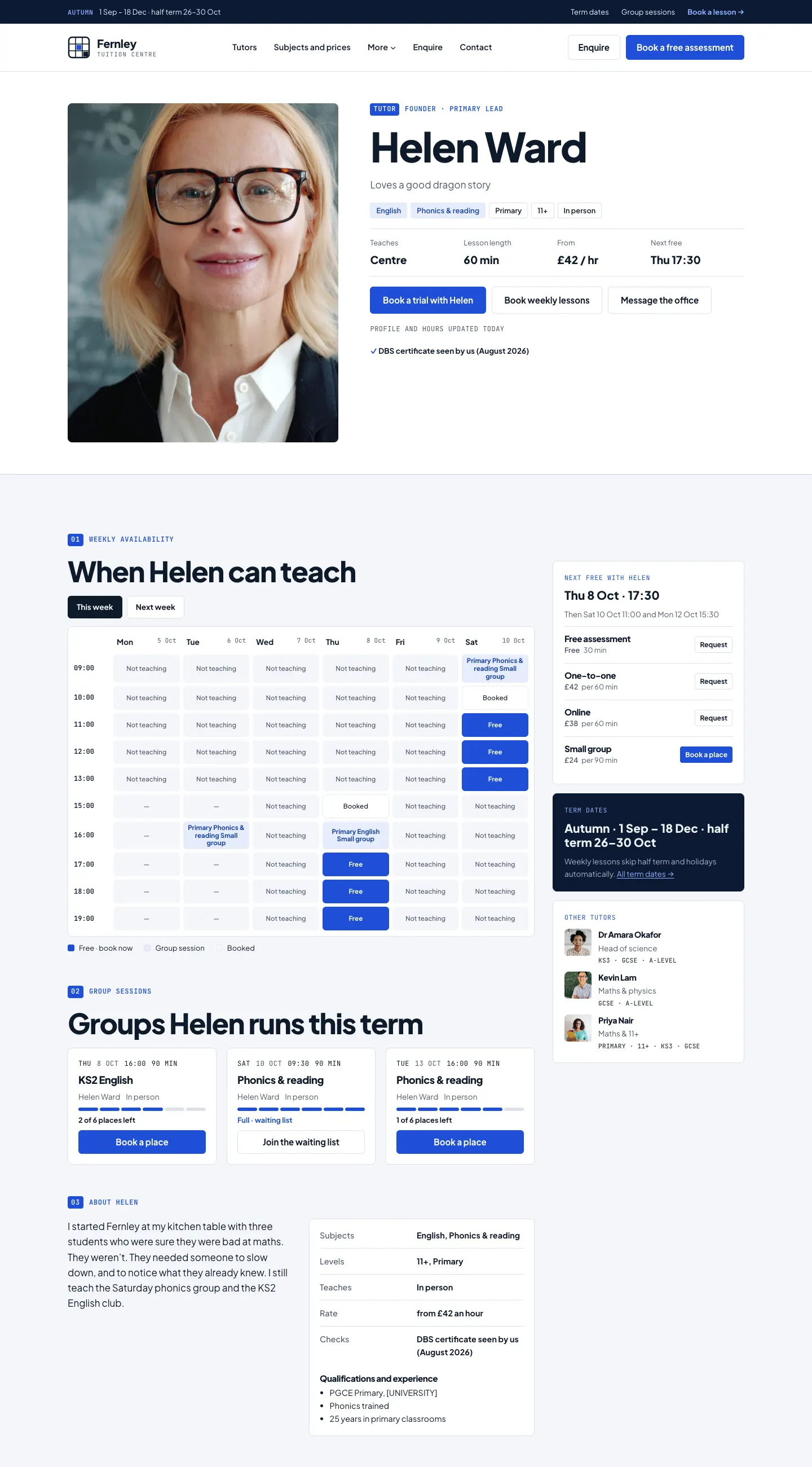
Each tutor has a page at /tutors/their-name/. It shows their short title, subjects, levels, where they teach, lesson length, rate and next free time, buttons to Book a trial, Book weekly lessons and Message the office, the DBS line, a week of their availability (free, booked and group sessions), their groups this term, the About section with their qualifications, and their lesson types with prices.
All tutors are listed on the Our tutors page, with a filter by subject, level and online or in person.