Running your website
Lesson packages and payments (Pro)
Blocks of lessons (for example 10 one-to-one lessons) bought online or sold at the desk and counted down as lessons are booked, payment before lessons, the Payments screen and gift vouchers.
On this page
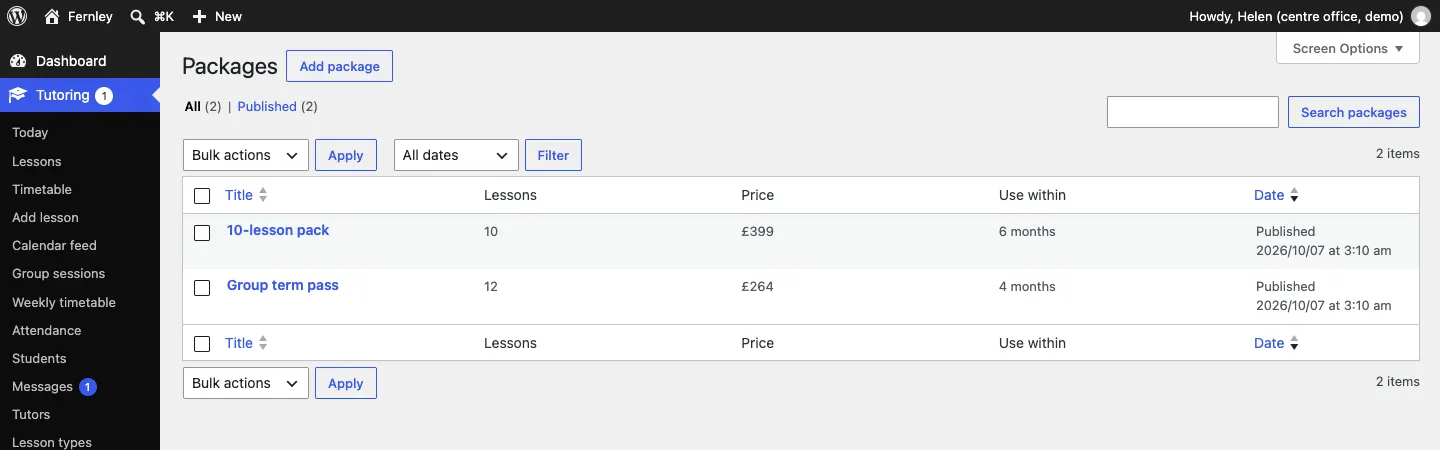
A lesson package is a block of lessons of one lesson type, paid for once, for example 10 one-to-one lessons, £399, use within 6 months. Families buy it online or at the desk, then book each lesson as usual with the same email address and student name. Each booking takes a lesson off the package and costs nothing more.
You can also ask for payment before a lesson (a deposit or the full price) and sell gift vouchers.
Packages, payment before lessons and gift vouchers need a Pro or Agency licence. Features marked (Pro) need a Pro or Agency licence.
Before you start: connect online payments
To take money online, connect Stripe or WooCommerce under Tutoring → Settings → Payments. Customers pay on the payment provider's own secure page; your website never holds card or bank details. Packages sold at the desk work without it.
How to add a package
- Go to Tutoring → Add package (or click Add package at the top of Tutoring → Packages).
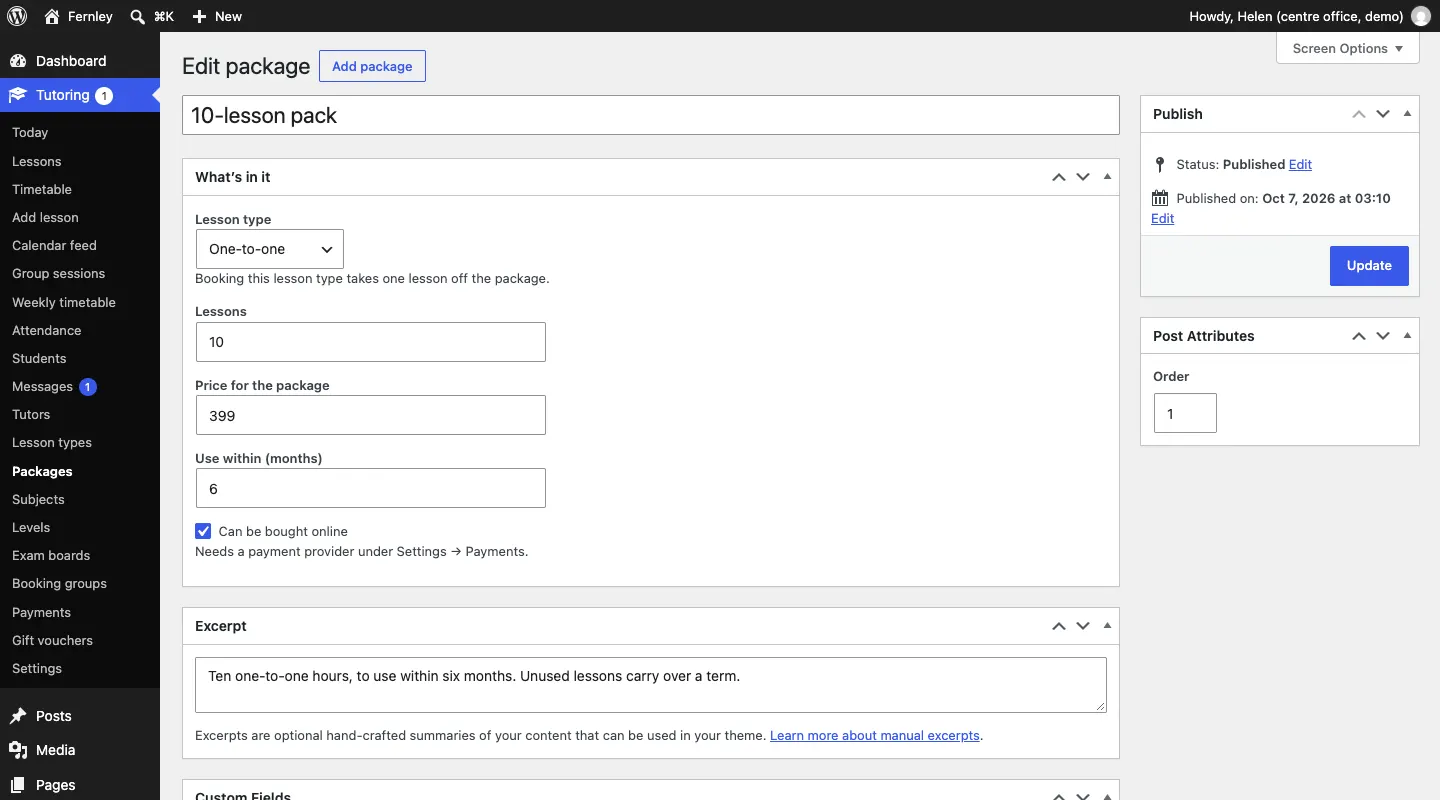
- Type a name at the top, for example "10-lesson pack".
- In the What's in it box:
- Lesson type: the lesson type the package pays for, for example One-to-one. Booking this lesson type takes one lesson off the package.
- Lessons: how many, for example 10.
- Price for the package: for example 399.
- Use within (months): for example 6.
- Can be bought online: tick it to sell it on your website (needs online payments).
- In Excerpt, write a sentence about it. It shows on the Lesson packages page.
- Click Publish.
How families buy a package online
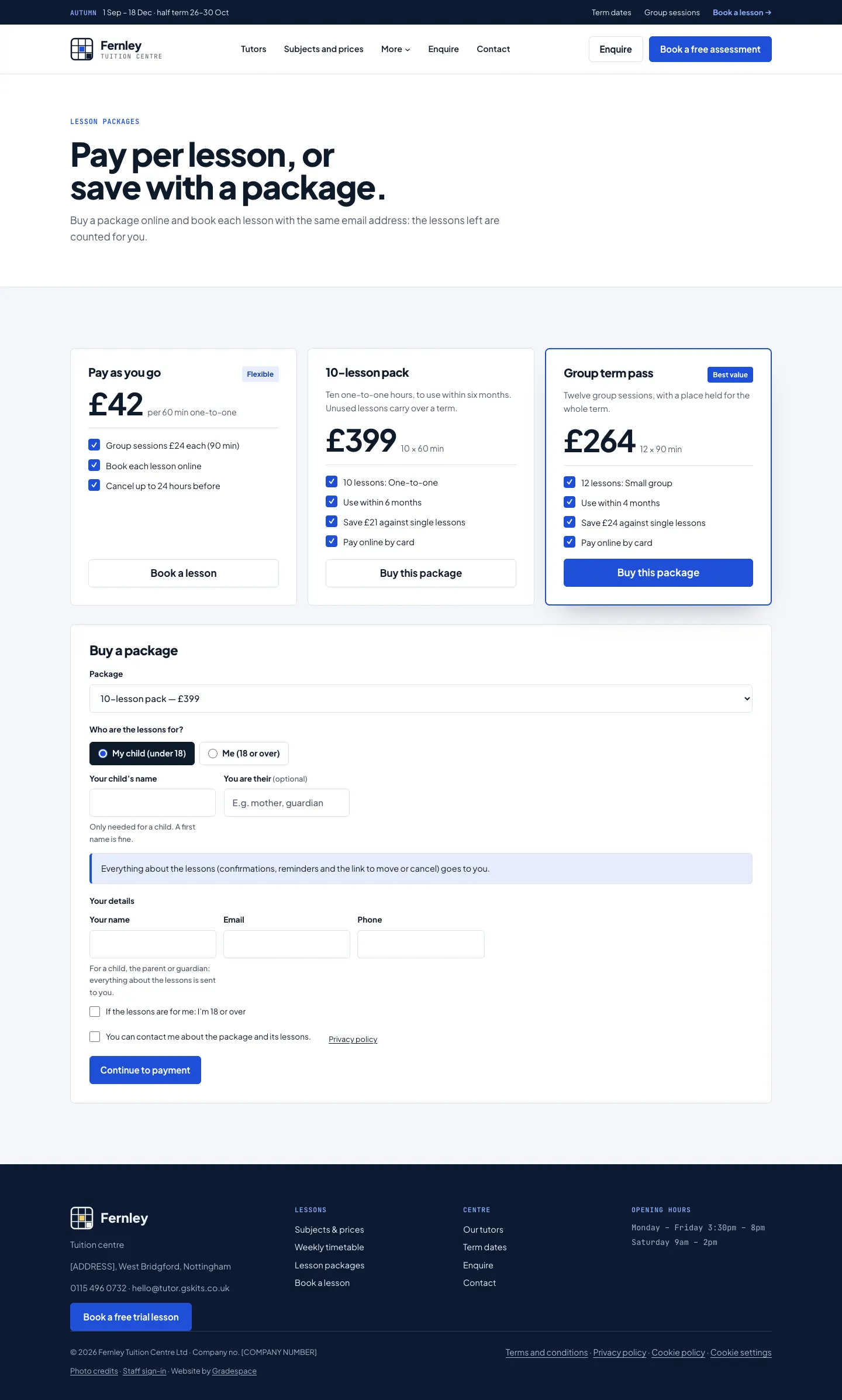
The Lesson packages page (/packages/) shows "Pay as you go" with your normal price, then each package with its price, the number of lessons, how long it lasts and how much it saves.
- The family clicks Buy this package, or chooses it under Buy a package.
- They say who the lessons are for and give their details (the parent's for a child).
- They tick You can contact me about the package and its lessons and click Continue to payment.
- They pay on the secure payment page and get a Lesson package bought email with what they bought and how to book each lesson.
How to sell a package at the desk
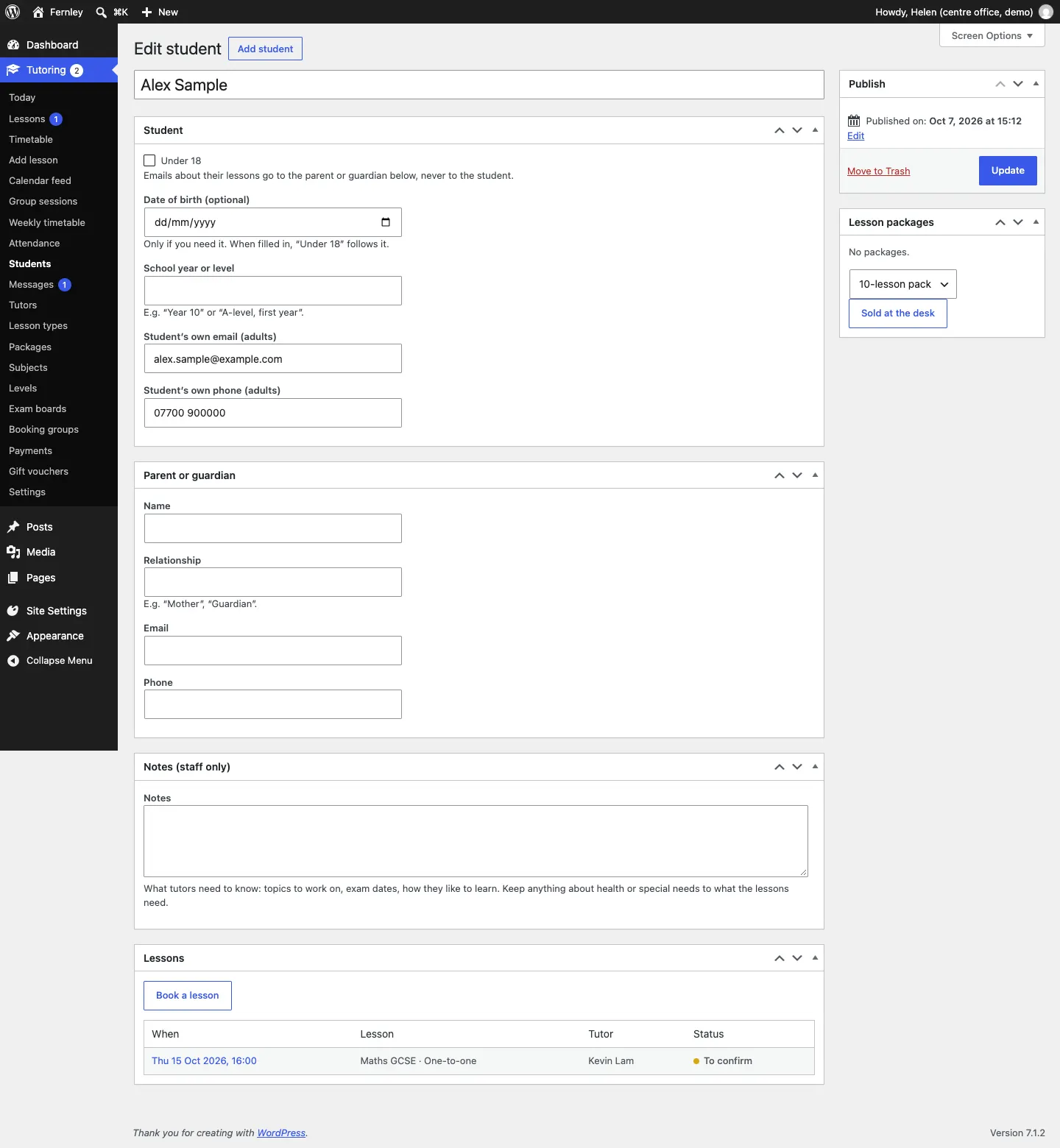
- Open the student's record under Tutoring → Students.
- In the Lesson packages box, choose the package.
- Click Sold at the desk.
How the lessons are counted
- Each booking of the package's lesson type for that student (or a group place, for a group package) uses one lesson. The family books with the same email address and student name, and pays nothing more.
- Cancelling a lesson gives it back to the package.
- Emails and the family's page show where they are, for example "lesson 3 of 10 (7 left)".
- With "Repeat weekly until the end of term", the package pays for as many weeks as it has lessons left.
- A lesson paid with a package never asks for a deposit.
- A full refund of the package removes the lessons not used yet.
Payment before a lesson
Each lesson type has a Deposit box: No deposit, A fixed deposit, A percentage of the price or The full price (prepay). When a family books that lesson online, they pay before the booking is finished, and the time is held for the Minutes to pay. See Subjects, levels and lesson types.
While a family is paying, the lesson shows as Waiting for payment in the Lessons list and the Timetable.
The Payments screen
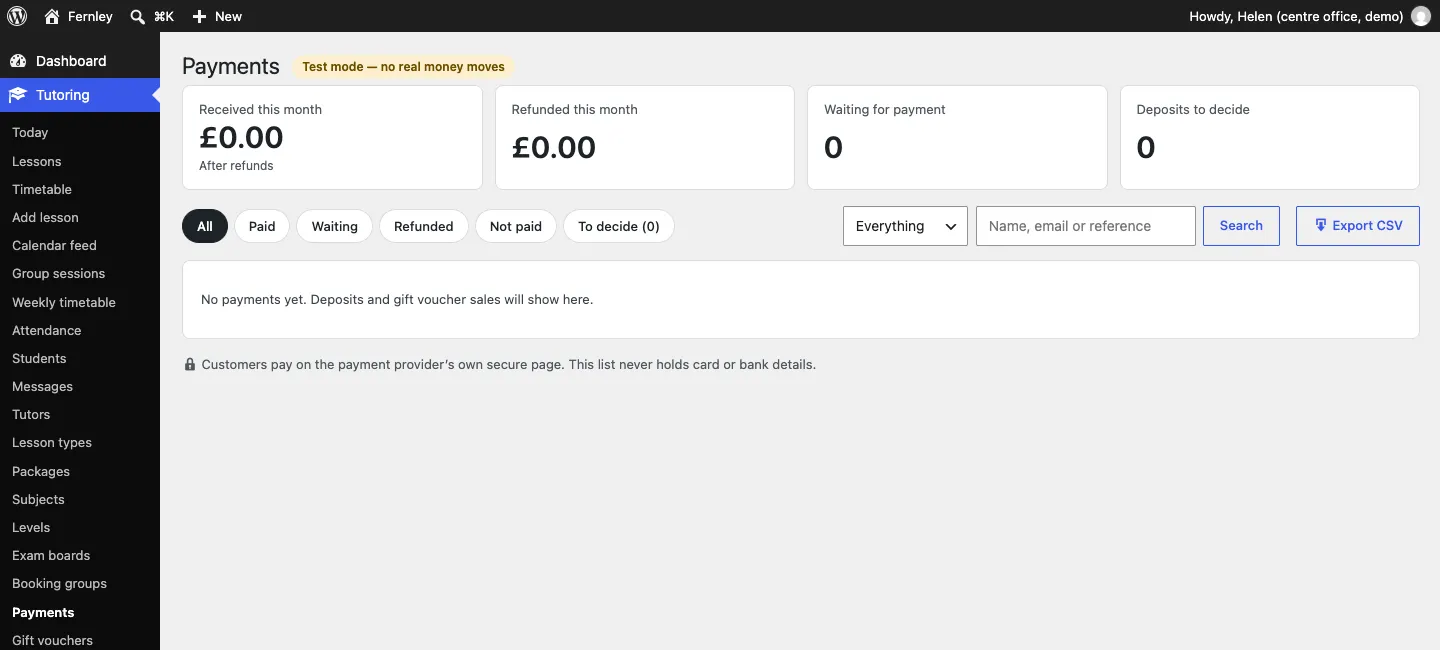
Tutoring → Payments lists the payments taken through the website and those you record at the desk. At the top you see what was Received this month (after refunds), Refunded this month, how many are Waiting for payment and Deposits to decide. Filter by All, Paid, Waiting, Refunded, Not paid or To decide, and by what it was for, search, or click Export CSV for a spreadsheet.
Gift vouchers (Pro)
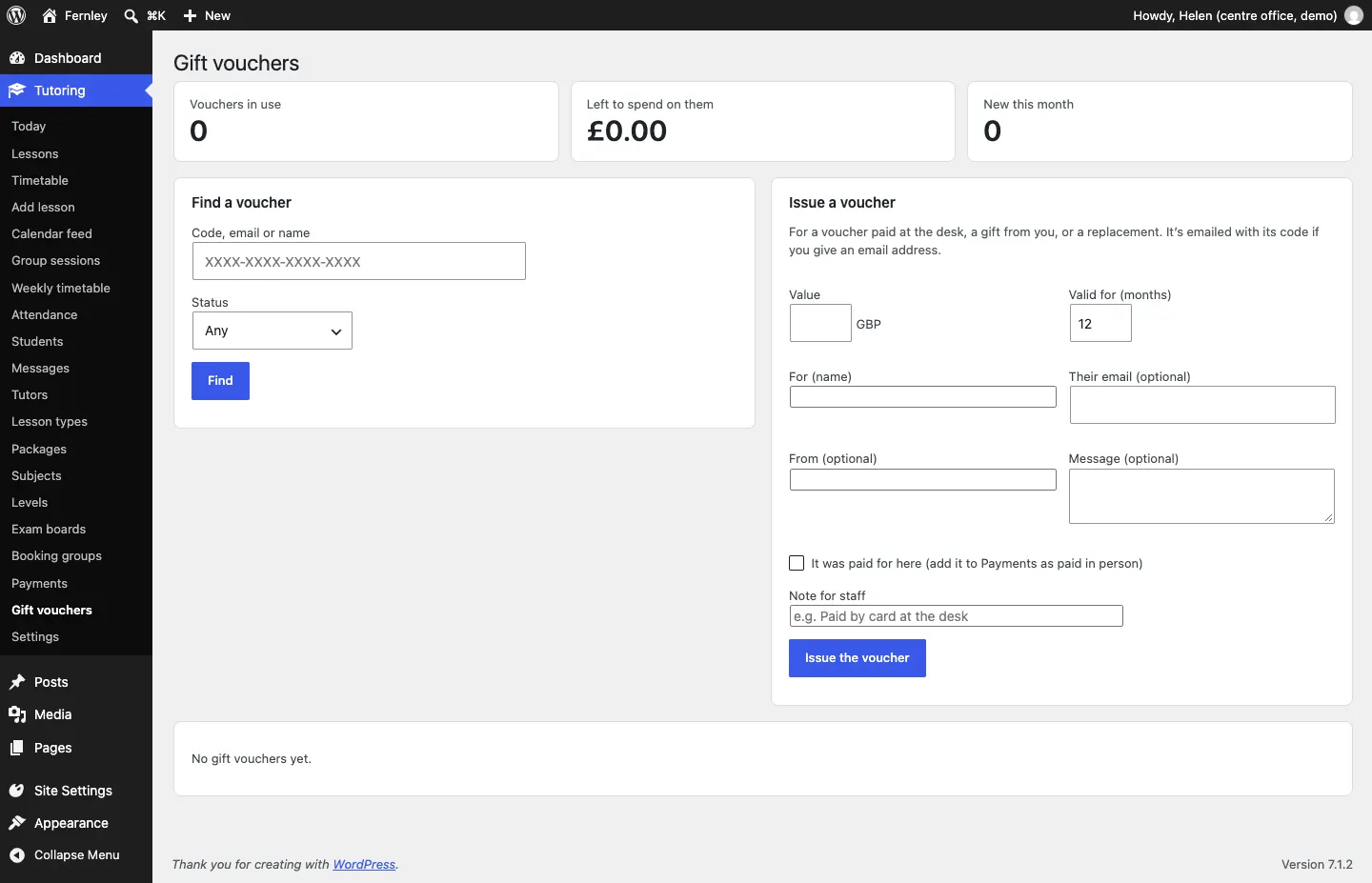
Tutoring → Gift vouchers lists vouchers sold on your website or issued at the desk, with how much is left to spend on them. To issue one (paid at the desk, a gift from you or a replacement):
- Under Issue a voucher, fill in the Value, Valid for (months), For (name), and optionally Their email, From and a Message.
- Tick It was paid for here (add it to Payments as paid in person) if they paid you.
- Optionally add a Note for staff.
- Click Issue the voucher. It's emailed with its code if you gave an email address.
Use Find a voucher to look one up by code, email or name.