Running your website
Subjects, levels and lesson types
The lists of subjects, levels and exam boards your tutors choose from, and the lesson types families book: trial lessons, one-to-one, online and group sessions, with their length, price and deposit.
On this page
Before families can book, the website needs to know what you teach and how you teach it.
- Subjects (Maths, English, Chemistry…), levels (Primary, 11+, KS3, GCSE, A-level, Adult) and exam boards (AQA, Edexcel, OCR…) are three lists. You add to them once; each tutor then ticks the ones they teach. The booking form, the tutor filter and the subjects × levels table are all built from them.
- Lesson types are what a family actually books: a trial lesson, a one-to-one hour, an online lesson, a small group. Each has a length, a price and where it happens.
The setup wizard fills these in from your answers. This chapter shows how to change them later.
Features marked (Pro) need a Pro or Agency licence.
How to add or change a subject
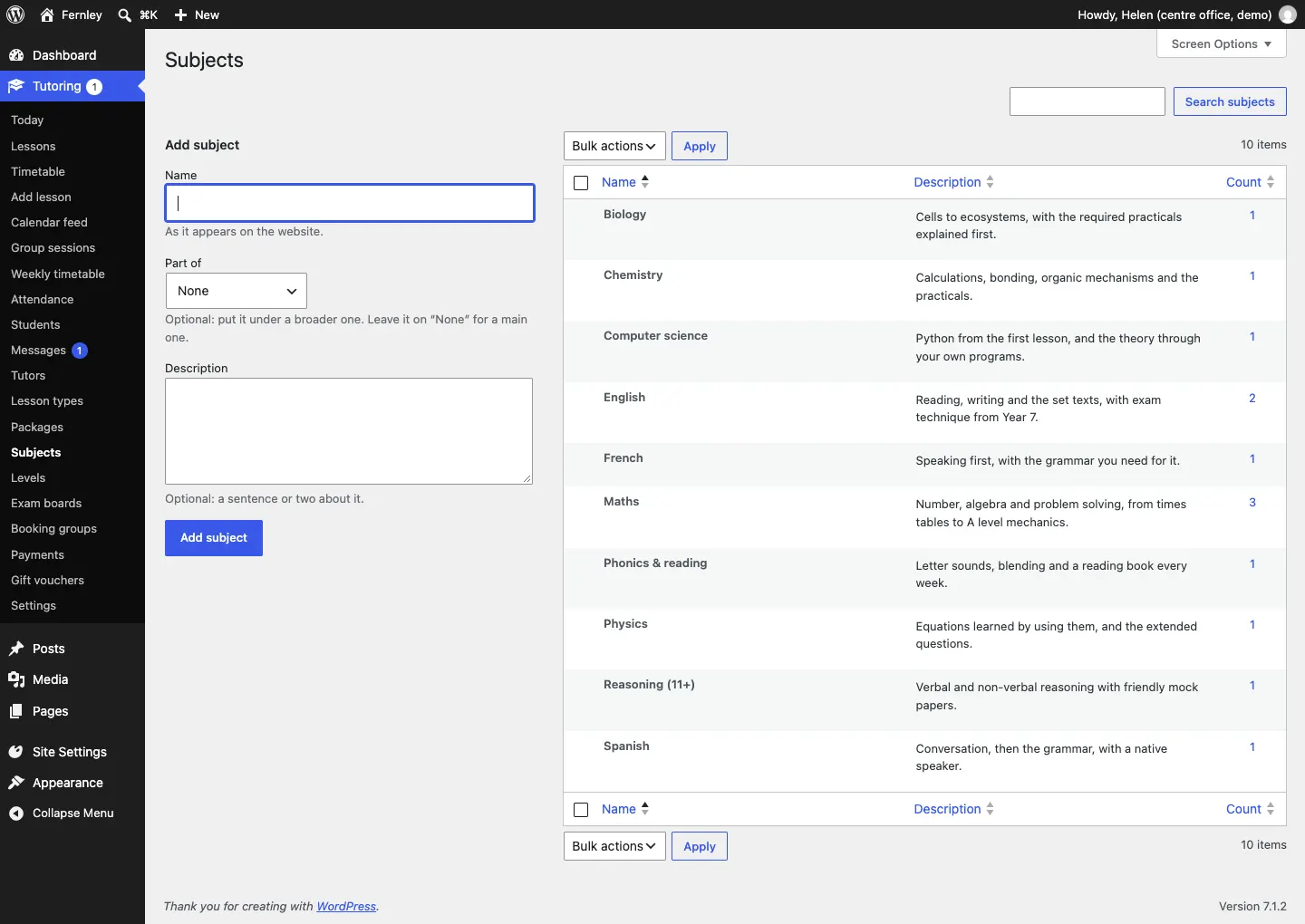
- Go to Tutoring → Subjects.
- On the left, under Add subject, type the Name (for example "Geography").
- Leave Part of as None (it is only for putting a subject under a broader one).
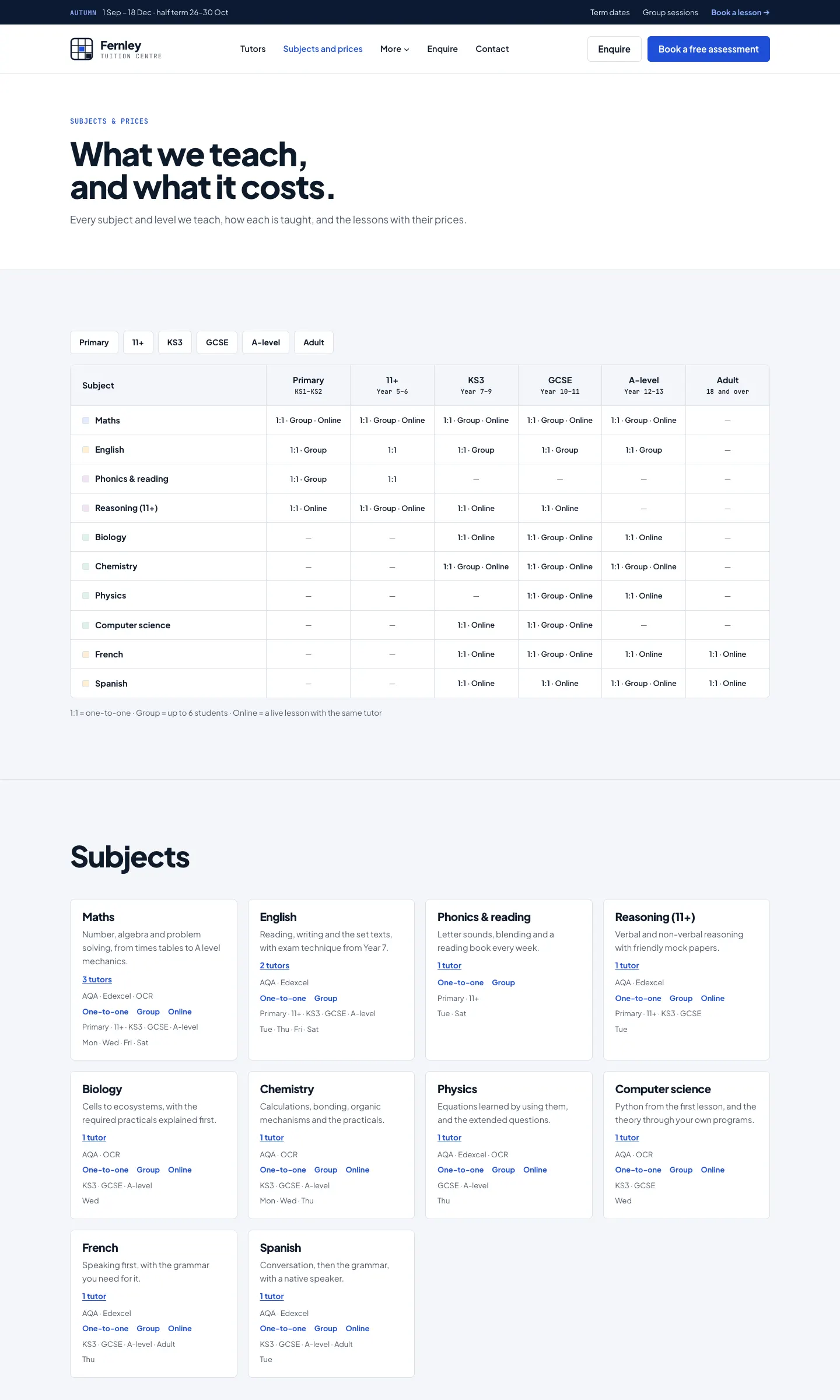
- In Description, write one line about how you teach it. It shows on the Subjects and prices page (for example "Number, algebra and problem solving, from times tables to A level mechanics.").
- Click Add subject.
To change a subject, hover over it in the list on the right and click Edit. The Count column shows how many tutors teach it.
How to add or change a level
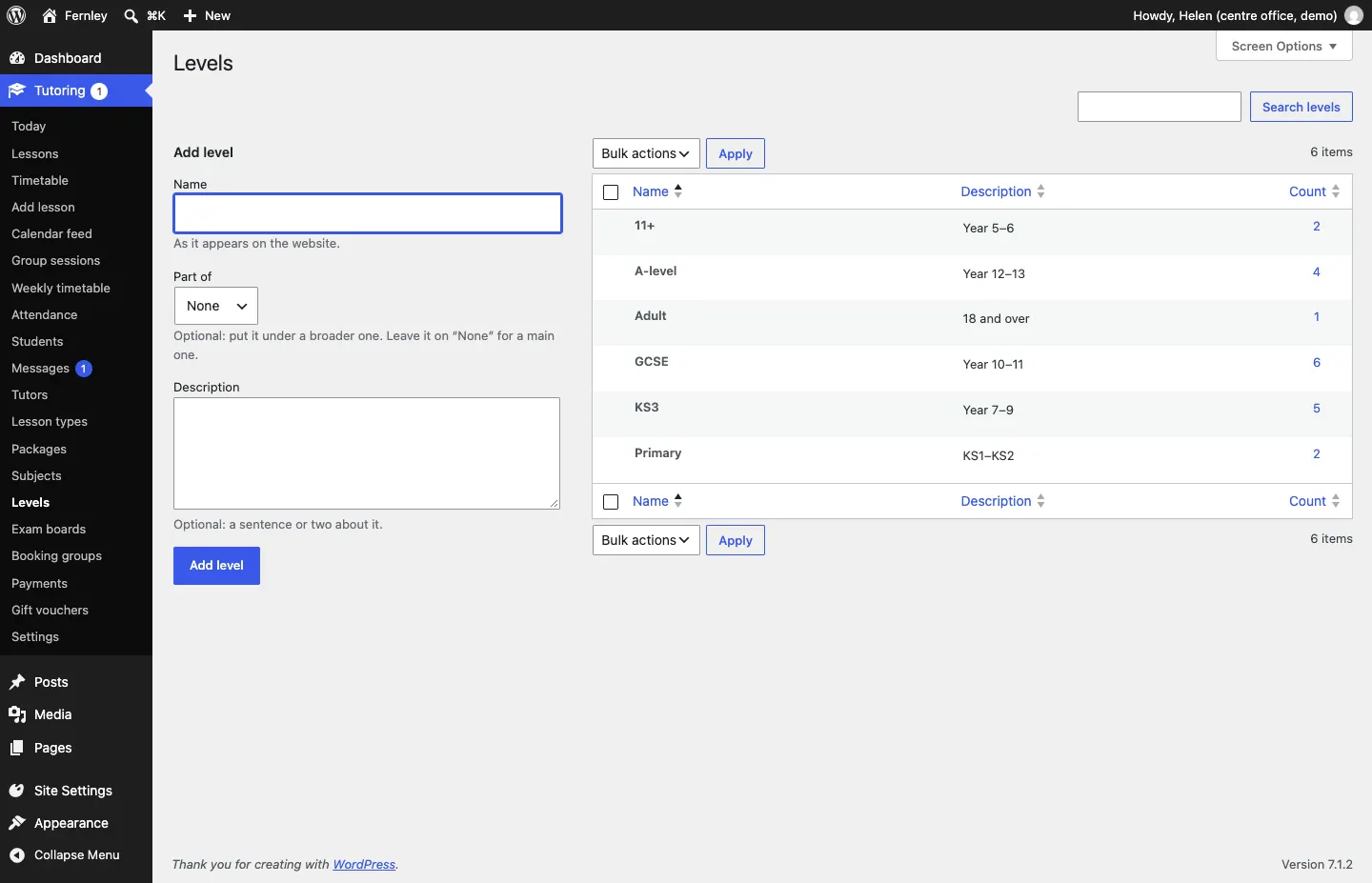
Levels work exactly like subjects. Go to Tutoring → Levels. The description is shown next to the level on the website (for example "Year 5–6" for 11+, "Year 10–11" for GCSE), so keep it short.
How to add an exam board
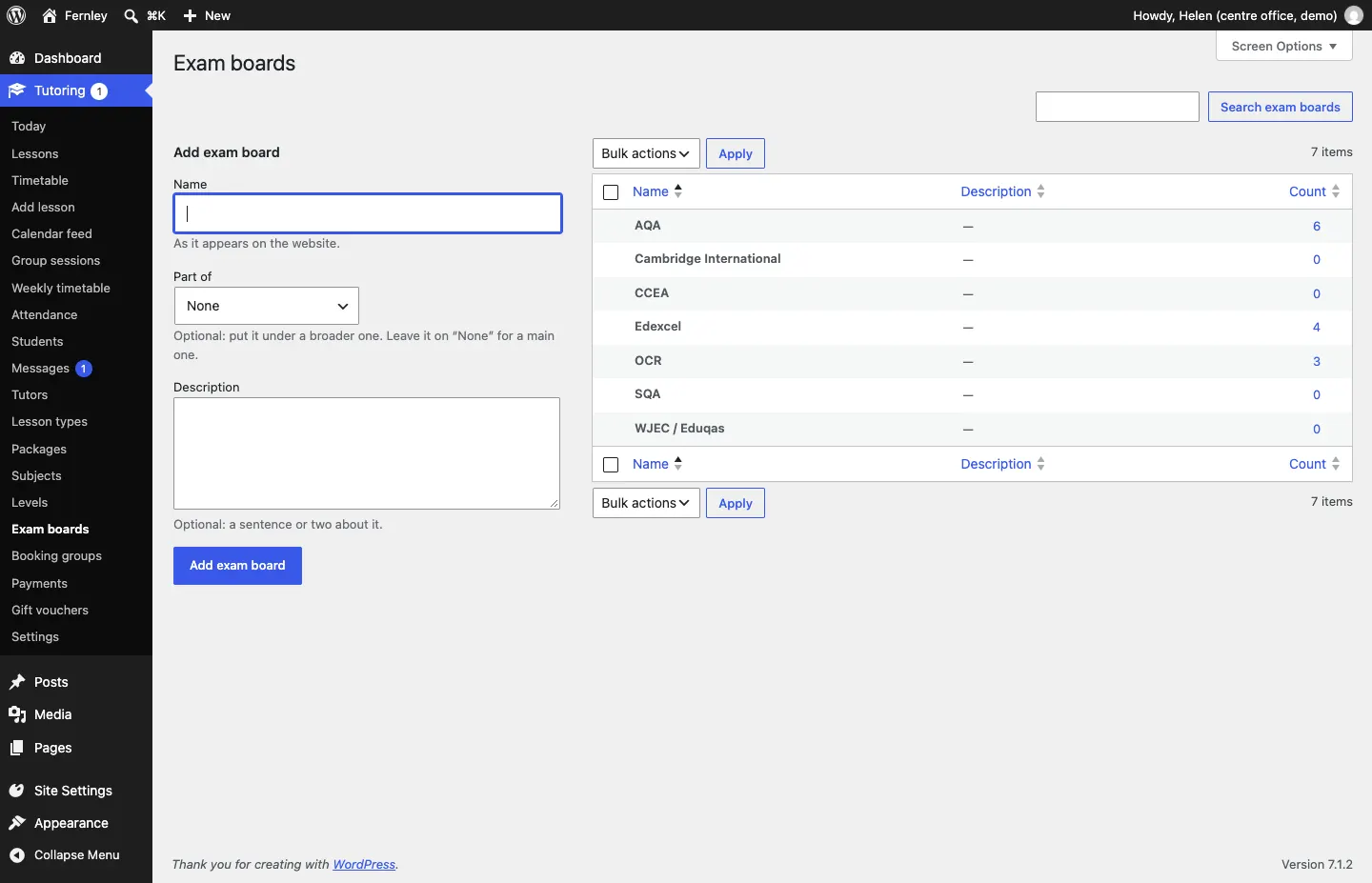
Go to Tutoring → Exam boards and add the board the same way. Tutors tick the boards they know; the boards show on the tutor's page and the Subjects and prices page.
Lesson types
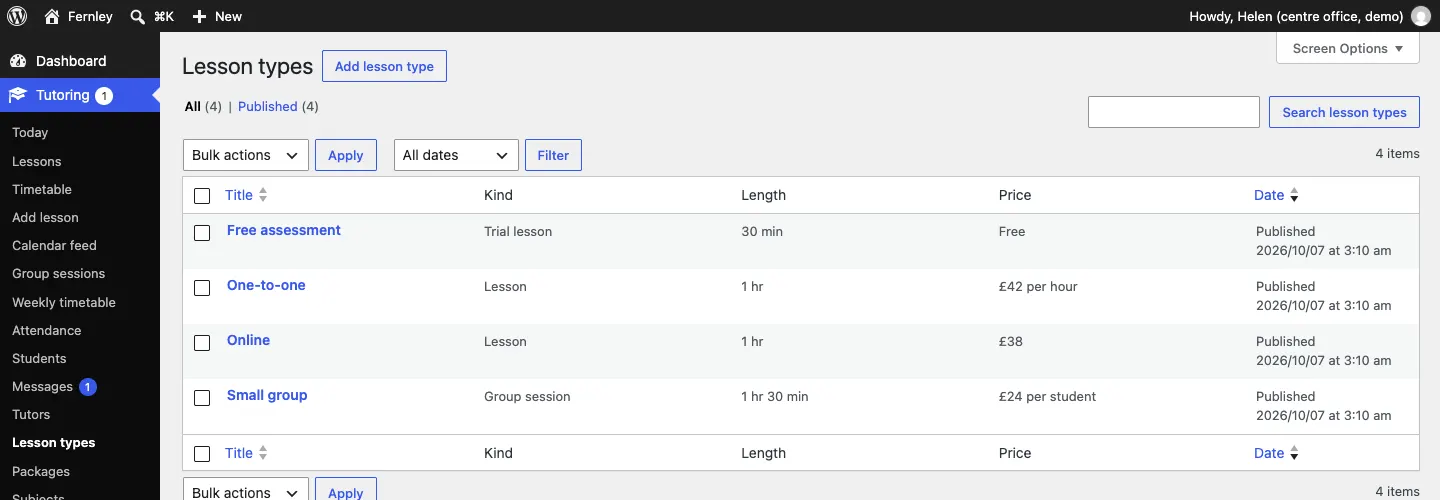
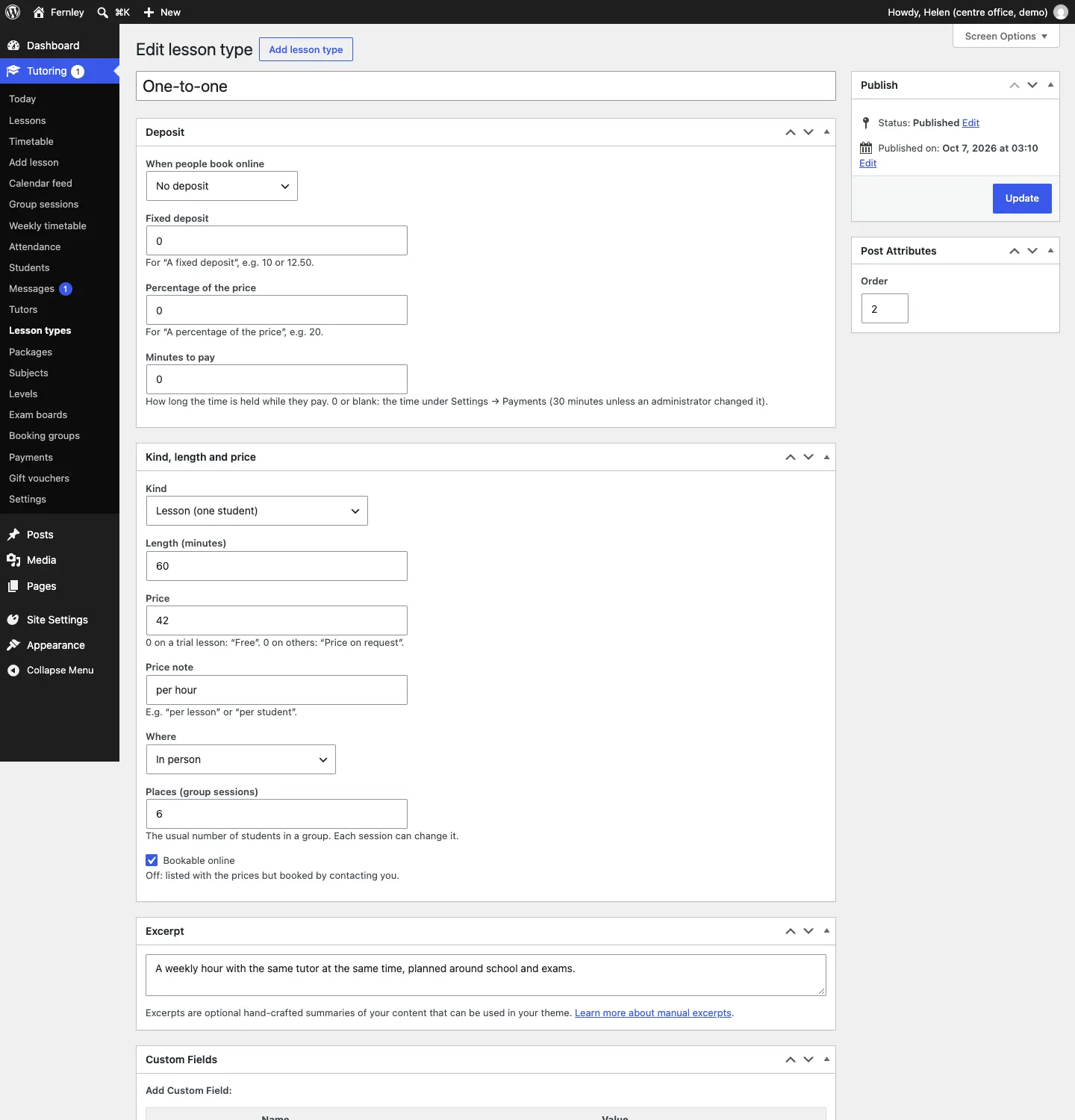
Go to Tutoring → Lesson types to see them. The demo has four: Free assessment (the trial), One-to-one, Online and Small group. The list shows each one's Kind, Length and Price.
How to add a lesson type
- Go to Tutoring → Add lesson type (or click Add lesson type at the top of the list).
- Type a name at the top, for example "1-hour lesson".
- In the Kind, length and price box, fill in:
- Kind: Lesson (one student), Trial lesson (one student, new students) or Group session (several students; Pro).
- Length (minutes): for example 60.
- Price: for example 42. A price of 0 shows as Free on a trial lesson, and as Price on request on any other lesson.
- Price note: a few words after the price, for example "per hour" or "per student".
- Where: Online or in person (they choose), Online or In person.
- Places (group sessions): the usual number of students in a group. Each session can change it.
- Bookable online: leave it ticked so families can book it. Untick it to list the lesson with your prices but ask families to contact you to book.
- In Excerpt, write one or two sentences about the lesson. They show on the booking form and the prices list.
- Under Post Attributes, the Order number sets the order on the website (lowest first).
- Click Publish (or Update if you are changing one).
Trial lessons
A lesson type whose Kind is Trial lesson is the first lesson for a new student, often a free 30-minute assessment. Two settings under Tutoring → Settings → Lessons control who can book one:
- One trial lesson per student: a student who has had (or has booked) a trial lesson is asked to book a normal lesson instead. Brothers and sisters each get their own.
- Trial lessons are for new students only: students who have already had lessons with you book a normal lesson.
The office can still book a trial for anyone from Tutoring → Add lesson.
Group sessions (Pro)
A lesson type of the kind Group session has a number of places. Families don't book it as a one-to-one: they book a place on a session. See Group sessions.
Taking payment before the lesson (Pro)
The Deposit box at the top of a lesson type asks for money when a family books online. It works once online payments are set up (see Lesson packages and payments).
- Under When people book online, choose No deposit, A fixed deposit, A percentage of the price or The full price (prepay).
- For a fixed deposit, type the amount in Fixed deposit (for example 10 or 12.50).
- For a percentage, type it in Percentage of the price (for example 20).
- Minutes to pay is how long the time is held while they pay. Leave it empty to use the setting under Settings → Payments.
- Click Update.
A lesson paid for with a lesson package never asks for a deposit.
Where this shows on the website
- The Subjects and prices page shows the table of subjects by level (one-to-one, group, online), each subject with its tutors, exam boards and days, and your lesson types with prices.
- The booking form's first step lists the lesson types you can book online.
To hide prices everywhere (visitors then see "Price on request"), switch off Show prices on the website under Tutoring → Settings → Lessons.