Buying and installing · shared chapter
Buying and your licence
The Starter, Pro and Agency tiers, buying a kit, the licence key email, your licences page on thegradespace.com, and moving or upgrading a licence.
On this page
You buy a Gradespace kit once, on thegradespace.com, and keep it for life. There are no renewals or subscriptions. After you pay you get a licence key: a code that you paste into your website to switch on updates and, if your licence includes them, the Pro or Agency features. This chapter explains the three tiers, what happens when you buy, and how to look after your licence afterwards.
Features marked (Pro) need a Pro or Agency licence.
What you're buying
Each kit is a WordPress plugin (an add-on for WordPress that holds the kit's features) and a theme (the design), sold together under one licence. Both run on Gradespace Core, a free plugin that every kit needs. You don't pay for Core and it doesn't need a key.
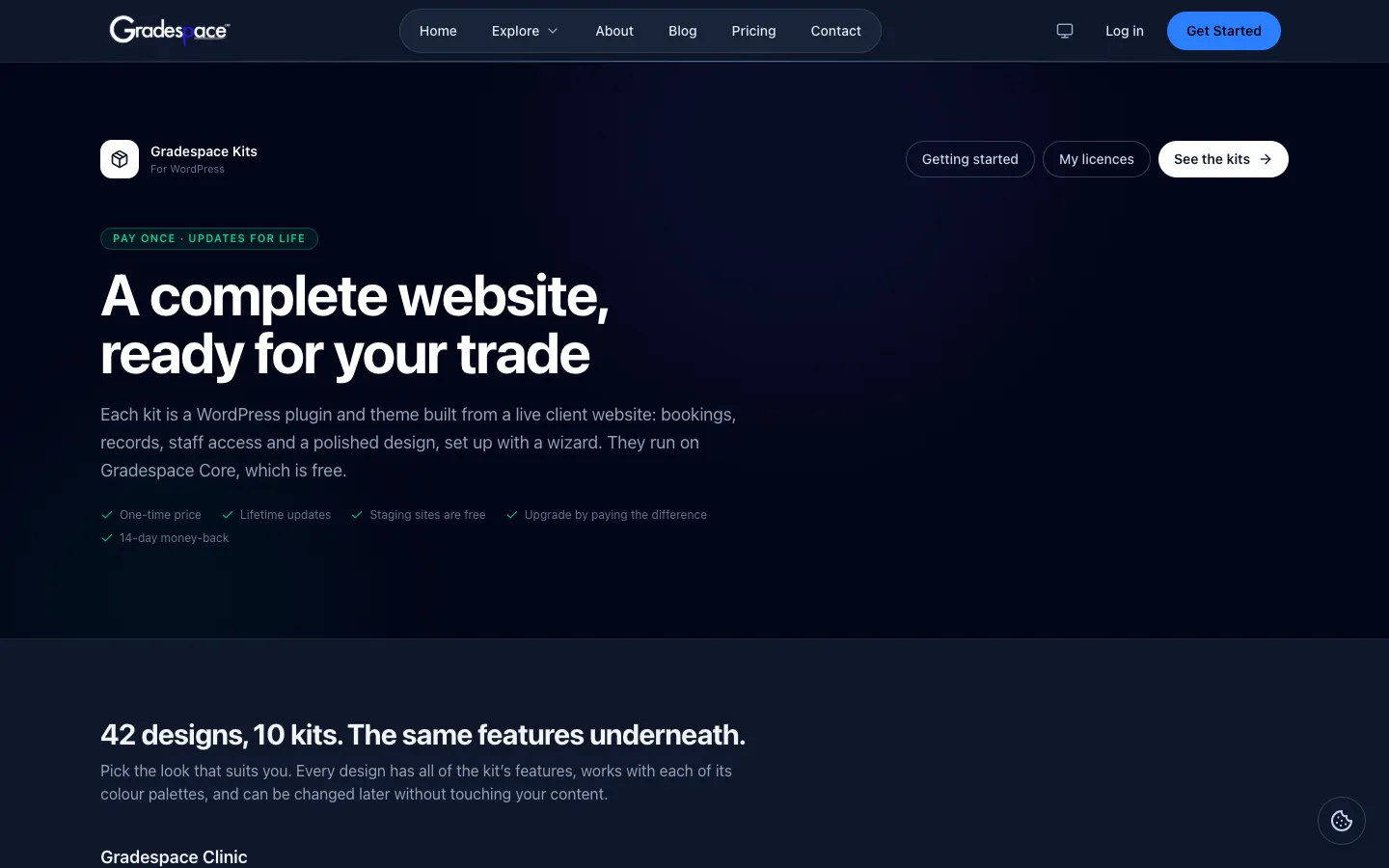
Each kit has its own page on thegradespace.com (for example thegradespace.com/wordpress-kits/clinic). From there you can:
- see every design and colour palette the kit comes with;
- Try the live demo: a sample website that resets every night;
- Look around the admin: sign in to the demo's admin area as a sample staff member, to see the screens before you buy;
- compare the tiers and buy.
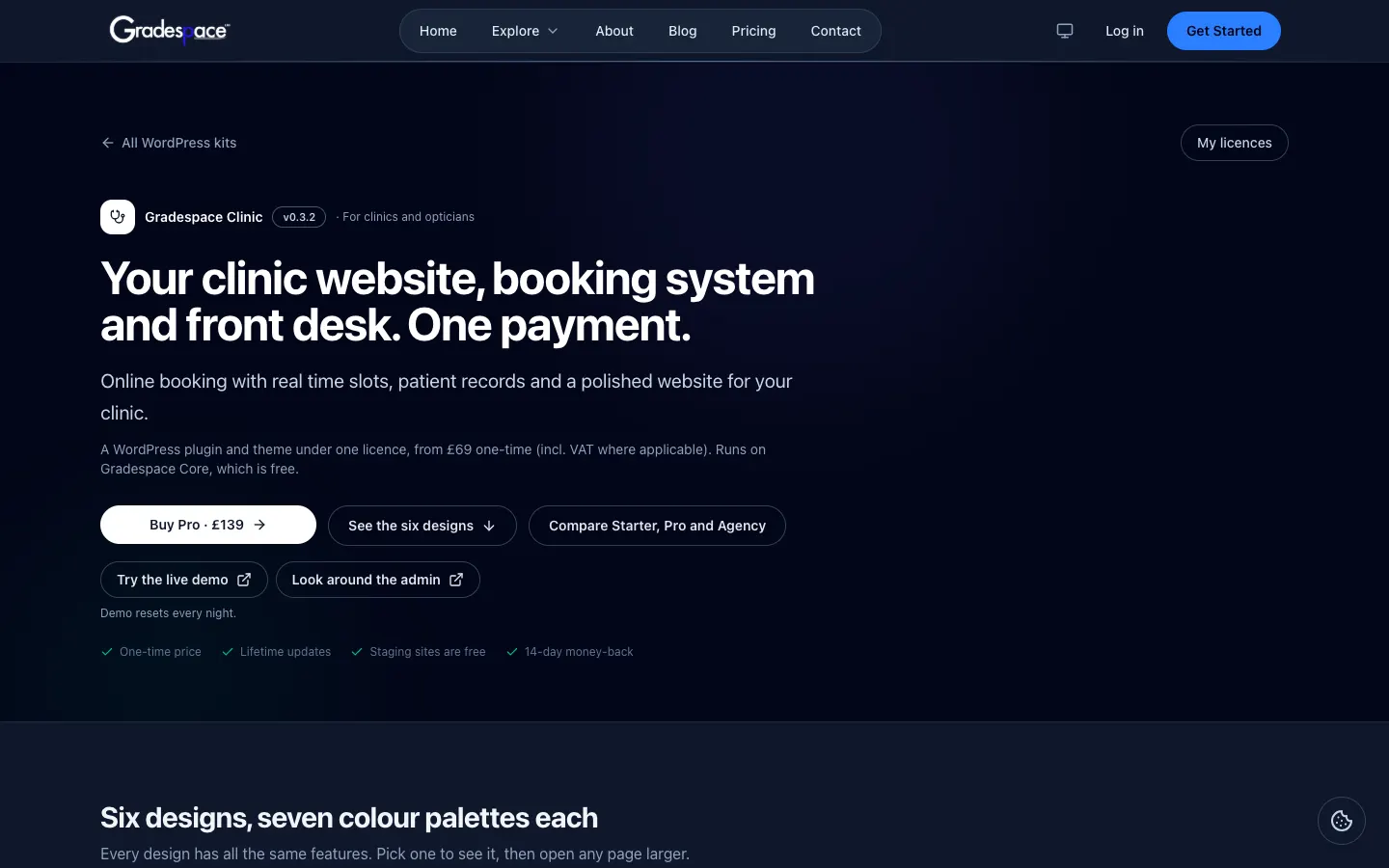
Starter, Pro and Agency
Every tier includes everything in the one before. You pay once and get every future update.
| Starter | Pro | Agency | |
|---|---|---|---|
| Live websites | 1 | 1 | 5 |
| The kit's theme, with all its designs and colour palettes | Yes | Yes | Yes |
| The kit's main features (for example bookings, records, lessons or events) | Yes | Yes | Yes |
| Setup wizard with starter pages and a menu | Yes | Yes | Yes |
| Starter legal pages (privacy, cookies, terms) and the cookie banner | Yes | Yes | Yes |
| Ready-made staff roles | Yes | Yes | Yes |
| Lifetime updates | Yes | Yes | Yes |
| Staff access: choose exactly what each role can see and do | Yes | Yes | |
| Email log: every email the website sent or couldn't send | Yes | Yes | |
| Site stats without cookies | Yes | Yes | |
| Choose to hide the "Website by Gradespace" line on the staff sign-in page | Yes | Yes | |
| The kit's own Pro features (listed in your kit's manual) | Yes | Yes | |
| Your own heading and text on the staff sign-in page (white label) | Yes |
At the time of writing, the prices on thegradespace.com are Starter £69, Pro £139 and Agency £389, one-time, including VAT where it applies. Check your kit's page for the current price.
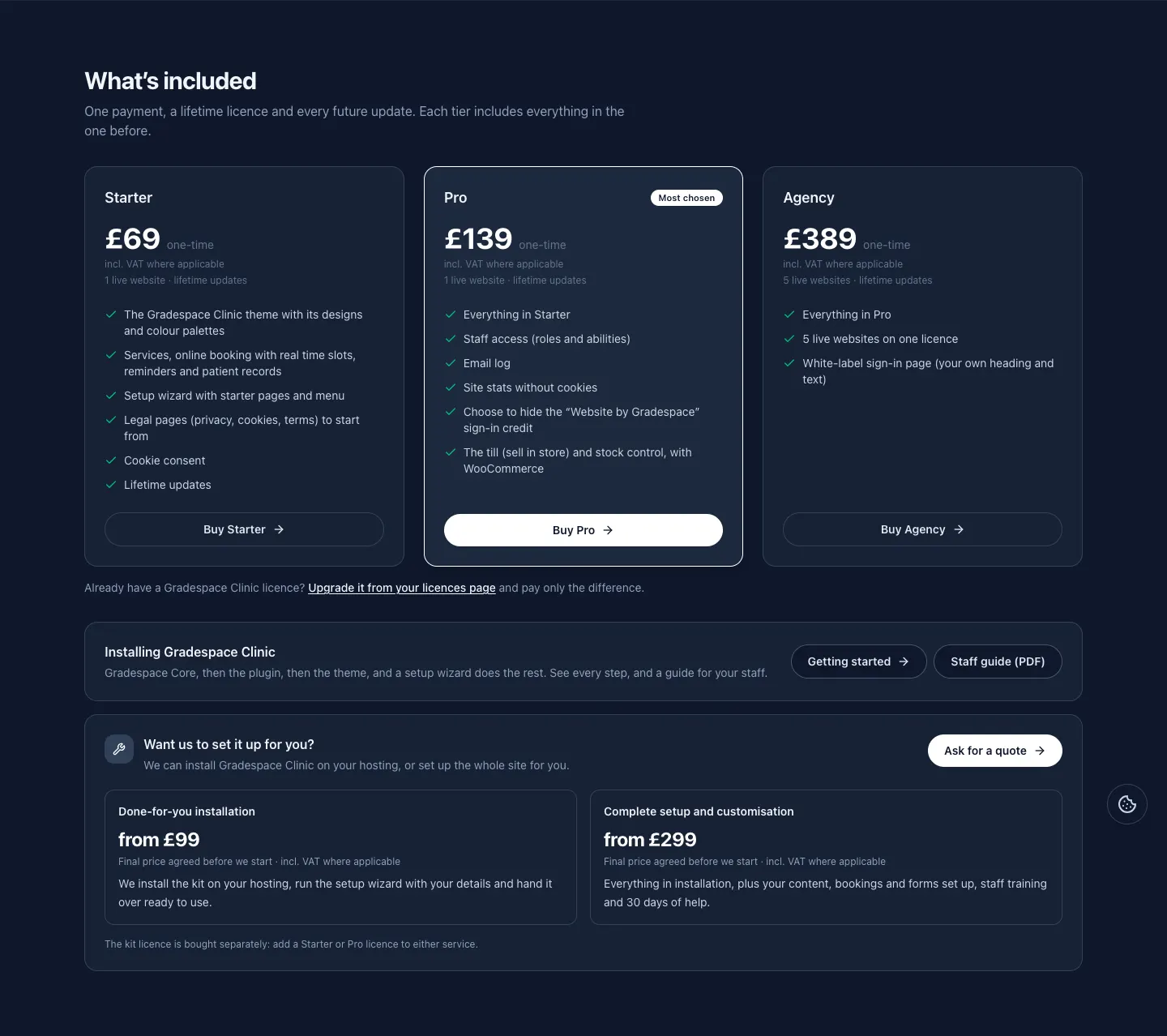
Your kit's own manual has a table of exactly what Starter and Pro include for that kit. Open it from the list of kit manuals.
What counts as a website
One licence covers one live website (Agency covers five). Copies of your website for testing don't count, so you can build and try things on a copy first. A copy counts as a test copy when its address is:
- localhost, or ends in .local, .test or .localhost;
- or starts with staging., stage. or dev. (for example staging.yourbusiness.co.uk).
See Before you install for why a test copy is a good idea.
The other promises
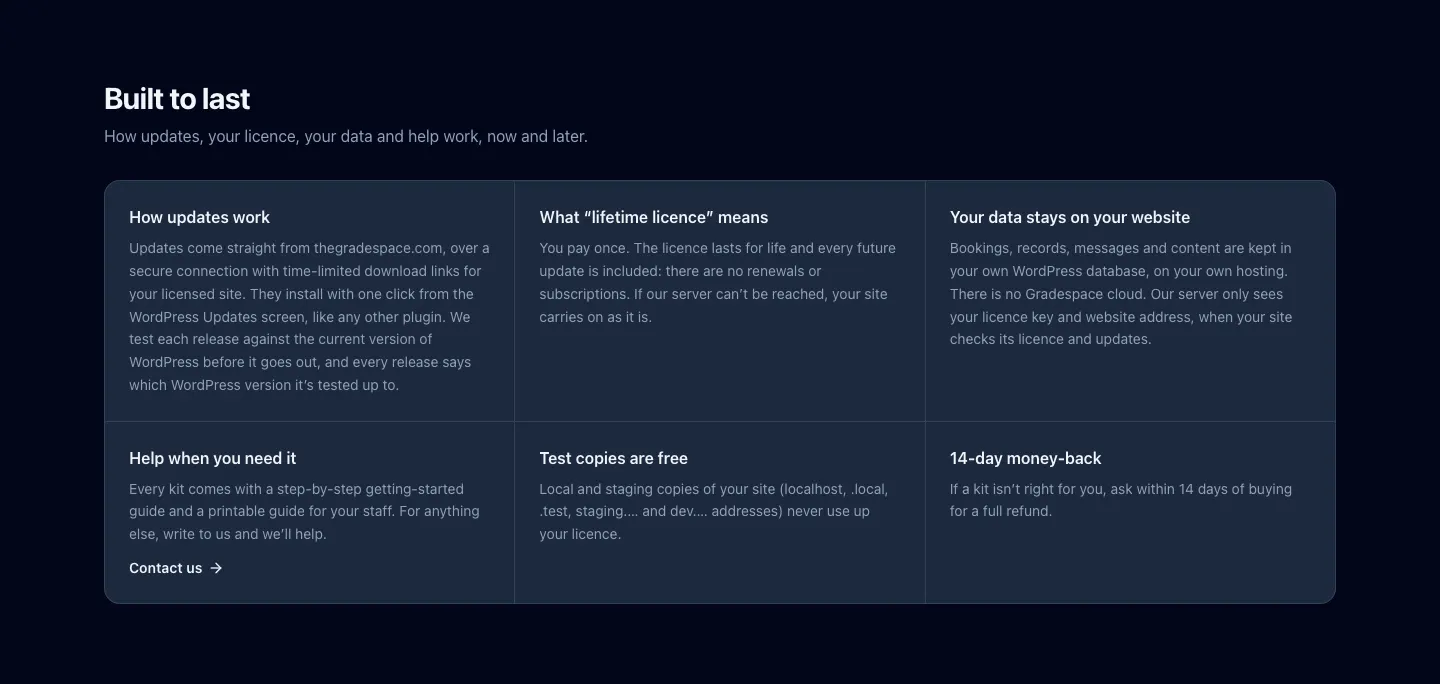
- Your data stays on your website. Bookings, records, messages and content are kept in your own WordPress database, on your own hosting. Our server only sees your licence key and your website's address, when your website checks its licence and looks for updates.
- If our server can't be reached, your website carries on as it is. A licence that has been checked once keeps its tier. Only a definite "this key has been cancelled" answer from our server switches Pro features off.
- 14-day money-back. If a kit isn't right for you, ask within 14 days of buying for a full refund. The licence is then switched off.
How to buy a kit
- Go to thegradespace.com/wordpress-kits and choose your kit.
- Scroll to What's included (or click Compare Starter, Pro and Agency).
- Click Buy Starter, Buy Pro or Buy Agency.
- Pay on the secure checkout page. Use the email address you want your licence to belong to: you'll use it later to sign in to your licences page.
- Look for your receipt email. It holds your licence key, a link to your licences page and a Read the manual link to your kit's manual online.
Your licence key
Your licence key is a line of capital letters, numbers and dashes. One key covers your kit's plugin and its theme. Gradespace Core doesn't need a key.
You'll paste it into your website in Installing your kit. Until you do, your kit runs in Starter mode: every Starter feature works so you can try it, but the website doesn't get updates and Pro features stay locked.
Your licences page
Your licences page on thegradespace.com is where you find your keys, download the files to install, see which websites use each key, and upgrade. Its address is thegradespace.com/account/licences. You can also reach it from the My licences button on any kit page.
There are two ways in. You don't need a password for either.
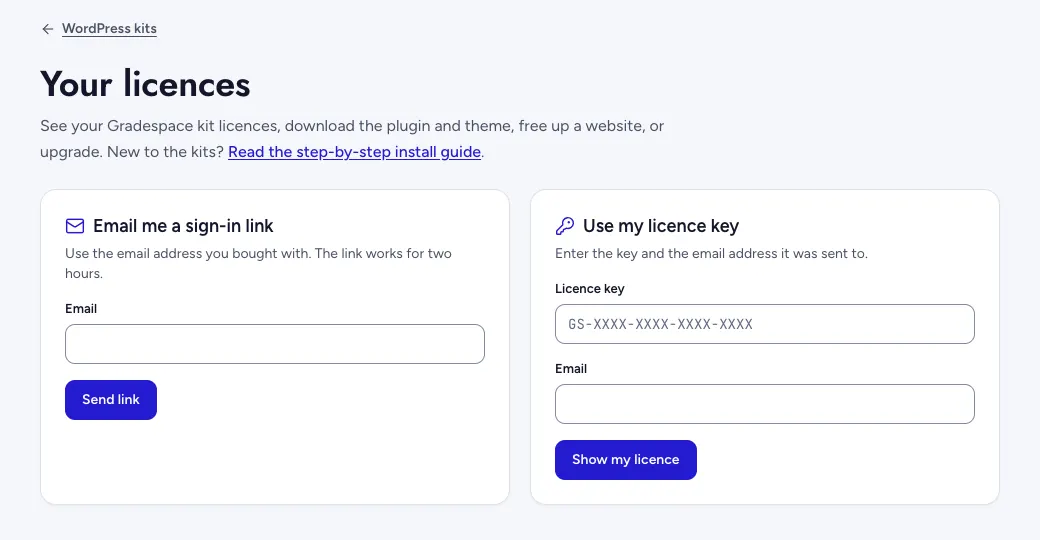
How to open your licences page
- Go to thegradespace.com/account/licences.
- Choose one of the two ways in:
- Email me a sign-in link: type the email address you bought with and click Send link. Open the email and click the link. The link works for two hours.
- Use my licence key: type your Licence key and the Email address it was sent to, then click Show my licence.
What you can do there
Once you're in, you see a card for each kit you've bought with the same email address.
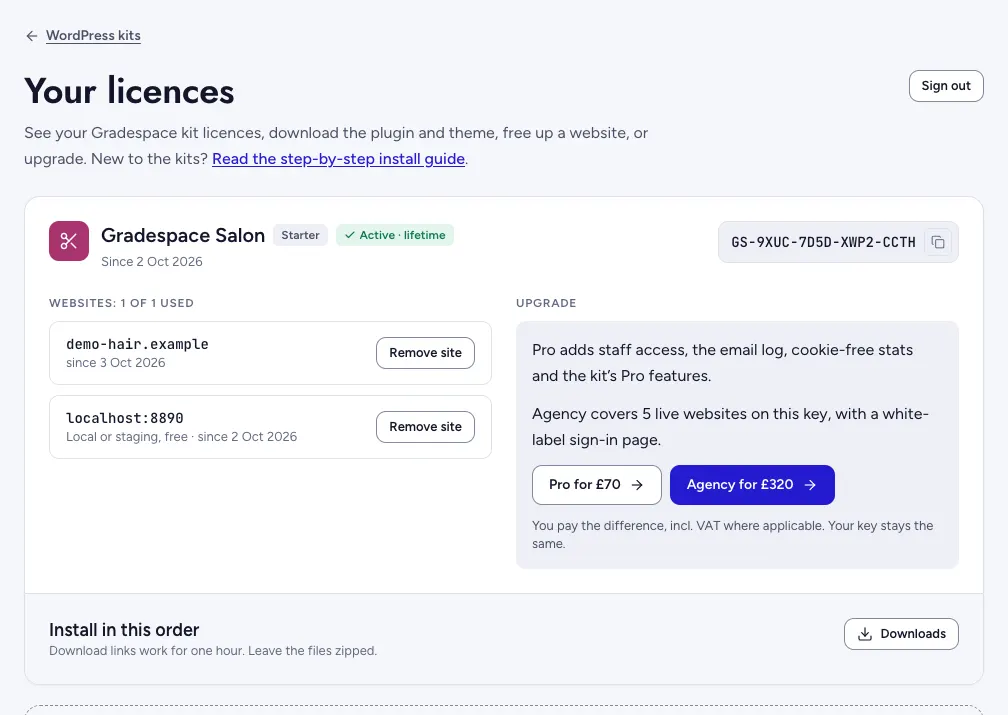
Each card lets you:
- See and copy your licence key: click the copy button next to the key.
- Download the files to install: click Downloads under Install in this order. You get Gradespace Core, your kit's plugin and your kit's theme, in the order you install them, and the Manual (PDF): this user manual as one PDF to keep or print, with its version and size. Leave the .zip files as they are: WordPress wants them zipped. Download links work for one hour; click Downloads again for fresh ones.
- Read the manual online at thegradespace.com/docs, or from Help & manual in your kit's menu in WordPress.
- See which websites use each key under Websites. A free local or staging copy is marked as such and doesn't use a place. Click Remove site next to a website you no longer use to free its place (for example when the old website has already gone).
- Upgrade a licence from Starter to Pro, or from Pro to Agency, and pay only the difference: the buttons show the price, for example Pro for £70.
How to upgrade your licence
You can upgrade from Starter to Pro or Agency, or from Pro to Agency, at any time. You only pay the difference, and you keep the same key. There are two places to do it.
From your website
- In your WordPress admin, go to your kit's menu → Settings → Licence (for example Clinic → Settings → Licence).
- Under your kit's licence, click the upgrade button, for example Upgrade to Agency (£250, the difference).
- Pay for the difference. Your website picks up the new tier at its next licence check. To check straight away, click Recheck on the same screen.
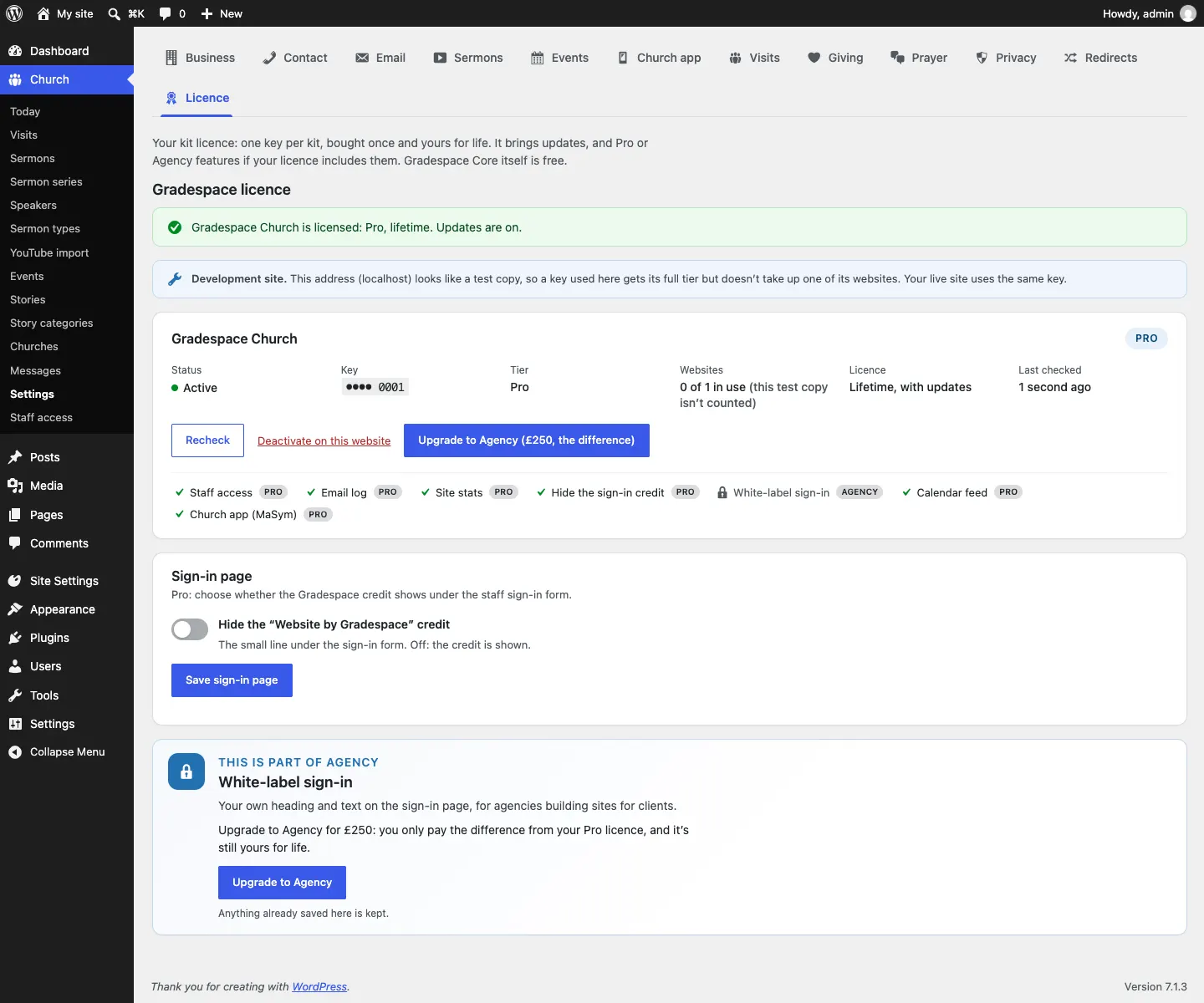
From your licences page
- Open your licences page (see above).
- Find the licence and choose the upgrade.
- Pay for the difference, then click Recheck on your website's Licence tab.
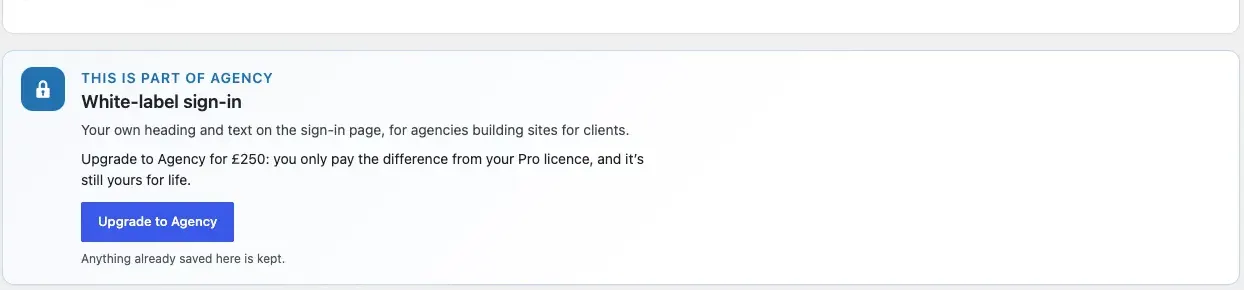
Features from a higher tier show a lock and an upgrade card until your licence includes them. The card tells you what the upgrade costs.
How to move your licence to another website
Your licence covers one live website at a time (five with Agency). To move it:
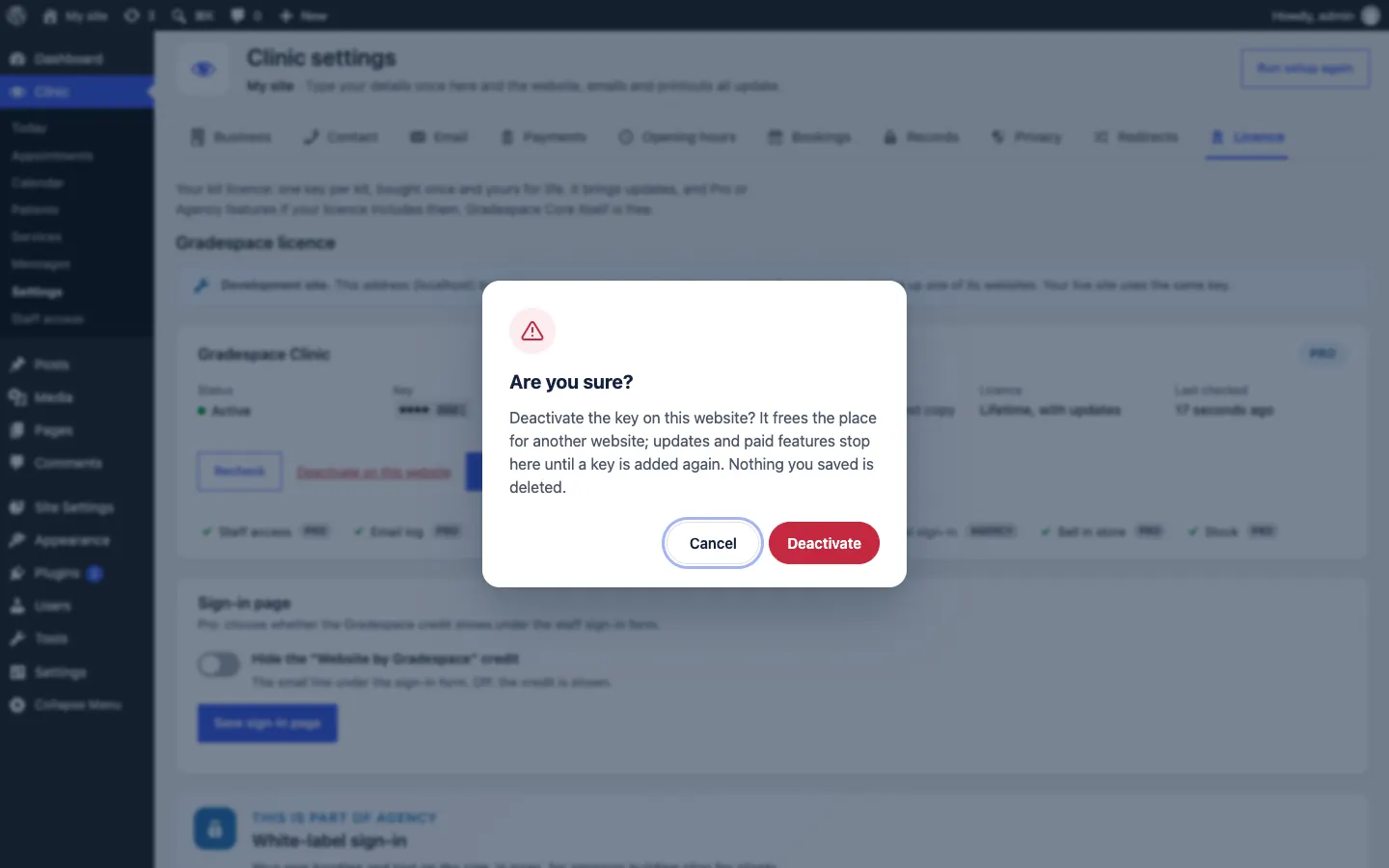
- Free it on the old website. Go to Settings → Gradespace licence there and click Deactivate on this website. Then click Deactivate to confirm. If the old website has already gone, open your licences page and click Remove site next to it instead.
- Activate it on the new website. Install the kit there (see Installing your kit), paste the same key in Settings → Gradespace licence and click Activate.
Nothing you saved is deleted when you deactivate a key.
If you downgrade or get a refund
Nothing is deleted. If a website goes from Pro back to Starter (for example after a refund), the Pro screens show an upgrade card instead of the feature, but your saved settings stay where they are and come back as soon as a Pro key is active again.
Related chapters
- Installing your kit: where the licence key goes.
- Troubleshooting and support: what each licence message means.