Running your website
Events
Adding one-off and repeating events, the Add to my calendar button, events for one congregation, and showing events from a calendar feed (Pro).
On this page
Under Church → Events you add what's happening: youth nights, toddler groups, community lunches, carol services. Events can happen once or repeat every week, every two weeks or every month. They show on the Events page, on the home page, on each church's page and in Today, and every event has an Add to my calendar button for visitors.
Features marked (Pro) need a Pro or Agency licence.
How to see your events
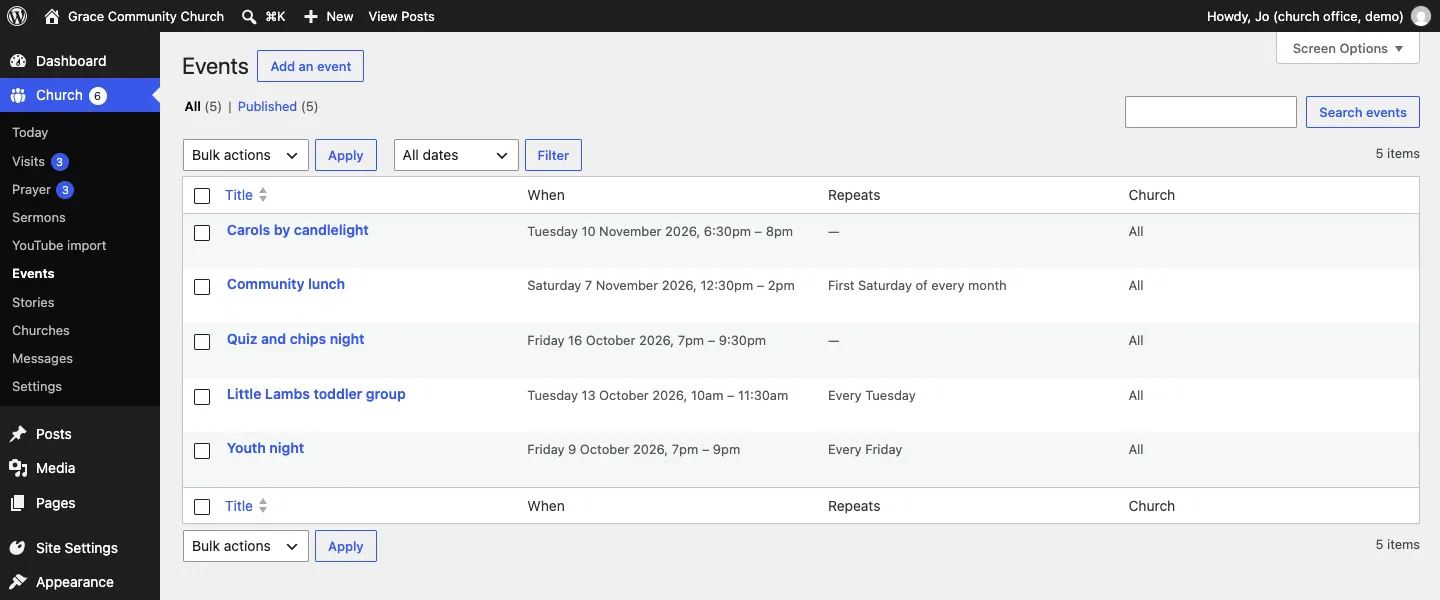
Go to Church → Events. The list shows each event's next date and time, how it repeats and which church it belongs to (All for everyone).
How to add an event
- Go to Church → Events and click Add an event.
- Type the event's name where it says Add title.
- Underneath, write what's happening, who it's for and anything to bring.
- In the sidebar, open Date and details (a yellow note reminds you: "Add a start date and time so the event shows on the website").
- Set Starts, and Ends (optional). Switch on All day for events without a time.
- Under Repeats, choose Doesn't repeat, Every week, Every two weeks, Every month, same date or Every month, same weekday (an example underneath says what it means, for example "the first Saturday of every month"). For a repeating event you can set Repeats until (optional).
- Where (if not at the church): leave it blank to show the church's address, or type another place.
- Booking or more-info link (optional) and Join online link (optional) add buttons to the event.
- Add a picture with Set featured image at the top of the sidebar, if you have one.
- Click Publish.
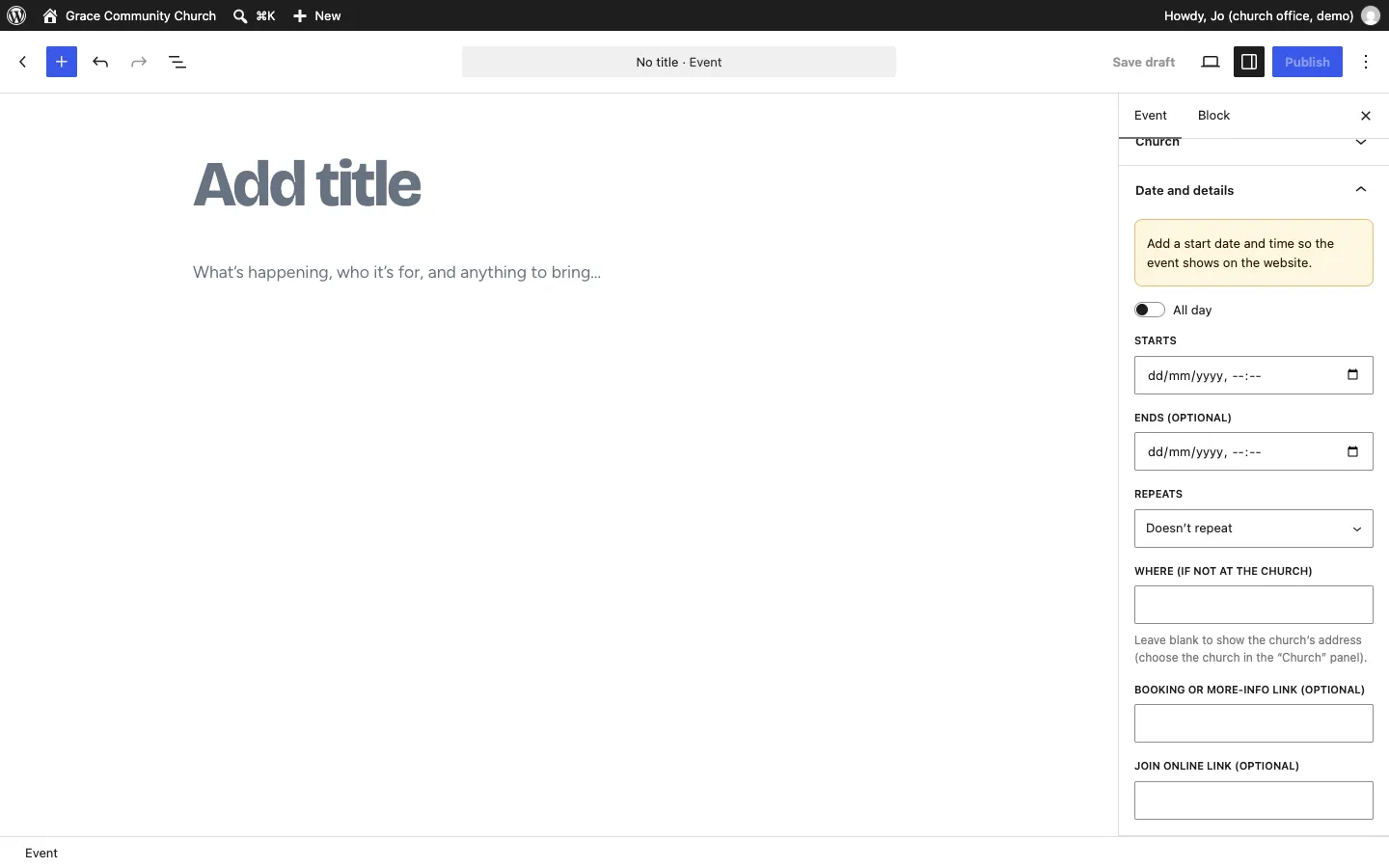
Here is a monthly event filled in:

How to make an event belong to one church
- Open the event.
- In the sidebar, open Church and choose the congregation under This page belongs to this church.
- Click Save.
The church's page then shows its own events and those for every congregation.
How to change or cancel an event
- To change it, open it from Church → Events, make your changes and click Save.
- To stop a repeating event, set Repeats until (optional) to the last date.
- To remove it, hover over it in the list and click Move to Trash.
What visitors see
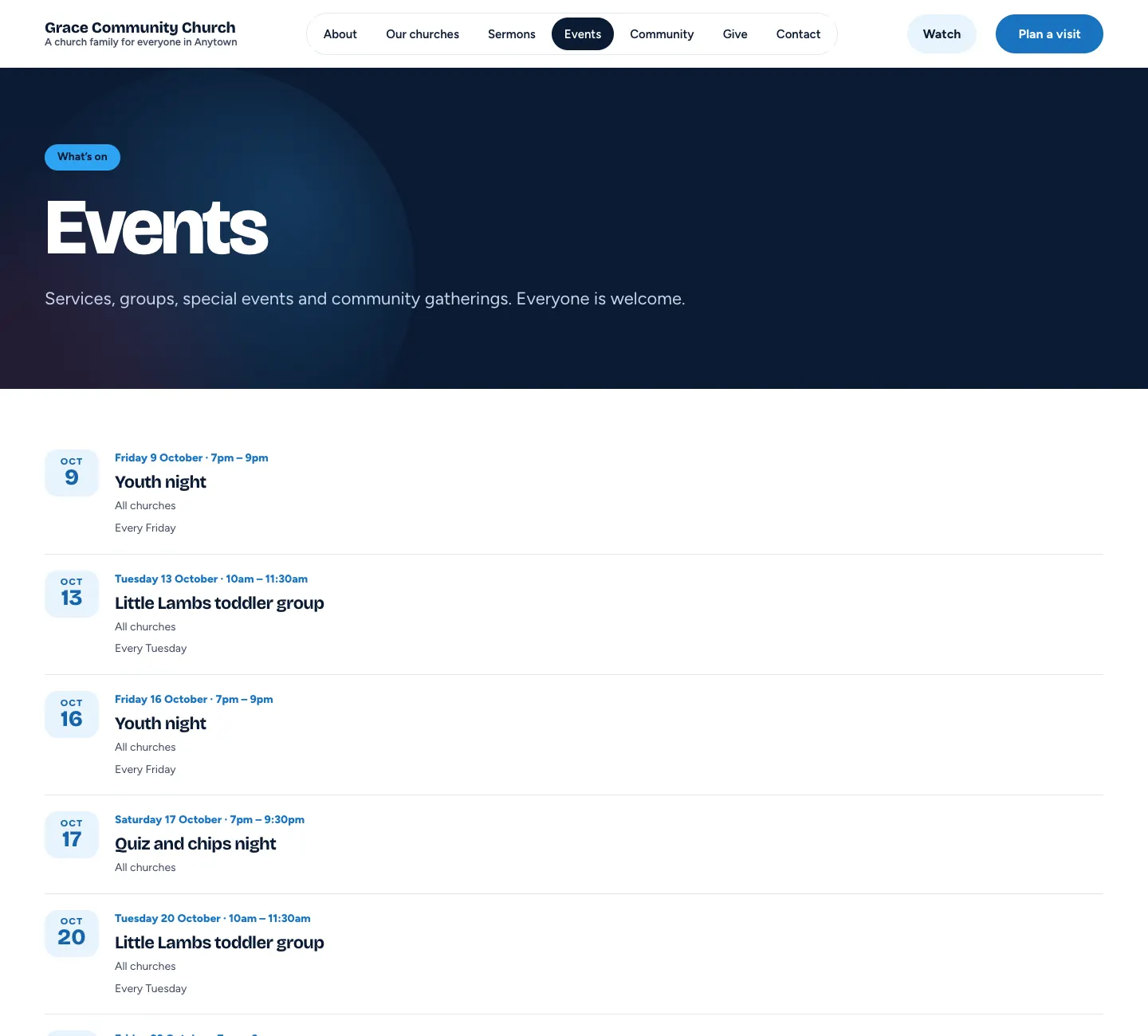
The Events page lists everything coming up, with repeating events shown on each date.
Each event has its own page with the date, time and place, an Add to my calendar button, share buttons and other events coming up.
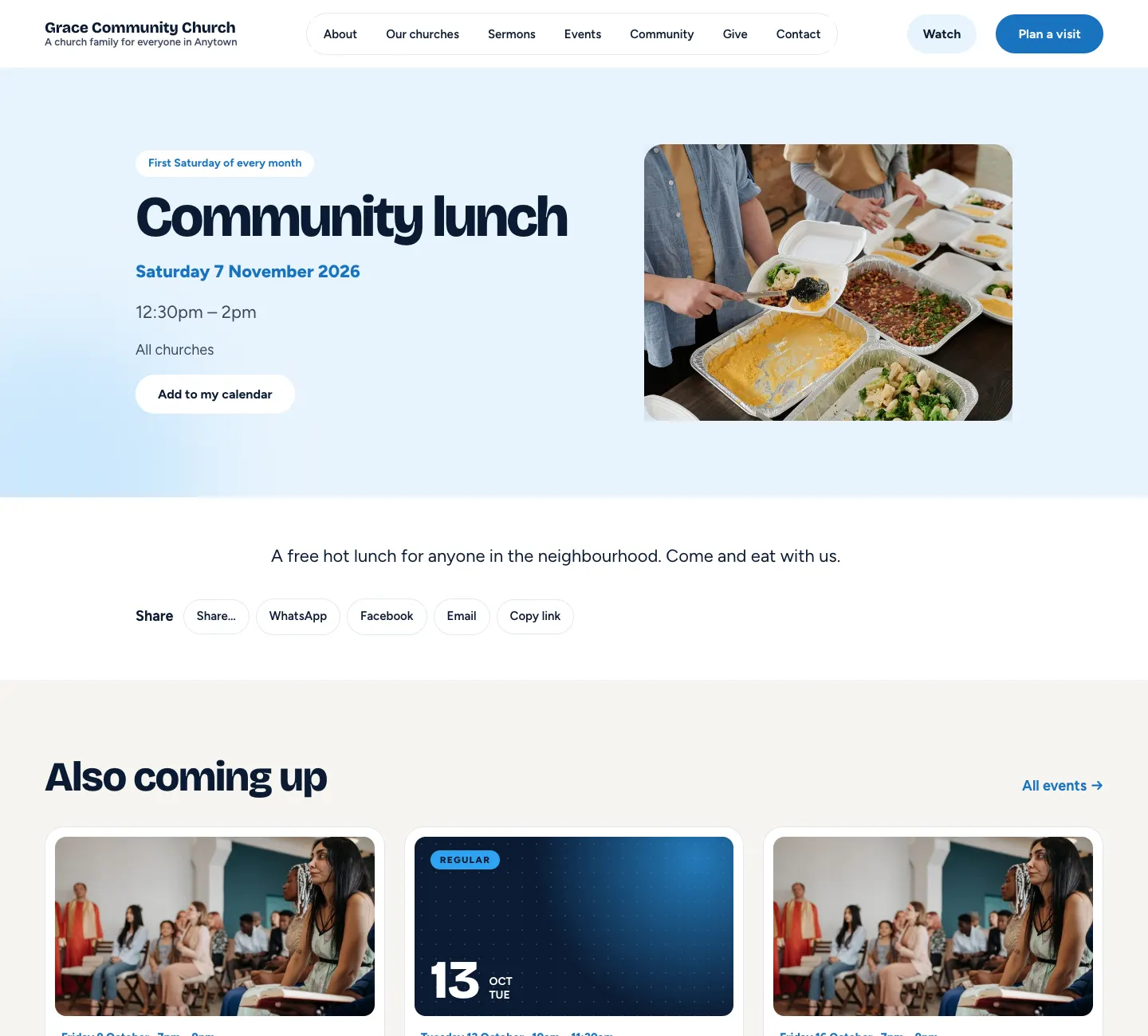
Add to my calendar downloads the event for the visitor's phone or computer calendar.
How far ahead events show
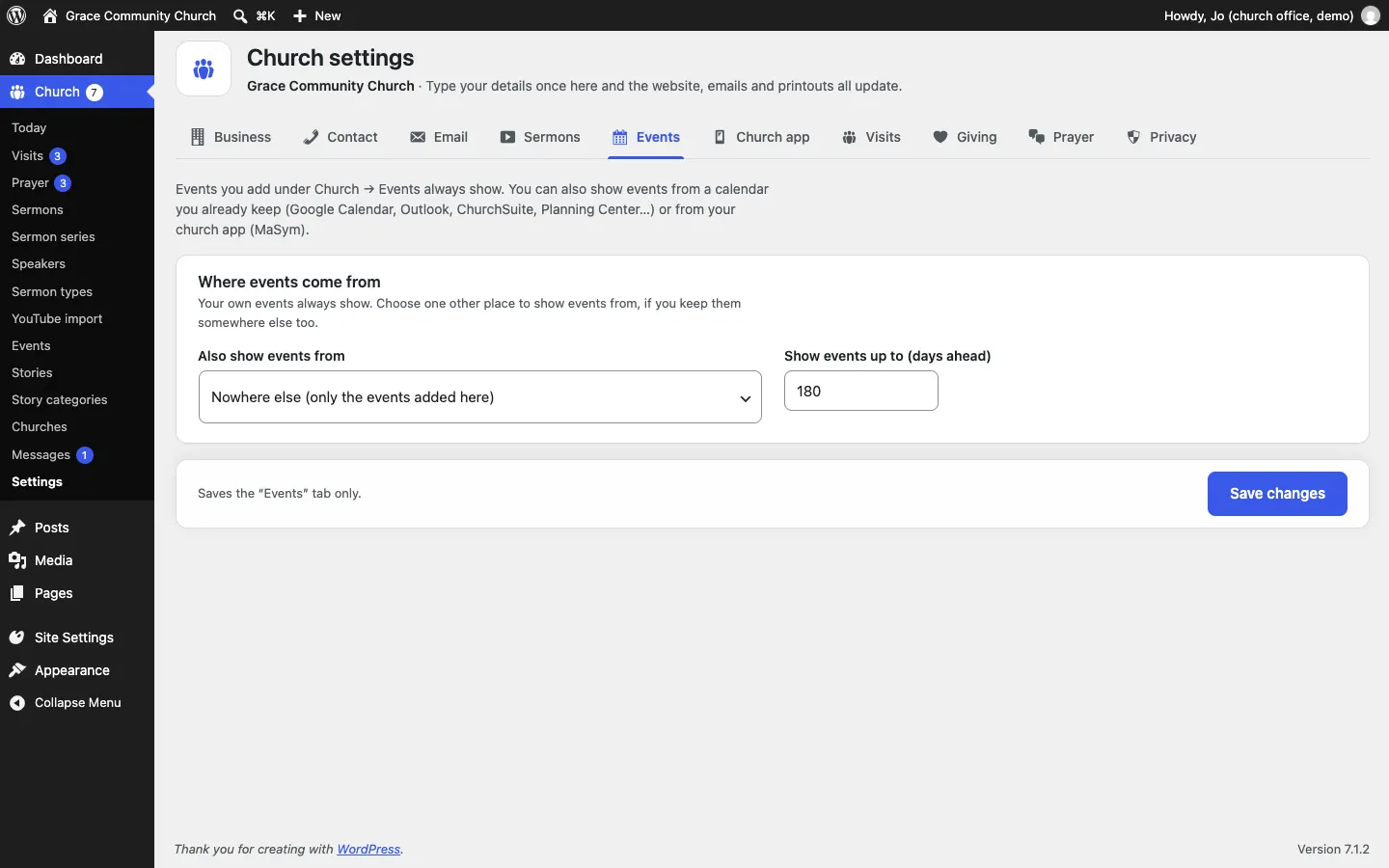
- Go to Church → Settings → Events.
- Change Show events up to (days ahead).
- Click Save changes.
Events from a calendar feed (Pro)
If you already keep events in Google Calendar, Outlook, ChurchSuite, Planning Center or similar, the website can show them too, beside the ones you add here.
- In your calendar program, find the calendar's public or "secret" address in iCal format (it usually ends in .ics).
- Go to Church → Settings → Events.
- Under Also show events from, choose A calendar feed (iCal: Google, Outlook, ChurchSuite…).
- Paste the calendar's address in Calendar address (iCal).
- If you like, change Check it every (minutes) (30 by default).
- Click Save changes.
Feed events are changed in your calendar, not on the website. Without a Pro licence the tab shows an upgrade card and the feed isn't read; the saved address is kept.
Events from your church app (Pro)
Choose The church app (MaSym) under Also show events from. This needs the connection set up first: see Your church app.