Running your website
Plan a visit and visitor records
How newcomers tell you they're coming, where their requests go, how to welcome them and mark them welcomed, and how to review old visitor records.
On this page
Plan a visit is the Church kit's way of saying "we'd love to meet you". A newcomer fills in a short form: their name, how many are coming, which church and which Sunday. The request is emailed to that church, the visitor gets a friendly confirmation, and the request appears under Church → Visits so your welcome team can look out for them.
What visitors see
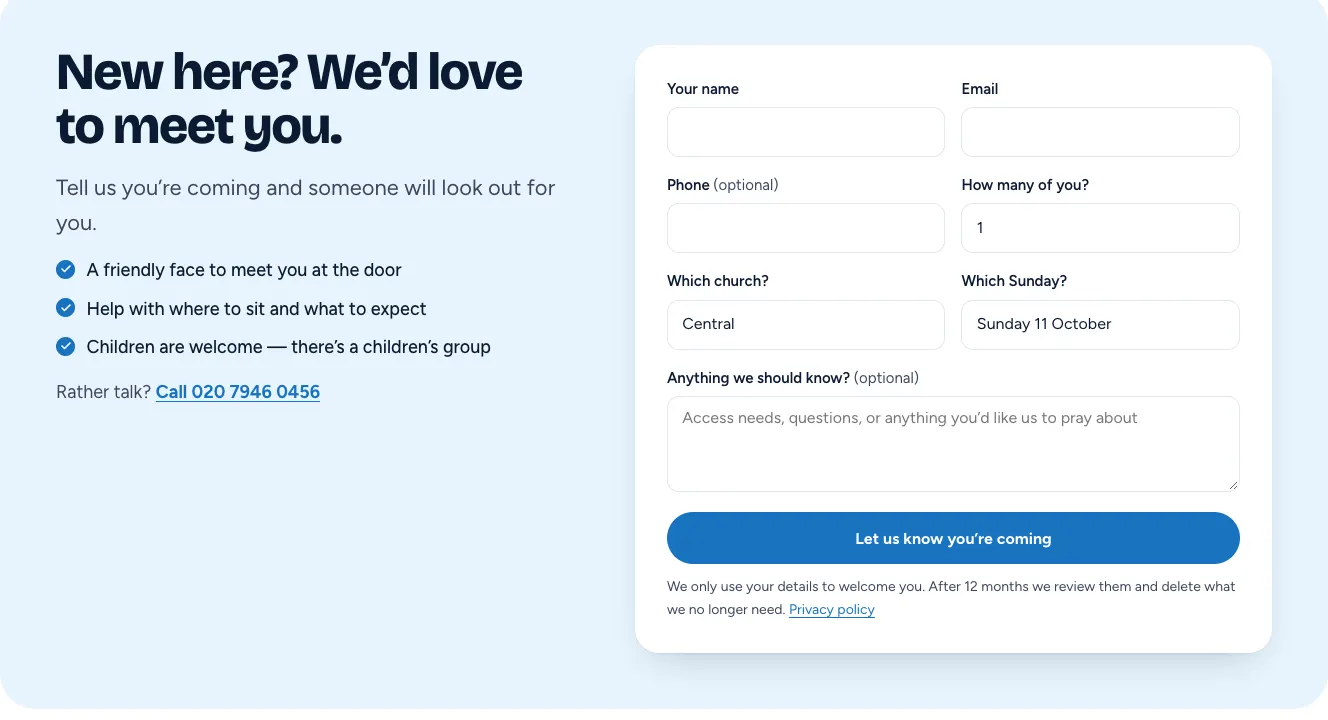
The form is on the Plan a visit page, on each church's own page and anywhere you add the Plan a visit form block. It asks for:
- Your name, Email and Phone (optional)
- How many of you? (1 to 10+)
- Which church? (if you have more than one)
- Which Sunday?: the next eight dates of the meetings ticked Offer it in Plan a visit, and Not sure yet
- Anything we should know? (optional), for access needs or questions
Then the visitor clicks Let us know you're coming.
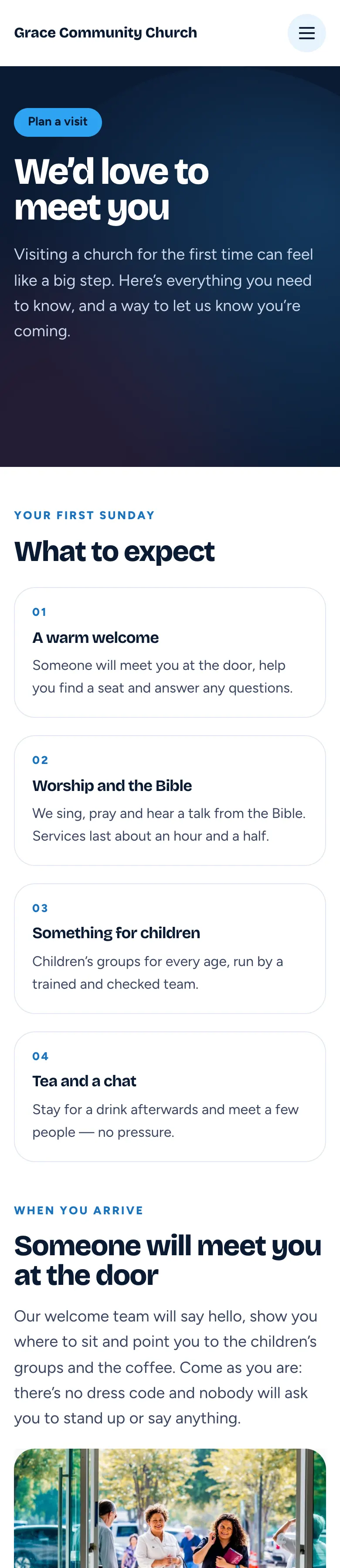
On a phone the page stacks into one column:
After sending, the form is replaced by Thank you — we can't wait to meet you! without leaving the page, and the visitor gets a confirmation email with the address and service time.
If something goes wrong (for example, too many requests from one place in an hour), the form says "Sorry, that didn't go through. Please try again, or call or email us."
Where requests go
- To the chosen church's own Email (in Church → Churches, open the church, Church details).
- And a copy to the addresses in Copy visit requests to on Church → Settings → Email (blank: the Send notifications to addresses).
The emails can be switched on or off on the Email tab: Someone is planning a visit (to the church) and Visit request received (to the visitor). See Church settings.
How to change what the form says
- Go to Church → Settings → Visits.
- In What visitors can expect (one per line) (optional), type the lines shown as ticks beside the form, for example "A friendly face to meet you at the door".
- Click Save changes.
The rest of the Plan a visit page (the "What to expect" cards and questions) is an ordinary page: edit it under Pages → Plan a visit. See Pages and content.
How to deal with a new visit request
New requests show in three places: Church → Today, Church → Visits, and as a red number beside Visits in the menu.
-
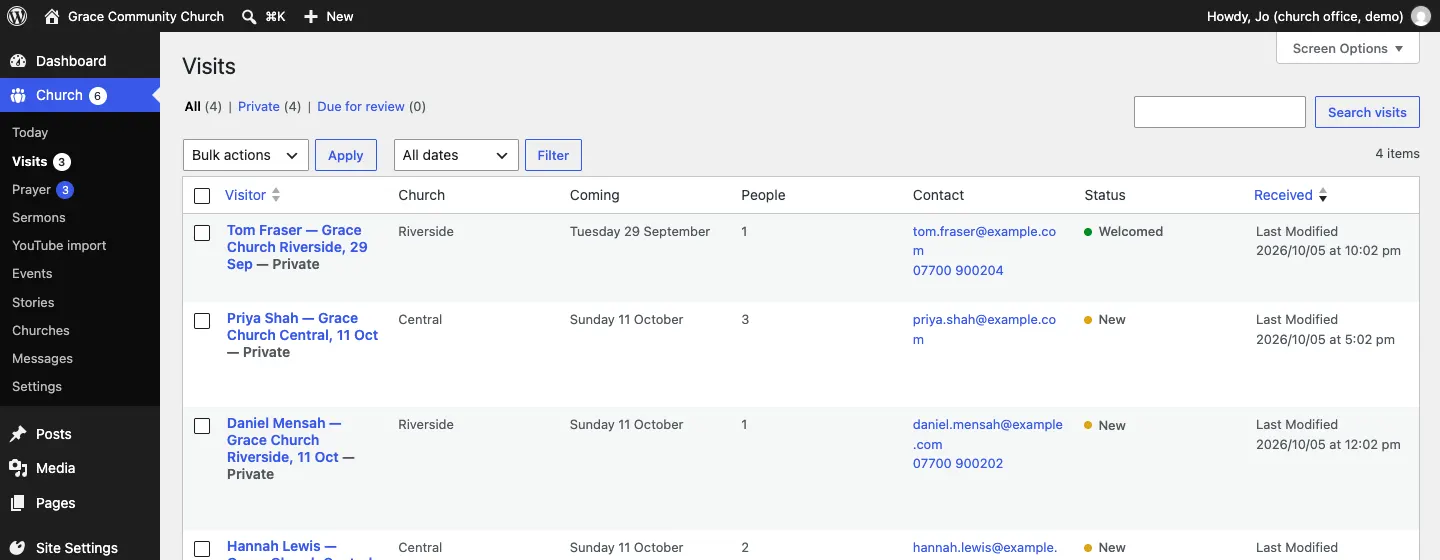
Go to Church → Visits. The list shows each visitor, their church, the Sunday they're coming, how many people, their contact details and the Status (New or Welcomed).
-
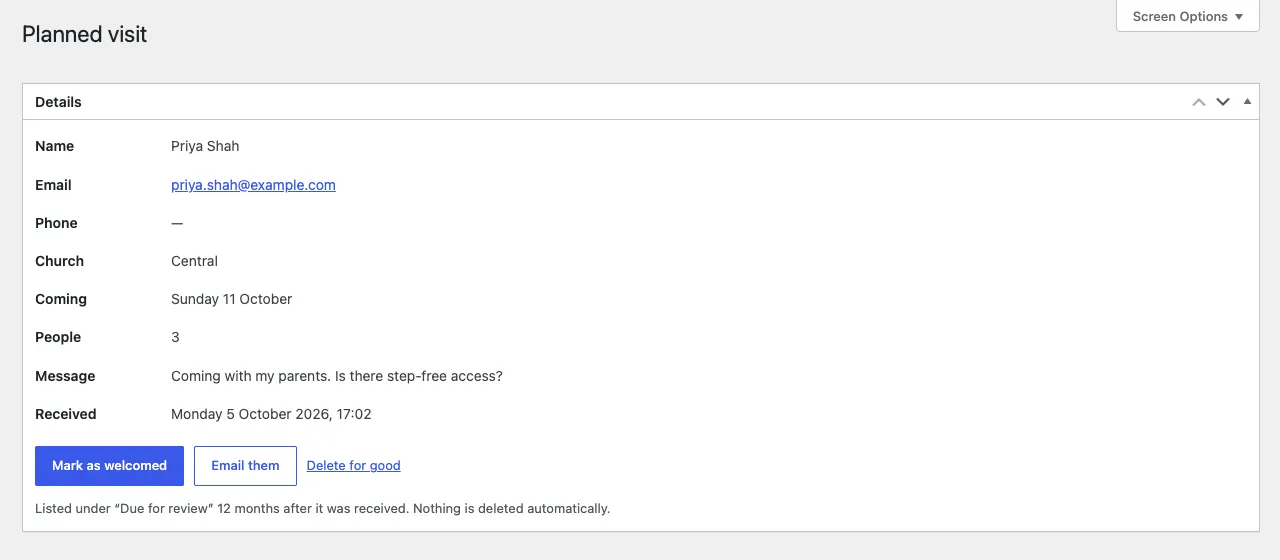
Click Details (or the visitor's name) to see everything they wrote.
-
If you'd like to, click Email them to reply. Make sure someone is ready to welcome them on the day.
-
After the visit, click Mark as welcomed. You can also do this straight from the list or from Today.
How to review old visitor records
Visit records are private and only staff who are allowed can see them. Data protection law asks you not to keep personal details longer than you need, so the website lists old records for review. Nothing is deleted automatically.
-
Set how long to keep them: Church → Settings → Visits → Review visit records after (months) (12 by default), then Save changes.
-
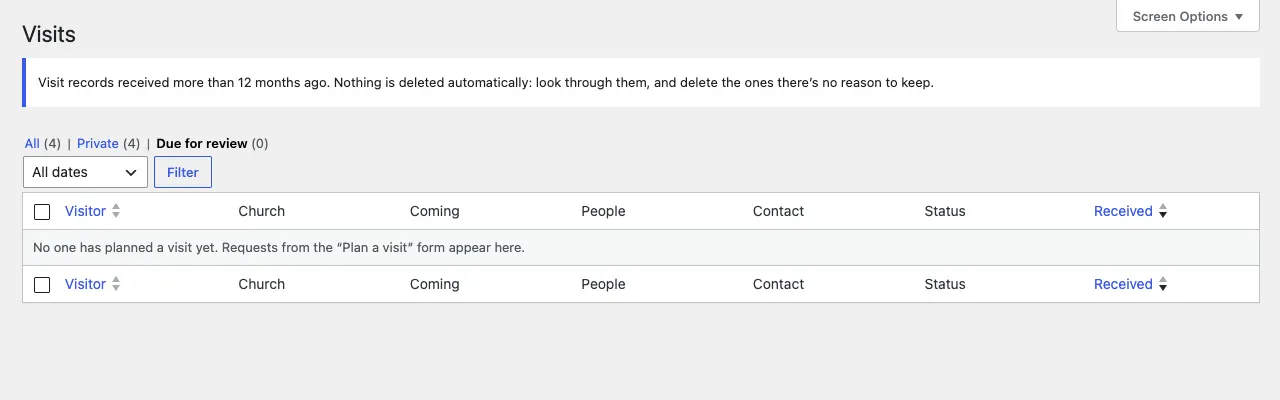
When records are older than that, Today reminds administrators. Go to Church → Visits and click Due for review.
-
Tick the records there's no reason to keep and choose Delete selected. Confirm by typing DELETE.
To delete one record straight away, open it and click Delete for good.
A visitor asks for their data
If someone asks for a copy of what you hold about them, or for it to be deleted, use WordPress's own tools under Tools → Export Personal Data and Tools → Erase Personal Data; visit and prayer records are included. See Privacy and emails.