Running your website
Sermons from YouTube
Connecting your YouTube channel so new videos become sermons every hour, adding series and Bible passages, skipping videos, congregation channels, types and renaming Sermons.
On this page
If you put sermons or services on YouTube, you don't need to add them to the website by hand. Paste your channel once and every hour the website checks it: each new video becomes a sermon, with the speaker, a short summary and the video's picture. You can then add a series, the Bible passage or notes. No YouTube password or key is needed; only public videos are read.
Visitors only load YouTube when they press play, after agreeing to its cookies.
How to connect your YouTube channel
- Go to Church → Settings → Sermons.
- Under YouTube channel, make sure Check for new videos every hour is on.
- Paste your channel in YouTube channel (address or @handle) (optional): its address, its @handle (for example @yourchurch) or its channel ID (starts with UC).
- Leave Publish new sermons straight away on, or switch it off to have new sermons wait as drafts until someone adds the series and passage.
- Click Save changes.
- Scroll down to Import from YouTube and click Import now to bring in the latest videos straight away.
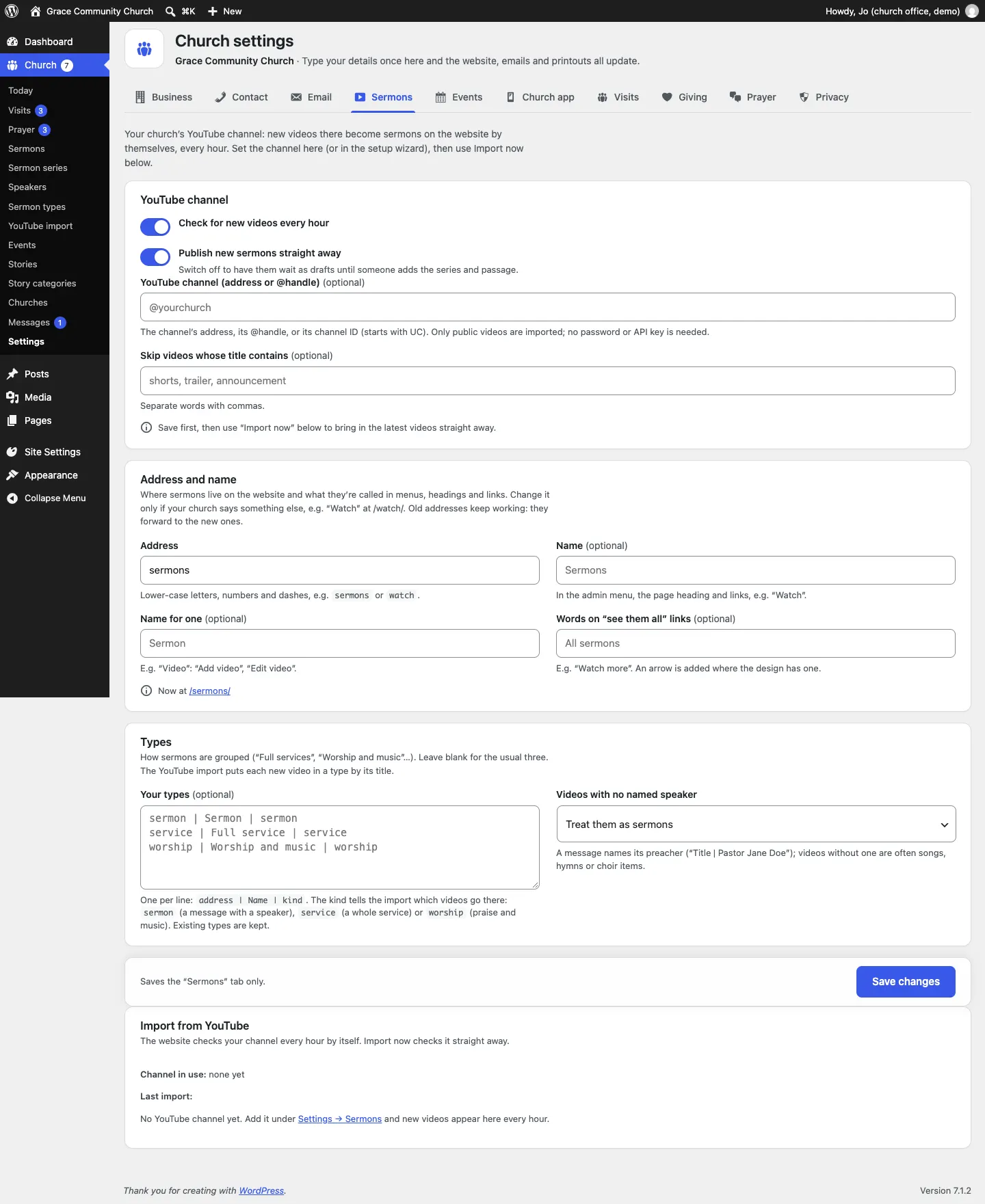
You can also set the channel in the setup wizard.
How to check the import
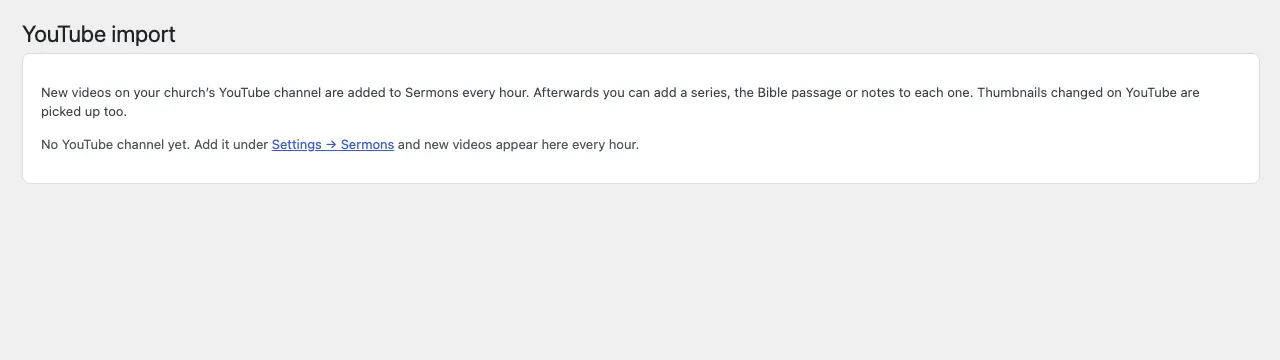
Go to Church → YouTube import. It shows when the channel was last checked and what came in. If a check fails, a red number appears beside it in the menu.
How to see and edit sermons
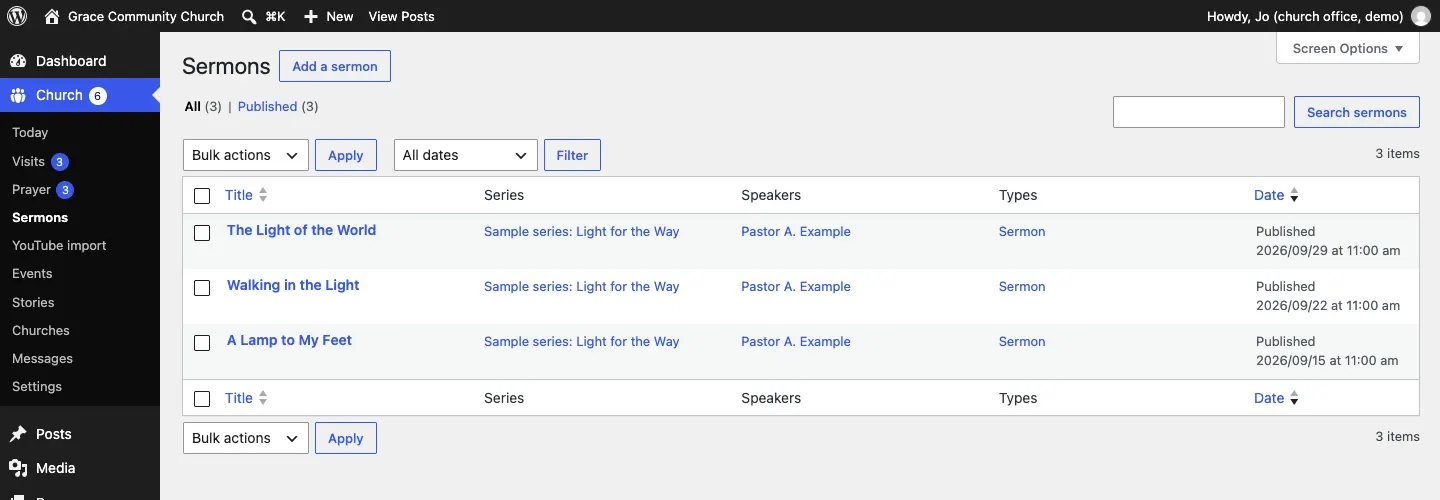
Go to Church → Sermons. The list shows each sermon's series, speakers, type and date.
To add details to a sermon:
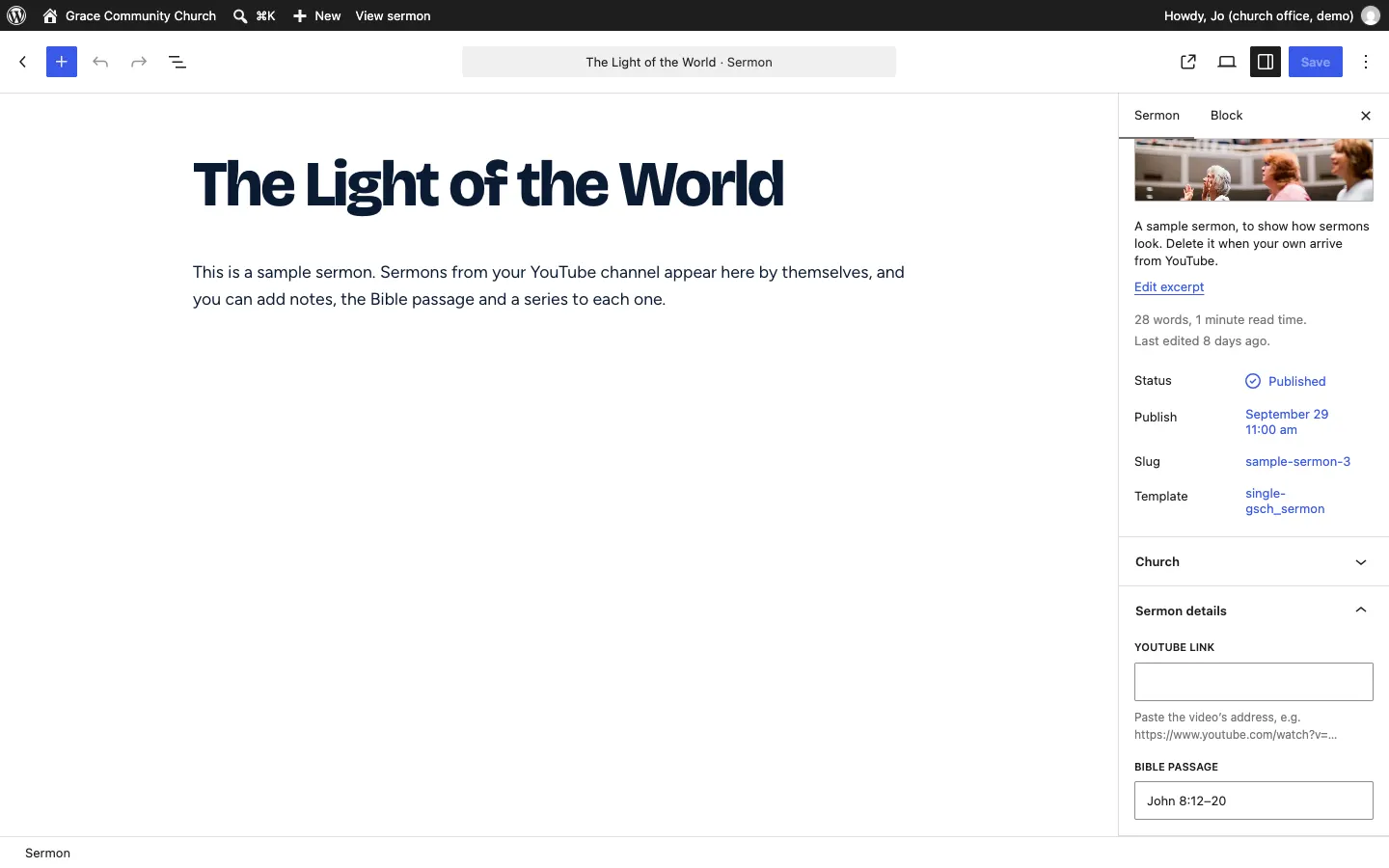
- Click its title.
- In the sidebar, open Sermon details.
- Add the Bible passage, for example "John 8:12–20".
- Choose or add a Series, Speakers and Types.
- Add any notes in the main area.
- Click Save.

How to add a sermon by hand
For a YouTube video that isn’t on your channel (for example a guest speaker’s):
- Go to Church → Sermons and click Add a sermon.
- Type the title.
- In Sermon details, paste the video's address in YouTube link.
- Fill in the rest as above and click Publish.
Series, speakers and types
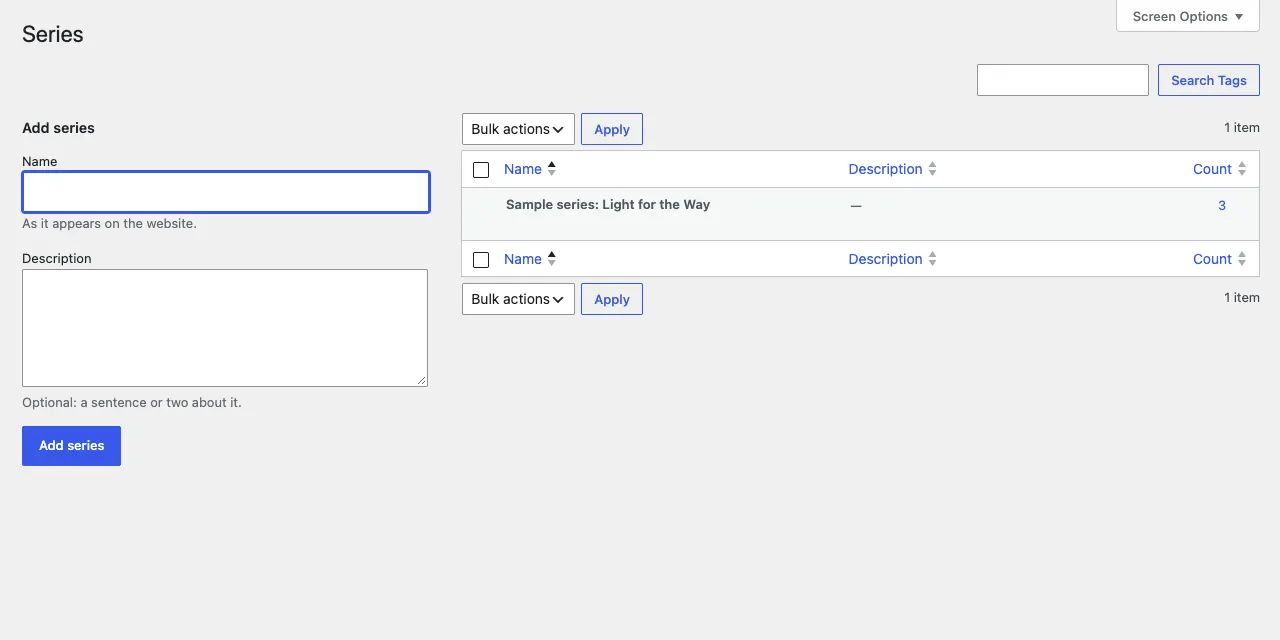
You add and choose series, speakers and types in each sermon's sidebar: type a new name in the Series, Speakers or Types box and it's added to the list.
To rename one or add a description, use the full list: Church → Sermon series, Church → Speakers or Church → Sermon types. On the left, type a Name and an optional Description and click Add series; to change one, point at it in the list and click Edit.
Types group your videos, for example Sermon, Full service and Worship and music. To name your own:
- Go to Church → Settings → Sermons → Types.
- In Your types (optional), put one per line: address | Name | kind. The kind is sermon (a message with a speaker), service (a whole service) or worship (praise and music). It tells the import which videos go there.
- Under Videos with no named speaker, choose where videos without a preacher's name go, for example Put them in "Worship and music".
- Click Save changes.
How to leave a video out
- Go to Church → Settings → Sermons.
- In Skip videos whose title contains (optional), type words from the titles to skip, separated by commas, for example "shorts, trailer, announcement".
- Click Save changes.
A sermon you delete won't come back at the next import.
A congregation with its own YouTube channel
- Go to Church → Churches and open the congregation.
- In Church details, fill in YouTube channel (optional).
- Click Save.
Its new videos then arrive too and belong to that congregation: they show first in its page's sermons, and its Watch live button goes to its own channel. Settings → Sermons lists these channels and when each was last checked.
Calling them something else
If your church says "Watch" or "Messages" rather than "Sermons":
- Go to Church → Settings → Sermons → Address and name.
- Change Address (for example
watch, for yourwebsite/watch/), Name (optional) (for example "Watch"), Name for one (optional) (for example "Video") and Words on "see them all" links (optional) (for example "Watch more"). - Click Save changes.
The menu, headings and links follow. Old addresses keep working: people are sent on to the new ones.
What visitors see
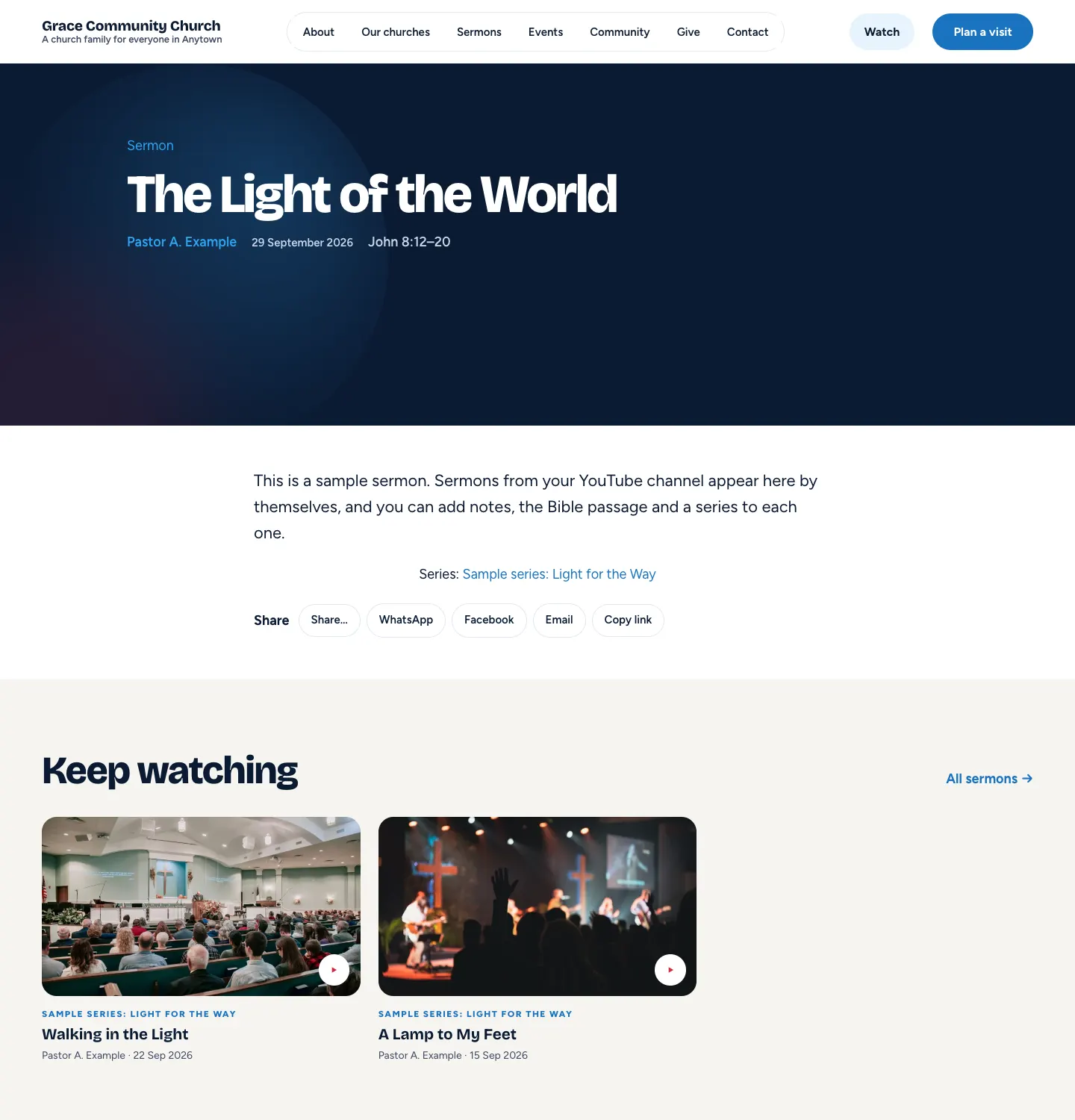
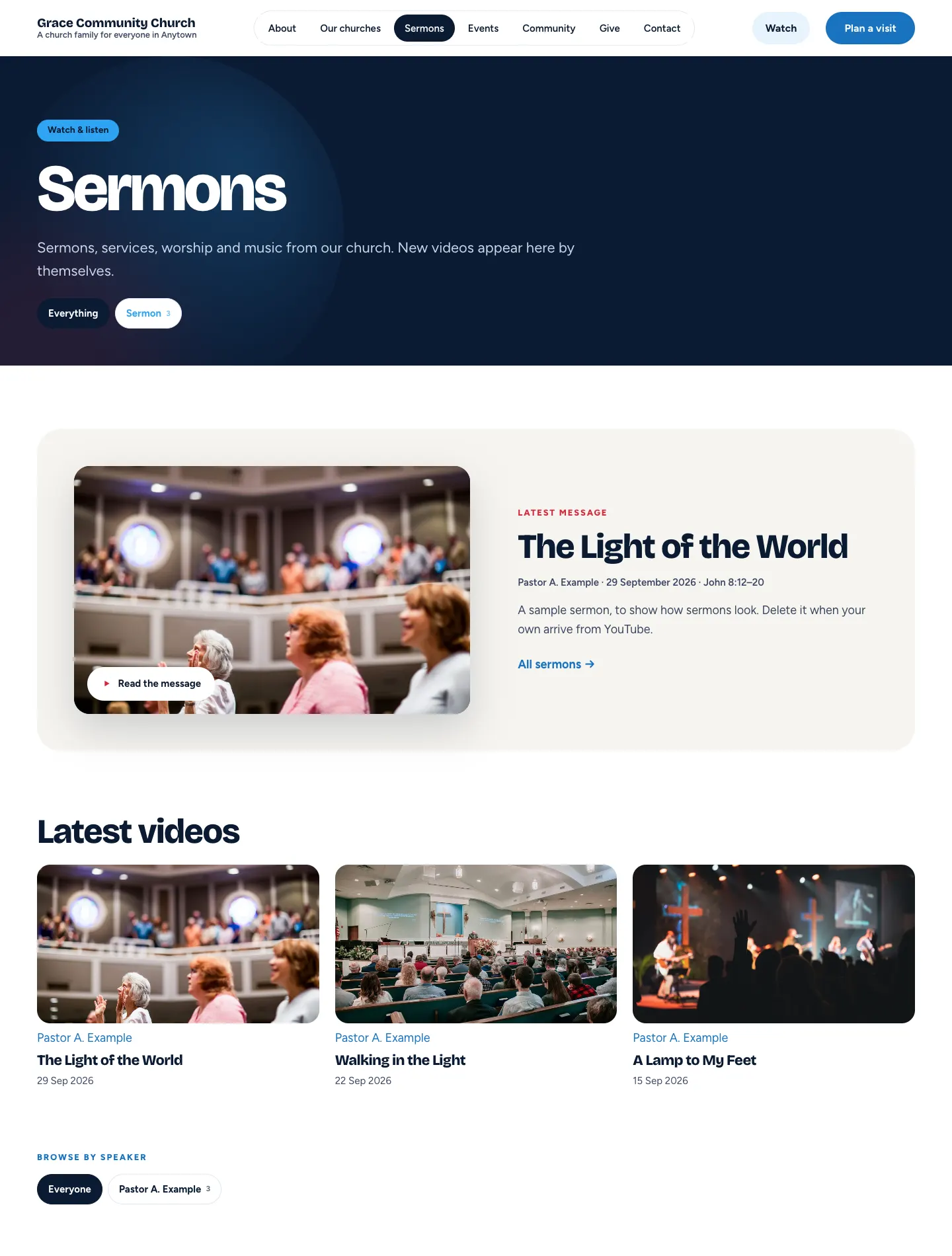
The Sermons page shows the latest message, all the latest videos, and lets people browse by type and speaker.
Each sermon has its own page with the video (once it has a YouTube link), speaker, date, Bible passage, series, share buttons and more to watch.