Running your website
Prayer requests and messages
Taking private prayer requests on the website, reading them and marking them prayed for, and dealing with messages from the contact form.
On this page
The website can take two kinds of private message: prayer requests (optional) and messages from the contact form. Both arrive by email and are kept under Church so your team can follow them up. Both are private: only staff whose role allows it can read them.
Prayer requests
How to switch prayer requests on
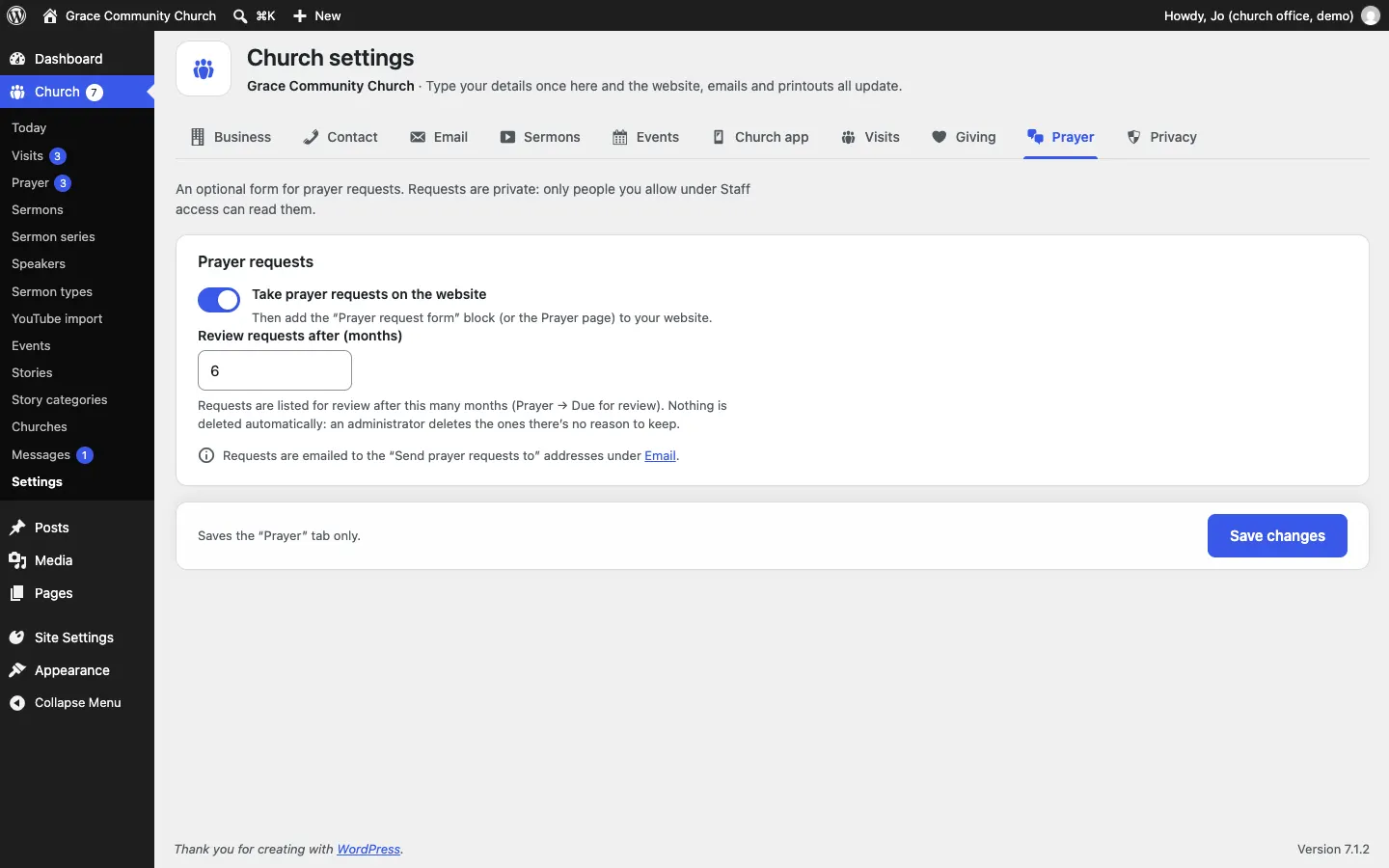
- Go to Church → Settings → Prayer.
- Switch on Take prayer requests on the website.
- Set Review requests after (months) (6 by default).
- Click Save changes.
- Make sure the Prayer page is on your website, or add the Prayer request form block to any page. See Pages and content.
What visitors see
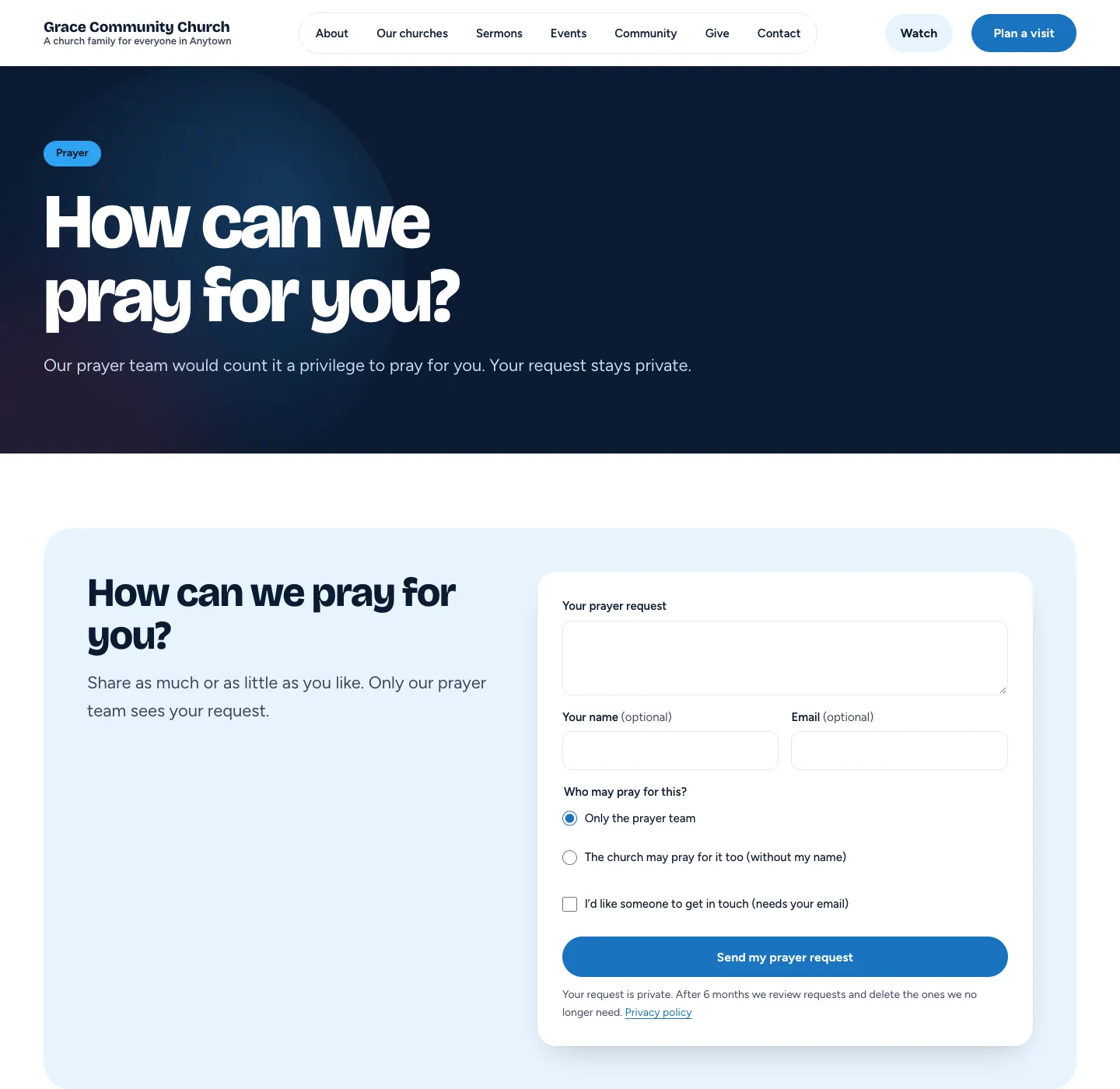
The Prayer page has a short form: Your prayer request, Your name (optional), Email (optional), Who may pray for this? (Only the prayer team or The church may pray for it too (without my name)) and I'd like someone to get in touch (needs your email). Then Send my prayer request.
Who is told
New prayer requests are emailed to the prayer team: the addresses in Send prayer requests to on Church → Settings → Email (blank: the Send notifications to addresses). The email New prayer request can be switched on or off on Church → Settings → Email, and so can Prayer request received, the confirmation to the person who asked (when they gave an email address).
How to read and follow up a prayer request
-
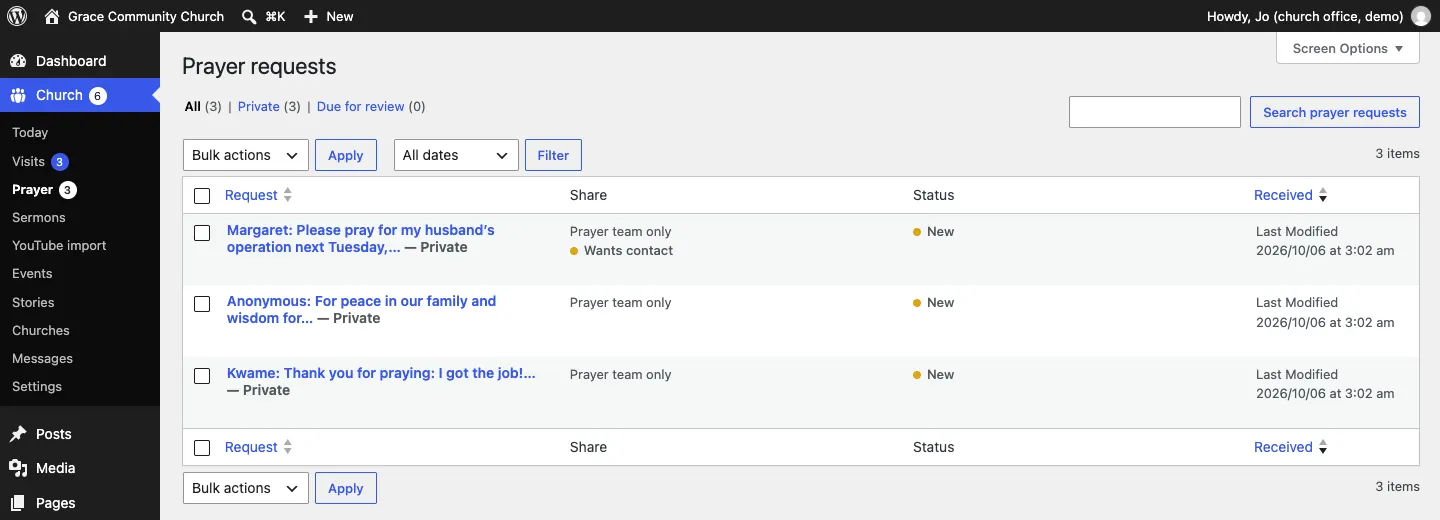
Go to Church → Prayer. The red number in the menu shows how many are new. The list shows each request, who may pray for it (Share), whether they want contact, and the Status.
-
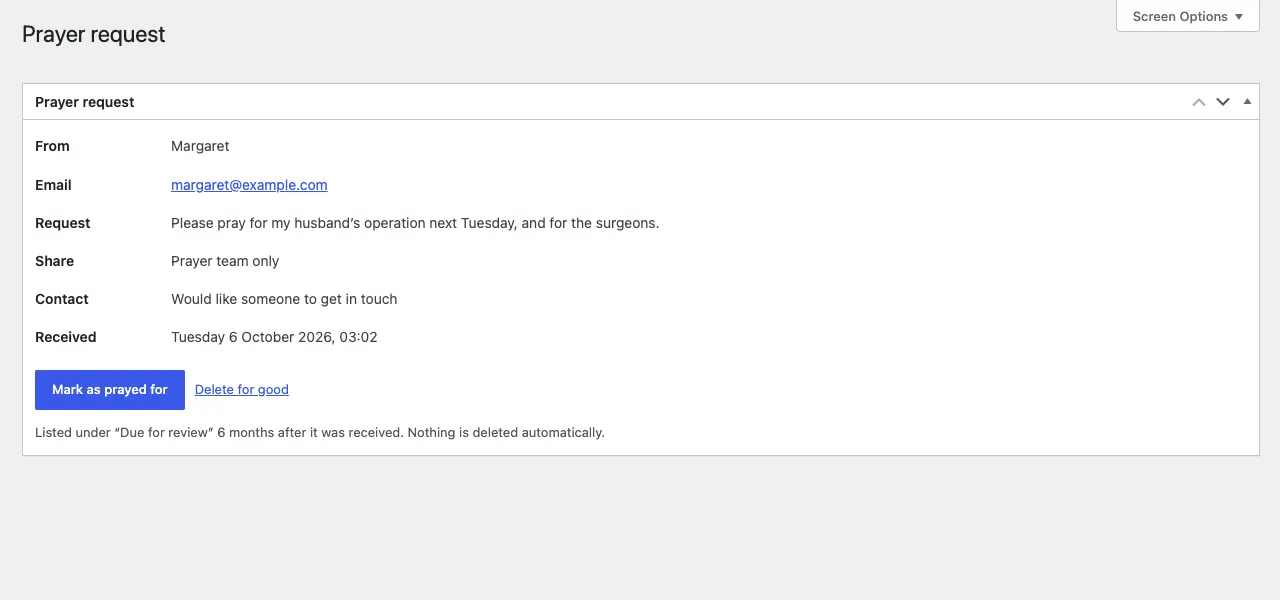
Click Read to see the whole request.
-
If they'd like someone to get in touch, contact them.
-
When you've prayed for them, click Mark as prayed for. You can also do this from the list, or with the same button on Today.
Reviewing old prayer requests
Church → Prayer → Due for review lists requests older than the months set on the Prayer tab. An administrator ticks the ones there's no reason to keep and chooses Delete selected. Nothing is deleted automatically. To delete one straight away, open it and click Delete for good.
Messages from the contact form
When someone uses the website's contact form, the message is emailed to you and kept under Church → Messages. The visitor gets an automatic reply.
How to read messages
-
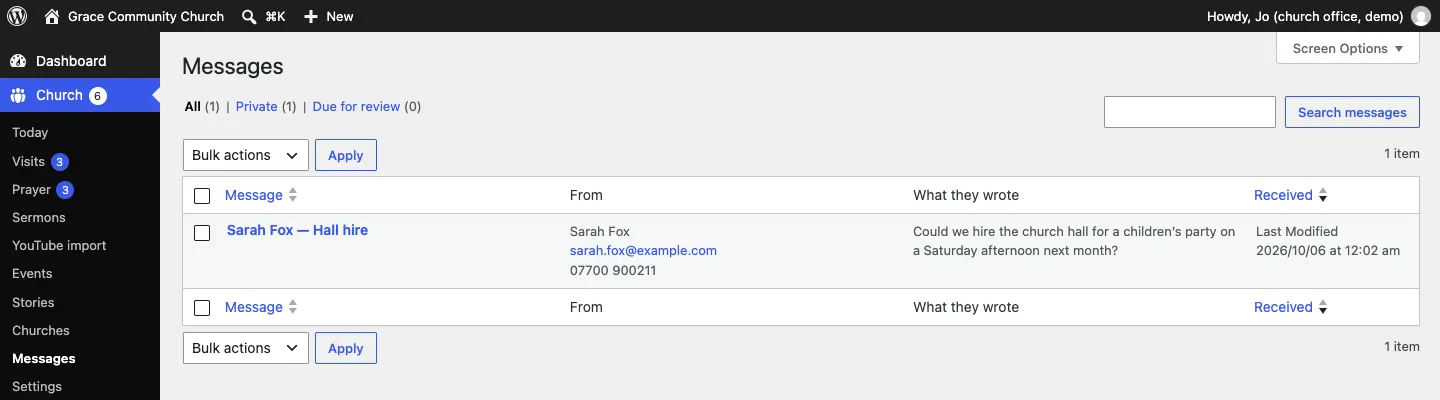
Go to Church → Messages. The list shows who it's from, their contact details and what they wrote.
-
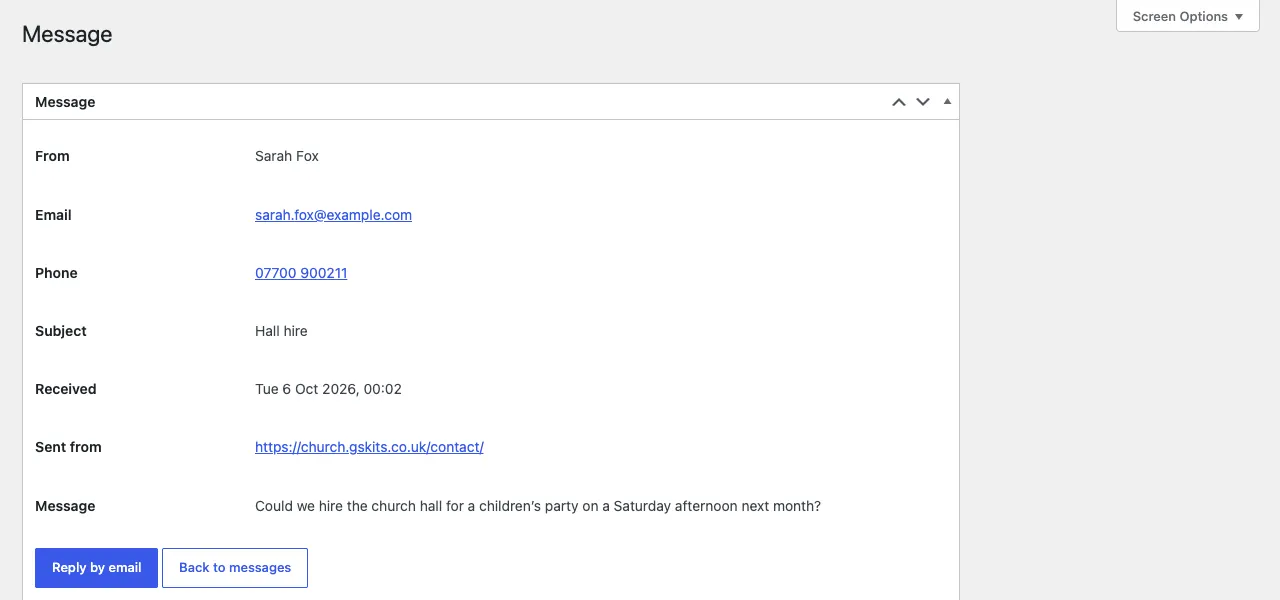
Click the message to open it, then click Reply by email (or reply to the notification email you received). Back to messages returns to the list.
How to set up the contact form
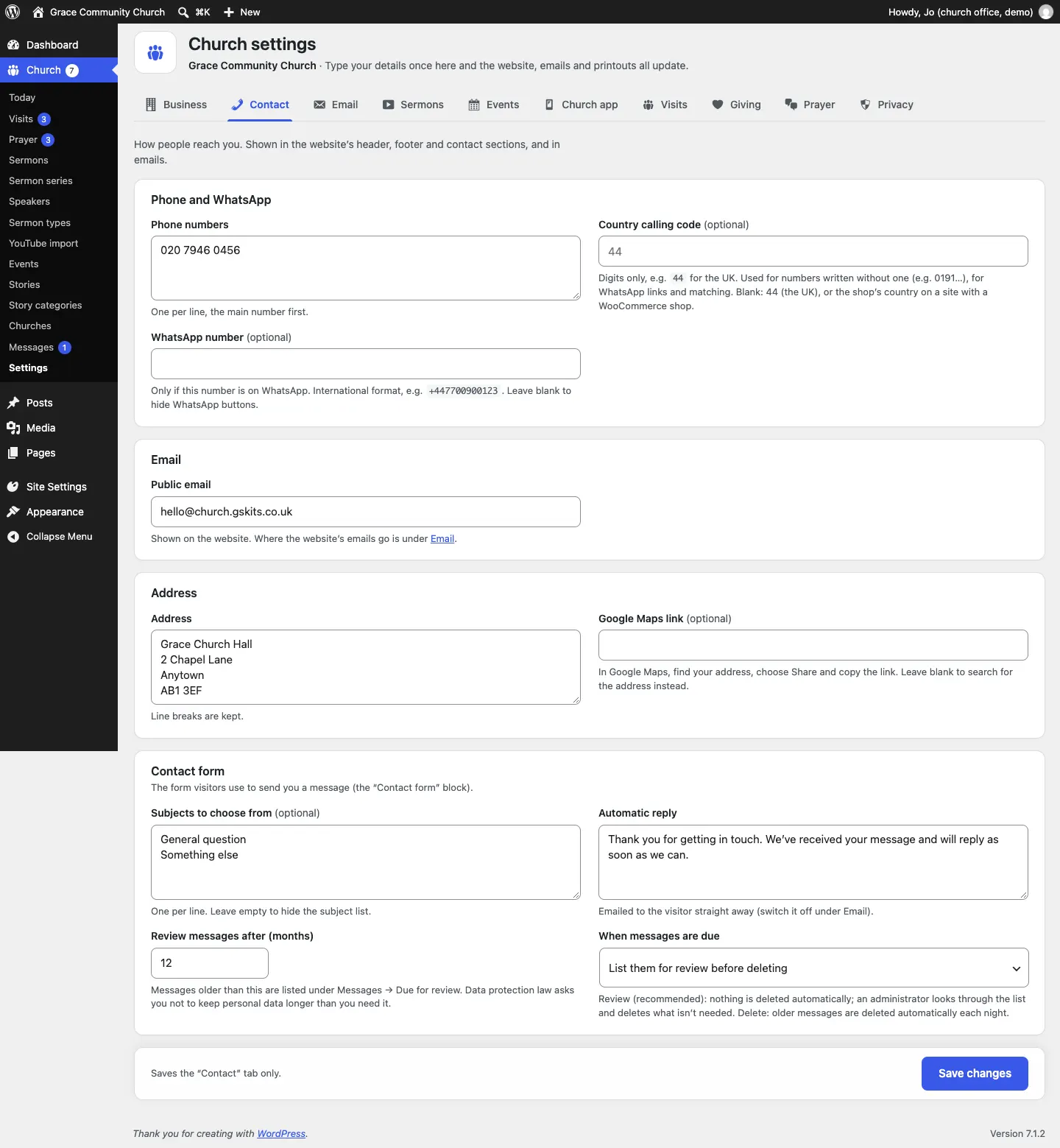
Go to Church → Settings → Contact. Under Contact form:
- Subjects to choose from (optional): one per line, for example "Hall hire". Leave empty to hide the subject list.
- Automatic reply: the words emailed to the visitor straight away (switch it off under Email → Thanks for your message).
- Review messages after (months) and When messages are due: List them for review before deleting (recommended) or Delete them automatically.
Click Save changes. Old messages appear under Messages → Due for review.
See Privacy and emails for more about the emails the website sends.